RestoSuite Supplier
1 Overview
RestoSuite Supplier delivers end-to-end operational management of order acceptance, fulfillment and reconciliation for upstream suppliers of foodservice enterprises, enabling efficient information collaboration across the supply chain of foodservice businesses and eliminating errors caused by information asynchronicity.
1.1 Installation Addresses
RestoSuite Supplier (Mainland China):
- Android: https://www.restosuite.cn/zh_cn/download-center/RsSupplier
- iOS: https://apps.apple.com/app/id6737823364
RestoSuite Supplier (Overseas):
- Android: https://play.google.com/store/apps/details?id=ai.restosuite.inc.supplier.sea
- iOS: https://apps.apple.com/us/app/restosuite-supplier/id6751874928
2 Account Setup
2.1 Add External Supplier Account to PC End
STEP 1: From Group Perspective, Go to【Operation Center】>【Basic Services】>【External Accounts】
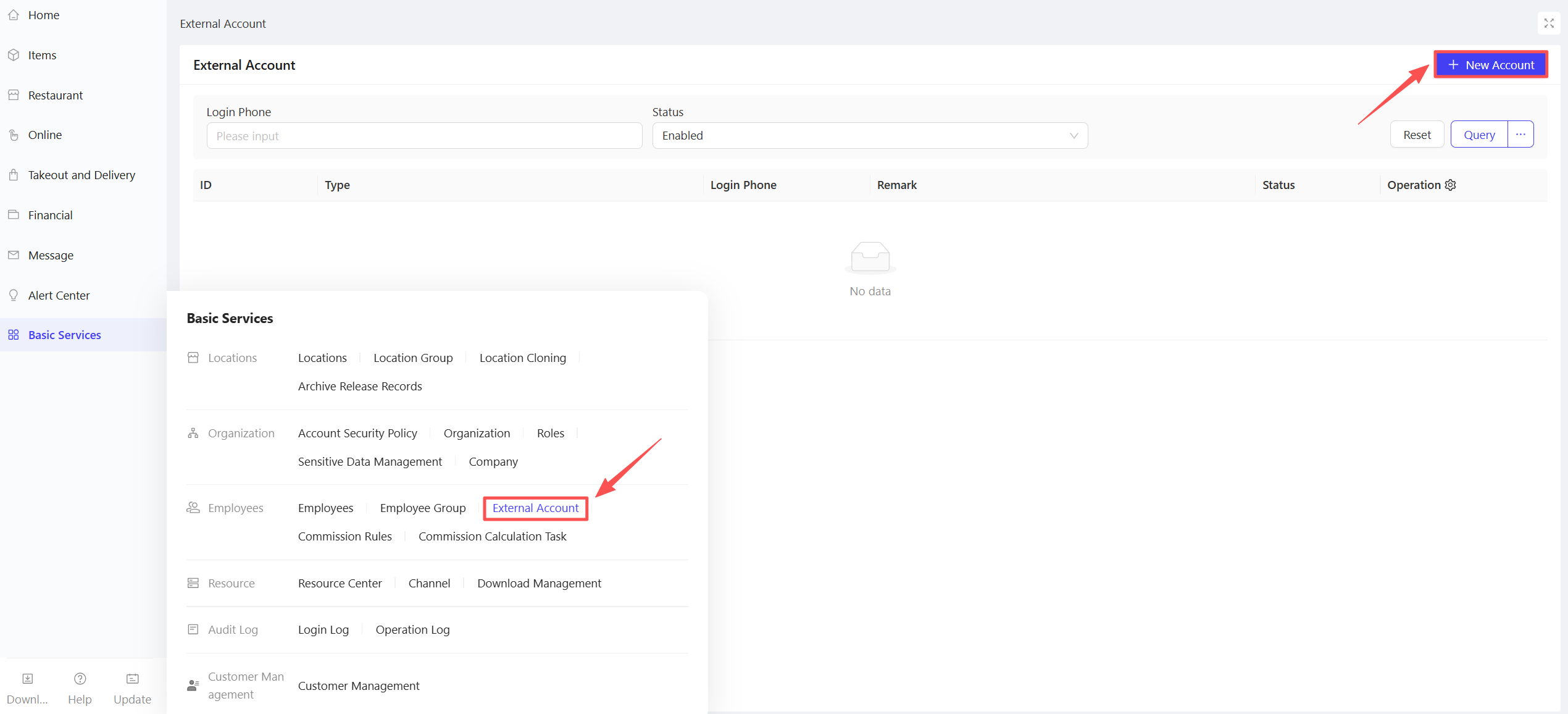
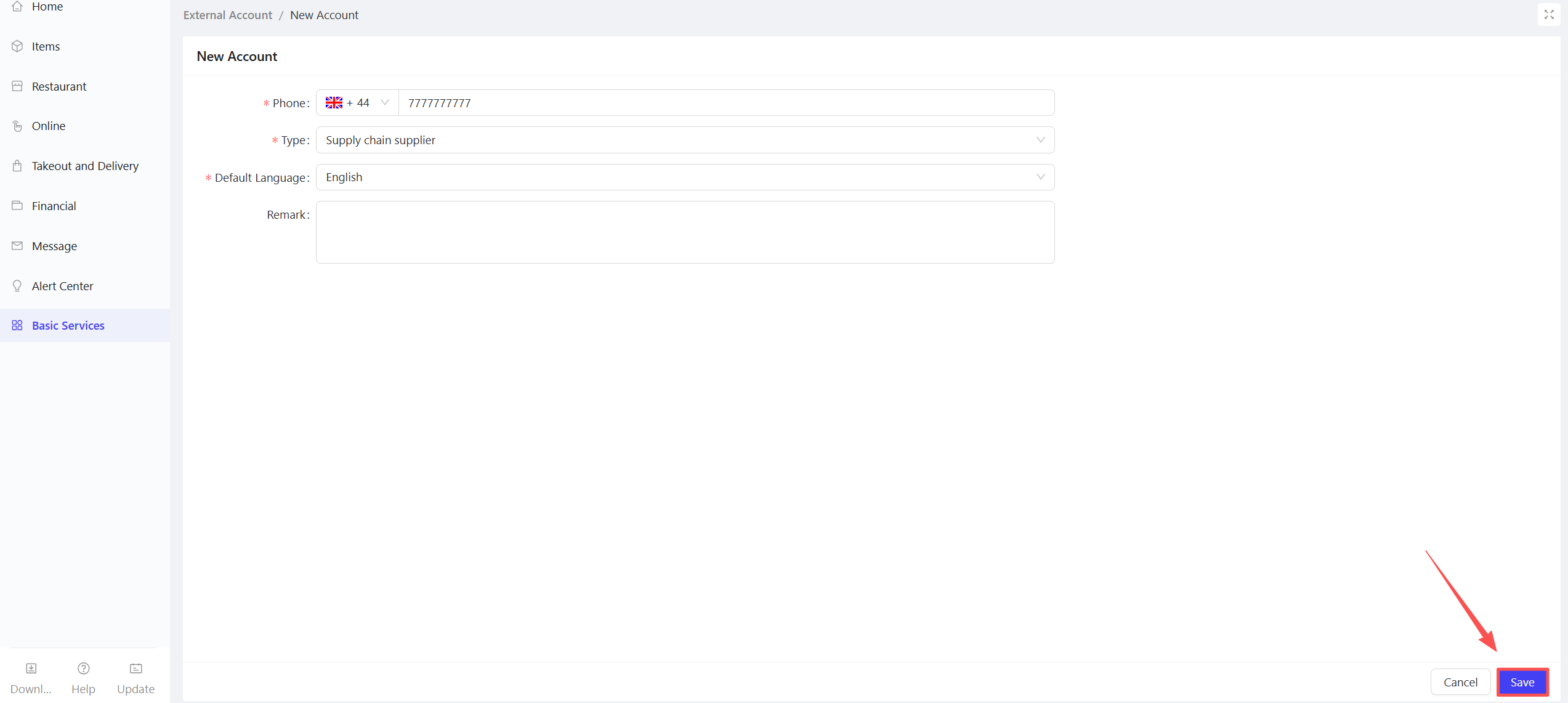
STEP 2: Click【Add New Account】, fill in supplier information, and Click【Save】, as detailed below:
2.2 Bind Mobile Phone Number in Supplier Profile
STEP 1: From the Group Perspective, Go to【Supply Chain】>【Supplier Management】
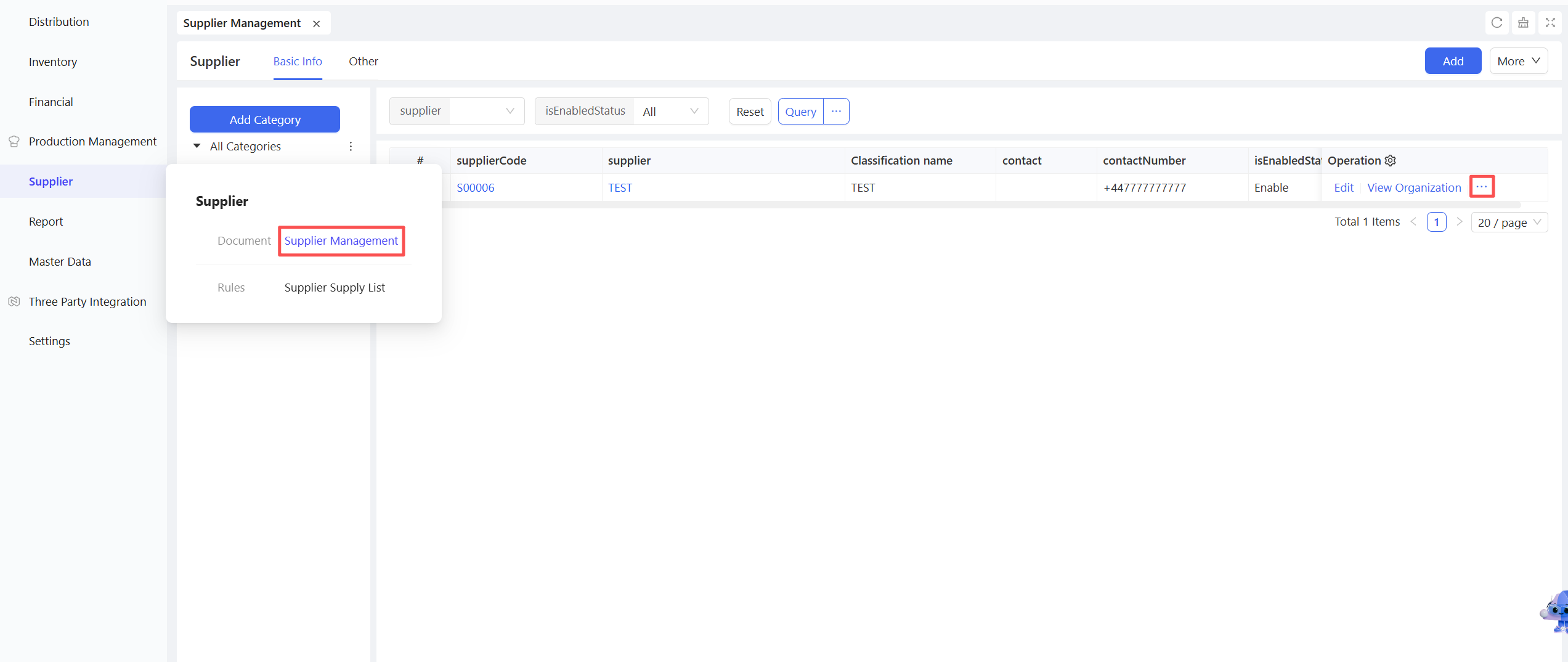
STEP 2: Select the supplier for which collaboration needs to be enabled
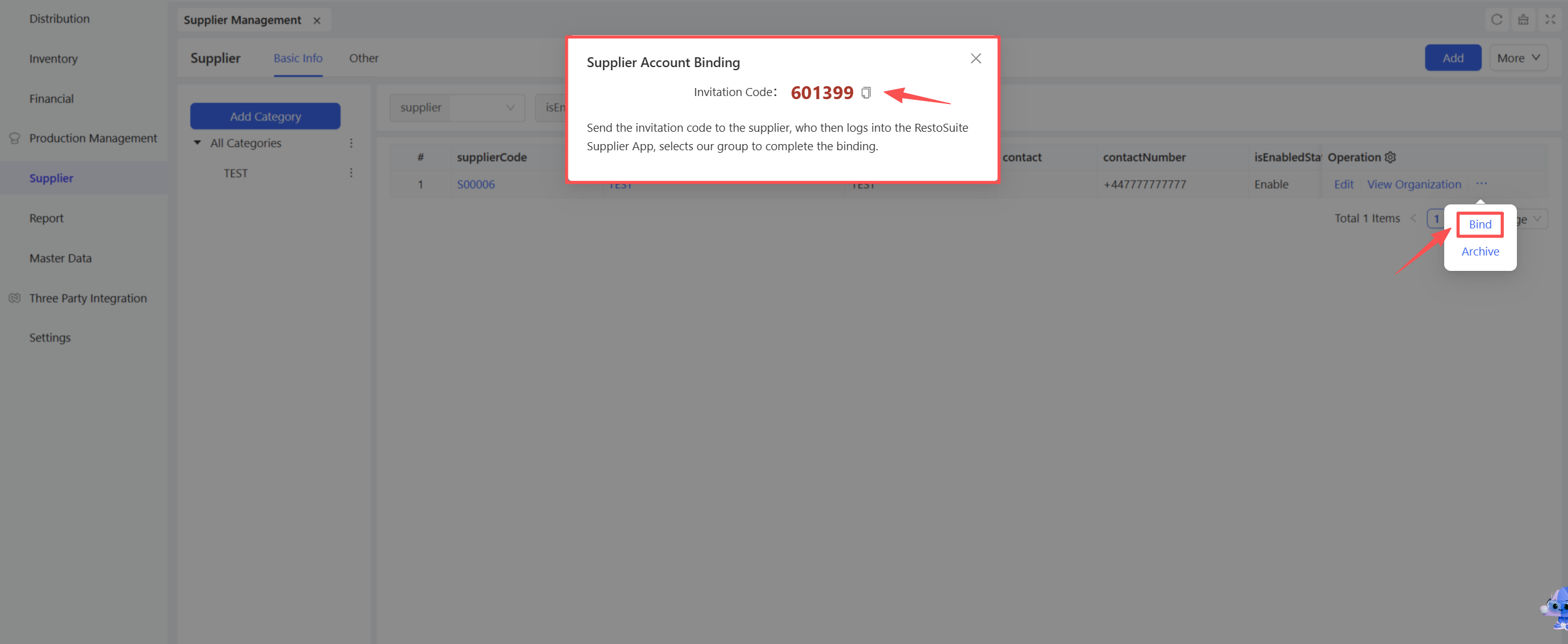
STEP 3: Click【Bind】
STEP 4: Send the invitation code to the supplier:
2.3 Invitation Confirmation on the RS Supplier End
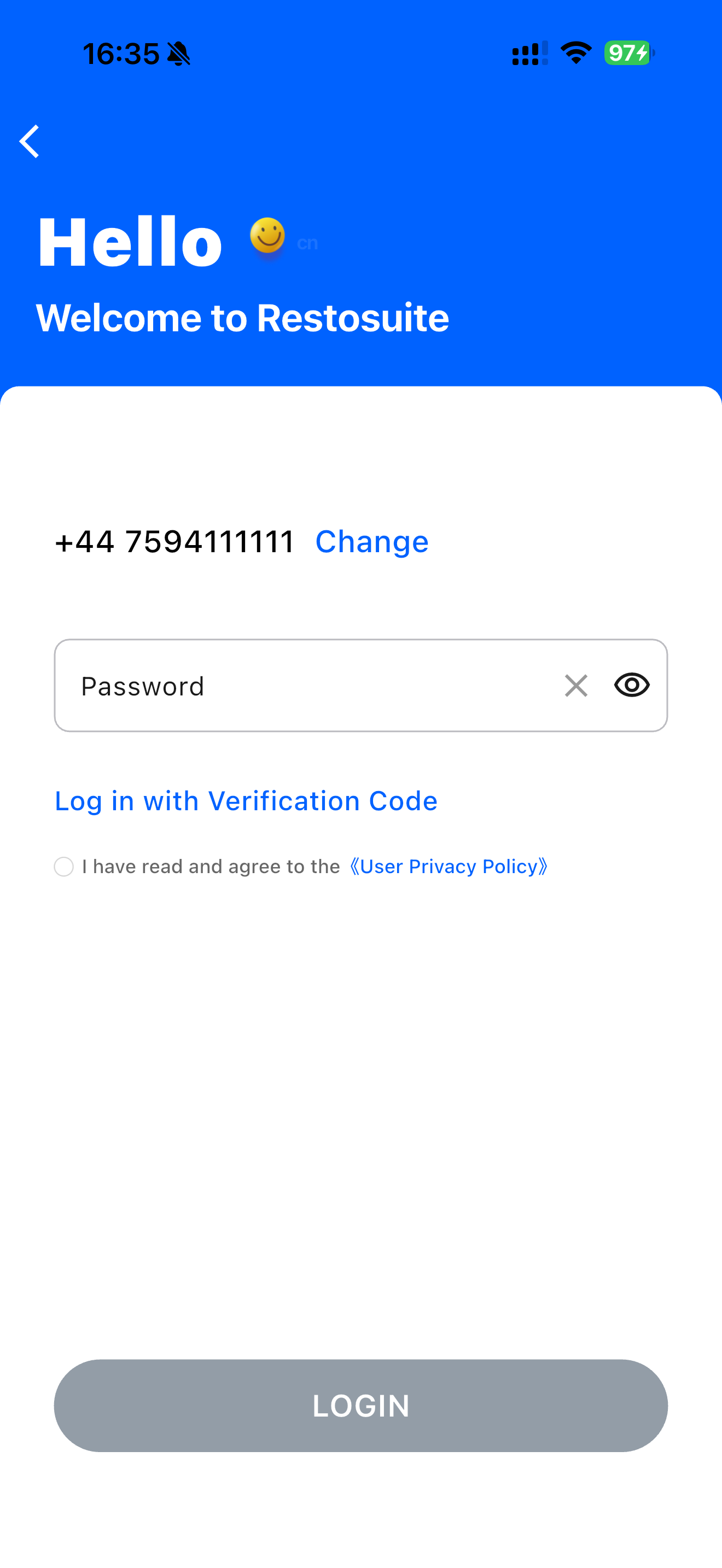
STEP 1: Log in with the mobile phone number activated in Step 1 using a verification code, then reset the password after logging in.
STEP 2: Log in again with the new password and enter the invitation code bound to the supplier: 553177
2.4 Confirm Binding in PC Supplier Profile
[Images]
2.5 Login and Usage on the RS Supplier End
- Log in directly with your mobile phone number for verification.
Note
Currently, one supplier can only have one login account.
3 APP Order Management
3.1 Function Overview
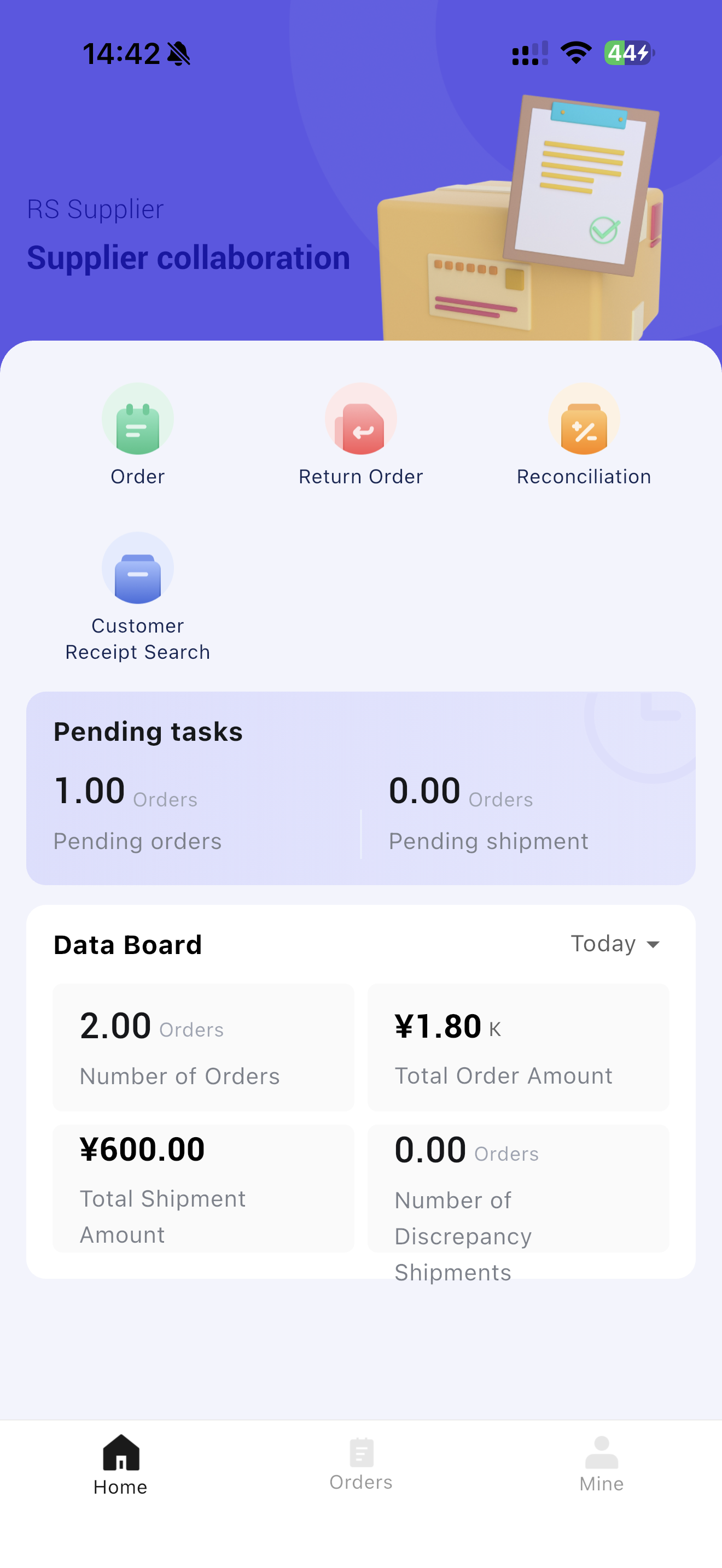
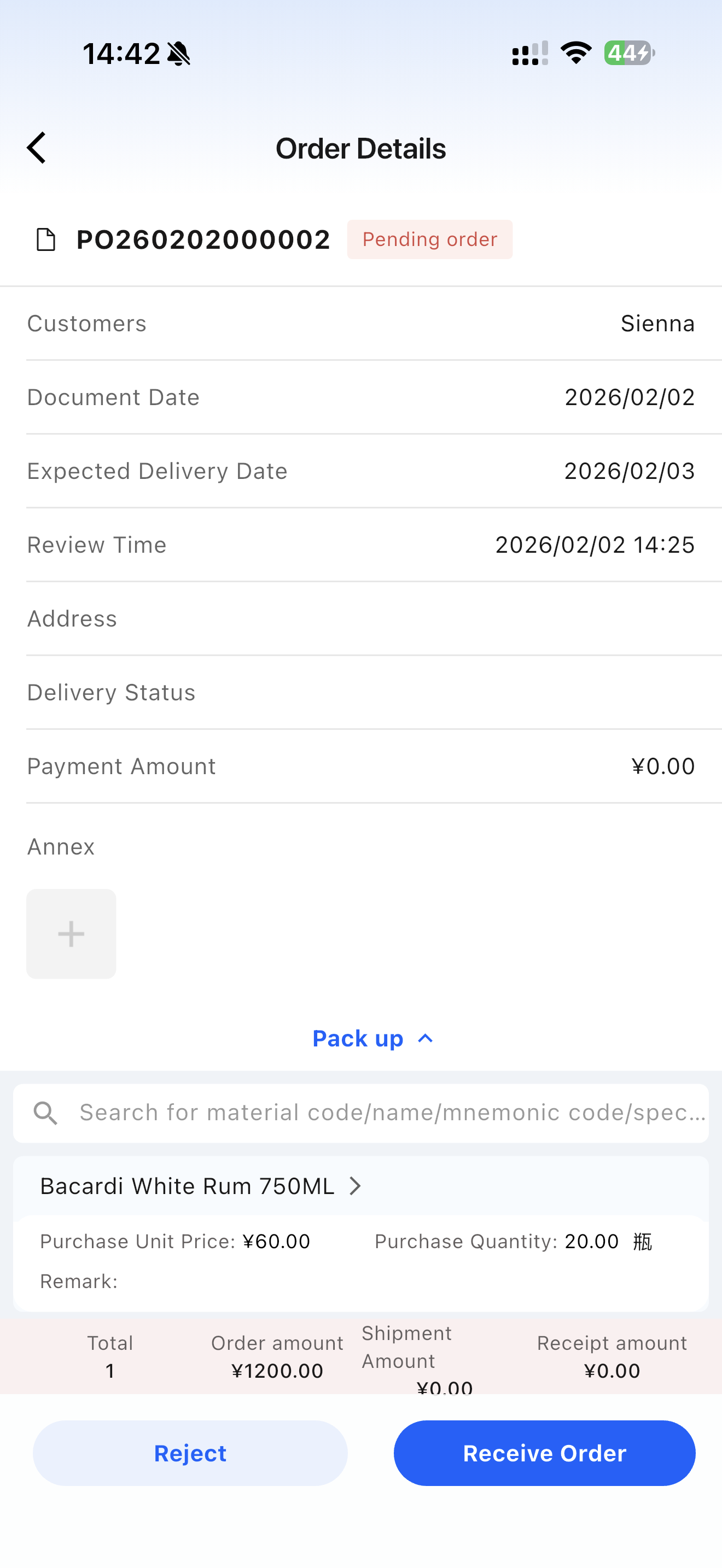
After logging into the APP, upstream suppliers of the enterprise can view the purchase orders placed by distribution centers/stores, and perform operations such as order acceptance, shipment, and checking receipt status and discrepancies.
3.2 Operation Instructions
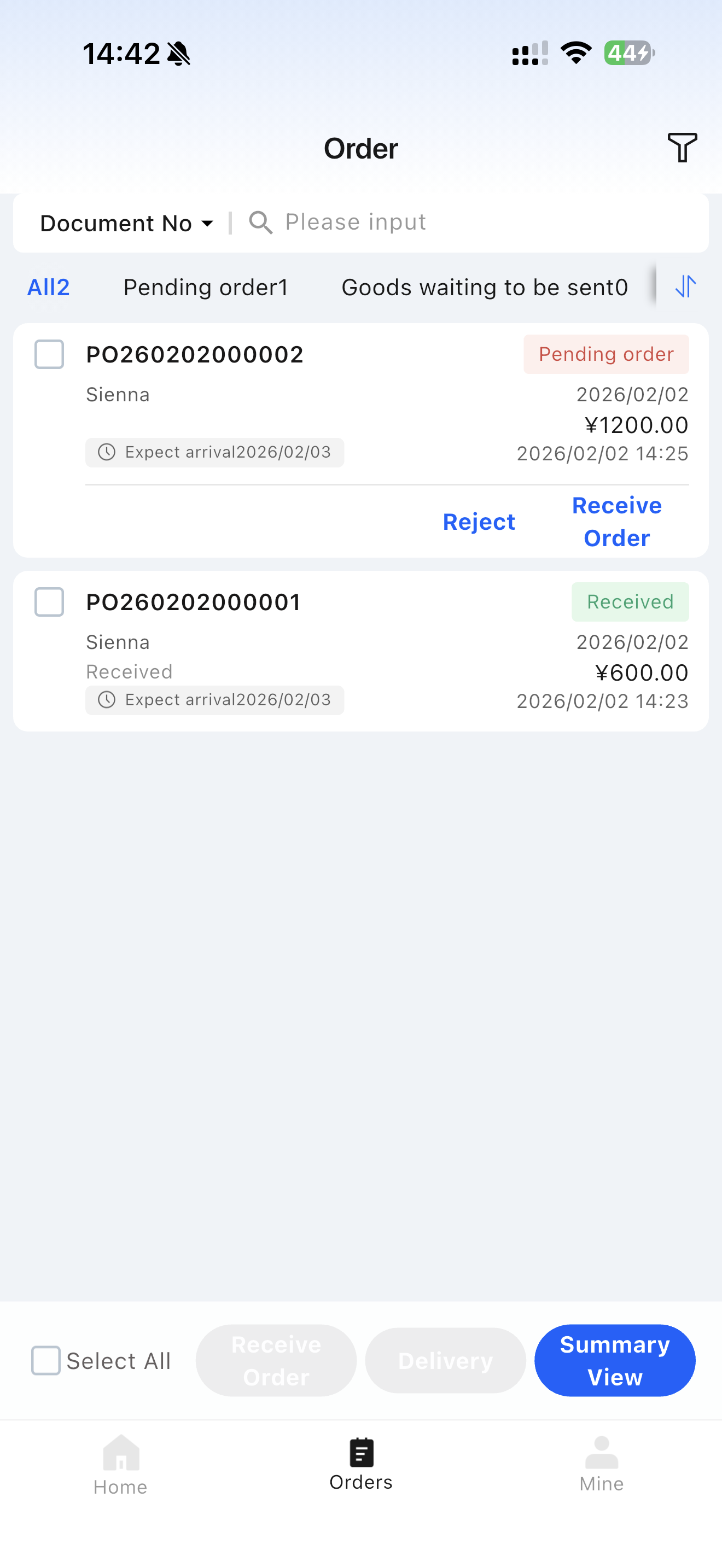
- On the homepage - Orders, open the order list. You can click to view order details and perform operations such as “Accept Order/Cancel Order Acceptance/Ship/Cancel Shipment” according to the order status.
- Click【Summary View】to query the merged status of multiple orders, facilitating suppliers to ship orders in bulk.
3.3 Notes
- For direct store shipment orders, there is a parameter to determine whether the distribution center needs to review before synchronizing to the collaboration end.
4 APP Return Management
4.1 Function Overview
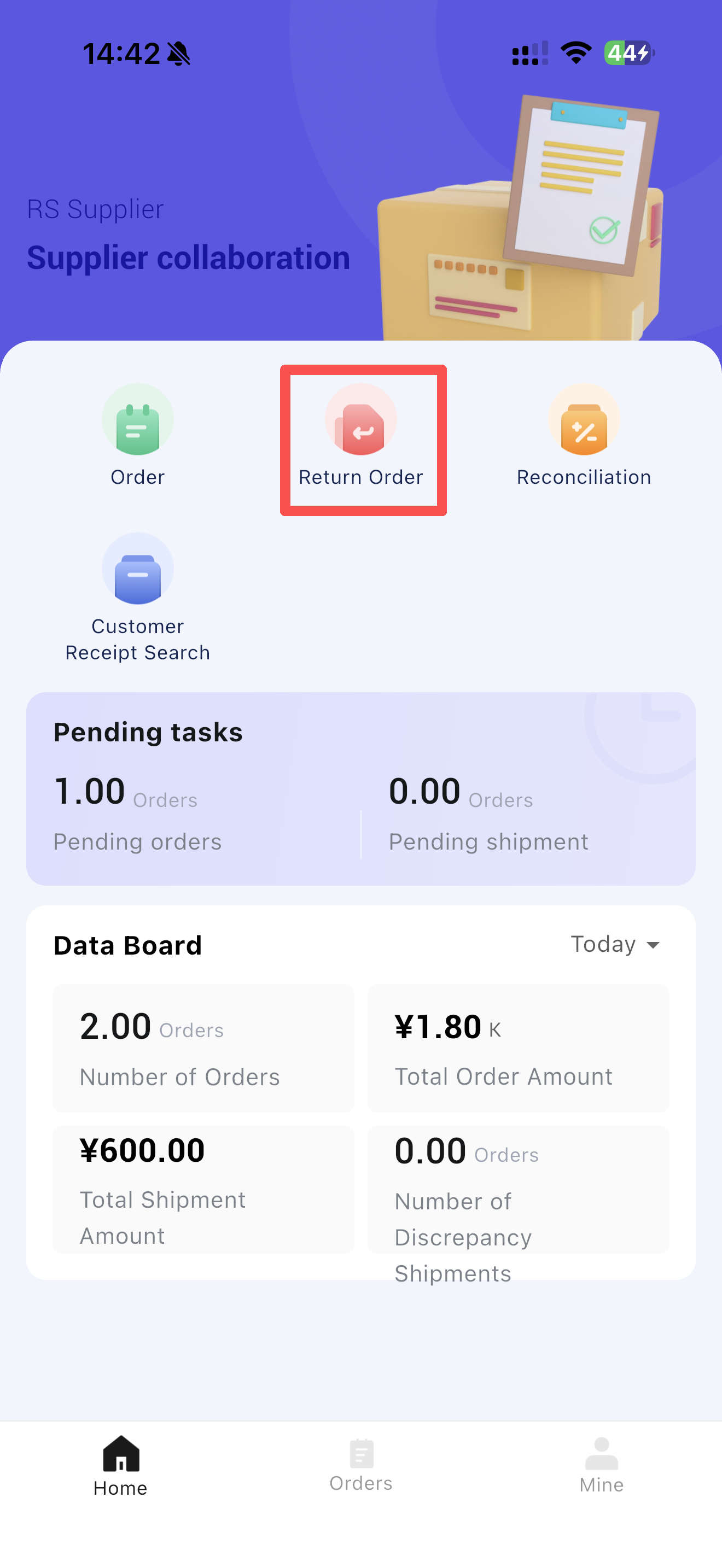
Returns from distribution centers and stores, after being processed by the distribution center, can be synchronized to the supplier collaboration end. Suppliers can view the pending return information to facilitate receiving returned goods.
4.2 Operation Instructions
On the homepage - Returns, enter the return list to view the pending return information from customers.
4.3 Notes
Currently, only return orders processed by the distribution center can be viewed on the collaboration end.
5 APP Customer Receipt Inquiry
5.1 Function Overview
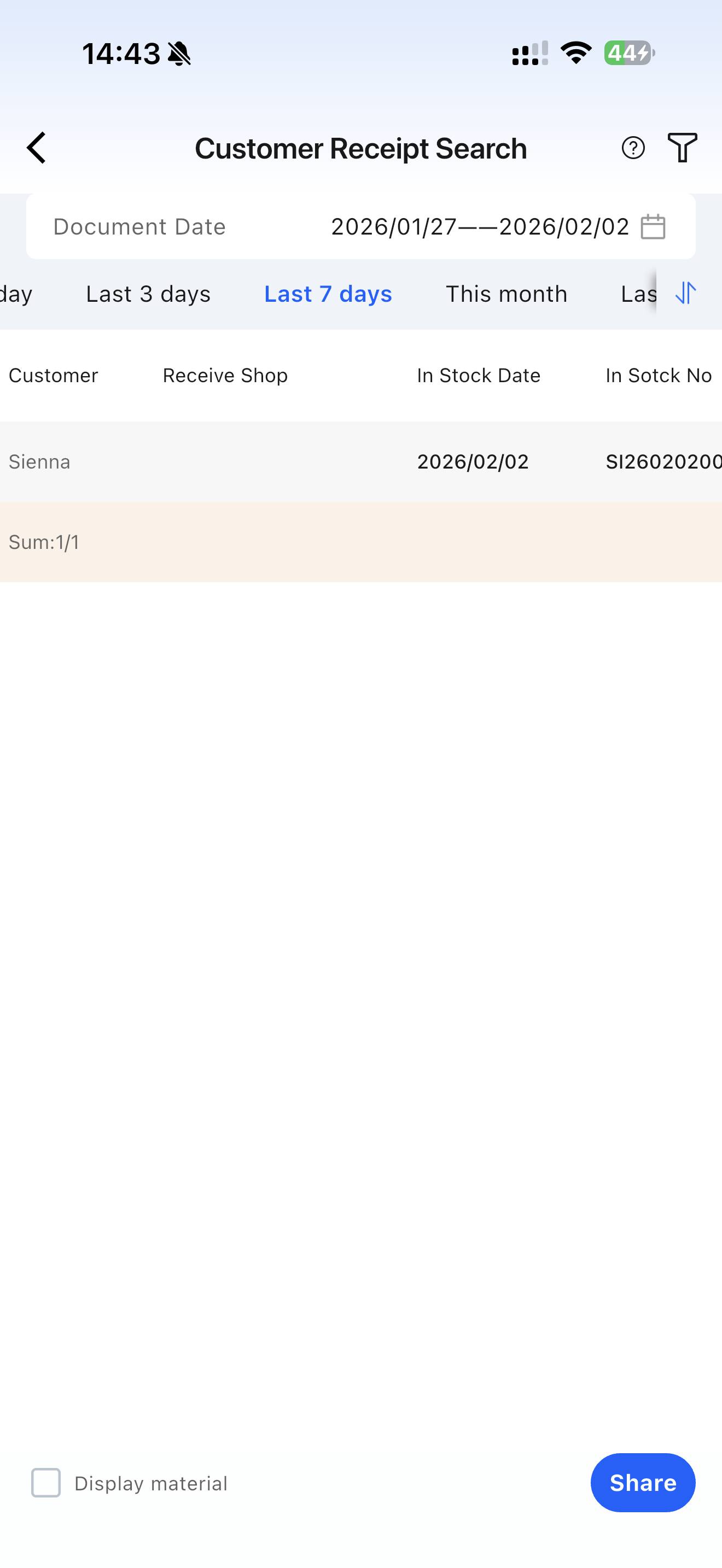
This function allows suppliers to query the number of inbound and return transactions performed by “distribution centers/stores” within a specific time period. Data is retrieved based on purchase inbound/return orders.
5.2 Operation Instructions
On the homepage — Customer Receipt Search, enter the query report. It supports querying the total amount by entire order and the detailed amount by material, facilitating reconciliation with customers.