Card Collection Activity
1 Module Introduction
Card Collection Activity is an engaging marketing tactic that boosts user stickiness and drives low-cost traffic acquisition and viral sharing. Users earn card-drawing chances by completing activity tasks and redeem generous rewards upon collecting a full card set. This guide details setting up and managing the activity on the SaaS platform, covering configuration, page customization, management, and the end-user (C-side) interaction flow.
2 Configuration Guide
2.1 Accessing the Feature
- Log in to the SaaS platform backend
- Navigate to【Membership Marketing】>【Marketing】>【Marketing Activities】.
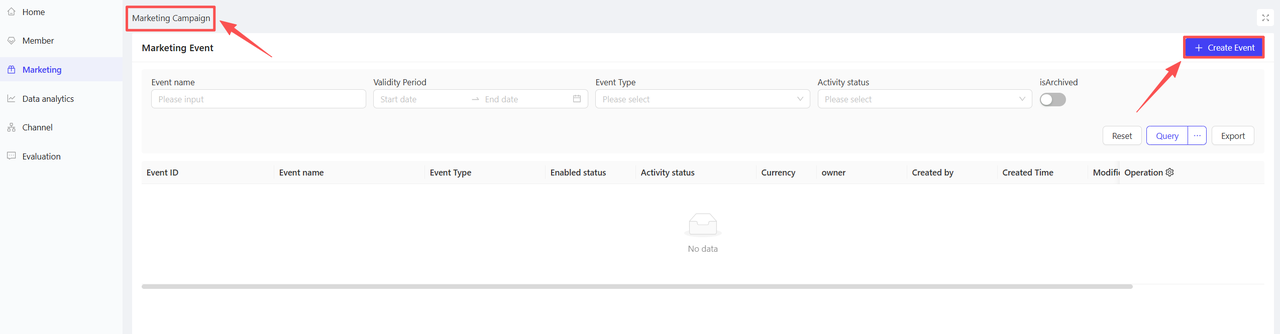
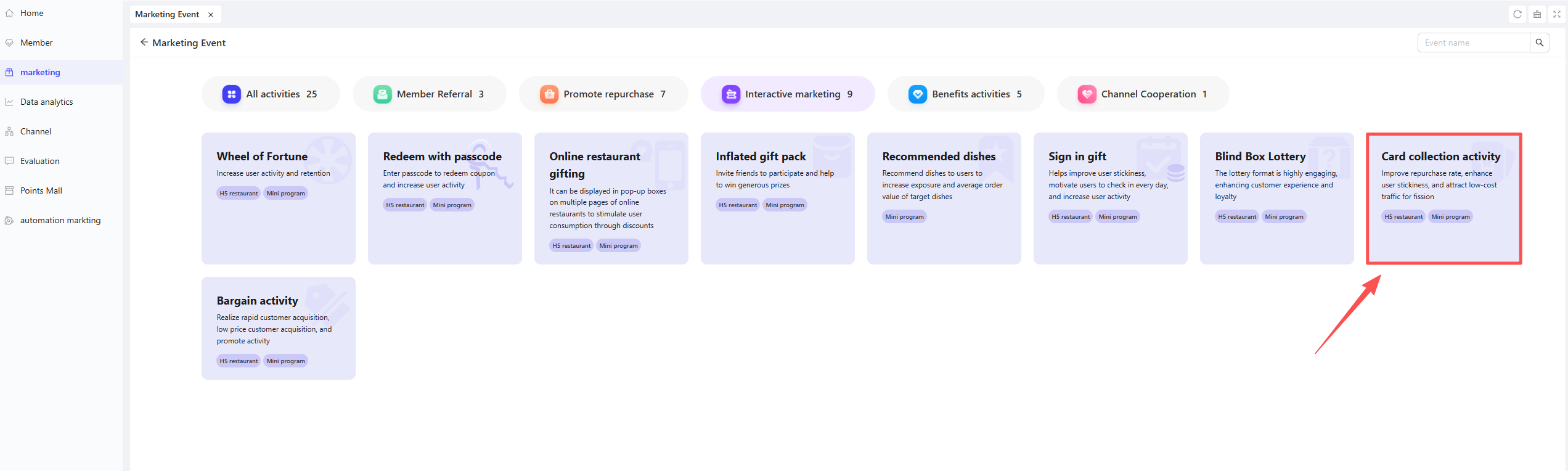
- Click【Create Activity】in the upper-right corner of the page, select the Card Collection Activity module.
2.2 Basic Settings
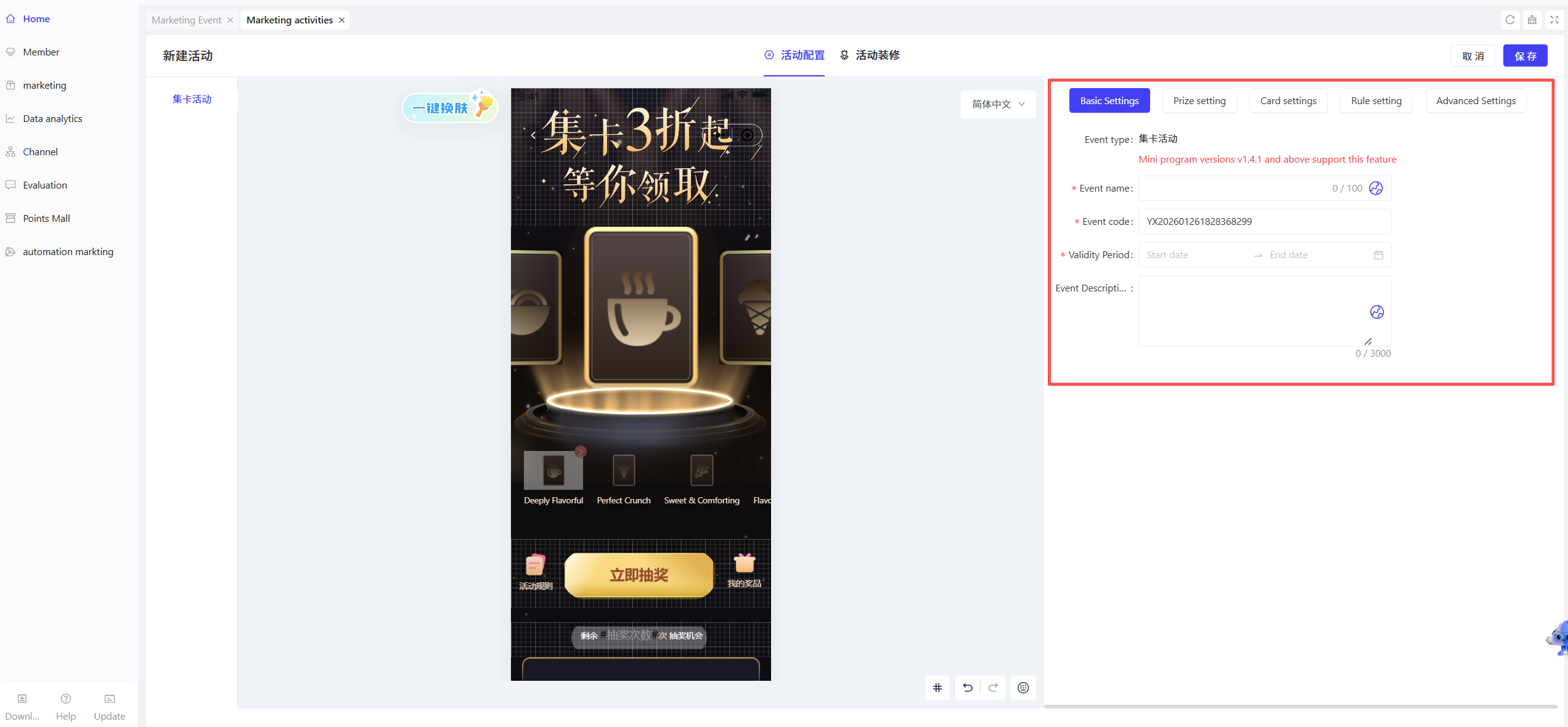
- Complete the basic configuration details
- Activity Name: Enter a clear name for easy customer identification.
- Example: National Day Golden Week · Collect Cards to Win Big Prizes
- Activity Code: Assign a unique identifier for internal management and tracking purposes.
- Validity Period: Select the start and end dates of the activity and ensure rational time framing.
- Description: Briefly outline the activity details and rules with clear and concise language.
- Activity Name: Enter a clear name for easy customer identification.
2.3 Prize Settings
-
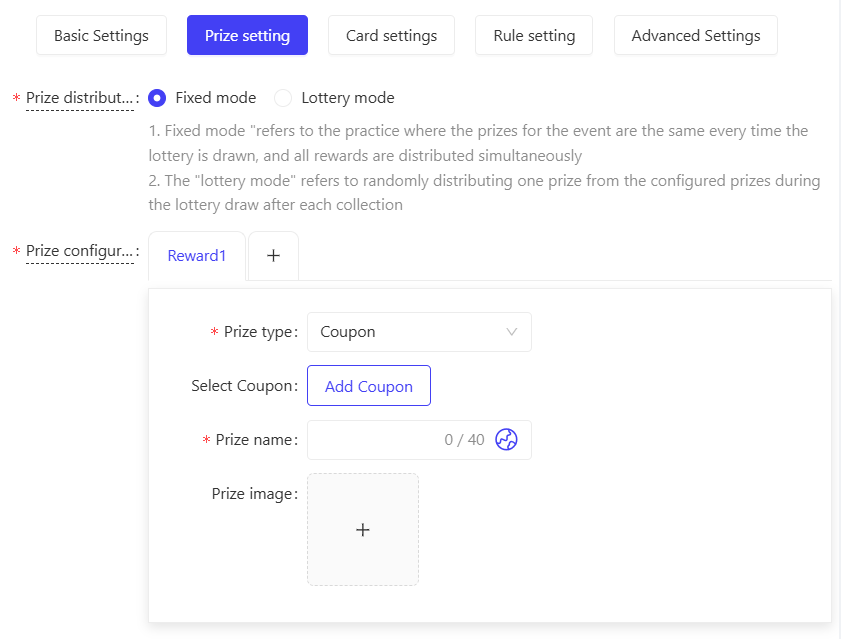
Select the prize distribution method: Set how users receive rewards after collecting a full card set
- Fixed Reward Mode: The same prizes are awarded for every full set redemption, with all rewards issued simultaneously.
- Example: If the activity is set with a fixed reward of $10 Off $50 Coupon, all users who collect a full set will receive this exact coupon upon redemption.
- Raffle Mode: A random prize is issued from the configured prize pool for every full set redemption.
- Example: If the activity is set with prizes including an iPhone, coupons, and a consolation prize, the system will randomly award one of the prizes to users upon redemption based on preset probabilities.
- Fixed Reward Mode: The same prizes are awarded for every full set redemption, with all rewards issued simultaneously.
-
Configure prize details: A maximum of 6 reward types can be added; multiple prizes are only required for the Raffle Mode.
- Prize Type: Select a prize type from the dropdown menu (4 options available):
- Coupons: Select pre-created coupons as prizes; coupons will be automatically issued to the user’s account upon completing the card collection.
- Coupon Pack: Select pre-created coupon bundles as prizes; bundles will be automatically issued to the user’s account upon completing the card collection.
- Physical Prizes: Merchandise requiring offline redemption or delivery (e.g., mobile phones, water bottles).
- Better Luck Next Time: A virtual consolation prize for non-winning redemptions (Raffle Mode only). No prize stock setting is required for this option, and its winning probability remains valid at all times.
- Coupons: Select pre-created coupons as prizes; coupons will be automatically issued to the user’s account upon completing the card collection.
- Prize Name: Enter a clear name for easy customer identification.
- Winning Probability: Enter the winning probability as a percentage (Raffle Mode only). The sum of winning probabilities for all prizes must equal 100%.
- Prize Stock: Enter the available quantity of the prize (a positive integer greater than 0); distribution stops once stock is exhausted (Raffle Mode only).
- Prize Image: Upload an image of the prize for customer reference.
- Launch Time: Select the specific start and end dates for the prize’s distribution (restrictions optional).
- Prize Type: Select a prize type from the dropdown menu (4 options available):
2.4 Card Settings
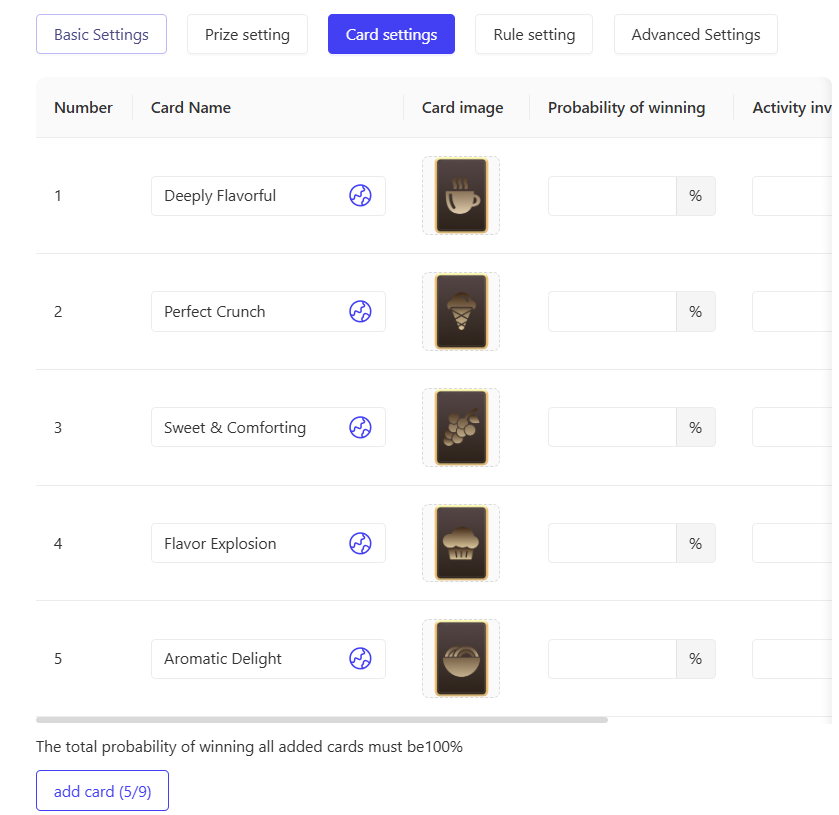
- Configure card details, rules and styles: A maximum of 9 cards can be added.
- Card Name: Enter a clear name for easy customer identification.
- Examples: Dedication Card, Fortune Card, Good Luck Card
- Card Image: Upload a custom image for the card design.
- Drawing Probability: Set the probability of drawing the card.
- Note: The sum of drawing probabilities for all added cards must equal 100%.
- Activity Stock: Set the maximum total quantity of the single card to be issued during the activity. This setting controls activity costs or creates scarcity, and users will no longer be able to draw the card once the stock is exhausted.
- Note: If both Drawing Probability and Total Issuance Quantity are set, the quantity limit takes priority.
- Example: A Good Luck Card is added with a stock of 1,000 and a 20% drawing probability. Once 1,000 cards are issued, the card will no longer be available for all users, and its 20% drawing probability will be automatically invalidated for subsequent task completions.
- Card Name: Enter a clear name for easy customer identification.
2.5 Rule Settings
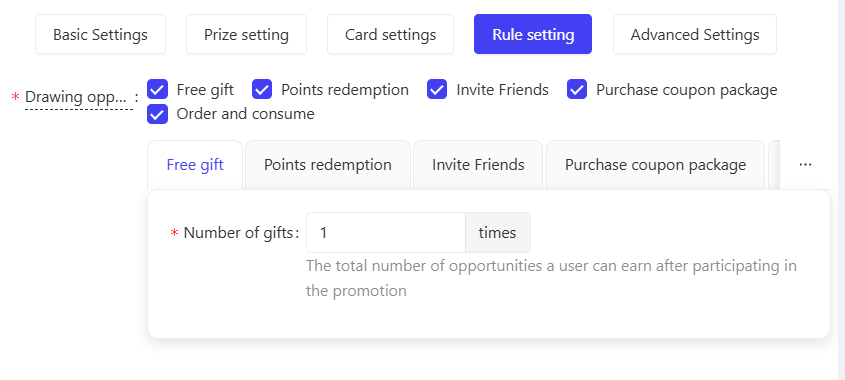
- Set the methods for users to obtain card-drawing chances (at least one method must be enabled):
- Free Allocation: Set the number of free card-drawing chances per user during the activity period.
- Points Redemption: Set the number of points required to redeem one card-drawing chance.
- Friend Invitation
- Chances Earned: Set the number of card-drawing chances awarded for each successful friend referral.
- Daily Invitation Limit: Set the maximum number of friends a user can invite per day.
- Note: It is recommended to set the daily limit to no more than 5 to avoid account restrictions on WeChat.
- Total Invitation Limit: Set a maximum total referral limit (unrestricted option available).
- Coupon Pack Purchase
- Eligible Bundles: Select the range of coupon bundles that qualify for card-drawing chances (all or specific bundles).
- Earning Rule: Set the number of card-drawing chances added per paid coupon bundle order.
- Daily Task Limit: Set the maximum number of eligible paid coupon bundle orders a user can complete per day.
- Example: 2 card-drawing chances per paid bundle order, with a daily task limit of 2 orders = a maximum of 4 card-drawing chances per day via this method.
- Order Placement & Purchase
- Earning Rule: Set the number of card-drawing chances added per qualifying order.
- Daily Task Limit: Set the maximum number of eligible orders a user can complete per day.
- Example: 2 card-drawing chances per order, with a daily task limit of 2 orders = a maximum of 4 card-drawing chances per day via this method.
- Order Type: Select the order types that qualify (Dine-In, Self-Pickup, In-House Delivery).
- Order Channel: Select the order source channels (POS, ONLINE).
- Note: If channels are restricted, users only qualify for chances when placing orders through the specified channels and meeting all other criteria.
- Minimum Order Amount: Set the minimum payable amount for a qualifying order (restrictions optional).
- Example: A minimum payable amount of $30 = users only earn chances for orders with a total payable amount of ≥$30.
- Store Scope: Select the eligible stores (all stores, individual stores, or store groups).
- Item Scope: Select the eligible items (by category, individual item, or all store items).
2.6 Advanced Settings
-
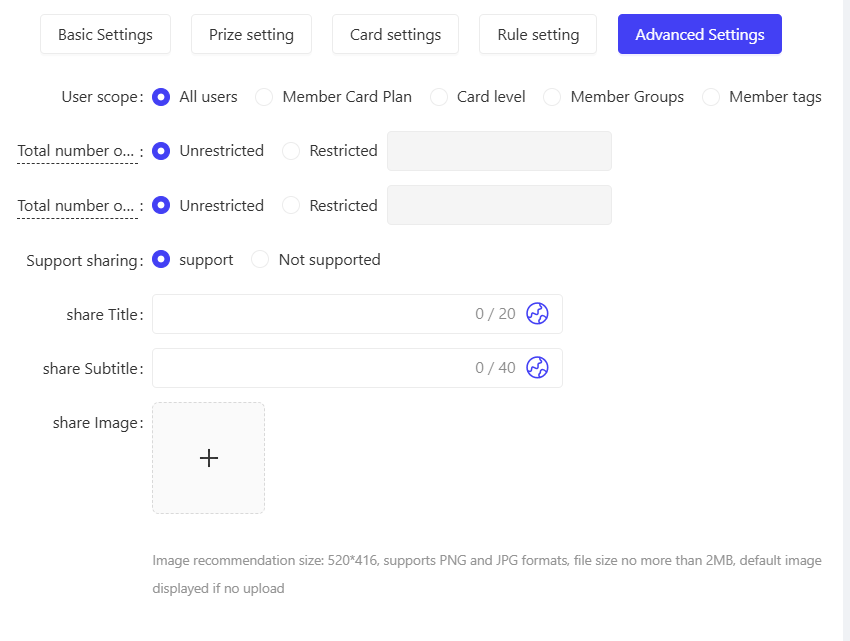
User Scope: Select the specific user groups eligible for the activity based on the following five dimensions:
- All Users: Open to all platform users.
- Membership Card Plan: Filter users by one or more membership card plans.
- Membership Card Tier: Filter users by different tiers under the membership card plan.
- Member Group: Filter users by one or more pre-defined member groups.
- Member Tag: Filter users by one or more member tags (e.g., New User, Loyal User).
-
Maximum Total Participation: Set the maximum number of times a single user can participate in the activity (restrictions optional, e.g., 3 participations per user).
-
Maximum Daily Participation: Set the maximum number of times a single user can participate in the activity per day (restrictions optional, e.g., 1 participation per day).
3 Activity Decoration
- Decorate the activity page
Click Page Decoration in the action bar to enter the customization interface. Customize the activity homepage layout via drag-and-drop components:
- Page Settings: Set the background color or background image for the entire page.
- Header: Configure header functions and styling.
- Containers: Design the page’s specific style and layout via drag-and-drop in the left-side H5 editor. Add components (e.g., images, buttons) to enrich the page.
- Task List: Customize the page style of the activity task list module.
- Invitation List: Customize the page style of the activity friend invitation list module.
4 Activity Activation & Management
-
Activity Activation
- After completing all configurations, click Save to activate the activity officially.
-
Activity Management & Monitoring
- View real-time activity performance data on the activity Management page (e.g., order volume, participation metrics).
- Pause or adjust activity details at any time; manually archive the activity when needed.
5 User Journey (End-User Experience)
-
Login to Participate: Users must log in to their accounts to join the activity.
-
Activity Homepage: The page displays intuitive card slots for all activity cards, clearly showing the user’s collected and uncollected cards.
-
Card Acquisition: Users randomly draw cards by completing preset tasks (e.g., check-in, order placement, friend invitation).
-
Prize Redemption:
- The Redeem button becomes clickable when the user collects a full set of cards.
- Click Redeem – the user’s full card set is consumed, and the prize (e.g., coupon) is automatically issued to their account.
-
Activity Rules: A detailed explanation of the activity rules is available at the bottom of the activity page.