KIOSK
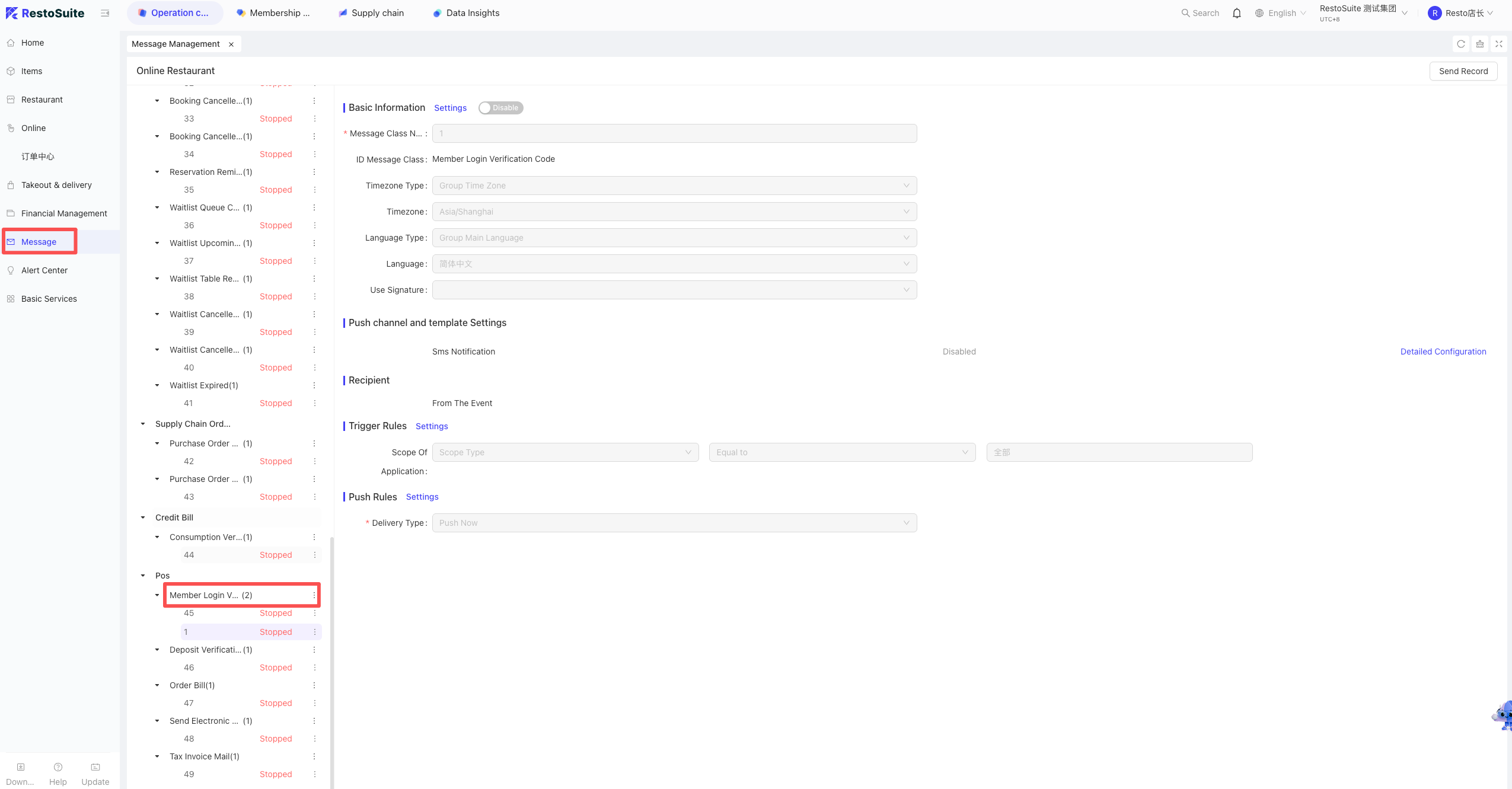
1 Why are members not receiving verification codes when paying with a member card on the Kiosk?
A: Check if the “Member Login Verification Code” feature is enabled.
Path: Log in to the BO (Back Office) → Group Level → Operation Center → Message Center → Message Management → Member Login Verification.
2 Does the Kiosk support displaying specific service areas (e.g., specific dining zones)?
A: Yes, this is supported. This feature is supported in software version 33 and above.
Path: Go to Kiosk Settings → select “Table Area Selection.”
3 Why does the modifier pop-up not appear on the Kiosk despite being set up for the item?
A: Please check if the “Modifier Group” is configured for the “Self-Service Kiosk” channel.
- Ensure the Kiosk is selected in the Applicable Channels settings for that specific group.
4 Does Kiosk support sound notifications?
A: No. Sound notifications are currently not supported.
5 How do I display “Sold Out” items on the Kiosk?
STEP 1: On the Home screen, long-press the Language Switch button.
STEP 2: Enter your login password.
STEP 3: In the Settings menu, enable “Show Sold Out Items.”
6 How do I enable Scan-to-Pay (QR Code Payment) on the Kiosk?
STEP 1: On the Home screen, long-press the Language Switch button.
STEP 2: Enter your login password to enter the Settings interface.
STEP 3: Click on Payment Method Settings.
STEP 4: Enable the “Scan-to-Pay” function.
STEP 5: Click Save and Apply.