Membership Information
1 Module Definition
The Member Information Module is responsible for centralized management of comprehensive data related to members and customers. It integrates basic identity information, contact details, and loyalty data such as points and tiers, providing core data support for merchants’ targeted marketing and customer service initiatives.
2 Feature Configuration
2.1 Customer Management
2.1.1 Overview
The Customer Management feature enables comprehensive management of all customer and member information on the platform. It helps merchants gain clear insights into their customer base and supports batch import of customer data, import history tracking, and manual customer creation.
2.1.2 Customer/Member Import
Function Entry:
【Membership Marketing】>【Member Information】>【Customer Management】
Function Description:
- Overview: Supports batch import of customer or member information via pre-formatted Excel files, significantly improving data entry efficiency and eliminating tedious manual input.
- Use Cases:
- Ideal for new merchants onboarding with large volumes of customer data.
- Facilitates quick import of potential customer lists before large-scale marketing campaigns for targeted follow-up and promotion.
Operation Steps & Diagrams
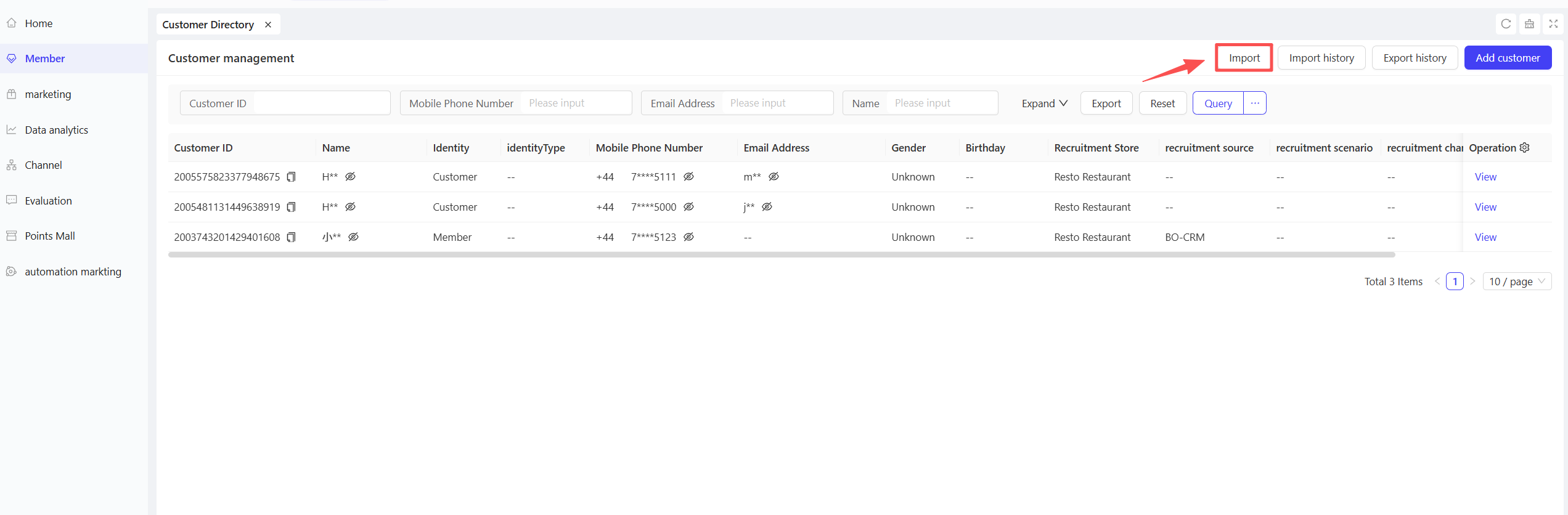
STEP 1: On the Customer Management page, click the【Import】button in the upper right corner.
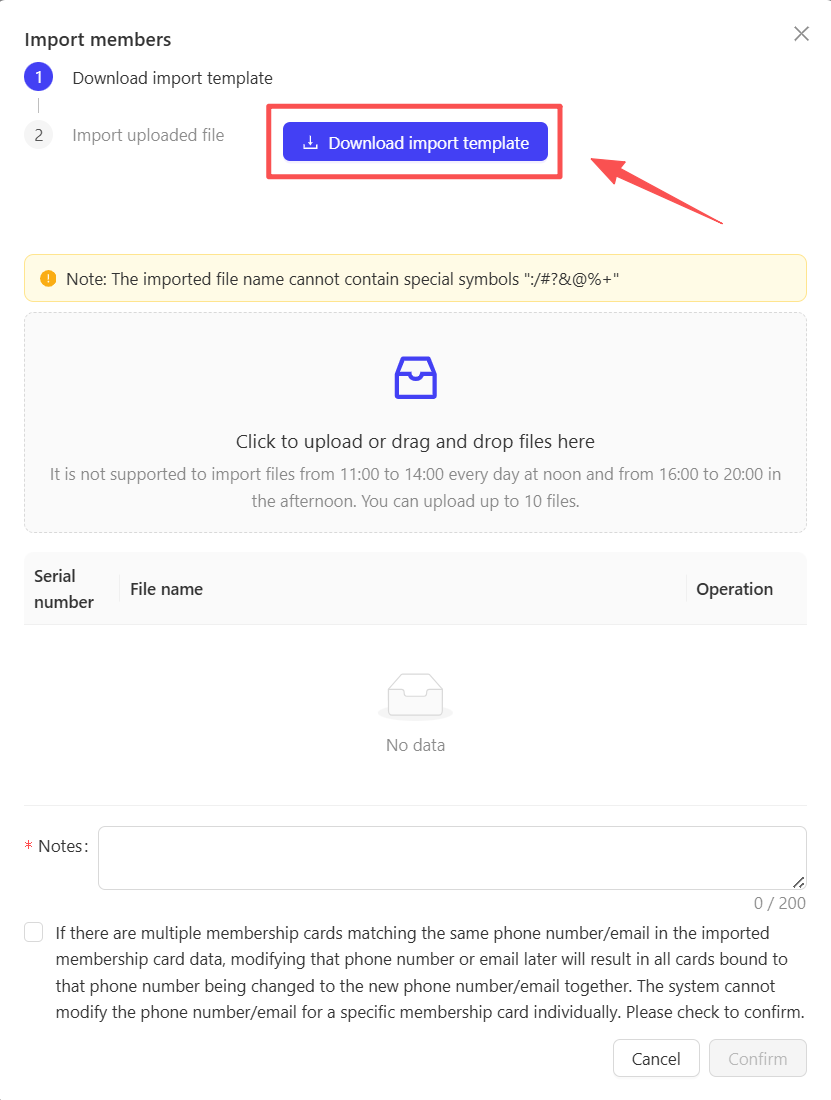
STEP 2: Download the import Excel template.
STEP 3: Fill in the relevant fields in the Excel template.
STEP 4: Upload the completed Excel file.
2.1.3 Import History
Function Entry:
【Membership Marketing】>【Member Information】>【Customer Management】
Function Description:
- Overview: Maintains detailed records of each import operation, including timestamp, operator, file name, and import results (number of successful/failed entries). This helps operators track history and troubleshoot data issues.
- Use Cases: When partial imports fail, view the import history to identify root causes (e.g., format errors, duplicate data), rectify the issues, and re-import.
Operation Steps & Diagrams
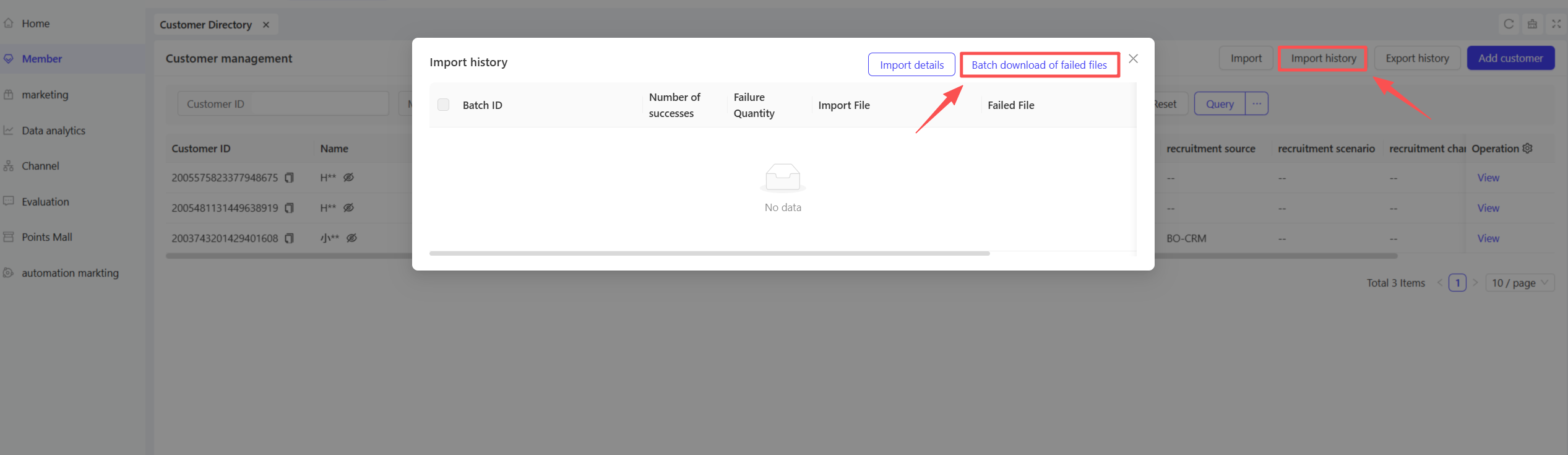
STEP 1: On the Customer Management page, click the【Import History】button in the upper right corner.
STEP 2: View historical import records and detailed breakdowns in the pop-up list.
STEP 3: Click【Batch Download Failed Files】to rectify errors and re-import.
2.1.4 Add Customer
Function Entry:
【Membership Marketing】>【Member Information】>【Customer Management】
Function Description:
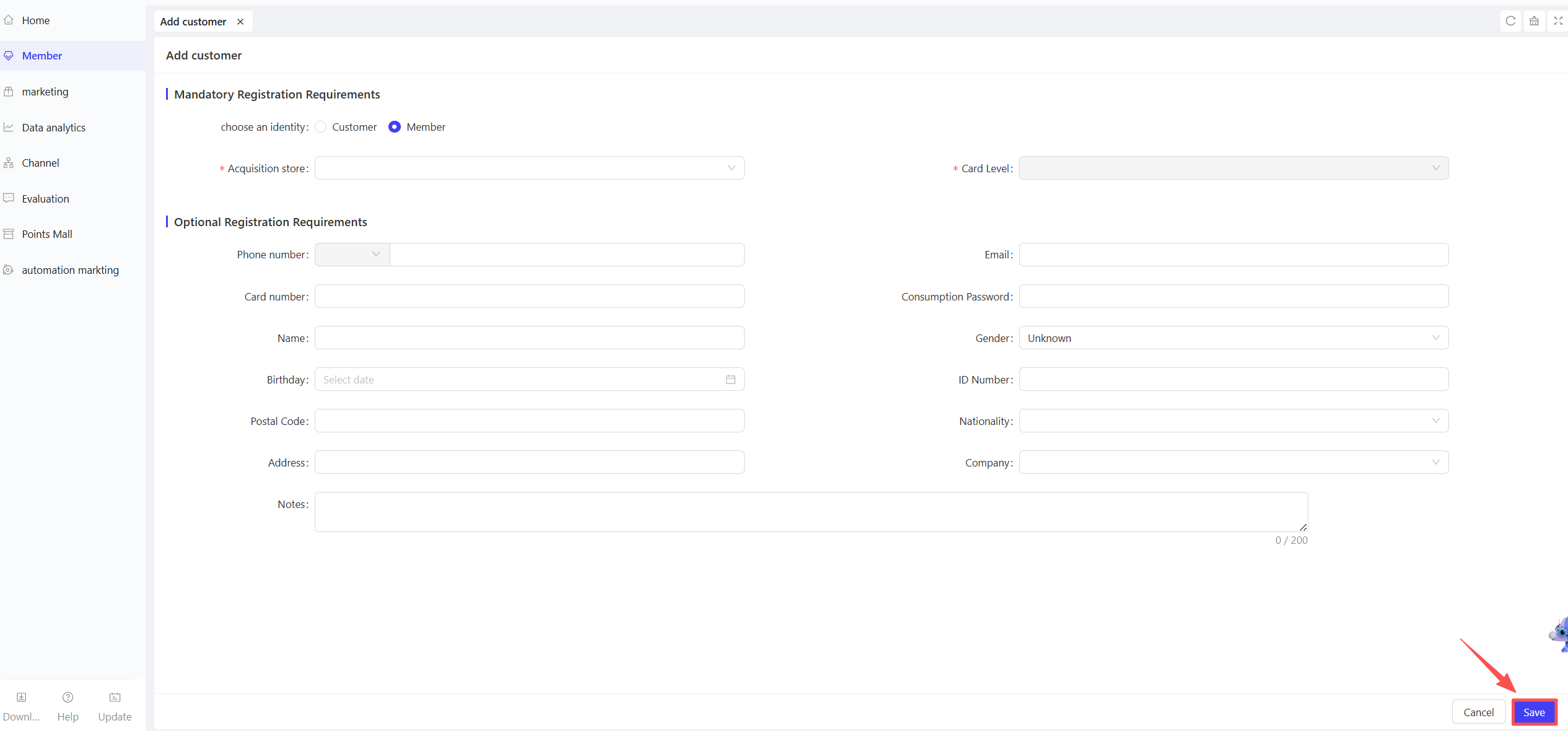
- Overview: Manually create individual customer profiles by entering basic information such as name and contact details. Suitable for supplementing customer data in special cases or on-the-spot registration.
- Use Cases: When customers visit the store for events or consultations, input their information in real time to enable follow-up services and enhance customer experience.
Operation Steps & Diagrams
STEP 1: On the Customer Management page, click the【Add Customer】button in the upper right corner.
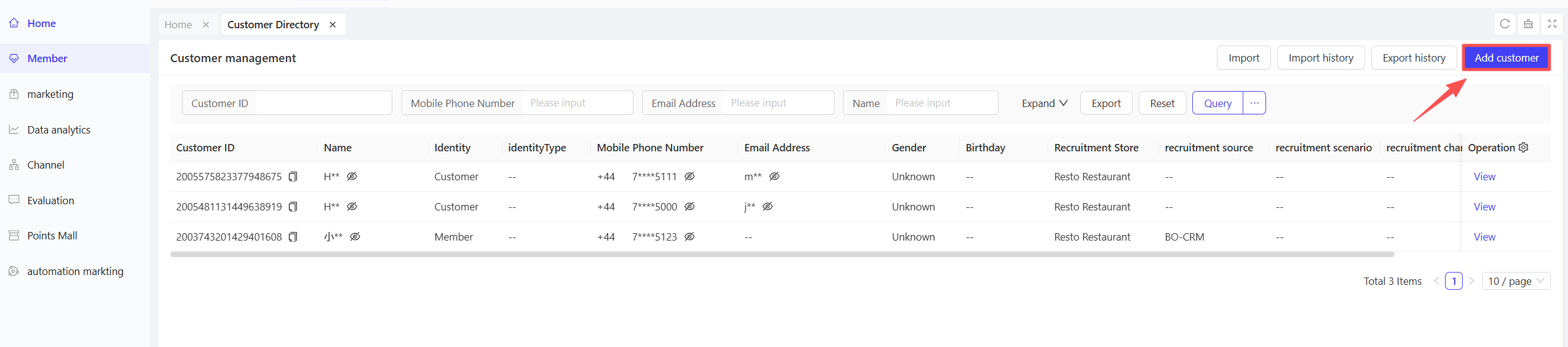
STEP 2: Select the customer type and fill in the required fields.
2.2 Card Management
Function Entry:
【Membership Marketing】>【Member Information】>【Card Management】
Function Description:
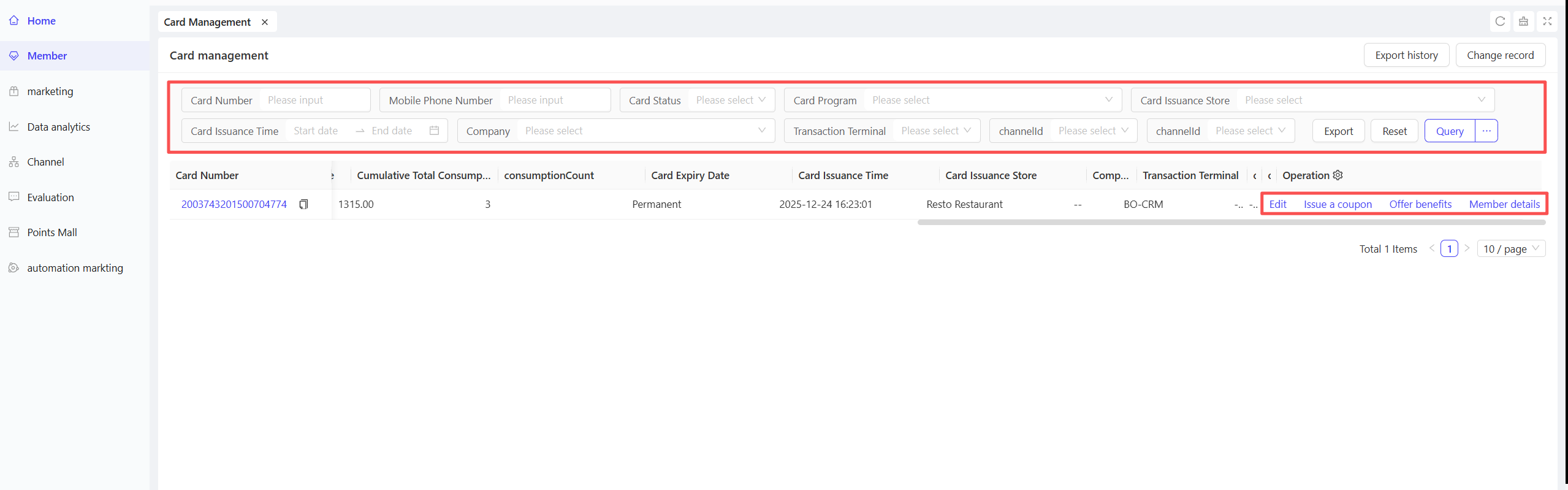
- Overview: The Membership Card List displays key information (card number, name, status, balance) with multi-condition filtering for quick location. It also offers quick actions such as reward distribution, information editing, and profile viewing.
- Use Cases:
- Quick Inquiries: Instantly check card balances and status to respond to customer questions.
- Exception Handling: Identify and resolve card status or balance issues promptly.
- Targeted Marketing: Filter specific member groups for personalized discount and reward distribution.
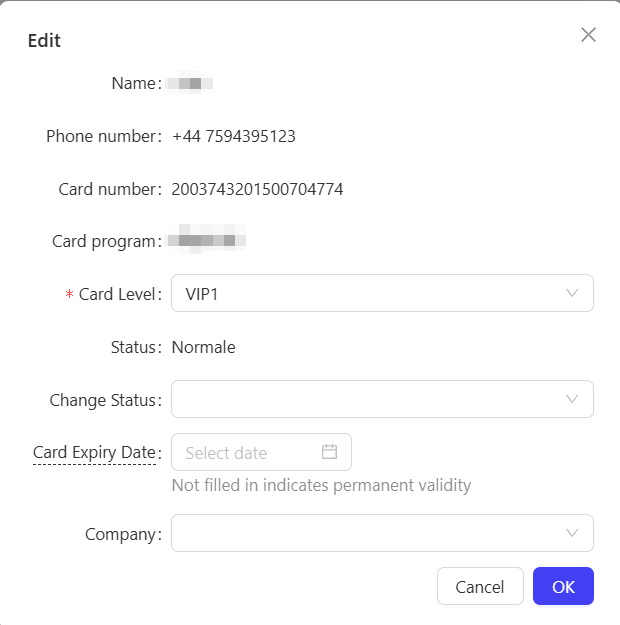
- Information Maintenance: Update member profiles in real time to ensure data accuracy.
Operation Steps & Diagrams
STEP 1: Locate the membership card using the search bar at the top of the page.
STEP 2: Edit select card information.
STEP 3: Perform quick coupon issuance.
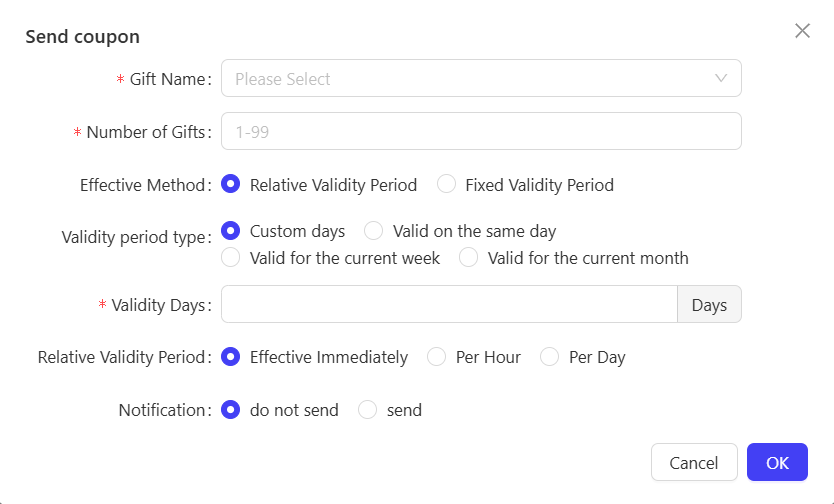
STEP 4: View detailed member profiles.
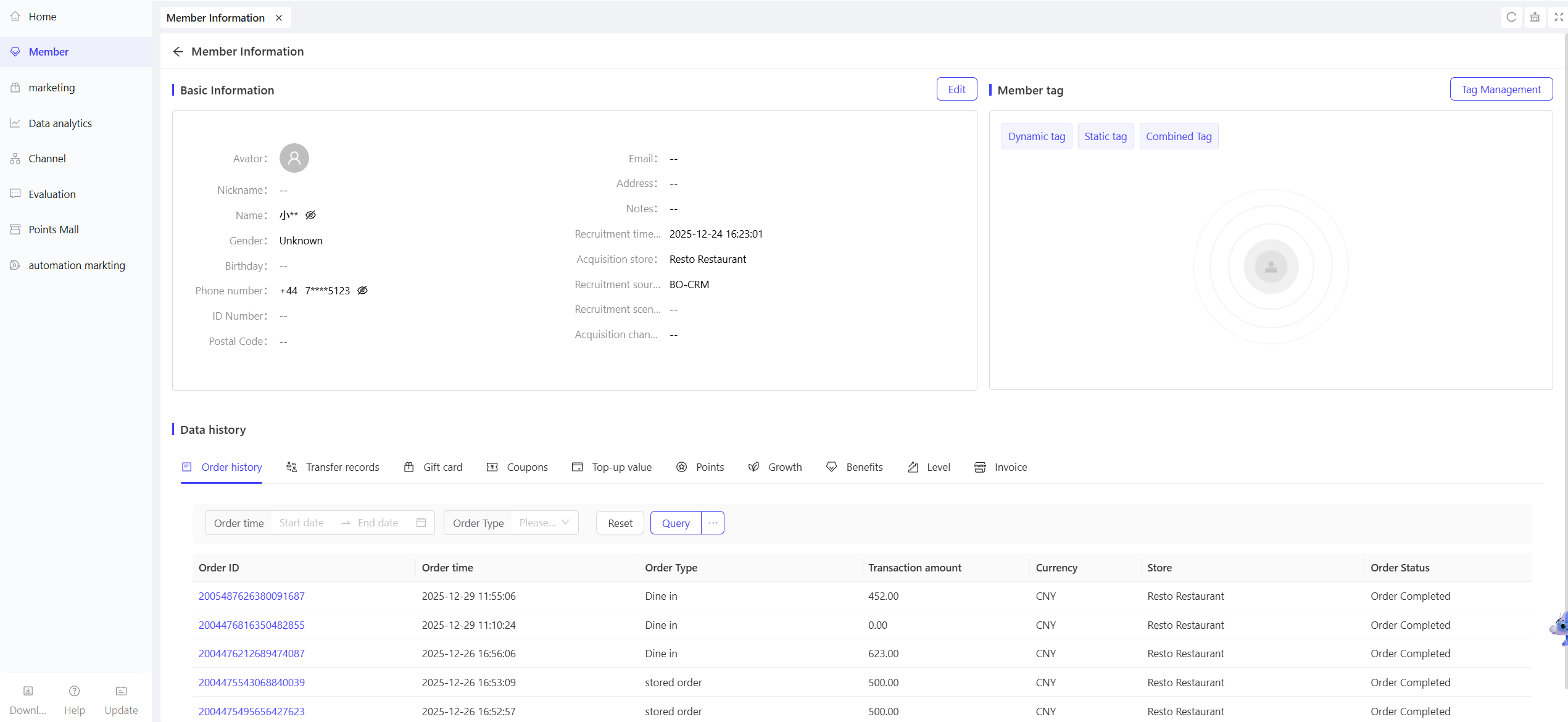
2.2.1 POS Terminal Functions
2.2.1.1 Member Lookup
Function Entry:【Member Center】
Function Description:
- Overview: Provides in-store cashiers with convenient membership card management, supporting quick lookups and daily transaction processing.
- Use Cases: When members present their cards for purchases, cashiers can quickly check balances via card number or phone number.
Operation Steps & Diagrams
STEP 1: Select the【Member Center】menu.
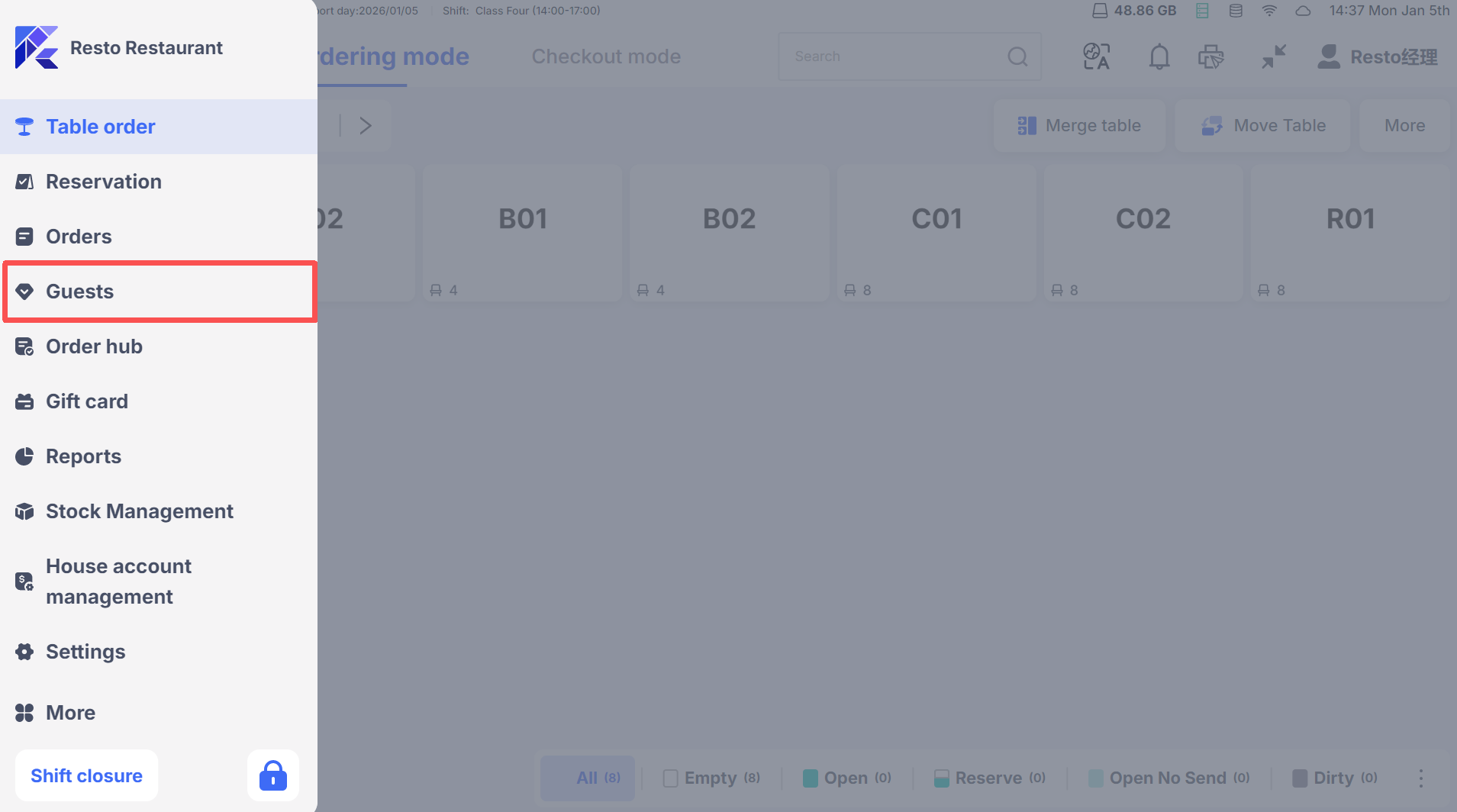
STEP 2: Enter the member’s card number or phone number to search for the customer.
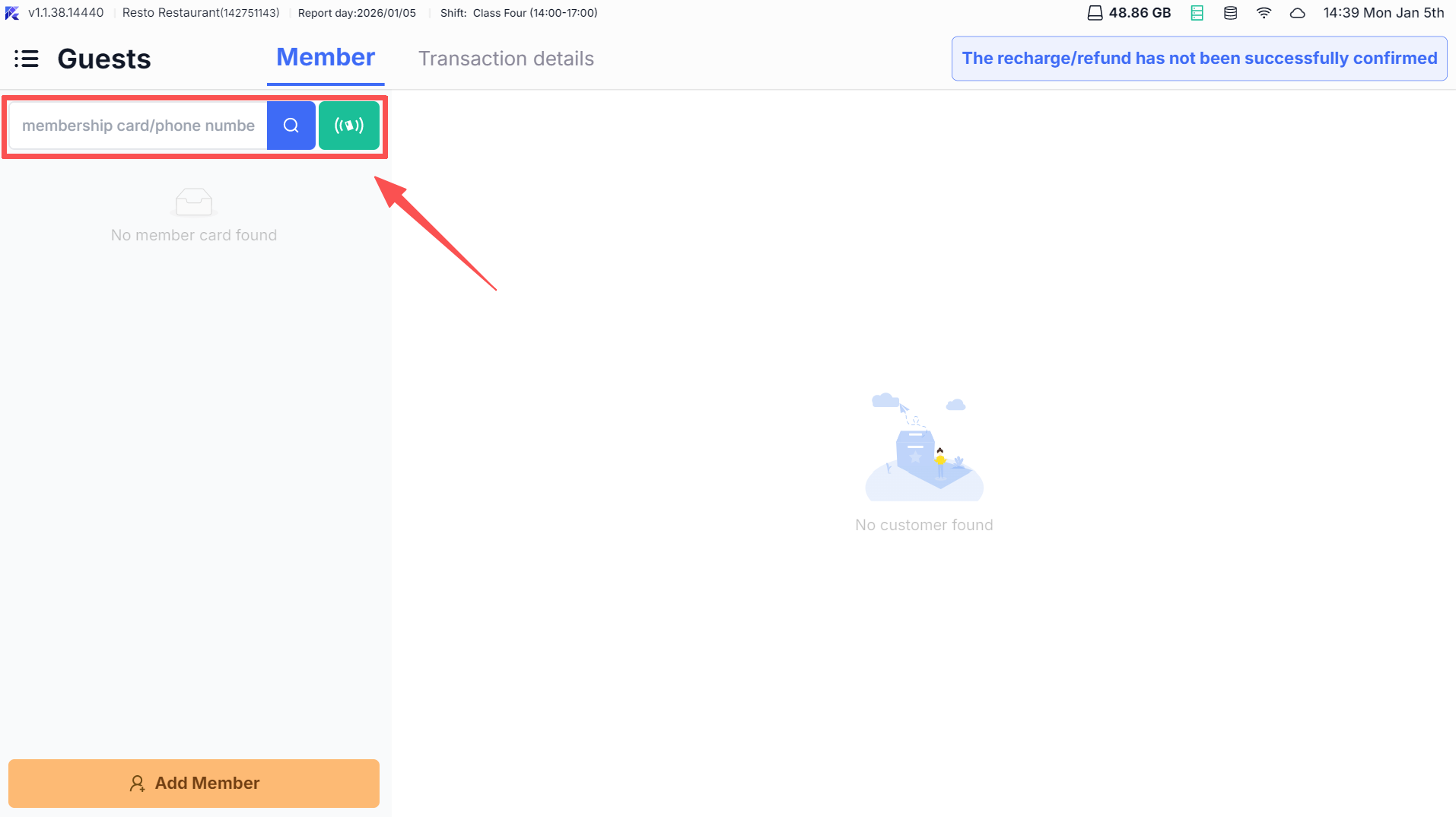
2.2.1.2 Add Member
Function Entry: 【Member Center】
Function Description:
- Overview: Offers in-store cashiers an entry to create new membership cards, enabling on-the-spot card issuance.
- Use Cases: Ideal for new customers signing up for membership and obtaining cards directly in the store.
Operation Steps & Diagrams
STEP 1: Select the【Member Center】menu and click【Add Member】.
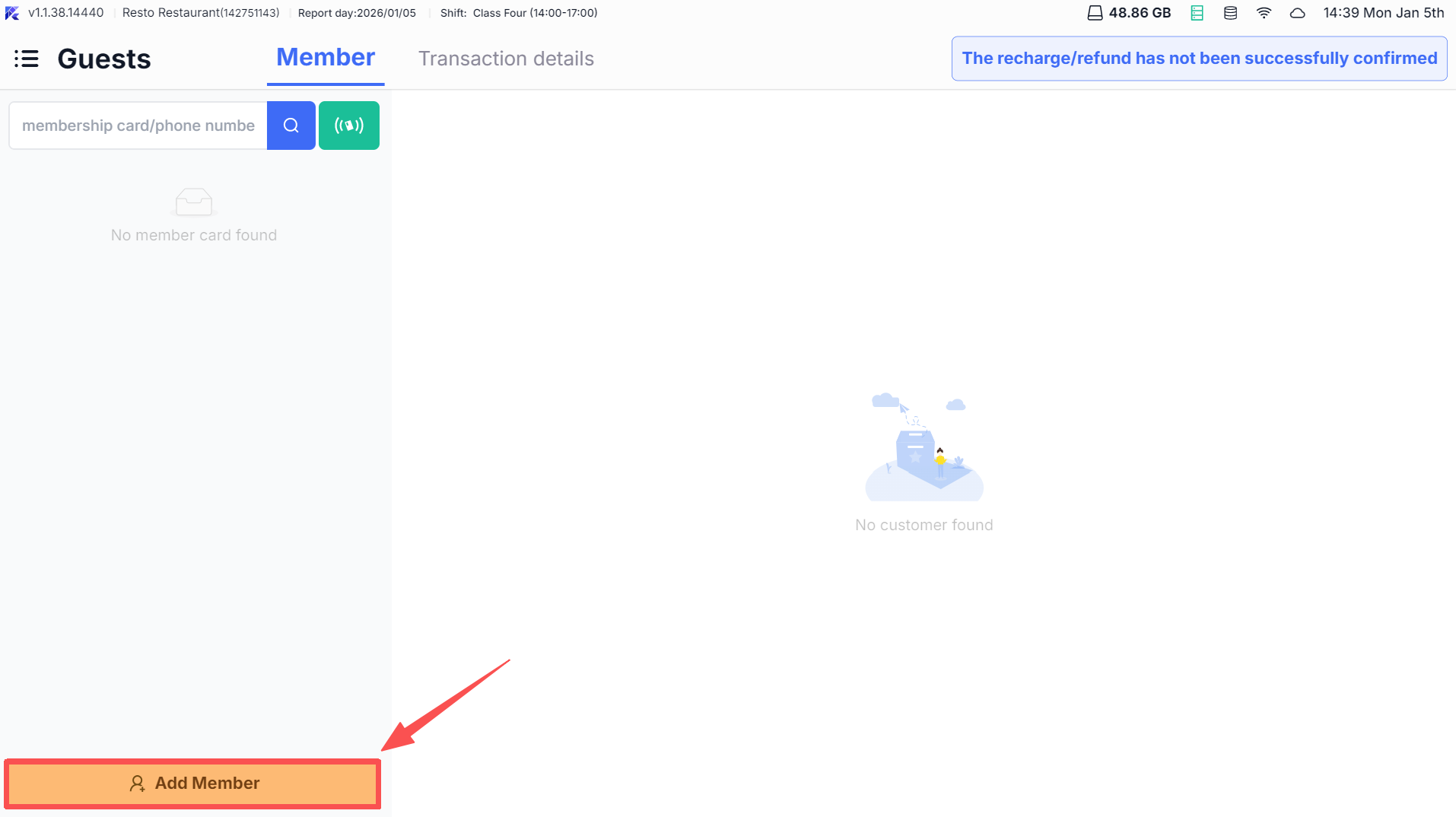
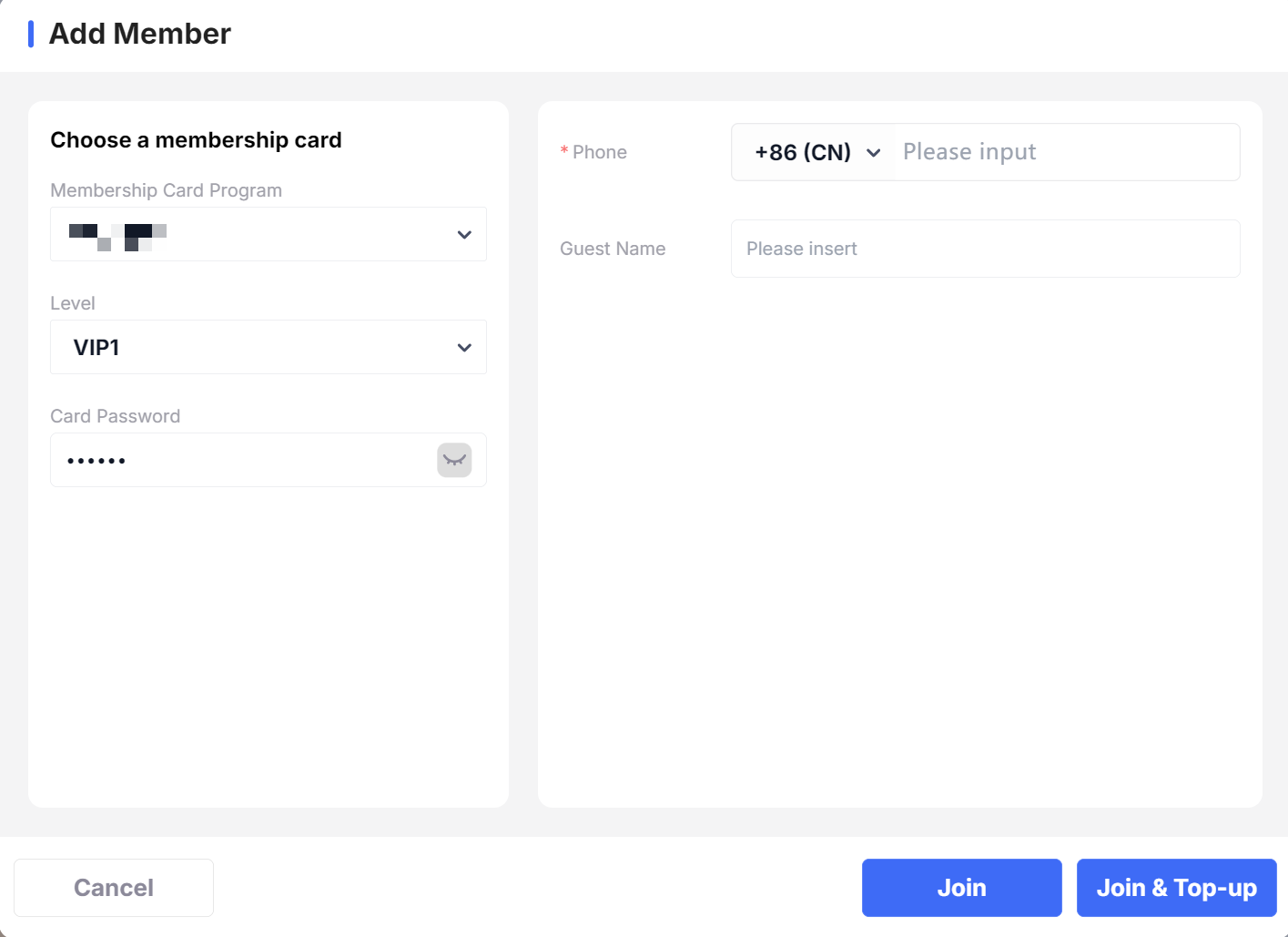
STEP 2: Choose the membership card type, fill in member information, and click【Join】to complete card creation.