Special Offer
1 Module Introduction
A special offer promotion campaign is a sales tactic that drives customer purchases and boosts revenue by offering discounted prices on selected dishes or products. By setting time-limited offers or discounted rates, merchants can increase the sales volume of targeted items, clear inventory, attract foot traffic, and encourage repeat visits from customers.
2 Configuration Guide
2.1 Basic Information Configuration
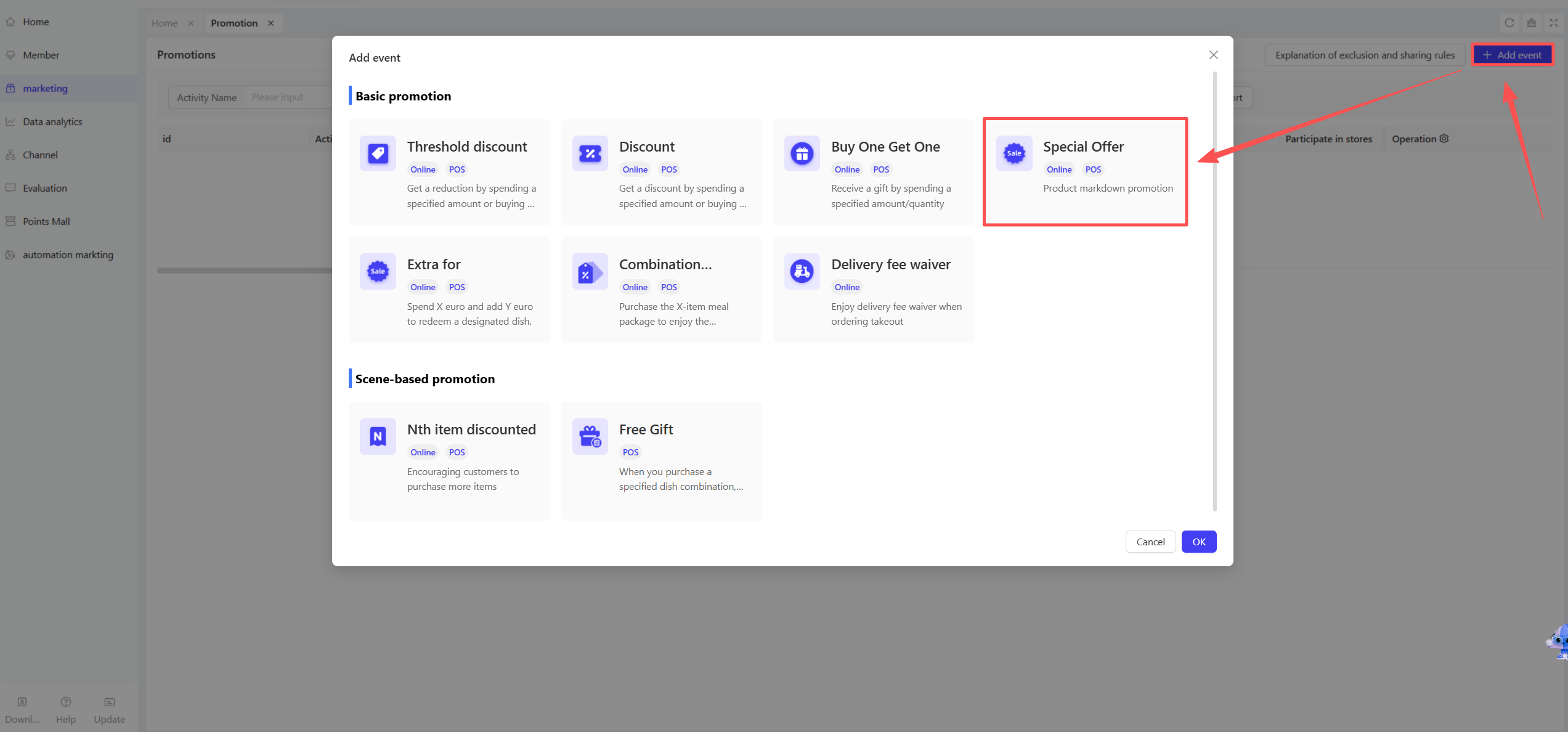
STEP 1: Access the Promotion Management Page
- Log in to the SaaS platform backend. Navigate to【Membership Marketing】>【Marketing】> 【Promotional Activities】.
- Select the “Special Offer” module to enter the campaign configuration page.
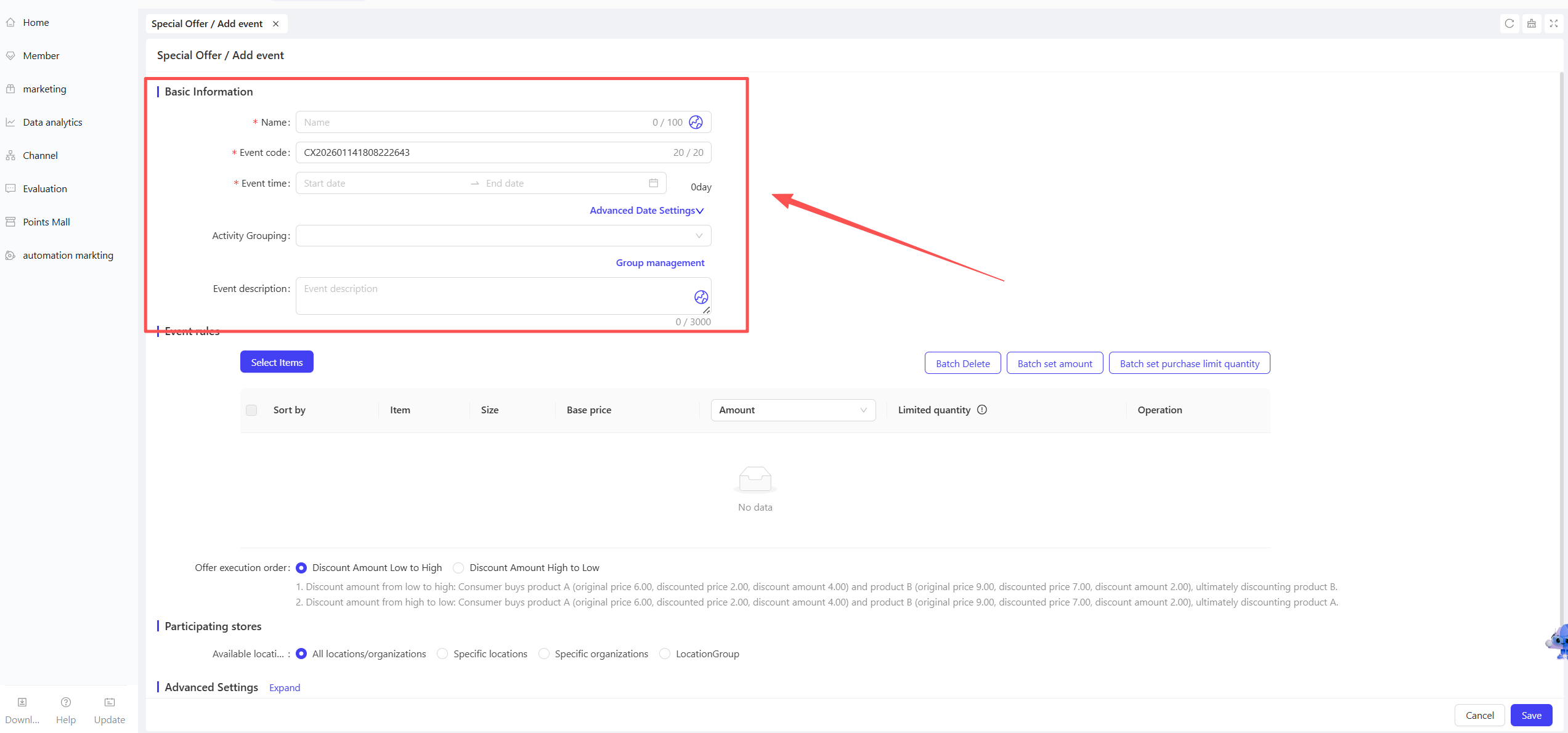
STEP 2: Fill in Basic Information
-
Name: Enter a clear name for easy customer recognition (e.g., “Special Menu Extravaganza”).
-
Period: Set the start and end dates to ensure a reasonable timeline.
- Time Slot Restrictions: Define the applicable time periods, such as “2:00 PM – 5:00 PM daily” or “Monday to Friday only”.
- Date Restrictions: Merchants can specify exact dates to limit the campaign to selected days.
-
Code: Assign a unique identification code for internal management and tracking purposes.
-
Description: Provide a concise overview of the campaign details and rules for clarity.
2.2 Promotion Rule Configuration
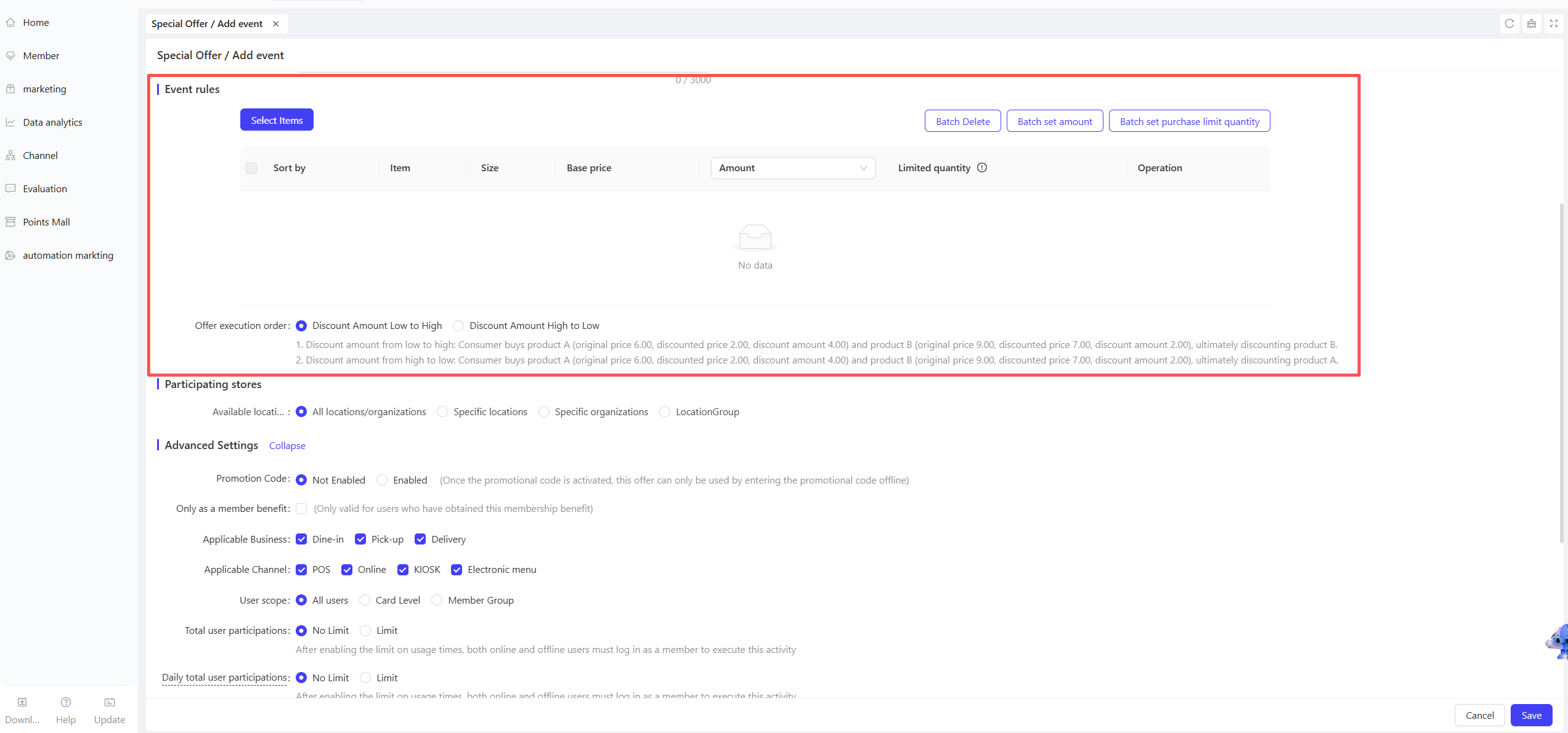
- Select Dishes: Choose the dishes or products to be included in the campaign. Filter options are available by dish category, brand, etc.
- Set Special Prices: Assign discounted prices or rates to the selected items. It is recommended that special prices be lower than the original prices to attract customers.
- Discount Application Priority
-
Lowest Discount Amount First
- Rule Explanation: When an order contains multiple eligible items, the system will apply the discount to the item with the lowest original price first.
- Scenario Example: A customer purchases Item A (original price: $6.00, special price: $2.00, discount amount: $4.00) and Item B (original price: $9.00, special price: $7.00, discount amount: $2.00). The discount will be applied to Item B.
- Applicable Scenario: Ideal for merchants who aim to minimize the total discount value per order.
-
Highest Discount Amount First
- Rule Explanation: When an order contains multiple eligible items, the system will apply the discount to the item with the highest original price first.
- Scenario Example: A customer purchases Item A (original price: $6.00, special price: $2.00, discount amount: $4.00) and Item B (original price: $9.00, special price: $7.00, discount amount: $2.00). The discount will be applied to Item A.
- Applicable Scenario: Ideal for merchants who aim to maximize the total discount value per order.
2.3 Applicable Store Configuration
STEP 1: Select Applicable Stores
- Choose the stores that will participate in the campaign. Support for selecting all stores or specific locations (e.g., by region).
STEP 2: Store-Specific Discount Rules (Optional)
- Configure customized rules for different stores to enable flexible promotion strategies.
2.4 Applicable Item Configuration
STEP 1: Select Applicable Items
- Choose the items to be included in the campaign. Select by category, individual item, or apply to all items in the store.
2.5 Advanced Settings
-
Participant Restrictions: Configure eligible user groups in Advanced Settings:
- Membership Tiers: Limit the promotion to specific membership levels (e.g., VIP, Silver Card members).
- User Tags: Filter users by tags (e.g., new users, returning users).
-
User Participation Limits:
- Total Participation Limit per User: Set the maximum number of times a user can participate during the promotion (e.g., 3 times per user).
- Daily Participation Limit per User: Restrict daily participation (e.g., 1 time per day).
-
Maximum Discount per Order:
- Set the upper limit of discount value per order. Even if the order meets multiple promotion criteria, the discount will not exceed this limit to avoid excessive losses.
- Example: If the maximum discount per order is set to $50, the final discount value will not exceed $50, even if the order qualifies for a higher discount.
-
Whether Side Dishes Participate in Promotion:
- Threshold Calculation: Side dishes are included in threshold calculation by default.
- Participate: The system treats main dishes and side dishes as a whole.
- Scenario Example: A merchant sets a “Spend $100 Get 1 Free item B” promotion. A customer buys item A ($100), and item B includes a side dish. Since the side dish participates, both item B and the side dish are free.
- Not Participate: The system only considers main dish prices for promotion eligibility.
- Scenario Example: A merchant sets a “Spend $100 Get 1 Free item B” promotion. A customer buys item A ($100), and item B includes a $10 side dish. Since the side dish does not participate, only item B is free, and the side dish requires additional payment.
-
Whether Sub-dishes/Modifiers/Preparation Methods Participate in Promotion:
- Threshold Calculation: Sub-dishes/modifiers/preparation methods are included in threshold calculation by default.
- Participate: The system treats main dishes and sub-dishes/modifiers/preparation methods as a whole.
- Scenario Example: A merchant sets a “Spend $100 Get 1 Free item B” promotion. A customer buys item A ($100), and item B includes a sub-dish/modifier/preparation method. Since it participates, both item B and the add-on are free.
- Not Participate: The system only considers main dish prices for promotion eligibility.
- Scenario Example: A merchant sets a “Spend $100 Get 1 Free item B” promotion. A customer buys item A ($100), and item B includes a $10 sub-dish/modifier/preparation method. Since it does not participate, only item B is free, and the add-on requires additional payment.
-
Sharing & Mutual Exclusion Rules: The system sets default sharing and mutual exclusion relationships for different discount types (e.g., coupons, promotions, membership prices, membership discounts). Merchants can use the default rules or configure custom rules:
- Use Default Sharing & Mutual Exclusion Plan: The system applies a universal set of rules for all discount types.
- Configure Custom Rules: Merchants can independently set sharing or mutual exclusion relationships with membership prices, membership discounts, coupons, and other promotions during creation.
- Custom configurations take precedence over the default plan in case of conflicts.
3 Activate and Manage the Promotion
3.1 Activate the Promotion
- Click【Save】after completing all configurations to activate the promotion.
3.2 Promotion Management and Monitoring
- View performance data (e.g., number of orders, promotion usage) in the Promotion Management module.
- Pause, adjust, or manually archive the promotion at any time if needed.