E-Invoice
1 Module Introduction
The Electronic Invoice Module is a sub-module of the Restaurant Management Module. Its core function is to centrally manage the electronic invoice configurations of catering groups and their affiliated stores, enabling the creation and maintenance of taxpayer entities, as well as the configuration of store tax IDs and prepaid invoice tax IDs, with the ability to designate specific taxpayer entities. Through centralized configuration, this module achieves unified management and control of taxpayer entities at the group level, ensures standardized and accurate invoice issuance, and adapts to the nationwide promotion trend of full electronic invoices.
2 Add a Taxpayer Entity
Prerequisites: Log in to the Merchant Backend with a group administrator account and switch to the Group Management View.
STEP 1: Switch to Group Management View
After logging in to the Merchant Backend as a group administrator, click the View Switch button in the upper right corner of the page and select to switch to the Group Management View.
STEP 2: Access the Tax Entity Configuration Page
In the Merchant Backend, navigate to the menu in sequence: Restaurant Management > Electronic Invoices > Tax Entities to enter the Tax Entity Management Page, where all configured tax entity information will be displayed.
STEP 3: Create and Configure a New Tax Entity
- Click the [Add] button in the upper right corner of the Tax Entity Management Page to open the New Tax Entity dialog box.
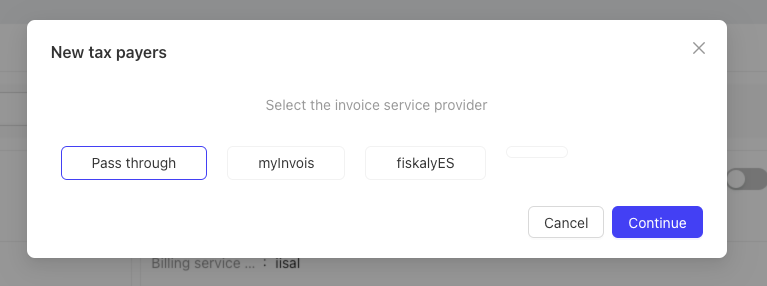
- Select an e-invoice service provider first (supported providers include PiaoTong, fiskalyES, MInvoice, etc.).
- Enter the New Tax Entity Details Page and complete the following configurations in sequence:
- Enter the Taxpayer Identification Number (TIN)
- Select Available Invoice Items
- Set the Maximum Single Invoice Amount Limit
- Select the electronic invoice type (2 options): Ordinary Invoice / All-Electronic Invoice
3 Tax Entity Details Query
After a new tax entity is created, click the corresponding tax entity card on the Tax Entity Management Page to jump to the Tax Entity Details Page.This page allows you to view core information and complete associated configurations as follows:
- Bound stores and bound stored-value invoice card plans;
- If the invoice service provider is fiskalyES, complete the signature device binding on this page;
- View Transaction Order Invoice Details and Stored-Value Invoice Details;Once a tax entity is bound to stores, the corresponding in-store transaction invoice records will be synced and displayed on the BO Page.
4 Store Tax ID Settings
4.1.1 Store Tax Entity Binding & Invoice Issuance Status Control
- In the Merchant Backend, navigate to the menu in sequence: Restaurant Management > Electronic Invoices > Tax ID Settings to enter the Store Tax ID Settings Page, where the tax ID configuration and invoice issuance status of all stores will be displayed.
- For stores not bound to any tax entity, click the [Configure] button and select and assign the corresponding tax entity.
- After setting the store’s e-invoice activation status to [Activated], the store can issue invoices normally; disabling the activation status will suspend the store’s invoice issuance service.
4.1.2 Store Invoice Issuance Parameter Configuration
Enter the Electronic Invoice Configuration subpage to set the store’s invoice issuance rules:
-
Store Invoice Validity Period:
- Select [No]: No time limit for invoice issuance;
- Select [Yes]: Set the validity period (in days, calculated from the order placement date). After the period expires, the invoice issuance link will be hidden on the order details page, and users cannot issue invoices.
-
Store Order Online Self-Service Invoice Issuance Toggle:
- Toggle [On]: Users can view and click the invoice issuance link on their own order details page to issue invoices independently;
- Toggle [Off]: The invoice issuance link will be hidden on the order details page, and users cannot issue invoices via self-service.
5 Stored-Value Invoice Tax ID Settings
Stored-value invoice tax ID settings are configured by card plan, with the following operation steps:
-
Enter the Stored-Value Invoice Tax ID Settings page in the Merchant Backend.
-
For the target card plan, complete the basic configurations:
- Set the e-invoice activation status (the card plan supports stored-value invoice issuance after activation);
- Select the corresponding tax entity;
- Configure the default sales item;
-
Online Self-Service Invoice Issuance Toggle configuration:
- Toggle [On]: Users can apply for self-service invoice issuance on their own stored-value order details page;
- Toggle [Off]: The invoice issuance link will be hidden on the stored-value order details page, and users cannot issue invoices via self-service.