Lucky Wheel Raffle
1 Module Introduction
The Lucky Wheel Raffle is an interactive marketing tool. Its fun gameplay and instant feedback boost user participation, drive consumption conversion, and enhance brand interaction. This guide details how to set up and manage the activity on the SaaS platform, including configuration, page customization, management, and the customer-side user journey.
2 Configuration Guide
2.1 Accessing the Feature
- Log in to the SaaS platform backend
- Navigate to【Membership Marketing】>【Marketing】>【Marketing Activities】.
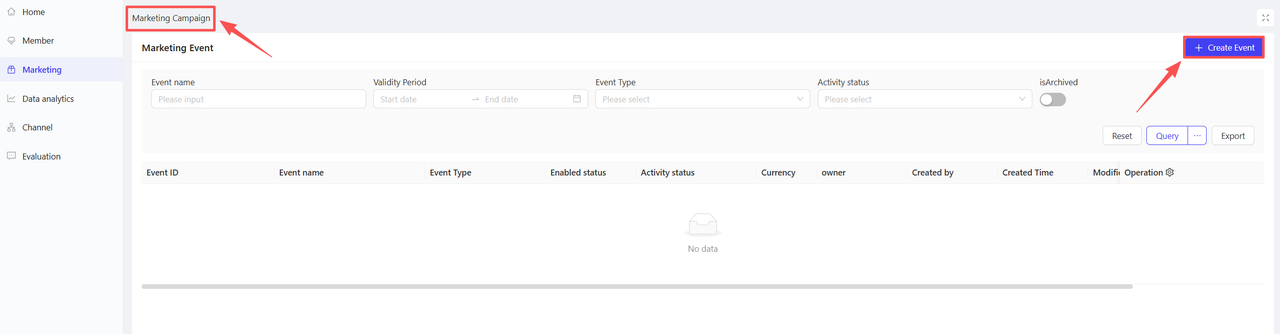
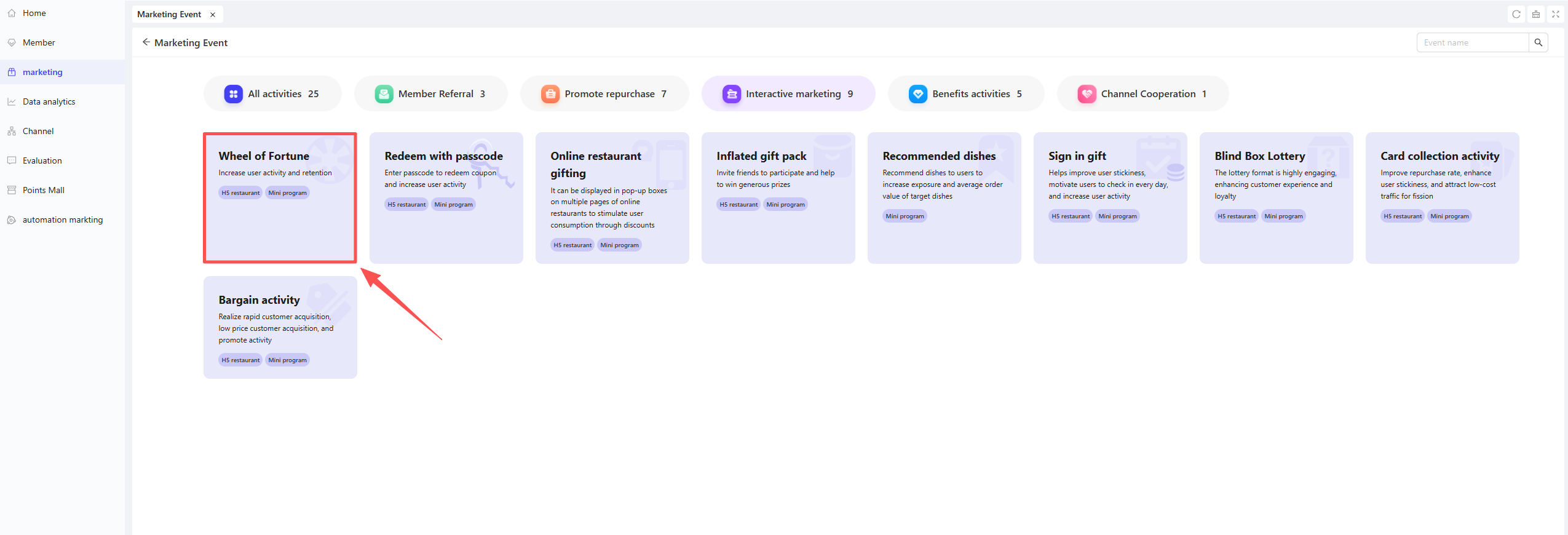
- Click【Create Activity】in the upper-right corner of the page, select the Lucky Wheel Raffle module.
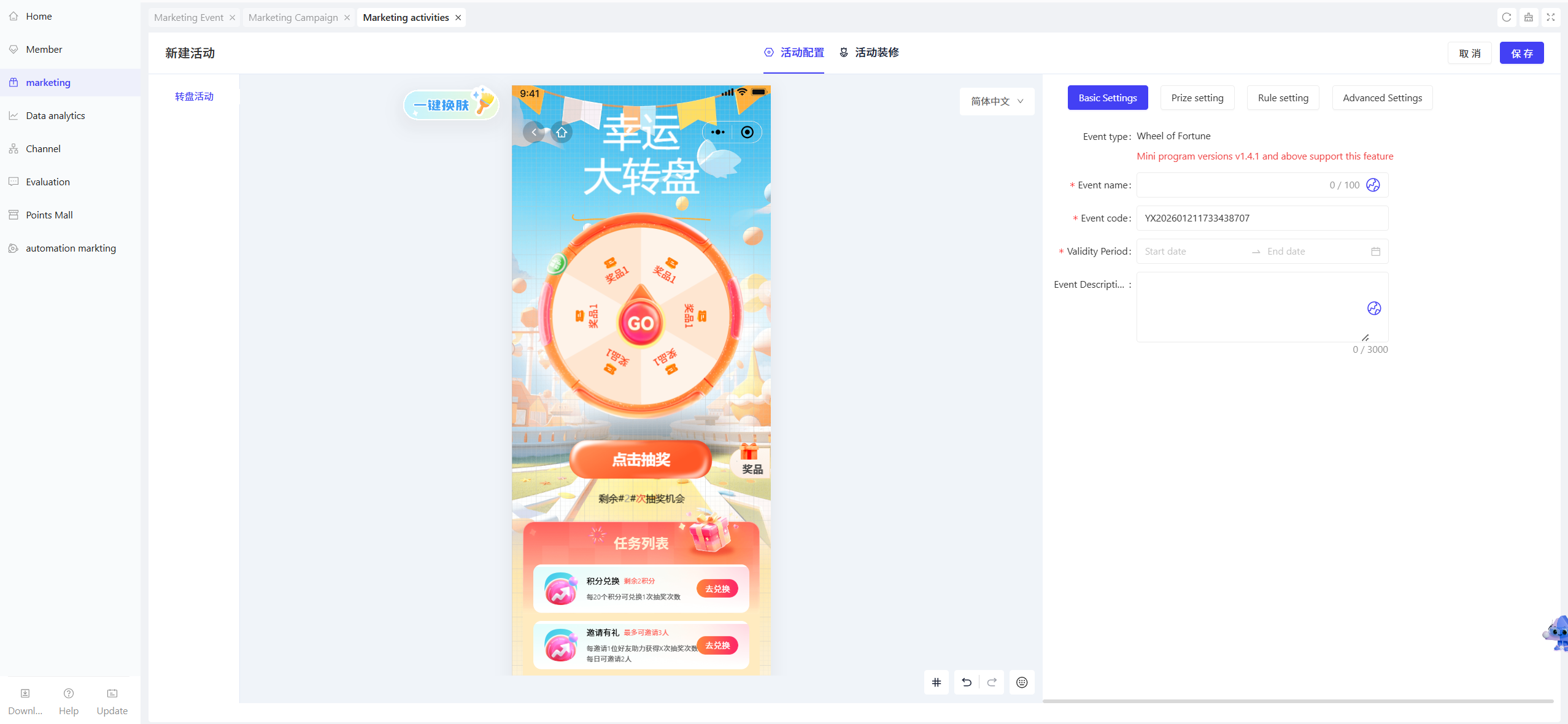
2.2 Basic Settings
- Fill in the basic activity information
- Activity Name: Required. Choose a name that is easy for customers to identify.
- Example: “Lucky Wheel Raffle - Surprises Every Day”
- Activity Code: A unique internal identifier for tracking and reporting.
- Validity Period: Select the start and end dates of the activity to ensure a reasonable timeline
- Description: Briefly outline the activity details and rules for clarity.
- Activity Name: Required. Choose a name that is easy for customers to identify.
2.3 Prize Setting
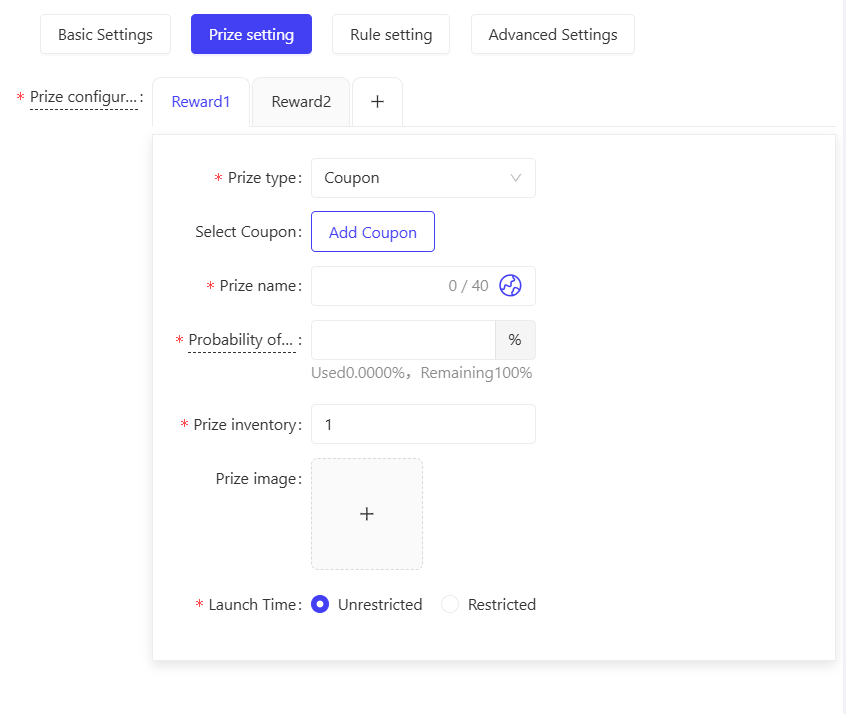
Fill in the prize configuration details:
-
Prize Type: Select the prize type from the dropdown menu, which includes the following 5 options:
- Coupons: Select created coupons as prizes; coupons will be automatically credited to users’ accounts upon winning
- Coupon Pack: Select a created coupon pack as a prize; the pack will be automatically credited to users’ accounts upon winning
- Extra Raffle Attempts: Reward users with additional raffle chances to boost member stickiness
- Physical Prizes: Items requiring offline redemption or delivery, such as mobile phones and water cups
- Better Luck Next Time: A virtual prize for non-winning entries. No “prize stock” setting is required for this option, and its winning probability remains valid at all times
-
Prize Name: Enter a prize name for easy customer identification
-
Winning Probability: Enter the winning probability as a percentage. The sum of winning probabilities for all prizes must equal 100%
-
Prize Stock: Enter the quantity of prizes available (a positive integer greater than 0); distribution stops once stock is depleted
-
Prize Availability Period: Select the specific start and end dates for the prize; you may choose to set restrictions or not
2.4 Rules Setting
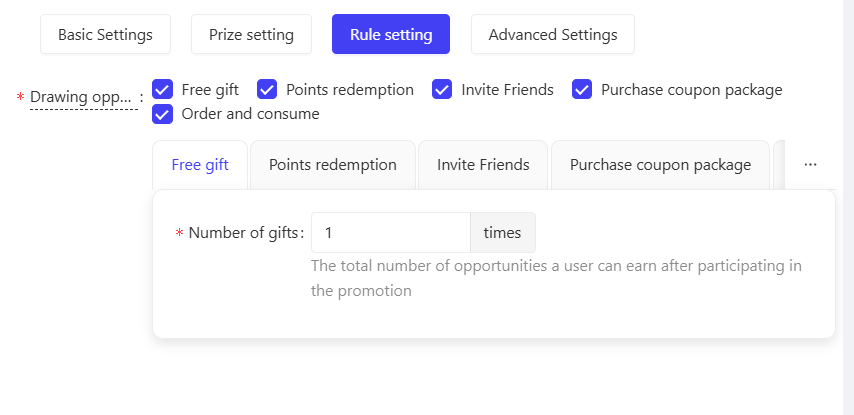
- Set the methods for users to obtain raffle attempts. At least one method must be enabled:
- Free Attempts: Set the number of free raffle attempts per user during the activity period
- Points Redemption: Set the number of points required to redeem one raffle attempt
- Friend Invitation
- Attempts per Invitation: Set the number of raffle attempts awarded for each successful friend referral
- Daily Invitation Limit: Set the maximum number of friends a user can invite per day
💡
Note
It is recommended to set the daily invitation limit to no more than 5 to avoid WeChat account restrictions
- Total Invitation Limit: Choose to set no limit or a maximum number of friends a user can invite in total
- Coupon Pack Purchase
- Eligible Coupon Packs: Select the range of coupon packs eligible for raffle attempts; you may choose all or specific bundles
- Attempts per Purchase: Set the number of raffle attempts added per paid coupon bundle order
- Daily Purchase Limit: Set the maximum number of times a user can complete this task (via coupon bundle purchase) per day
- Scenario Example: 2 raffle attempts are awarded per paid coupon bundle order, with a daily task limit of 2 orders. Users can earn a maximum of 4 raffle attempts per day through this method
- Order Placement & Consumption
- Attempts per Order: Set the number of raffle attempts added per qualifying order
- Daily Order Limit: Set the maximum number of times a user can complete this task (via order placement) per day
- Scenario Example: 2 raffle attempts are awarded per order, with a daily task limit of 2 orders. Users can earn a maximum of 4 raffle attempts per day through this method
- Order Type: Specify the order types eligible for raffle attempts; options include Dine-in Orders, Self-pickup Orders, and In-house Delivery Orders
- Order Channel: Specify the source channels of eligible orders; options include POS and ONLINE
- Note: If channels are restricted, users will only complete the task and earn attempts by placing orders through the specified channels that meet other relevant conditions
- Minimum Order Amount: Set the minimum amount required for a single order to be eligible; you may choose to set restrictions or not
- Scenario Example: A minimum payment of 30 CNY is required. Users will only earn raffle attempts for orders with an actual payment amount ≥ 30 CNY
- Store Scope: Select the eligible stores; you may choose all stores, individual stores, or store groups
- Item Scope: Select the items participating in the activity, by category or individual item; you may choose all items or specific items
2.5 Advanced Settings
-
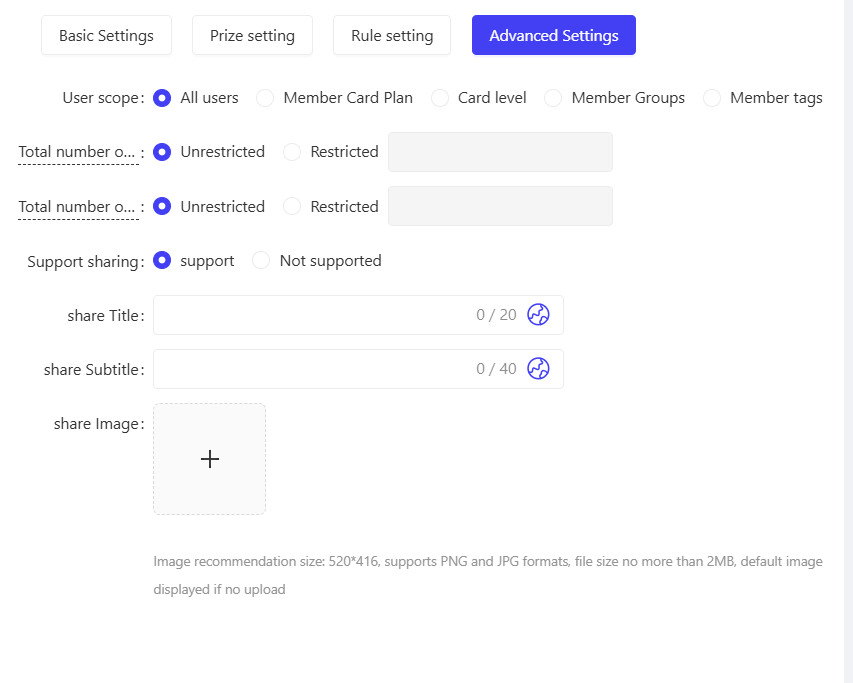
User Scope: Select the specific user groups eligible for the activity based on the following 5 dimensions:
- All Users: Applicable to all users
- Membership Card Program: Filter users based on one or multiple membership card programs
- Membership Card Tier: Filter users according to different card tiers under the selected membership card program(s)
- Member Group: Filter users based on one or multiple member groups
- Member Tag: Filter users based on one or multiple member tags (e.g., new users, regular users)
-
Total User Participation Limit: Set the maximum number of times a user can participate in the activity; you may choose to set restrictions or not (e.g., 3 attempts per user)
-
Daily User Participation Limit: Set the maximum number of times a user can participate in the activity per day; you may choose to set restrictions or not (e.g., 1 attempt per day)
3 Activity Page Customization
- Page Customization: Click Page Customization in the operation bar to enter the customization interface. You can customize the appearance of the activity homepage by dragging and dropping components
- Page Settings: Set the background colour or background image for the entire page
- Header Settings: Configure the header functions and style
- Container Design: Design the specific style of the page. Drag and drop components from the left-side H5 panel, and add elements such as images, buttons, and countdown timers to enrich the page
4 Activity Activation & Management
-
Activity Activation
- After completing all configurations, click Save to officially launch the activity
-
Activity Management & Monitoring
- View activity performance data on the Activity Management page, including order volume and activity participation rate
- Pause or adjust activity details at any time, and manually archive the activity when necessary
5 User Journey (End-User Experience)
-
Login to Participate: Users must log in to join the raffle
-
Activity Homepage:
- Displays the lucky wheel interface and the user’s current available raffle attempts
- Shows the icons and names of all prizes
-
Prize Distribution:
- Coupons are automatically credited to users’ accounts
- For physical prizes, users are required to fill in their delivery information
-
My Prizes: Users can view all prizes won in the current activity
-
Activity Rules: Detailed activity rules are displayed at the bottom of the page