Free Coupon
1 Module Introduction
The Free Coupon activity is a premier customer acquisition and engagement tool. By offering time-limited coupons with zero barriers to entry, merchants can incentivize new user registrations, re-activate existing members, and rapidly scale their online presence and store traffic.
2 Configuration Guide
2.1 Accessing the Feature
- Log in to the SaaS Admin Portal.
- Navigate to【Marketing Activity】>【Marketing】>【Marketing Activities】
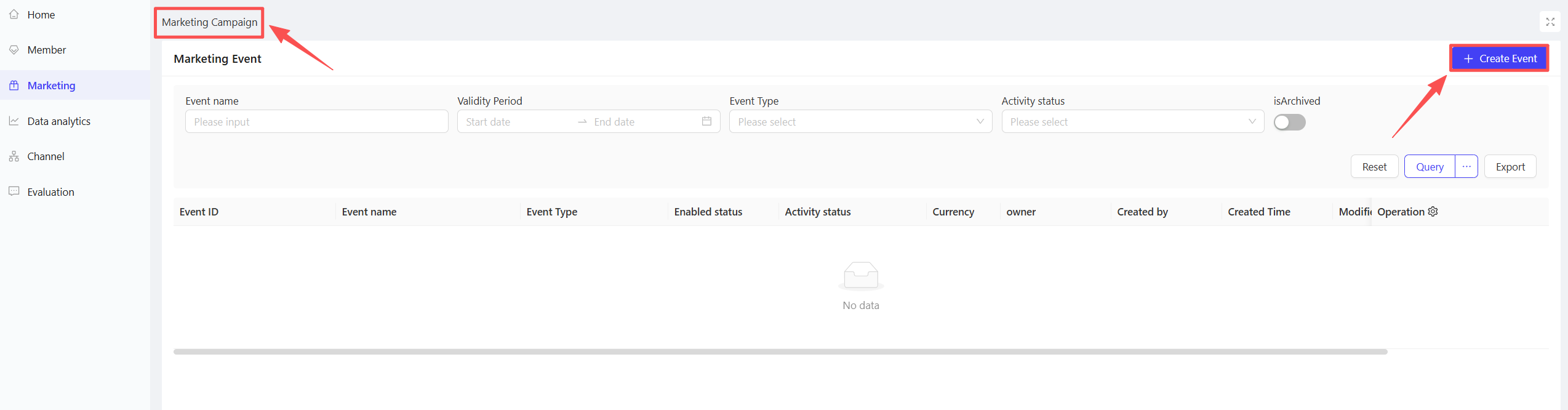
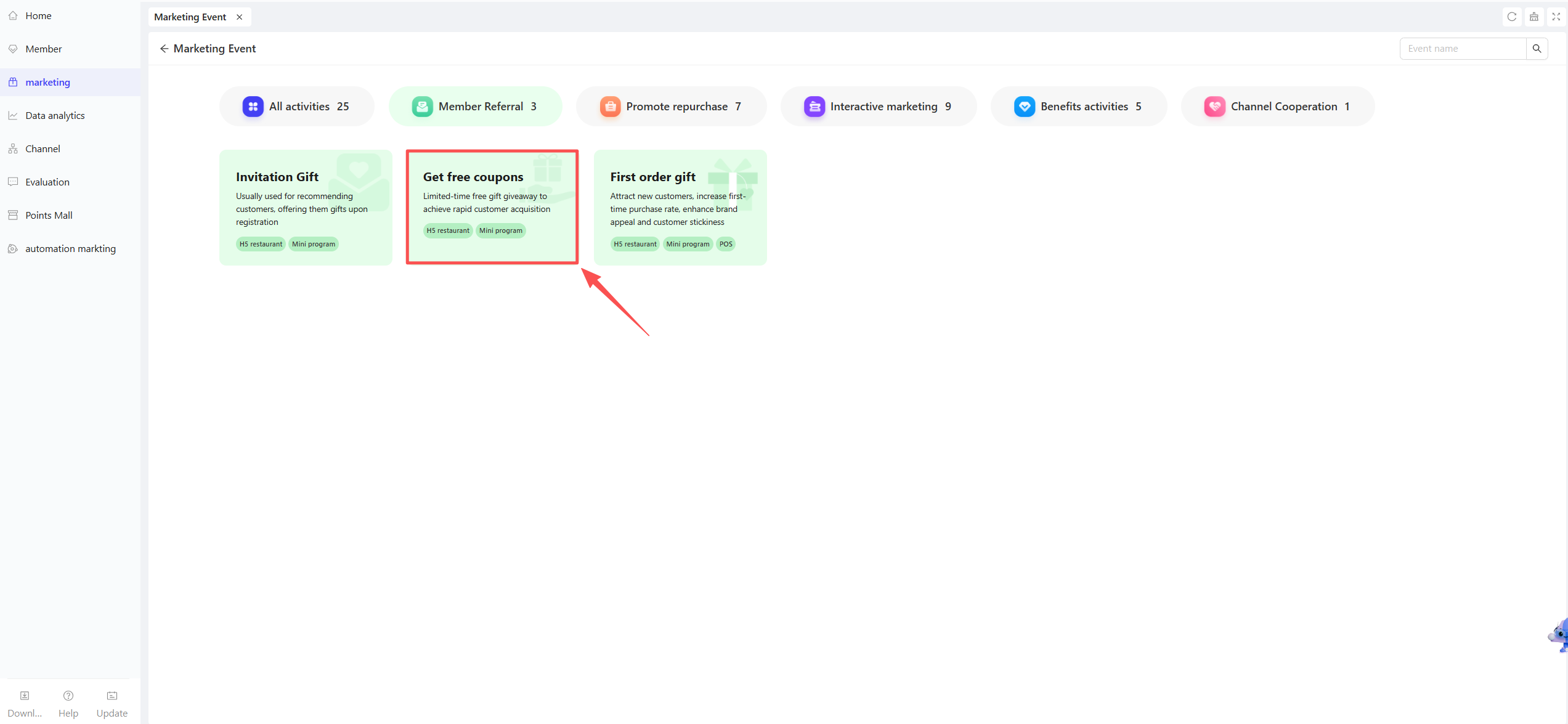
- Click【Create activity】in the top-right corner and select the Free Coupon module.
2.2 Basic Information Configuration
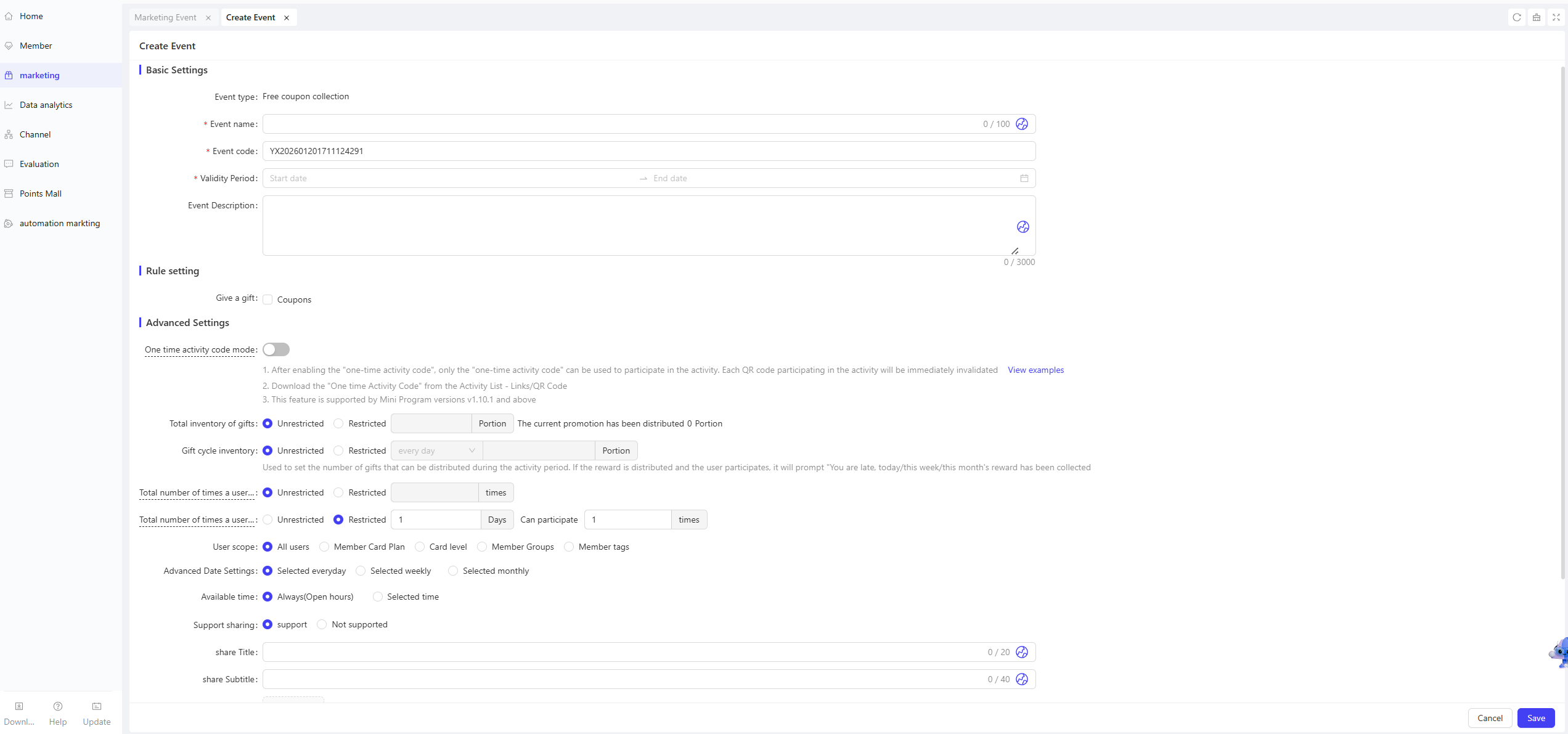
Define the identity of your activity:
- Activity Name: Enter a customer-facing name (e.g., “Flash Sale: Get Your Coupon Now!”).
- Activity Code: A unique internal identifier for tracking and reporting.
- Validity Period: Select the start and end dates for the activity.
- Description: Provide clear terms and conditions for the users.
2.3 Rules Configuration
Step 1: Select Coupons as the reward type.
Step 2: Configure the following details for your coupons:
- Gift Name: Select the specific coupon from your library.
- Quantity: Enter the total number of coupons available for this activity.
- Validity Type:
- Relative Validity: Valid for a set number of days starting from the moment of redemption (e.g., “Valid for 7 days after claiming”).
- Fixed Validity: Valid during a specific calendar range, regardless of when it was claimed (e.g., “Valid from Nov 1 to Nov 11”).
💡Note: You can add up to 10 different coupons per activity to create a "Bundle" effect with various values and spend thresholds.
2.4 Advanced Settings
-
One-Time Access Code: When enabled, the activity can only be accessed via unique QR codes that expire immediately after a single use.
-
Total Inventory: Set a “Limit” or “No Limit” on the total rewards available for the entire activity.
-
Periodic Inventory: Limit rewards by day, week, or month. Once depleted, users will see a message: “Sorry, today’s rewards have all been claimed.”
-
Redemption Limits:
- Per User Total: Max times a single user can participate (e.g., 3 times total).
- Per User Daily: Max times a single user can participate per day (e.g., once per day).
-
Target Audience: Filter who can see/join the activity based on:
- All Users, Membership Plans, Tier Levels, Segments, or Custom Tags (e.g., “New Users Only”).
-
Advanced Scheduling:
- Date Filters: Set the activity to trigger only on specific days (e.g., every Friday or the 1st of every month).
- Time Slots: Restrict redemption to specific hours (e.g., 10:00 AM – 10:00 PM).
-
Social Sharing: Customize how the activity appears when shared (Toggle on/off, custom Title, Subtitle, and Thumbnail image).
3 Activity Activation & Management
-
Activating the Activity
- After completing all configurations, click Save to launch the activity immediately.
-
Activity Management & Monitoring
- View activity performance data (including order volume and participant metrics) on the Activity Management page.
- Pause, adjust, or archive the activity at any time as needed.

4 Activity Page Decoration
- Click Page Decoration in the action column.
- Visual Design: Customize background colors, upload promotional banners, and style the action buttons.
- Publish: Click【Publish】in the top-right corner to push the design live to your customers.
5 User Journey (End-User Experience)
The core path for a customer is as follows:
- Enter Landing Page: User arrives via link or QR code.
- Claim Now: User clicks the primary Call-to-Action.
- Identity Verification: System checks if the user is a logged-in member or needs to register.
- Claim Coupon: Coupon is issued to the user’s account.
- Success Notification: A confirmation pop-up appears.
- View Coupon: User views the coupon on their account and proceeds to shop.