Cumulative Spending Gift
1 Module Introduction
The Cumulative Spending Gift Activity is a core incentive tool for merchants to boost member repurchase rates. Members can claim corresponding gifts when their cumulative spending amount or item quantity hits the specified threshold during the activity.
The tiered incentive mechanism encourages repeat store visits and purchases, increases average transaction value and spending frequency, strengthens member stickiness, and drives steady long-term revenue growth.
2 Configuration Guide
2.1 Accessing the Feature
- Log in to the SaaS platform backend
- Navigate to【Membership Marketing】>【Marketing】>【Marketing Activities】.
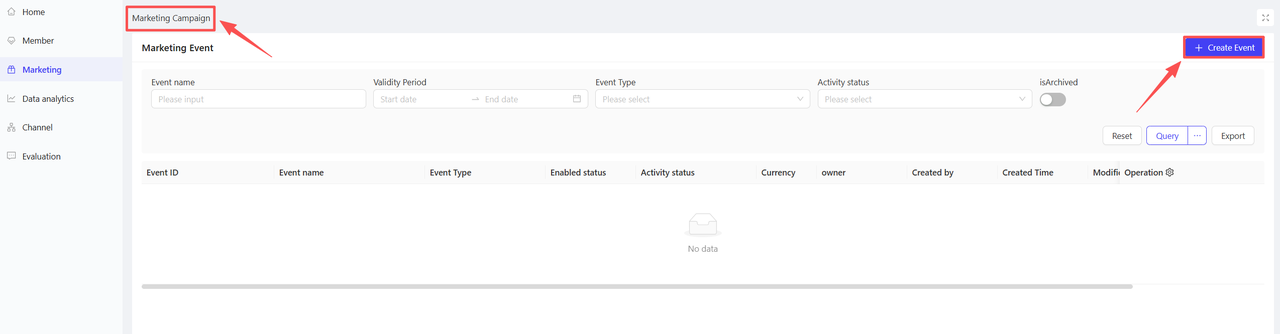
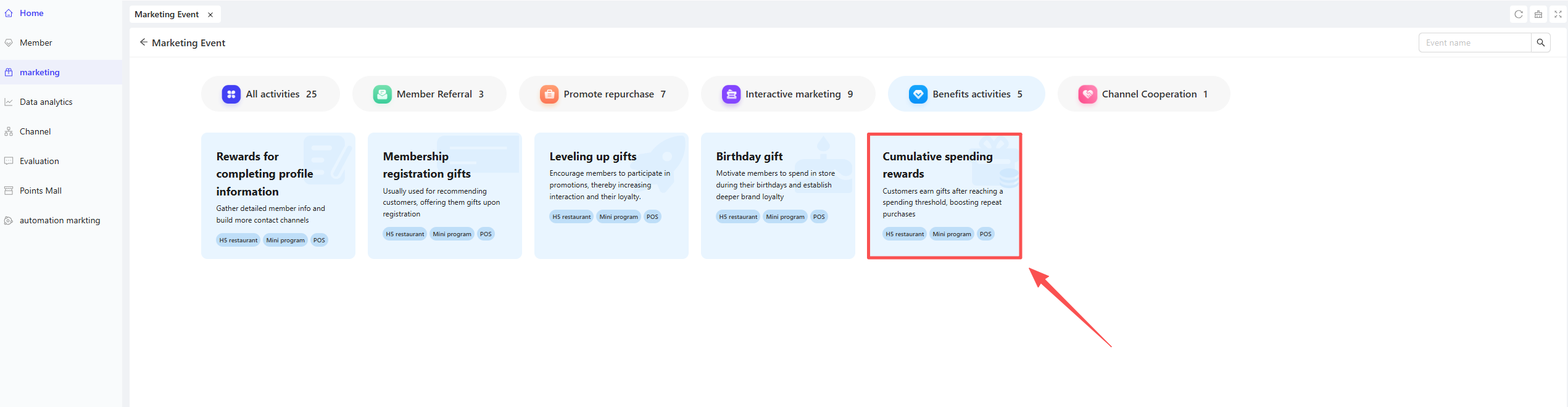
- Click【Create Activity】in the upper-right corner of the page, select the Cumulative Spending Gift module.
2.2 Basic Information Configuration
Fill in the core activity details to ensure clarity for customers and streamline internal tracking.
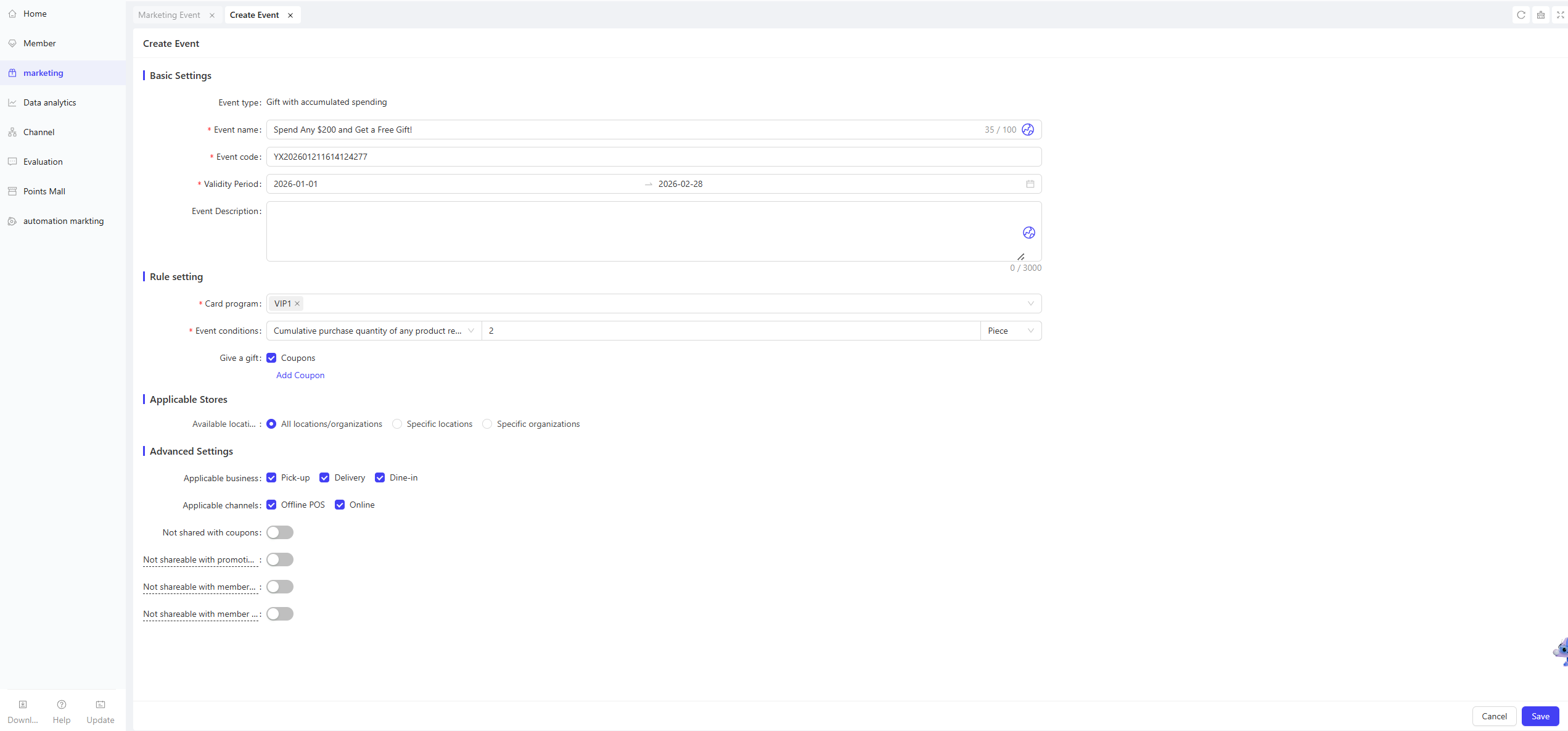
- Activity Name: Required. Choose a name that is easy for customers to identify. (e.g., “Spend Any $200 and Get a Free Gift!”).
- Activity Code: A unique internal identifier for tracking and reporting.
- Validity Period: Select the start and end dates for the activity.
- Description: Briefly outline the activity details and rules for clarity.
2.3 Rules Configuration
-
Membership Card Program: Select one or multiple membership card programs; only members under the selected programs are eligible for the activity.
-
Activity Conditions: Choose from the following four conditions:
- Cumulative Purchase of Any Items Worth $ X / Count X Pieces: All in-store items are eligible for accumulation; rewards are triggered once the set amount or quantity threshold is met.
- Cumulative Purchase of Any Items with Every $ X Spent / Every X Pieces Bought: All in-store items are eligible for accumulation; rewards are triggered each time the set threshold is met. A single threshold can be triggered multiple times with one transaction.
- Cumulative Purchase of Designated Items Worth $ X / Count X Pieces: Only selected items are eligible for accumulation; rewards are triggered once the threshold is met. This single-threshold model is suitable for promoting new products and clearing inventory.
- Cumulative Purchase of Designated Items with Every $ X Spent / Every X Pieces Bought: Only designated items are eligible for accumulation; rewards are triggered each time the threshold is met. This single-threshold model supports targeted promotions.
-
Item Scope: If you select conditions related to designated items, specify or exclude specific items here.
-
Gift Selection: Add multiple types of coupons to meet diverse user needs.For each added coupon, you need to configure the following details:
- Gift Name: Select the specific coupon here.
- Gift Quantity: Enter the number of coupons and select the distribution rule: Instant Distribution / Hourly Distribution / Daily Distribution.
- Effective Method: Choose between the Relative Validity Period or Fixed Validity Period, then complete the configuration:
- Relative Validity Period: The validity period starts counting from the moment the user claims the coupon.
- Example: “Valid for 7 days after claiming”
- Fixed Validity Period: The coupon is valid within a fixed time frame, independent of the user’s claim time.
- Example: “Valid from 00:00:00 on November 01, 2024, to 23:59:59 on November 11, 2024”
- Relative Validity Period: The validity period starts counting from the moment the user claims the coupon.
2.4 Applicable Stores
- Select Applicable Stores: Choose the stores that will participate in the activity; you can select all stores or specific ones (by store or by organization).
2.5 Advanced Settings
- Applicable Service Types: All types are selected by default; you can choose Dine-in, Delivery, or Self-pickup.
- Applicable Channels: All channels are selected by default; you can choose Offline POS or Online Channel.
- Sharing Rule Toggle:
- Non-shareable with Coupons: When enabled, you can select Non-shareable with All Coupons or Non-shareable with Selected Coupons. If you choose the latter, you need to add specific coupons that cannot be used together with this activity.
- Non-shareable with Promotions: When enabled, you can select Non-shareable with All Promotions or Non-shareable with Selected Promotions. If you choose the latter, you need to add specific promotions that cannot be used together with this activity.
- Non-shareable with Membership Benefits: When enabled, you can select Non-shareable with Member Price or Non-shareable with Member Discount; multiple selections are allowed.
- Non-shareable with Membership Assets: When enabled, you can select Non-shareable with Member Prepaid Balance or Non-shareable with Member Points; multiple selections are allowed.
3 Activity Activation & Management
-
Activating the Activity
- After completing all configurations, click Save to launch the activity immediately.
-
Activity Management & Monitoring
- View activity performance data (including order volume and participation metrics) on the Activity Management page.
- Pause, adjust, or archive the activity at any time as needed.
