Reports
1 Introduction
In this manual, you will learn how to filter and understand data from sales, payment, and dish reports, as well as master key functions like coupon and discount statistics.
2 Start with Basic Report Operations
In this section, you will learn how to access reports and use fundamental filtering options.
2.1 Find Your Reports: Entry Points and Types
2.1.1 Core Reports and Their Uses
Report Type | Primary Use | Common Scenarios |
|---|---|---|
Sales | Total revenue, discounts, net sales | Daily/shift summary, performance review |
Payments | Breakdown by payment type (cash, card, gift card, etc.) | Cashier reconciliation, payment tracking |
Items | Item-level sales volume & revenue | Inventory ordering, menu optimization |
Hourly Sales | Sales trends by hour/meal period | Staff scheduling, kitchen planning |
Void | Track voided items with reasons | Quality control, operational improvement |
Transactions | Line-by-line order details | Order inquiry, issue resolution |
Business summary | Comprehensive operational overview | Overall performance analysis |
2.1.2 Accessing the Report Center
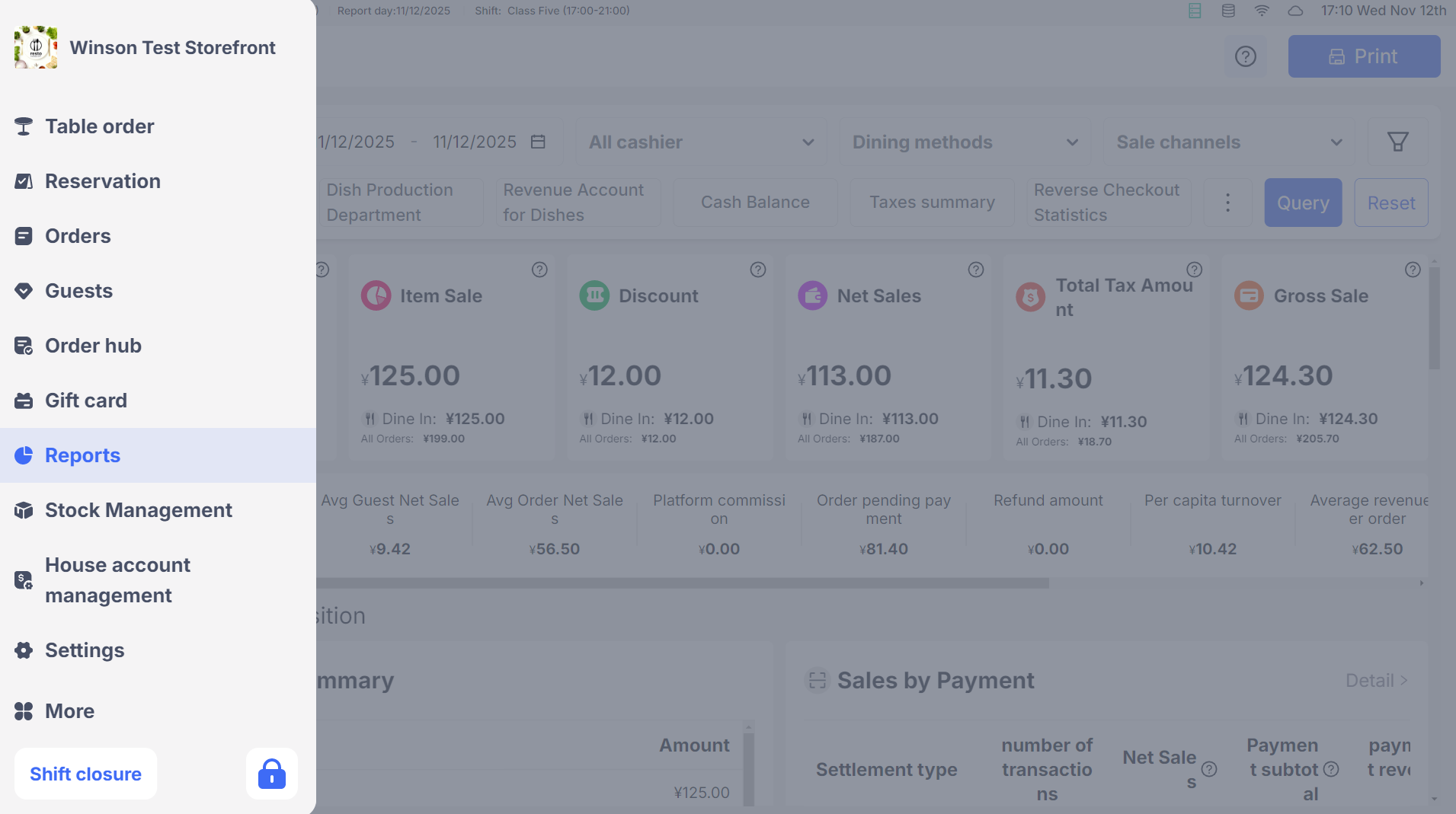
- Step 1: Log in to your POS system
- Step 2: Click the【Reports】tab in the main menu (opens to the Sales Report by default)
- Step 3: Use the top switch bar to select the target report. After switching, data for the current business day loads automatically.
2.2 Use Common Filters to Find Precise Data
All core reports support the following filter conditions, which can be combined. The default is usually “All”, and no manual reset is needed.

2.2.1 Time Filtering
-
Time Type (3 options):
- Business Date (Default): Statistics based on the store’s business day (select date only, e.g., “2024-10-01”)
- Check-out Time: Statistics based on the actual order payment time (precise to hours, minutes, seconds - ideal for 24-hour stores checking shift data, e.g., “2024-10-01 08:00:00 - 16:00:00”)
- Creation Time: Statistics based on the time the order was opened
-
Switching Rules:
- Switching from “Business Date” to “Checkout/Creation Time”: Automatically fills the time (Start: 00:00:00, End: 23:59:59)
- “Checkout/Creation Time” to “Business Date”: Keeps only the date, clearing hours, minutes, seconds.
-
Quick Options: Supports quick selection of “Today”, “Yesterday”, “Last 7 Days”, “Last 30 Days”.
2.2.2 Staff Filter (Check Data by Cashier)
- Default selects “All Cashiers”, supports multi-select for single/multiple cashiers
- Special option “(System)”: Queries online/third-party orders (orders without a specific cashier)
- Filter Logic:
- Select “All”: Statistics include data for all staff
- Select specific cashier(s): Only shows data for settled orders processed by that staff member
2.2.3 Business Scenario Filter
Filtering Dimension | Options Example | Applicable Scenarios |
|---|---|---|
Dining Method | Dine-in, Pickup, Delivery | Distinguishing different dining modes for performance |
Sales Channel | POS ordering, online applet, Meituan delivery | Analyzing order proportions from different channels |
Table Area | Hall, Booth, Private Room | Revenue comparison for different areas in formal dining restaurants |
Checkout Meal Period | Breakfast (07:00-09:00), Lunch (11:00-14:00) | Peak sales analysis for meal periods |
Transaction Type | Payment, Refund | Distinguishing types of transactions in detail reports |
Dish Type | Single + Set Menu, Single + Set Menu Details (Dish Report only) | Breaking down set meals into sub-dishes |
2.3 Common Functions
- Printing: Click【Print】on the top right of the report. The printed content matches the current filter conditions (e.g., if “Dine-in” is filtered, the printout will note “Dining Mode: Dine-in”)
- Exporting: Admin accounts can export Excel files (Click “Export”, save locally or send via email)
- Refreshing: If data is not updated in real-time, click “Refresh” to sync the latest order data
3 Master the Core Reports
This section dives into the details of your essential reports.
3.1 Sales Report — Key for Business Summary
3.1.1 Key Metrics and How They Are Calculated
Metric Name | Meaning Description | Calculation Formula |
|---|---|---|
Order Quantity | Total number of valid orders (excluding fully refunded original orders and canceled orders) | Sum of eligible order counts |
Business Volume | Total amount before discounts (includes all chargeable items) | Dish Sales + Additional Fees + Ex-Tax + Order Tips |
Business Discount | All discounts borne by the merchant (excluding customer-purchased vouchers) | Local Discounts + Promotions + Voucher Activities + Membership Activities + Rounding Off + Payment Discounts |
Business Revenue | Actual revenue (business volume minus merchant discounts) | Business Volume - Business Discount |
Business Revenue (Excluding Actual Receipts) | Part of the revenue not included in actual receipts | Additional Fees (Excluding Actual Receipts) + Ex-Tax + Order Tips |
Expected Actual Income | Final expected amount to be received by the merchant | Business Revenue - Business Revenue (Excluding Actual Receipts) |
Paid Actual Income | Actual amount received (includes third-party subsidies, stored value payments, etc.) | Cash + WeChat + Alipay + Stored Value Payment + Third-party Subsidies |
3.1.2 Notes:
Pre-paid Order Handling: You can choose whether to "Include/Exclude in Business Revenue" (Gift card/Prepaid orders are excluded by default; you may need to manually enable the inclusion switch).
Special Topics: "Membership Stored Value Summary" and "Gift Card Summary" are only affected by date filtering. Other filters (like dining methods) will show empty data
3.1.3 Usage Example
Scenario:
Check the "business revenue for cashier Tom during the morning shift (08:00-16:00) on 2024-10-01".
Steps:
Time Filter: Select【Checkout Time】, set start/end to "2024-10-01 08:00:00 - 16:00:00".
Staff Filter: Select【Tom】
Calculation: Business Revenue = Turnover ($5000) - Business Discounts ($800) = $4200; Estimated Net Receipts = $4200 - Non-Receivable Amounts ($300) = $3900.
3.2 Payment Report
3.2.1 Core Statistical Views
Theme Name | Scope of Statistics | Core Metrics |
|---|---|---|
All Orders Payment Summary | Dishes + Gift Cards + Stored Value Orders | Payment Name, Times, Merchant Actual Receipts, Payment Subtotal, Refund Amount |
Dish Orders Payment Summary | Only Dish Orders (excluding gift card/stored value) | Same as above |
Gift Card Orders Payment Summary | Only Gift Card Purchase/Recharge Orders | Same as above |
Stored Value Orders Payment Summary | Only Membership Stored Value Orders | Same as above |
Voucher Change Exemption Summary (Special) | Exemption amount generated by using vouchers | Payment Name, Times, Voucher Face Value, Voucher Payment, Voucher Change Exemption Amount |
3.2.2 Key Metric Calculations
- Voucher No-Change Amount: Voucher Face Value - Actual Voucher Payment Amount (e.g., a $40 voucher requiring $35 payment results in a Voucher No-Change Amount = $5)
- Merchant Net Receipts: Payment Subtotal - Refund Amount (e.g., WeChat Payment Subtotal $1000, Refunds $100, Merchant Net Receipts = $900)
3.2.3 Payment Name Merging Rules
- Merging Logic: Combine online/offline data for the same payment method (e.g., “WeChat Payment” includes POS scanning and online applet payments).
- Voucher Redemption Classification: Meituan/Douyin vouchers and custom vouchers are categorized separately (e.g., under “Meituan Redemption Voucher” subdivided into “30 off 40 Group Purchase Voucher”), avoiding confusion with regular payment methods.
3.3 Items Report — Core of Sales Analysis
3.3.1 Core Filtering: Dish Type
Filtering Option | Display Content | Applicable Scenarios |
|---|---|---|
Single + Set Menu (Default) | Overall view of singles + sets (without splitting sub-dishes) | Quick view of set menu sales |
Single + Set Menu Details | Singles + set menu sub-dishes (menu displayed separately) | Store ordering (statistics on ingredient usage within set menus) |
3.3.2 Core Metrics and Calculation
Metric Name | Meaning Description | Calculation Method |
|---|---|---|
Top 10 Dish Sales | Top 10 dishes sorted by actual receipts | Single Dish Sales Quantity × Single Dish Actual Price |
Categorized Sales Summary | Sales volume and amount by dish category | Total sales of all dishes in the category |
Dish Sales Proportion | Proportion of a single dish's sales to total sales | (Single Dish Sales Amount ÷ Total Sales Amount) × 100% |
3.3.3 Usage Example (Ordering Statistics)
- Scenario: Statistics on “Hamburger sales within set menus during lunch on 2024-10-01”.
- Operation:
- Time Filtering: Select “Business Date” = 2024-10-01, “Checkout Meal Period” = Lunch.
- Dish Type: Select “Single + Set Menu Details”.
- View: Find “Hamburger” in the dish summary; the sales number is the total usage from both set menus and singles used for ordering.
3.4 Brief Overview of Other Core Reports
Report Type | Core Use | Key Metrics |
|---|---|---|
Hourly Sales | Analysis of peak meal periods | Time Period, Order Count, Actual Receipts, Hot Selling Dishes |
Void | Statistics on reasons for dish voids | Voided Dishes, Quantity, Amount, Reason for Voids |
Transactions | Investigation of individual order issues | Transaction Time, Payment Method, Amount, Cashier |
Business Summary | Panoramic operation analysis | Revenue Composition, Payment Composition, Channel Proportion |
4 Explore Advanced Features
4.1 Voucher Change Exemption Summary
4.1.1 Function Use
Statistics on the “exemption amount” in the usage of vouchers to avoid merchant losses due to improper voucher usage (e.g., a 30 off 40 voucher should pay $35 and exempted $5)
4.1.2 Core Calculation Logic
- Statistical Conditions: Voucher change exemption amount > 0 and customer actual payment > 0.
- Voucher Face Value: Nominal amount of the voucher (e.g., $40).
- Voucher Payment: Actual discounted amount (e.g., $35).
- Voucher Change Exemption Amount: Voucher Face Value - Voucher Payment (e.g., $5).
4.1.3 Operation Steps
- Access the “Payment Report”, find the “Voucher Change Exemption Summary” topic
- After filtering time/channel, view the usage times, voucher face value, voucher payment, and voucher change exemption amount of each voucher
4.2 Report Recalculation Function — Data Correction
4.2.1 Applicable Scenarios
When errors are discovered after daily/shift settlement (e.g., missed orders, not updated after reversal) and need to recalculate documents
4.2.2 Operation Steps (Admin Privileges)
- Step 1 : Access the “Daily/Shift Settlement Report”, find the target document.
- Step 2 : Click【More】→【Recalculate】, confirm “Recalculation will generate a new document, the original document will be hidden”.
- The system will recompute according to the original time range and generate a new document (marked “Recalculated”, recording operator + time).
4.3 Payment Name Merging (Reconciliation Optimization)
4.3.1 Function Effect
- The originally separated displays of “WeChat Payment (Online Payment)” and “WeChat Scan Payment” are merged into “WeChat Payment”
- Voucher redemption categories are shown separately (e.g., under “Meituan Redemption Voucher” subdivide specific voucher names), facilitating reconciliation
4.3.2 Usage Scenario
During store reconciliation, there is no need to sum multiple split items for the same payment method; just view the total amount of the merged items directly
5 FAQS
- Issue: Report Data Mismatch
-
Cause Analysis:
- Filtering conditions do not include target orders
- Online orders not synced
- Orders not completed (payment/refund)
-
Solution Steps:
- Step 1: Check time/staff/channel filtering conditions
- Step 2: Click “Refresh” to sync data
- Step 3: Ensure all orders are completed
- Issue: Dish Report Not Showing Set Menu Details
-
Cause Analysis:
- Dish type not selected as “Single + Set Menu Details”
-
Solution Steps:
- Enter the Dish Report, switch dish type to “Single + Set Menu Details”
- Issue: No Data in Voucher Change Exemption Summary
-
Cause Analysis:
- No orders meeting the conditions within the filtered time
- Voucher change exemption ≤ 0 or customer actual payment ≤ 0
-
Solution Steps:
- Step 1: Adjust time filtering range
- Step 2: Confirm voucher usage scenarios (e.g., a 30 off 40 voucher should pay 35 CNY to generate exemption)
- Issue: Payment Name Not Merged
-
Cause Analysis:
- The system did not enable payment name merging rules
-
Solution Steps:
- Contact the administrator to enable “Payment Name Merging by authparty” on the BO end
- Issue: Empty Membership Stored Value Summary in Sales Report
-
Cause Analysis:
- Selected a business scenario filter other than “All” (e.g., dining method = Dine-in)
-
Solution Steps:
- Cancel business scenario filter, keeping only the date/staff filter
6 Appendices
- If you encounter unmentioned anomalies during operation, click【Settings → Help Center】to view video tutorials or contact the store administrator.
- Report metric calculations may vary slightly due to store configuration (e.g., whether to include stored value income), please refer to the actual configuration