Group Configuration
1 Overview
From the Group Perspective, the group centrally maintains the foundational data of the supply chain module. This encompasses Parameter Configuration, Master Data (e.g., Warehouse and Material Management), Supplier Management, Report Management, and Financial management.
2 Application Guide
2.1 System Settings
2.1.1 Module Overview
As a foundational configuration module of the supply chain, System Settings provides Parameter Configuration and Accounting Period Settings. Users can make configurations based on their business requirements to meet the needs of supply chain management.
2.1.2 Function Details
2.1.2.1 Parameter Settings
2.1.2.1.1 Function Overview
- The supply chain system supports adapting to the personalized needs (including application requirements, control scopes, and processing methods) of different customers for the same business scenario/process through the configuration of business parameters at the group, distribution center, and store levels.
- It is recommended that the configuration be uniformly performed by system administrators.
2.1.2.1.2 Operation Instructions
-
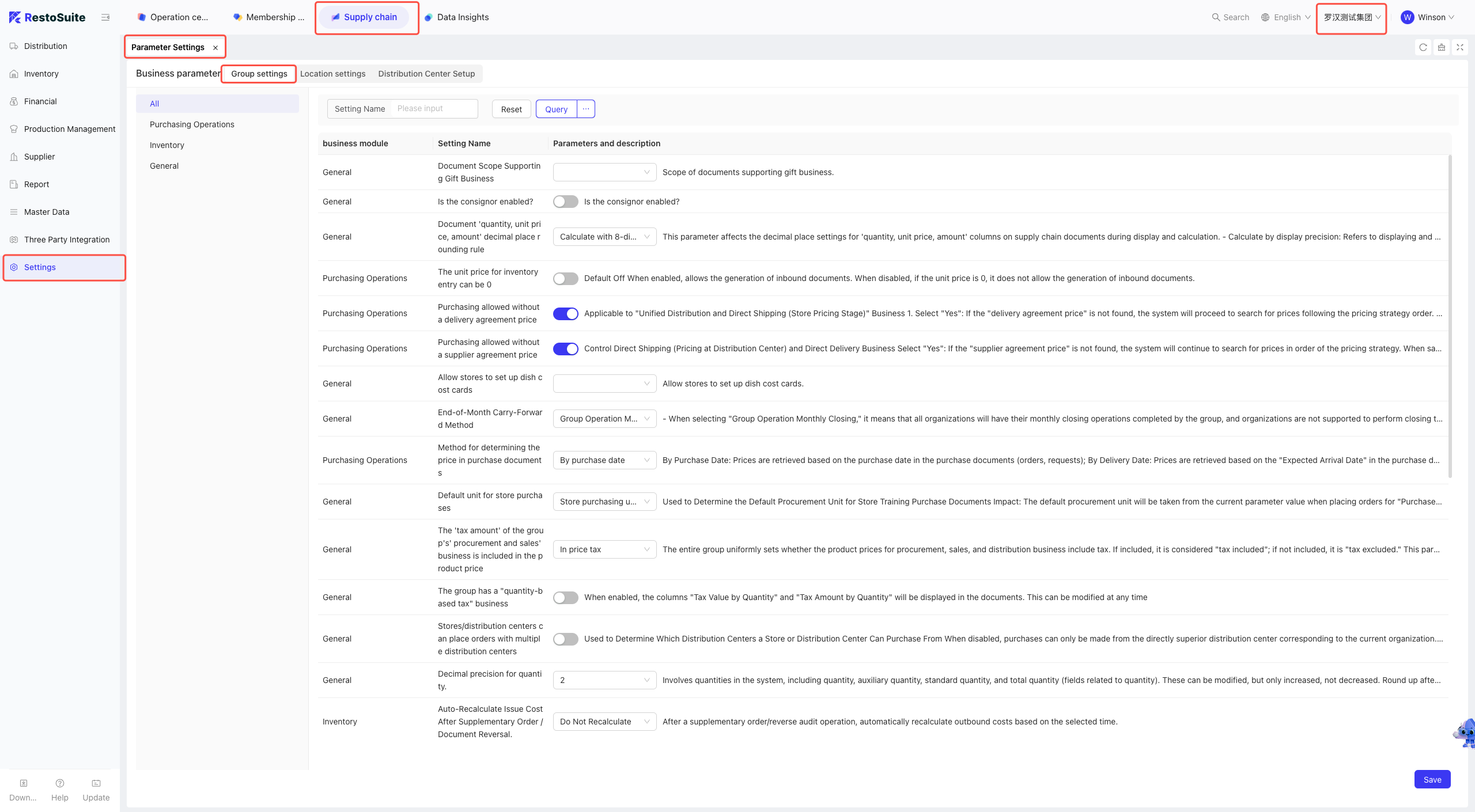
Step 1 : Access Module
- [Group Perspective - Supply Chain Module - System Settings - Parameter Settings]
-
Step 2 : Access the effective business module and set the parameters
- [Group/Distribution Center/Store] : Select and click the specific business module to configure
- Click [Save] after completion.
-
Detailed steps are as follows:
2.1.2.1.3 Notes
Attention:
When setting parameters, note the affiliated organization of the parameter: Group, Store, or Distribution Center.
Set the relevant parameters as per the parameter instructions.
Certain parameters cannot be changed after setup and subsequent business operations
2.1.2.2 Accounting Period
2.1.2.2.1 Function Overview
Users can set [Accounting Periods] to implement accounting segmentation, meeting the needs of financial data calculation and verification.
2.1.2.2.2 Function Value
Customizable accounting periods allow adaptation to the operational needs of different enterprises.
2.1.2.2.3 Term Definition
Key Terms:
- Accounting period: A standard time frame used to record, summarize, and report a business’s financial transactions and performance.
2.1.2.2.4 Application Scenario
This function is uniformly configured during system initialization.
2.1.2.2.5 Operation Instructions
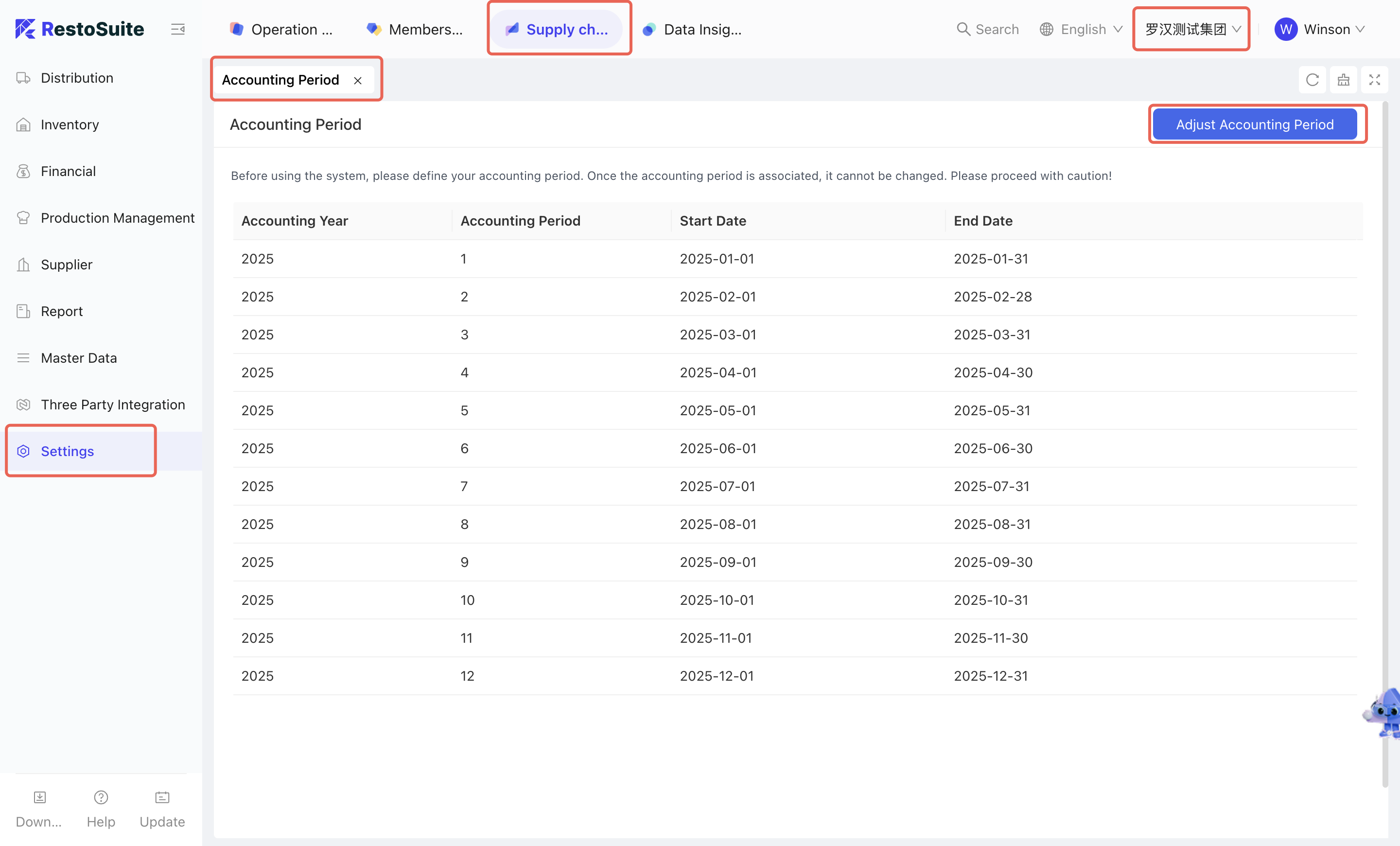
The system defaults to 12 natural months as the accounting period.
-
Step 1 : Access Module
- [Group Perspective - Supply Chain Module - System Settings - Accounting Period]
-
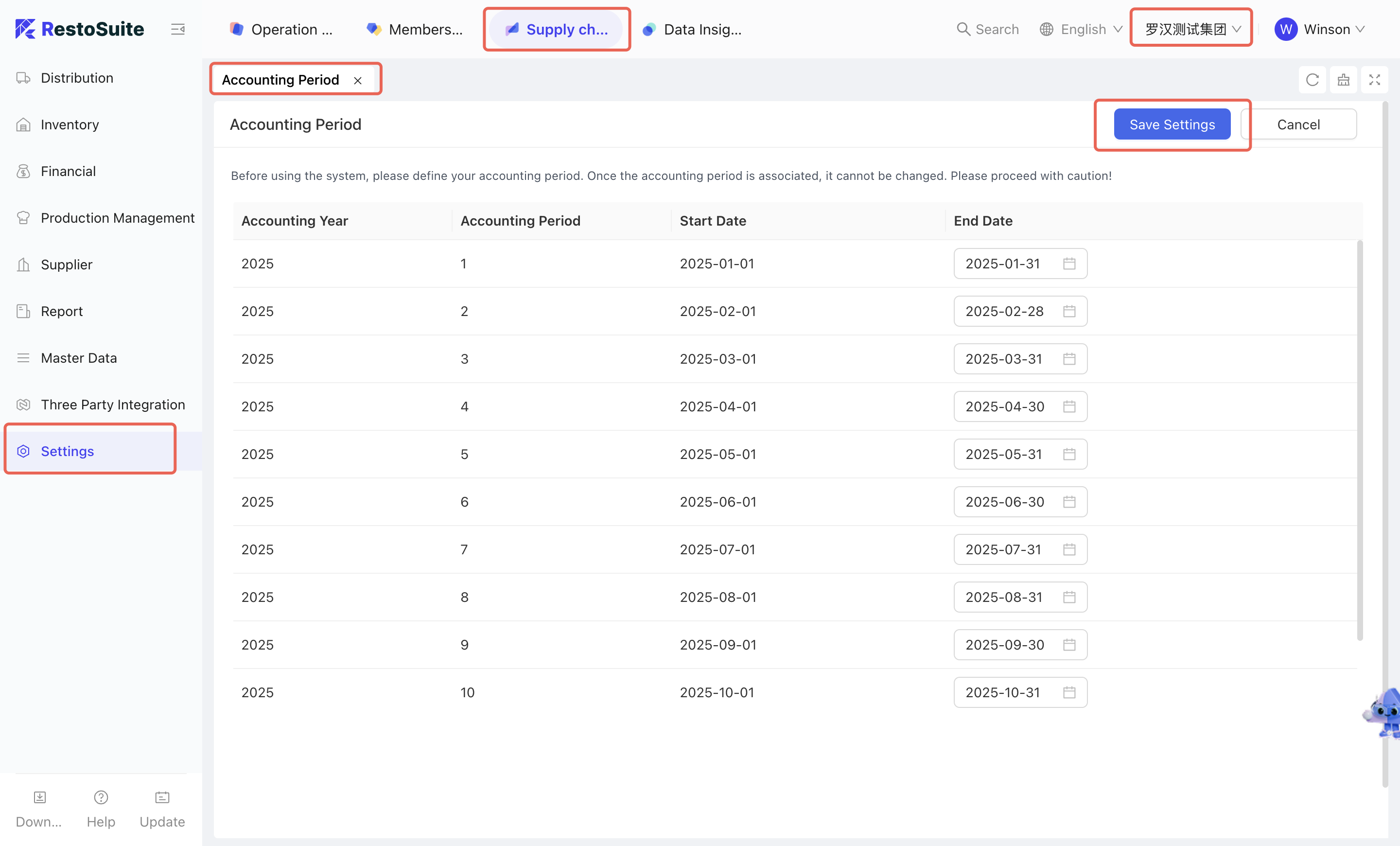
Step 2 : Modify the Accounting Period and save
- Click [Adjust Accounting Period]
- Click [Save Settings] after adjustments.
-
Detailed steps are as follows:
2.2 Master Data Management
2.2.1 Module Overview
As the foundational data hub of the supply chain, Master Data Management integrates Organization Settings, Material Management, Warehouse Management, Receiving Rules, Menu Item Cost Cards, and Customer Management. By centralizing the creation and maintenance of basic data, this module empowers the group to achieve unified oversight and control across the entire supply chain system.
2.2.2 Function Details
2.2.2.1 Warehouse
2.2.2.1.1 Function Overview
Warehouse master data involves defining warehouses and setting relevant attributes within the scope of inventory organizations. Each warehouse is affiliated with a specific inventory organization, and warehouse master data is configured based on inventory organizations.
2.2.2.1.2 Function Value
The warehouse management function supports the creation, deletion, and modification of distribution center warehouses, store warehouses, and processing workshops, meeting the inventory organization management needs of distribution centers and stores.
2.2.2.1.3 Term Definition
Key Terms:
Distribution Center Warehouse: The smallest inventory organization affiliated with a distribution center.
Store Warehouse: The smallest inventory organization affiliated with a store.
Processing Workshop: An inventory organization used for production and processing activities.
2.2.2.1.4 Operation Instructions
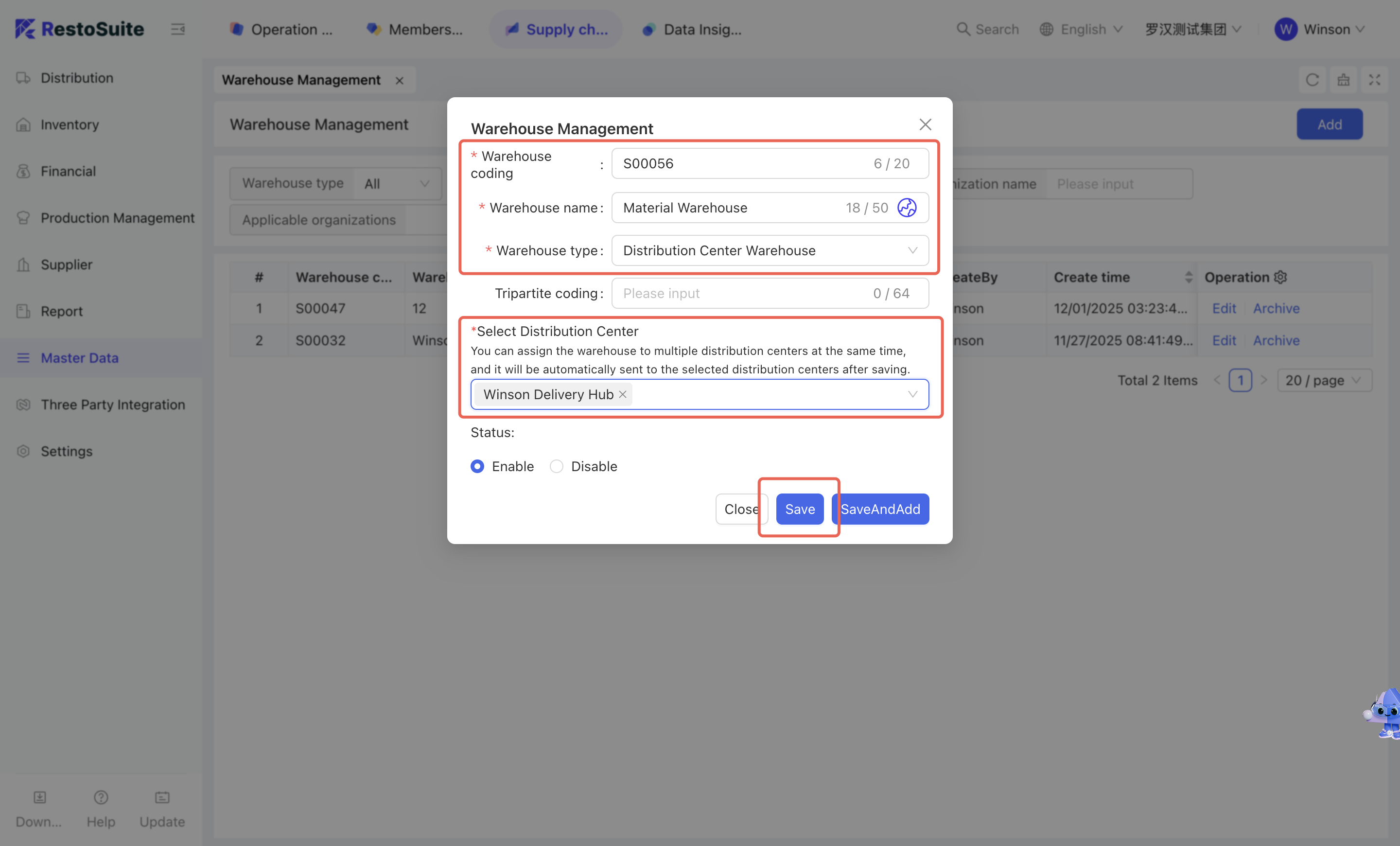
Steps to create a new warehouse organization:
-
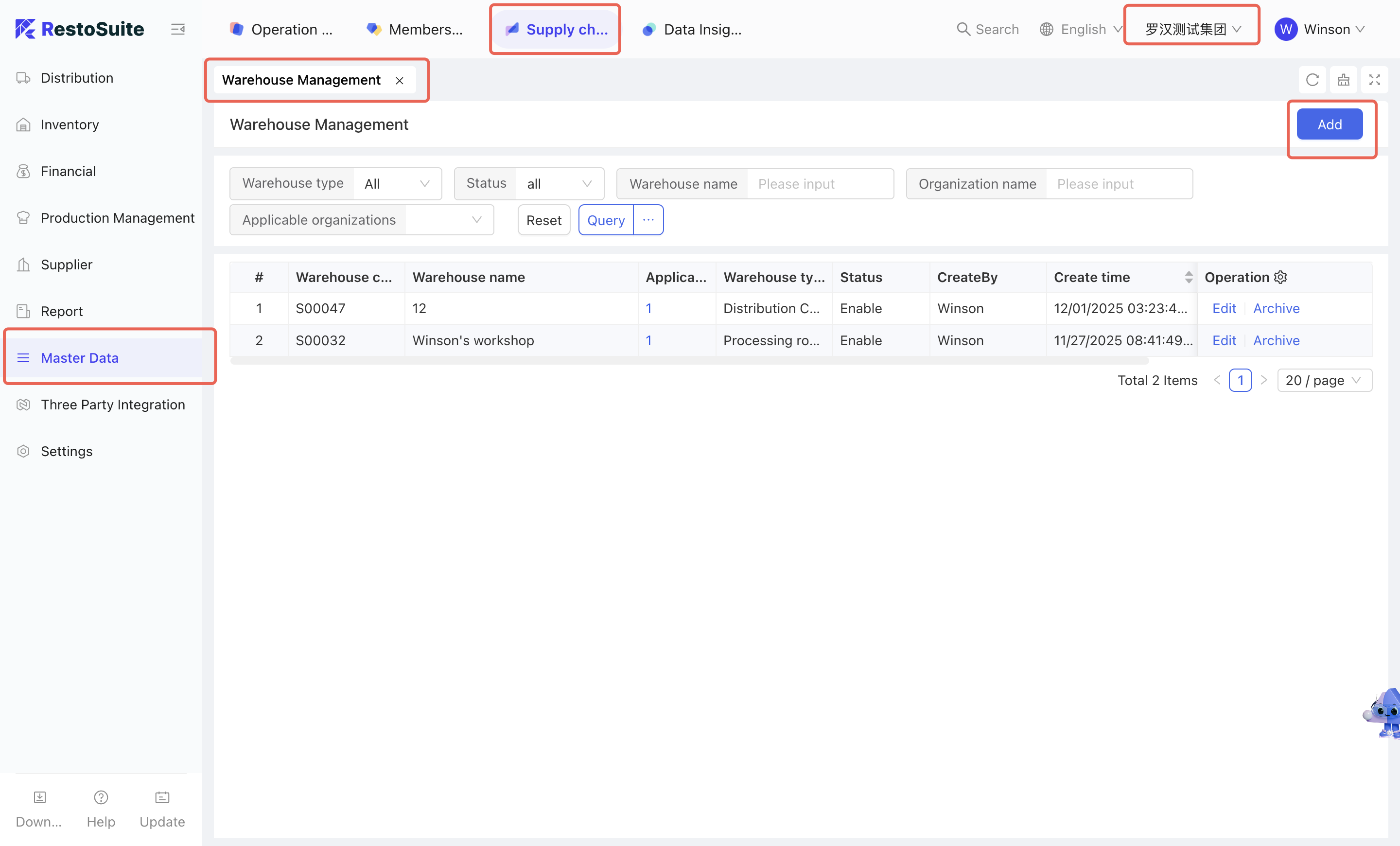
Step 1 : Access Module
- Select [Group Perspective - Supply Chain Module - Master Data Management - Warehouse Management]
-
Step 2 : Create a Warehouse and save
- Click [Add] : Open the Add Warehouse Form
- Enter [Warehouse Code & Warehouse Name]
- Select [Warehouse Type] :Distribution Center Warehouses, Store Warehouses, and Processing Workshops
- Select [Distribution Center/Applicable Store/Organization] : Select the warehouse affiliation based on the warehouse type
- Click [Save].
-
Relevant pages are as follows:
2.2.2.2 Material Category Management
2.2.2.2.1 Function Overview
Material categories serve as the classification dimension for basic material information. The system supports three-level classification.
2.2.2.2.2 Function Value
Classifying materials by attributes through material category management facilitates material management and financial accounting.
2.2.2.2.3 Term Definition
Key Terms:
- Material category : The classification of materials by their attributes.
2.2.2.2.4 Operation Instructions
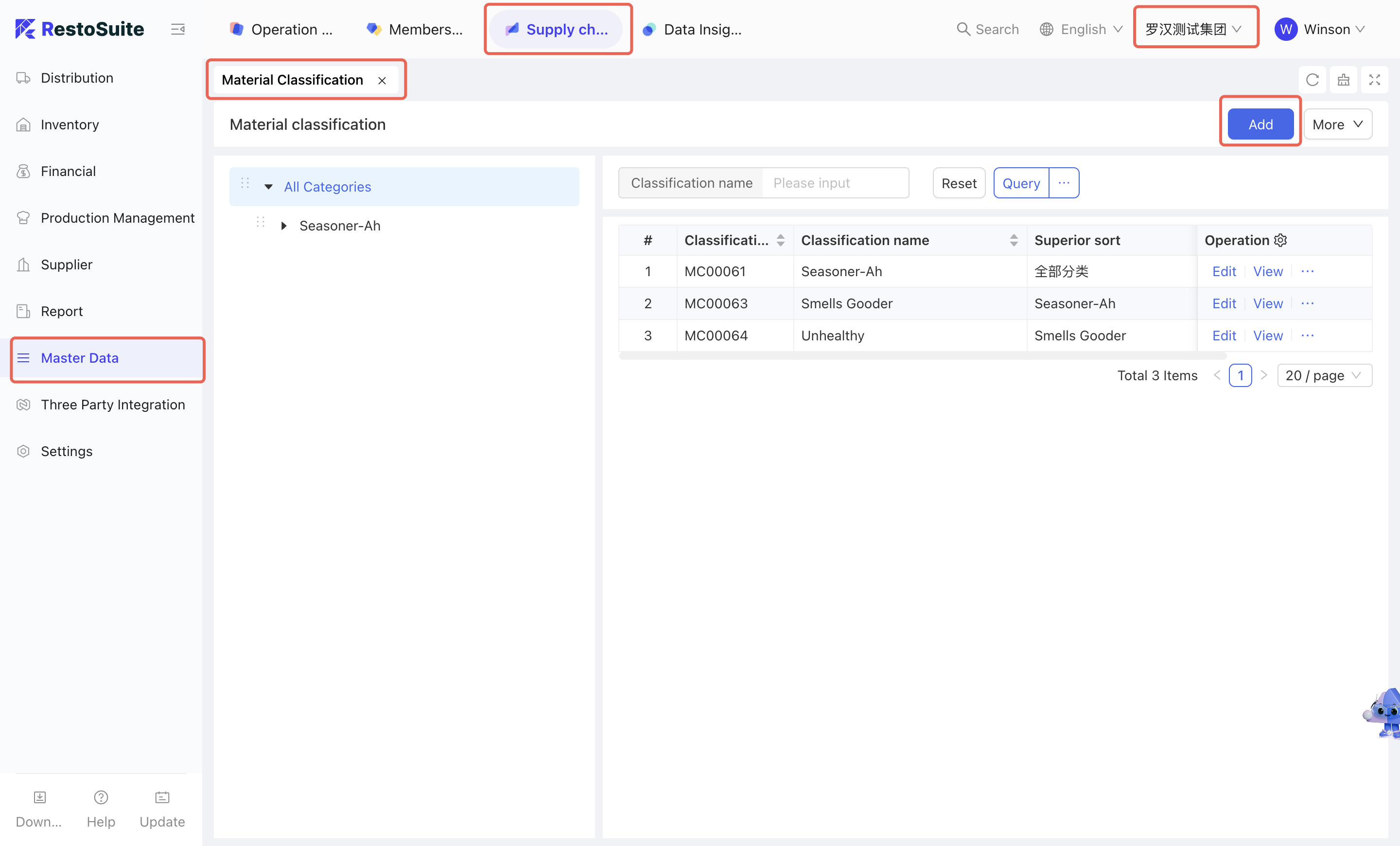
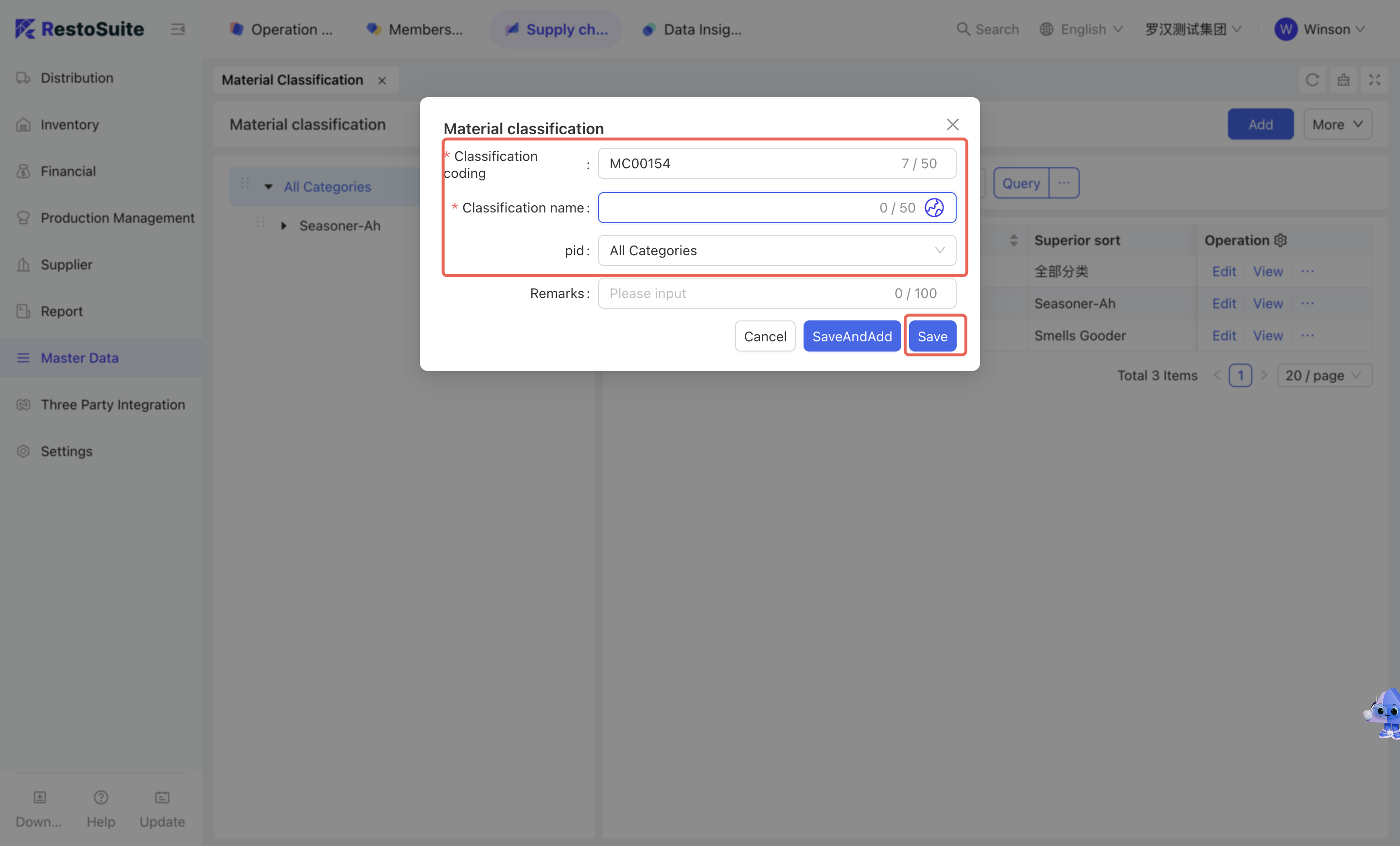
The system adopts a three-level material classification structure. Steps to create a new category:
-
Step 1 : Access Module
- Select [Group Perspective - Supply Chain Module - Master Data Management - Material Category Management]
-
Step 2 : Create Classification
- Click [Add] : Open the Add Material Category Form
- Enter [Category Code & Category Name & Remarks]
- Select [Parent Category, Tax Rate Name]
- Click [Save].
-
Relevant pages are as follows:
2.2.2.3 Material
2.2.2.3.1 Function Overview
This function is used to maintain basic material-related data, including material code, name, unit of measurement, tax rate, etc.
2.2.2.3.2 Function Value
The material management node enables centralized management of material information across the group’s supply chain, enhancing data standardization.
2.2.2.3.3 Term Definition
Key Terms:
Standard Unit: The reference and pricing unit of the system, usually a medium-sized unit. By default, supplier agreement prices are set based on the standard unit.
Distribution Center Purchasing Unit: The unit used by distribution centers when purchasing from suppliers, typically a large-sized unit.
Store Purchasing Unit: The unit used by stores when purchasing from distribution centers or suppliers.
Cost Unit: The unit used in store cost cards, typically a small-sized unit.
Statistical Category: Used for financial statistics and cost accounting. "Cost Type" refers to materials directly used in production; "Expense Type" refers to materials not directly involved in production.
Safety Stock Upper Limit: The maximum inventory quantity allowed in the warehouse.
Safety Stock Lower Limit: The minimum inventory quantity required in the warehouse.
2.2.2.3.4 Operation Instructions
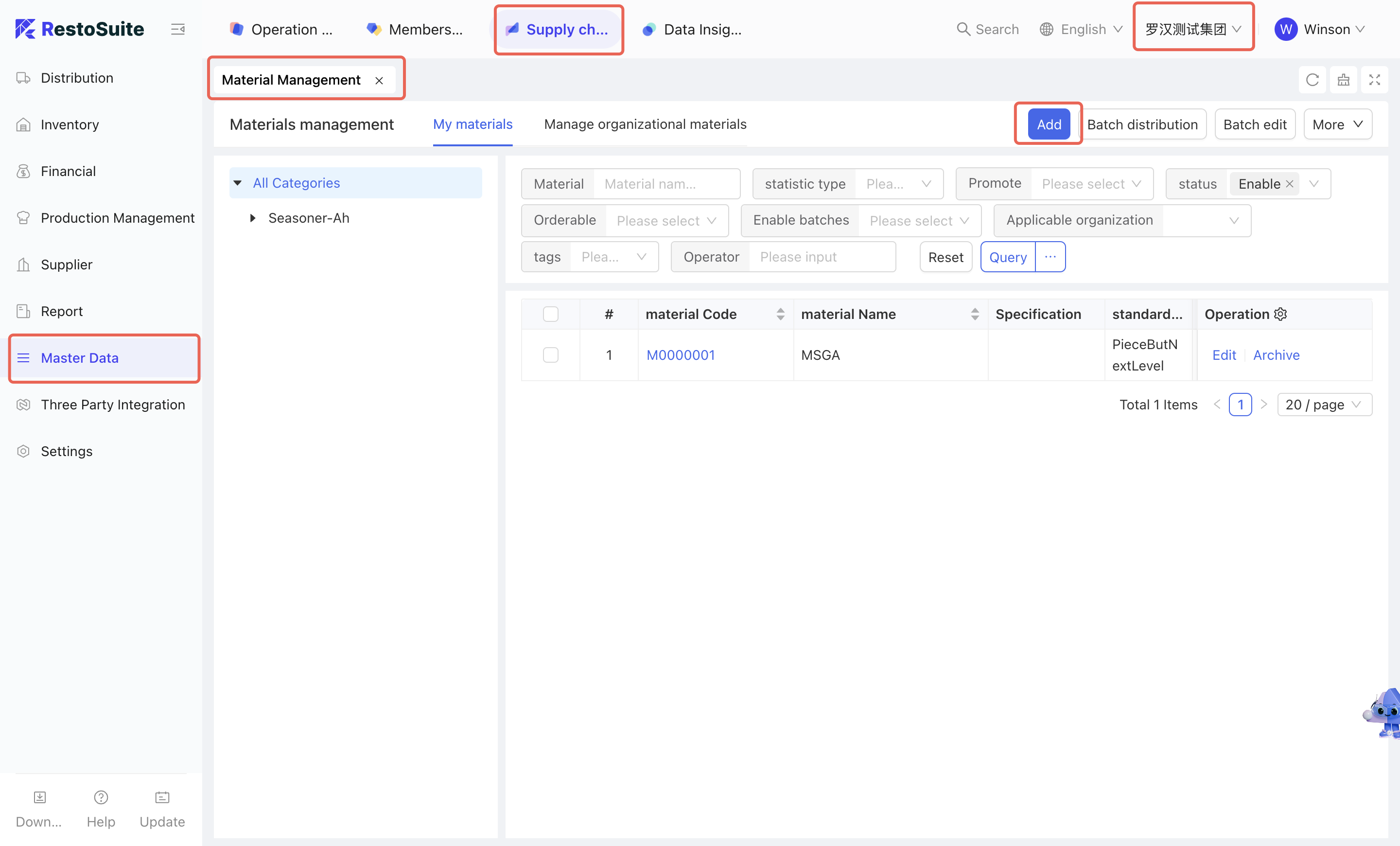
Steps to create new material information:
-
Step 1 : Access Module
- Select [Group Perspective - Supply Chain Module - Master Data Management - Material Management]
-
Step 2 : Create new material
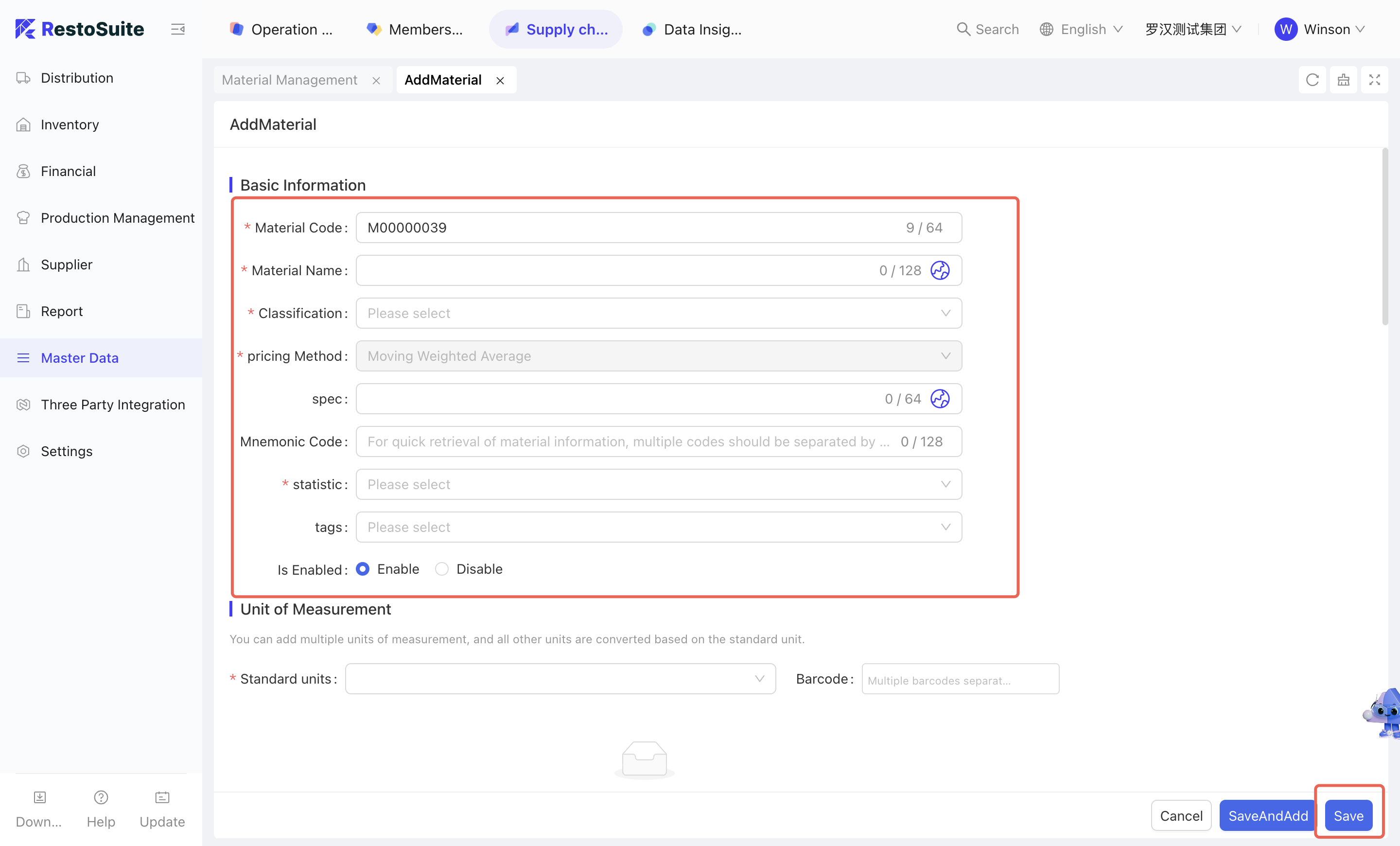
- Click [Add] : Open the [Add Material] page
- Maintain material code, material name, affiliated category, statistical type, pricing method, unit of measurement, etc.
- Click [Save].
-
Relevant pages are as follows:
Steps to import materials:
-
Step 1 : Access Module
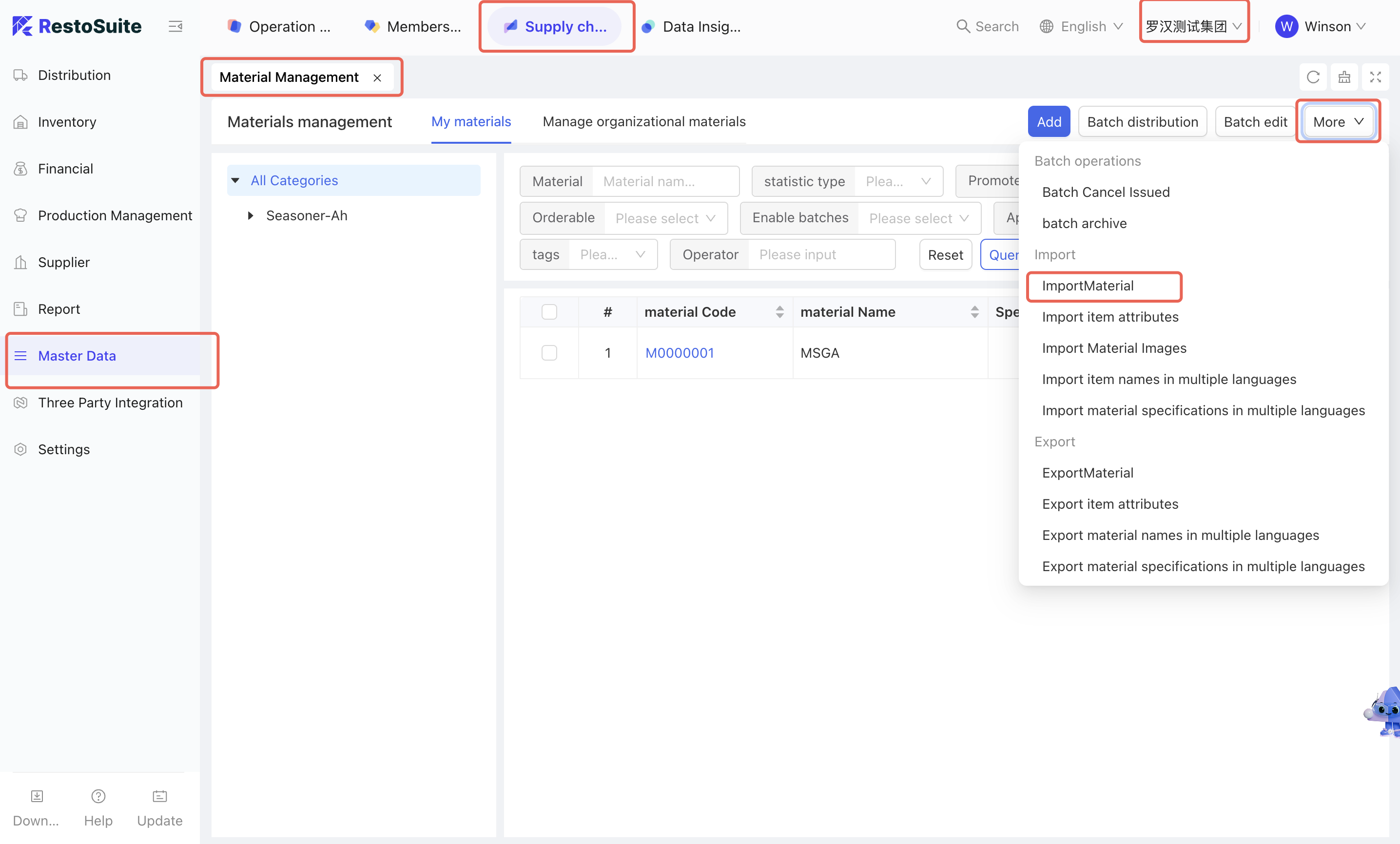
- Select [Group Perspective - Supply Chain Module - Master Data Management - Material Management]
- Click [More] in the upper right corner
- Click [Import Material]
-
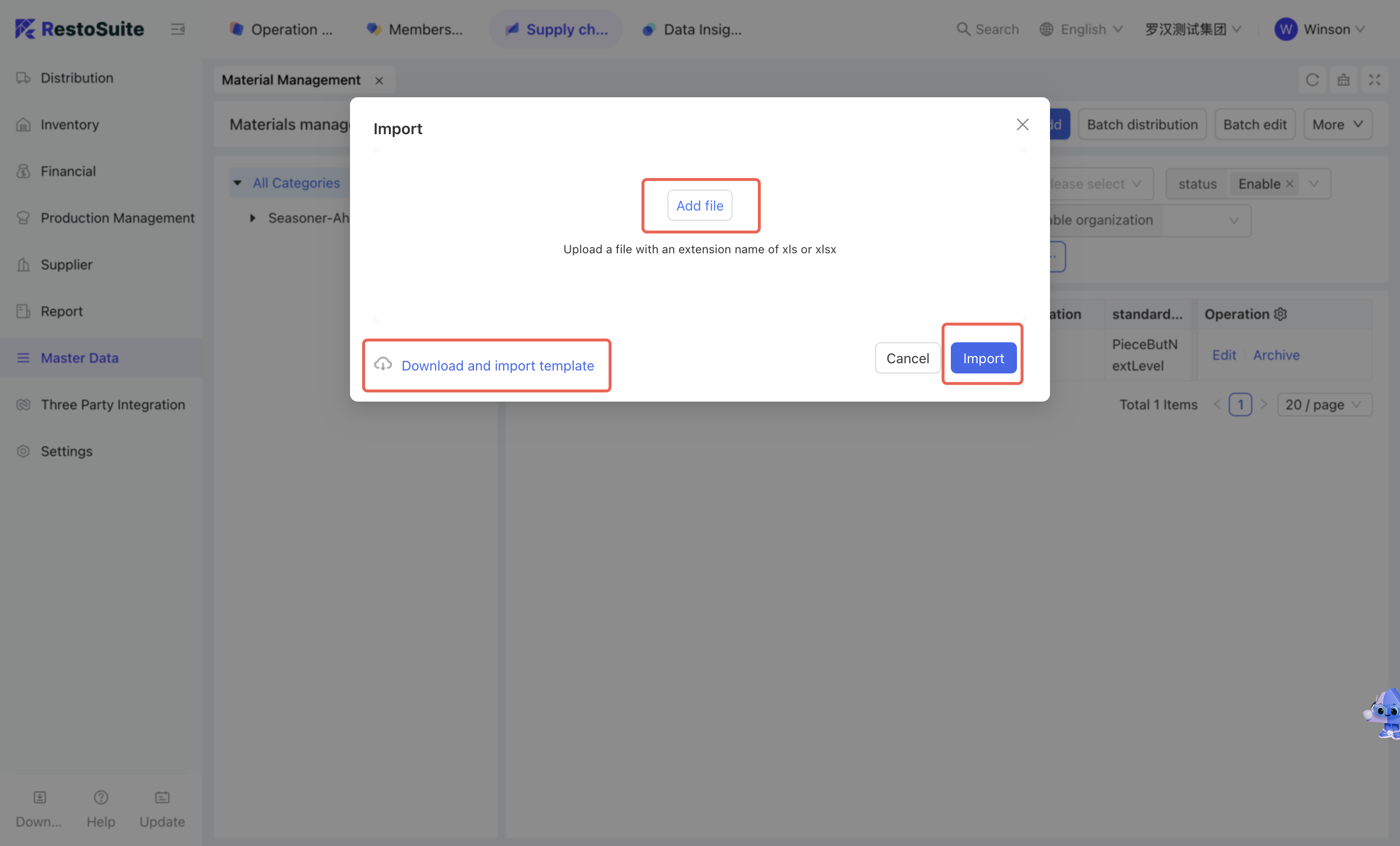
Step 2 : Download Template
- Click [Download and import template] to organize material information according to the template
-
Step 3 :Upload File
- Click [Add File] to upload the organized material information
- Click [Import]
-
Relevant pages are as follows:
Steps to batch distribution:
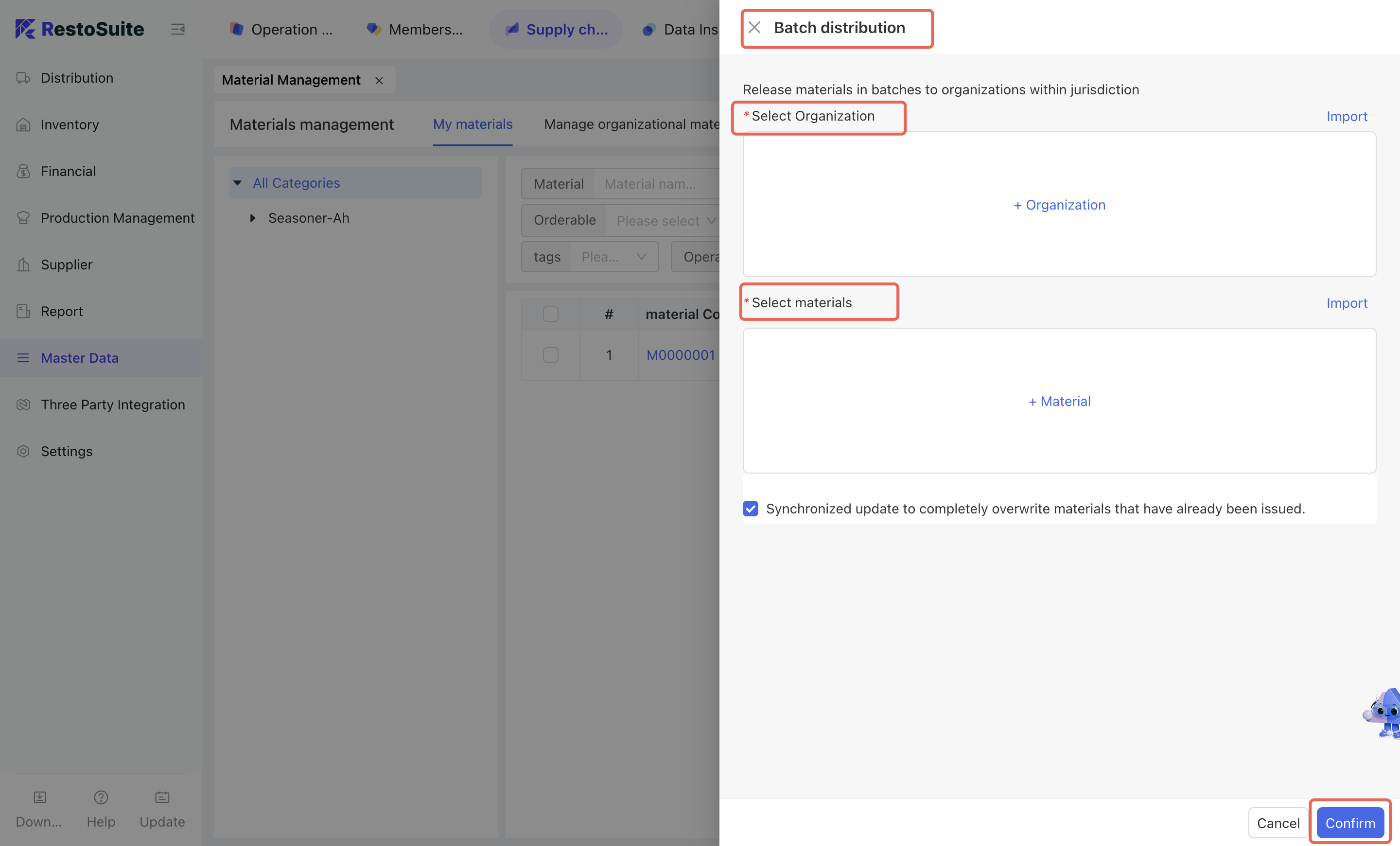
- After creating new materials, the group can distribute them in batches to the organizations that need to use the materials.
- Relevant pages are as follows:
2.2.2.4 Organization Settings
2.2.2.4.1 Function Overview
The Organization Settings module is used to maintain basic information, settlement accounts, and jurisdictional organization of stores and distribution centers.
2.2.2.4.2 Function Value
Through Organization Settings, the relationship between distribution centers and stores can be linked, and the payment methods for store purchases can be set in batches.
2.2.2.4.3 Operation Instructions
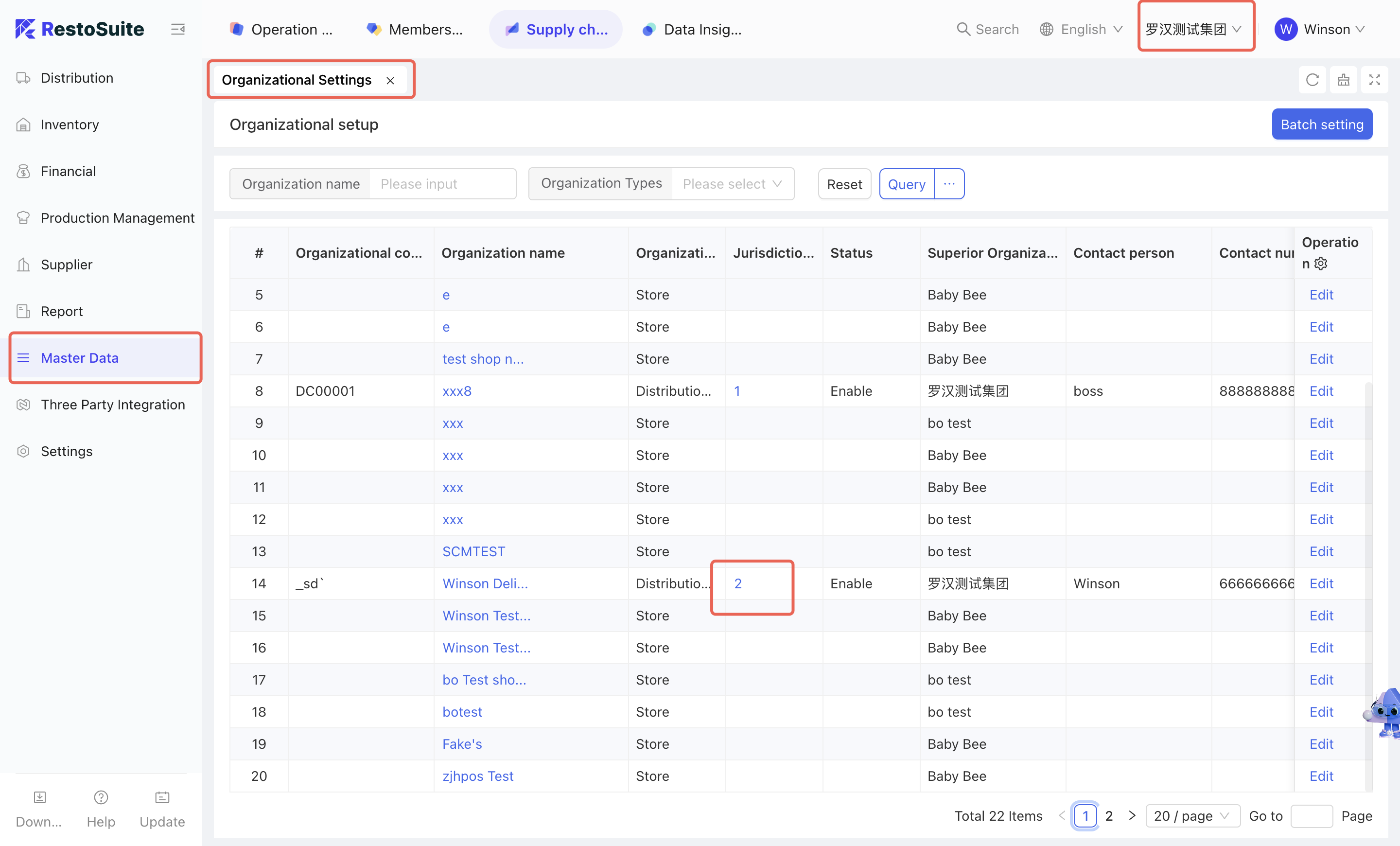
Set the scope of stores governed by a distribution center (i.e., link stores to their affiliated distribution centers)
-
Step 1 : Access Module
- Select [Group Perspective - Supply Chain Module - Master Data Management - Organization Settings]
-
Step 2 : Configure Jurisdictional Organization
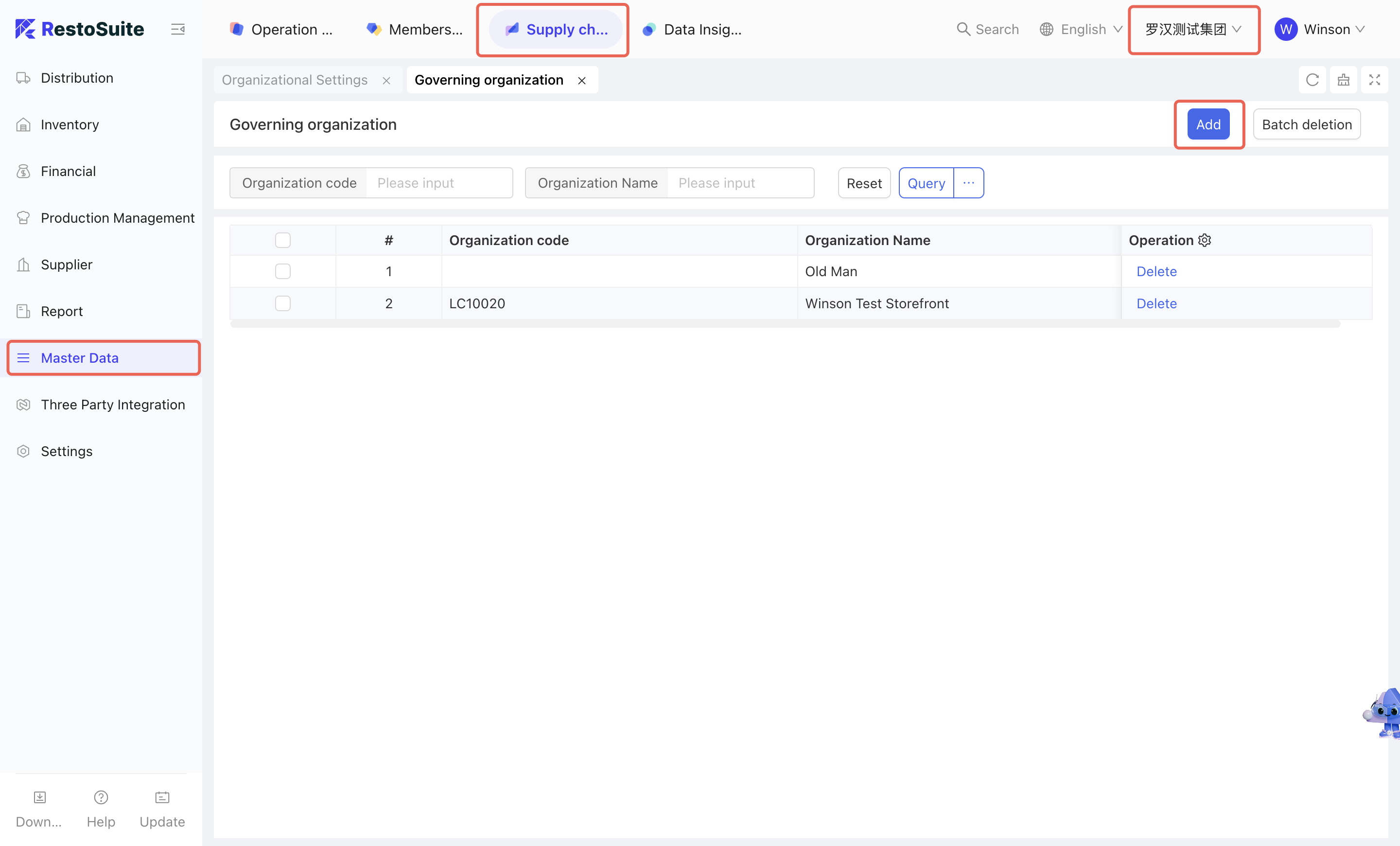
- Find the distribution center to be configured, click the corresponding button in the [Jurisdictional Organizations] column
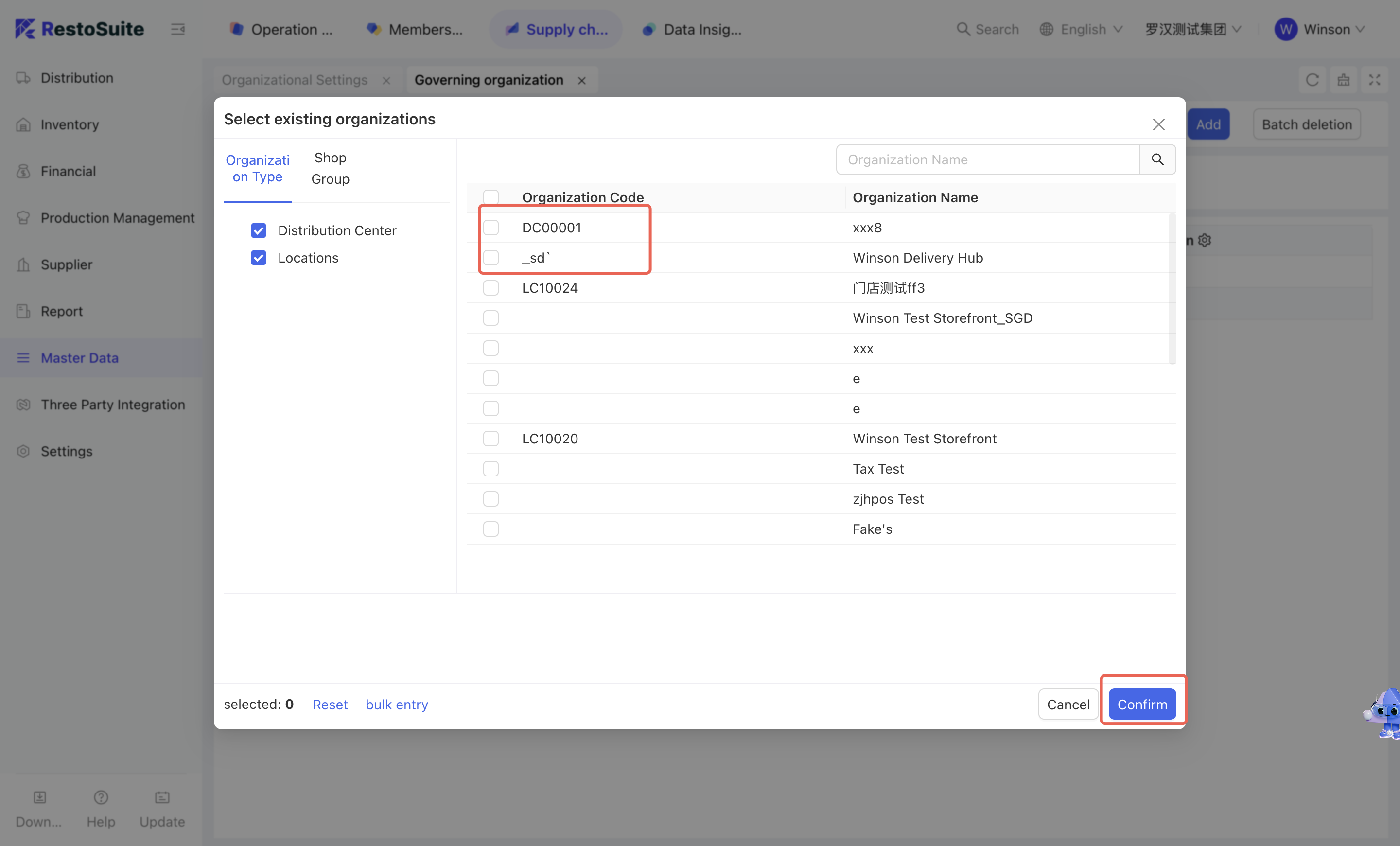
- Click [Add] and check the organizations to be configured → Click [Confirm].
-
Relevant pages are as follows:
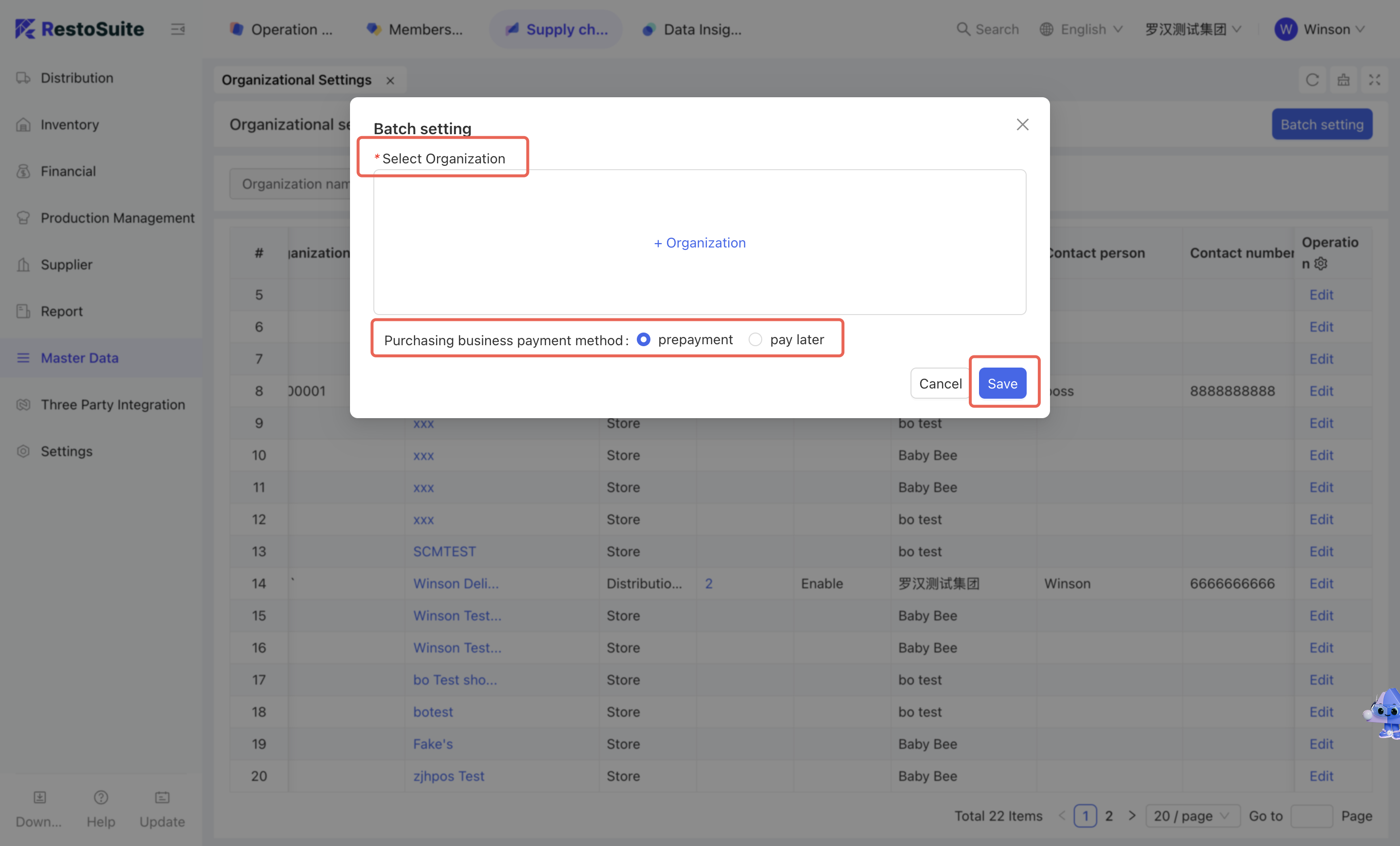
Batch set payment methods for store purchase business:
-
Step 1 : Access Module
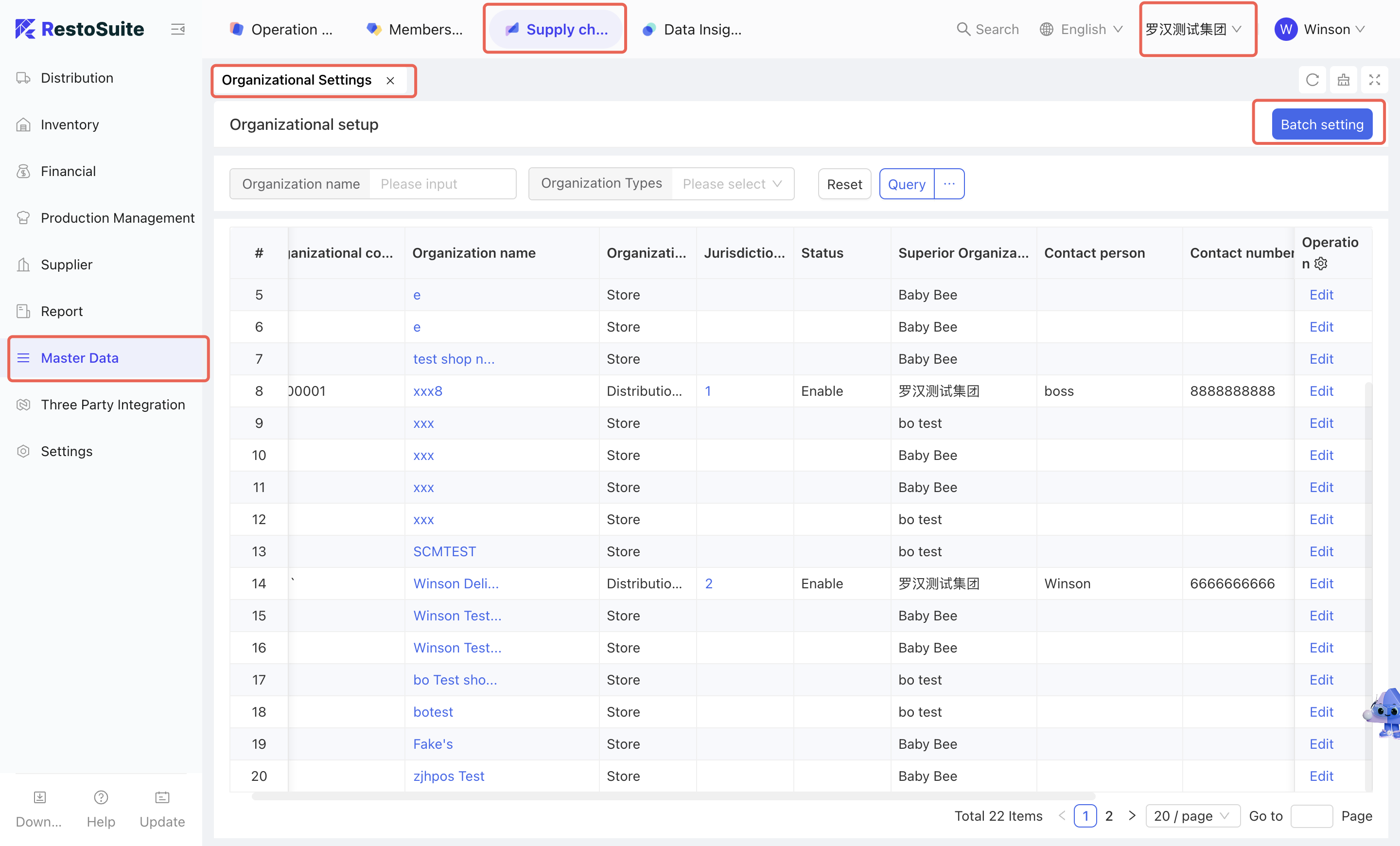
- Select [Group Perspective - Supply Chain Module - Master Data Management - Organization Settings]
-
Step 2 : Select the organization and set the payment method
- Click [Batch Settings]
- Check the organizations to be set
- Select the purchase payment method (pre-payment/post-payment)
- Click [Confirm].
-
Relevant pages are as follows:
2.2.2.5 Receiving Rules
2.2.2.5.1 Function Overview
The Receiving Rules module is mainly used to set whether store purchase receiving and transfer receiving are processed automatically or manually. For automatic receiving, the system supports setting the automatic receiving time and querying receiving rules by rule dimension or organization dimension.
2.2.2.5.2 Function Value
The Receiving Rules node supports flexible configuration of receiving methods for different organizations.
2.2.2.5.3 Operation Instructions
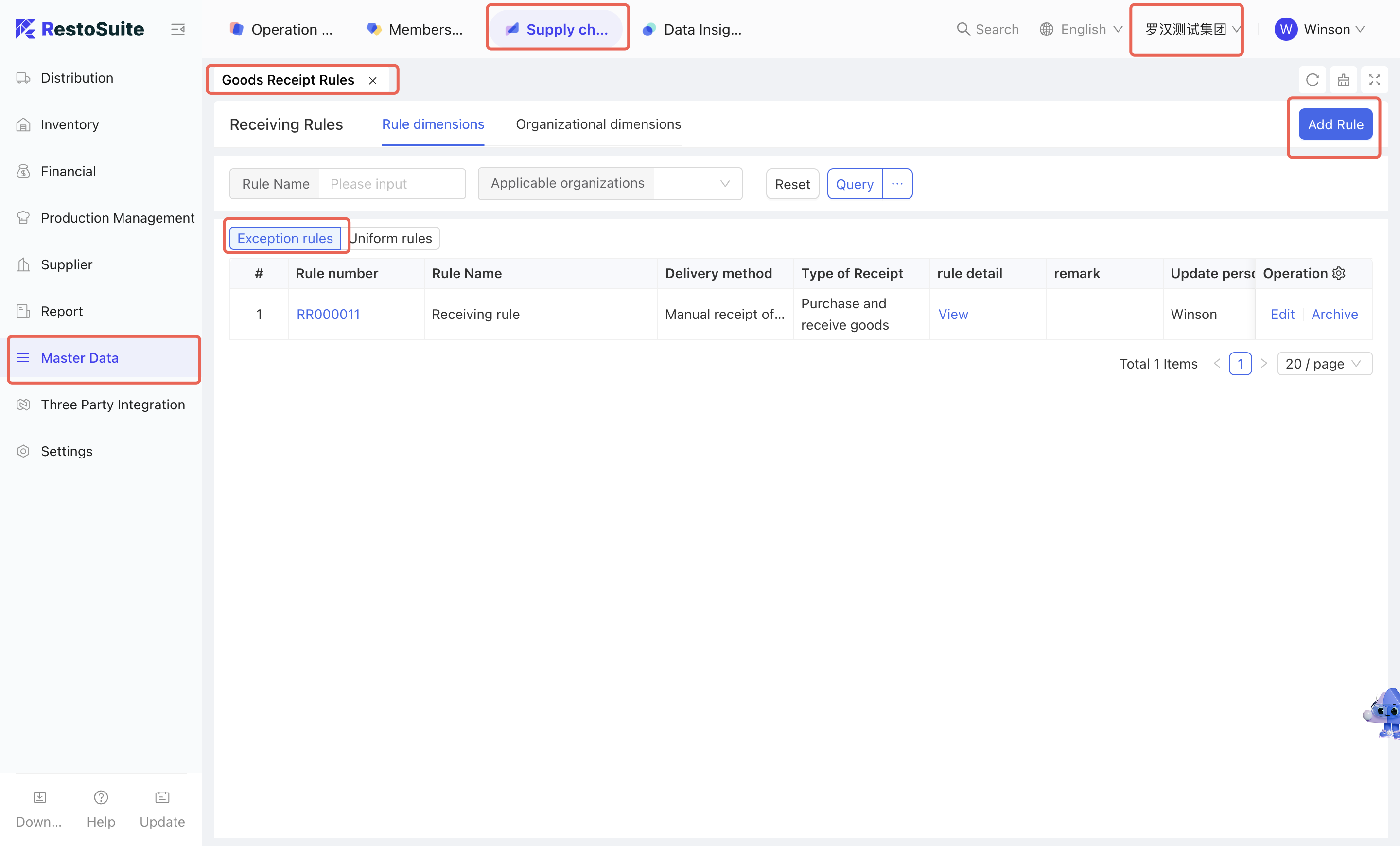
Steps to set receiving rules:
-
Step 1 : Access Module
- Select [Group Perspective - Supply Chain Module - Master Data Management - Receiving Rules]
-
Step 2 :
- Select [Exception Rules] → Click [Add Rule]
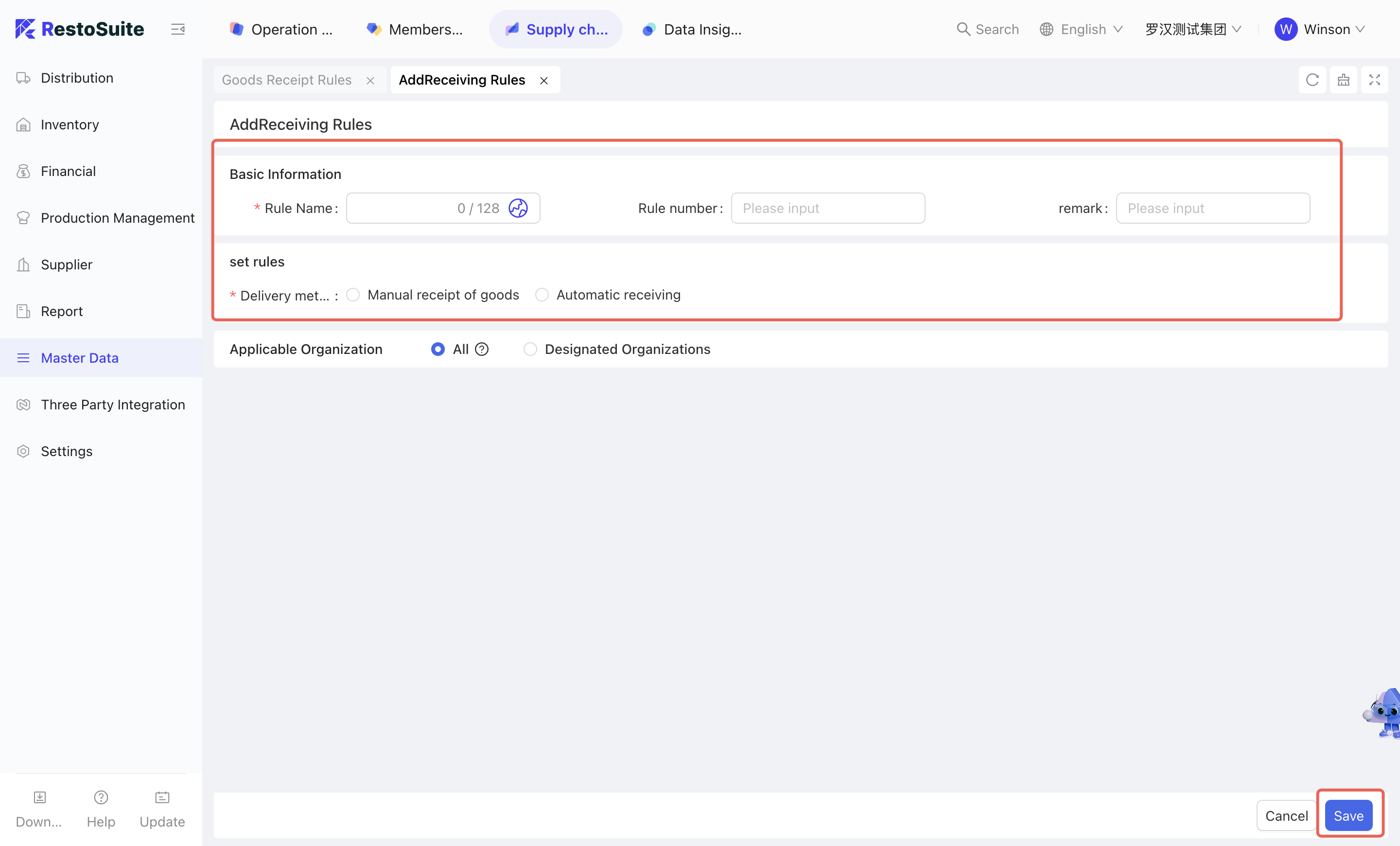
- On the [Add Receiving Rules] page, maintain the receiving rule name, set the receiving method, and select the applicable receipt type and organization → Click [Save].
-
Relevant pages are as follows:
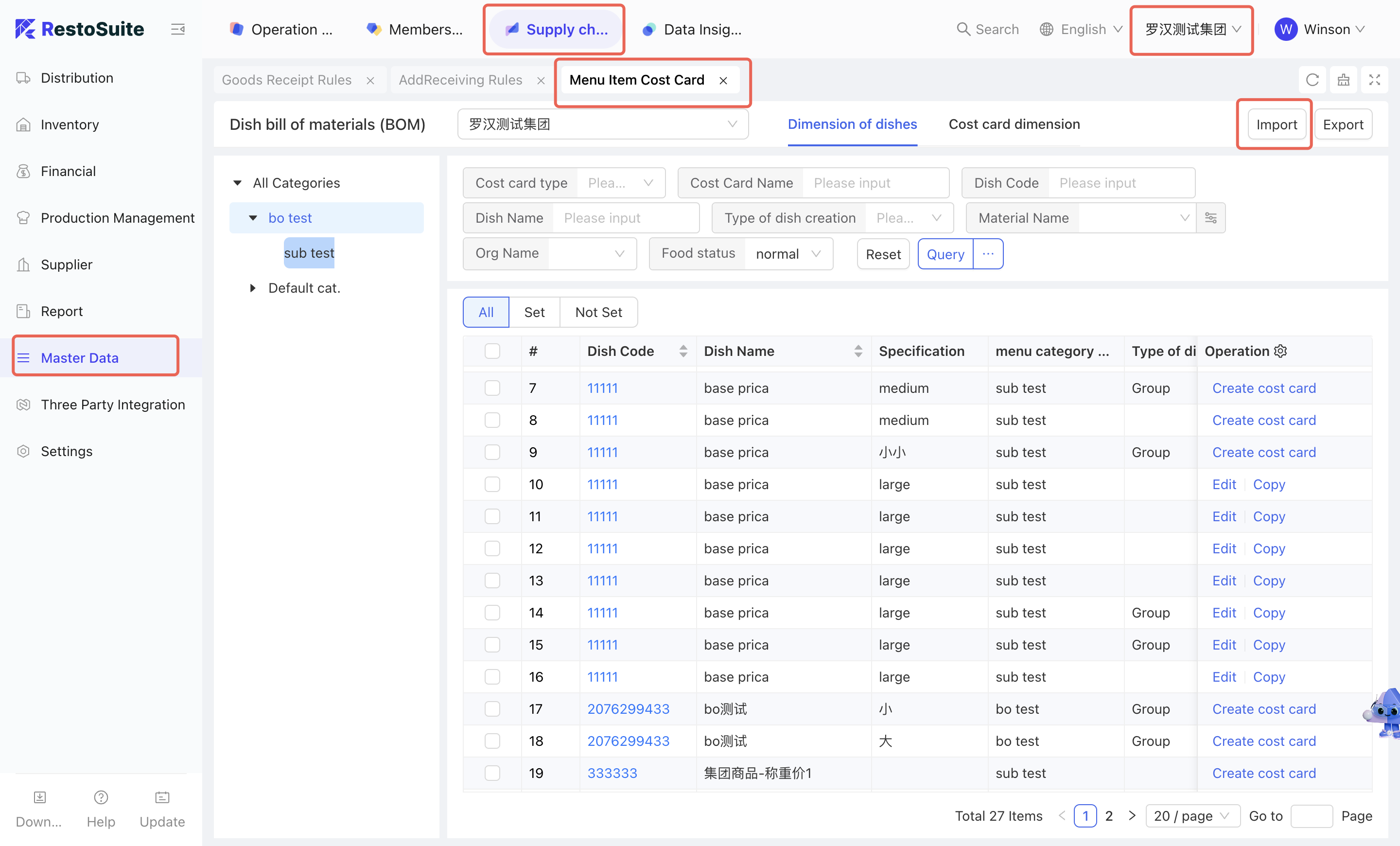
2.2.2.6 Menu Item Cost Card
2.2.2.6.1 Function Overview
The Menu Item Cost Card node is used to set the materials required for dish preparation in each store. It supports the following functions:
- Batch import and export of Menu Item Cost Cards.
- Batch modification of cost cards by cost card dimension.
- Query by dish dimension to identify which dishes have cost cards configured and which do not.
2.2.2.6.2 Function Value
Maintenance of Menu Item Cost Cards supports differentiated settings for the same dish across different stores, meeting operational needs.
2.2.2.6.3 Operation Instructions
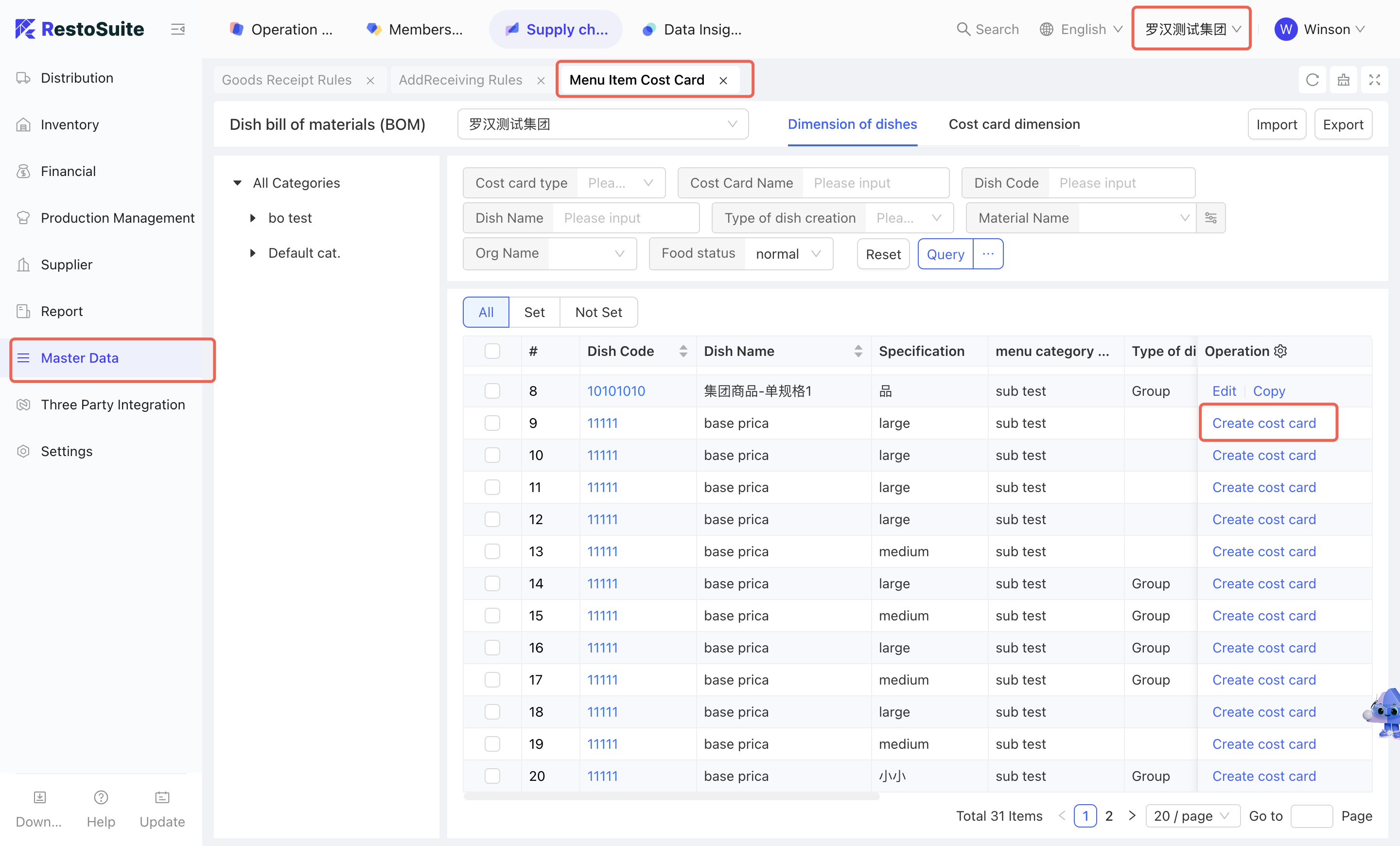
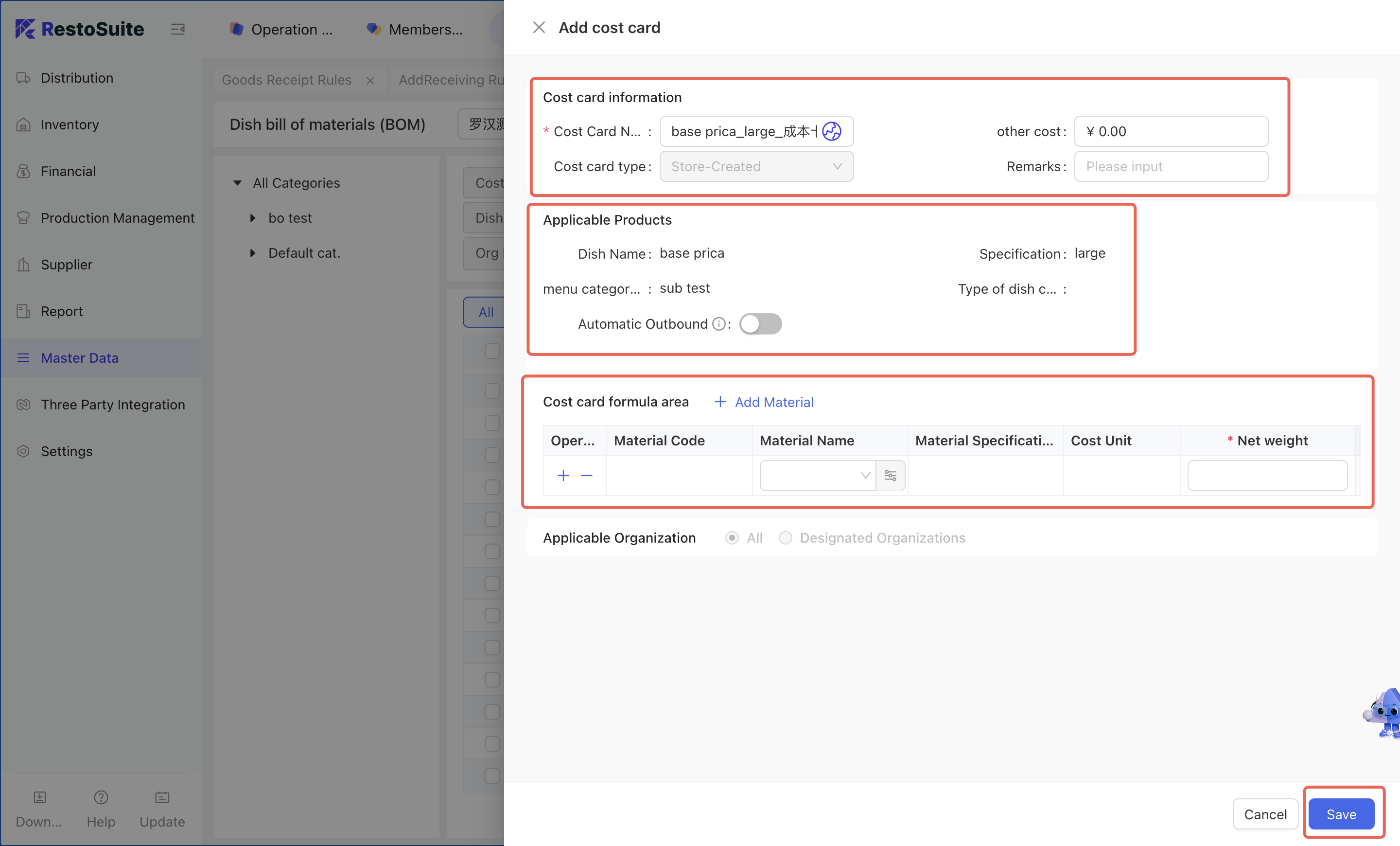
Manually create a unified group Menu Item Cost Card:
-
Step 1 : Access Module
- Select [Group Perspective - Supply Chain Module - Master Data Management - Menu Item Cost Card]
-
Step 2 :
- Select the Menu item for which a cost card needs to be set → Click [Create Cost Card] → Edit the cost card name → Set the materials and quantities for the cost card → Click [Save].
-
Relevant pages are as follows:
Manually create a group exception cost card:
-
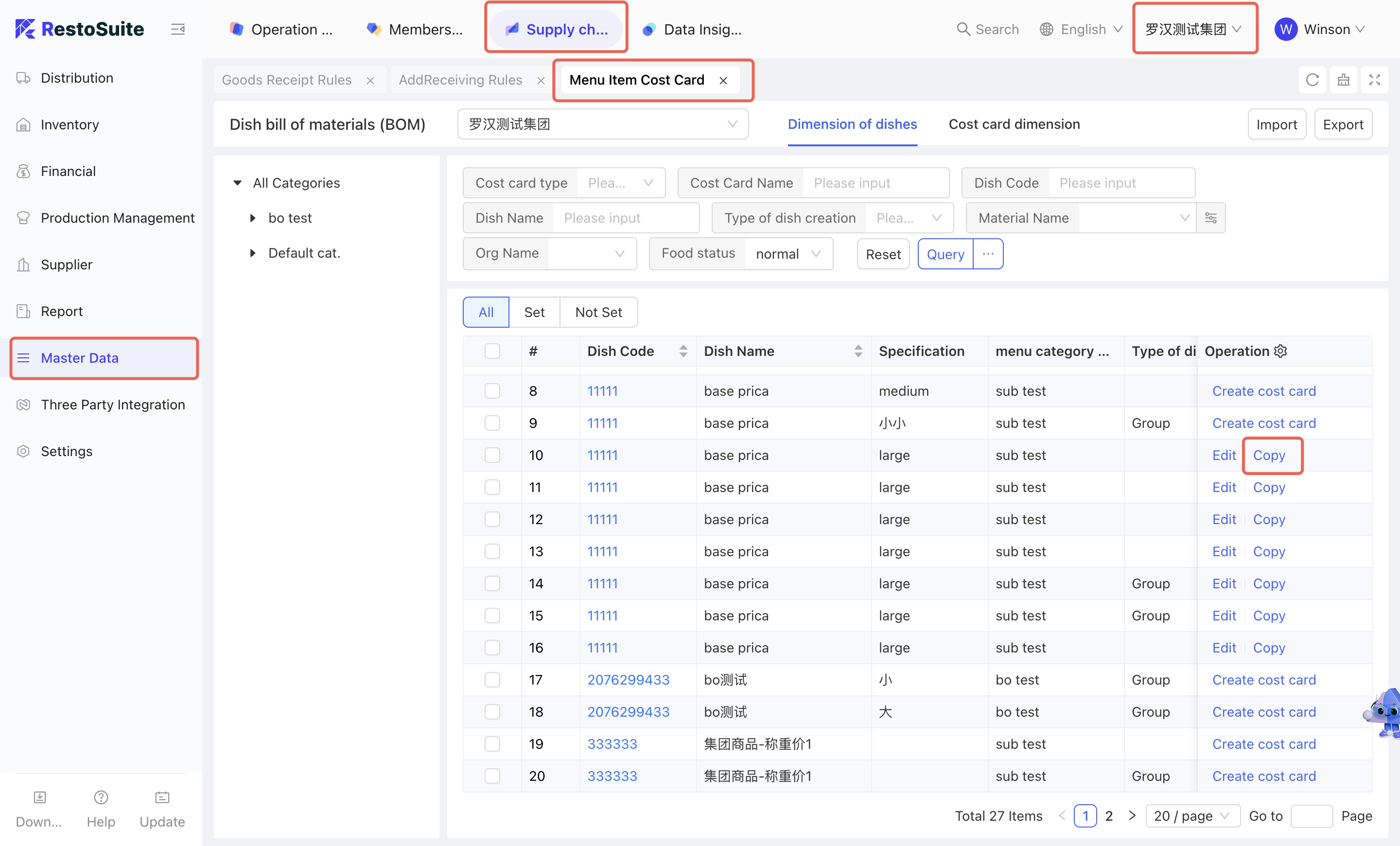
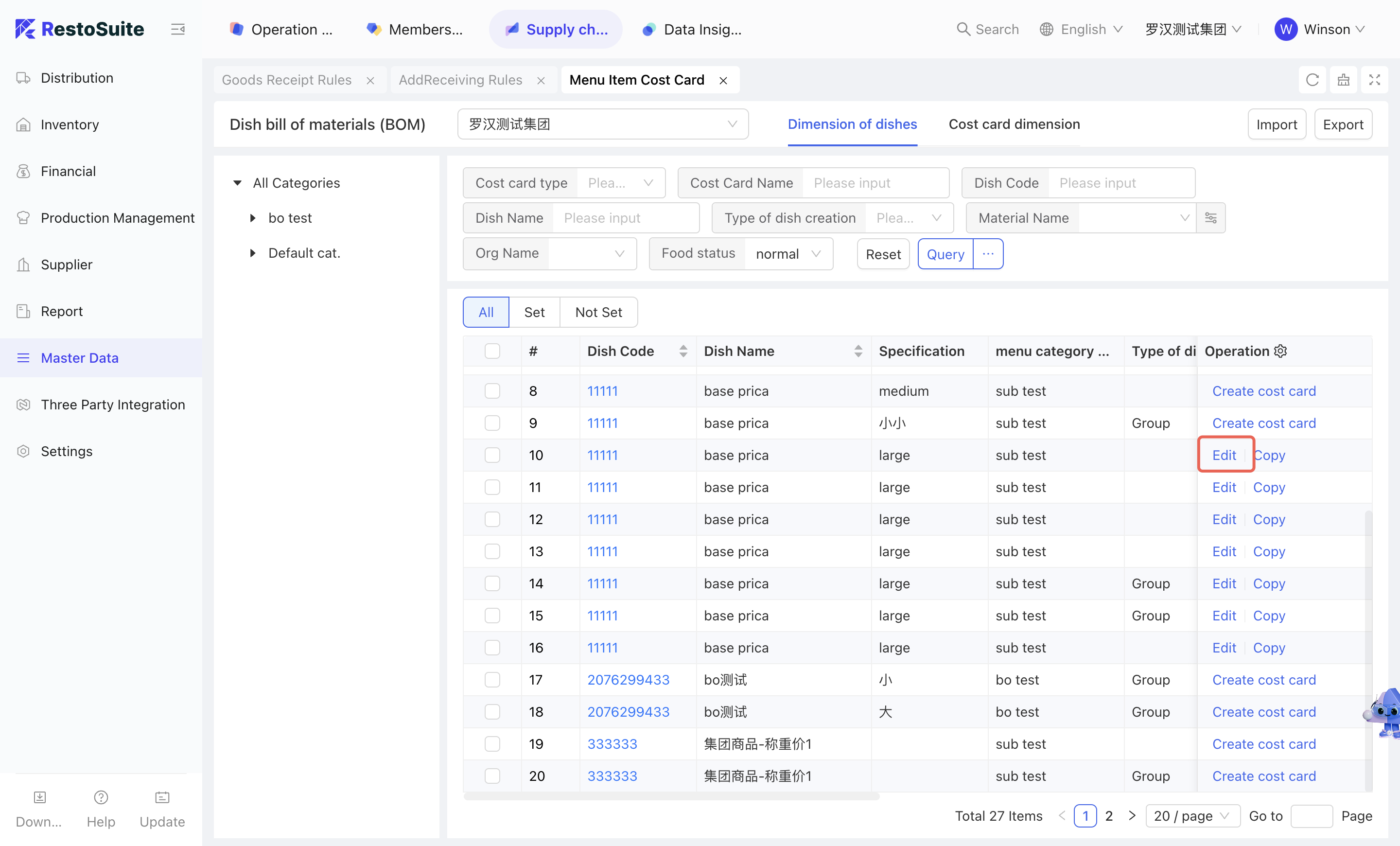
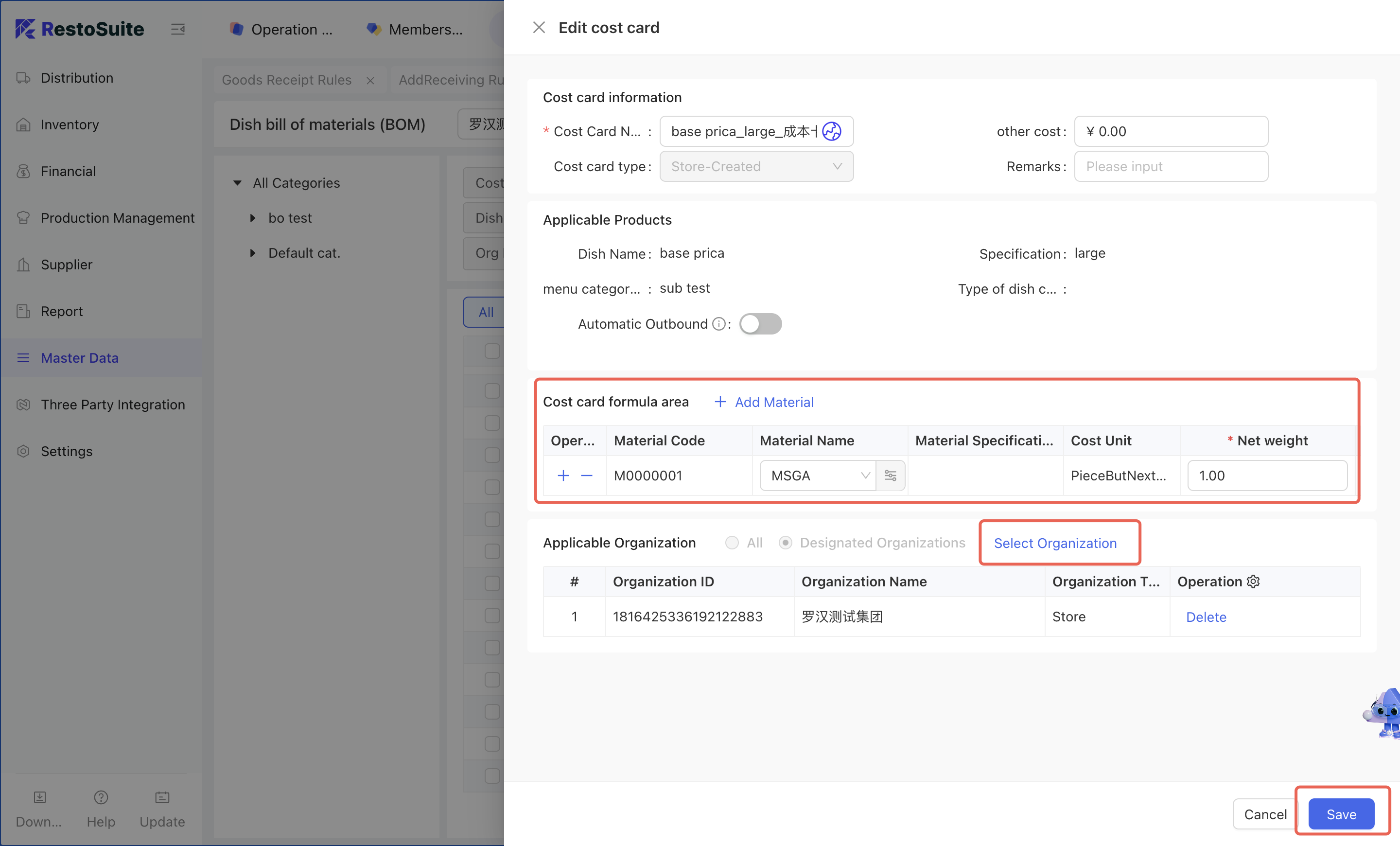
Step 1 : Access Module
- Select [Group Perspective - Supply Chain Module - Master Data Management - Menu Item Cost Card]
-
Step 2 :
- Select the dish for which an exception cost card needs to be set → Click [Copy] → Click [Edit] on the copied Menu Item Cost Card → Set the details of the exception cost card → Select the applicable organization for the exception cost card → Click [Save].
-
Relevant pages are as follows:
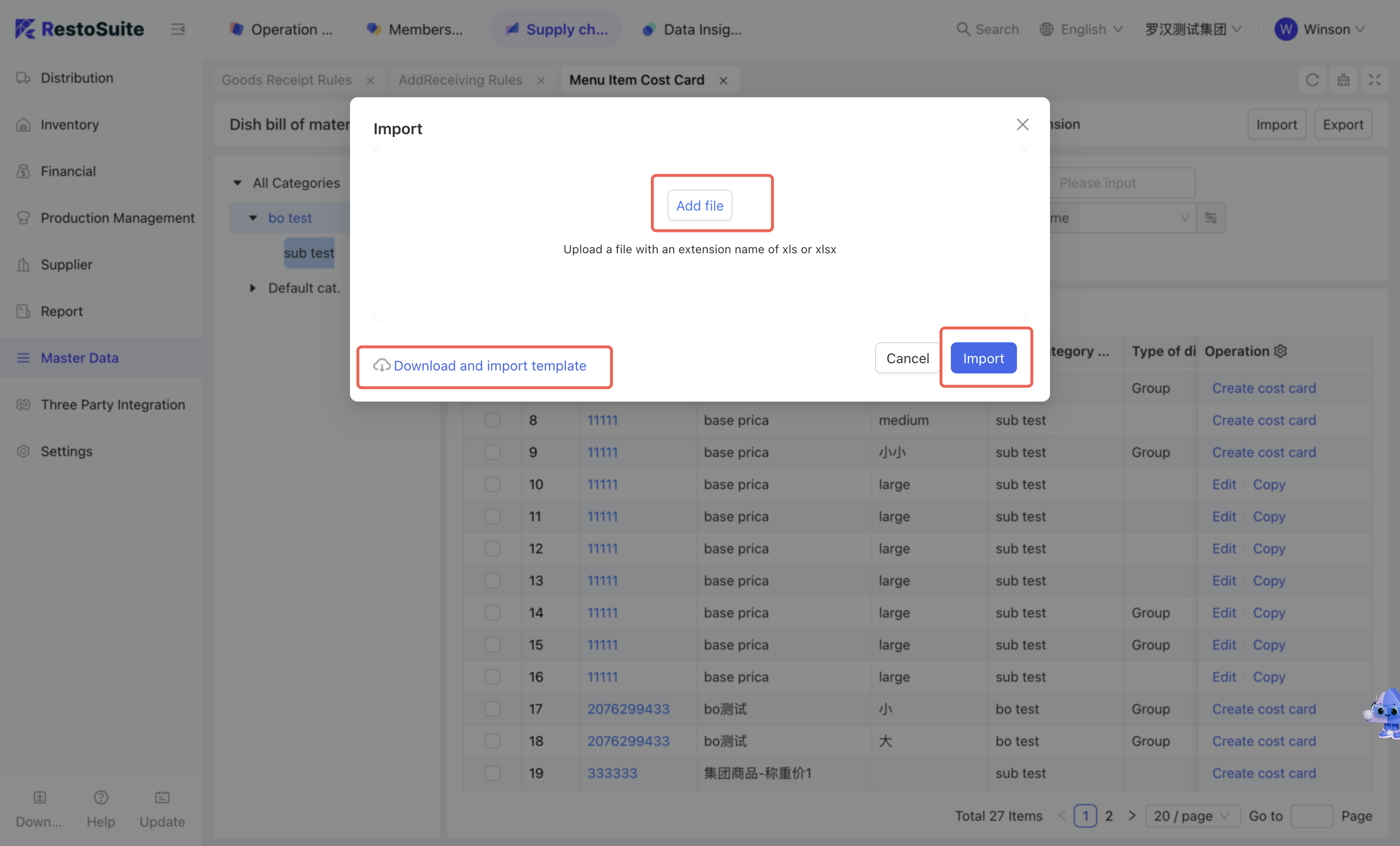
Batch import of cost cards:
-
Step 1 : Access Module
- Select [Group Perspective - Supply Chain Module - Master Data Management - Menu Item Cost Card]
-
Step 2 :
- Click [Import] → Download the cost card import template →Supplement the menu item cost card data according to the template → Click [Add File] → Click [Import].
-
Relevant pages are as follows:
2.2.2.7 Customer
2.2.2.7.1 Function Overview
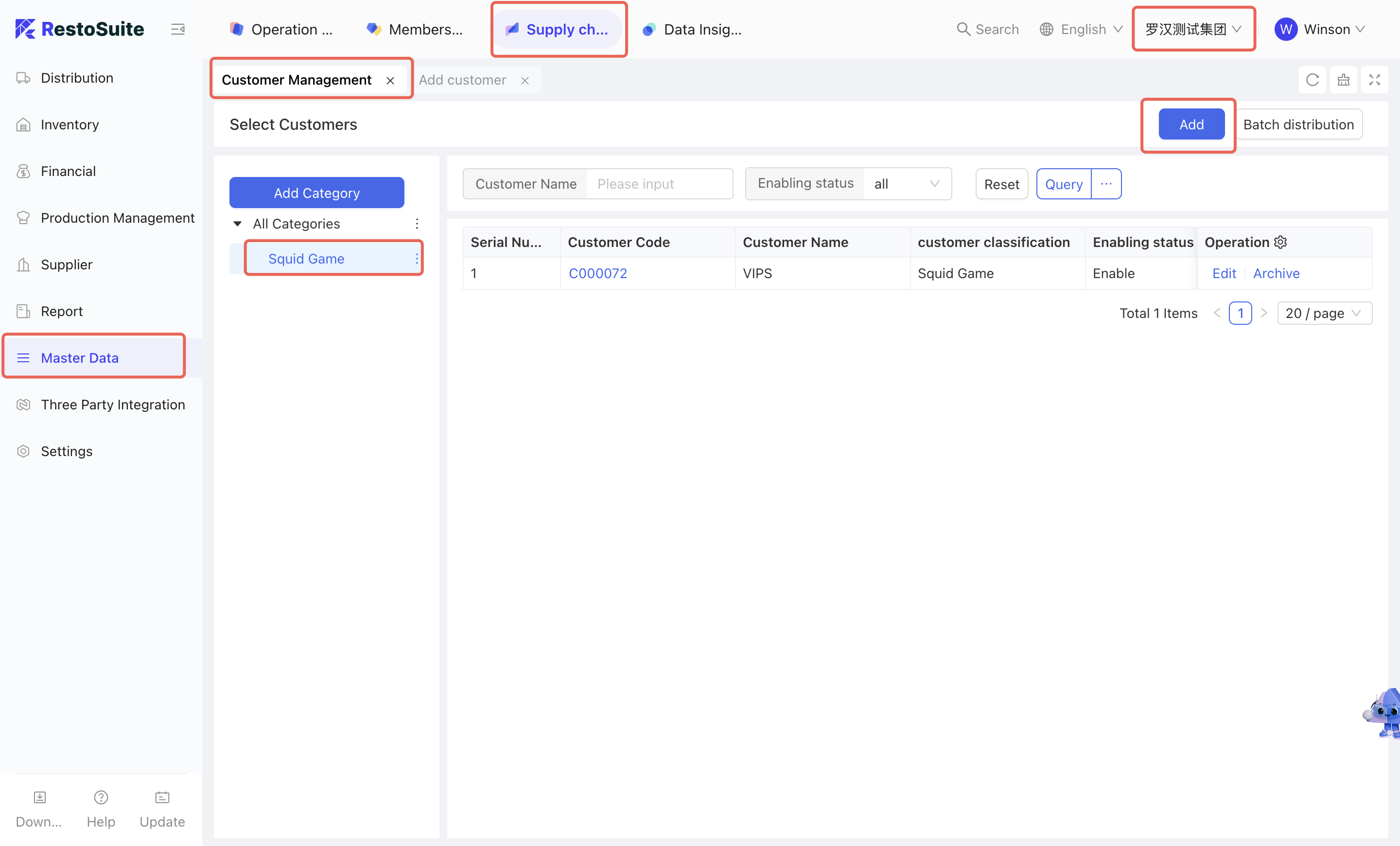
The Customer Management function caters to the external sales operations of distribution centers (targeting customers outside the group). It enables users to add new customer information and distribute it in this module.
2.2.2.7.2 Function Value
The Customer Management module enables centralized maintenance and management of customer information.
2.2.2.7.3 Operation Instructions
-
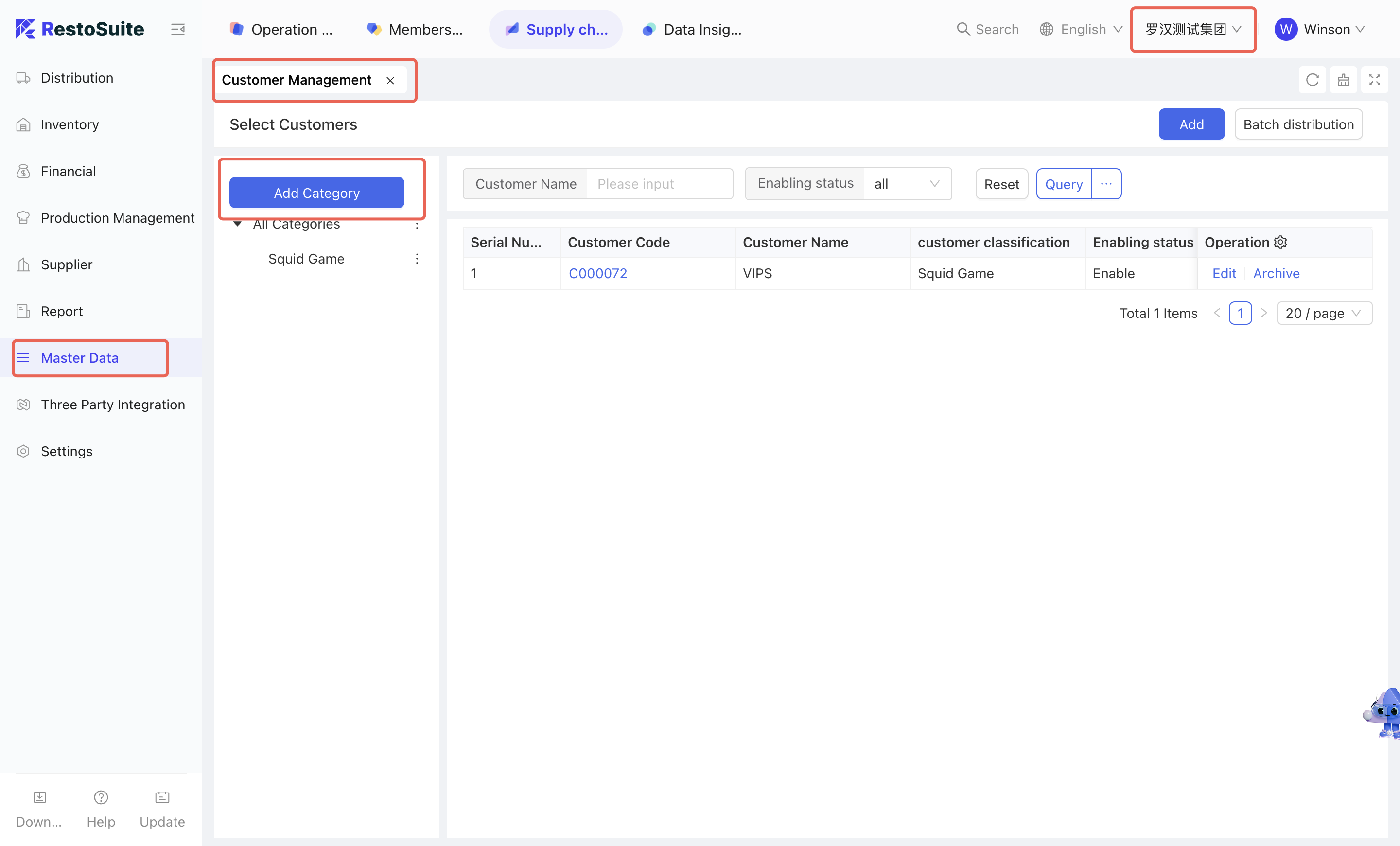
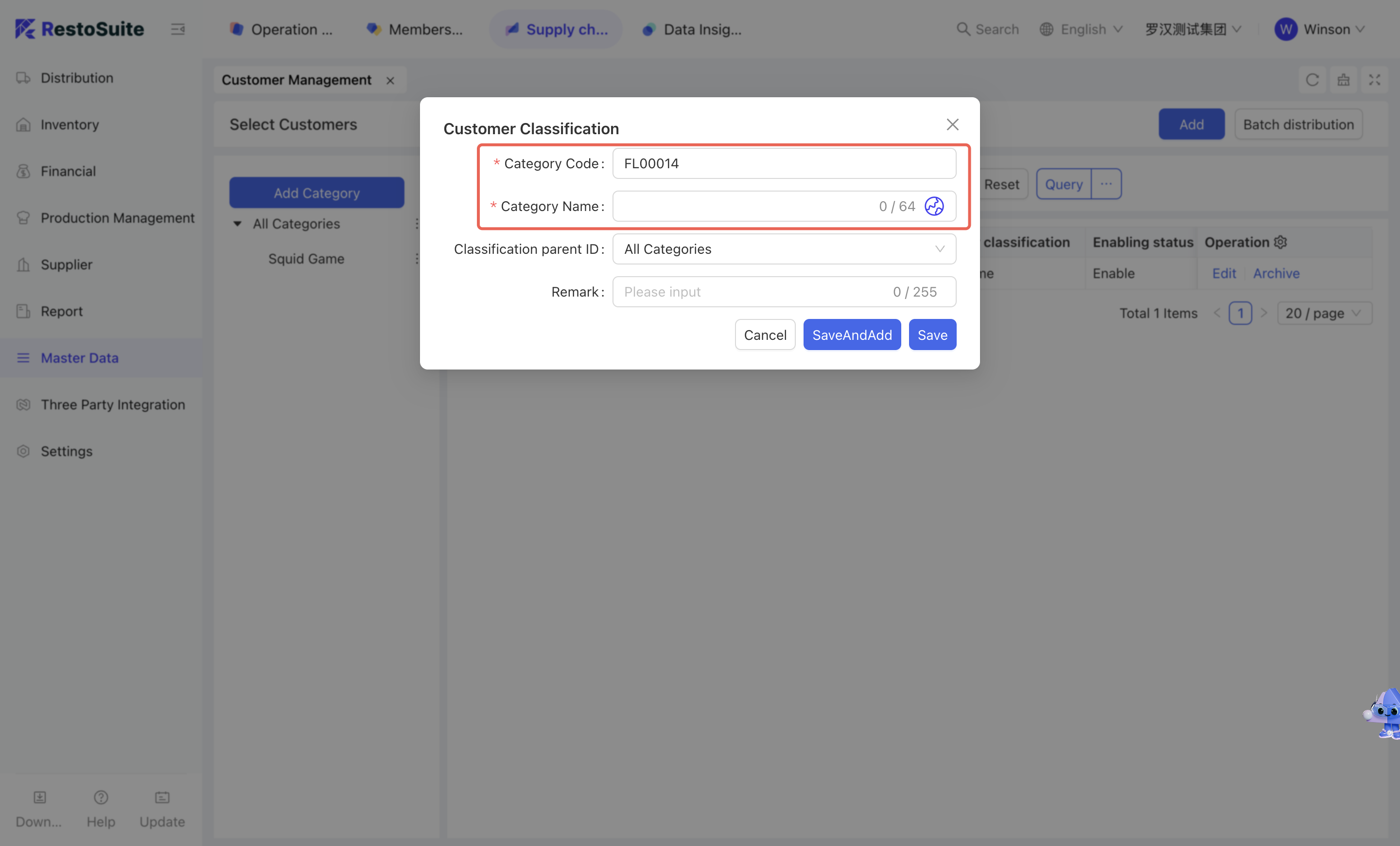
Steps to add customer categories:
-
Step 1 : Access Module
- Select [Group Perspective - Supply Chain Module - Master Data Management - Customer Management]
-
Step 2 :
- Click [Add Category] → Maintain customer category code and category name → Click [Save].
-
Relevant pages are as follows:
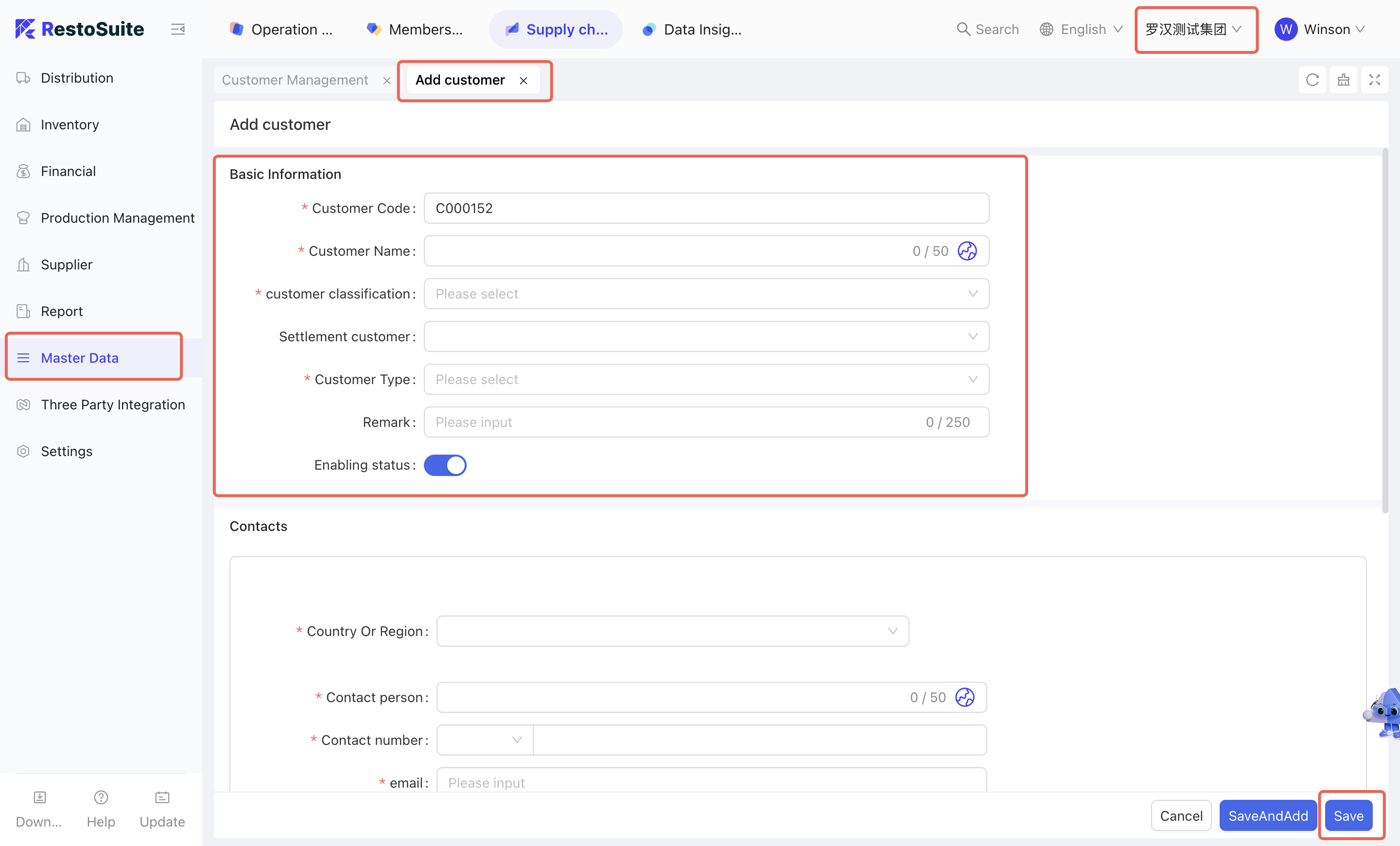
Steps to create new customer information:
-
Step 1 : Access Module
- Select [Group Perspective - Supply Chain Module - Master Data Management - Customer Management]
-
Step 2 :
- Click [Create] → Maintain customer code, name, customer type, contact information, settlement type, etc. → Click [Save].
-
Relevant pages are as follows:
Distribution of customer information:
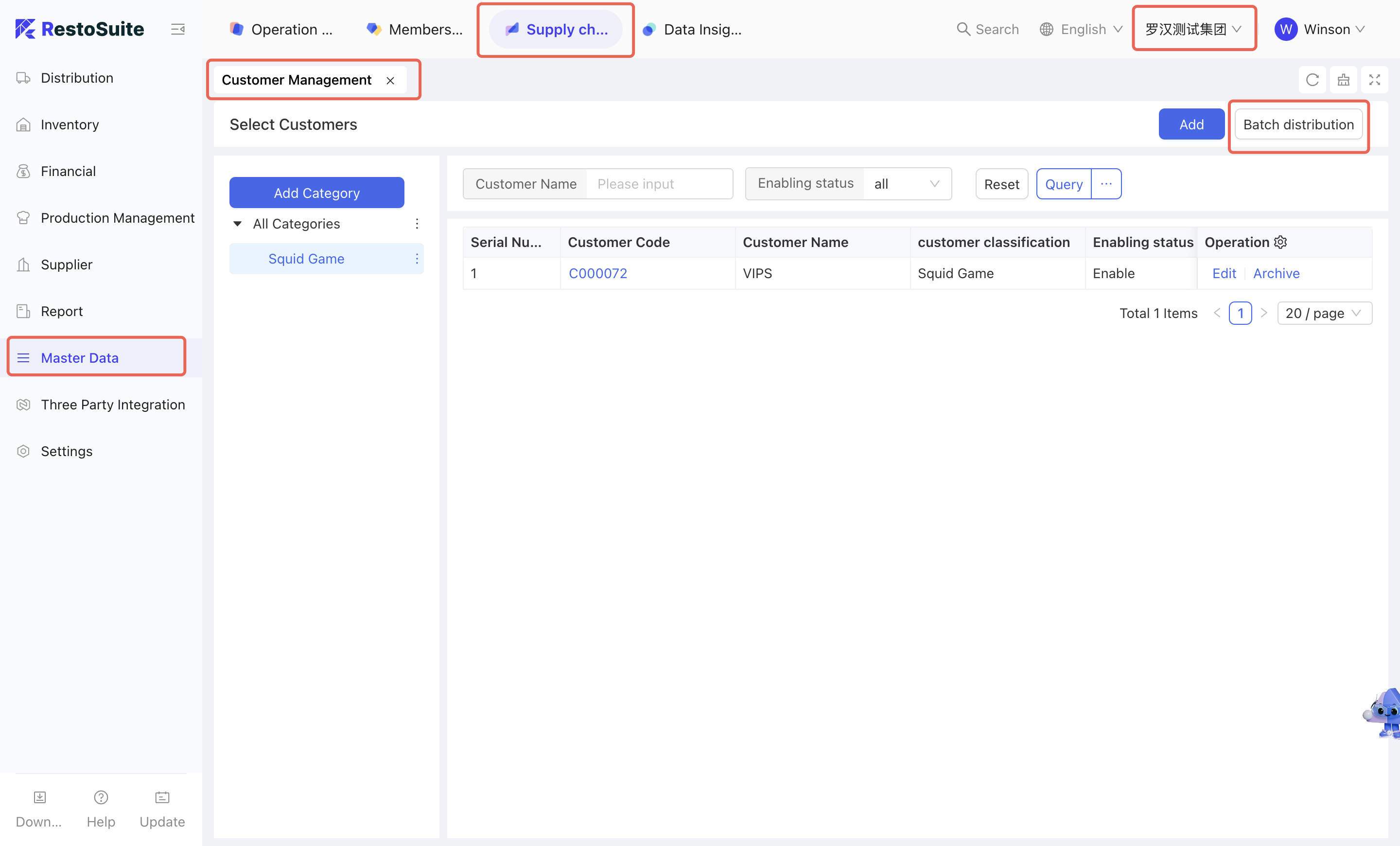
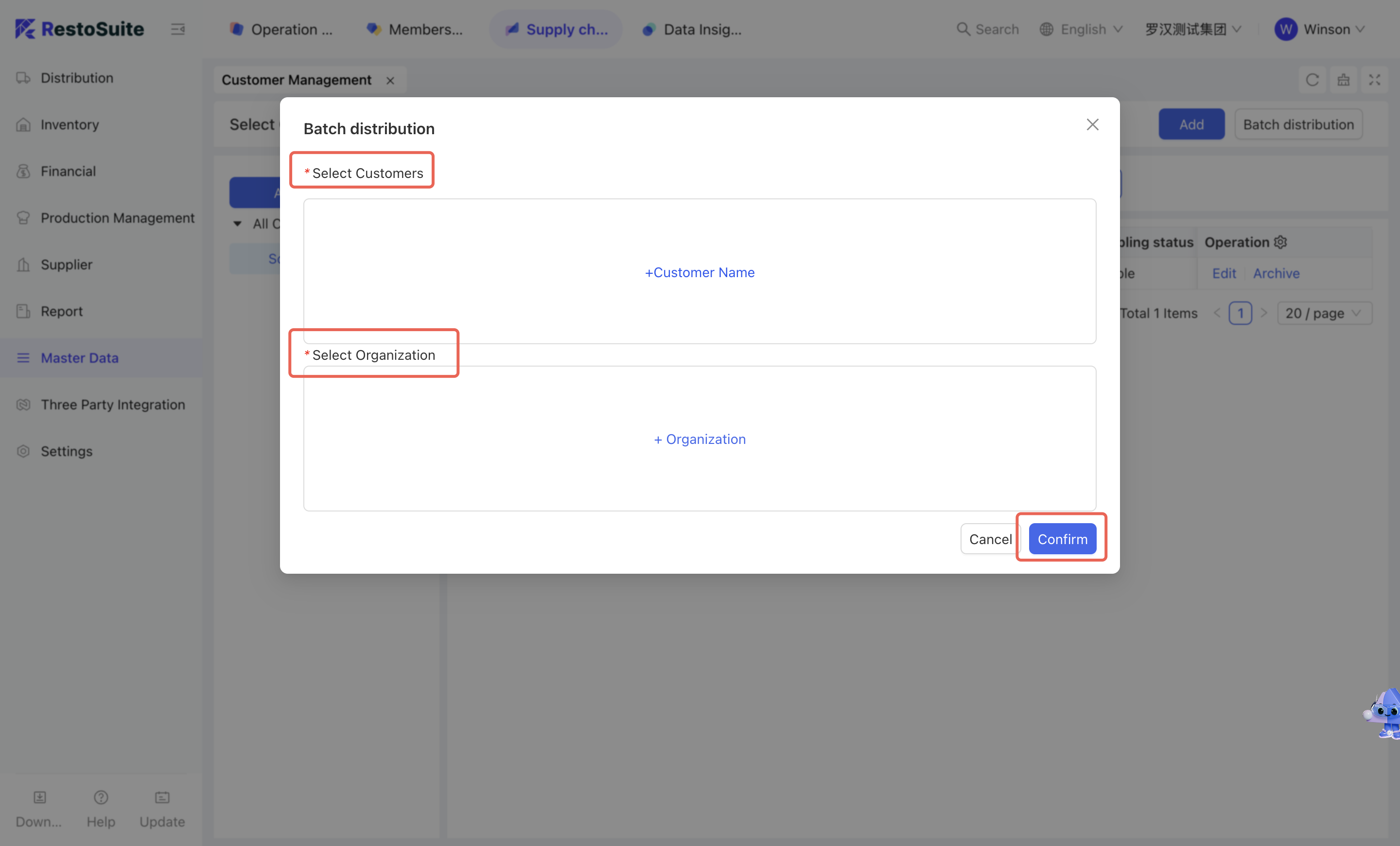
-
Step 1 : Access Module
- Select [Group Perspective - Supply Chain Module - Master Data Management - Customer Management]
-
Step 2 :
- Click [Batch Distribution] → Select the customers to be distributed → Select the applicable organizations → Click [Confirm].
-
Relevant pages are as follows:
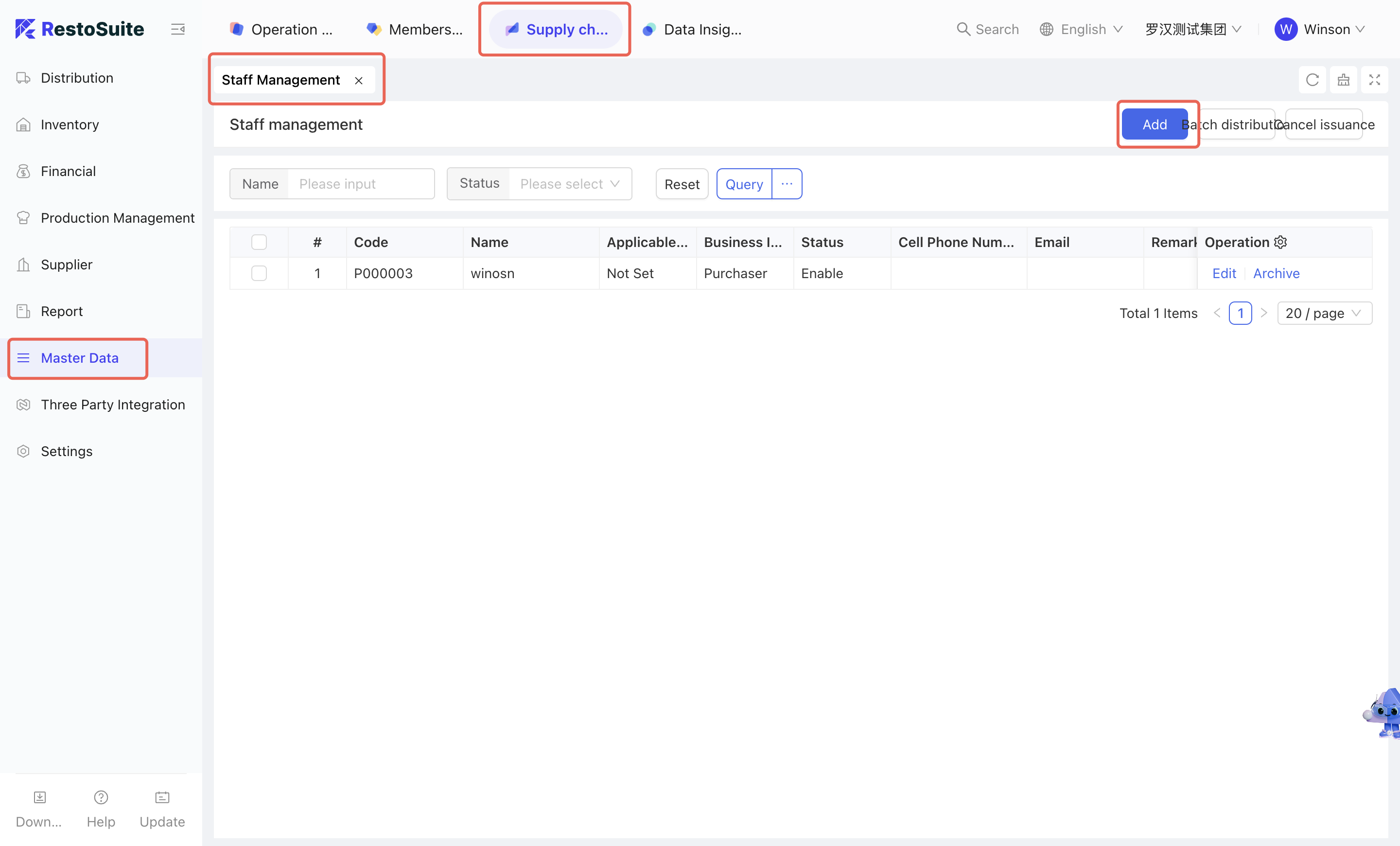
2.2.2.8 Staff Management
2.2.2.8.1 Function Overview
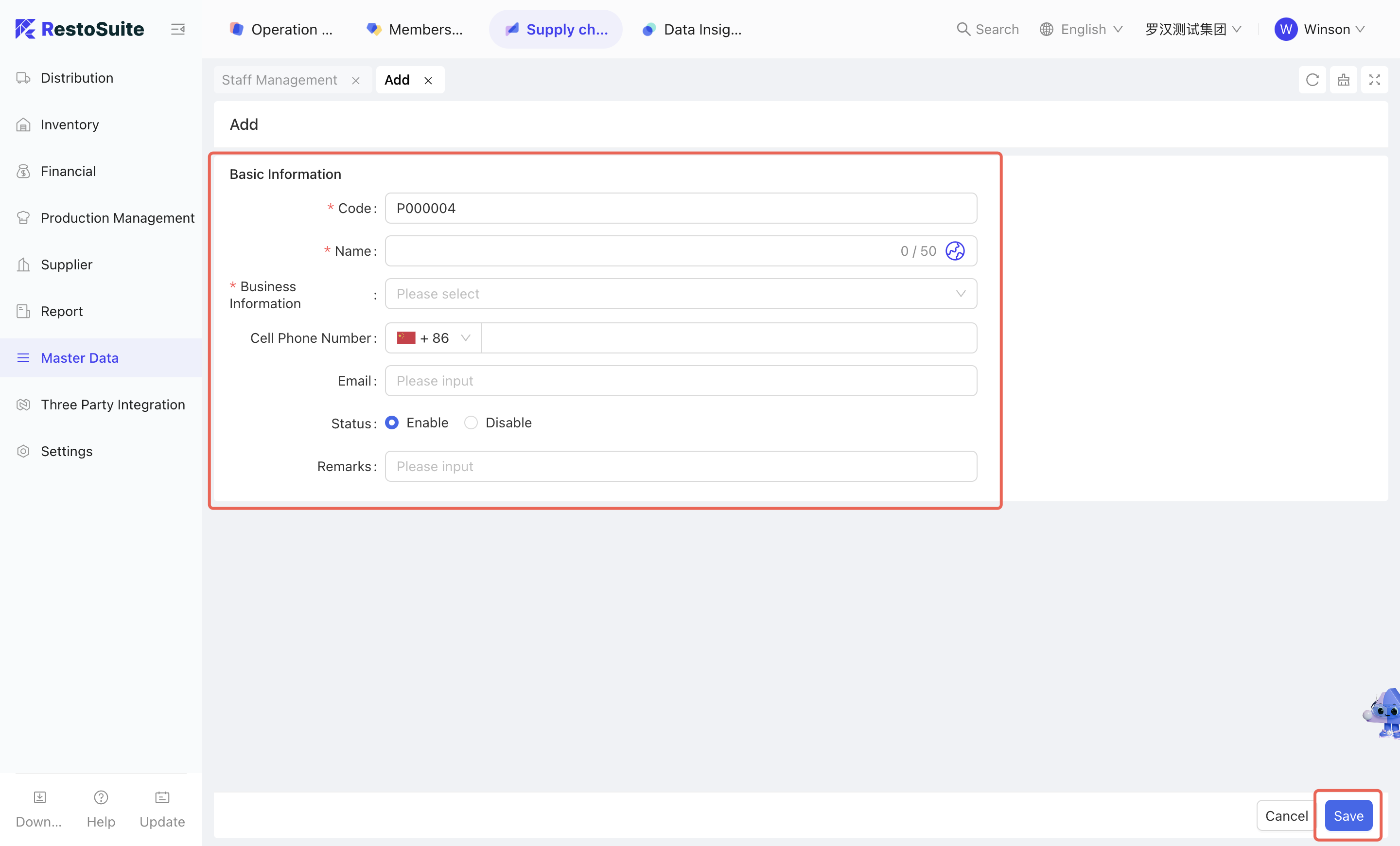
This function is used to create and maintain business information for system users, including purchasers, salespersons, drivers, and other relevant staff.
2.2.2.8.2 Operation Instructions
Steps to create new staff information:
-
Step 1 :Access Module:
- Select [Group Perspective - Supply Chain Module - Master Data Management - Staff Management]
-
Step 2 :
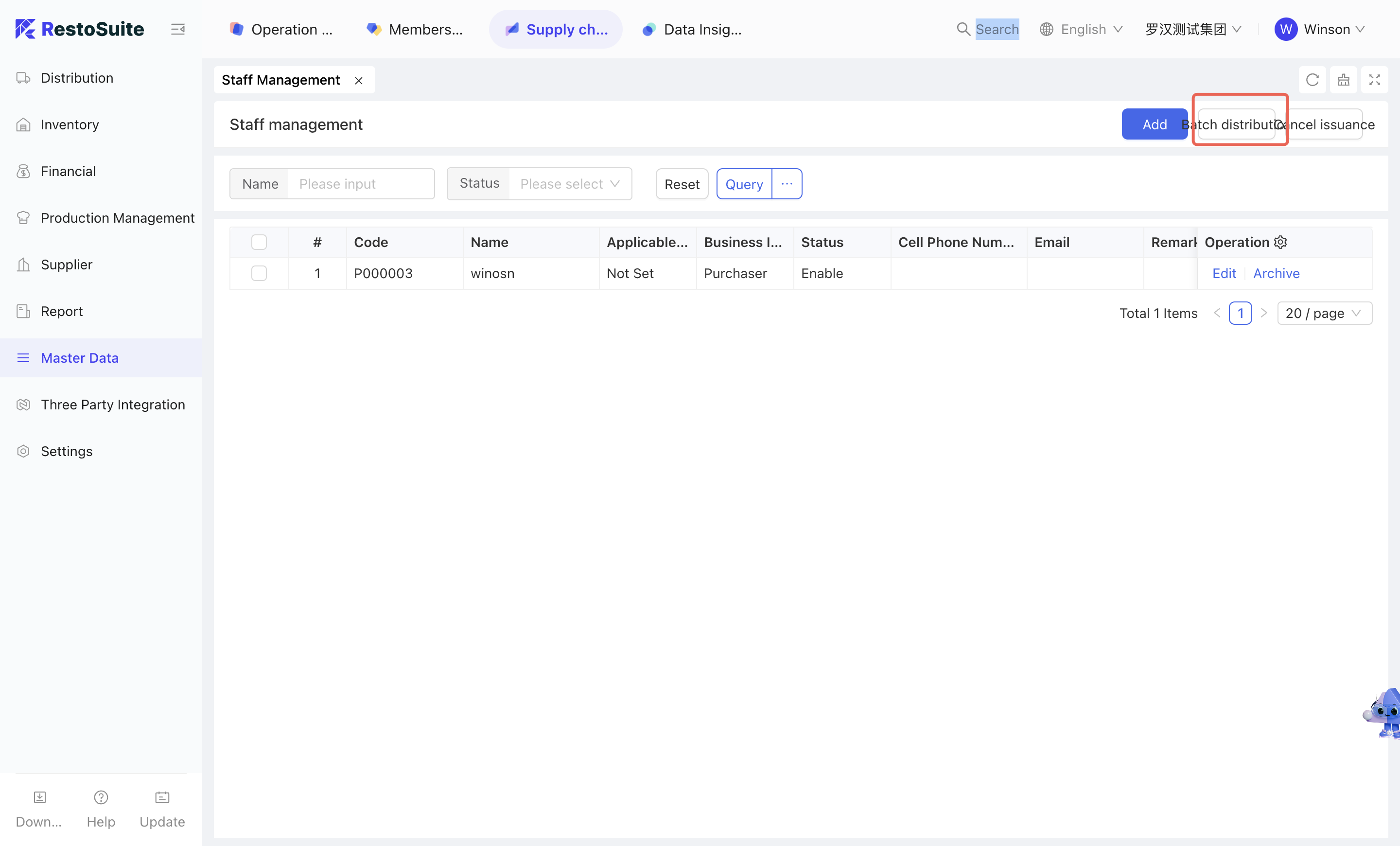
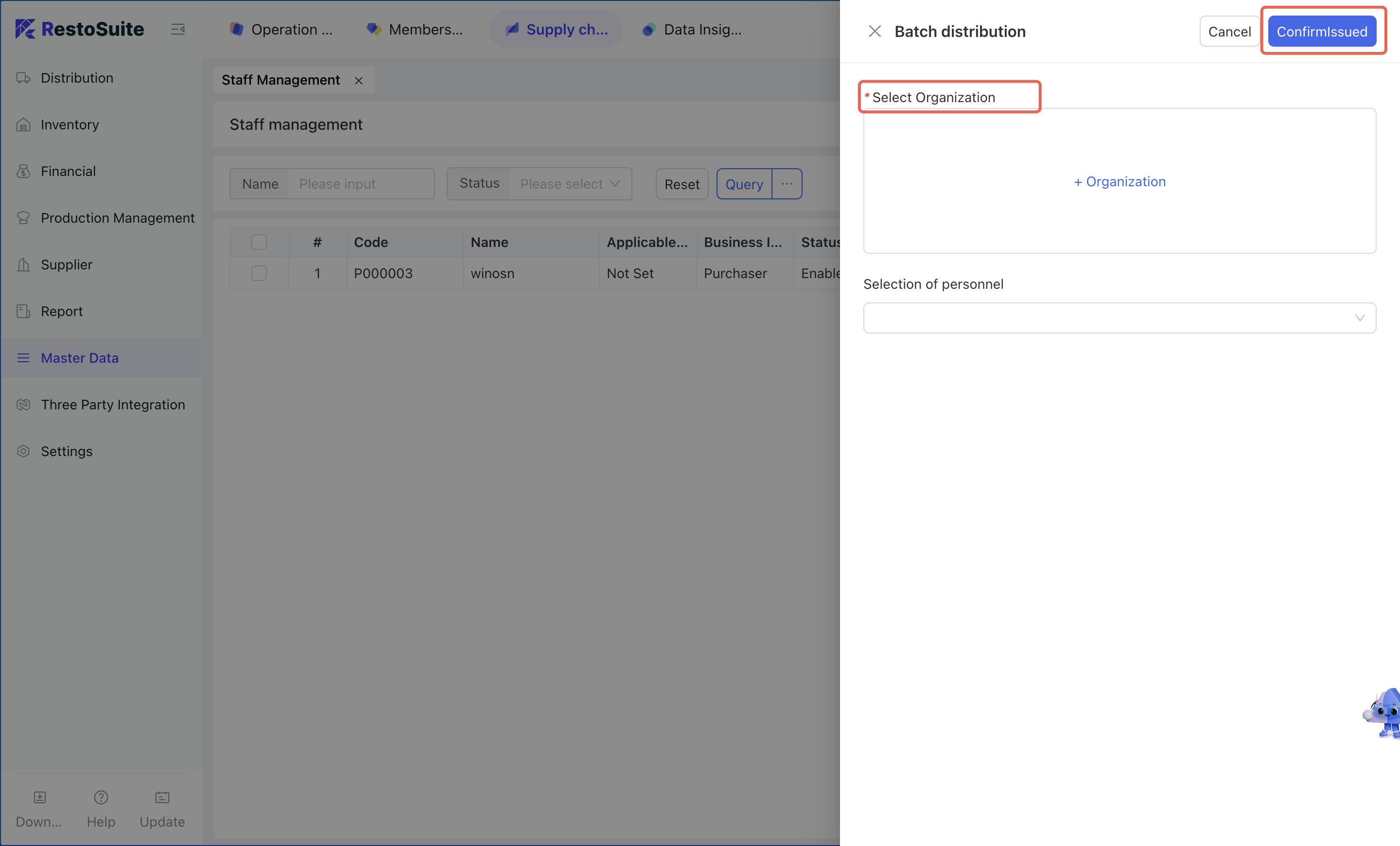
- Click [Create] → Fill in basic information → Click [Save] → Check the corresponding Staff information → Click [Batch Distribution] to distribute to the organizations that need to use the Staff.
-
Relevant pages are as follows:
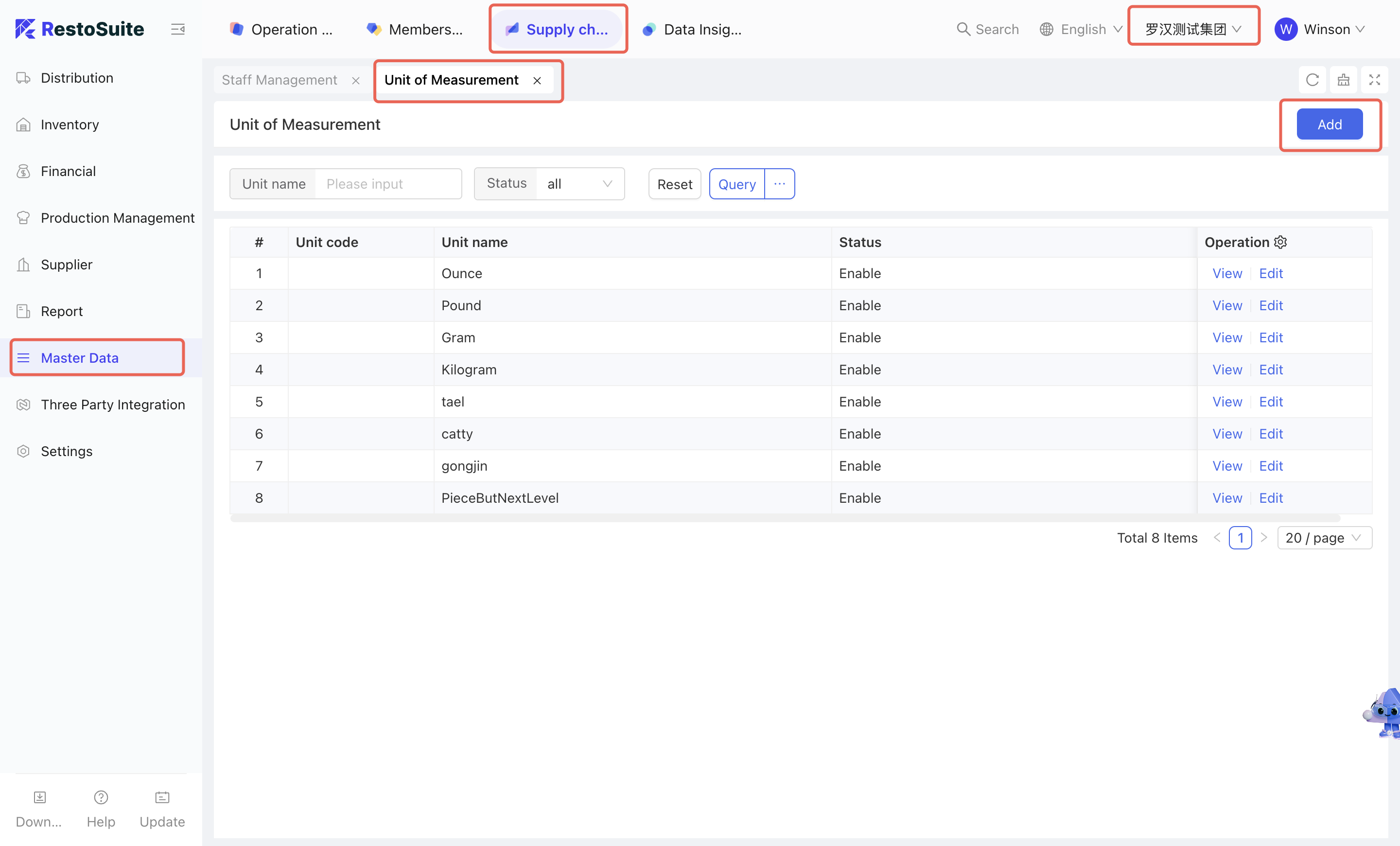
2.2.2.9 Unit of Measurement
2.2.2.9.1 Function Overview
The Unit of Measurement module is mainly used to create and maintain material units.
2.2.2.9.2 Function Value
It allows users to customize and maintain material units as needed.
2.2.2.9.3 Operation Instructions
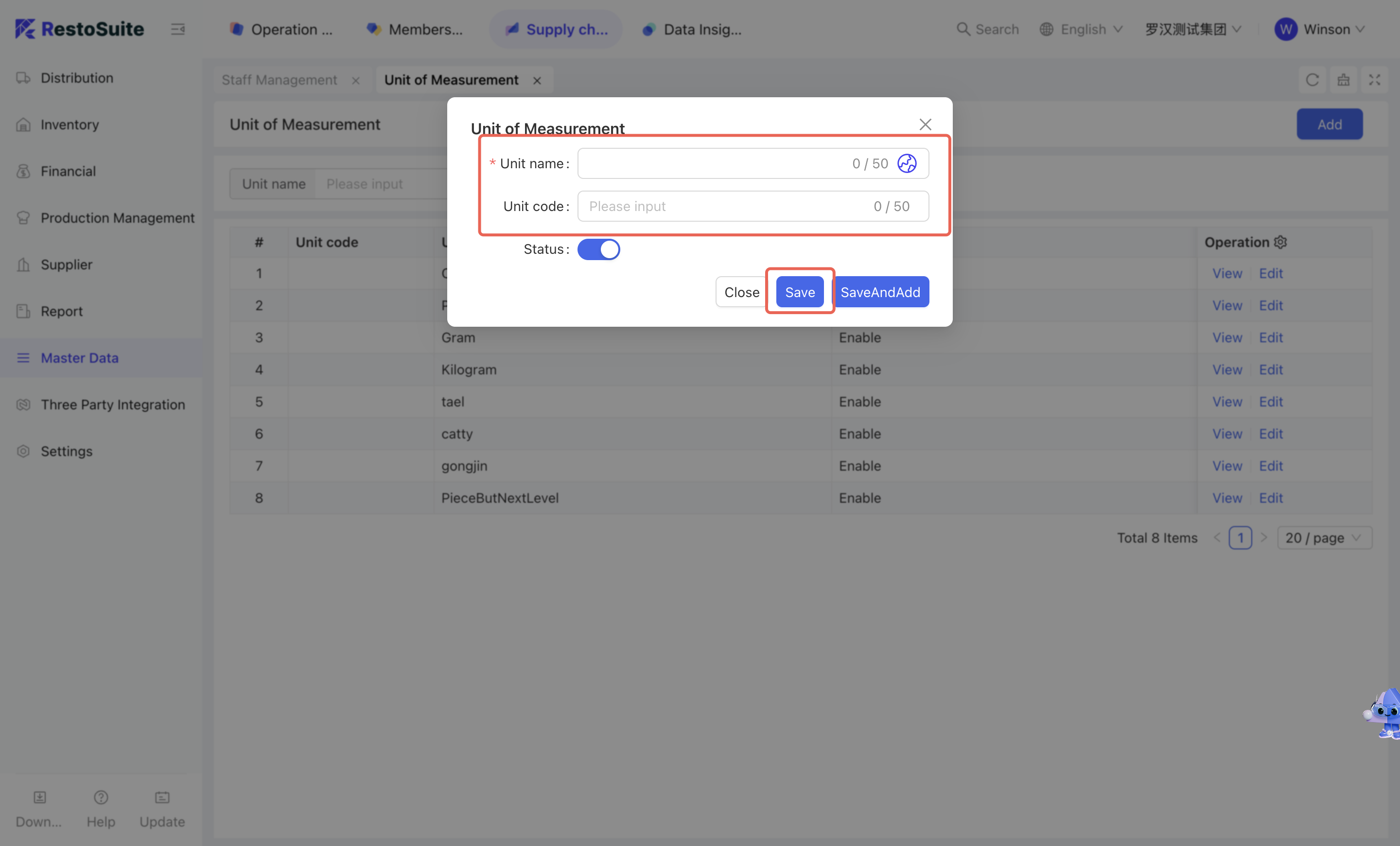
Steps to create a new unit of measurement:
-
Step 1 : Access Module:
- Select [Group Perspective - Supply Chain Module - Master Data Management - Unit of Measurement]
-
Step 2 :
- Maintain unit name and code → Click [Save].
-
Relevant pages are as follows:
2.2.2.10 Data Dictionary
2.2.2.10.1 Application Scenario
Customers may have different demands for the same business scenario. Since the preset enumeration values of some fields are not applicable, the system should allow users to freely define and expand the enumeration values of all dropdown items as needed. Given that new enumeration values require a separate creation page, all such functions are consolidated into one unified entry.
2.2.2.10.2 Operation Instructions
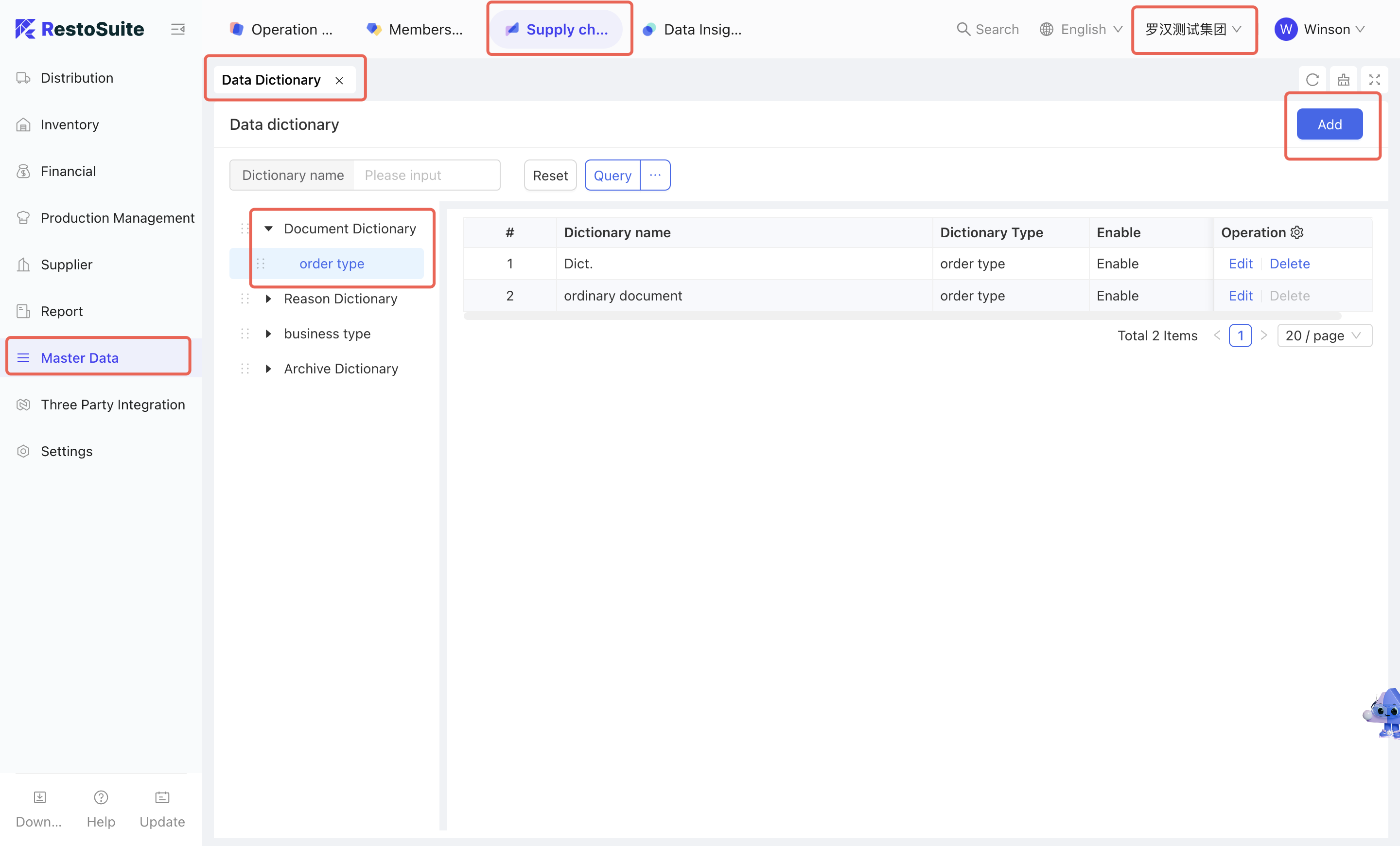
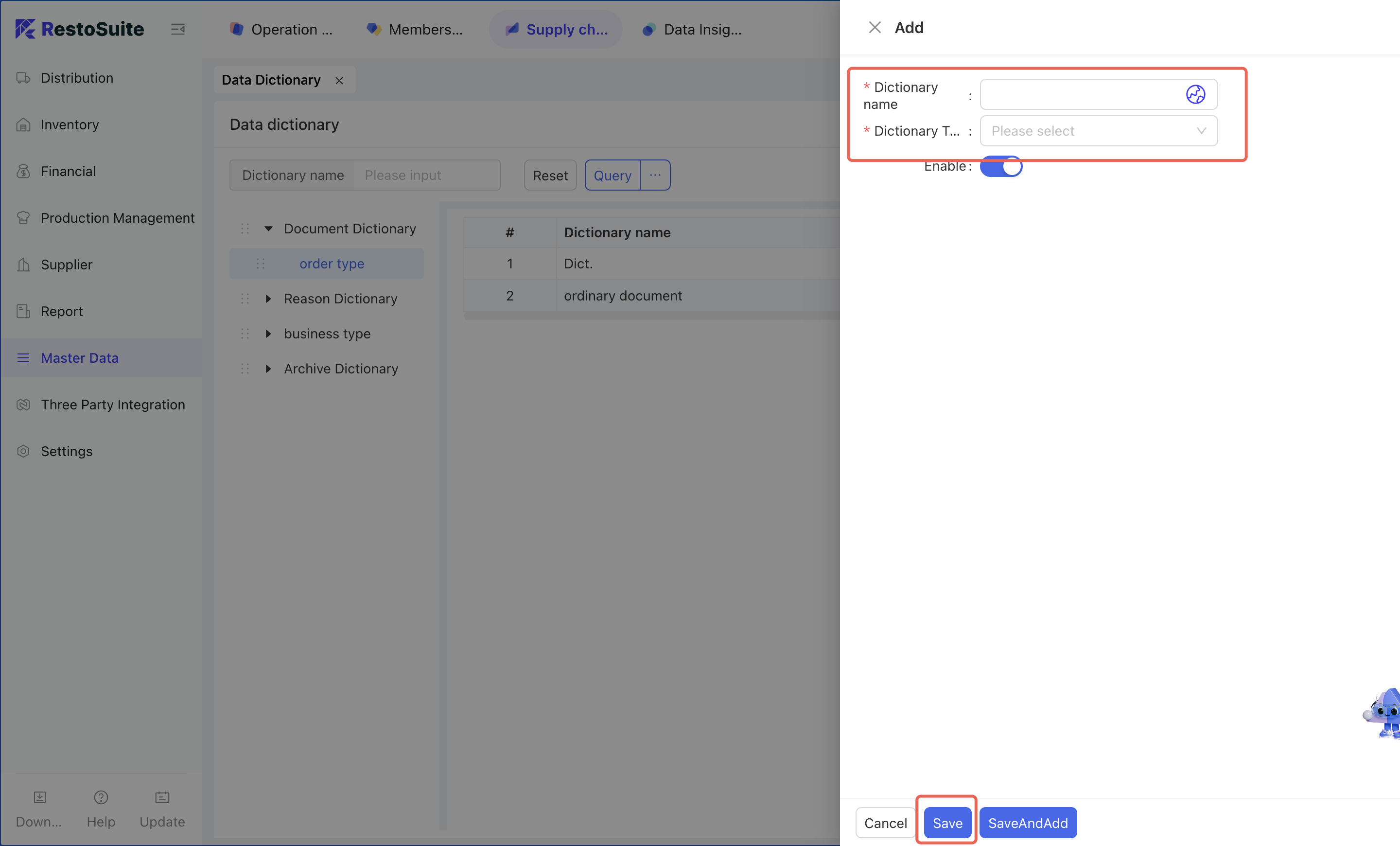
Currently, the system supports creating new entries for return reasons, loss reporting reasons, discrepancy reasons, and order types. Detailed steps are as follows:
-
Step 1 : Access Module :
- Select [Group Perspective - Supply Chain Module - Master Data Management - Data Dictionary]
-
Step 2 :
- Select the dictionary type to be added → Click [Add] → Enter the dictionary name and select the dictionary type → Click [Save].
-
Relevant pages are as follows:
2.3 Supplier Management
2.3.1 Module Overview
Supplier Management is a basic supplier data module, which includes supplier classification, basic supplier information and supplier material supply list. Through this module, the addition and maintenance of basic supplier data can be realized, so as to achieve unified group management of supplier information.
2.3.2 Function Details
2.3.2.1 Supplier Management
2.3.2.1.1 Function Overview
The Supplier Management module is used for the addition and maintenance of supplier classification and specific supplier information.
2.3.2.1.2 Function Value
It provides unified access for customers to control and manage suppliers.
2.3.2.1.3 Operation Instructions
-
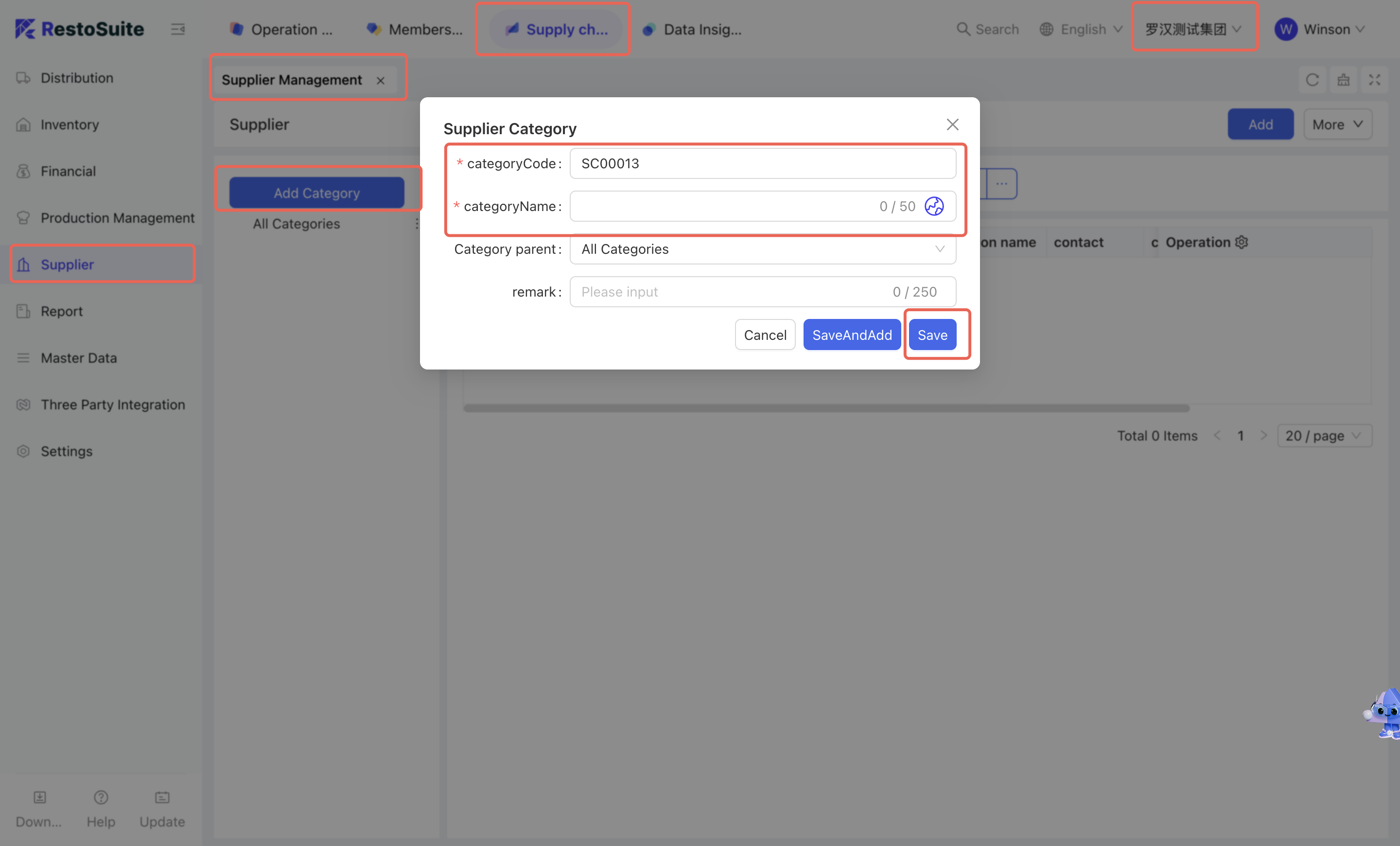
Add Supplier Category :
-
Steps :
- Select [Group Perspective - Supply Chain Module - Supplier Management - Supplier Management]
- Click [Add Category] → Maintain category code and category name
- Click [Save]
-
The specific page is as follows:
-
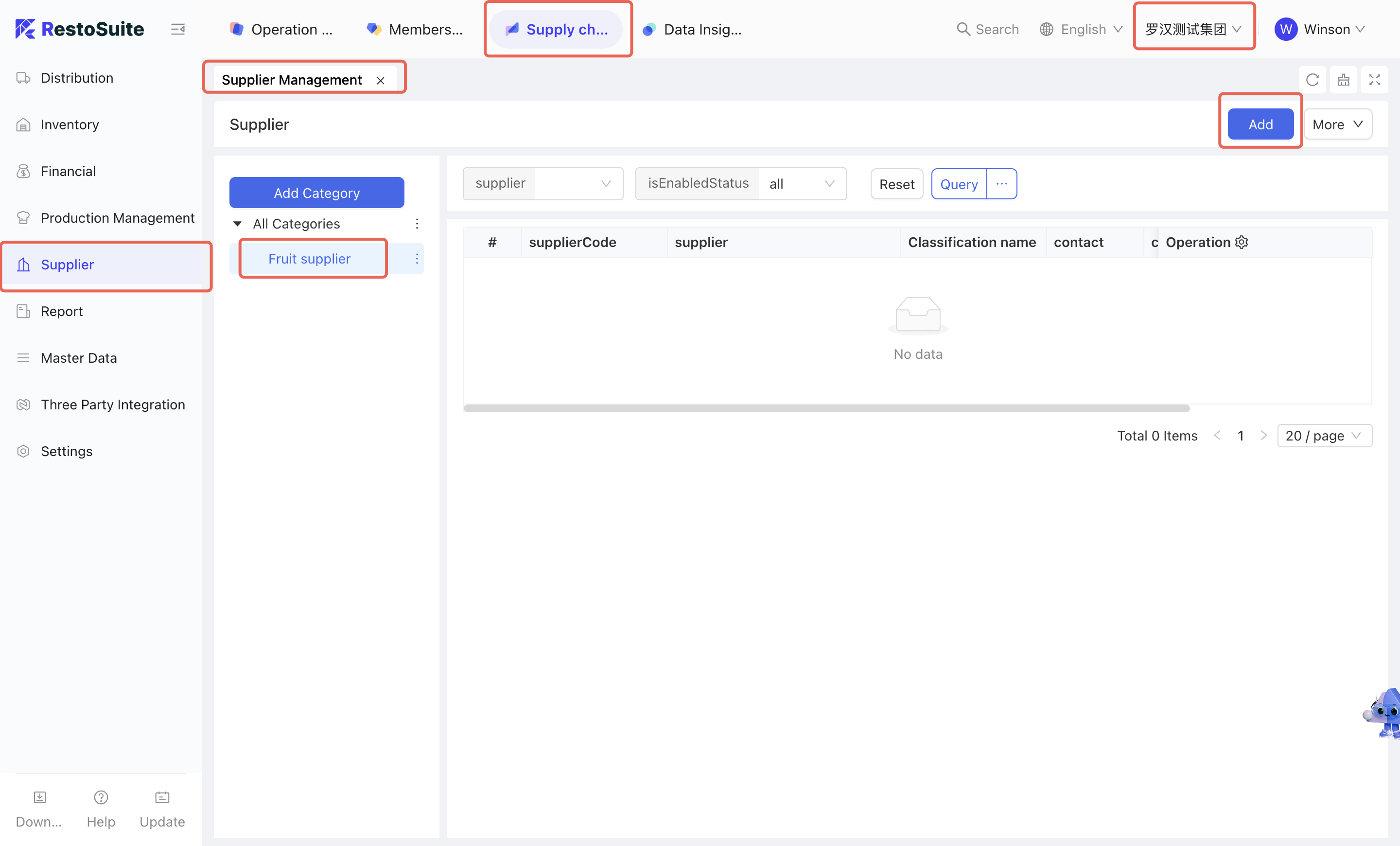
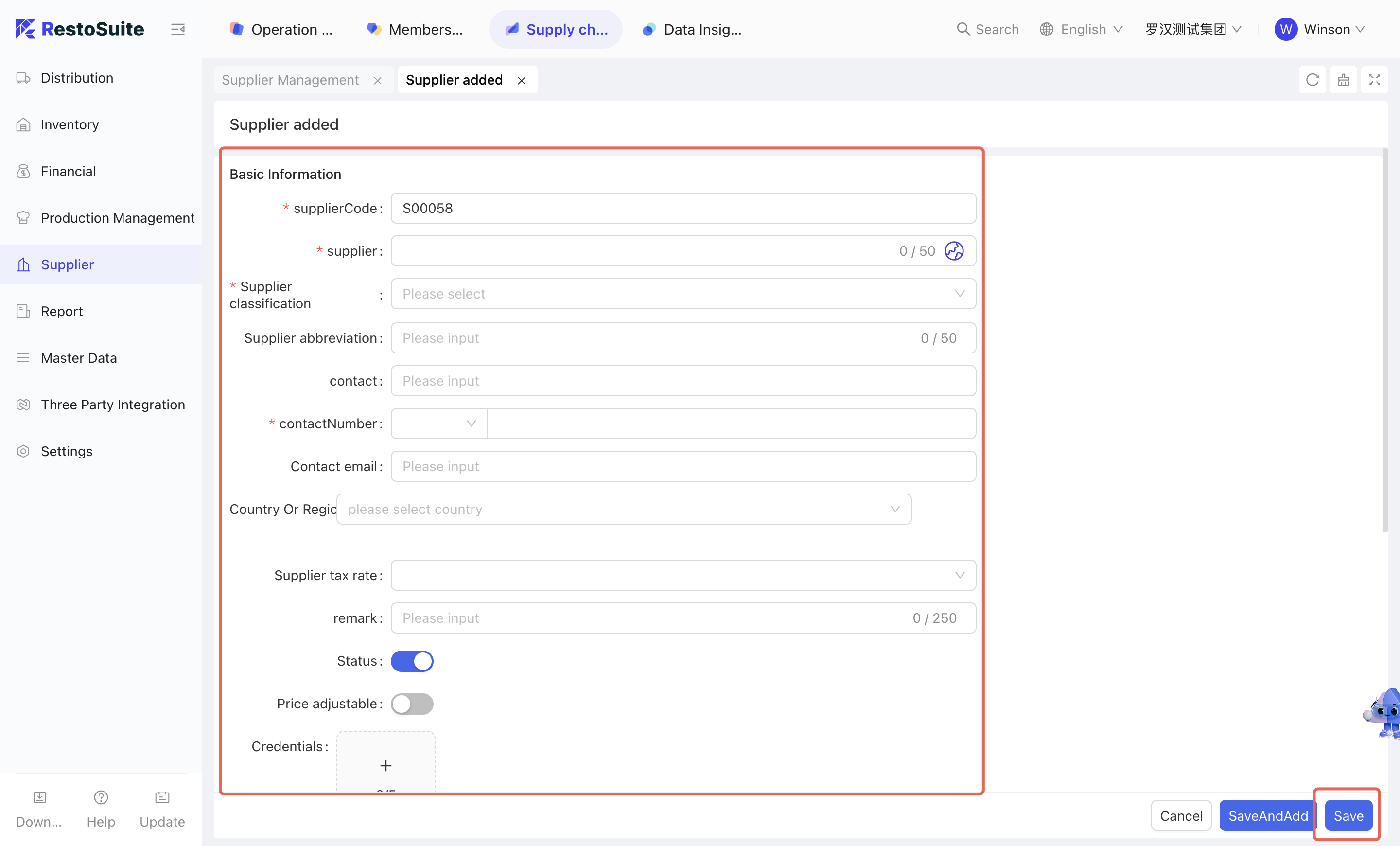
Manually Add Suppliers:
-
Steps :
- Select [Group Perspective - Supply Chain Module - Supplier Management - Supplier Management]
- Select the classification to which the new supplier belongs → Click [Add New] → Maintain supplier code, name, classification, contact phone number, tax rate, etc.
- Click [Save]
-
The specific page is as follows:
-
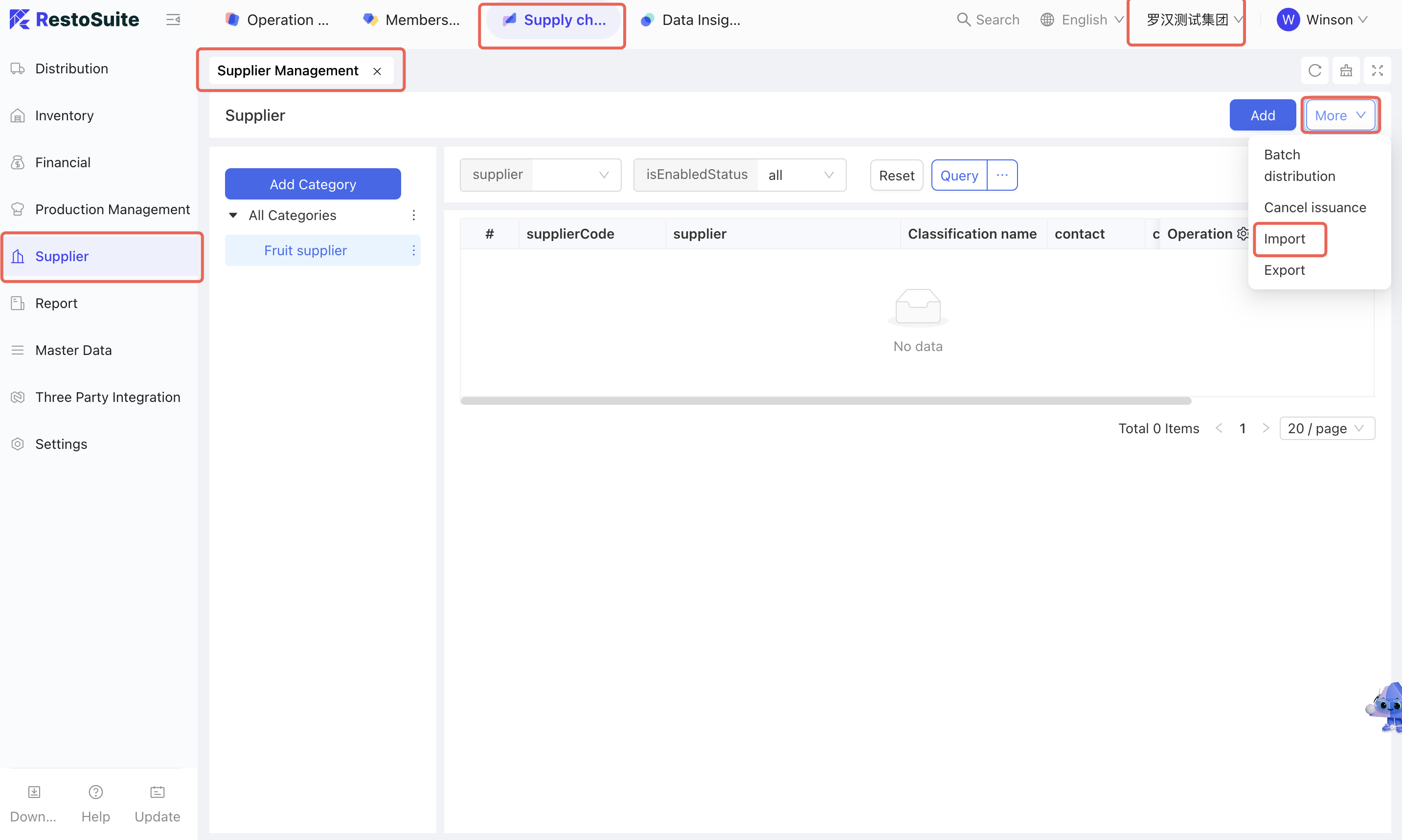
Batch Import Suppliers:
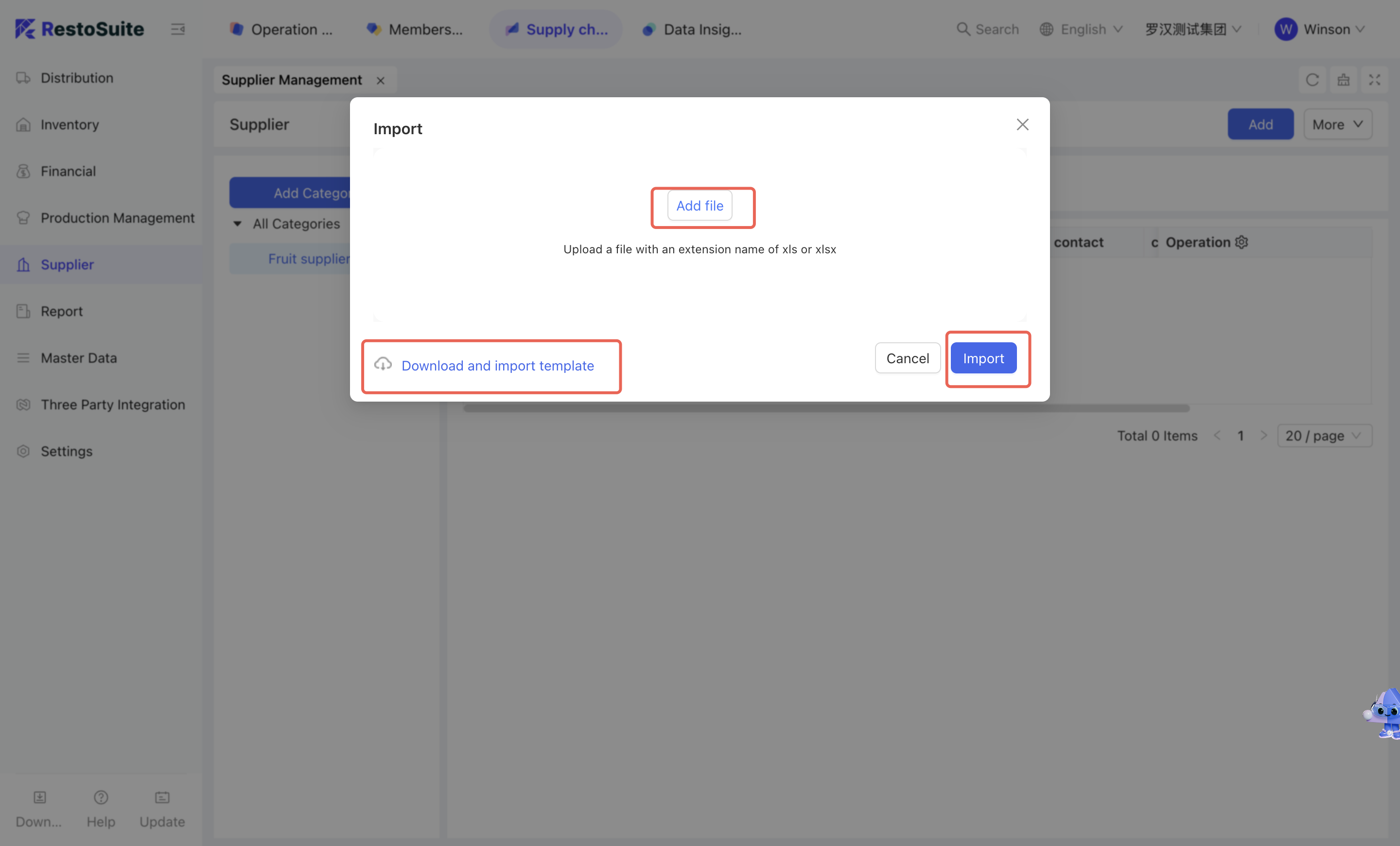
-
Steps :
- Select [Group Perspective - Supply Chain Module - Supplier Management - Supplier Management]
- Click [More - Import] → Download the supplier import template and sort out supplier information according to the template
- Click [Import] after verification
-
The specific page is as follows:
2.3.2.2 Supplier Material Supply List
2.3.2.2.1 Function Overview
In actual procurement and warehousing operations, some materials are supplied by specific suppliers. Therefore, the Supplier Material Supply List can strongly bind materials, suppliers and organizations together. After this function is configured, its priority is higher than that of the distribution rules.
2.3.2.2.2 Function Value
Through the supplier material supply list module, suppliers, materials and organizations can be associated, which reduces the error rate of procurement and warehousing.
2.3.2.2.3 Operation Instructions
-
Steps:
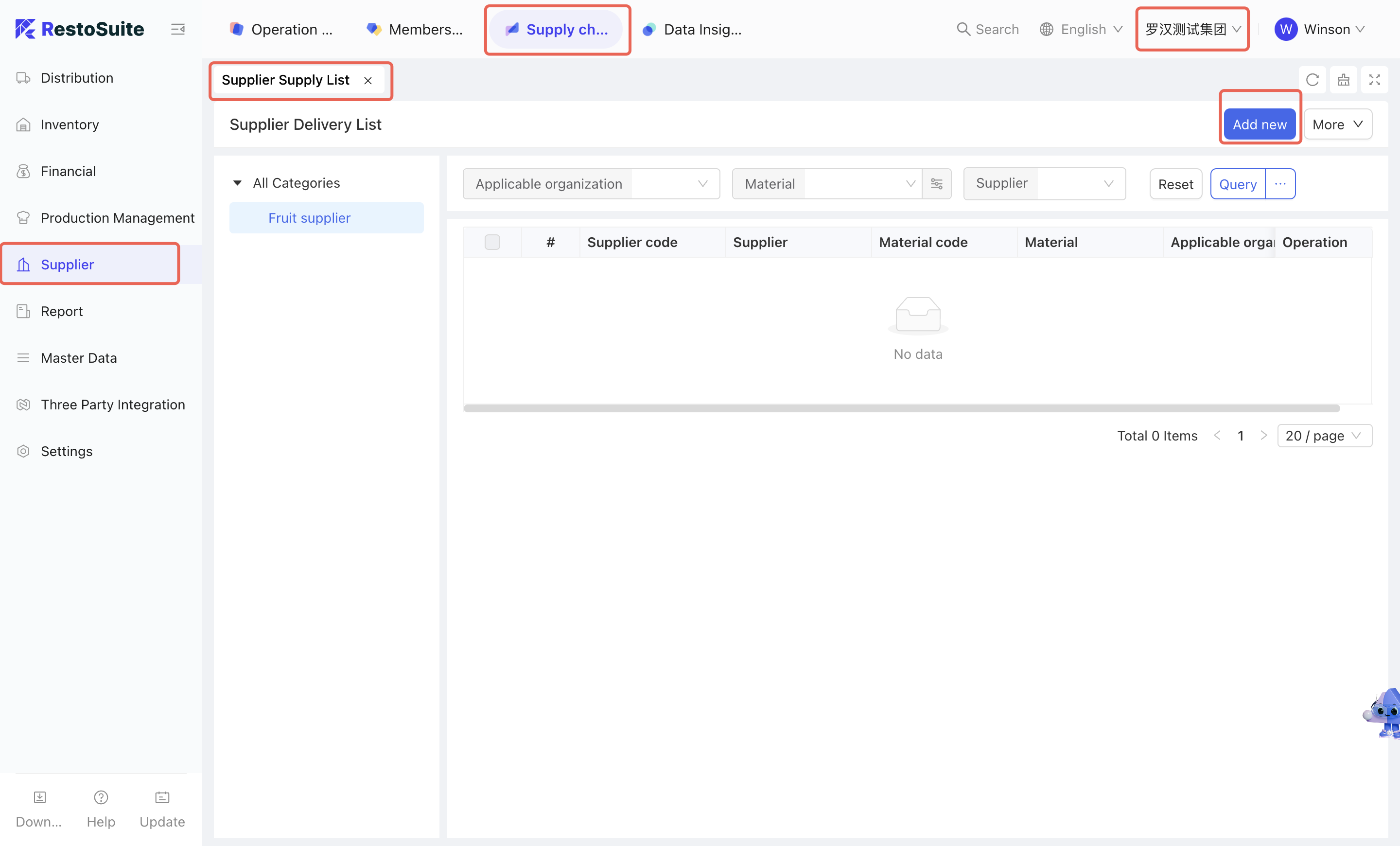
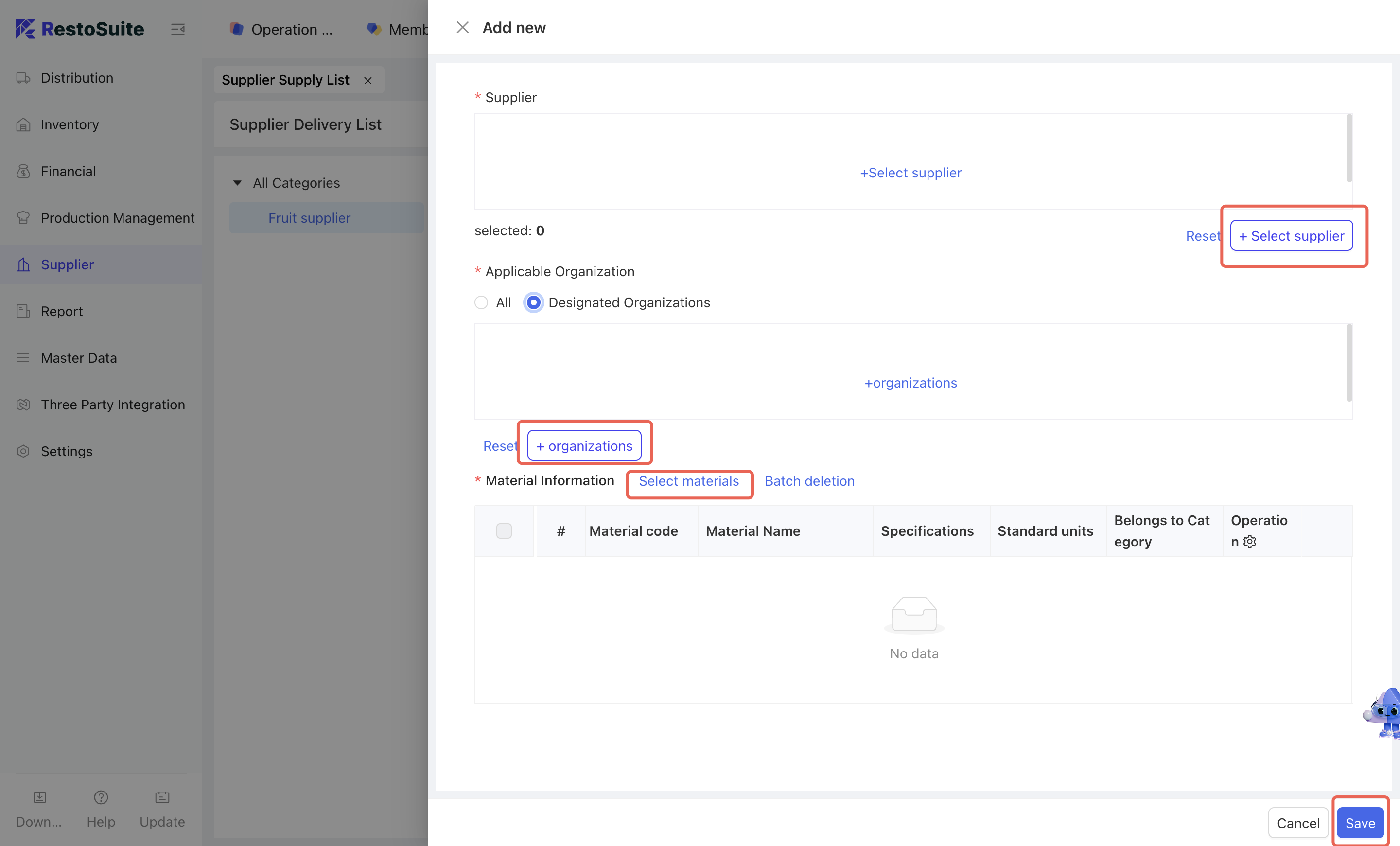
- Select [Group Perspective - Supply Chain Section - Supplier Management - Supplier Material Supply List]
- Click [Add New] → Select the supplier to be maintained → Select the involved organization → Select the materials to be allocated → Click [Confirm].
-
The specific page is as follows:
2.4 Report Management
2.4.1 Module Overview
The Report Management Module centrally displays supply chain data from the group’s perspective, including procurement, inventory, supplier, cost, and profit metrics. It acts as a one-stop access portal for group staff to retrieve relevant data efficiently.
2.4.2 Function Details
2.4.2.1 Report Overview
- Procurement Reports : Inquire about all information of each organization from procurement to inspection based on the order dimension.
- Inventory Reports : Inquire about the inbound and outbound details, inbound and outbound summaries, inventory data, inventory check data, etc. of warehouses such as distribution center warehouses, processing rooms, stores and stalls. The data is derived from all inventory documents and inventory checks, which are the most commonly used reports in inventory management and essential skills for warehouse keepers and accountants.
- Supplier Reports : Inquire about supplier purchase data and other statistics. The data is derived from all warehousing data of distribution center warehouses, processing rooms, stores, stalls and other warehouses. It is usually used when reconciling accounts with suppliers and assessing suppliers.
- Cost Reports : Inquire about data such as cost consumption and dish gross profit of stores or stalls. The data is derived from the outbound data of stalls and dish sales data. It is used for statistical analysis of the costs of stores and stalls.
- Profit Reports : Inquire about data such as store profit and distribution center profit. It is usually used when analyzing the profits of stores and distribution centers, as well as the profits of specific materials.