Bundle Deal
1 Module Introduction
Bundle Deal is a promotion strategy designed to encourage customers to purchase multiple items together. By categorizing items into different groups (e.g., Burgers, Sides, Drinks), merchants can offer discounts, fixed-price deals, or other incentives once a customer selects a specific quantity from each group. This feature helps increase average order value (AOV), manage inventory, and enhance the overall customer shopping experience.
2 Configuration Guide
2.1 Basic Information Configuration
STEP 1: Access Promotion Management
- Log in to the SaaS Admin Dashboard.
- Navigate to【Membership Marketing】>【Marketing】>【Promotional Activities】.
- Select the “Bundle Deal” module to enter the configuration page.
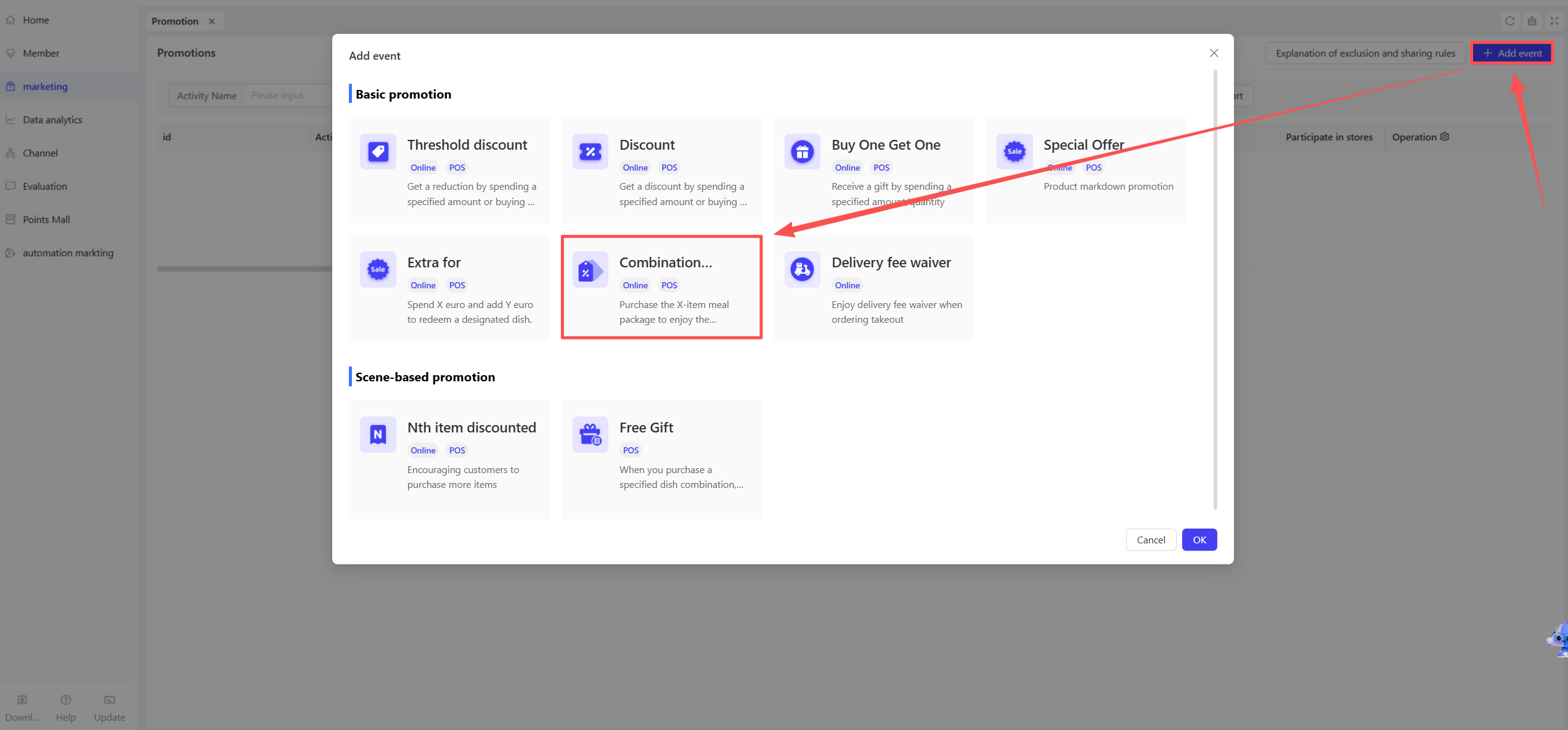
STEP 2: Define Basic Details
-
Name: Enter a name for the promotion (e.g., “Burger, Side & Drink Combo”).
-
Period: Set the start and end dates for the activity.
- Time Slots: Restrict the promotion to specific times, such as “Daily 2 PM – 5 PM” or “Mon – Fri.”
- Blackout Dates: Specify certain dates when the promotion is not applicable.
-
Code: Enter a unique identifier for internal tracking and management.
-
Description: Provide a brief summary of the rules for internal or customer reference.
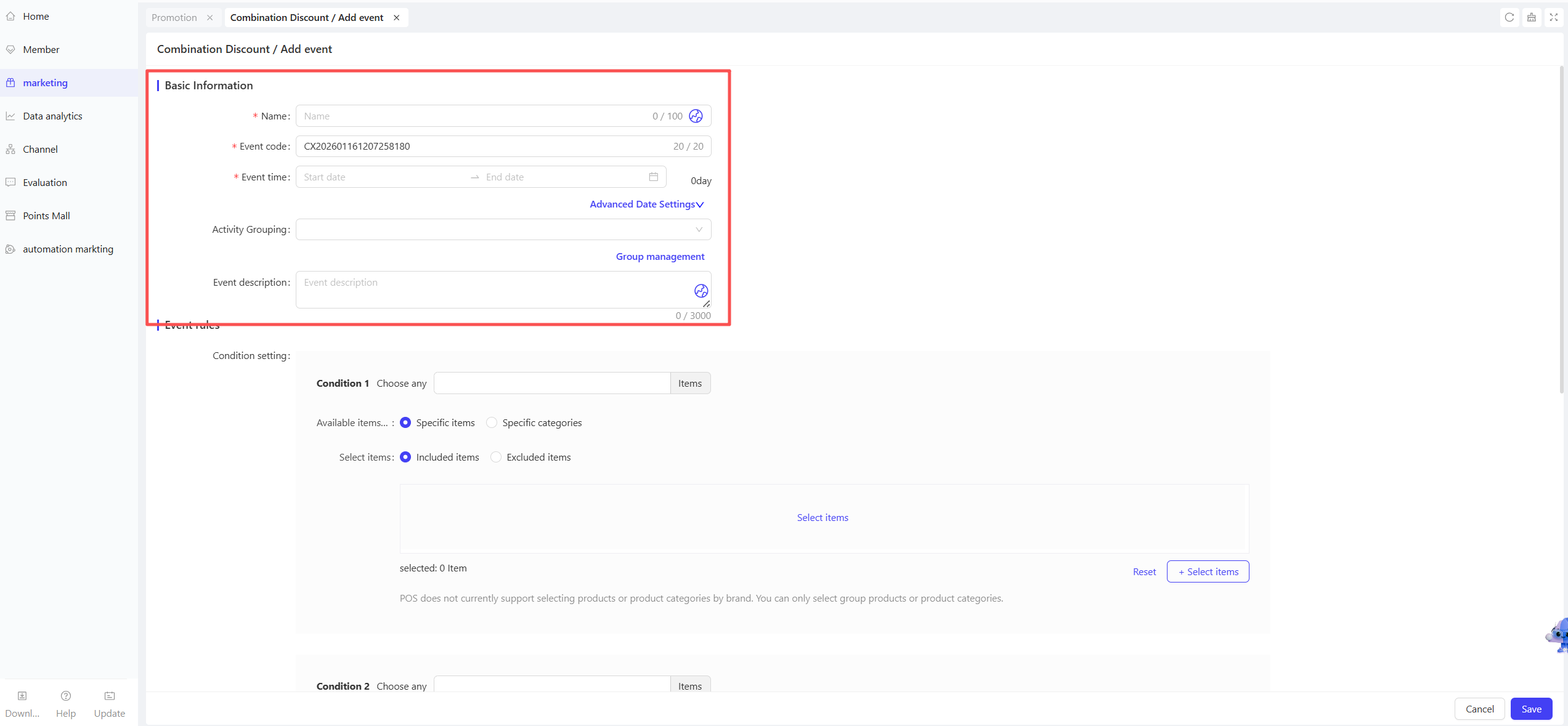
2.2 Promotion Rules Configuration
- Item Group Configuration
- Define Groups: Organize items into groups based on category or business needs (e.g., Group A: Burgers, Group B: Sides, Group C: Drinks).
- Add Items to Groups: Merchants can select specific items or entire categories to participate in the bundle.
- Quantity and Discount Rules
- Set Group Quantity: Define the minimum number of items required from each group to trigger the discount.
- Discount Types:
- Fixed Amount Off: Deducts a specific dollar amount (e.g., “Save $10 when you buy 3 burgers”).
- Fixed Bundle Price: Sets the total price to a specific amount (e.g., “Get 3 burgers for a flat price of $25”).
- Percentage Off: Applies a percentage discount (e.g., “Buy 3 burgers and get 20% off”).
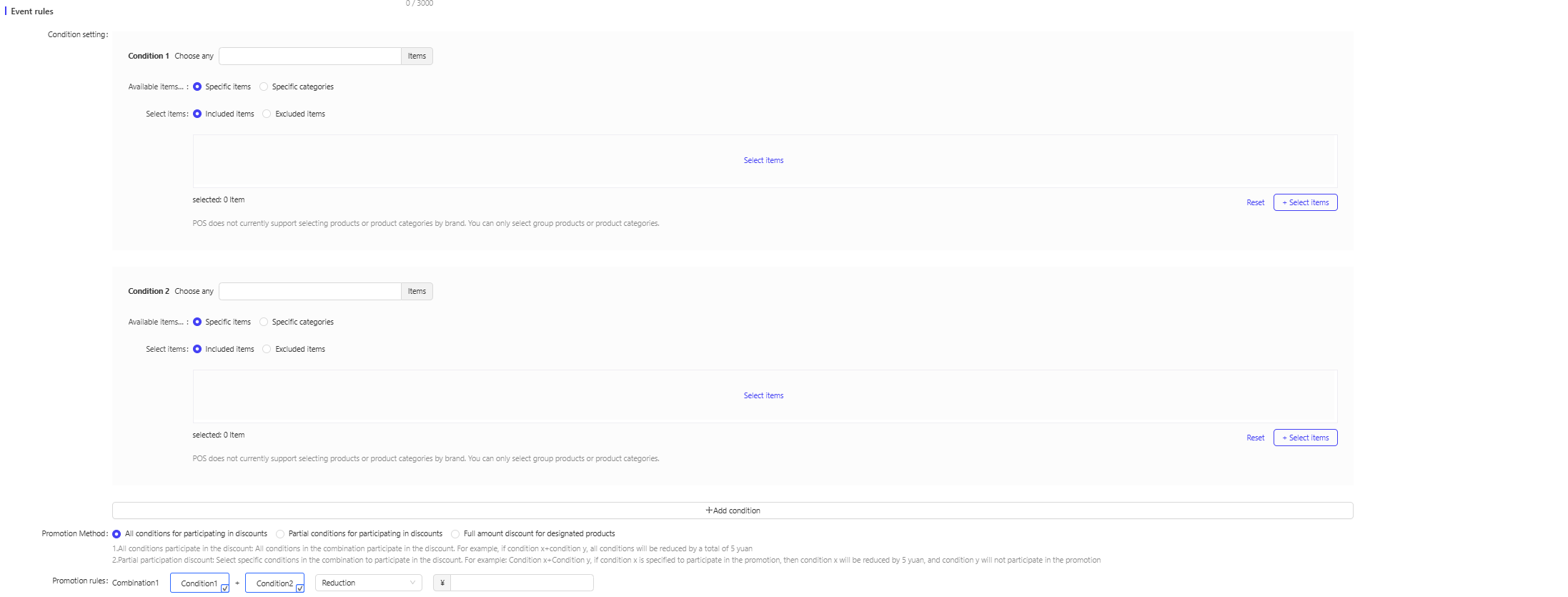
2.3 Applicable Stores Configuration
STEP 1: Select Participating Stores
Choose which locations will run the promotion. You may select all stores or specific regions.
STEP 2: Location-Specific Rules (Optional)
Customize rules for different stores to ensure localized marketing strategies.
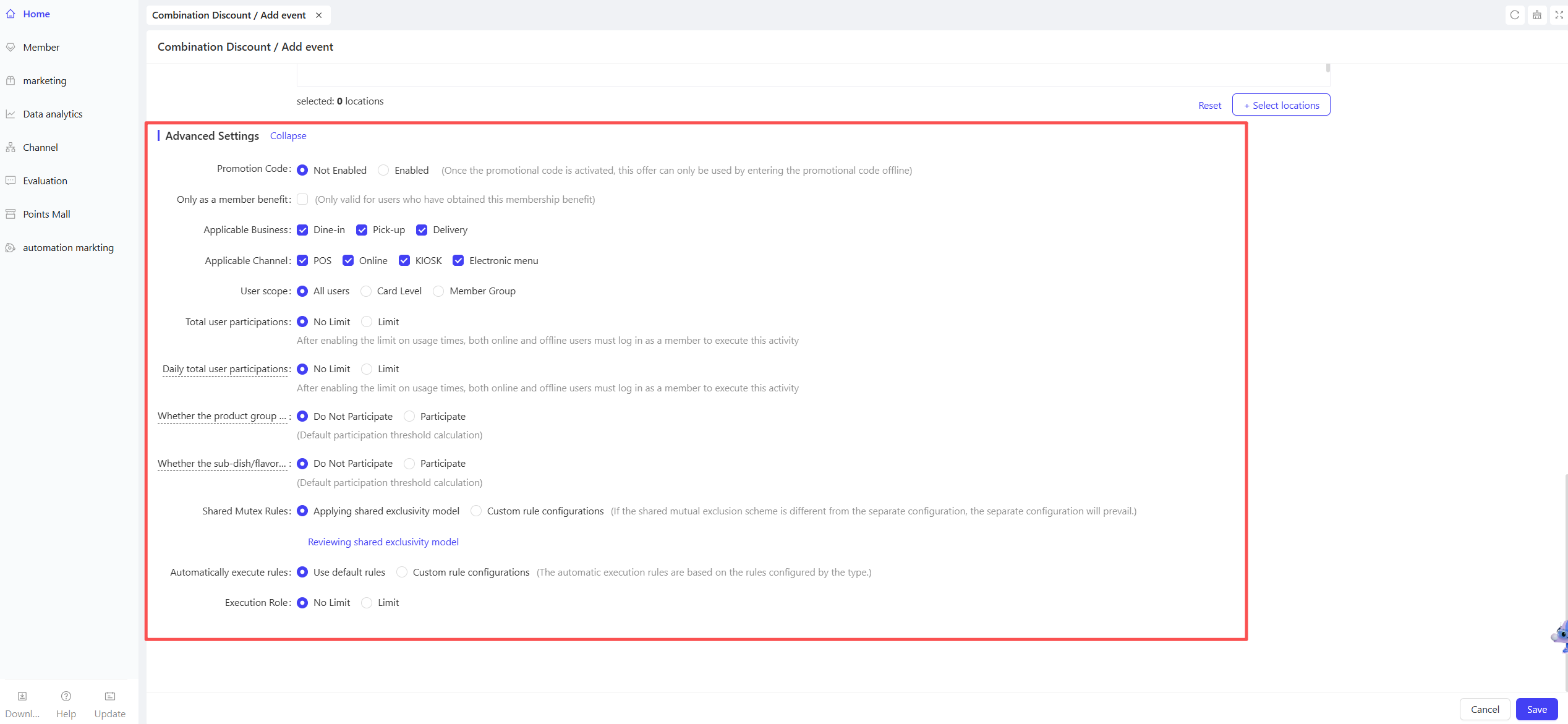
2.4 Advanced Settings
- User Eligibility
Restrict the promotion to specific customer segments:
- Membership Tier: Limit access to specific levels (e.g., VIP, Gold, Silver).
- Customer Tags: Filter by tags (e.g., New Users, Loyal Customers).
- Participation Limits
- Total Limit per User: Set the maximum number of times a customer can use this deal during the entire campaign.
- Daily Limit per User: Limit how many times a customer can use the deal per day.
- Max Discount per Order
Set a cap on the total discount amount for a single order. If the calculated discount exceeds this limit, the system will apply only the maximum allowed amount to prevent excessive losses.
- Add-ons, Modifiers, and Sides
-
Sides Participation:
-
- Participate: The system treats the main item and sides as a single unit; the discount is prorated across both.
- Do Not Participate: The discount applies only to the base price of the main item.
-
-
Sub-items/Modifiers/Cooking Methods:
- Participate: Discounts are prorated across the main item and its modifiers (e.g., extra toppings or special prep).
- Do Not Participate: Modifiers are charged at full price and are excluded from discount calculations.
- Exclusivity and Stacking Rules
Define how this promotion interacts with other offers (e.g., Coupons, Member Pricing, Loyalty Discounts).
- Use Default Template: Apply the system’s standard stacking/exclusion rules.
- Custom Configuration: Manually set whether this deal can be combined with other specific promotions.
- Note: Manual configurations will override the default template.
- Note: Manual configurations will override the default template.
3 Activate & Manage the Promotion
3.1 Activate the Promotion
- After completing the configuration, click【Save】to activate the promotion.
3.2 Promotion Management & Monitoring
- View performance data (e.g., order volume, discount usage) in the Promotion Management module.
- Pause or adjust the promotion at any time, and manually archive it when necessary.