Advertising & Marketing
1 Module Introduction
Advertising & Marketing Campaigns are core tools for merchants to build brand awareness and engage customers across touchpoints. They deliver targeted, multi-format ads via multiple channels to all in-store online touchpoints, communicating brand and campaign messages, driving purchase intent, boosting marketing visibility and touchpoint conversion efficiency, and achieving the dual goals of brand promotion and revenue growth.
2 Configuration Guide
2.1 Accessing the Feature
- Log in to the SaaS Admin Portal.
- Navigate to【Membership Marketing】>【Marketing】>【Marketing Activities】.
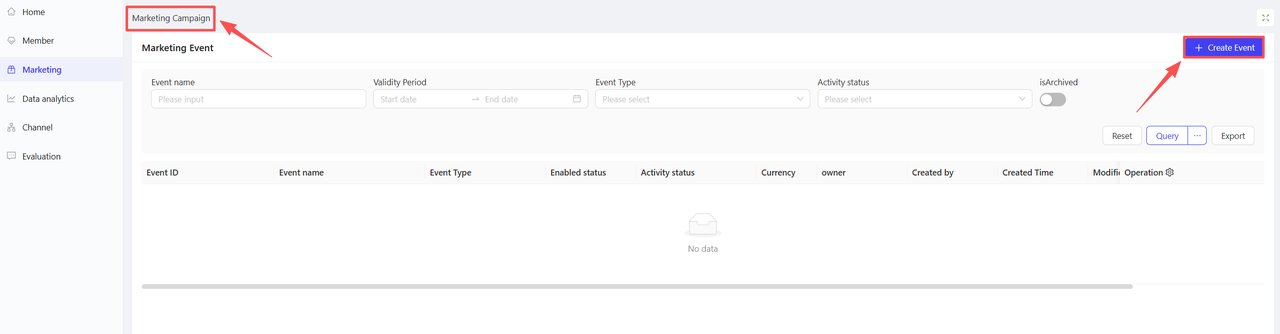
- Click【Create Activity】in the top-right corner and select the Advertising & Marketing module.
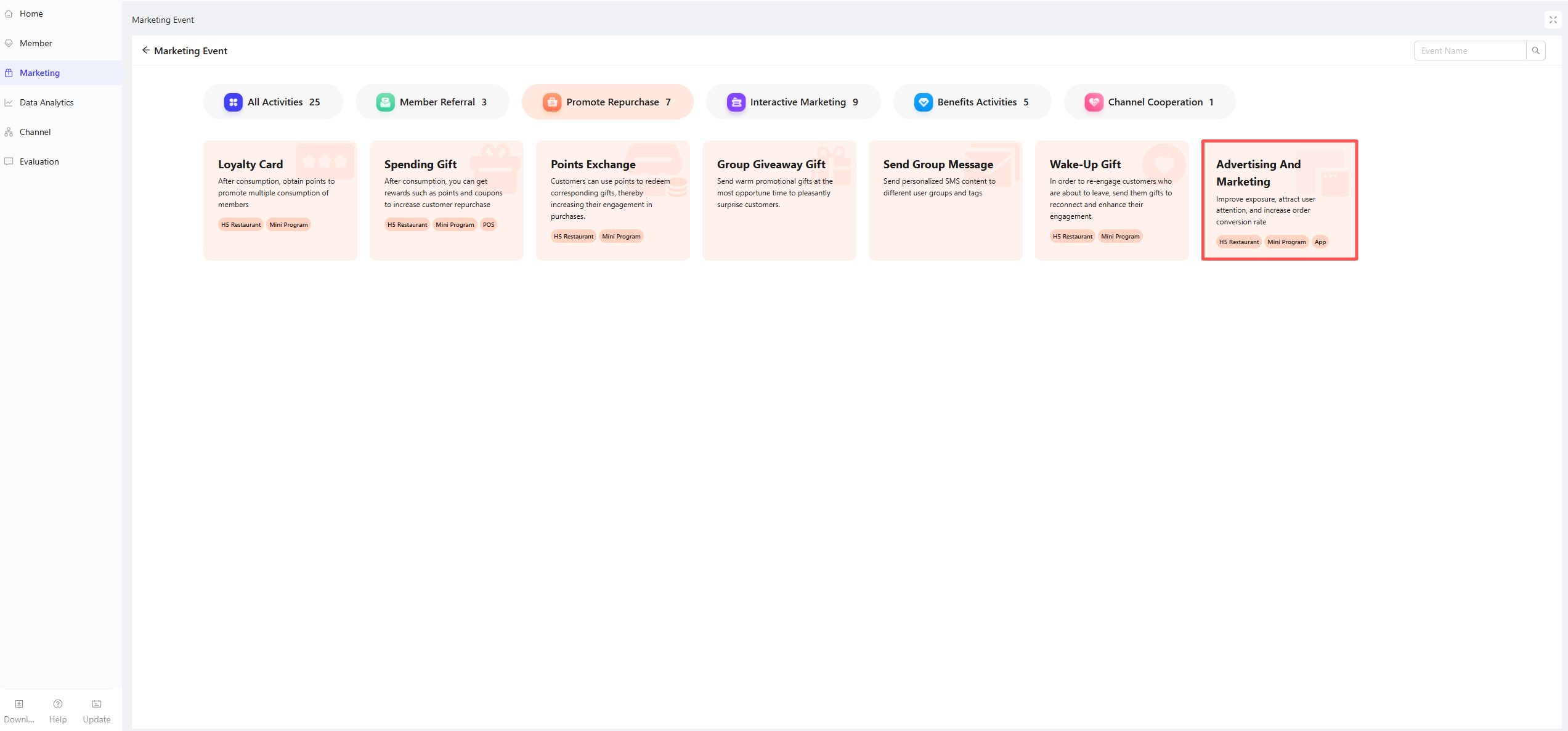
2.2 Basic Settings
-
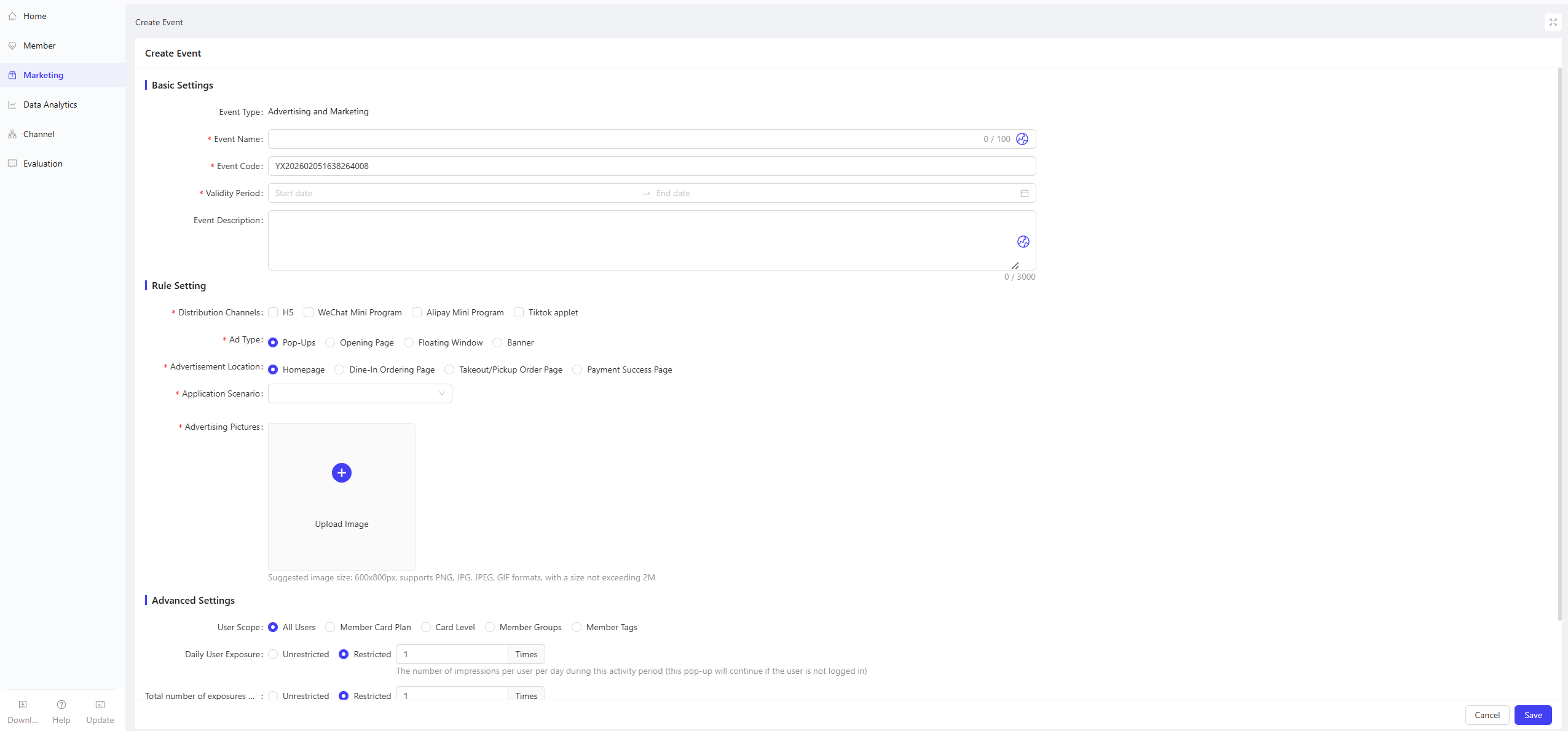
Activity Name: Enter a clear name for easy customer recognition
- Example: “February New Product Ad Campaign”
-
Activity Code: Enter a unique identification code for internal management and tracking
-
Validity Period: Set the start and end time of the campaign for rational scheduling
-
Description: Briefly describe campaign details and rules for clarity
2.3 Rule Settings
- Delivery Channels: Select from H5, WeChat Mini Program, Alipay Mini Program, Douyin Mini Program, App
- Ad Type: Select from Popup, Splash Screen, Floating Window, Ad Banner
- Ad Placement: Select from Homepage, In-store Order Page, Delivery/Self-pickup Order Page, Payment Success Page
- Application Plan: Select the applicable application plan
- Ad Assets: Upload corresponding ad images here
2.4 Advanced Settings
-
Effective Date: Set the time dimension for the plan to take effect; select from Daily, Weekly, Monthly
-
Target Audience: Select the specific user scope for the campaign based on 5 dimensions:
- All Users: Applies to all store users
- Loyalty Card Plans: Filter users by one or more loyalty card plans
- Loyalty Card Tiers: Filter users by different card tiers under loyalty card plans
- Member Segments: Filter users by one or more member segments
- Member Tags: Filter users by one or more member tags (e.g., New Users, Repeat Users)
-
Daily Exposure Limit per User: Select Limited or Unlimited
- If Limited is selected, enter the maximum daily exposure times per user during the campaign (ads will pop up continuously for unlogged users)
-
Total Exposure Limit per User (Campaign Period): Select Limited or Unlimited
- If Limited is selected, enter the total maximum exposure times per user for the entire campaign period
3 Activity Activation & Management
-
Activating the Activity
- After completing all configurations, click Save to launch the activity immediately.
-
Activity Management & Monitoring
- View activity performance data (including order volume and participant metrics) on the Activity Management page.
- Pause, adjust, or archive the activity at any time as needed.