Delivery Fee Waiver
1 Module Introduction
Delivery Fee Waiver allows merchants to reduce or waive delivery costs for customers. This strategy helps lower the barrier to entry for delivery orders, attracts more volume, and boosts customer retention and repeat purchase rates on digital channels.
2 Configuration Guide
2.1 Basic Information Configuration
STEP 1: Access Promotion Management
- Log in to the SaaS Admin Dashboard.
- Navigate to 【Membership Marketing】>【Marketing】>【Promotional Activities】.
- Select the “Delivery Fee Waiver” module to enter the configuration page.
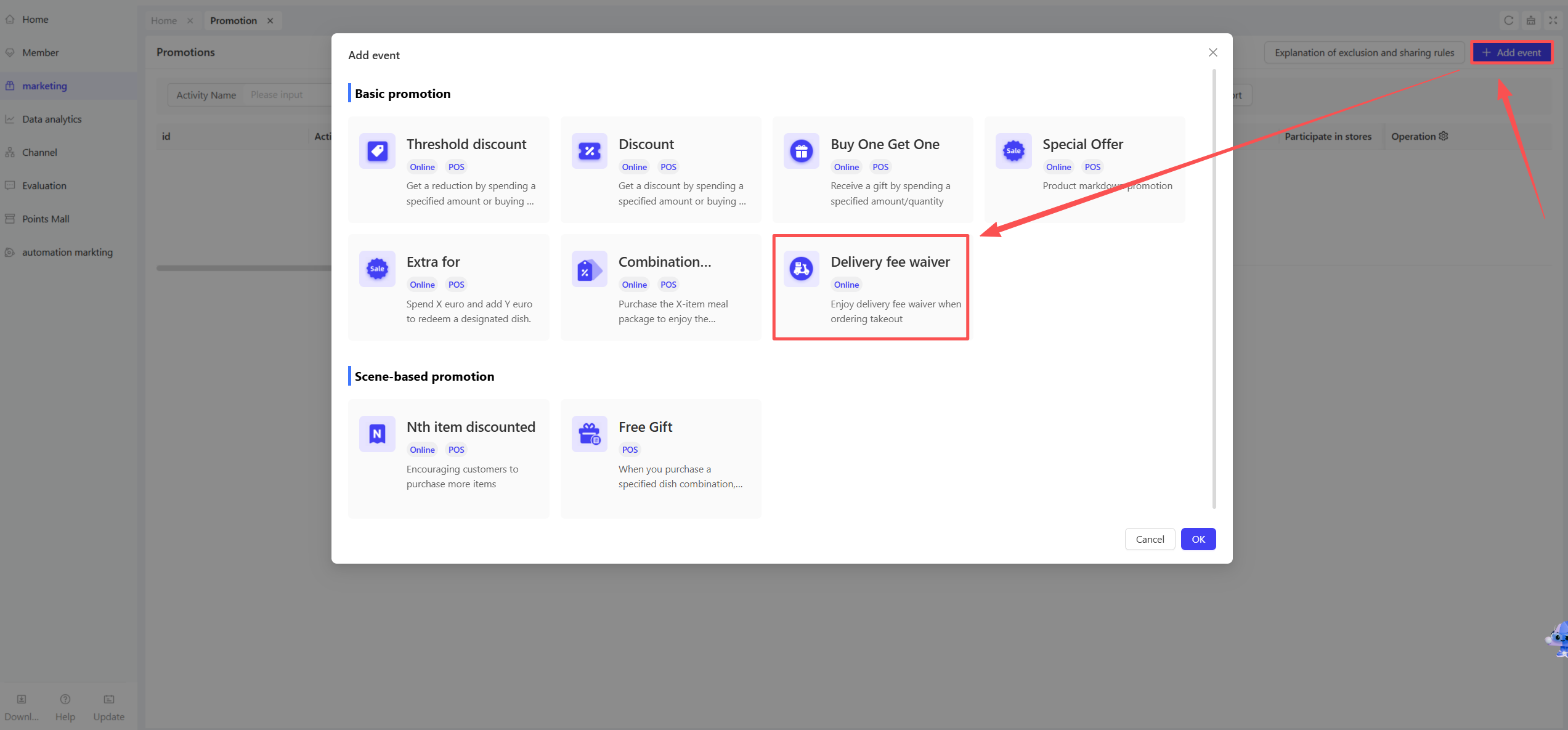
STEP 2: Define Basic Details
-
Name: Enter a name for the activity (e.g., “Free Delivery Wednesdays”).
-
Code: Enter a unique identifier for internal tracking.
-
Period: Define the start and end dates.
- Time Slots: Set specific hours for the promotion (e.g., “Daily 2 PM – 5 PM” or “Mon – Fri”).
- Blackout Dates: Specify dates when the discount does not apply.
-
Promotion Group: Select a category from the dropdown menu to group this activity.
-
Description: Provide a brief summary of the rules for clarity.
2.2 Promotion Rules Configuration
Discount Type (Select One)
-
Free Delivery: The default option. The delivery fee is waived (reduced to $0).
-
Fixed Amount Off: Enter a specific deduction amount.
- Formula: Final Fee = Standard Fee - Discount Amount (Minimum $0).
-
Percentage Off: Enter a discount percentage.
- Formula: Final Fee = Standard Fee - (Standard Fee × Discount %).

2.3 Applicable Stores Configuration
STEP 1: Select Participating Stores
Select all stores or specific locations/regions to run the promotion.
STEP 2: Location-Specific Rules (Optional)
Customize rules for different stores to allow for flexible regional marketing strategies.

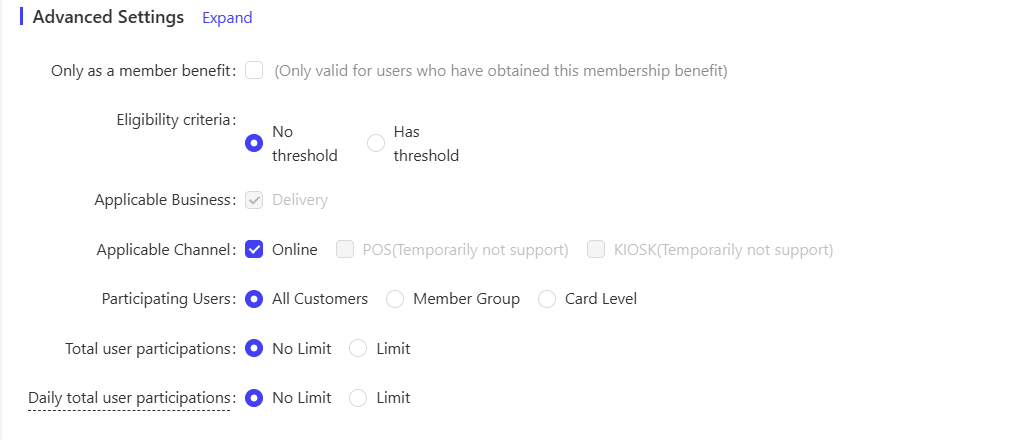
2.4 Advanced Settings
-
Member-Only Benefit: If enabled, the discount is only available to users who have been granted this specific membership perk.
-
Order Thresholds (Minimum Requirements):
- No Threshold: Default setting; applies to all orders.
- Set Threshold: Choose between:
- By Amount: Enter the minimum spend required.
- By Item Count: Enter the minimum number of items required.
-
Applicable Business: Locked to “Delivery” by default.
-
Applicable Channels: Locked to “Online” by default.
-
User Eligibility:
- Membership Tier: Limit access to specific levels (e.g., VIP, Silver).
- Customer Segments: Filter by user tags (e.g., New vs. Returning).
-
Participation Limits:
- Total Limit per User: Max times a user can claim this during the entire campaign.
- Daily Limit per User: Max times a user can claim this per day.
Note
If a user calculates a promotion before an address is entered to generate a delivery fee, the system will automatically void any coupons that are mutually exclusive with the Delivery Fee Discount once it is triggered.
3 Activate & Manage the Promotion
3.1 Activate the Promotion
- After completing the configuration, click【Save】to activate the promotion.
3.2 Promotion Management & Monitoring
- View performance data (e.g., order volume, discount usage) in the Promotion Management module.
- Pause or adjust the promotion at any time, and manually archive it when necessary.