First Order Gift
1 Module Introduction
The First Order Gift Activity is a targeted acquisition tool designed to convert new prospects into paying customers. The core logic rewards new customers automatically after they complete their first purchase and meet specific criteria. This activity effectively incentivizes first-time trials, boosts conversion rates, and strengthens brand loyalty from the very first interaction.
2 Configuration Guide
2.1 Accessing the Feature
- Log in to the SaaS Admin Portal.
- Navigate to【Membership Marketing】>【Marketing】>【Marketing Activities】.
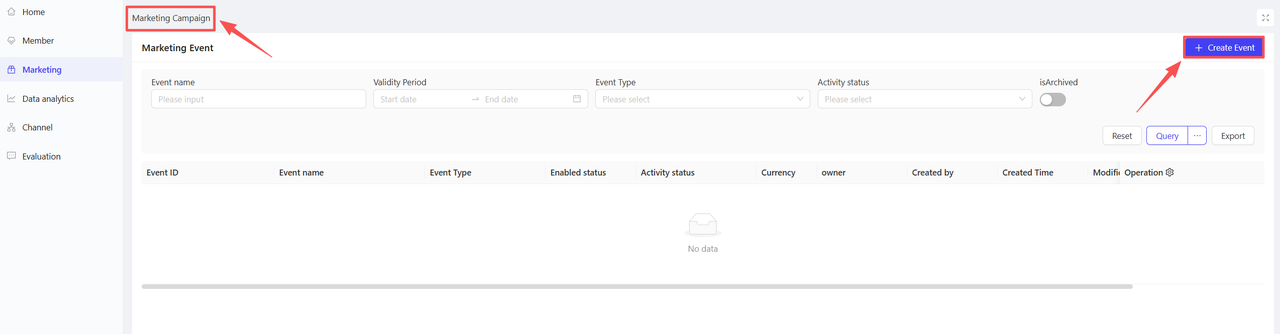
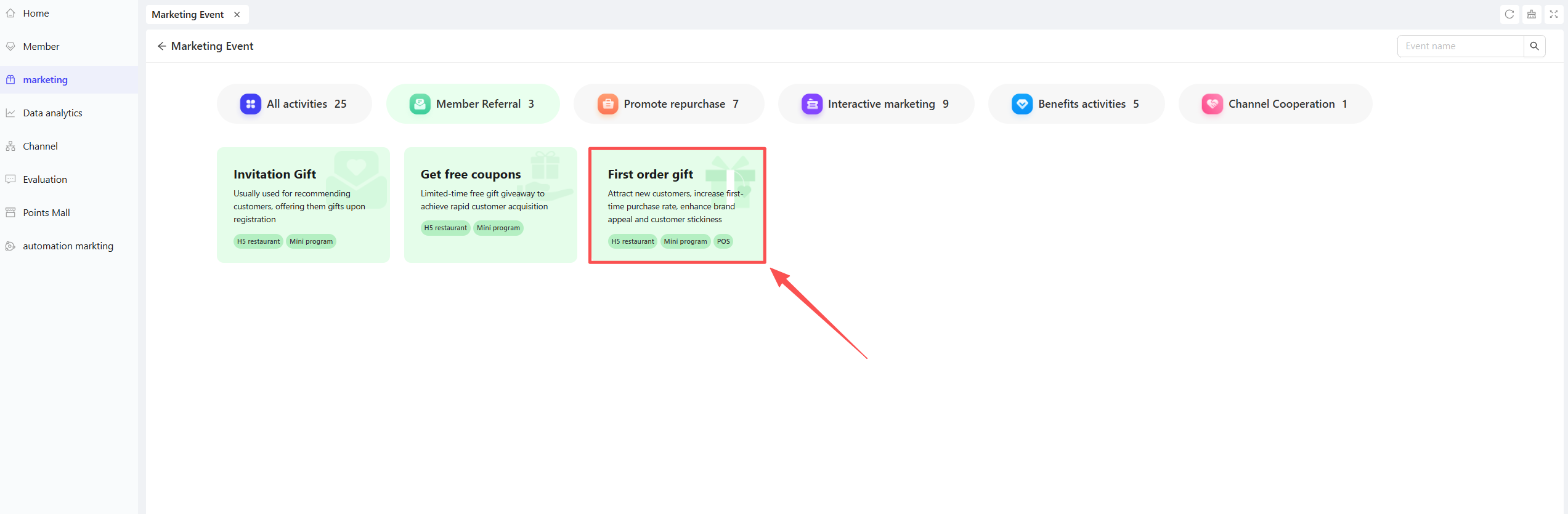
- Click【Create Activity】in the top-right corner and select the First Order Gift module.
2.2 Basic Information Configuration
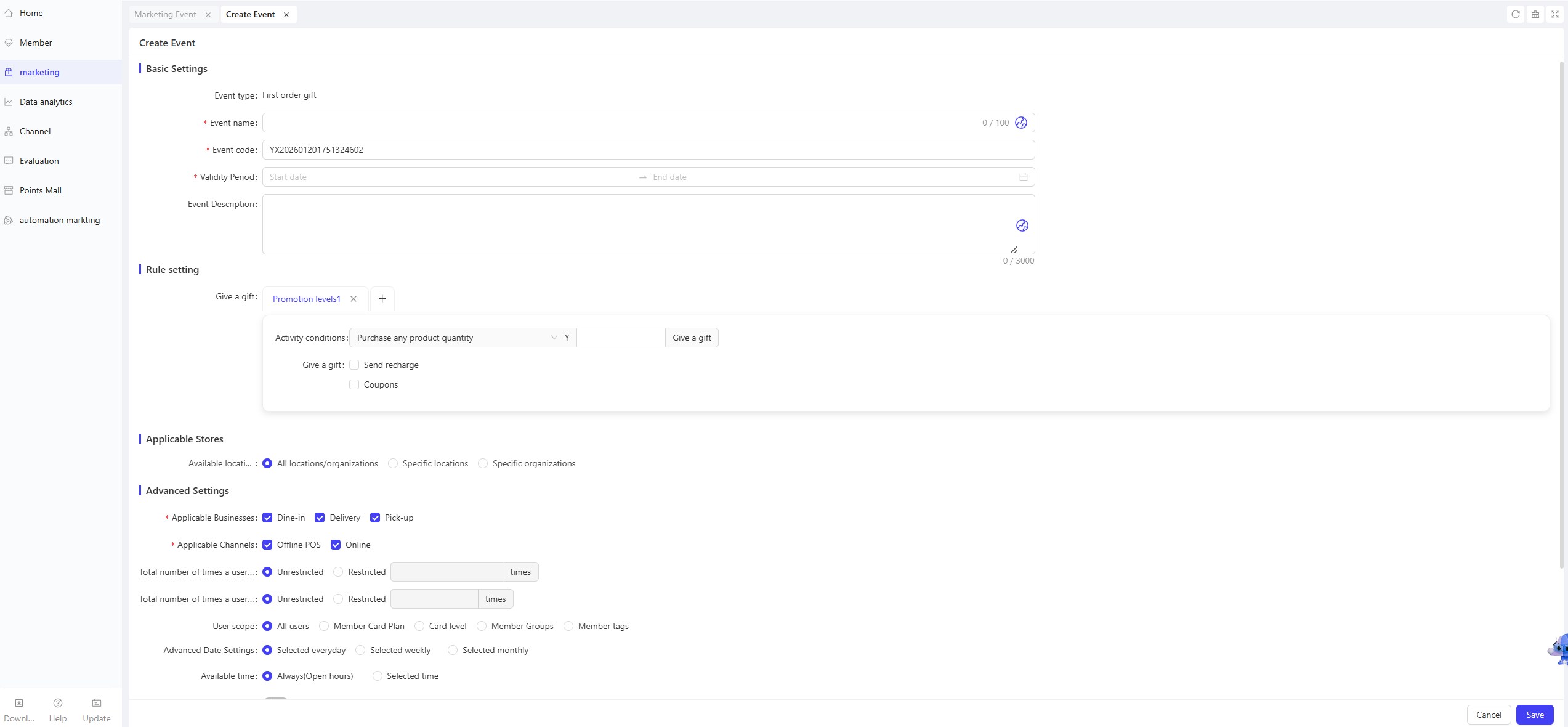
- Activity Name: Enter a customer-facing name (e.g., “Gifts on Your First Order!”).
- Activity Code: A unique internal identifier for tracking and reporting.
- Validity Period: Select the start and end dates for the activity.
- Description: Provide clear terms and conditions for the users.
2.3 Rules Configuration
Configure spending conditions and rewards to ensure precise fulfilment:
- Activity Conditions (Select one of four):
- First order (any item) spend reaches: Reward is triggered when the first total order amount reaches a set value.
- First order (any item) for every spend of: Reward is triggered every time a specific amount is reached in the first order (multiple rewards per order; tiered settings not supported).
- First order (selected items) spend reaches: Reward is triggered when the purchase amount of specific items reaches a set value.
- First order (selected items) for every spend of: Reward is triggered for every specific amount spent on selected items.
Note
"Spend reaches" triggers once per bill; "For every spend of" can trigger multiple times within a single bill.
- Rewards (Multi-select supported)
- Stored Value: Enter a specific balance amount. (Note: Only issued if the order currency matches the activity currency.)
- Coupons: Add one or more coupons to the reward pool.
- Quantity: Enter the number of coupons to be issued.
- Validity Type:
- Relative: Valid for X days after issuance (e.g., “Valid for 7 days”).
- Fixed: Valid during a specific date range (e.g., “Nov 1 to Nov 11”).
- Tiered Settings
- Supports up to 5 tiers (Not available for “every spend of” rules).
- Consistency: All tiers must use the same spending type as the first tier.
- Highest Tier Rule: A single order will only trigger the highest eligible tier (e.g., if tiers are set at $10, $20, and $30, a $40 purchase only triggers the $30 tier reward).
- Selected Items
- Visible only if “selected items” is chosen in conditions. Check all items eligible for this activity.
2.4 Applicable Stores Settings
- Applicable Stores: Choose the stores that will participate in the activity. You can select all stores or specific stores (by individual store or by organizational unit).
2.5 Advanced Settings
-
Applicable Business: All types are selected by default. Choose from Dine-in, Delivery, or Pick-up.
-
Applicable Channels: Choose Offline POS and/or Online.
-
Redemption Limits: Limit total or daily participation per user.
-
Target Audience: Filter by Membership Plan, Tier, Segment, or Tags.
-
Advanced Date Settings: Define the date range for the activity to take effect. Select the cycle type: Daily, Weekly, or Monthly, then tick the specific dates.
- Example: Select Friday for weekly cycles; select 1st, 15th, and Last Day of Month for monthly cycles.
-
Advanced Scheduling:
- Date Filters: Set the activity to trigger only on specific days (e.g., every Friday or the 1st of every month).
- Time Slots: Restrict redemption to specific hours (e.g., 10:00 AM – 10:00 PM).
-
Exclusion Rules (Sharing):
- Coupons: Set as non-stackable with all or specific coupons.
- Promotions: Set as non-stackable with other active promotions.
- Member Benefits: disable sharing with Member Prices or Member Discounts.
- Member Assets: disable sharing with Stored Value or Points payments.
3 Activity Activation & Management
-
Activating the Activity
- After completing all configurations, click Save to launch the activity immediately.
-
Activity Management & Monitoring
- View activity performance data (including order volume and participant metrics) on the Activity Management page.
- Pause, adjust, or archive the activity at any time as needed.

4 User Journey (End-User Experience)
- Registration: New customer signs up for membership.
- First Purchase: Customer places their first order, meeting the activity criteria.
- Payment: Customer completes the transaction.
- Auto-Issuance: The system automatically pushes the rewards to the user’s account.
- Notification: User receives a notification (SMS/App Push) regarding the gift.
- Usage: User views the gift in their account and applies it to their next visit.