Add-on Items
1 Module Introduction
An add-on items promotion refers to a sales tactic where customers can purchase designated items at a discounted price after spending a specified amount or buying a certain quantity of items. This feature helps merchants increase average order value, boost item sales, diversify order structures, and simultaneously enhance customer shopping experience and repurchase intention.
2 Configuration Guide
2.1 Basic Information Configuration
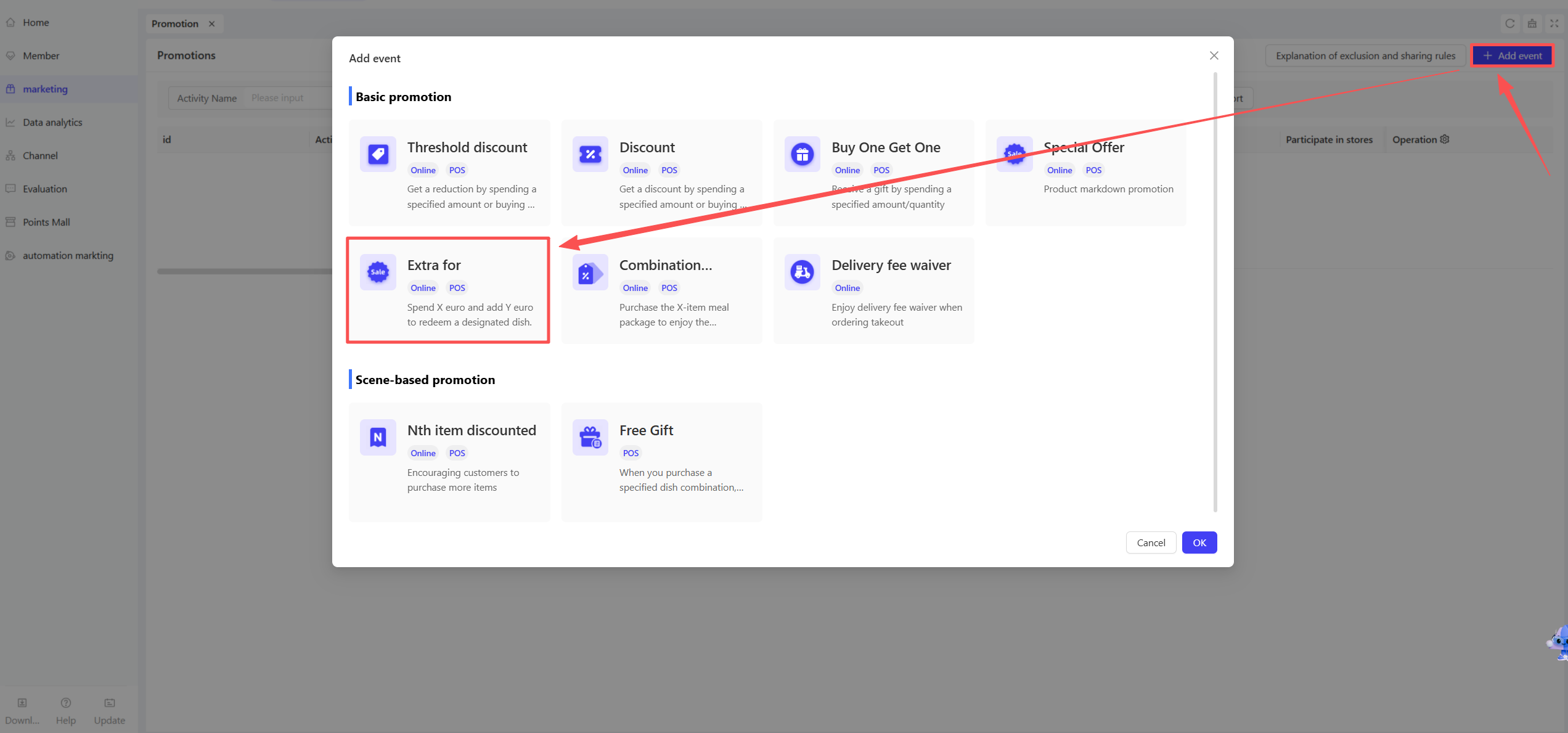
STEP 1: Access the Promotion Management Page
- Log in to the SaaS Admin Portal. Navigate to【Membership Marketing】>【Marketing】> 【Promotional Activities】.
- Select the Add-on Items module to enter the activity configuration page.
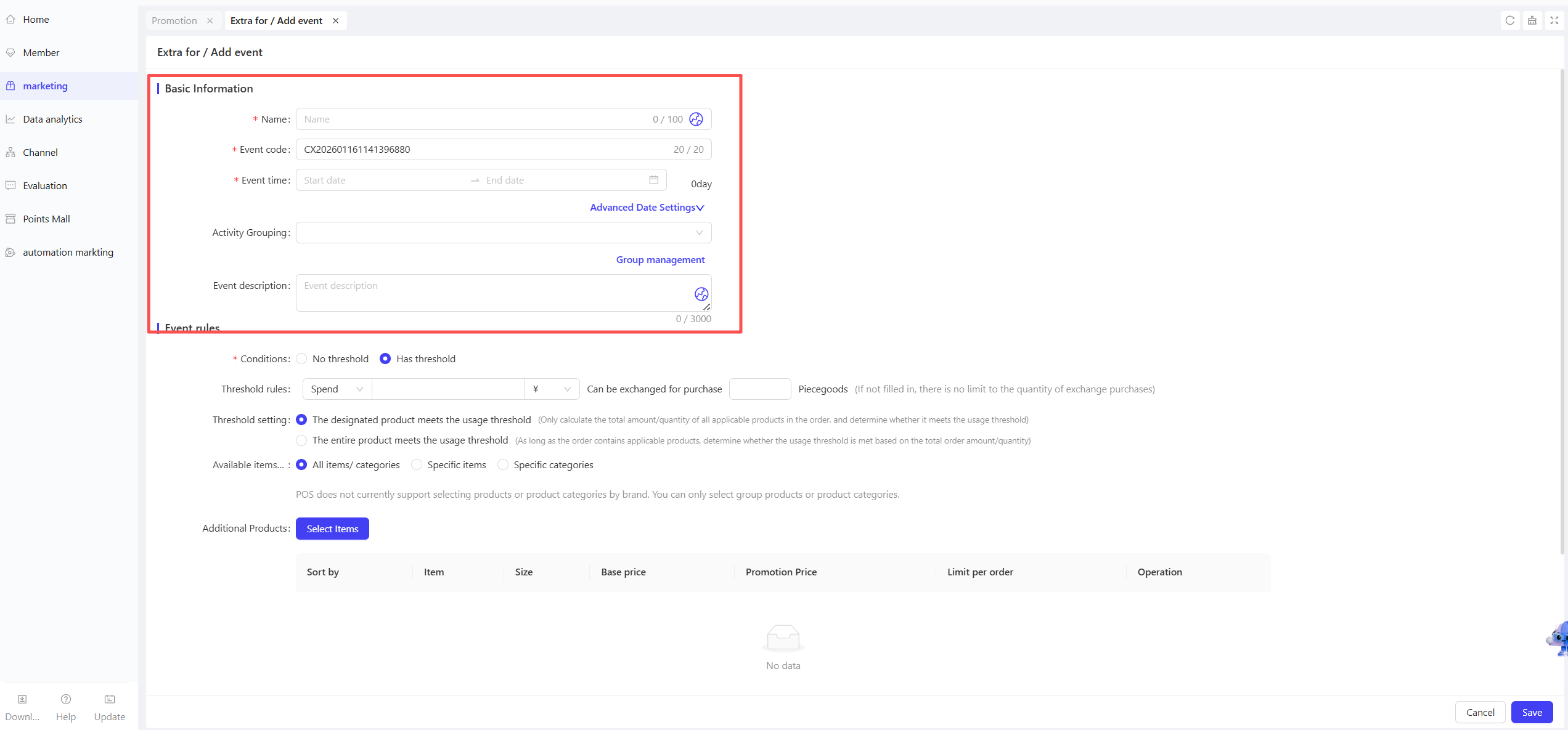
STEP 2: Fill in Basic Information
-
Name: Enter a descriptive name (e.g., “Spend $30, Add $2 for a Beverage”).
-
Code: Assign a unique identifier for internal management and tracking purposes.
-
Time:
- Time Slot Restrictions: Set valid time slots for the activity, e.g., “2:00 PM – 5:00 PM daily” or “Monday to Friday”.
- Date Restrictions: Merchants can specify exact dates to ensure the activity only takes effect during the selected period.
-
Group: Select the corresponding group from the dropdown menu.
-
Description: Briefly outline activity details and rules with clear and concise language.
2.2 Activity Rule Configuration
-
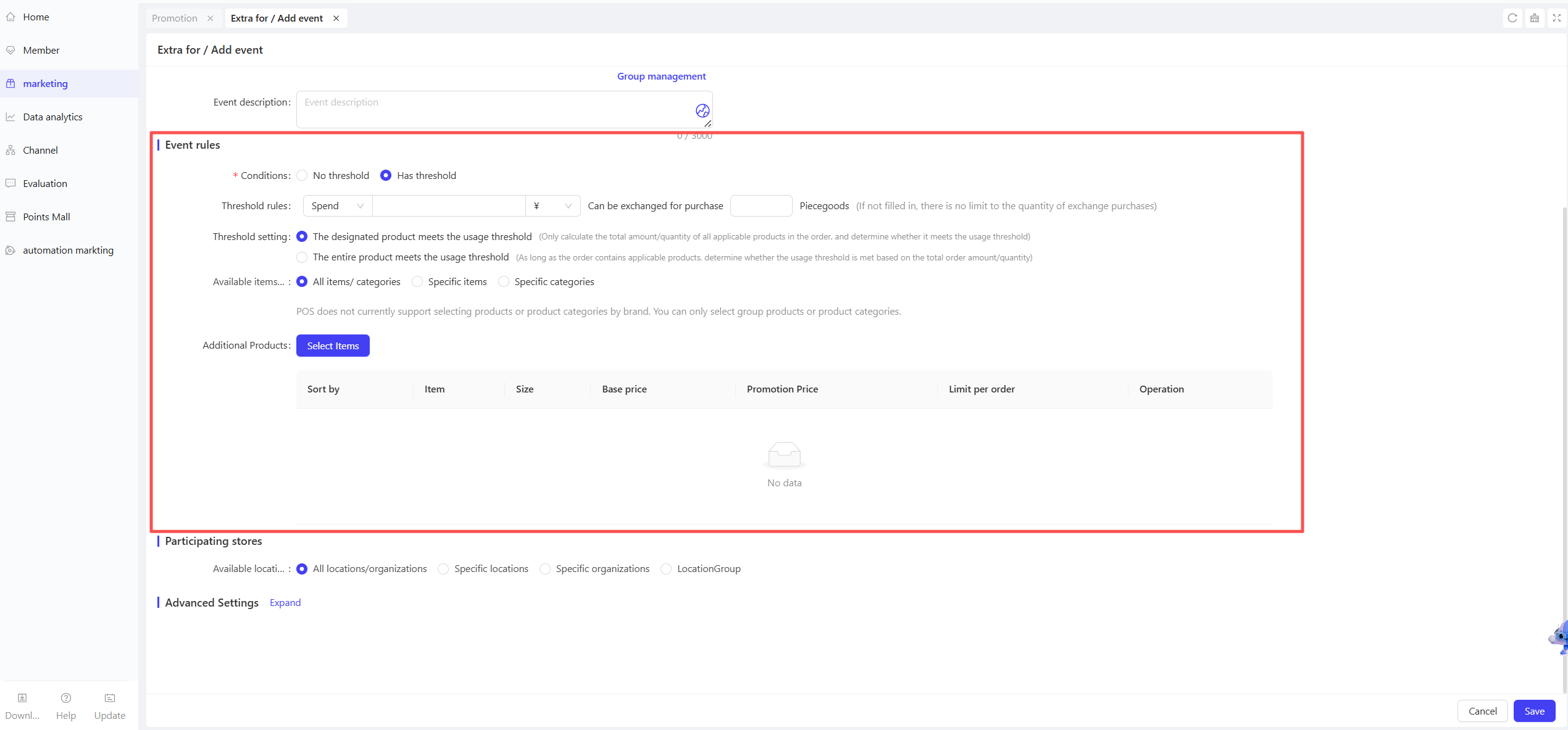
Purchase Eligibility (Choose One Option)
- No Threshold: Customers can redeem the offer with any purchase; no specific qualifying items required.
- With Threshold: Select either “Order Amount (Minimum $X)” or “Item Quantity (Minimum X Units)”.
- Redemption Limit per Order: Optional field. Leave blank for unlimited redemptions.
-
Threshold Application Scope
- Qualifying Items Only: The threshold is met when the amount/quantity of designated items reaches the requirement.
- Entire Order: The threshold is met when the total amount/quantity of all items in the order reaches the requirement.
-
Qualifying Item Scope
- Select the range of items that count toward the threshold: Supports “All Items”, “Selected Items”, or “Item Categories” (POS terminal only supports enterprise-level items/categories).
-
Add-on Items Configuration
- Click “Select Items” to add up to 10 redeemable items.
- Configure the following details:
- Promotional Price: Defaults to $1.00. Must be greater than $0 and support two decimal places.
- Purchase Limit per Order: Defaults to 1 unit. Must be a positive integer greater than 0.
2.3 Applicable Store Configuration
STEP 1: Select Participating Stores
- Choose stores to roll out the activity; supports selecting all stores or specific locations (e.g., by region).
STEP 2: Store-Specific Rules (Optional)
- Customize unique rules for different stores to implement flexible promotion strategies as needed.

2.4 Advanced Settings
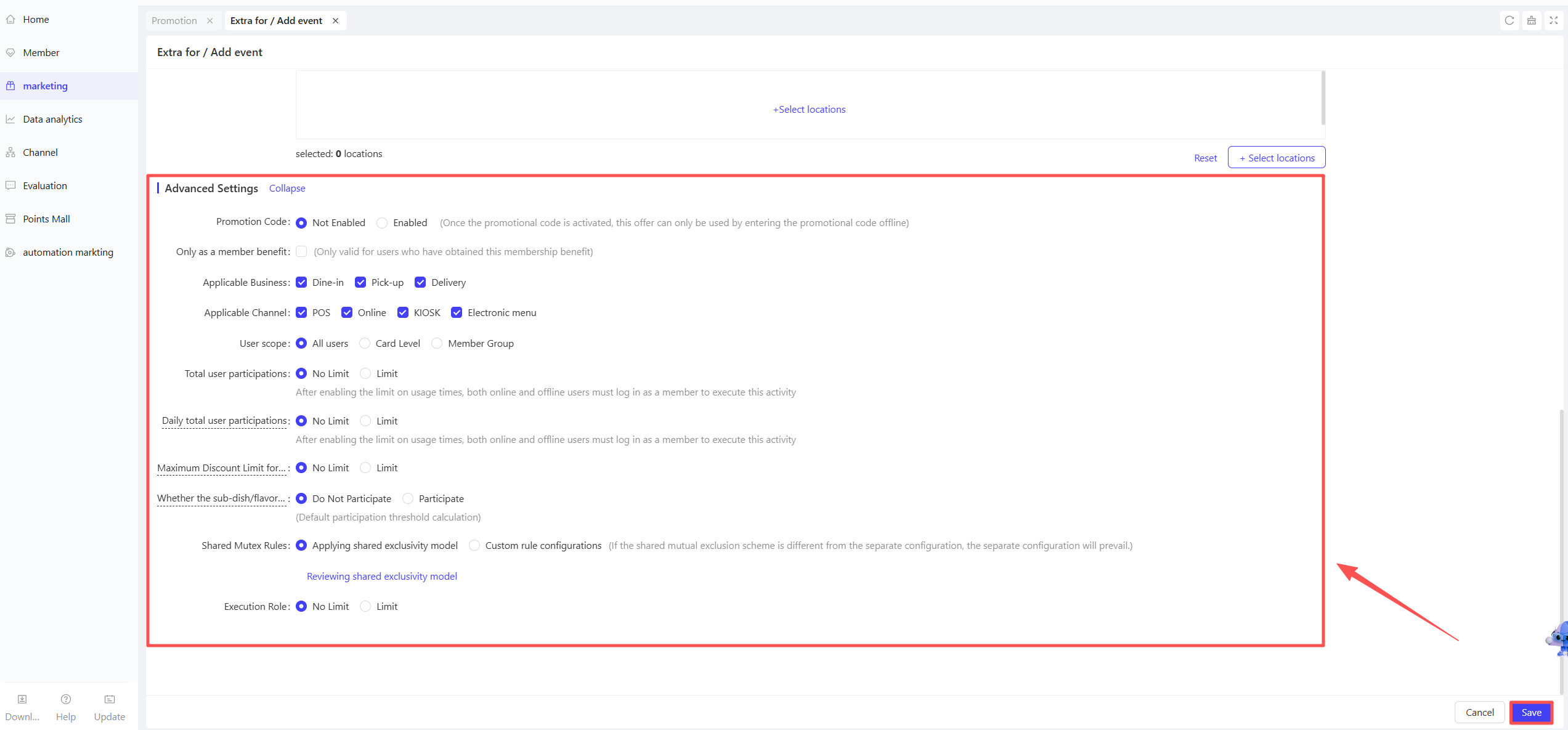
- Promotion Code: Toggle to enable/disable promotion code requirement. When enabled, the offer can only be redeemed by entering the code offline. Configure the code and its valid time period.
- Member-Only Benefit: If checked, the offer is exclusively available to customers who hold this member benefit.
- Applicable Service Types: Defaults to all options. Customize to select “Dine-In”, “Takeout”, or “Delivery”.
- Eligible Customer Scope:
- Navigate to Advanced Settings to restrict the target audience. Select specific customer groups, including:
- Member Tier: Limit the activity to certain member levels (e.g., VIP Members, Silver Card Members).
- Customer Tags: Filter customers by tags (e.g., New Customers, Repeat Customers).
-
Customer Participation Limits:
- Total Participation Limit per Customer: Set the maximum number of times a single customer can join the activity during the entire period (e.g., 3 times per customer).
- Daily Participation Limit per Customer: Restrict the number of redemptions per customer per day (e.g., 1 time per day).
-
Maximum Discount per Order:
- Set the cap on discount amount for a single order. Even if the order meets criteria for higher discounts, the system will apply this upper limit to avoid excessive losses.
- Example: If the maximum discount per order is set to $50, the final discount amount will not exceed $50, regardless of higher discount triggers.
-
Side Dish Eligibility for Discount Calculation:
- Threshold Calculation: Side dishes are included in the order amount by default when calculating the threshold.
- Included in Discount: The system treats main dishes and side dishes as a single unit, and the discount amount is prorated between them.
- Example: A merchant runs a “Spend $100, Get $10 Off” promotion. A customer buys item A ($90) with a side dish ($10). Since the side dish is included, the $10 discount is split proportionally between item A and the side dish.
- Excluded from Discount: The system only applies the discount to the main dish price, excluding side dishes from the discount calculation.
- Example: A merchant runs a “Spend $100, Get $10 Off” promotion. A customer buys item A ($90) with a side dish ($10). Since the side dish is excluded, the full $10 discount applies only to item A.
-
Add-Ons/Flavor/Cooking Method Eligibility for Discount Calculation:
- Threshold Calculation: Add-ons, flavor options, and cooking methods are included in the order amount by default when calculating the threshold.
- Included in Discount: The system treats main dishes and add-ons/flavor/cooking methods as a single unit, and the discount amount is prorated between them.
- Example: A merchant runs a “Spend $100, Get $10 Off” promotion. A customer buys item A ($90) with a $10 add-on. Since the add-on is included, the $10 discount is split proportionally between item A and the add-on.
- Excluded from Discount: The system only applies the discount to the main dish price, excluding add-ons/flavor/cooking methods from the discount calculation.
- Example: A merchant runs a “Spend $100, Get $10 Off” promotion. A customer buys item A ($90) with a $10 add-on. Since the add-on is excluded, the full $10 discount applies only to item A.
-
Promotion Stacking & Exclusivity Rules:The system predefines default stacking/exclusivity relationships for different discount types (e.g., coupons, promotions, member prices, member discounts). Merchants can either use the default rules or customize exclusive/stackable relationships between this activity and other discount types during setup.
- Use Default Stacking/Exclusivity Scheme: The system applies a universal set of rules for coupons, promotions, member prices, and member discounts.
- Customize Rules: Merchants can independently configure whether this activity can be stacked with member prices, member discounts, coupons, or other promotions.
- Priority Rule: Customized rules take precedence over the default scheme if there is a conflict.
3 Activate & Manage the Promotion
3.1 Activate the Promotion
- After completing the configuration, click【Save】to activate the promotion.
3.2 Promotion Management & Monitoring
- View performance data (e.g., order volume, discount usage) in the Promotion Management module.
- Pause or adjust the promotion at any time, and manually archive it when necessary.