Third-Party Partnership Coupon
1 Module Introduction
Third-Party Partnership Coupon is a channel collaboration-focused marketing tool in RestoSuite, exclusively used to record transaction data (including actual payment amount and discount amount) when users pay with third-party coupons. It supports merchants in launching joint coupon campaigns with third-party platforms (e.g., Meituan, Douyin). After users obtain coupons through partner platforms, they can redeem them at designated merchant stores. The system accurately records relevant transaction details, helping merchants clearly track the marketing effectiveness of cooperative channels. It is suitable for cross-platform promotion, joint marketing, and other scenarios.
2 Activity Configuration
2.1 Basic Information Configuration
STEP 1: Access the Marketing Management Page
- Log in to the SaaS backend and navigate to【Membership Marketing】>【Marketing】> 【Marketing Activities】
- Click the【Create Activity】button in the upper right corner of the page, then select the 【Channel Cooperation】>【Third-Party Partnership Coupon】module.
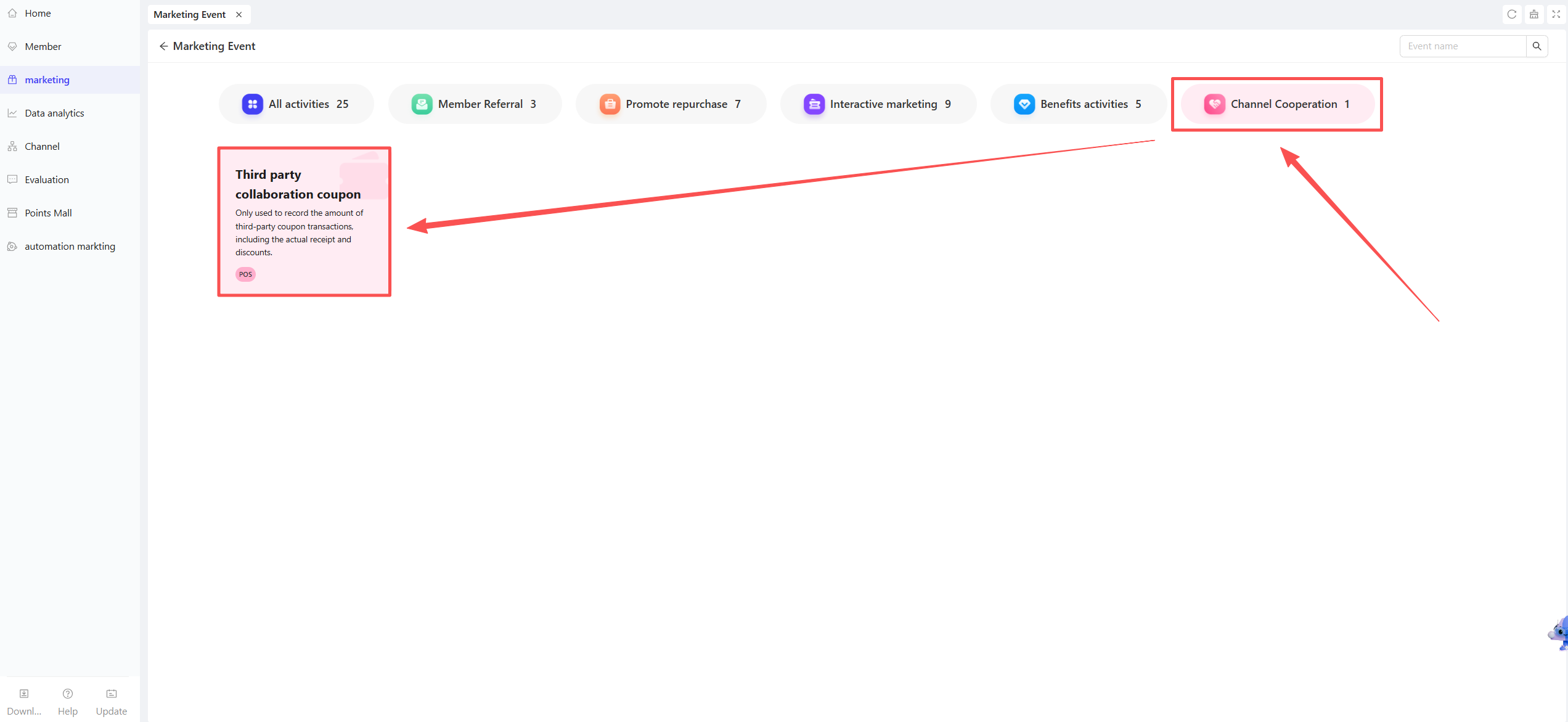
STEP 2: Create a Third-Party Partnership Coupon
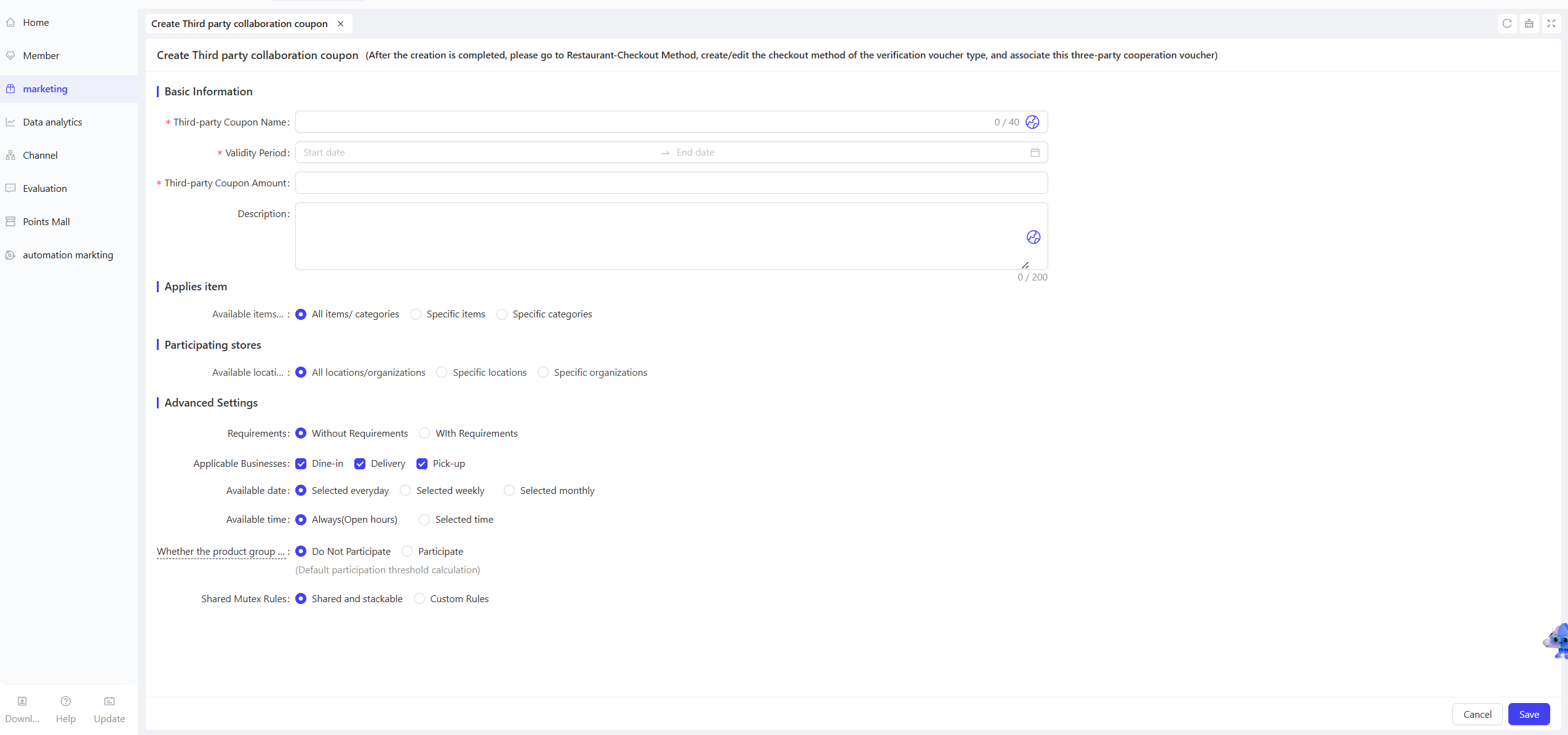
- Click the【Create Third-Party Partnership Coupon】button in the upper right corner of the Third-Party Partnership Coupon page. Configure the following basic information in the pop-up window:
- Third-Party Coupon Name: Enter a name for the coupon (e.g., “Meituan $50 Cash Coupon”, “Tiktok 20% Off Coupon”).
- Validity Period: Set the start and end dates of the coupon.
- Third-Party Coupon Amount: Enter the coupon value (e.g., “$50”).
- Description: Enter a text description of the coupon for easy search and identification.
2.2 Applicable Items Configuration
STEP 1: Select Applicable Items
- Choose the items participating in the activity. Select by category or individual items, supporting all items or partial items.
2.3 Applicable Stores Configuration
STEP 1: Select Applicable Stores
- Choose the stores participating in the activity. Support selecting all stores or partial stores (e.g., by region).
STEP 2: Store-Specific Rules (Optional)
- Set different rules for different stores as needed to ensure a flexible marketing strategy.
2.4 Advanced Settings
-
Usage Threshold: Select [No Threshold] or [With Threshold]. If [With Threshold] is selected, configure one of the following four threshold types:
- One coupon per order with a bill amount of $xx or more
- One coupon per $xx increment in the bill amount
- One coupon per order with an actual payment amount of $xx or more
- One coupon per $xx increment in the actual payment amount
-
Applicable Businesses: All selected by default. Customise by selecting [Dine-in], [Pickup], or [Takeout].
-
Available Date/Time: Configure the effective date type [Daily/Weekly/Monthly] and effective time [All Day/Specific Time] for the activity.
-
Whether Side Dishes Participate in Discount Calculation:
-
Threshold Amount: Side dishes are included in the threshold calculation by default.
-
Participate: The system treats main dishes and side dishes as a whole, and the discount amount is evenly allocated between them.
- Scenario Example: A merchant sets a promotion “Spend $100 to get 1 free Item B”. A customer purchases Item A ($100), and Item B includes a side dish. Since the side dish participates in the discount, both Item B and the side dish are given for free.
-
Not Participate: The system only calculates the discount based on the price of main dishes, excluding side dishes.
- Scenario Example: A merchant sets a promotion “Spend $100 to get 1 free Item B”. A customer purchases Item A ($100), and Item B includes a side dish ($10). Since the side dish does not participate in the discount, only Item B is given for free, and the side dish requires additional payment.
- Sharing & Mutual Exclusion Rules: The system sets default sharing and mutual exclusion relationships for different discount types. Merchants can choose to use the system’s default rules or configure custom rules for the activity during creation.
- Use Default Sharing & Mutual Exclusion Plan: The system applies a universal set of rules for different discount types.
- Configure Custom Rules: Merchants can independently set sharing or mutual exclusion relationships between the activity and other marketing activities during creation.
- If there is a conflict between the default plan and custom configuration, the custom configuration takes precedence.
3 Enable and Manage the Activity
3.1 Enable the Activity
- After completing all configurations, click【Save】to enable the activity.
3.2 Activity Management and Monitoring
- View activity performance data in the Activity Management module.
- Pause or adjust the activity at any time, and manually archive it when necessary.