Distribution Center
1 Overview
The Distribution Center features a dedicated software system for chain catering enterprises, including basic configurations (distribution rules, distribution pricing agreements, supplier quotations), store purchase order processing, procurement management, inventory management, production & processing management, accounts receivable & payable, and report viewing.
2 Procurement Management
2.1 Module Overview
Procurement Management is a system module that tracks and manages all links and statuses of material movement during the procurement process of stores/distribution centers, with purchase orders as the core. It covers procurement planning, purchase requisitions, purchase orders, purchase receipts, purchase returns, etc. It flexibly supports three business processes:
- Centralized Procurement & Distribution
- Direct Shipment Procurement
- Direct Delivery Procurement
2.2 Procurement Planning
2.2.1 Function Overview
This function allows users to pre-formulate procurement requirements in advance.
2.2.2 Function Value
Procurement planning is a core link in procurement management. By defining quantitative procurement needs, it avoids resource waste caused by blind procurement and reduces losses from supply-demand mismatches.
2.2.3 Application Scenario
Central Kitchen-Supplier Collaboration: Warehouse staff of the distribution center determine specific procurement needs through procurement plans. Procurement personnel conduct offline sourcing based on the procurement plan list, confirm specific suppliers and procurement prices, and then initiate purchase orders in the system.
2.2.4 Operation Instructions
- Go to Distribution Center View > Supply Chain > Procurement Management > Procurement Planning.
- Click Add > Manual Entry; support for creation via procurement templates or batch addition of materials.
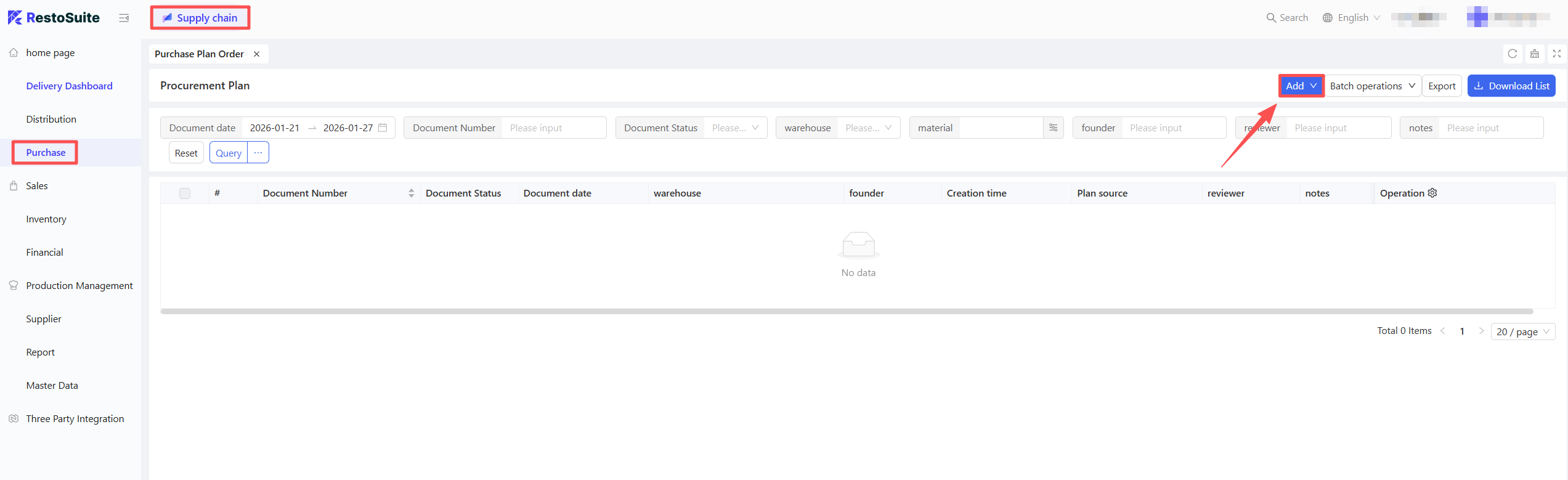
- Fill in the Material Procurement Quantity and Expected Arrival Date.
- Click Save and Approve to complete the procurement plan formulation.
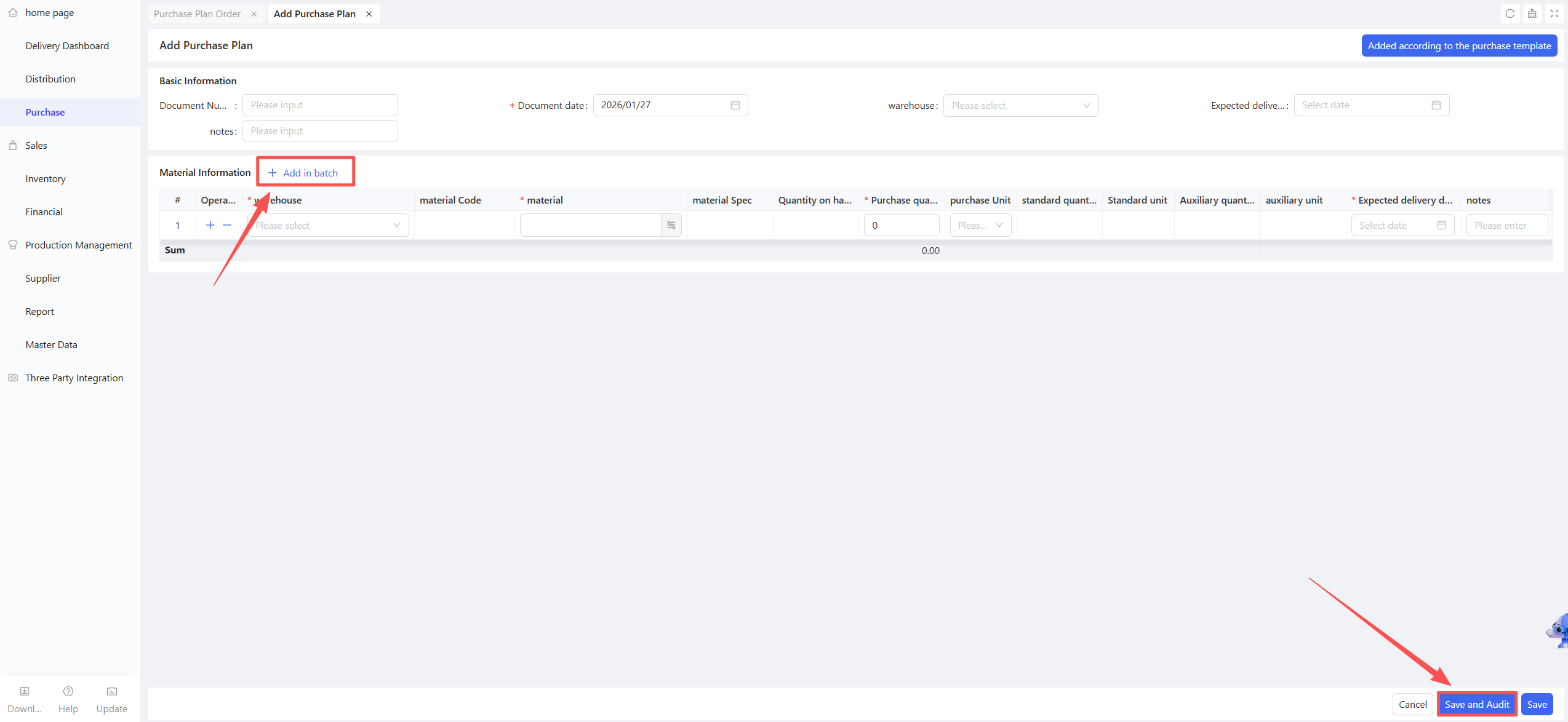
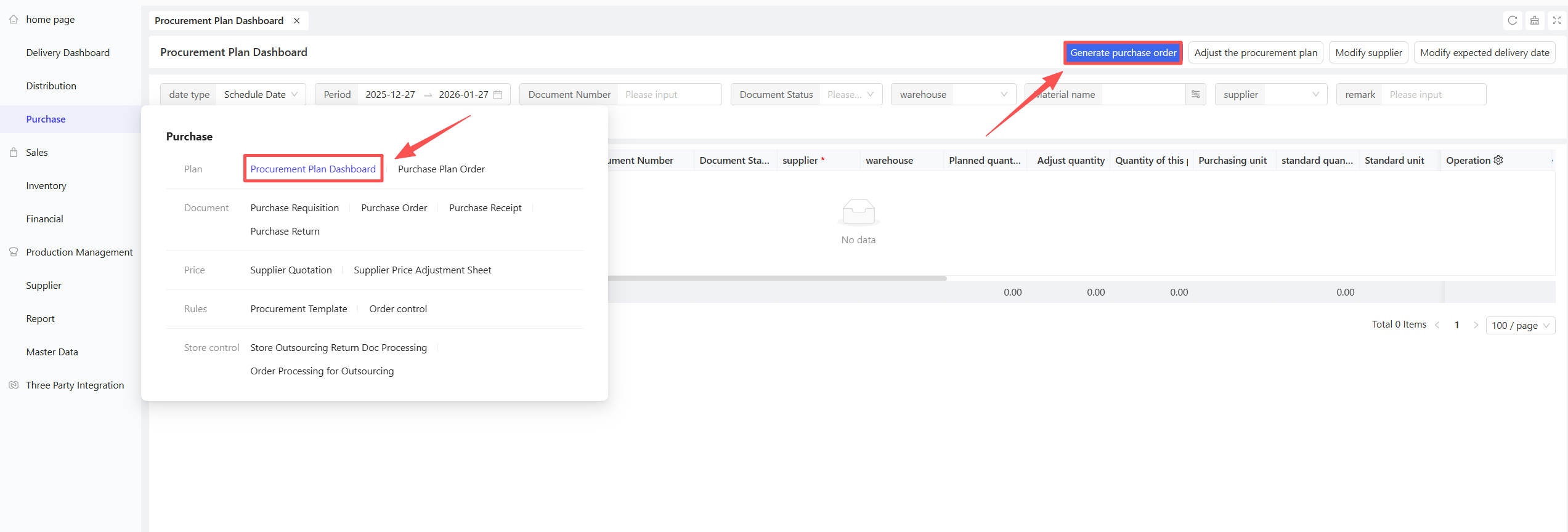
After the warehouse approves the procurement plan, it will be automatically transferred to the Procurement Plan Dashboard. Procurement personnel conduct offline price inquiries based on the plan, confirm the final procurement quantity, suppliers and prices, and follow these steps:
- Click Procurement Plan Dashboard; the system will automatically match suppliers based on distribution rules and supplier quotations (adjustments are allowed).
- Click Generate Purchase Order after confirmation.
2.3 Purchase Requisition
2.3.1 Function Overview
This function enables warehouse staff at the distribution center or store clerks to report stock shortages, record the materials and quantities to be procured, and support the automatic/manual generation of purchase orders.
2.3.2 Function Value
Purchase requisitions require only the materials and quantities to be filled in, without specifying suppliers, thereby improving procurement efficiency and providing a basis for creating purchase orders.
2.3.3 Application Scenario
Warehouse managers of the distribution center initiate requisitions for regular stock materials based on physical inventory levels, and procurement personnel conduct unified procurement.
2.3.4 Operation Instructions
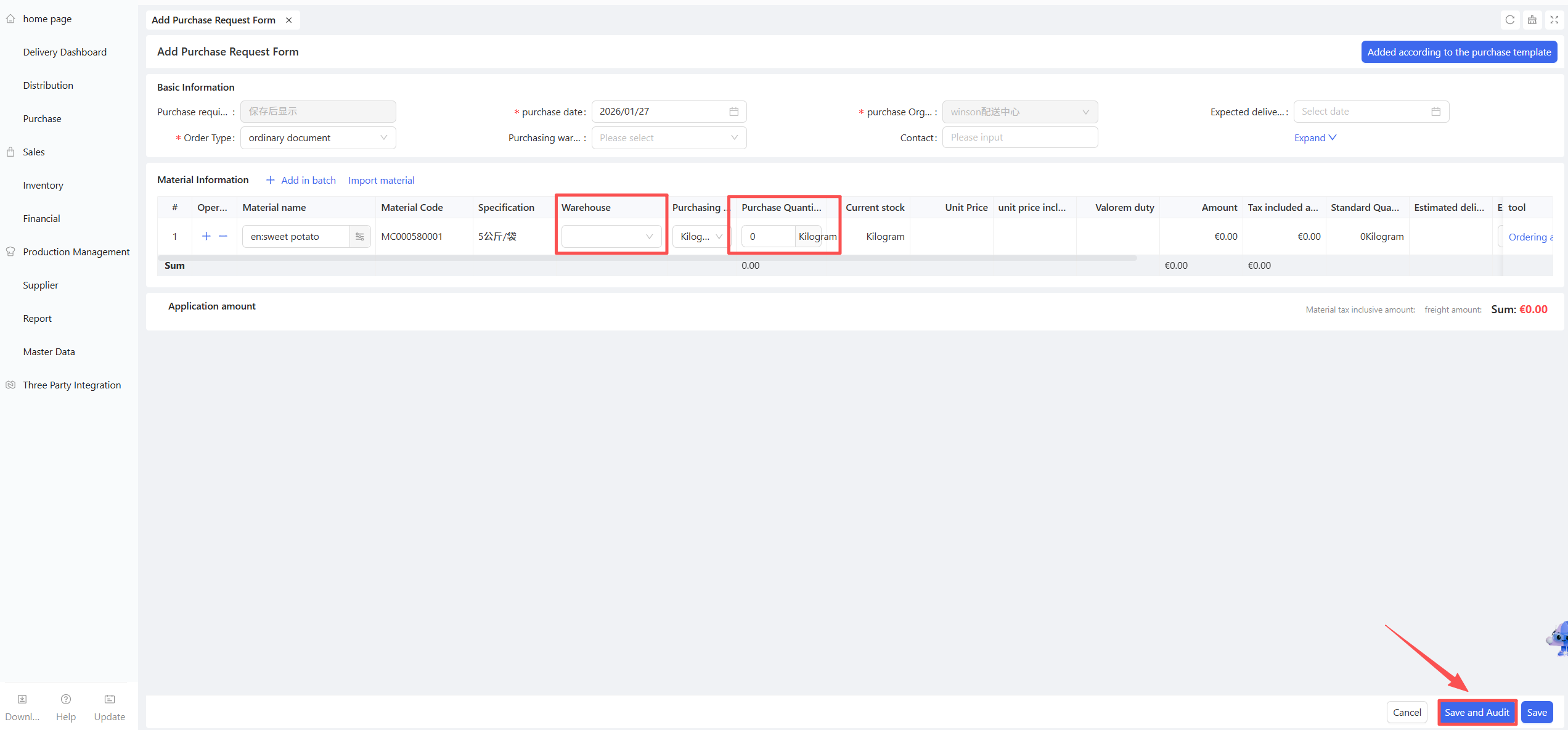
- Go to Distribution Center View > Supply Chain > Procurement Management > Purchase Requisition.
- Click Add > Manual Entry/Template-based Entry.
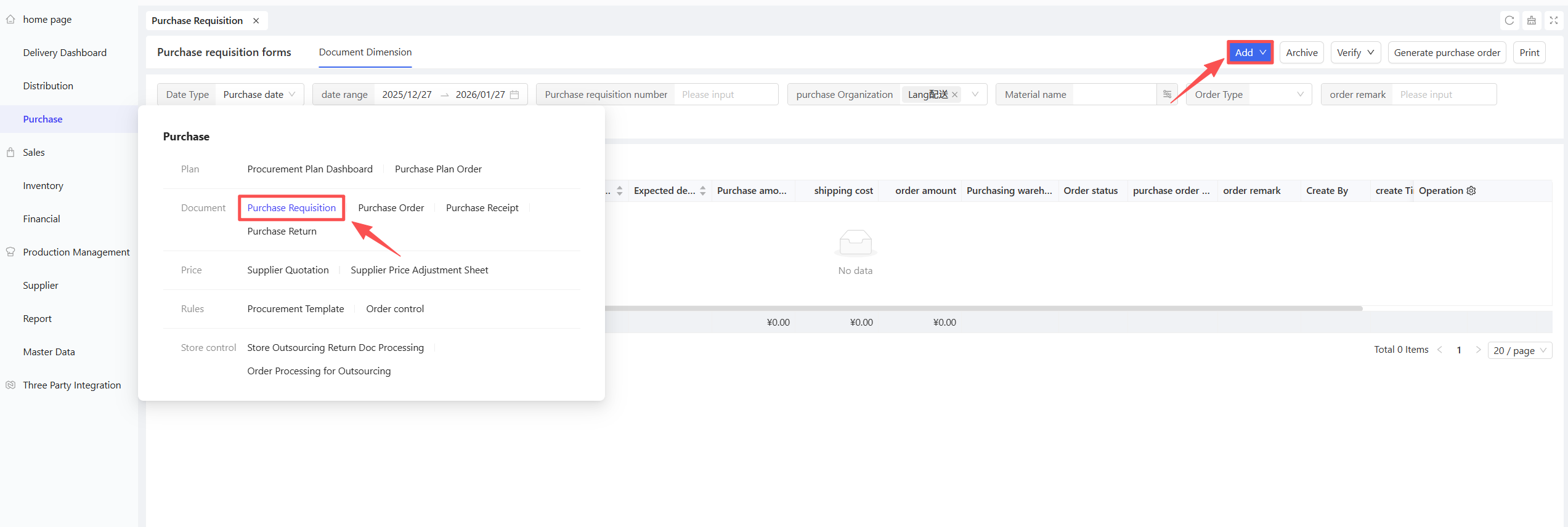
- Select Warehouse and Expected Arrival Date, then fill in the procurement quantity for each material.
- Click Save and Approve.
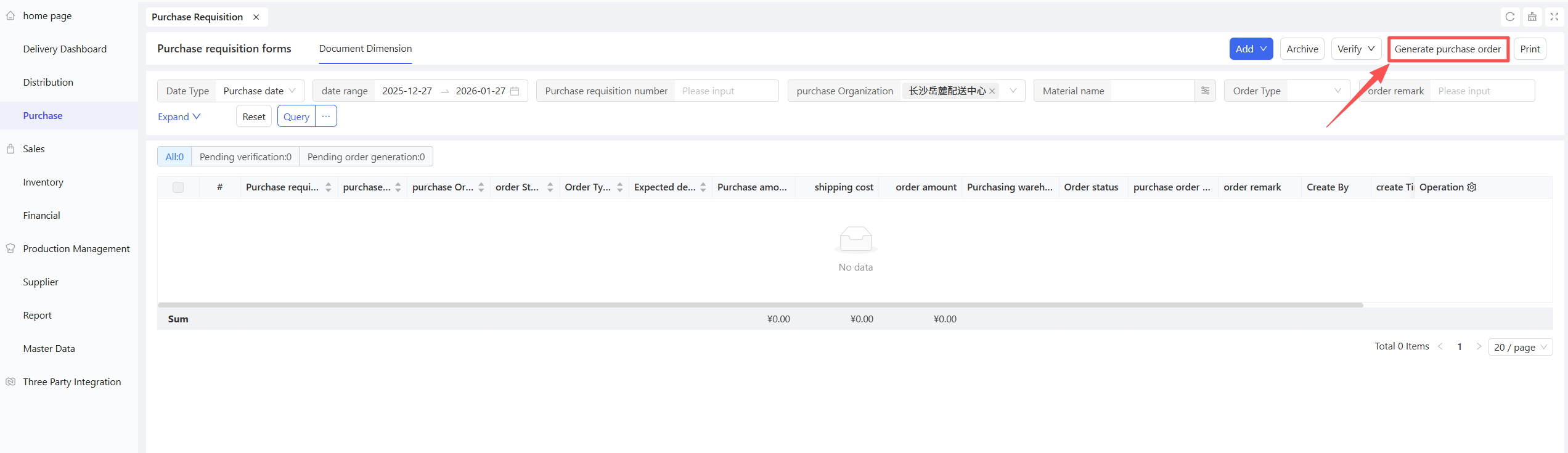
- If the automatic purchase order generation function is not enabled, click Generate Purchase Order on the purchase requisition approval page after approval.
2.3.5 Notes
- Distribution rules and procurement prices must be defined in advance.
2.4 Central Purchase Order
2.4.1 Function Overview
This function records the quantity and price of specific materials procured by the distribution center’s procurement staff from external suppliers, serving as a compliance basis for procurement activities.
2.4.2 Function Value
- Guides suppliers to fulfil orders according to purchase orders, preventing incorrect, missing, or over-deliveries.
- Real-time tracking of supplier fulfilment status to avoid supply disruptions or delays.
- Serves as the core basis for the warehouse department to conduct arrival inspection and warehousing.
2.4.3 Application Scenario
Handles the external procurement business of the distribution center.
2.4.4 Operation Instructions
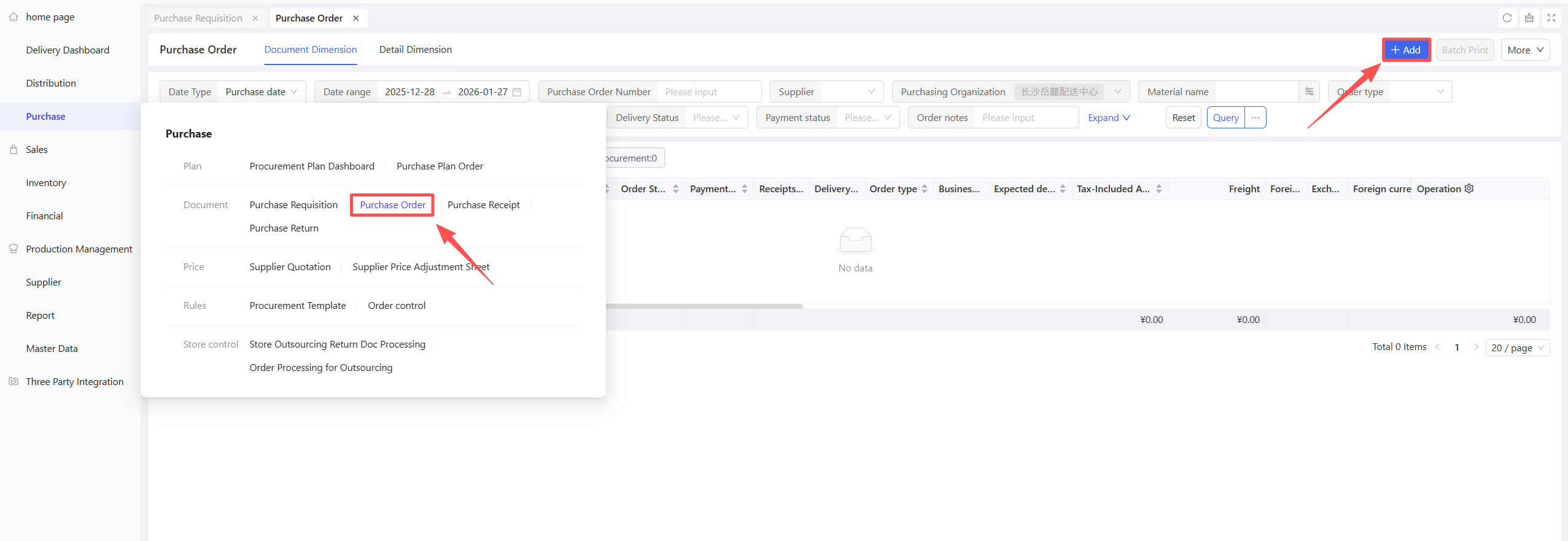
- Go to Distribution Center View > Supply Chain > Procurement Management > Purchase Order.
- Click Add > Manual Entry/Template-based Entry.
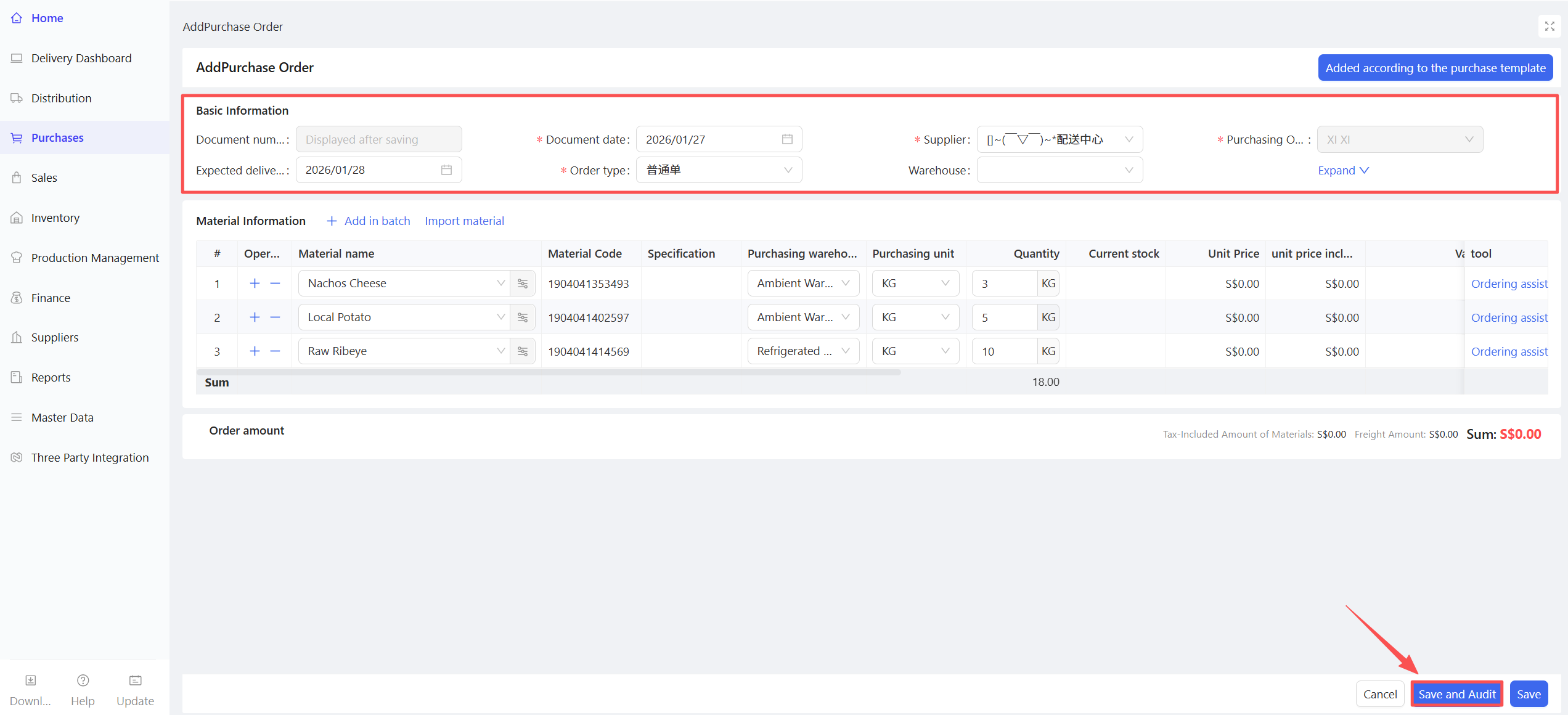
- Select Document Date, Expected Arrival Date, Order Type, and Supplier.
- Confirm Materials, Warehouse, and Procurement Quantity.
- Click Save and Approve to generate the purchase order in the system.
2.4.5 Notes
- Automatic Price Source: Supplier quotation, latest purchase warehousing price, latest accounts payable price.
- Supports viewing the order Log.
- Click Flow Record to view delivery orders and receipt orders generated subsequent to the order for easy traceability.
- Supports automatic price retrieval and manual price adjustment.
- Allows sharing with suppliers via QR code, link, or WhatsApp.
2.5 Purchase Receipt
2.5.1 Function Overview
The distribution centre’s purchase receipt is primarily used to process receipt business for external procurement (direct delivery) from suppliers. After suppliers deliver goods to the warehouse, warehouse staff process receipts based on the actual received quantity and generate corresponding purchase warehousing documents. Multiple receipts for a single order are supported.
2.5.2 Function Value
The purchase receipt confirms the received quantity, forming a closed loop of “order vs. physical goods” verification. It serves as an important data source for monitoring order execution and evaluating supplier fulfilment capabilities.
2.5.3 Application Scenario
Receipt business for external procurement (direct delivery) of the distribution center.
2.5.4 Operation Instructions
- Go to Distribution Center View > Supply Chain > Procurement Management > Purchase Receipt.
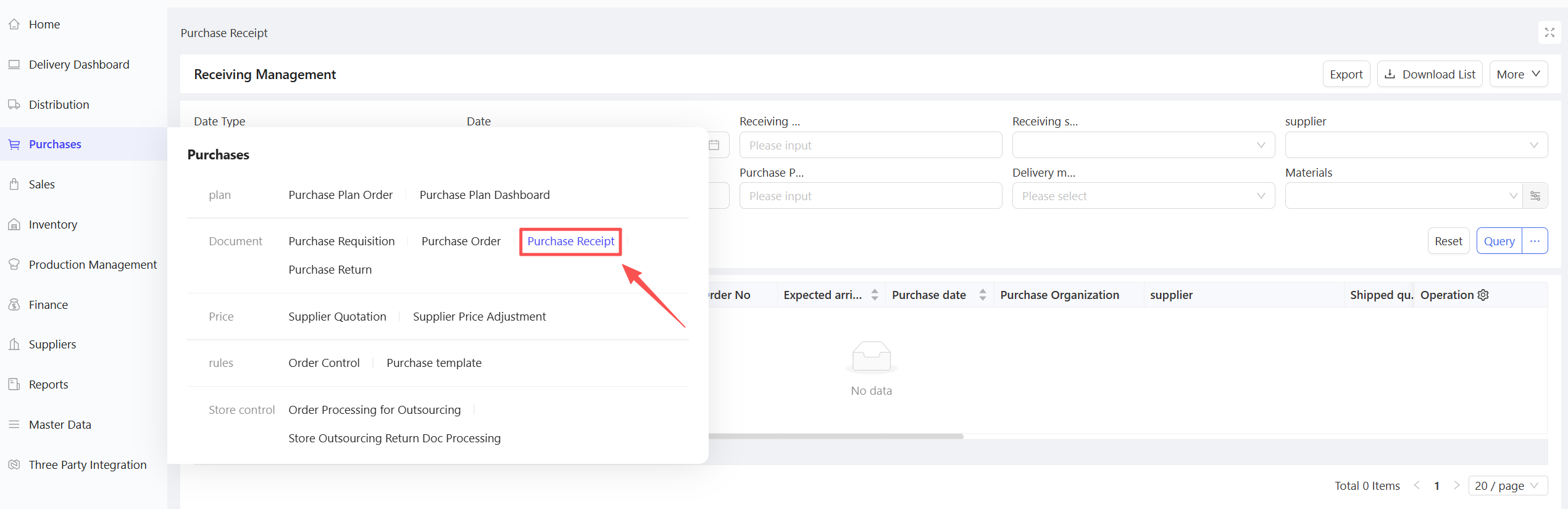
- Set query criteria to filter Pending Receipt data.
- Select the documents to be received and click Receipt.
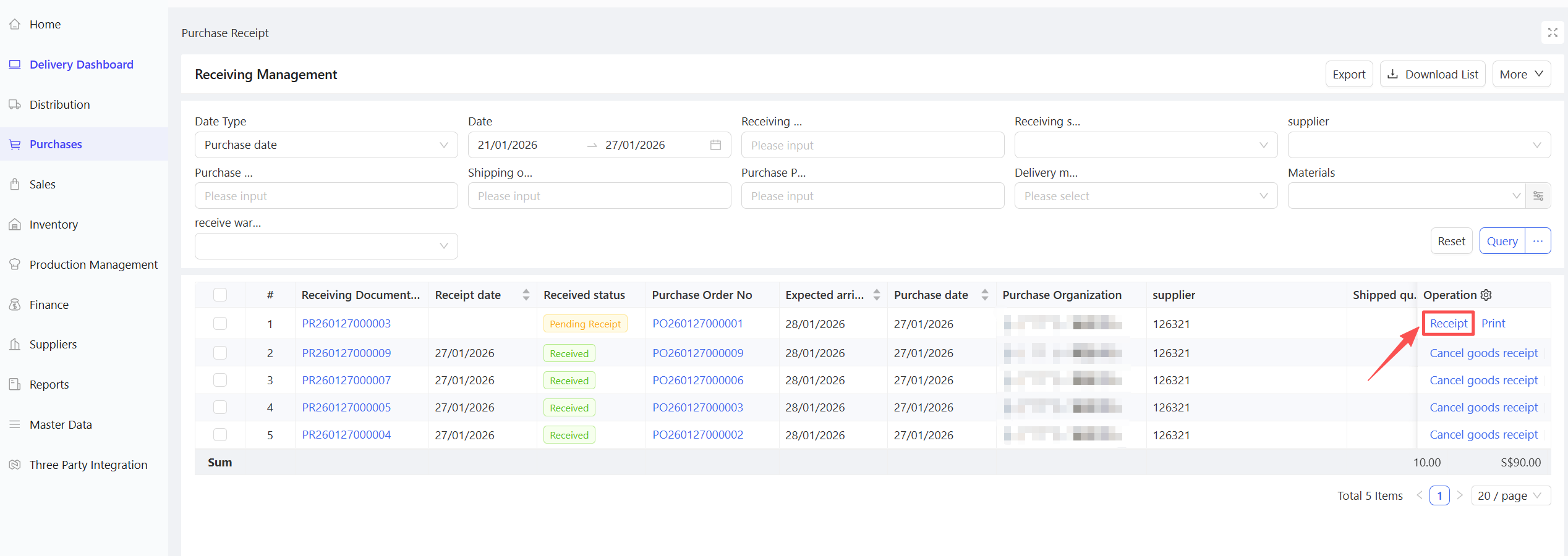
- Select Receipt Date, confirm the Received Quantity, and click Confirm Receipt.
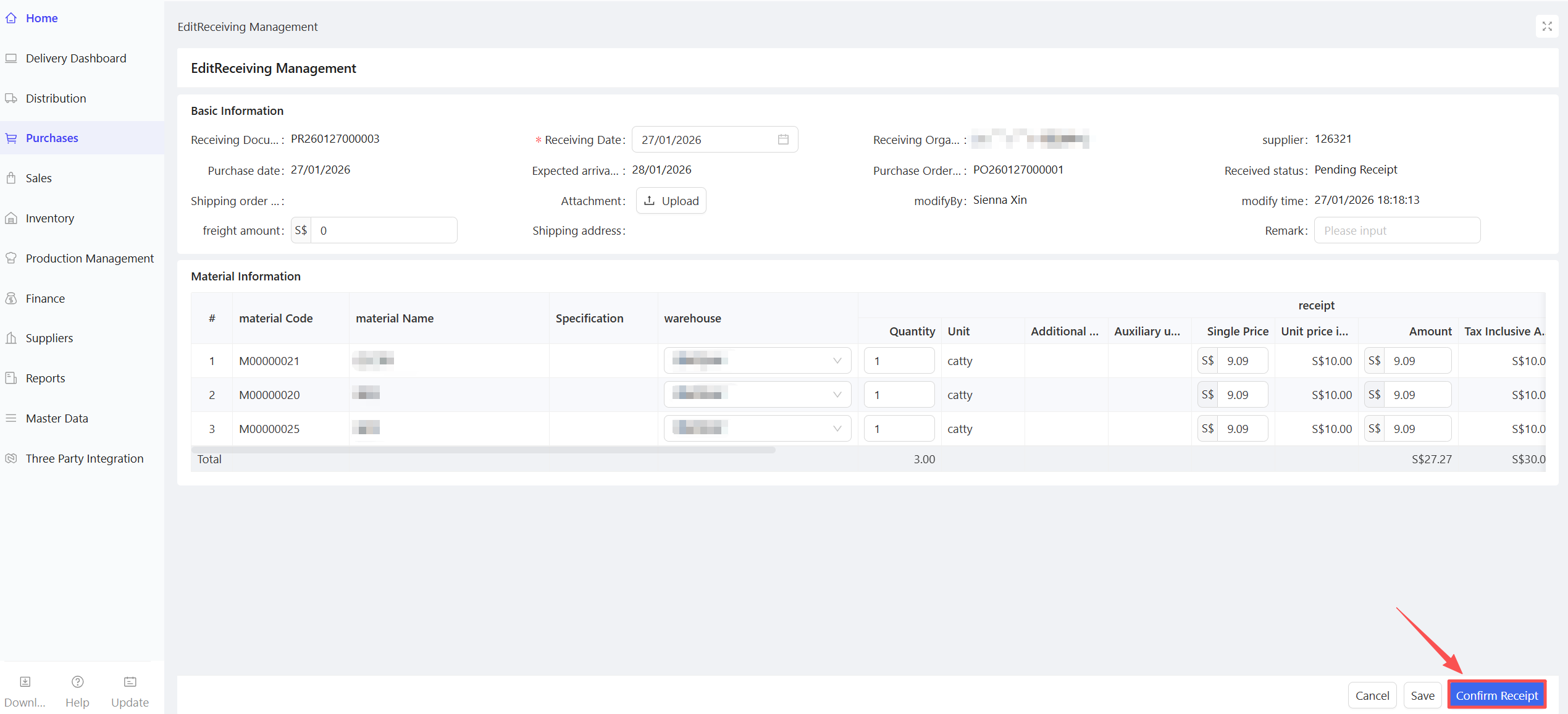
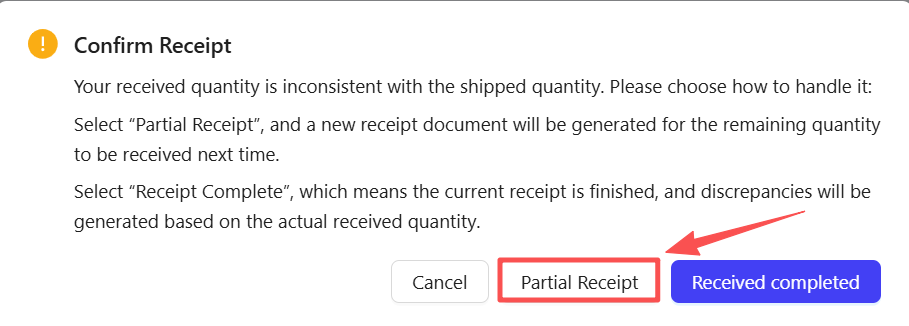
For multiple receipts:
- Enter the received quantity and click Partial Receipt.
- Subsequent receipts can be processed when the remaining goods arrive.
2.5.5 Notes
-
The receipt date is blank before goods are received and will be updated upon completion of receipt.
-
Multiple Receipts: If the received quantity does not match the shipped quantity, the system will prompt whether multiple receipts are required.
- Partial Receipt: A new receipt document will be generated for the unreceived portion for further receipt processing.
- Complete Receipt: All goods are received at once, and a purchase warehousing document is generated.
-
Cancel Receipt: If no downstream documents have been generated, canceling the receipt will delete the associated purchase warehousing document, allowing for re-receipt.
-
Price Adjustment During Receipt: The tax-inclusive unit price, tax-inclusive amount, and tax rate can be modified during receipt.
2.6 Purchase Return Order
2.6.1 Function Overview
This function handles supplier return business, including two types:
- Return Based on Purchase Warehousing Document: Prices are inherited from the original warehousing document.
- Return Without Source Document: Create return orders manually. Prices are retrieved in the following order:
- Last warehousing price → Last warehousing return price → Latest quotation (supplier quotation/fixed selling price in distribution agreement) → Manual entry.
2.6.2 Function Value
The purchase return order serves as a core instruction for cross-departmental collaboration in handling returns, avoiding process confusion and data discrepancies. Multiple return modes flexibly meet the needs of enterprises with varying levels of management maturity.
2.6.3 Application Scenario
- Return goods to the distribution center or supplier due to overstock or incorrect receipt.
- Return goods with reference to the original order if available; otherwise, process direct returns.
2.6.4 Operation Instructions
2.6.4.1 Return Based on Purchase Warehousing Document
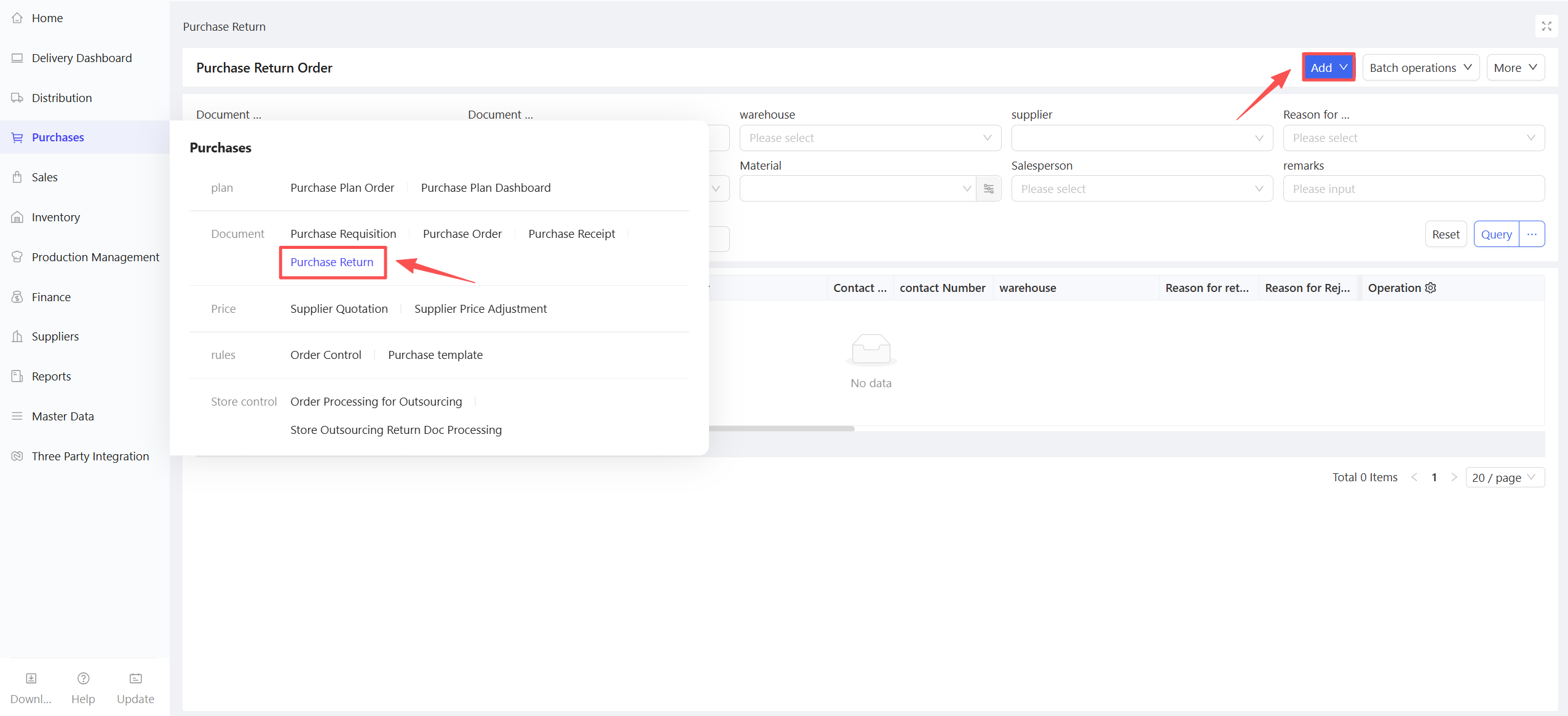
- Go to Distribution Center View > Supply Chain > Procurement Management > Purchase Return Order.
- Click Add and select Select Purchase Receipt
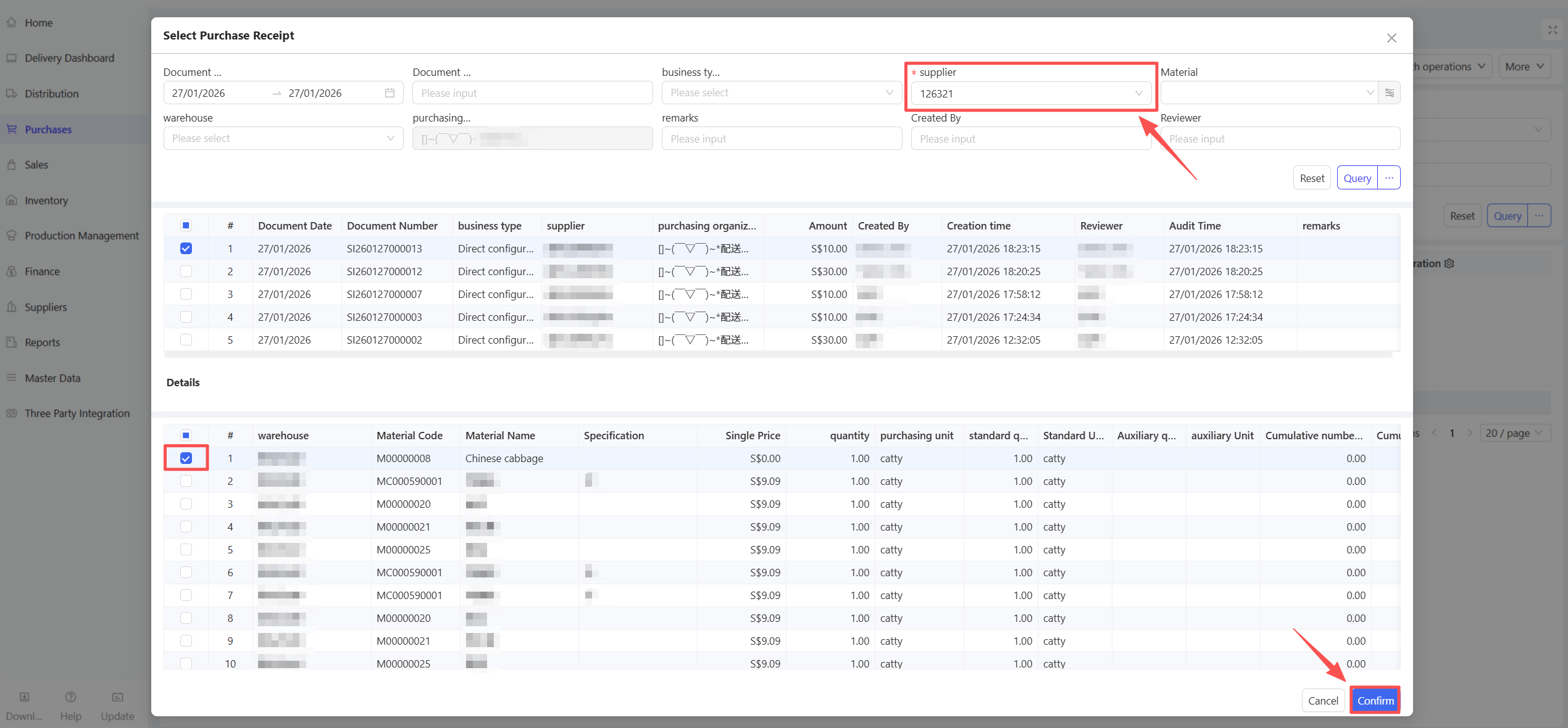
- Click Select Purchase Warehousing Document, choose Document Date and Supplier, and click Query.
- Check the documents to be returned and click Confirm.
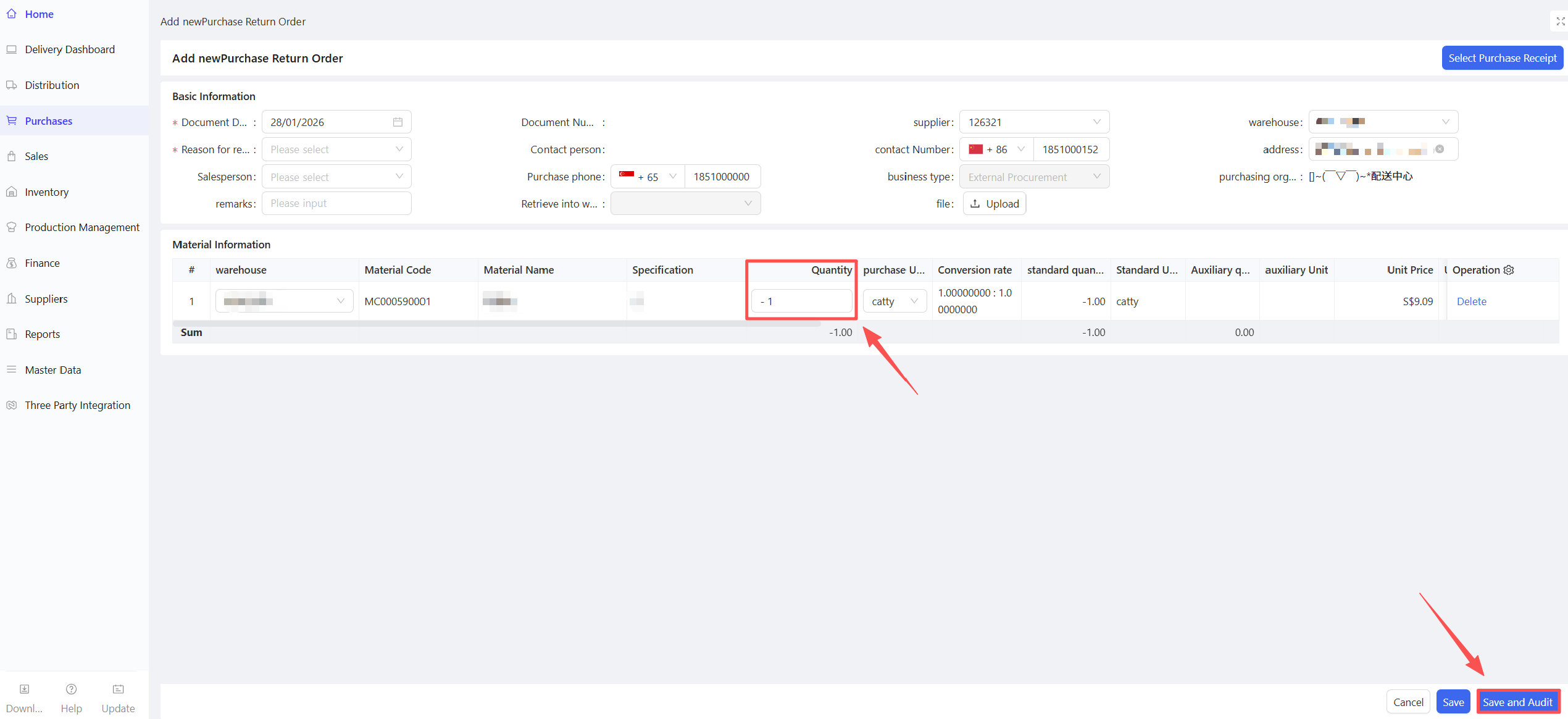
- Fill in the Requested Return Quantity and click Save and Approve.
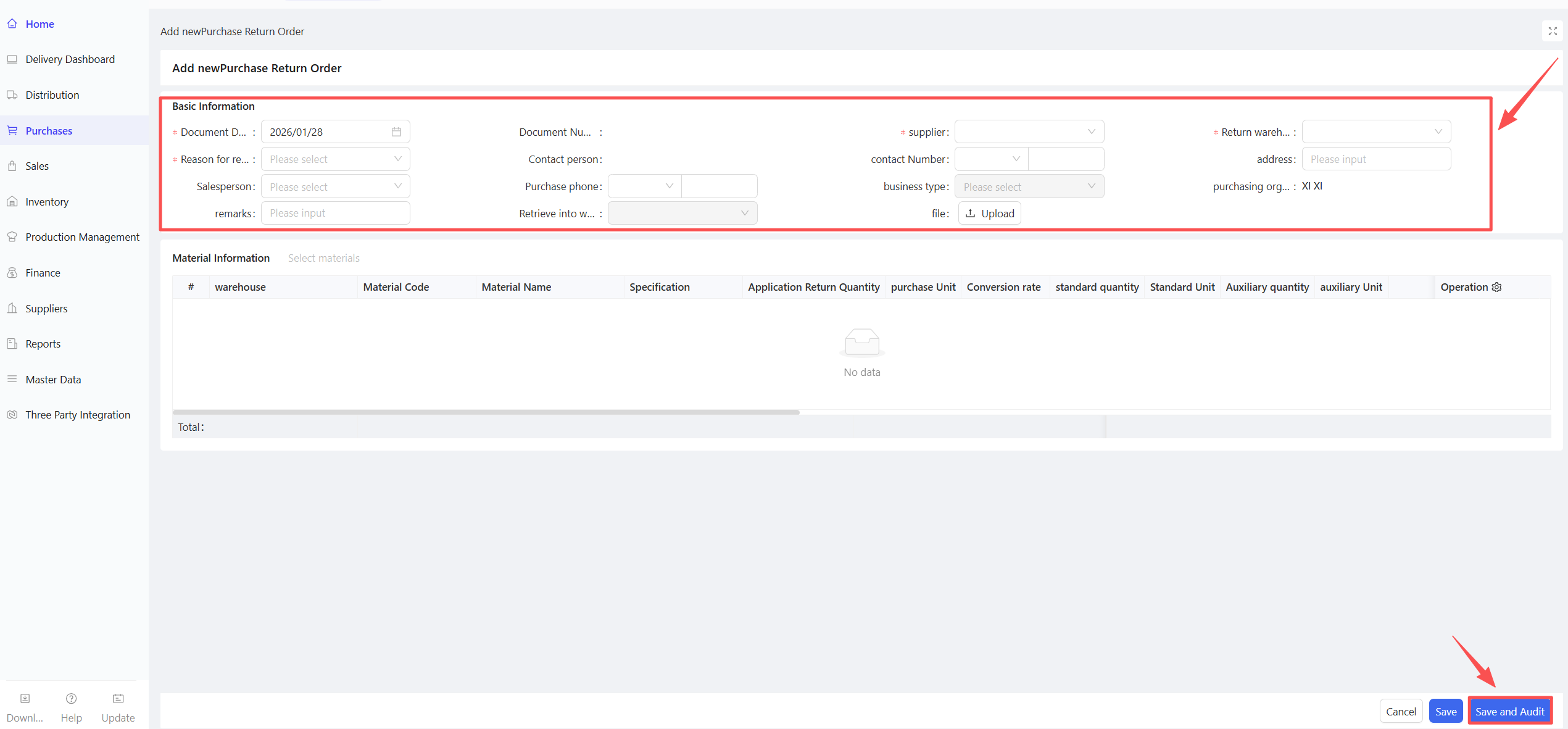
2.6.4.2 Return Without Source Document
- Go to Distribution Center View > Supply Chain > Procurement Management > Purchase Return Order.
- Click Add and select Return Without Source Document.
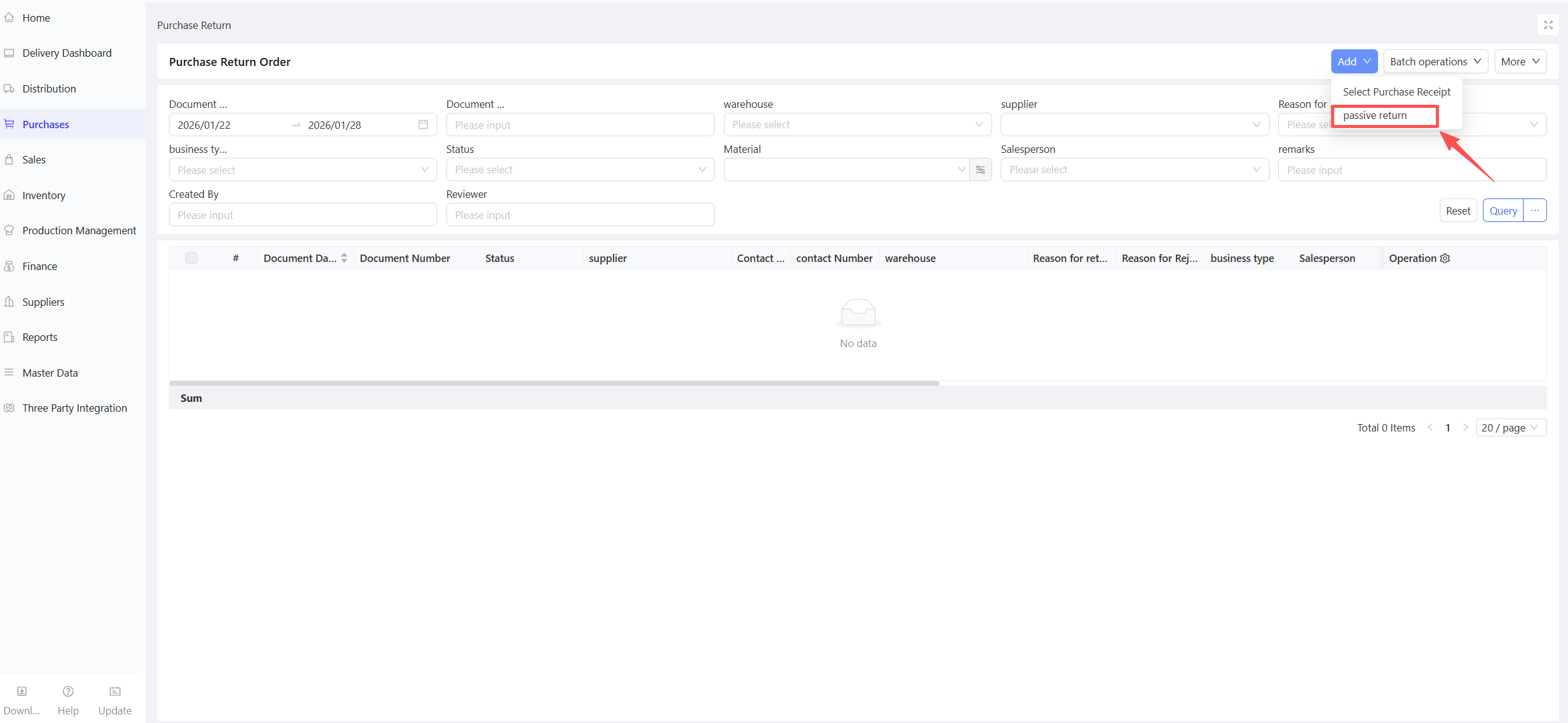
- Select Document Date, Supplier, Return Warehouse, and Return Reason.
- Fill in the Requested Return Quantity and click Save and Approve.
2.7 Supplier Quotation
2.7.1 Function Overview
This function sets the supply prices agreed between each procurement organization and external suppliers, with support for defining validity periods. Procurement will be executed at the corresponding price for the specified date range during the purchasing process.
2.7.2 Function Value
By systematically integrating quotation information, it solves problems in traditional manual quotation models, such as scattered information, inefficient price comparison, cost control risks, and weak supplier collaboration, achieving standardized full-cycle quotation management.
2.7.3 Application Scenario
- Procurement personnel record negotiated prices with external suppliers as the price source for procurement after price inquiries.
- In the catering industry, multiple suppliers can submit quotations together when the same material is offered at the same price by different suppliers.
- Supports setting supplier quotations by validity period.
2.7.4 Operation Instructions
- Go to Distribution Center View > Supply Chain > Procurement Management > Supplier Quotation.
- Click Add > Manual Entry.
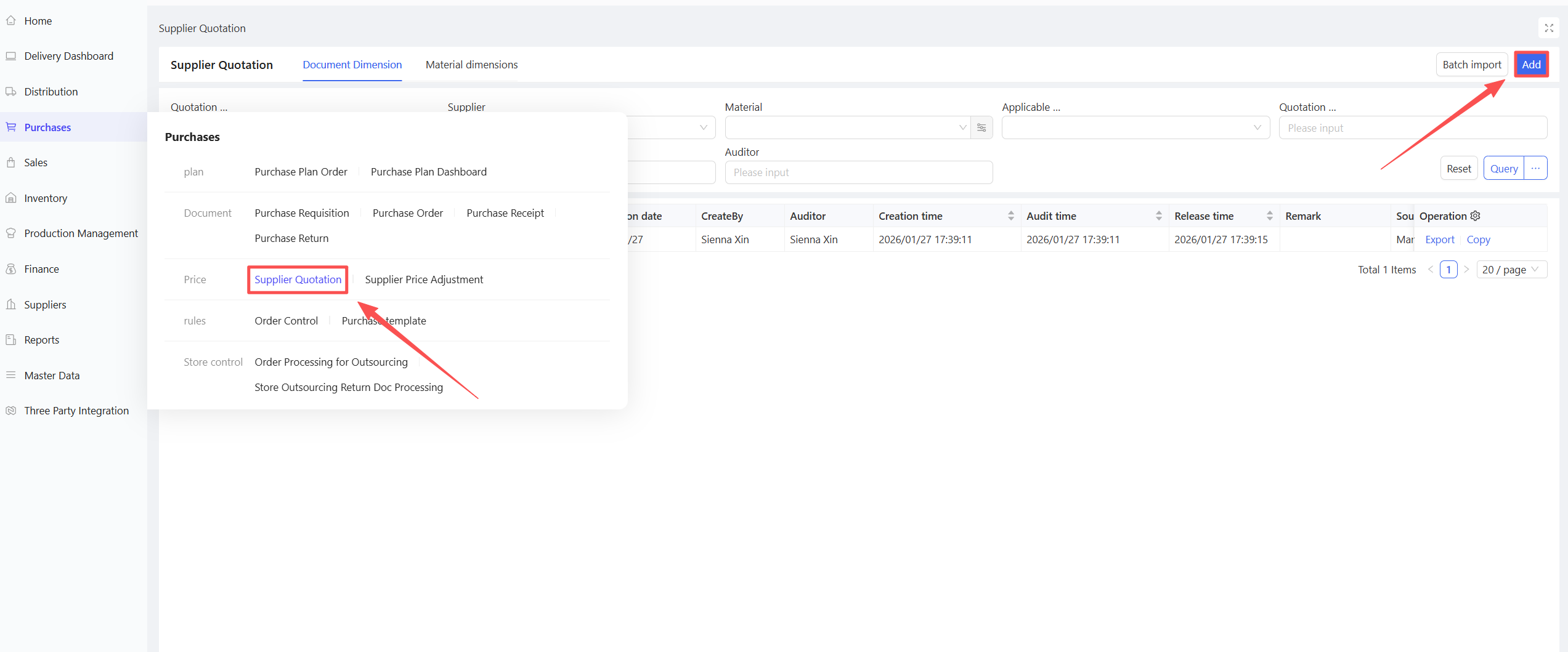
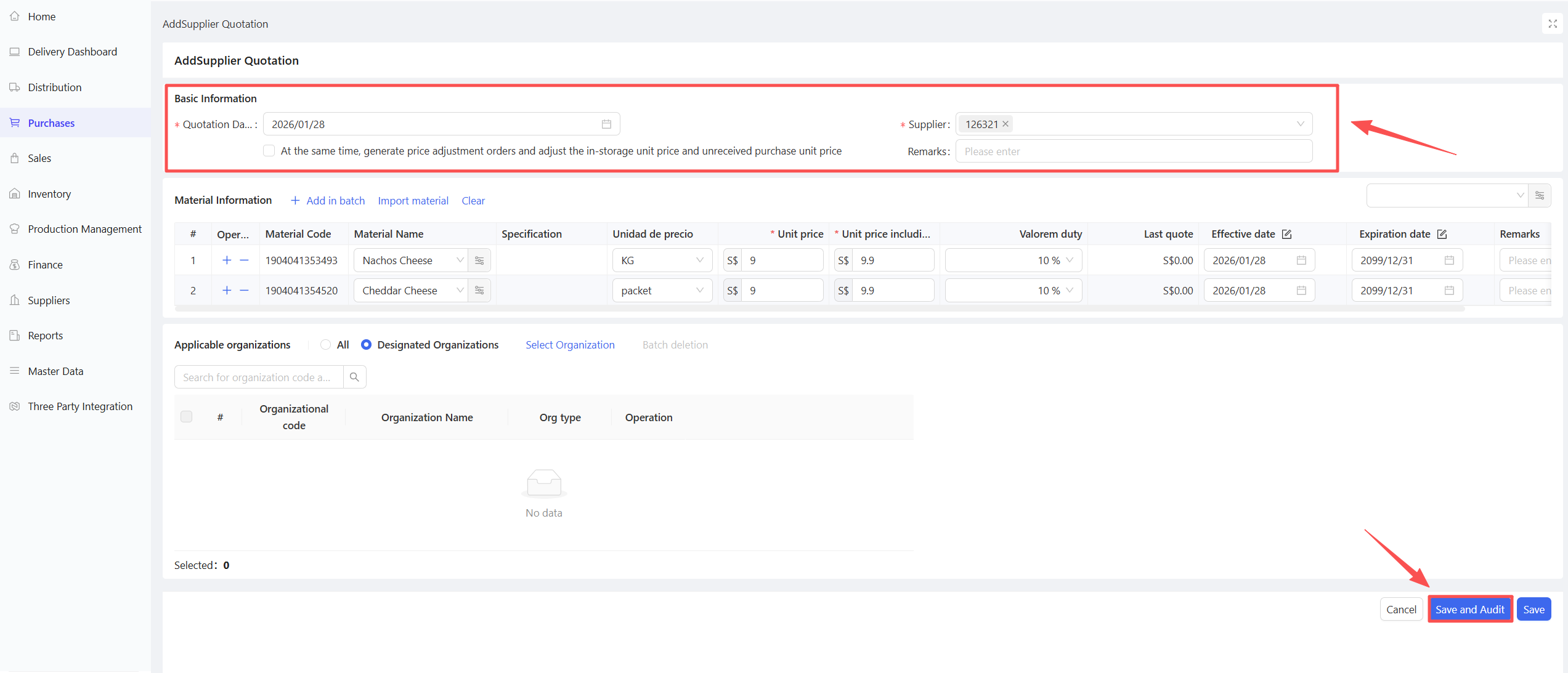
- Select Quotation Date and Supplier.
- Select materials, fill in Price, Tax Rate, Effective Date, and Expiry Date.
- Select Applicable Organizations.
- Click Save and Approve, then click Publish to activate the supplier quotation.
Additional Notes
The distribution center creates supplier quotations for a unified application across all stores.
Stores can independently create quotations for their own use.
The parameter Allow Price Adjustment When Issuing Supplier Purchases can restrict whether stores are permitted to modify prices.
Supports setting quotations by validity period.
2.7.5 Notes
- Quotations take effect only after being published.
- For store orders, the distribution center’s price takes priority over the store’s pricing.
- The parameter Allow Price Adjustment When Issuing Supplier Purchases controls the store’s price adjustment permission.
2.8 Supplier Price Adjustment Order
2.8.1 Function Overview
This function adjusts the prices of historical warehousing documents. Associated upstream and downstream documents linked to the warehousing document will be adjusted accordingly, and the outbound cost price after warehousing will be updated automatically. Key features include:
- Supports adjusting historical tax-inclusive unit prices and tax rates.
- Supports full price adjustment for the entire chain: Purchase Order → Receipt → Purchase Warehousing → Purchase Return/ Warehousing Return/ Accounts Payable Order.
- Supports price adjustment for unreceived Purchase Orders and Receipts; purchase orders can be adjusted based on price adjustment ranges defined by Document Date/Expected Arrival Date.
- After adjustment, the system will re-calculate costs automatically. For materials with a distribution price markup, the store’s warehousing price will also be adjusted and recalculated.
2.8.2 Function Value
- Flexible price adjustment addresses settlement difficulties caused by frequent price changes in catering enterprises.
- Records price adjustment results for easy reconciliation with suppliers.
2.8.3 Application Scenario
- Resolves frequent price fluctuation issues for fresh produce and other categories.
- Applicable to post-transaction pricing and month-end unified pricing settlement scenarios.
2.8.4 Operation Instructions
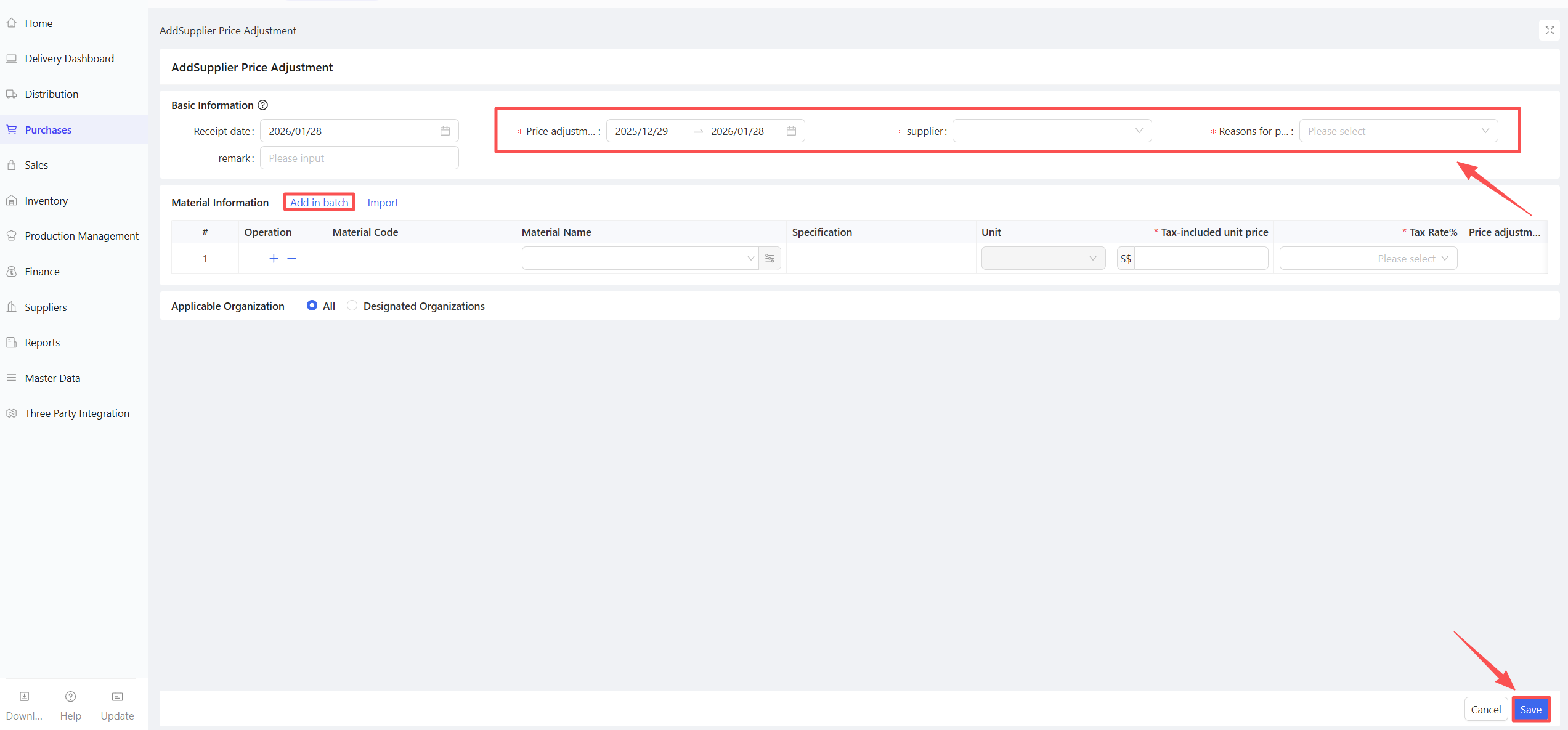
- Go to Distribution Center View > Supply Chain > Procurement Management > Supplier Price Adjustment Order.
- Click Add.
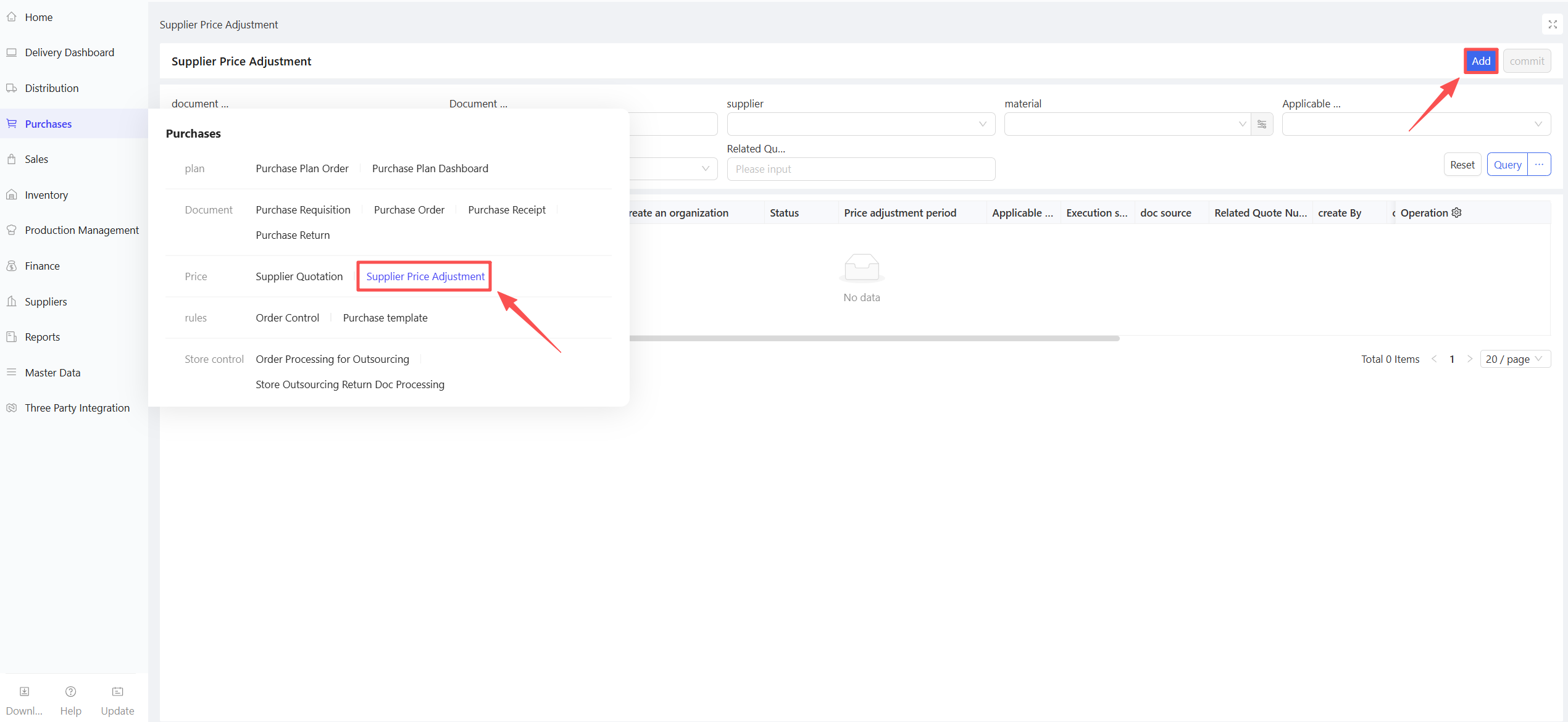
- Select Price Adjustment Period, Supplier, and Adjustment Reason.
- Click Batch Add, select materials to be adjusted, and fill in price adjustment details.
- Click Select Organizations to choose the organizations subject to adjustment.
- Click Save and Approve to activate the price adjustment order.
2.8.5 Notes
- No price adjustment is allowed after the month-end closing or approval of accounts payable orders.
- Price adjustment may take a long time; it is recommended to perform this operation during off-peak hours.
2.9 Order Control
2.9.1 Function Overview
This function defines the scope of orderable materials, orderable time periods, default expected arrival dates, minimum order quantity, and minimum order amount for each procurement organization.
2.9.2 Function Value
- Flexibly meets the headquarters’ order standardization requirements for various organizations.
- Improves the efficiency of centralized picking and distribution at the distribution center.
2.9.3 Application Scenario
- Set order dates, time windows, and default arrival times.
- Define minimum order quantity and minimum order amount.
- Specify mandatory purchase materials.
2.9.4 Operation Instructions
- Go to Distribution Center View > Supply Chain > Procurement Management > Order Control.
- Click Add.
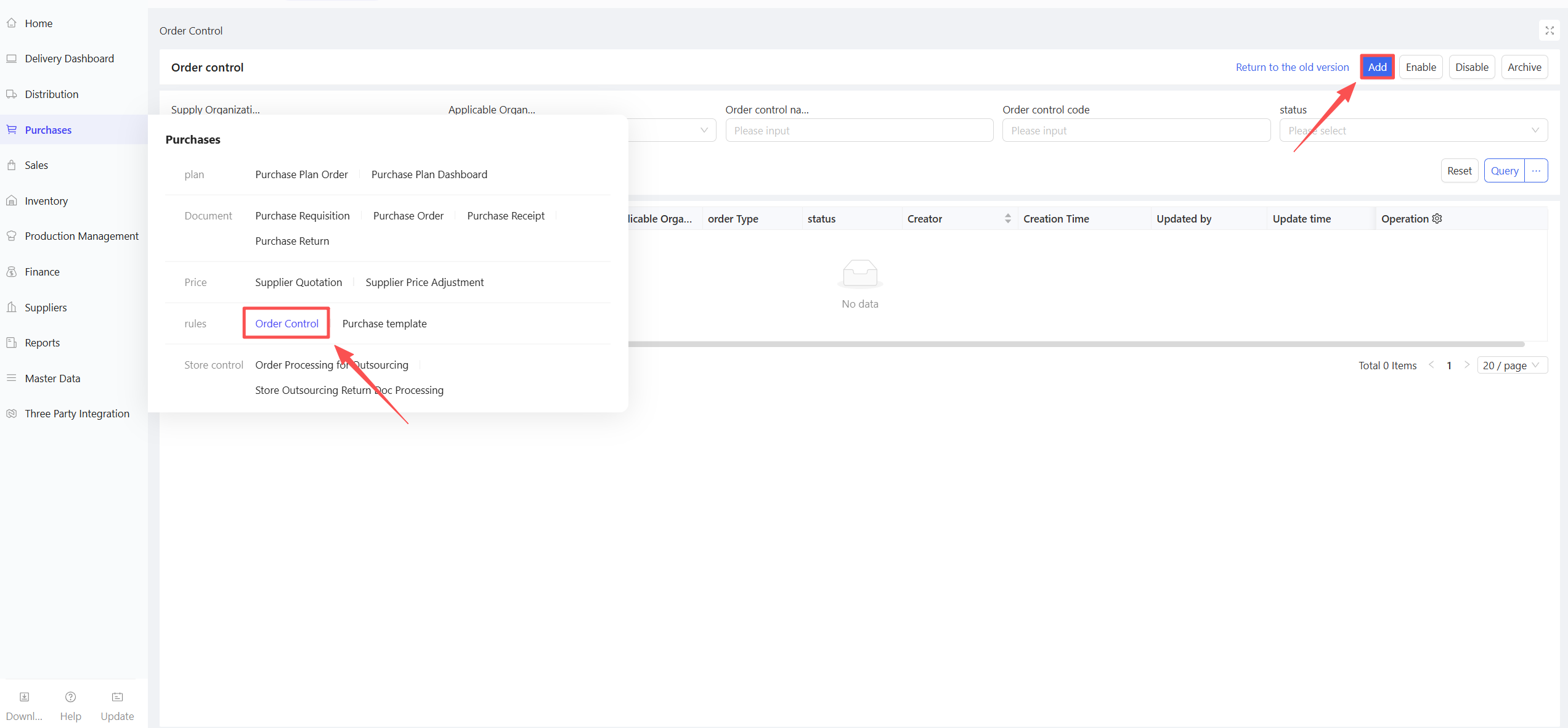
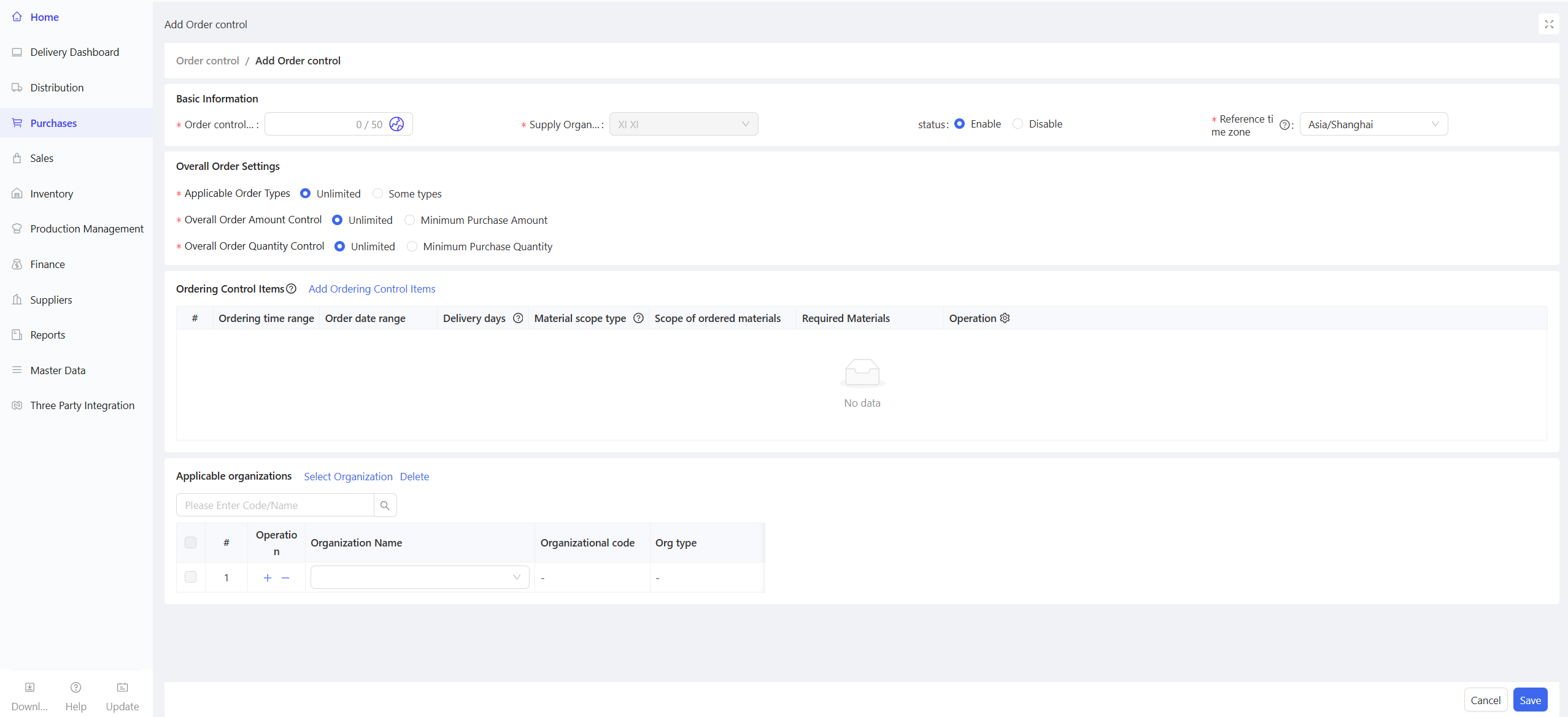
- Set Orderable Material Scope, Applicable Organizations, Orderable Dates, Orderable Time Windows, Minimum Order Quantity, and Minimum Order Amount.
- Click Save.
2.10 Procurement Template
2.10.1 Function Overview
This function allows distribution centers/stores to create templates based on material procurement patterns.
2.10.2 Function Value
Procurement via templates eliminates the need to manually add materials one by one; users only need to confirm specific procurement quantities, improving order efficiency.
2.10.3 Application Scenario
- Stores have different procurement cycles for various material categories, with basically the same materials purchased each time (e.g., seafood ordered on Mondays, vegetables on Tuesdays).
- Different warehouses in the distribution center manage distinct materials with their own procurement cycles and timelines, requiring efficient ordering.
2.10.4 Operation Instructions
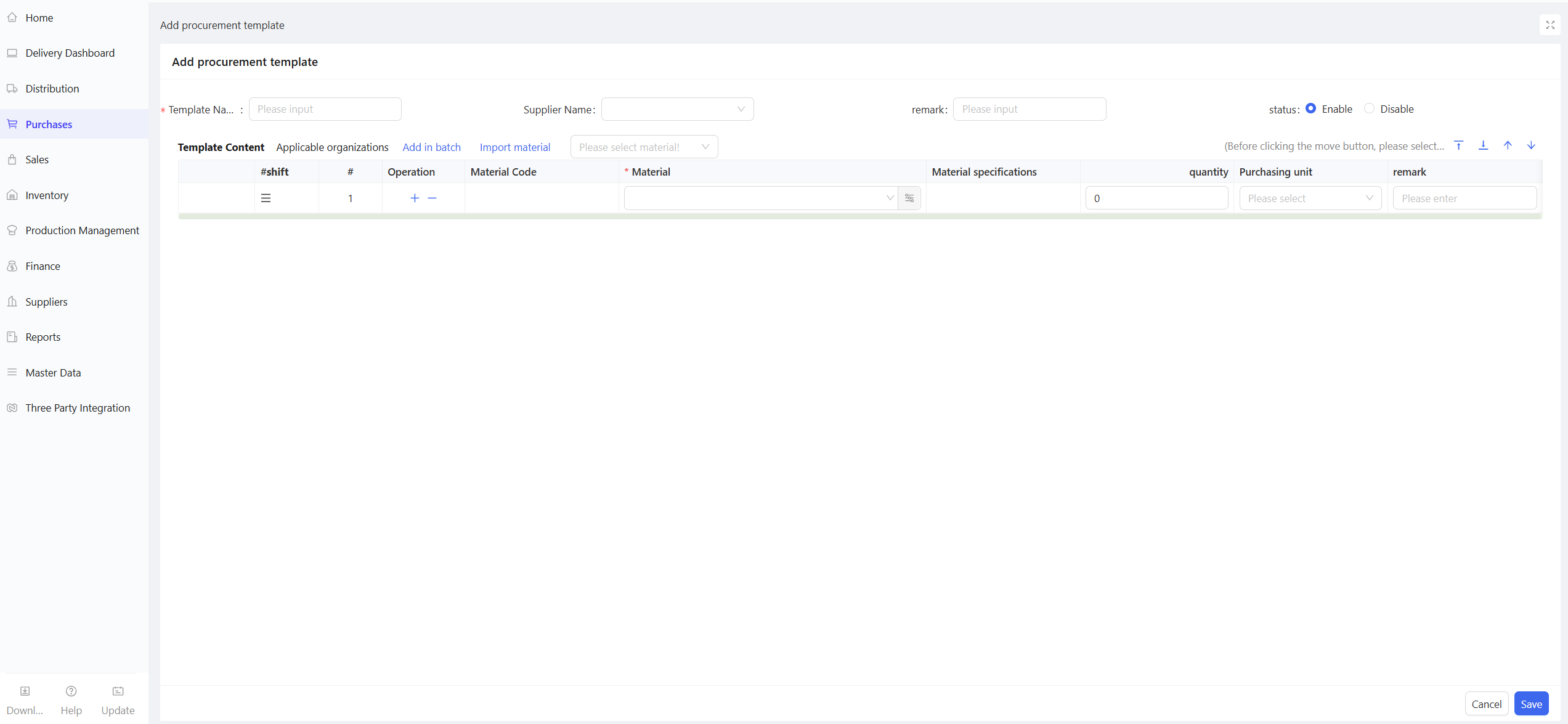
- Go to Distribution Center View/Store View > Supply Chain > Procurement Management > Procurement Template.
- Click Add.

- On the new procurement template page, enter the Template Name.
- Batch add template materials and click Save.
- Select applicable organizations and warehouses.
3 Distribution Management
3.1 Module Overview
This module enables the distribution center to handle store order-related business, including basic configurations (distribution agreement prices, distribution rules), store purchase order acceptance, goods delivery, store receipt discrepancy handling, and store return processing.
3.2 Purchase Order Acceptance
3.2.1 Function Overview
This function is used for payment confirmation and order quantity verification of store orders under centralized procurement & distribution and centralized procurement direct shipment models. After order acceptance, the system splits the order into delivery orders for the distribution center warehouse according to preset routing rules and designated shipping warehouses.
3.2.2 Function Value
Purchase order acceptance enables online payment confirmation and order quantity verification, improving collaboration efficiency.
3.2.3 Application Scenario
- Payment confirmation for store purchase orders under the prepayment model.
- Verification of store purchase order quantities.
3.2.4 Operation Instructions
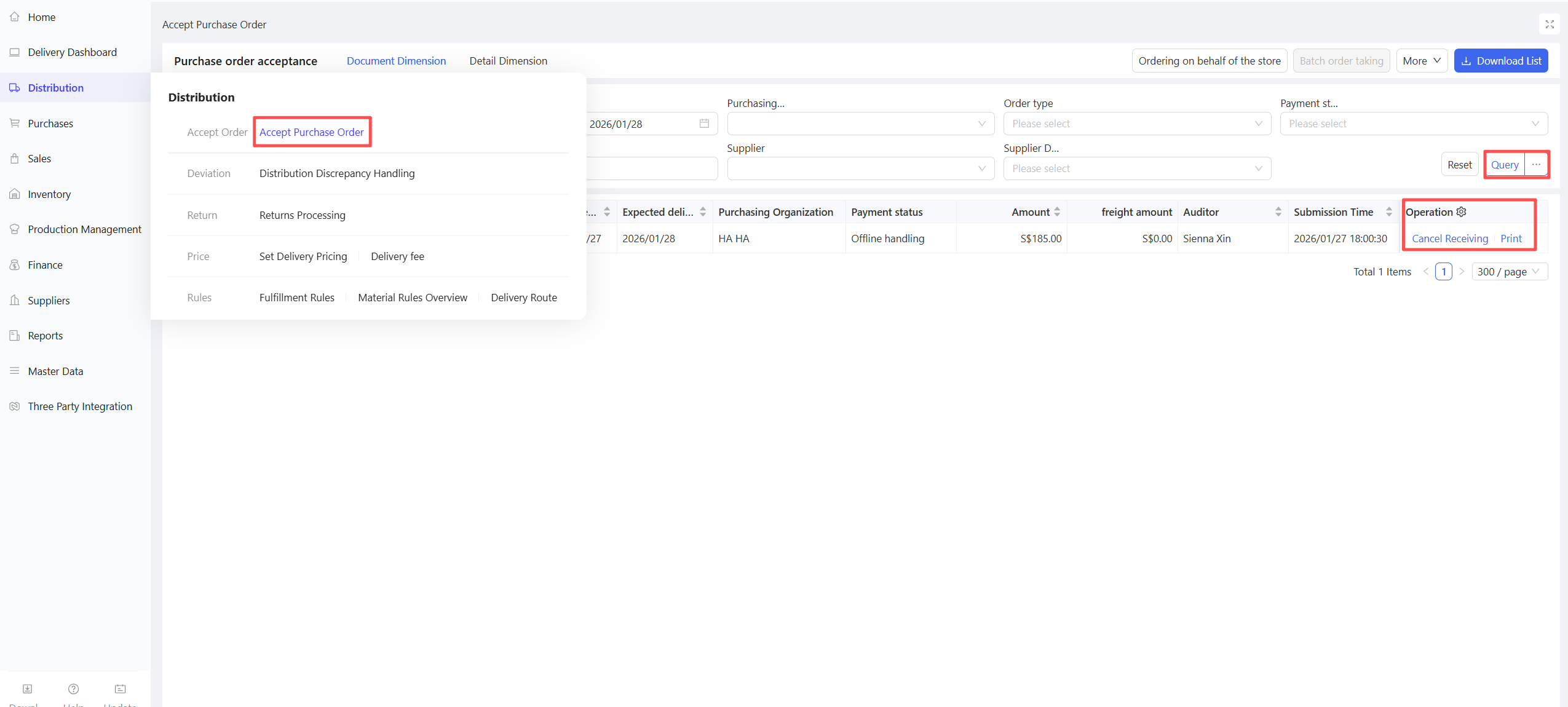
- Go to Distribution Center View > Supply Chain > Distribution Management > Purchase Order Acceptance.
- Click Query to search for store purchase orders based on criteria.
- Perform Confirm Payment and Accept Order operations for store orders.
3.3 Delivery Dashboard
3.3.1 Function Overview
The delivery dashboard is used for picking and delivery processing of store orders under centralized procurement & distribution and centralized procurement direct shipment models.
3.3.2 Function Value
The delivery dashboard splits orders according to routing rules and designated shipping warehouses for centralized procurement & distribution/direct shipment, facilitating picking and delivery processing.
3.3.3 Application Scenario
- Picking and delivery processing of store orders under centralized procurement & distribution and centralized procurement direct shipment models.
- Headquarters creates purchase orders on behalf of stores.
- Warehouses directly create delivery orders without store purchase orders.
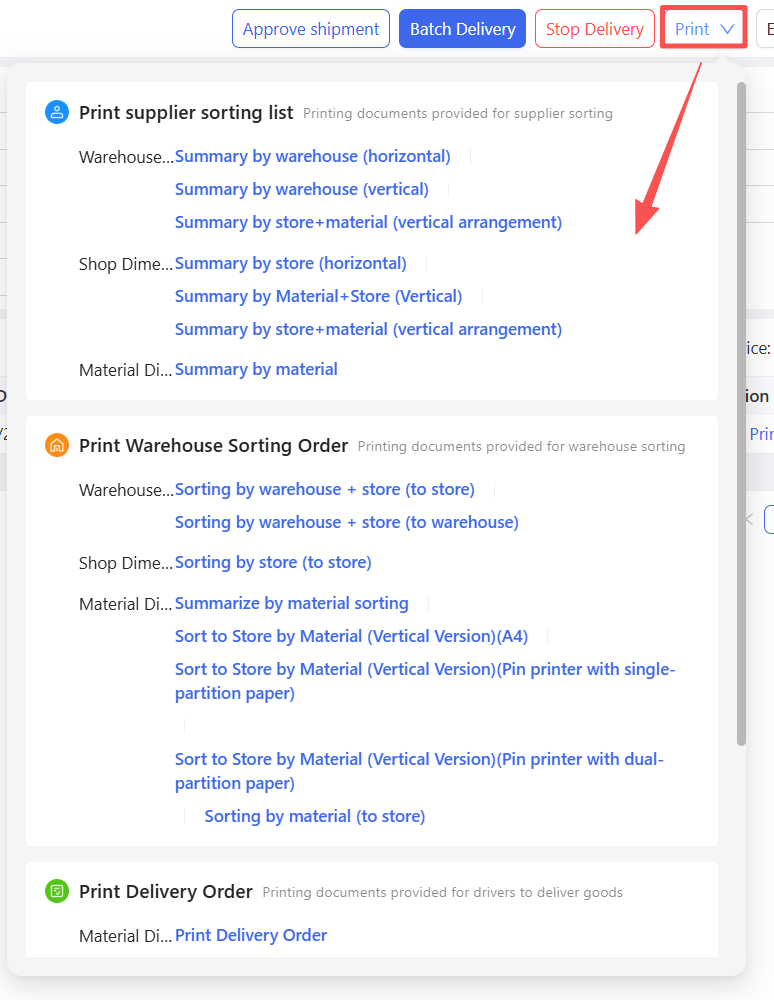
- The distribution center prints picking lists and delivery orders.
3.3.4 Operation Instructions
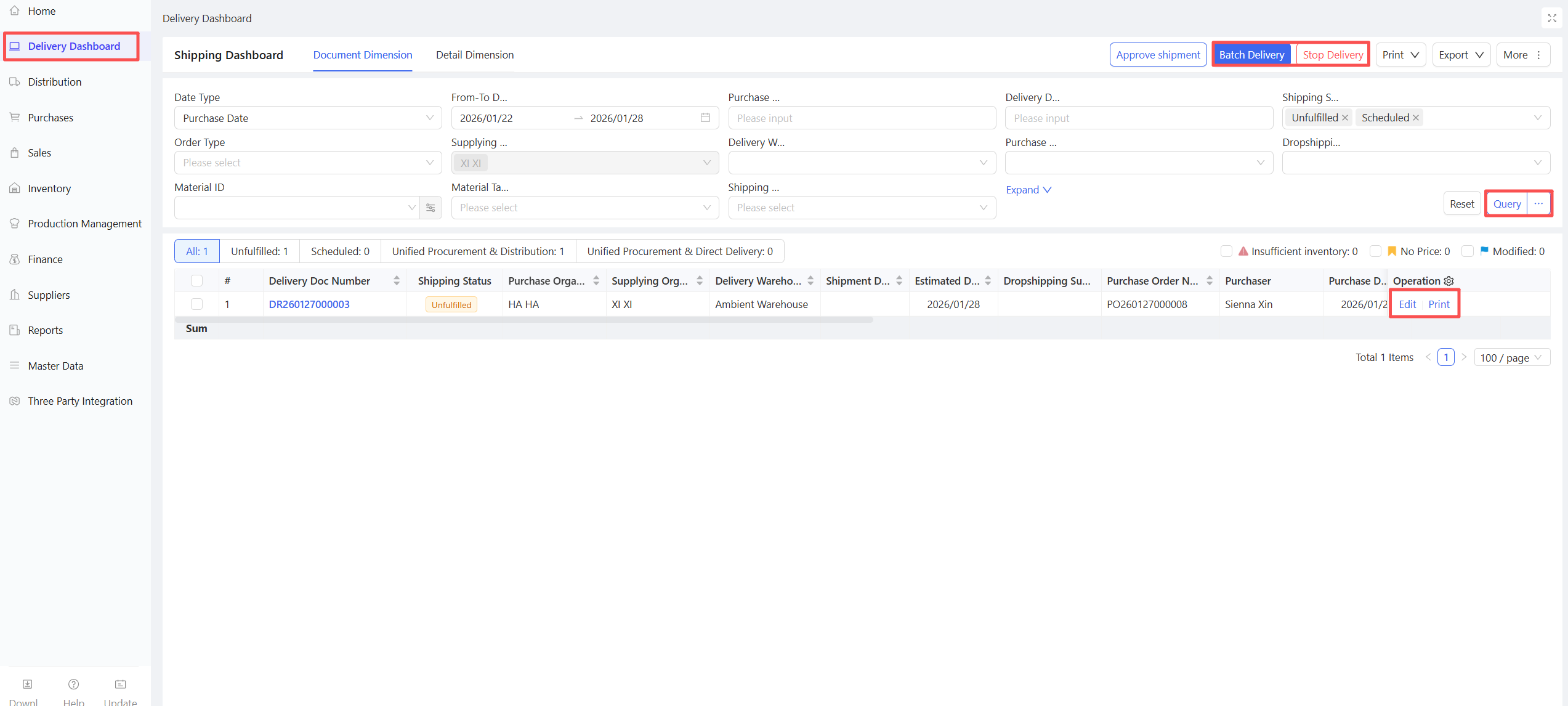
- Go to Distribution Center View > Supply Chain > Delivery Dashboard.
- Set query criteria and click Query.
- Perform Approve for Delivery and Batch Delivery based on delivery order information; the shipped quantity can be modified according to actual conditions.
3.3.5 Notes
- Under the centralized procurement direct shipment model, the supplier can be modified on the delivery dashboard.
- Under the centralized procurement & distribution model, the shipping warehouse can be modified; if a single delivery order involves multiple shipping warehouses, the order will be split.
- Under the direct shipment model, the tax-inclusive procurement unit price can be modified.
3.4 Distribution Discrepancy Handling
3.4.1 Function Overview
This function handles the confirmation of quantity discrepancies between the goods shipped by the distribution center and received by the store for orders under centralized procurement & distribution and centralized procurement direct shipment models. Three handling methods are supported:
- Reject Discrepancy
- Accept Discrepancy
- Accept Discrepancy and Record Loss
3.4.2 Function Value
When quantity discrepancies occur between shipped and received goods, this function clarifies responsibility attribution and ensures the accuracy of data flow.
3.4.3 Application Scenario
- The distribution center rejects the discrepancy when the shipped quantity does not match the received quantity.
- The distribution center accepts the discrepancy and assumes responsibility for the difference.
- The goods are damaged, and the distribution center accepts the discrepancy and assumes responsibility.
3.4.4 Operation Instructions
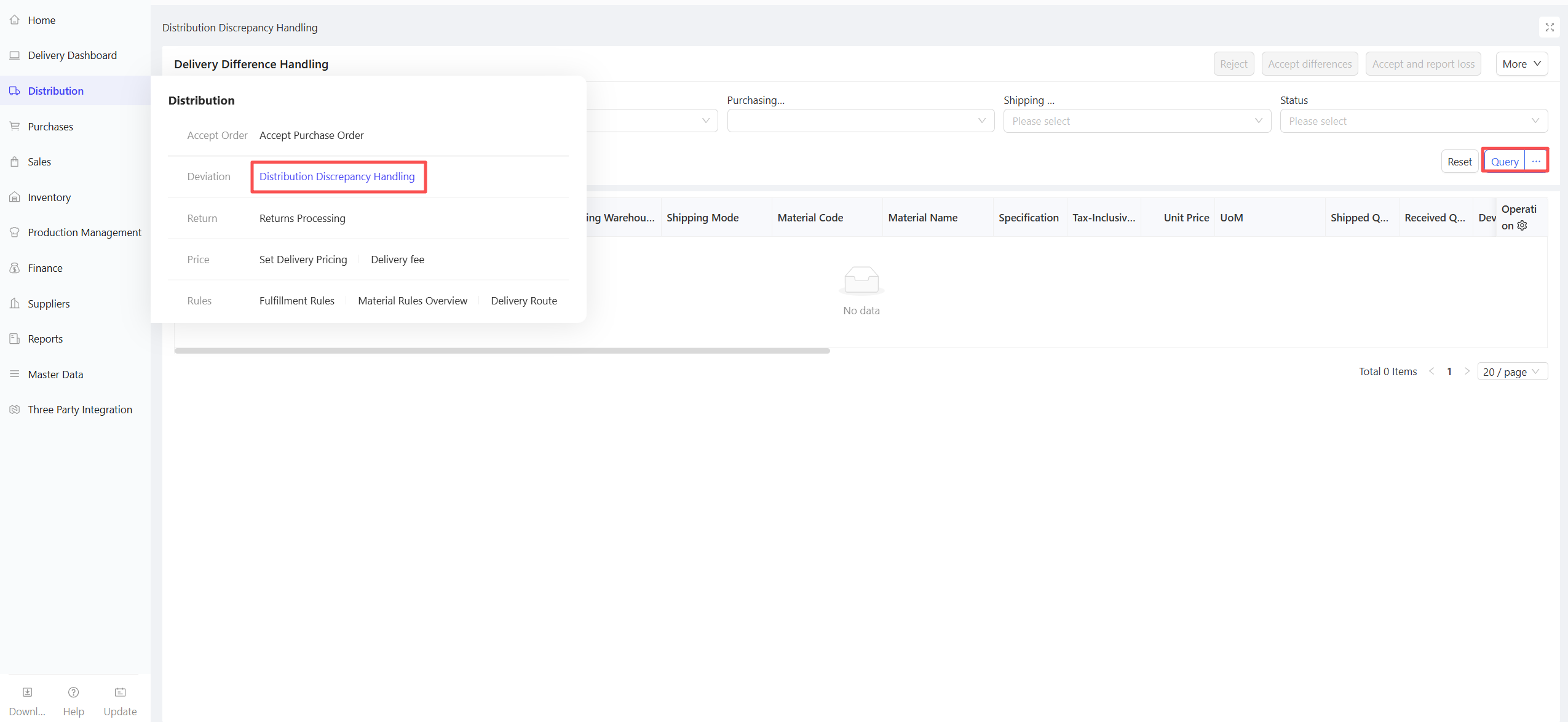
- Go to Distribution Center View > Supply Chain > Distribution Management > Distribution Discrepancy Handling.
- Set query criteria such as document date and click Query.
- Check the discrepancy documents to be processed and select a handling method: Reject/Accept Discrepancy/Accept Discrepancy and Record Loss.
3.5 Distribution Return Handling
3.5.1 Function Overview
This function processes return requests for store orders under centralized procurement & distribution and centralized procurement direct shipment models. Three handling methods are supported:
- Reject Return
- Accept Return
- Accept Return and Record Loss
3.5.2 Function Value
This module enables online data collaboration between the distribution center and stores, ensuring data accuracy for both parties.
3.5.3 Application Scenario
- The distribution center rejects the return request for orders under centralized procurement & distribution/direct shipment models.
- The goods are damaged, and the distribution center accepts the return and assumes responsibility.
3.5.4 Operation Instructions
- Go to Distribution Center View > Supply Chain > Distribution Management > Distribution Return Handling.
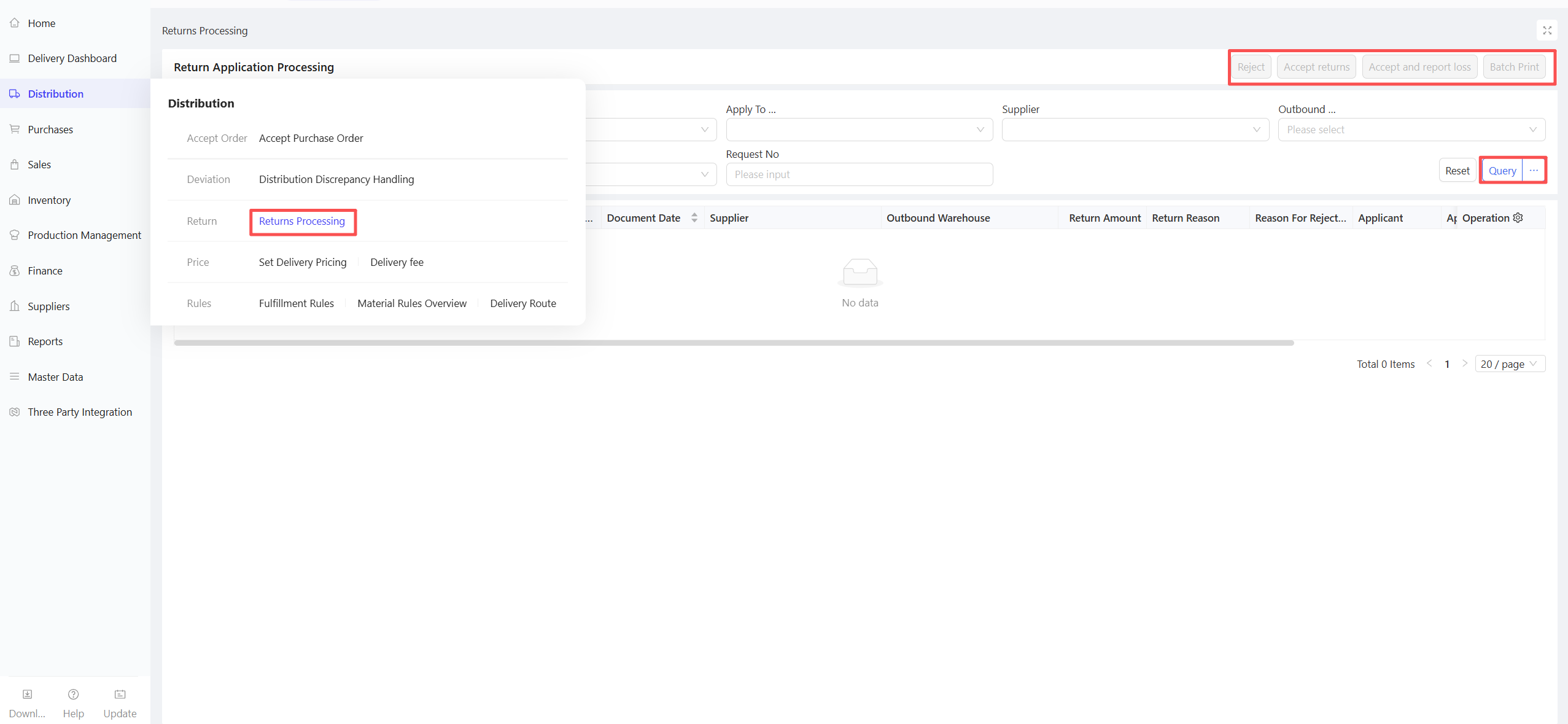
- Set query criteria such as document date and click Query.
- Check the return documents to be processed and select a handling method: Reject/Accept Return/Accept Return and Record Loss.
3.6 Distribution Agreement Price
3.6.1 Function Overview
This function sets the selling prices of materials provided by the distribution center to stores under centralized procurement & distribution and centralized procurement direct shipment models. Three pricing modes are supported:
- Fixed Selling Price
- Fixed Markup
- Percentage Markup
3.6.2 Function Value
This function standardizes the procurement prices of materials for different stores, facilitating unified price management.
3.6.3 Application Scenario
- The distribution center adopts fixed selling price/fixed markup/percentage markup for materials sold to stores.
- The same material is sold at different prices to different stores by the distribution center.
3.6.4 Operation Instructions
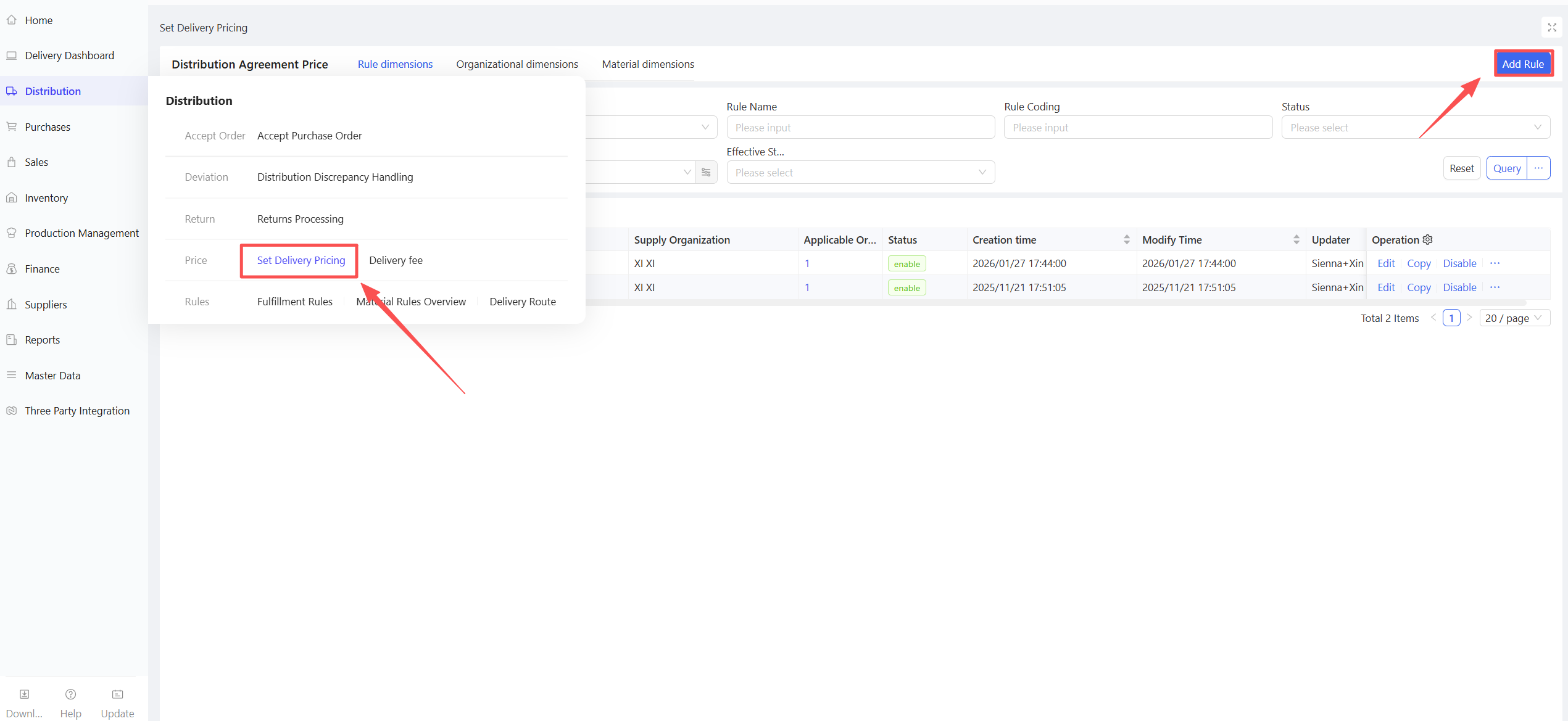
- Go to Distribution Center View > Supply Chain > Distribution Management > Distribution Agreement Price.
- Click Add Rule.
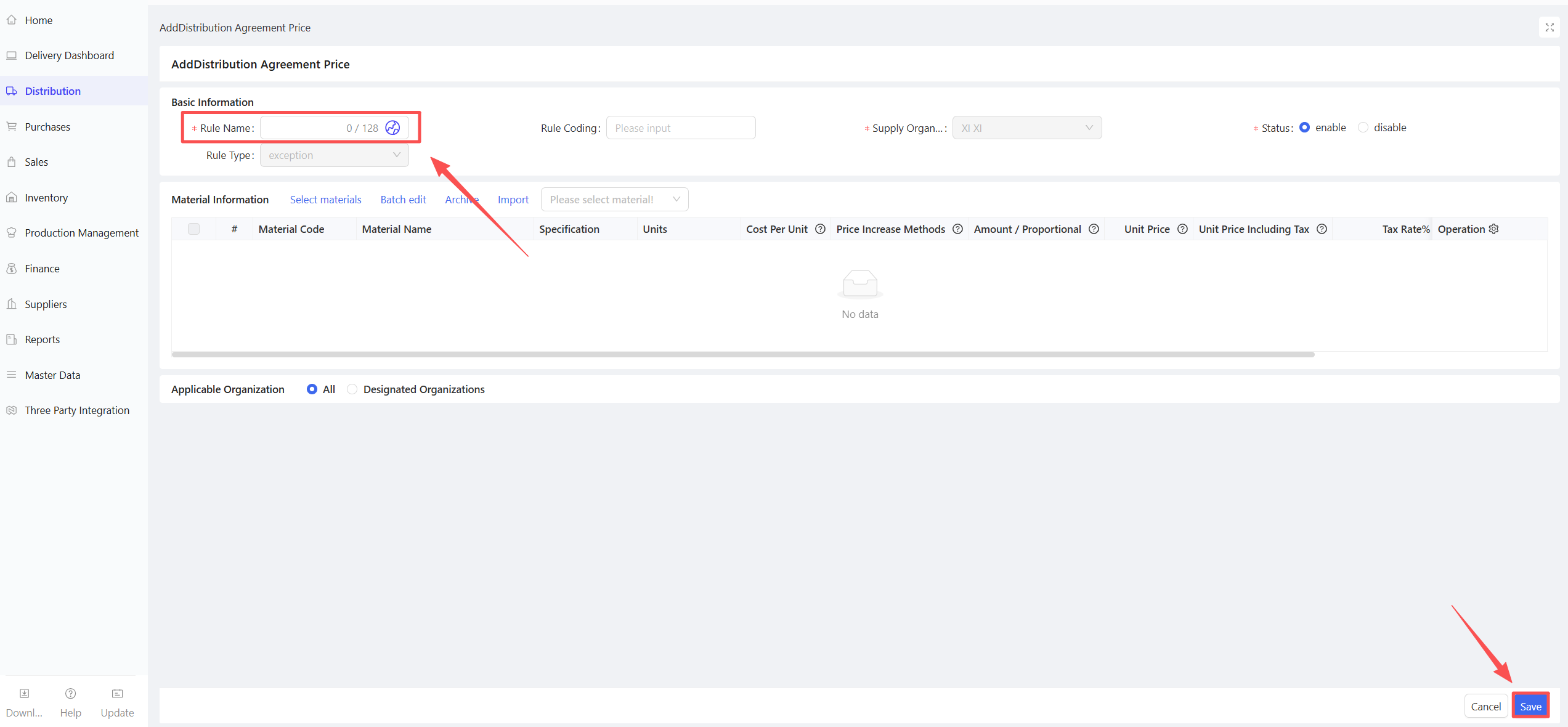
- Enter the Rule Name.
- Select materials, markup method, tax-inclusive unit price, and other information.
- Click Save.
3.7 Distribution Rules
3.7.1 Function Overview
This function configures the transportation modes for materials, including:
- Centralized Procurement & Distribution: Stores/distribution centers issue purchase orders to the distribution center, which directly delivers materials to the purchaser.
- Centralized Procurement Direct Shipment: Stores/distribution centers issue purchase orders to suppliers, which directly deliver materials to the purchaser.
- Self-Procurement Direct Delivery: Stores/distribution centers issue purchase orders to suppliers, which directly deliver materials to the purchaser.
It also specifies the material outbound warehouse, default delivery supplier, and whether inventory verification is required for ordering. Supports query by rule dimension, organization dimension, and material dimension, as well as import and export functions.
3.7.2 Function Value
The system automatically manages document flow based on configured distribution rules.
3.7.3 Application Scenario
System initialization configuration.
3.7.4 Operation Instructions
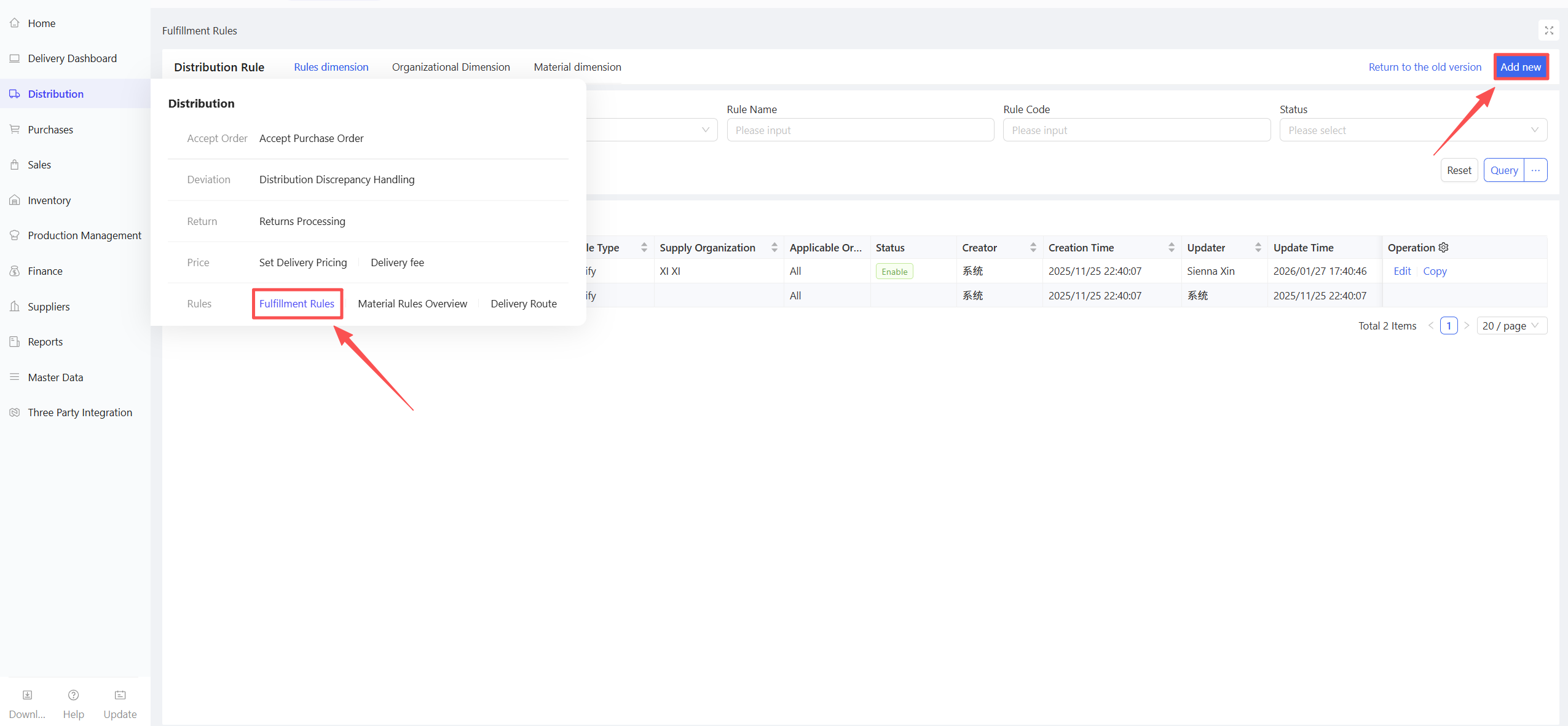
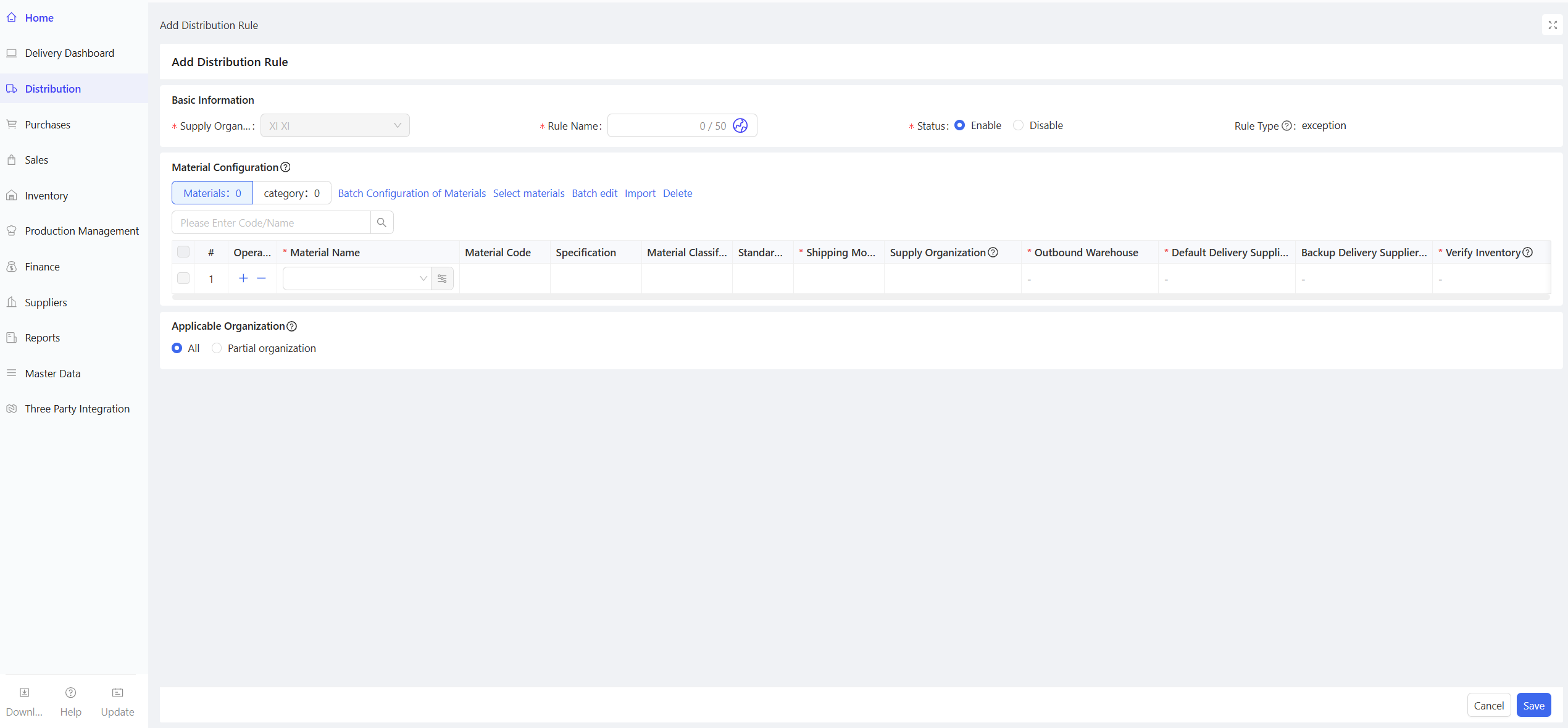
- Go to Distribution Center View > Supply Chain > Distribution Management > Distribution Rules.
- Click Add.
- Enter the Rule Name.
- Configure Materials, Transportation Mode, Outbound Warehouse, Default Delivery Supplier, Backup Supplier, and Enable Inventory Verification for Ordering.
- Select Applicable Organizations and click Save.
3.7.5 Notes
- Under the rule dimension, pay attention to the Enable/Disable status.
3.8 Distribution Routes
3.8.1 Function Overview
This function manages distribution routes, including driver and vehicle information, and sets delivery sequences. The delivery dashboard can filter data and print delivery notes by distribution route.
3.8.2 Function Value
Picking and delivery by distribution route improve distribution efficiency.
3.8.3 Application Scenario
The distribution center sorts and delivers store orders by route.
3.8.4 Operation Instructions
- Go to Distribution Center View > Supply Chain > Distribution Management > Distribution Routes.
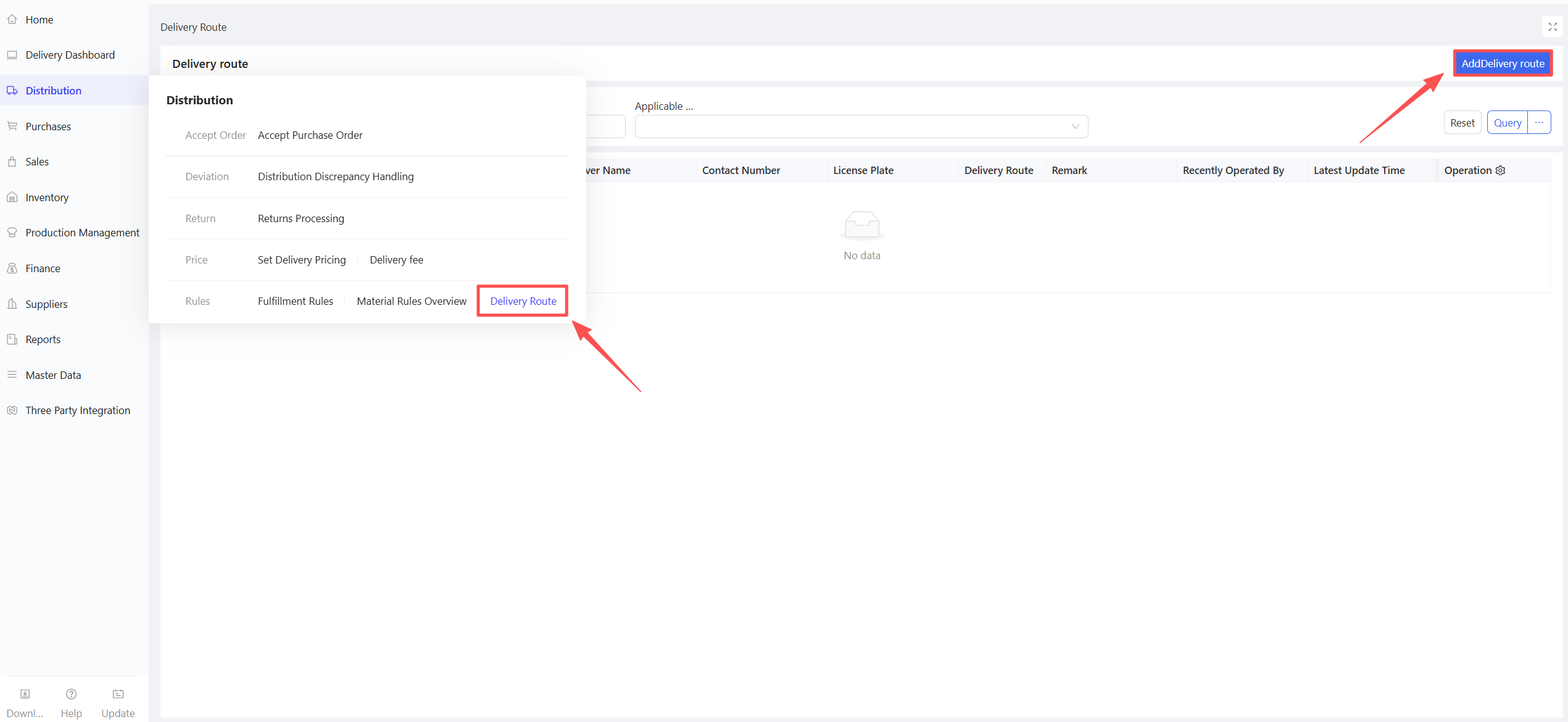
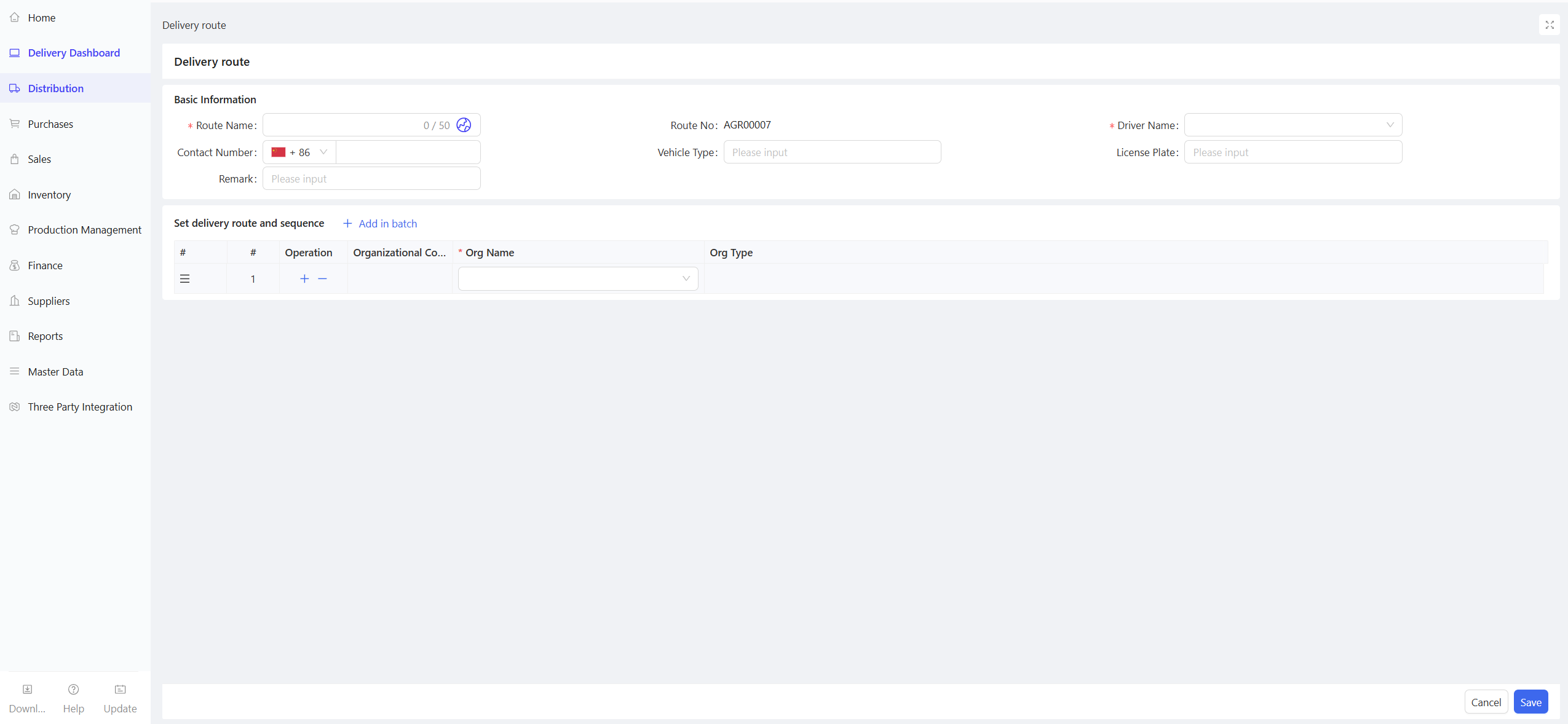
- Enter basic information such as Route Name and Driver.
- Set the delivery sequence of stores within the route.
- Click Save.
4 Inventory Management
4.1 Module Overview
Inventory management is an indispensable link in enterprise supply chain activities, covering other inbound/outbound operations, transfer operations, loss reporting, and inventory checking. It mainly caters to various business scenarios that affect inventory changes beyond core procurement and sales processes.
4.2 Warehouse Initial Inventory
4.2.1 Function Overview
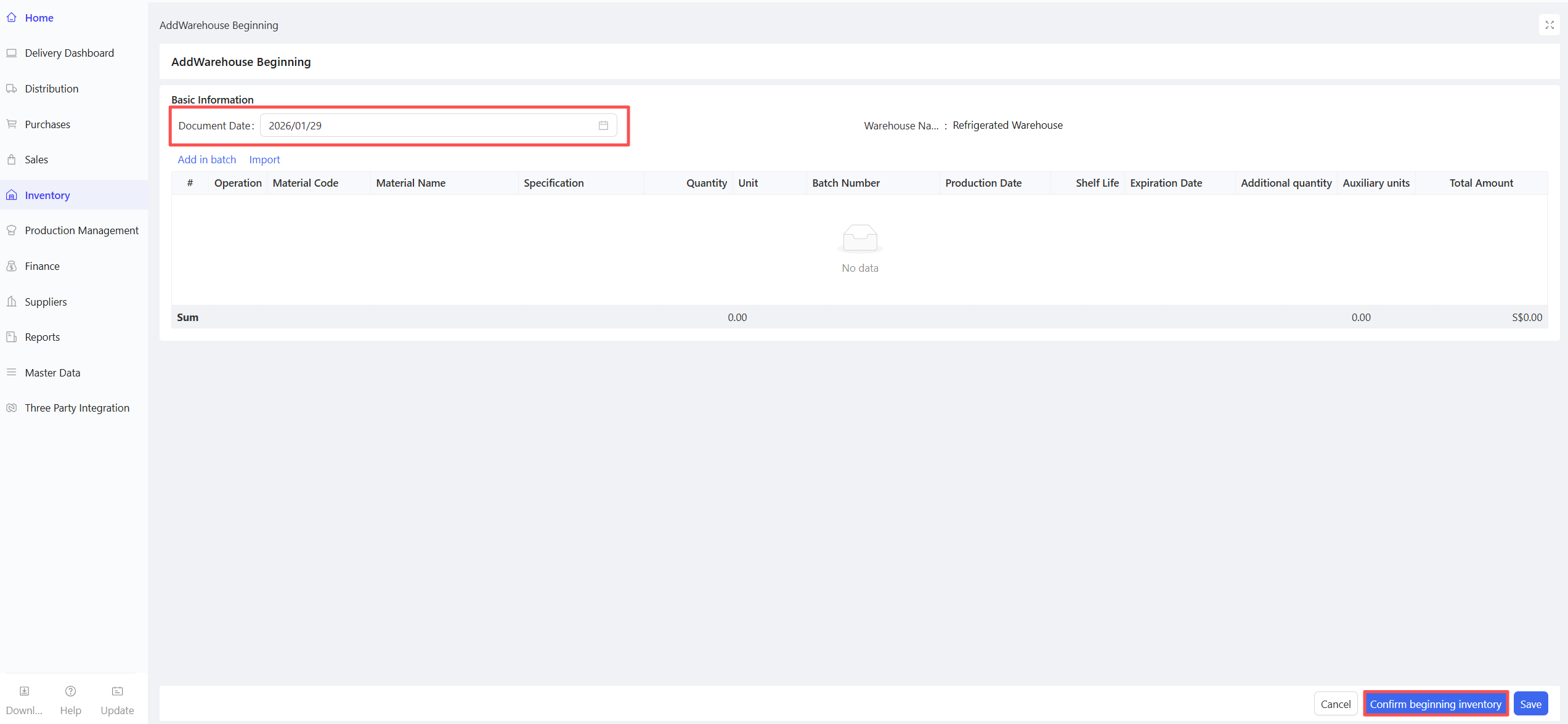
Warehouse initial inventory is used to enter the initial inventory data of the warehouse when the system goes live. It serves as an accurate starting point for all subsequent inventory operations, including inbound, outbound, stock balance, and transfer.
4.2.2 Application Scenario
Confirmation of initial warehouse inventory data during system initialization.
4.2.3 Operation Instructions
- Go to Distribution Center View > Supply Chain > Inventory Management > Warehouse Initial Inventory.
- Click Add Beginning.
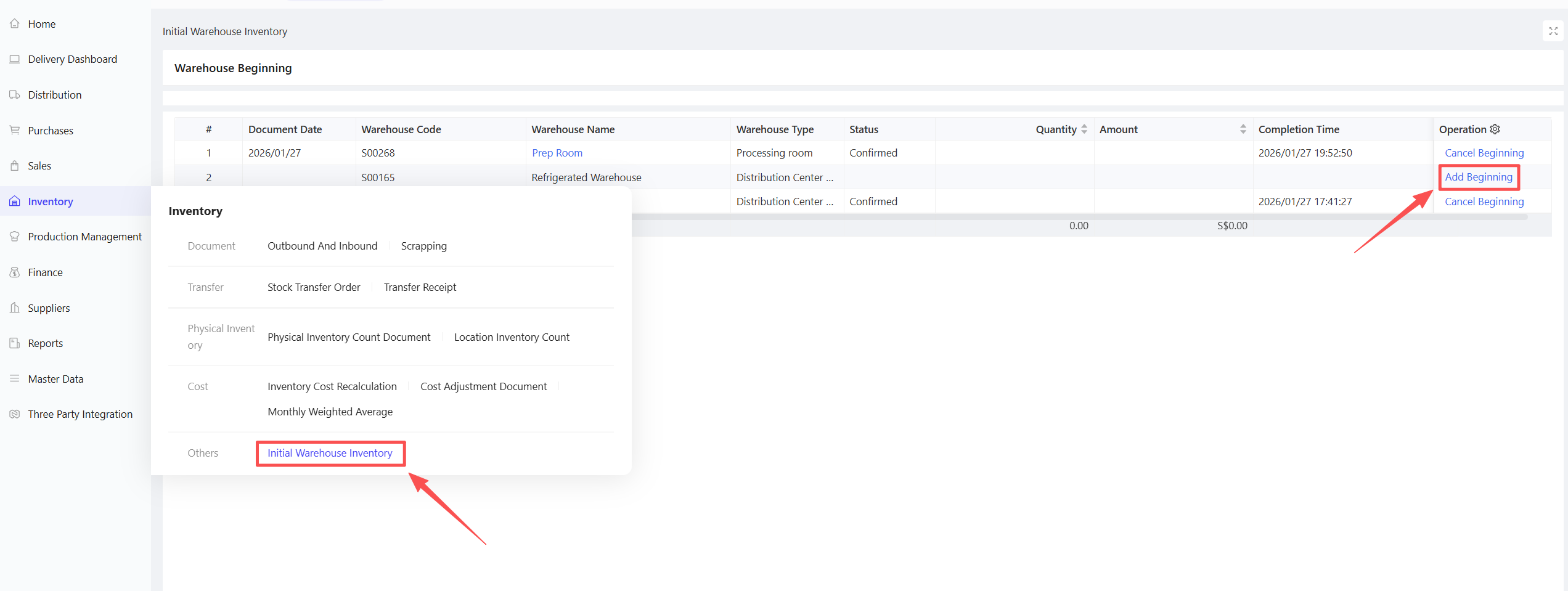
- Select Document Date.
- Batch add materials and fill in Quantity and Total Amount.
- Click Confirm Initial Inventory.
4.3 Inbound/Outbound Order
4.3.1 Function Overview
This function aggregates all inbound and outbound documents, including:
- Initial Inventory Inbound, Purchase Inbound, Purchase Inbound Return
- Transfer Inbound, Inventory Surplus Inbound, Distribution Outbound
- Distribution Outbound Return, Sales Outbound, Sales Outbound Return
- Transfer Outbound, Loss Reporting Outbound, Inventory Shortage Outbound
It supports document query, printing, and export.
4.3.2 Function Value
Enterprises can centrally manage procurement, sales, and other business activities that affect inventory changes through this function.
4.3.3 Application Scenario
- Initial Inventory Inbound: Initial entry of warehouse inventory data when the system is first used.
- Purchase Inbound: For procurement-related inbound documents, e.g., ① Documents without procurement sources: create purchase inbound documents directly after goods inspection; ② Documents with purchase order sources: generate system purchase inbound documents after goods receipt.
- Purchase Inbound Return: Inventory offset documents generated after processing returns for purchase inbound data.
- Transfer Inbound: Inventory documents created by warehouse staff after transferred goods arrive at the receiving warehouse.
- Inventory Surplus Inbound: Used to handle discrepancies between physical inventory and system book inventory when physical inventory is higher during stocktaking.
- Other Inbound: For inbound documents unrelated to procurement or transfer.
- Distribution Outbound: Outbound documents generated for direct sales between the distribution center and stores.
- Distribution Outbound Return: Return business between the distribution center and stores.
- Sales Outbound: Outbound documents for sales to external customers.
- Sales Outbound Return: Inventory documents generated when external customers return goods.
- Transfer Outbound: Initiated by the shipping warehouse for material transfers between internal warehouses.
- Loss Reporting Outbound: Specialized documents for recording and processing outbound of damaged, deteriorated, or unusable goods.
- Inventory Shortage Outbound: Used to handle discrepancies between physical inventory and system book inventory when physical inventory is lower during stocktaking.
- Other Outbound: For outbound documents unrelated to sales.
- Direct Consumption for Internal Use: For goods requisitioned by administrative departments, recorded as internal expenses.
4.3.4 Operation Instructions
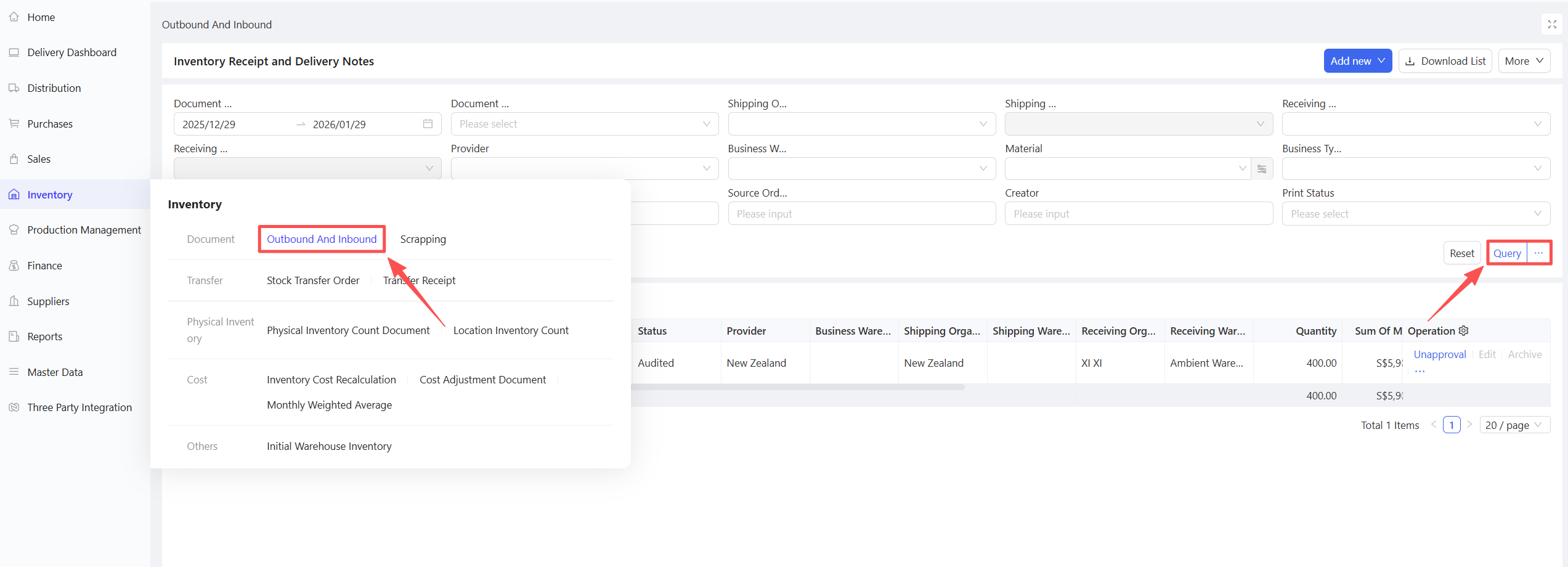
Inbound/Outbound Document Query
- Go to Distribution Center View > Supply Chain > Inventory Management > Inbound/Outbound Order.
- Query relevant inventory documents by setting criteria such as document date.
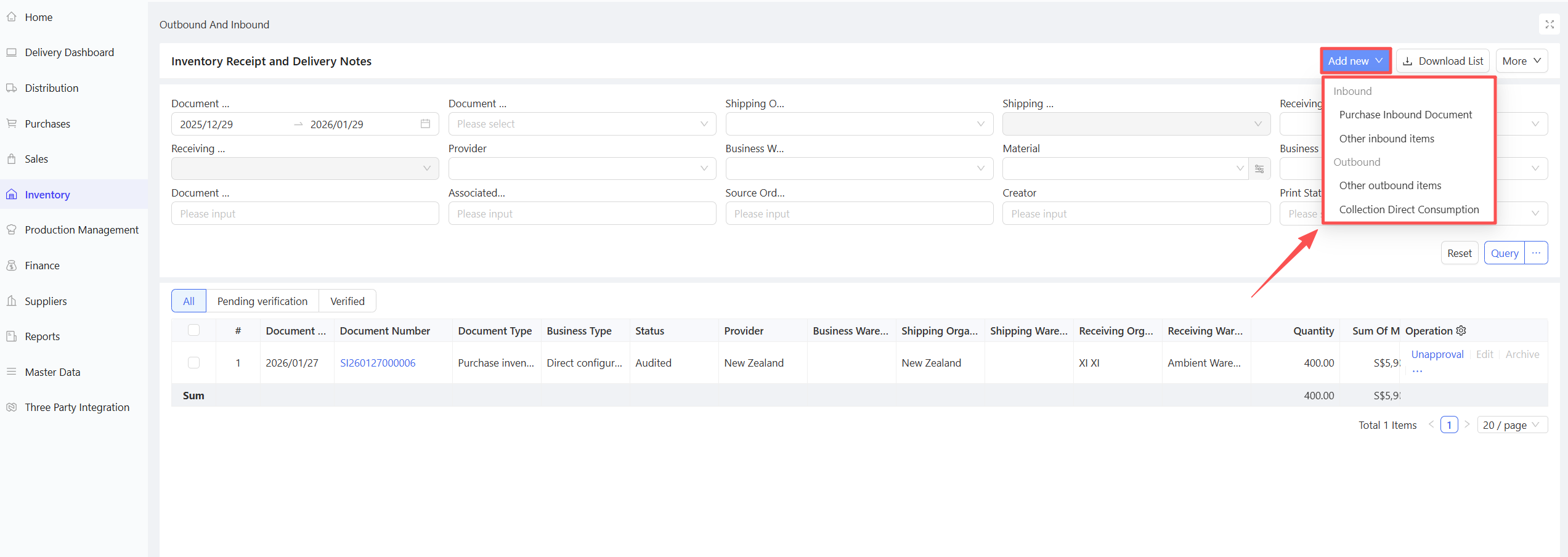
New Other Inbound/Outbound Document
- Go to Distribution Center View > Supply Chain > Inventory Management > Inbound/Outbound Order.
- Click Add New.
4.4 Loss Report
4.4.1 Function Overview
This function is a specialized document for recording and processing the outbound of damaged, deteriorated, or unusable goods, with support for recording loss reasons. Its core value lies in standardizing the loss handling process, ensuring data accuracy, and controlling costs.
4.4.2 Application Scenario
Loss reporting for expired, deteriorated, or non-conforming food ingredients in the warehouse.
4.4.3 Operation Instructions
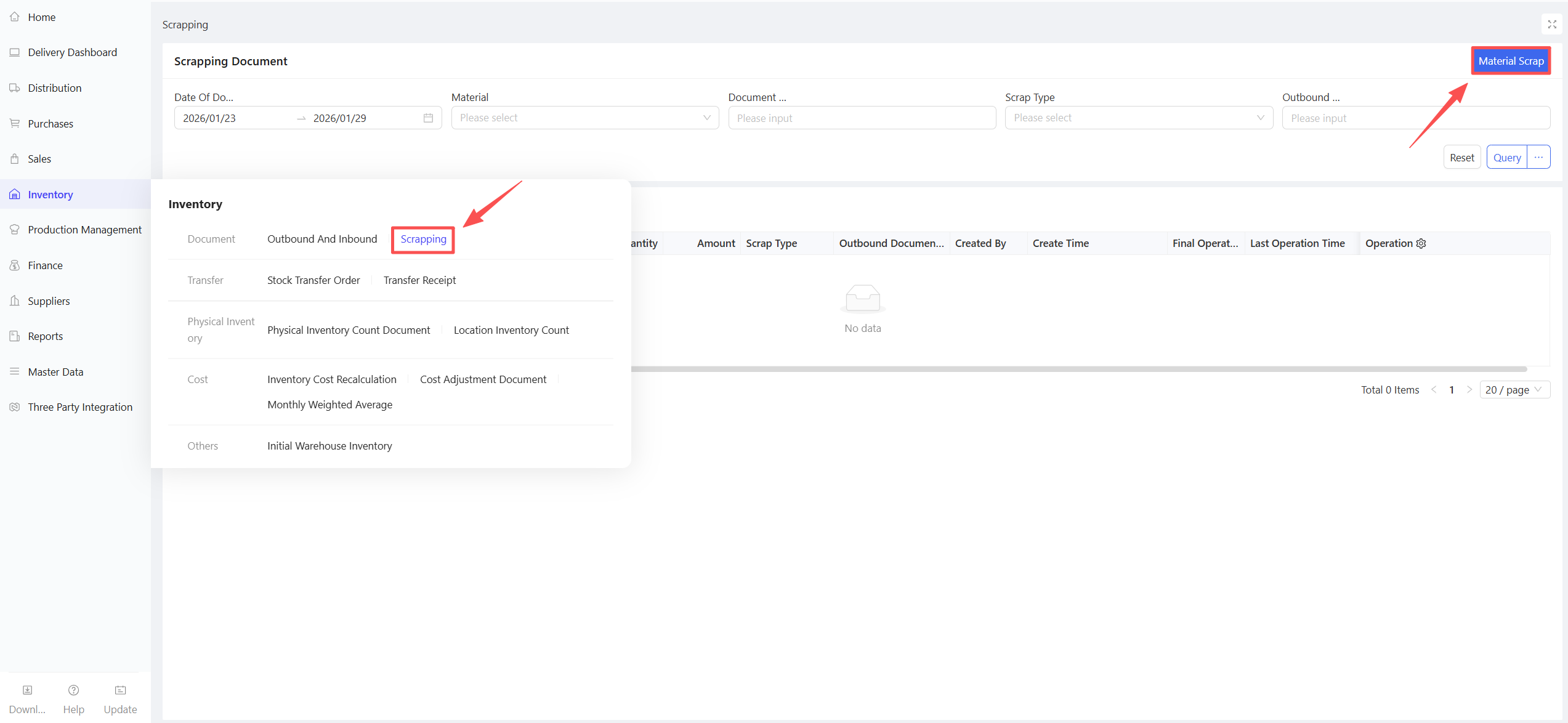
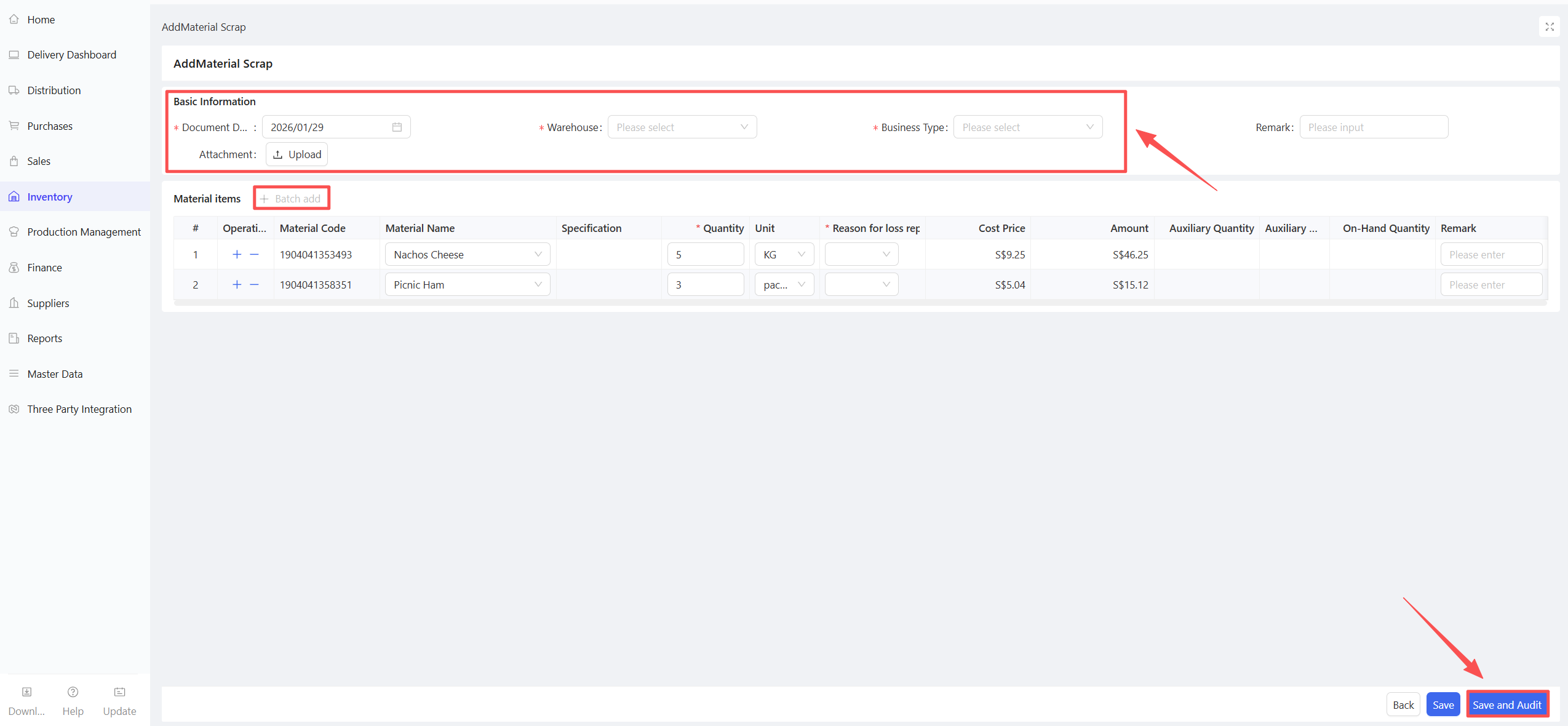
- Go to Distribution Center View > Supply Chain > Inventory Management > Loss Report.
- Click Material Loss Reporting.
- Select basic information such as Document Date, Warehouse, and Business Type.
- Add materials to be reported as loss, enter Quantity and Loss Reason.
- Click Save and Approve.
4.5 Transfer Order
4.5.1 Function Overview
The transfer order is mainly used to manage material transfers between different warehouses or organizations within the enterprise. Its core logic splits a single transfer transaction into two links: outbound and inbound, ensuring accurate and synchronized inventory data through system automation. Transfers are categorized into:
- Intra-organization Transfer
- Inter-organization Transfer
4.5.2 Application Scenario
- Intra-organization Transfer: Transfers between different warehouses of the same organization.
- Inter-organization Transfer: Transfers between different stores/distribution centers.
4.5.3 Operation Instructions
- Go to Distribution Center View > Supply Chain > Inventory Management > Transfer Order.
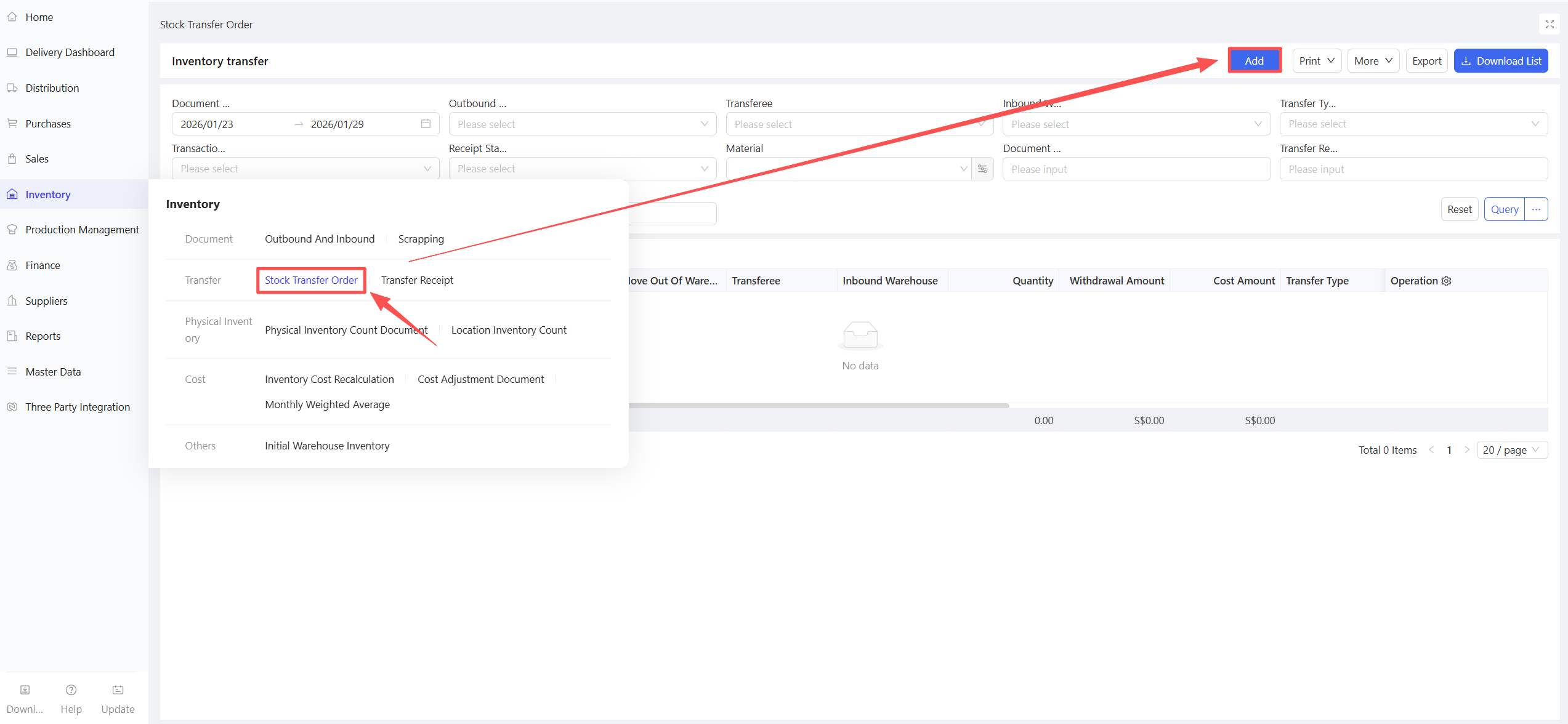
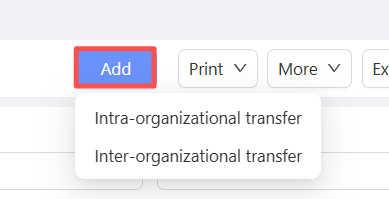
- Click Add, then select Intra-organization Transfer/Inter-organization Transfer.
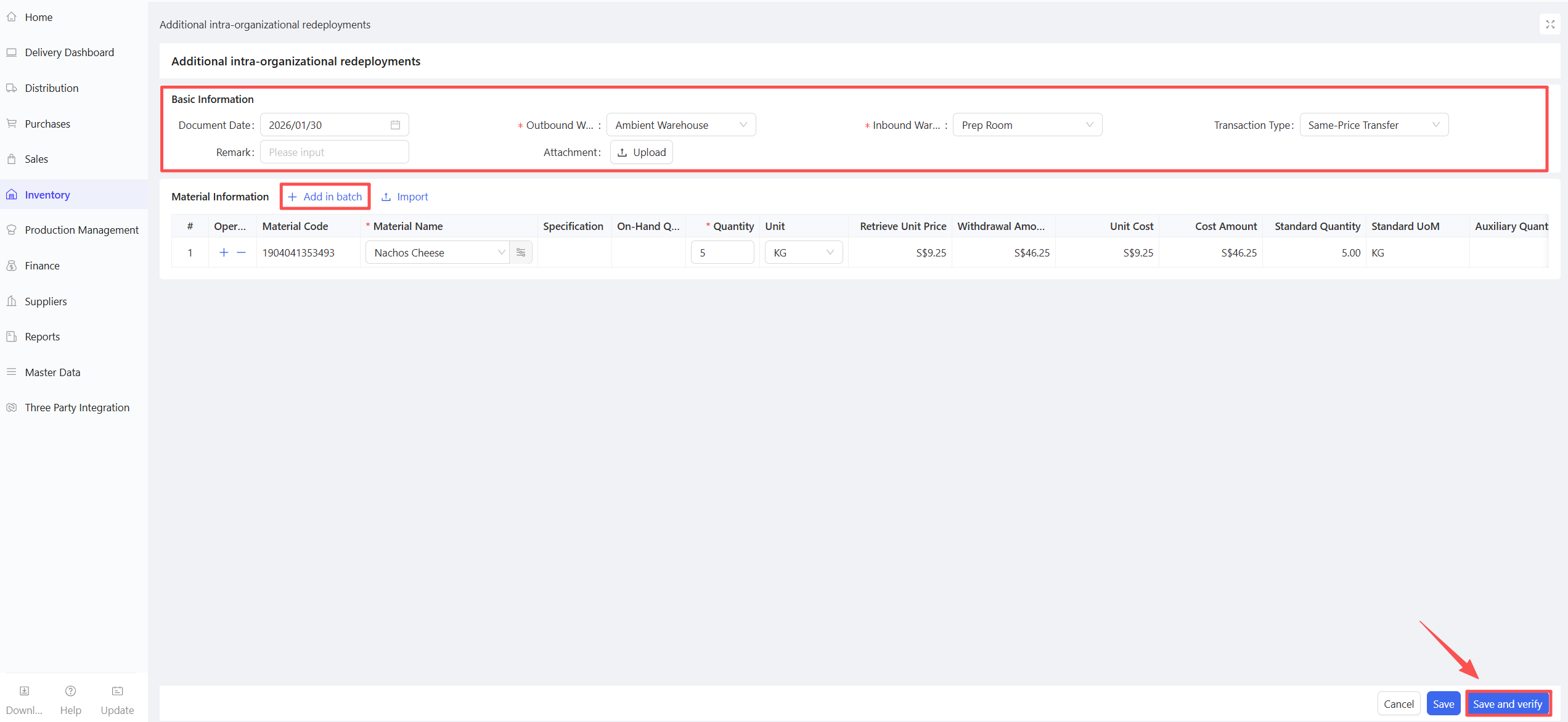
- Select Document Date, Shipping Warehouse, Receiving Warehouse, and Transaction Type.
- Add materials and Quantity.
- Click Save and Approve.
4.5.4 Notes
- Intra-organization store transfers: One transfer order automatically creates a transfer outbound order for the shipping warehouse and a transfer inbound order in the receiving warehouse. No goods receipt inspection is required.
- Intra-organization distribution center transfers: Whether the receiving warehouse performs goods receipt inspection is controlled by the parameter “Inspection Required for Transfers Between Warehouses of the Same Distribution Center.”
- Inter-organization transfers: The shipping organization creates the transfer order, and the receiving organization handles the transfer receipt.
4.6 Inventory Checking List
4.6.1 Function Overview
This function is used to reconcile system book inventory with physical inventory to ensure accuracy. It supports both PC and mobile app access, as well as open counting and blind counting modes. After inventory counting is completed, the system automatically generates an inventory surplus inbound order or an inventory shortage outbound order based on the variance.
4.6.2 Application Scenario
Applicable for daily, weekly, monthly, and ad-hoc inventory checks.
4.6.3 Operation Instructions
- Go to Distribution Center View > Supply Chain > Inventory Management > Inventory Checking List.
- Click Add Inventory Check.
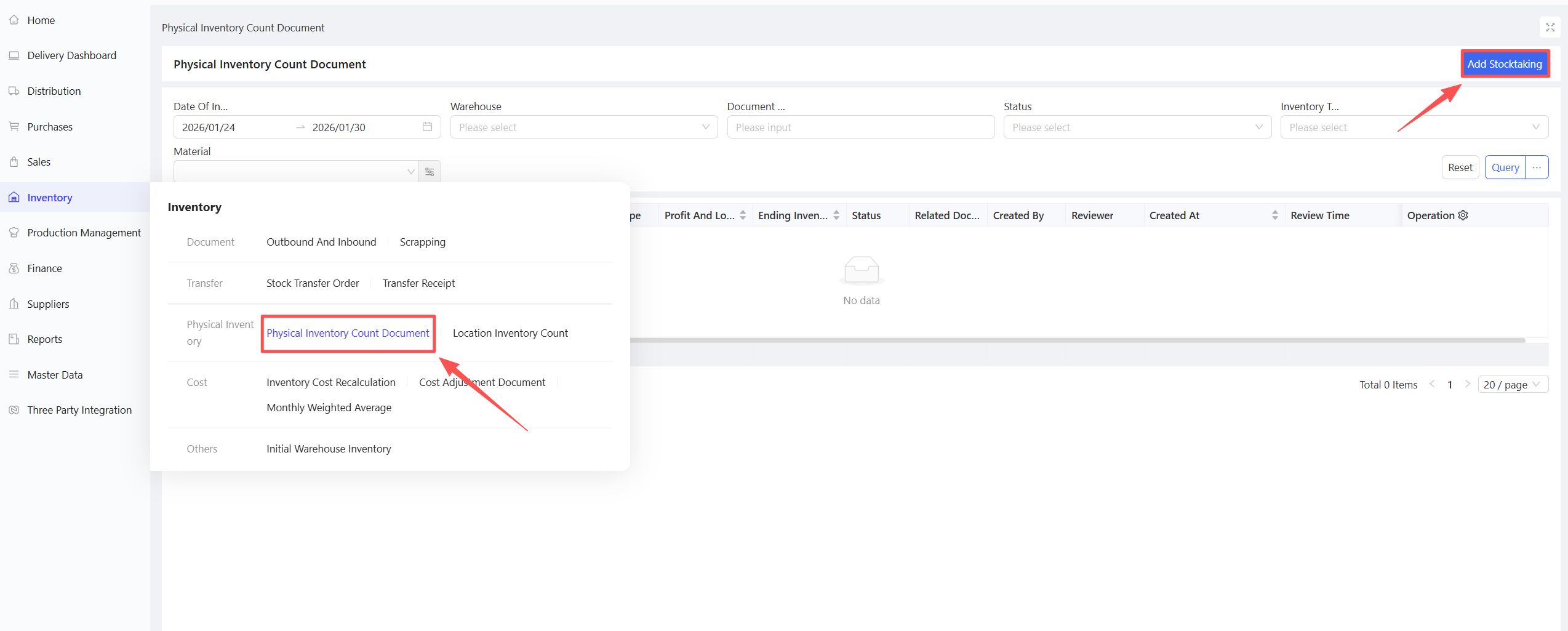
- Select Check Date, Check Type, Warehouse, and Unit of Check.
- Click Next Step to generate the inventory checking list.
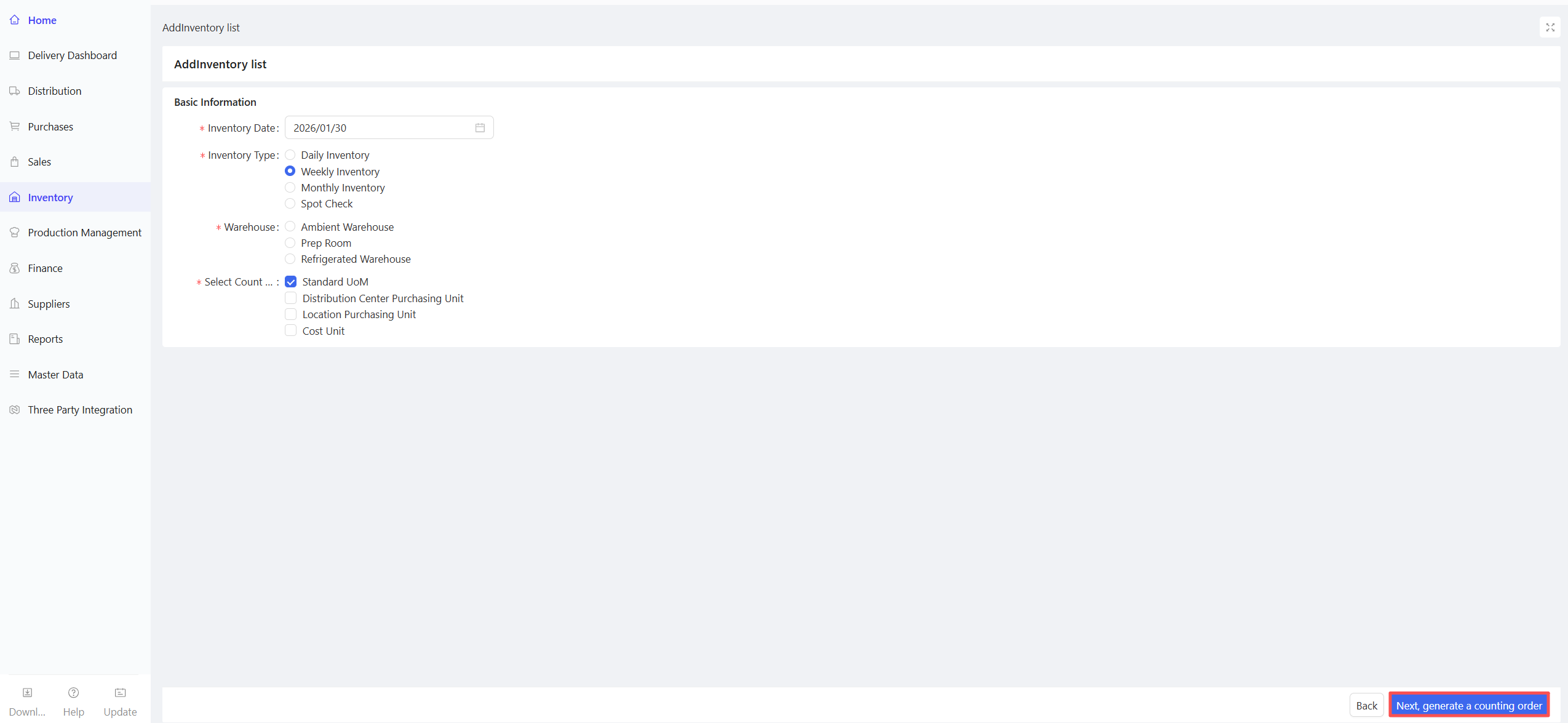
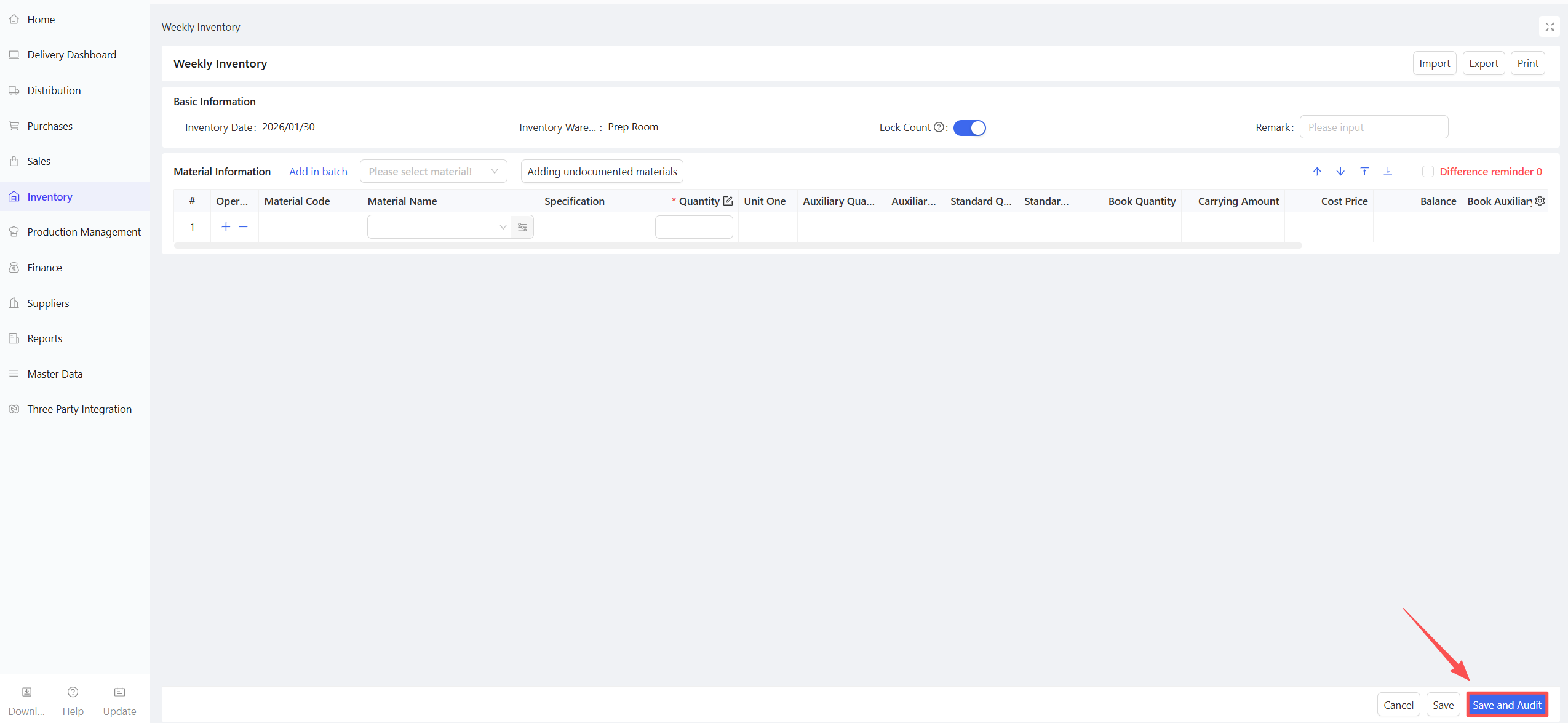
- Add materials, fill in the Counted Quantity, and click Save and Approve.
4.7 Cost Adjustment Order
4.7.1 Function Overview
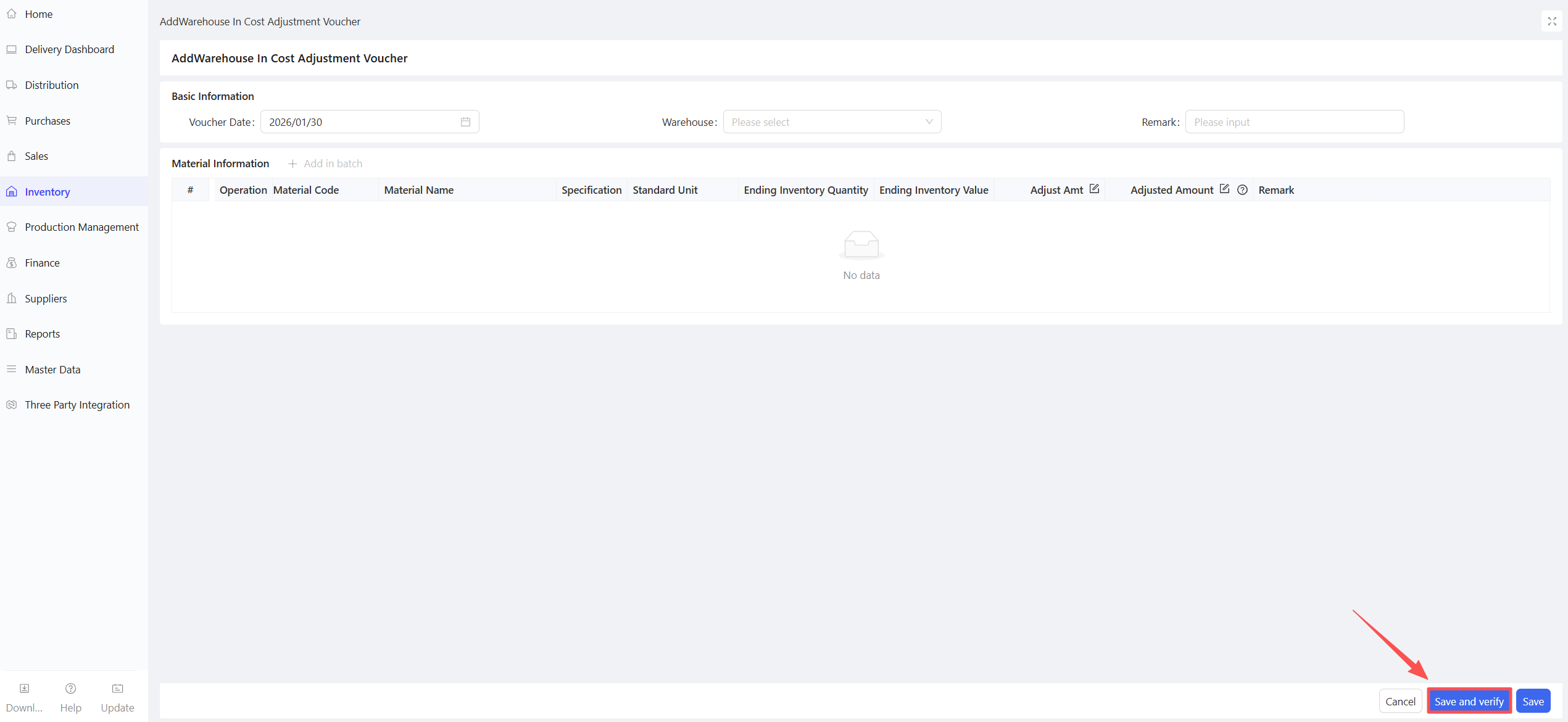
The cost adjustment order is a voucher used to modify the total cost of inventory items without changing their physical quantity, ensuring that the book value of inventory matches the actual (or reasonable) value. After the cost adjustment order is approved, the system displays the adjusted ending unit cost accordingly.
4.7.2 Application Scenario
Adjustments required when inventory costs are incorrect due to data entry errors or other reasons.
4.7.3 Operation Instructions
- Go to Distribution Center View > Supply Chain > Inventory Management > Cost Adjustment Order.
- Click Add and select Inbound Cost Adjustment/Outbound Cost Adjustment.
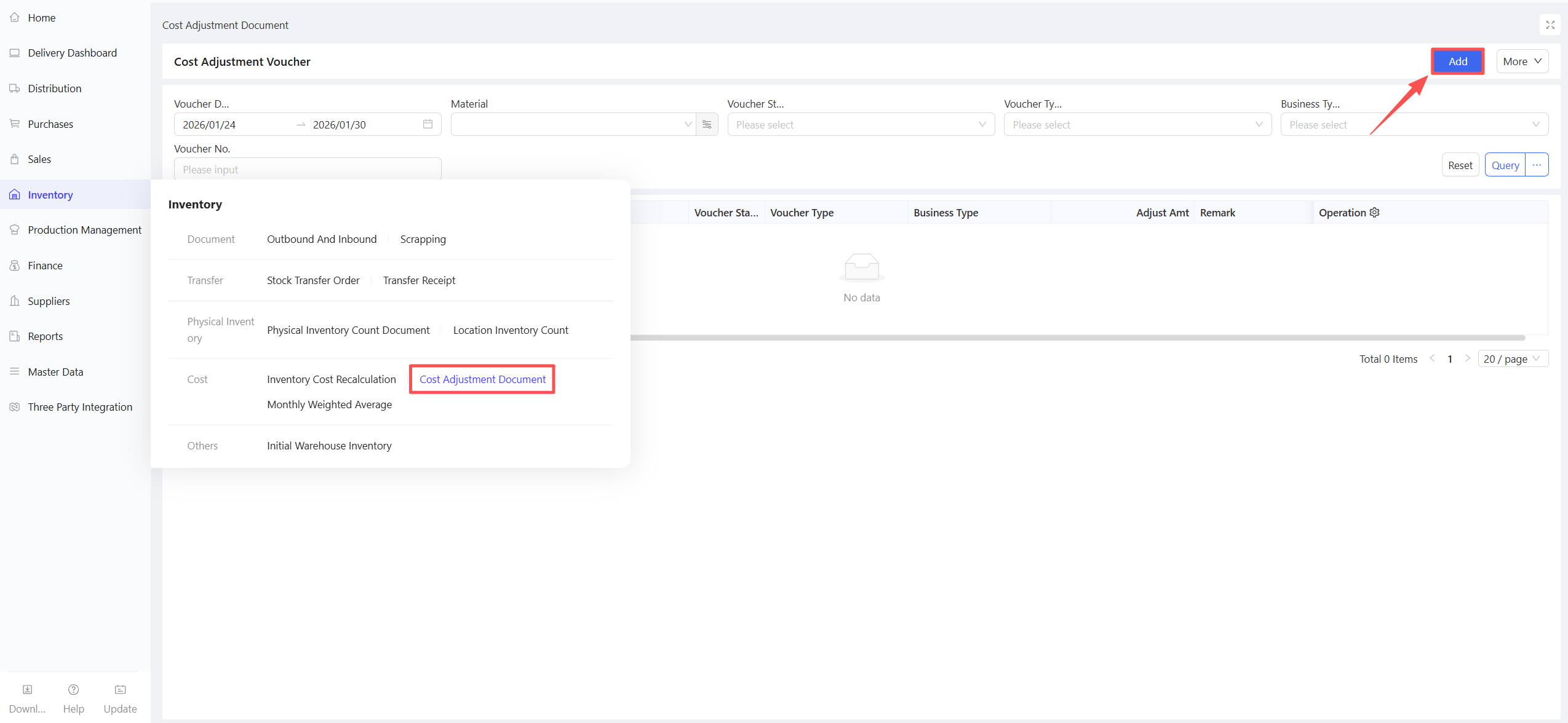
- Select Document Date and Warehouse.
- Add materials and fill in the Adjusted Cost Amount.
- Click Save and Approve.
4.7.4 Notes
- If cost accounting is performed by organization, the adjusted amount will affect all warehouses; the warehouse selected in the cost adjustment order can be arbitrary and will not impact the final adjustment result.
- If cost accounting is performed by the warehouse, the corresponding warehouse must be selected in the cost adjustment order for accurate cost calculation.
4.8 Inventory Cost Recalculation
4.8.1 Function Overview
This function systematically retraces and recalculates all or part of the inventory transaction records of a warehouse over a specified period based on preset cost valuation logic (e.g., moving weighted average), to derive the most accurate and logically consistent ending unit cost of inventory.
4.8.2 Application Scenario
Resolves inventory cost distortion caused by backdated transactions, supplementary orders, negative inventory, or price adjustments.
4.8.3 Operation Instructions
- Go to Distribution Center View > Supply Chain > Inventory Management > Inventory Cost Recalculation.
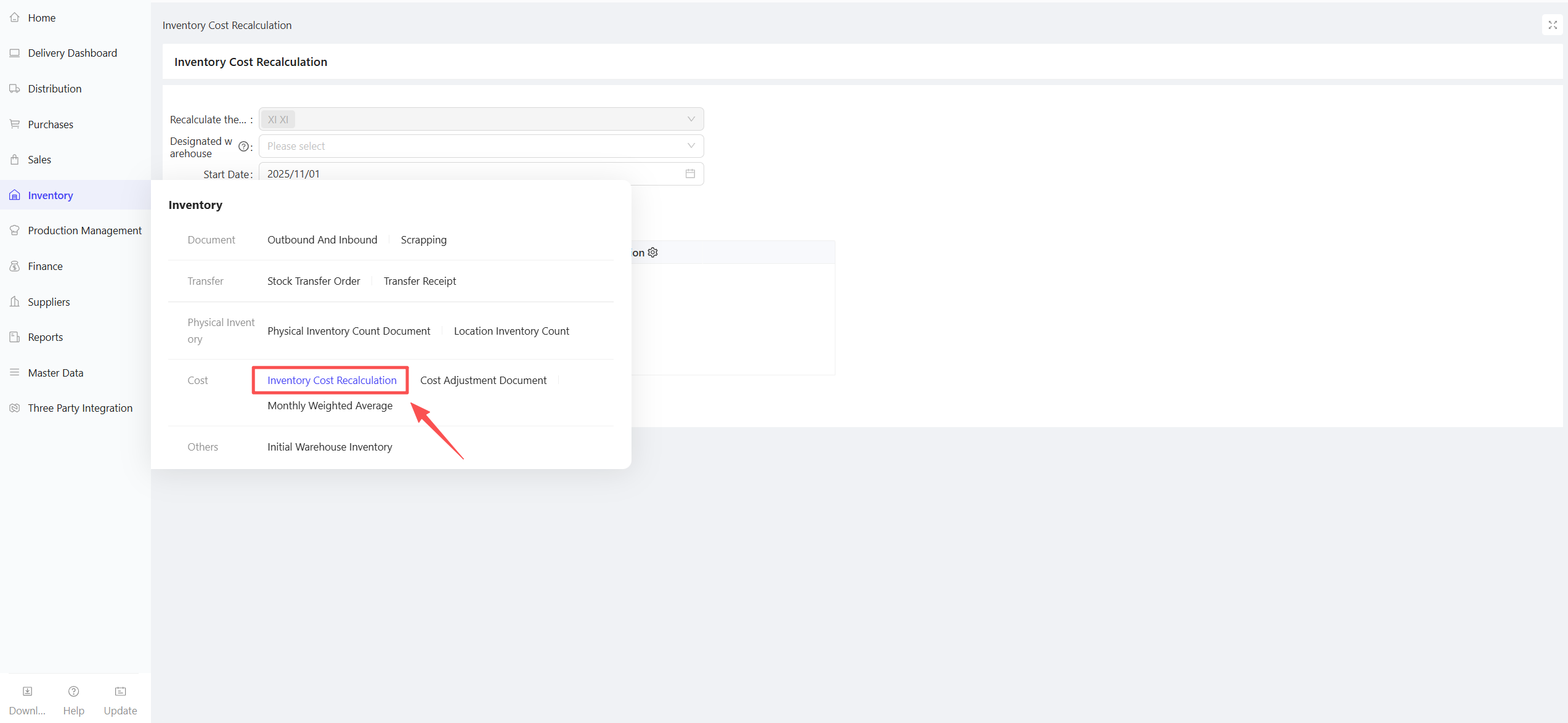
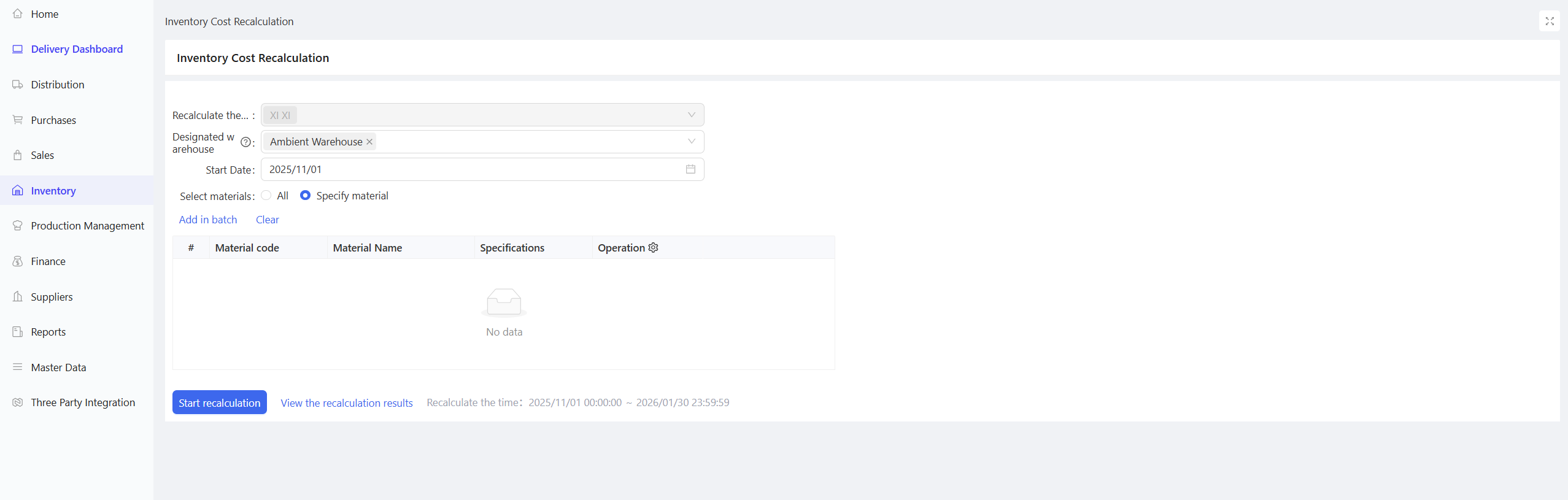
- Select Warehouse, Start Date, and Material Scope.
- Click Start Recalculation.
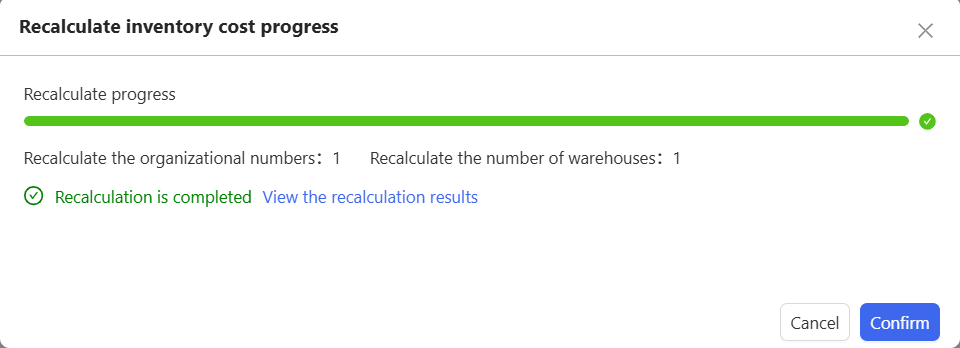
- Click Confirm after recalculation is completed.
4.8.4 Notes
- Before performing inventory cost recalculation, all inbound and outbound documents within the recalculation period must be processed; no inbound/outbound operations are allowed during recalculation to ensure accuracy.
- The system will recalculate the cost of all outbound documents for the selected organizational warehouse using the moving weighted average method.
- During recalculation, approved cost adjustment orders will be automatically unapproved.
- Recalculation may take a long time; it is recommended to perform this operation during non-business hours.
5 Production Management
5.1 Module Overview
This module manages the entire process of central kitchen production and processing for chain catering enterprises, including finished product management, recipe management, production and processing orders, processing dashboard, and finished product pre-warehousing orders. It supports standardized production, cost reduction and efficiency improvement, food safety control, and meets the end-to-end processing needs of catering enterprises from raw materials to finished products. Two production modes are supported:
- Production Processing Order → Production Material Requisition → Production Warehousing
- Direct Creation of Finished Product Pre-warehousing Order
5.2 Finished Product Management
5.2.1 Function Overview
This function mainly specifies the default processing workshop and default finished product inbound warehouse for processed items, and can set the default material requisition warehouse for raw materials corresponding to finished products.
5.2.2 Function Value
This basic configuration pre-sets the default material requisition warehouse for raw materials, facilitating production operations.
5.2.3 Application Scenario
- Specify the default processing workshop and default finished product inbound warehouse for finished products.
- Specify the default material requisition warehouse for raw materials corresponding to finished products.
5.2.4 Operation Instructions
- Go to Distribution Center View > Production Management > Finished Product Management.
- Click Add Finished Product.
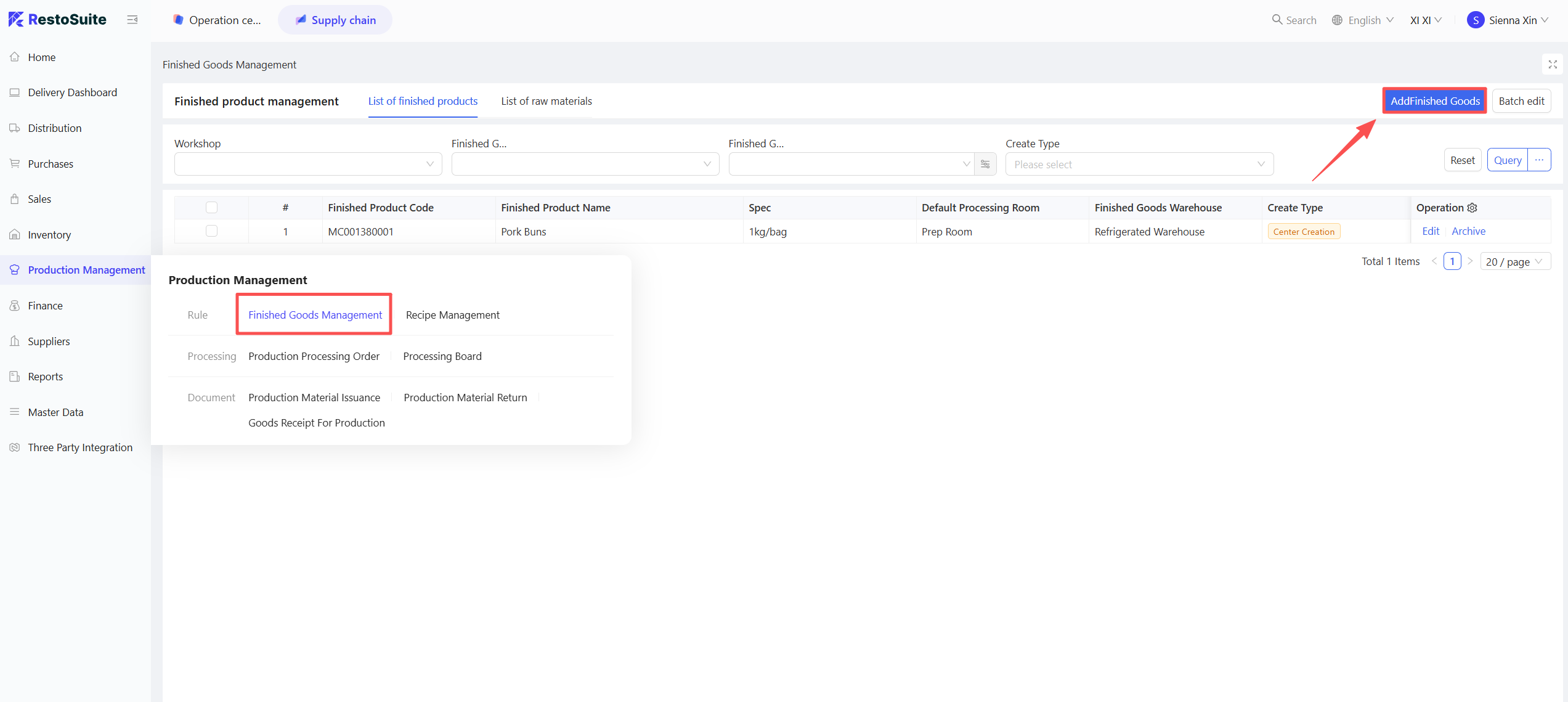
- Select the finished product and set the Default Processing Workshop and Default Finished Product Inbound Warehouse.

5.2.5 Notes
- When multiple finished products share the same raw material but involve different material requisition warehouses, edits can be made in Finished Product Management > Raw Material List.
5.3 Recipe Management
5.3.1 Function Overview
This function is used to create and maintain the BOM (Bill of Materials) for finished products in production and processing business, supporting new recipe creation and import.
5.3.2 Function Value
Recipe management links finished products with materials and records the composition of finished products.
5.3.3 Application Scenario
Central kitchen production and processing requiring management of standard and actual costs of finished products.
5.3.4 Operation Instructions
- Go to Distribution Center View > Production Management > Recipe Management.
- Click Add Recipe.
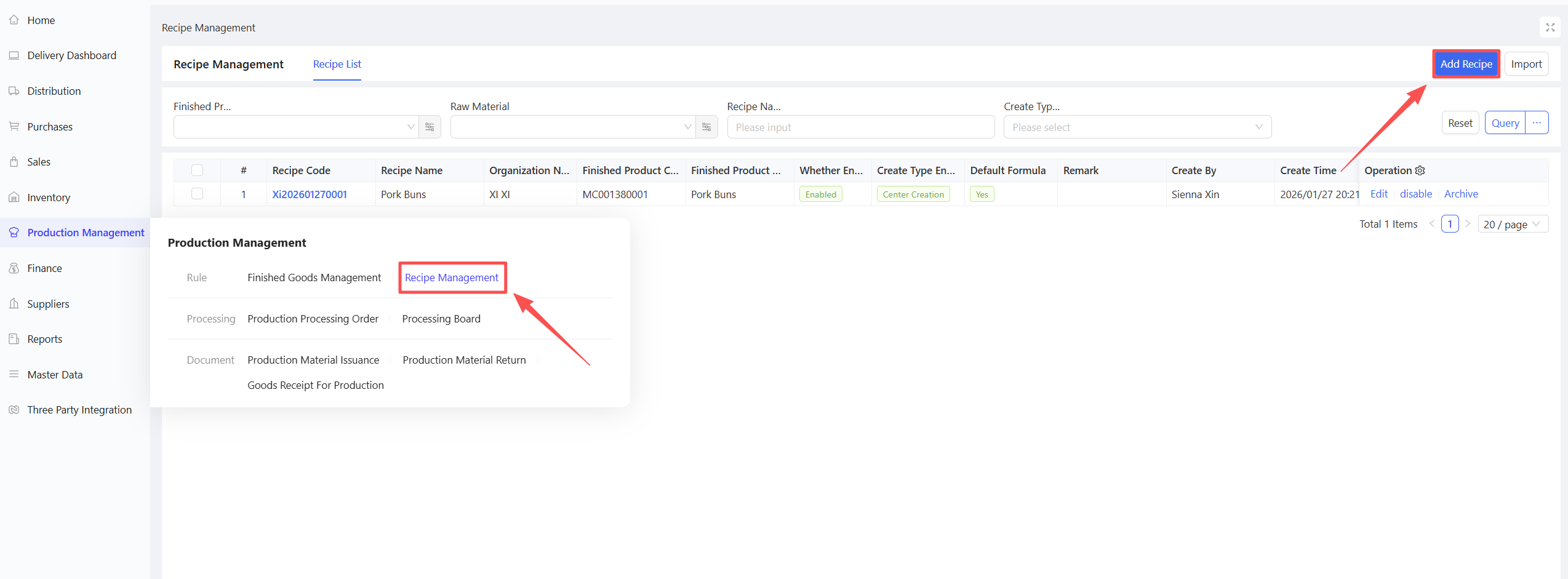
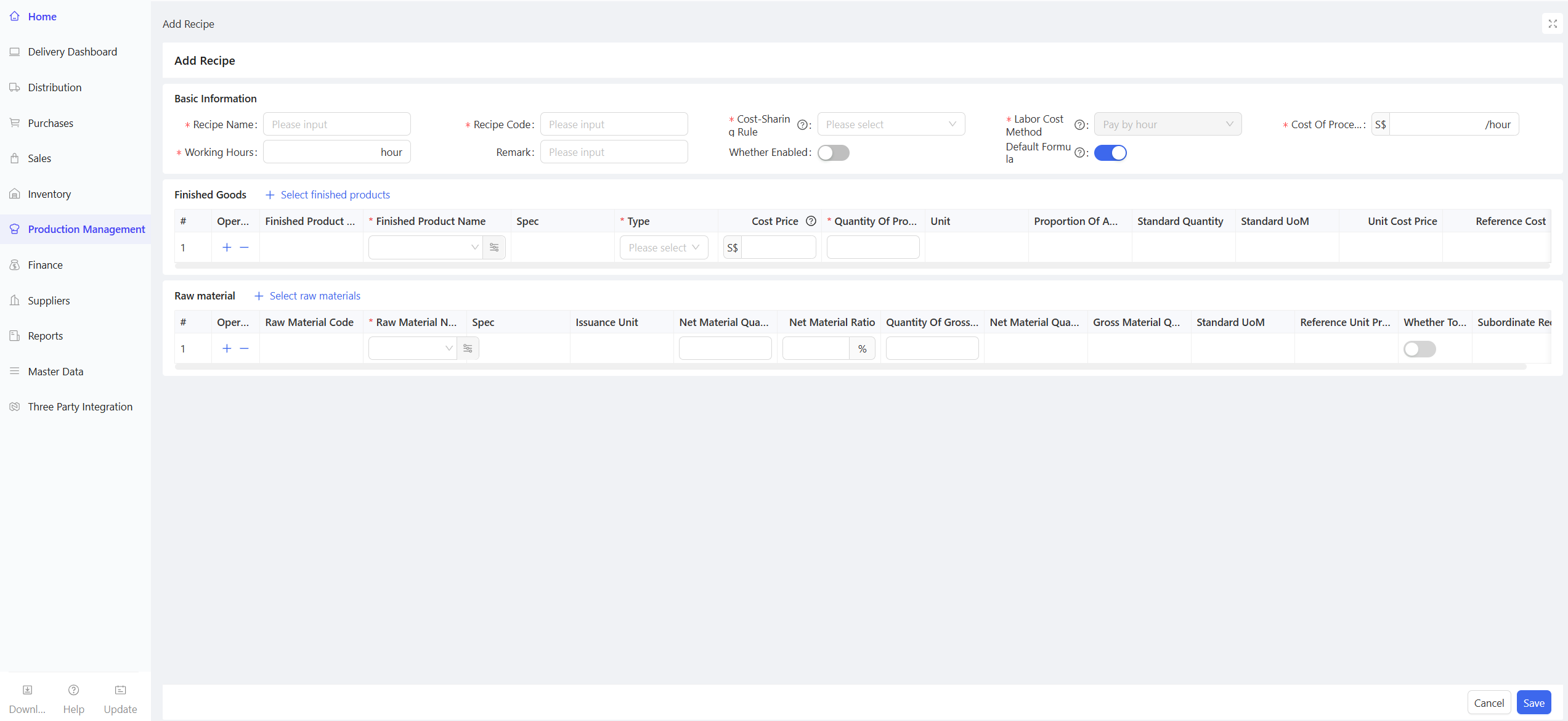
- Maintain Basic Information, Finished Products, and Raw Materials.
- Click Save.
5.4 Production Processing Order
5.4.1 Function Overview
This function is used to formulate and maintain production plans.
5.4.2 Application Scenario
The central kitchen formulates production plans in advance before production operations.
5.4.3 Operation Instructions
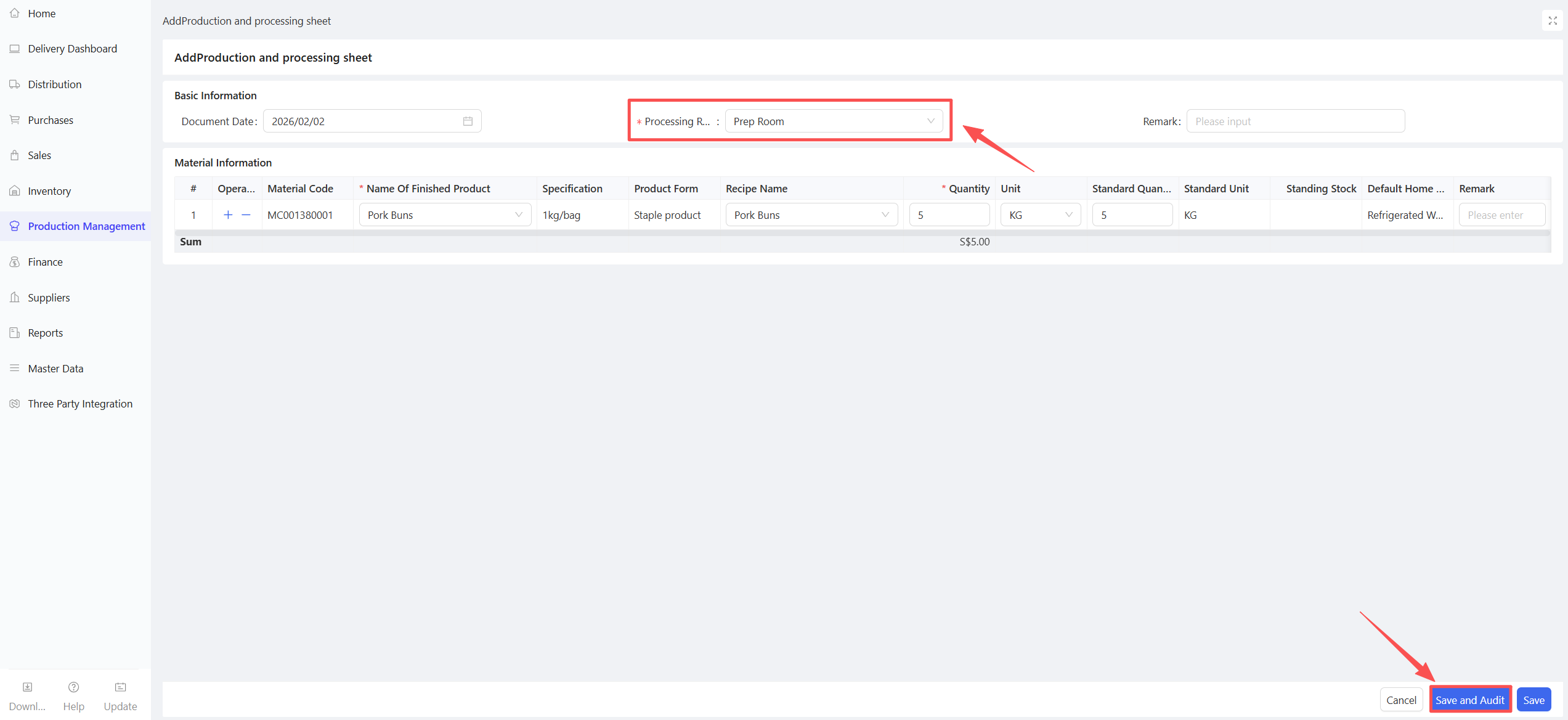
- Go to Distribution Center View > Production Management > Production Processing Order.
- Click Add New.
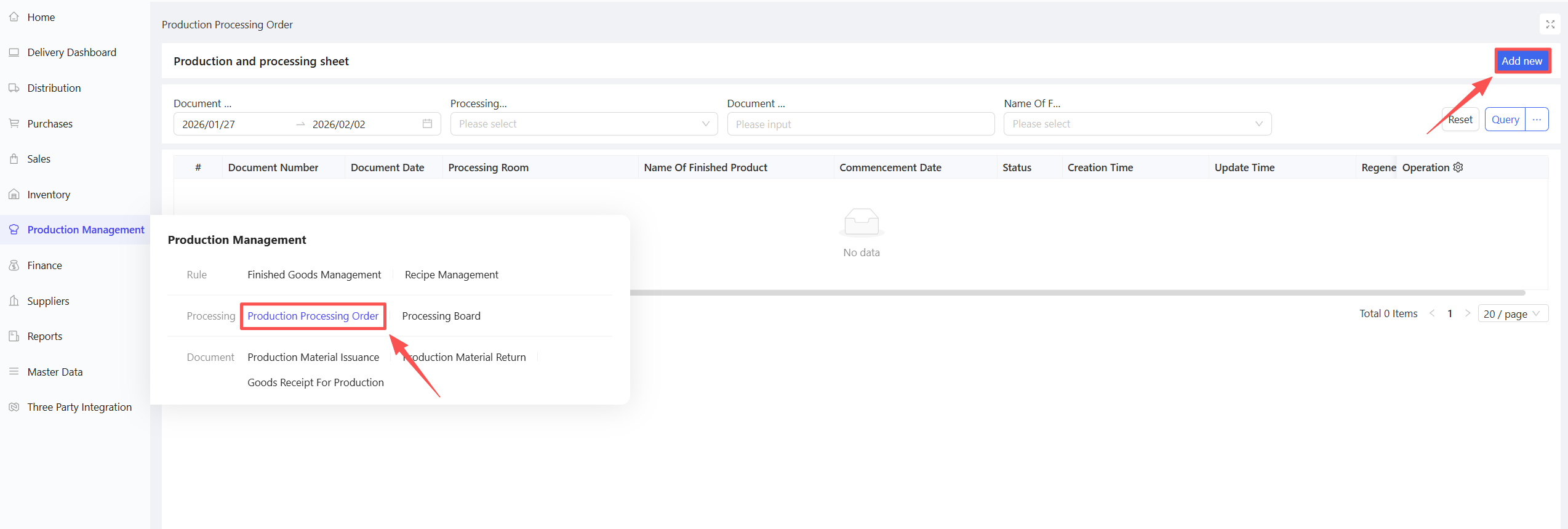
- Select Document Date, Processing Workshop, Processed Items, and Processing Quantity.
- Click Save and Approve.
5.5 Processing Dashboard
5.5.1 Function Overview
This function integrates production material requisition, production warehousing, and production completion operations, facilitating the processing of production documents.
5.5.2 Application Scenario
Production material requisition and production warehousing processing in the central kitchen.
5.5.3 Operation Instructions
5.5.3.1 Production Material Requisition
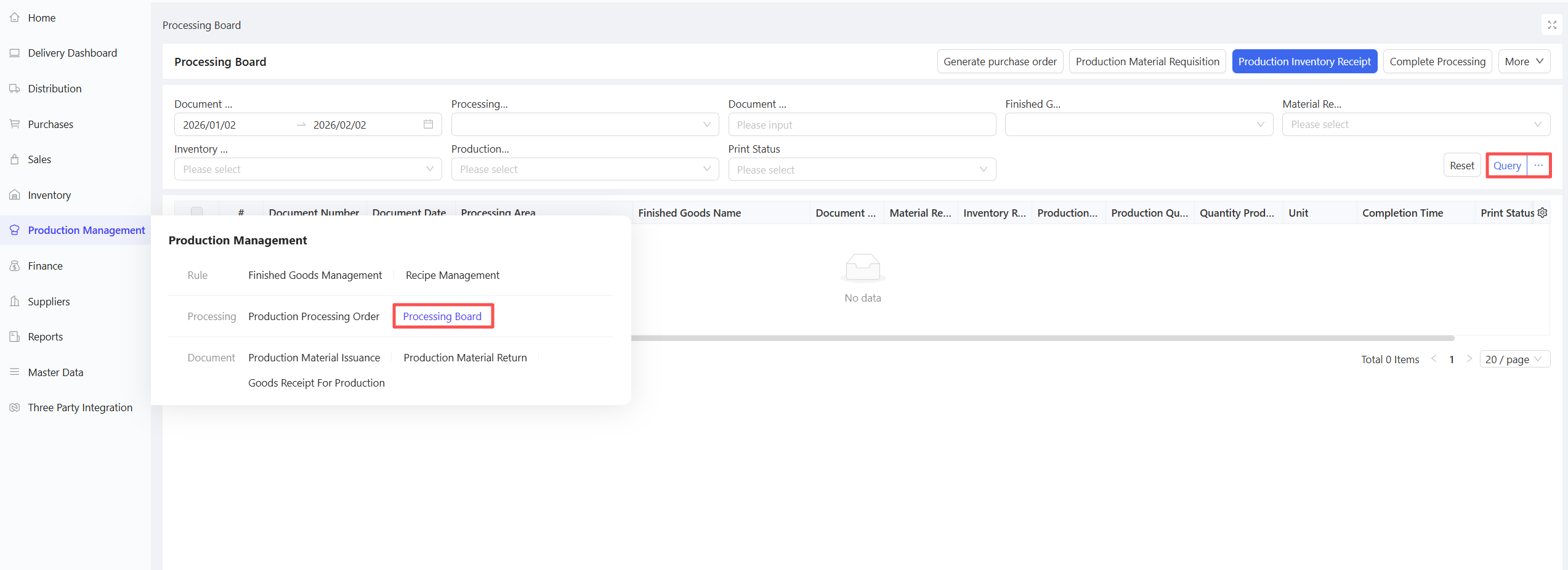
- Go to Distribution Center View > Production Management > Processing Dashboard.
- Select the Document Date and click Query.
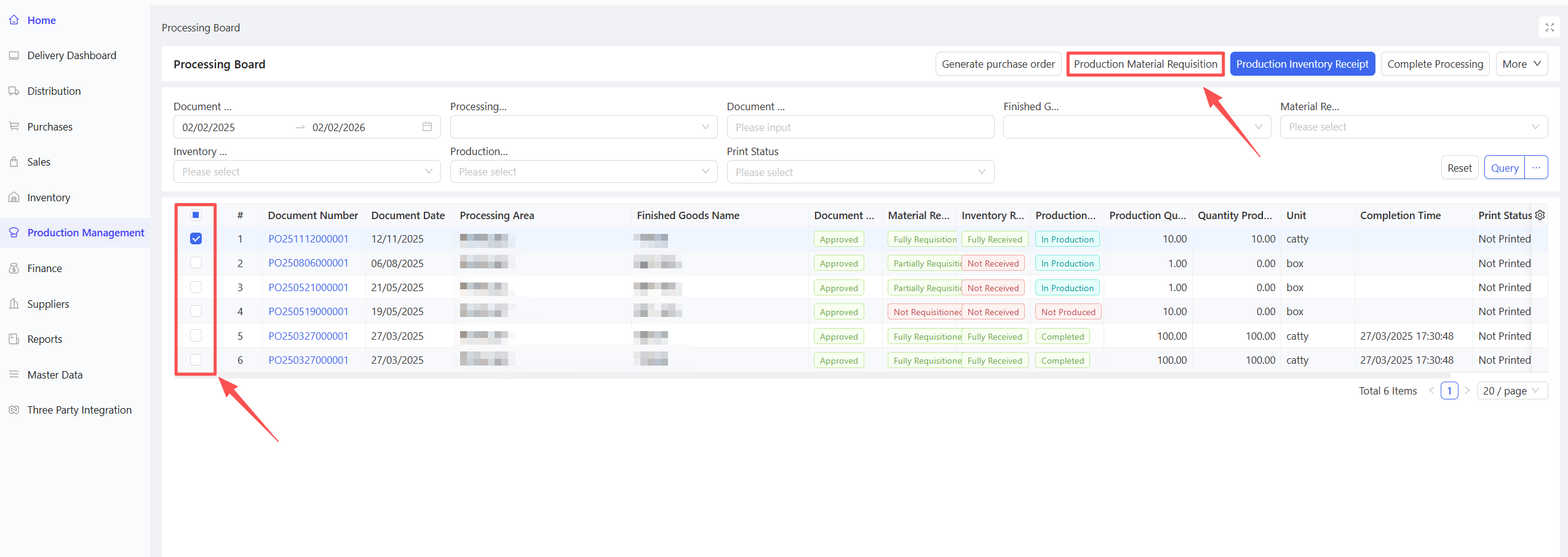
- Check the documents to be processed and click Production Material Requisition.
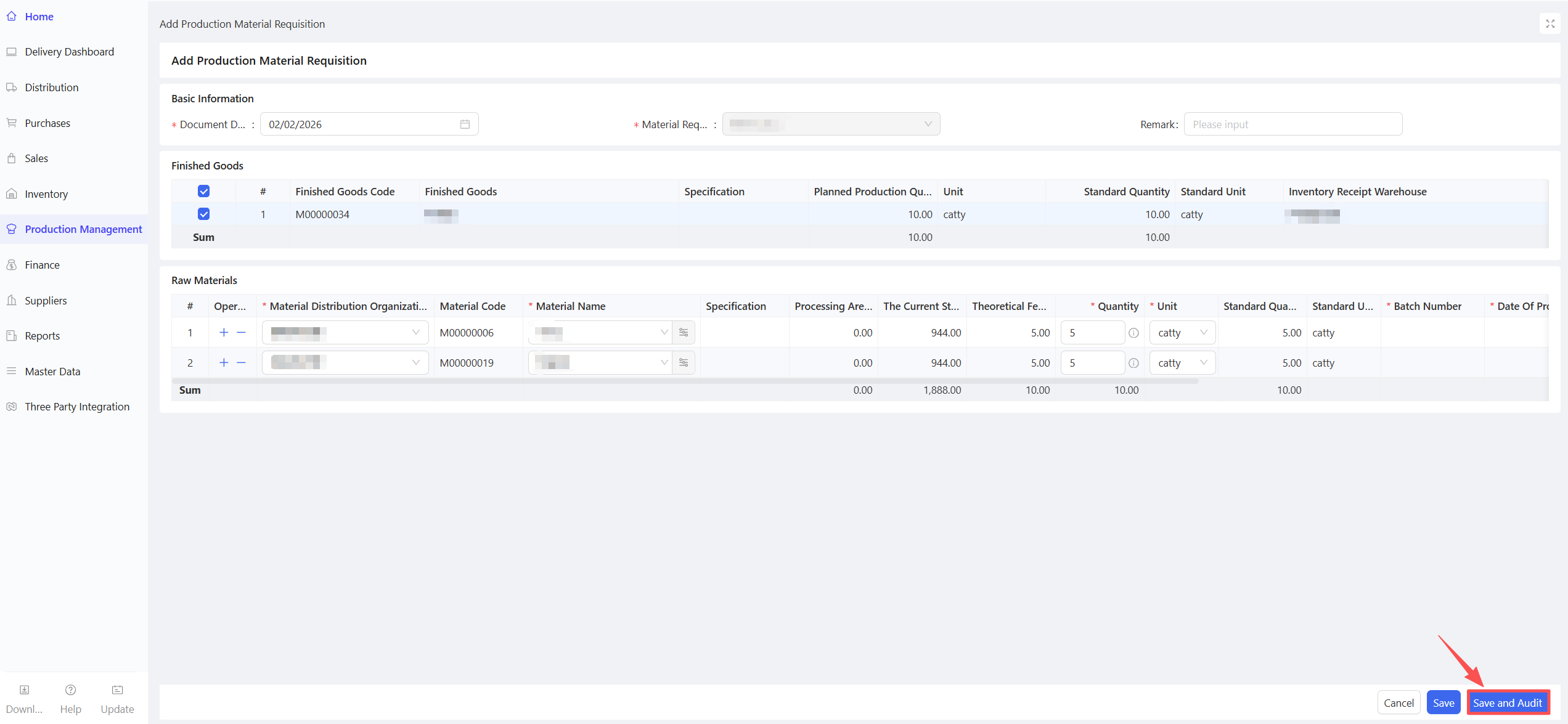
- Fill in the Requisition Quantity and click Save and Approve.
5.5.3.2 Production Warehousing
-
Go to Distribution Center View > Production Management > Processing Dashboard.
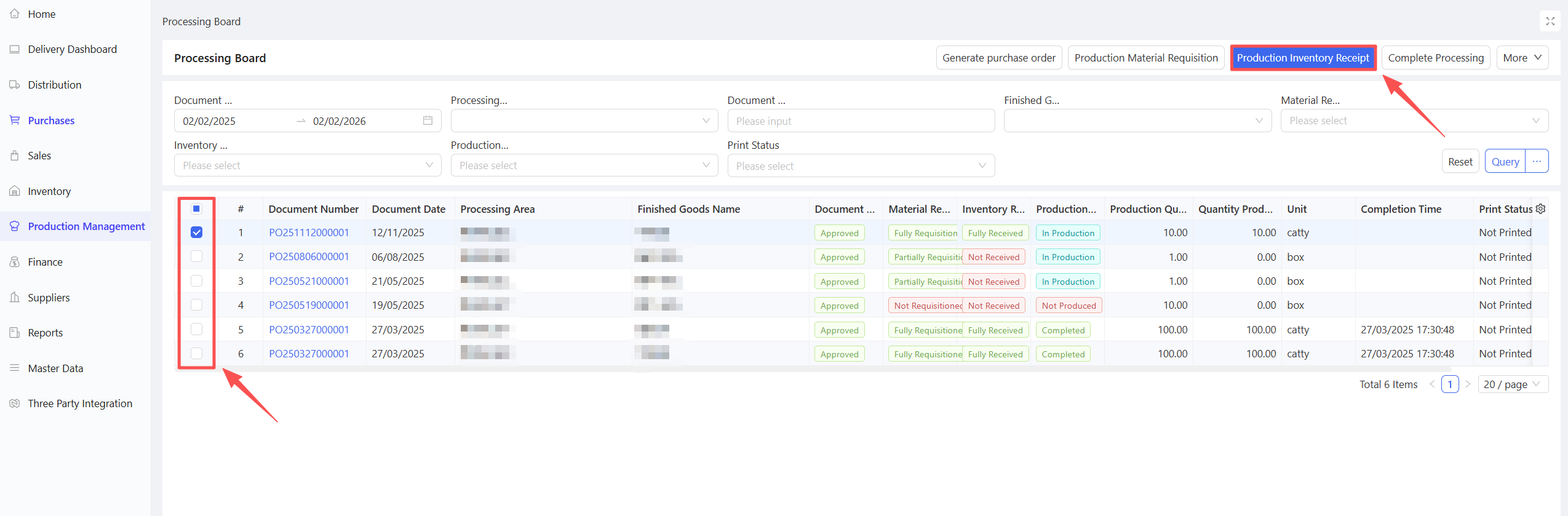
-
Select the requisitioned documents and click Production Warehousing.
-
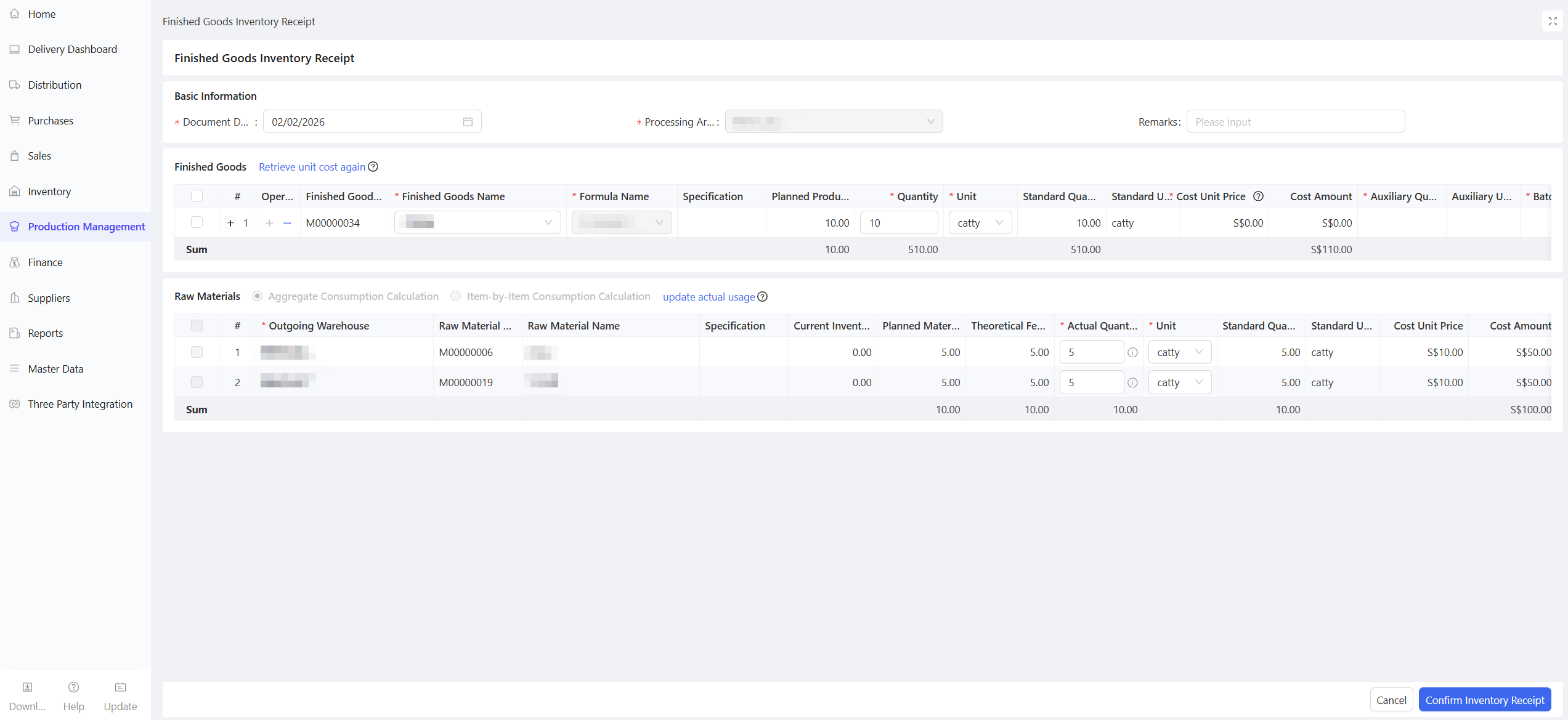
Fill in the Inbound Quantity of processed items and click Confirm Warehousing.
5.5.3.3 Production Completion
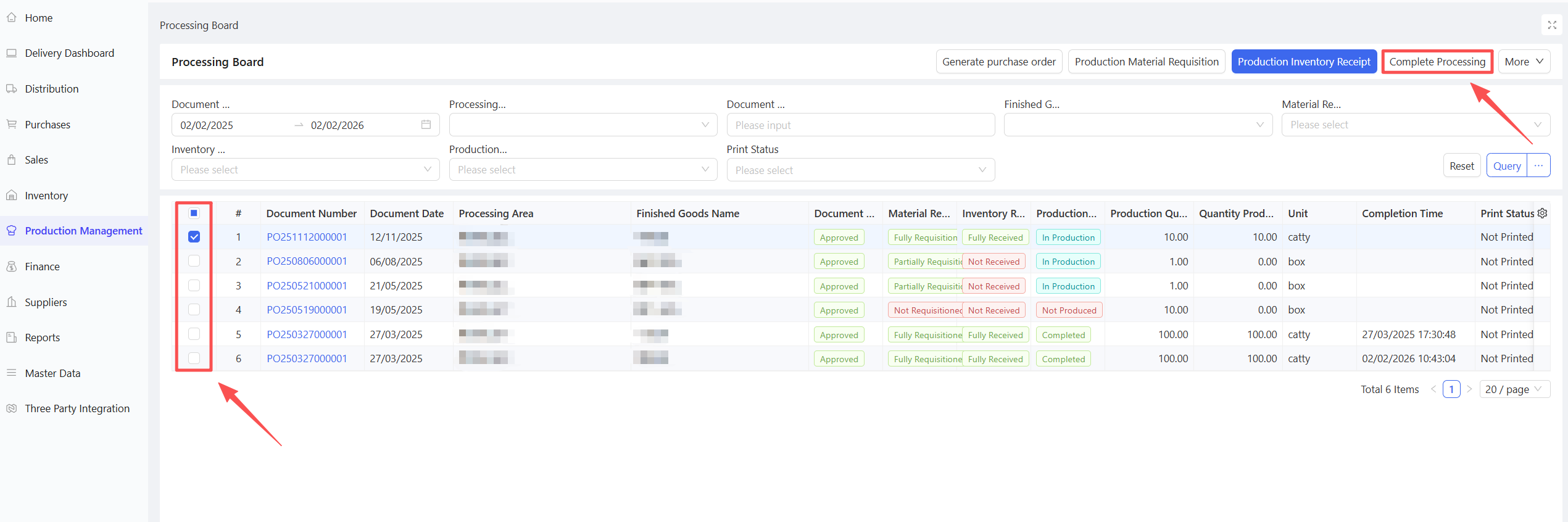
- Go to Distribution Center View > Production Management > Processing Dashboard.
- Query the documents for which production warehousing has been completed and click Production Completion.
5.6 Reverse Process
When errors occur in the production and processing process, and cancellation is required, follow these steps:
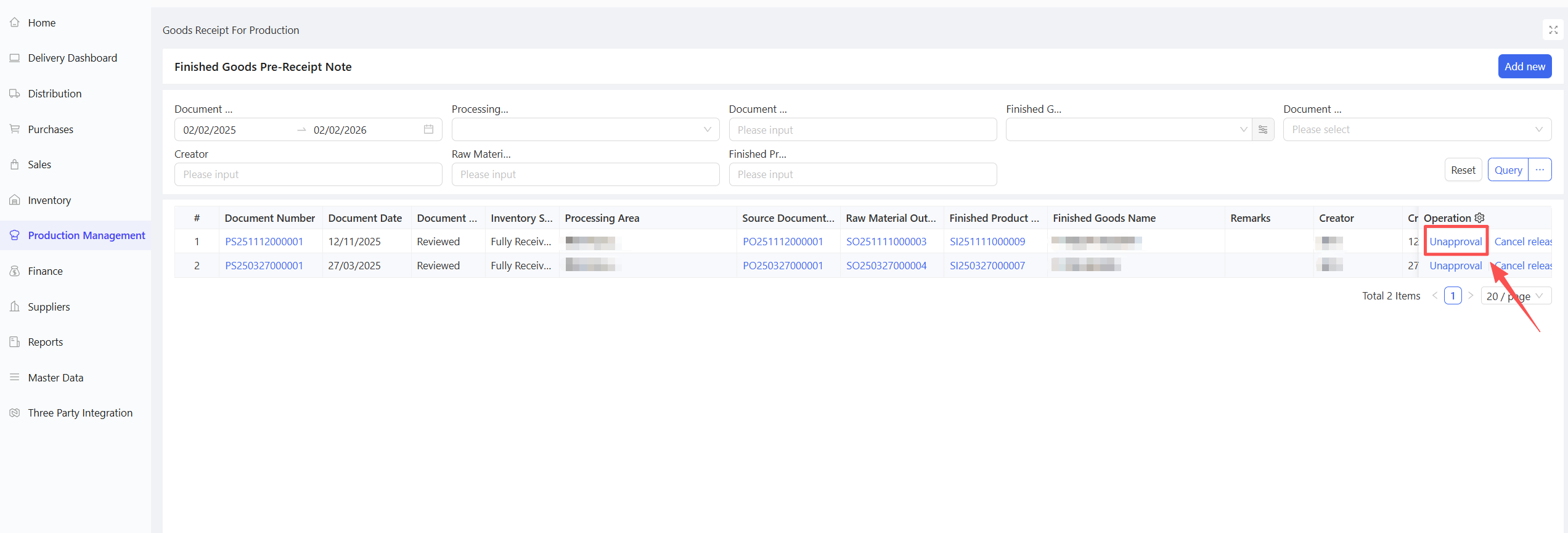
- Go to Distribution Center View > Production Management > Finished Product Pre-warehousing Order.
- Click Unapprove.
- Select Production Material Return Order.
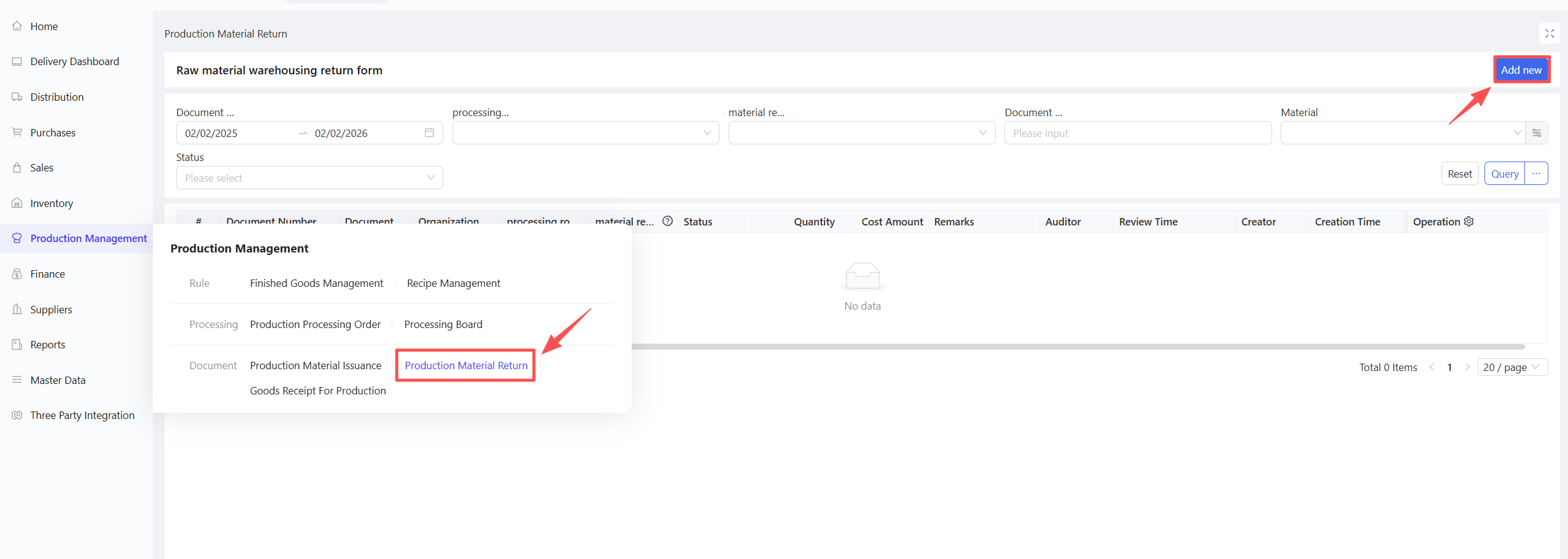
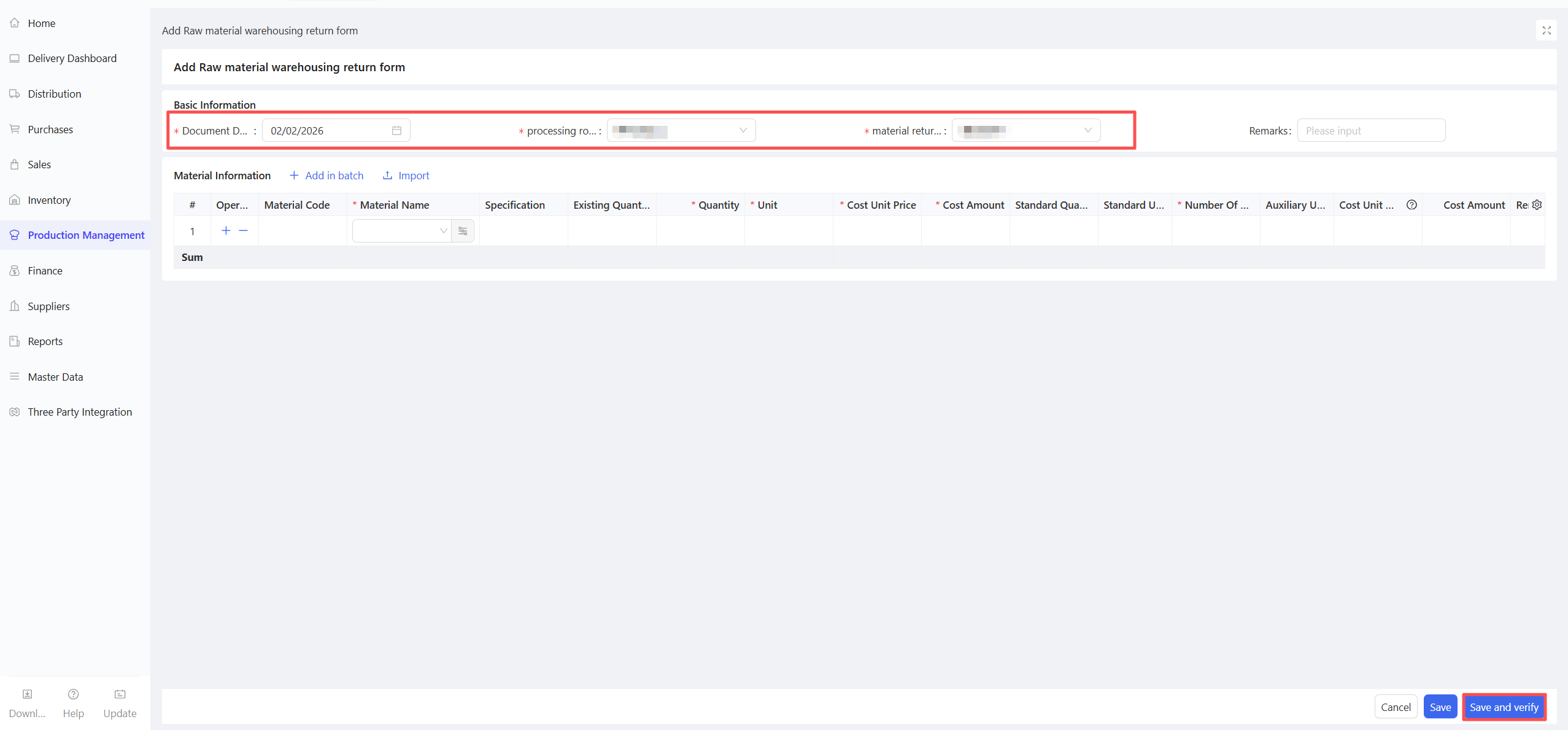
- Query returnable data based on Document Date, Processing Workshop, Return Warehouse, etc.
- Enter the Return Quantity and click Save and Approve.
6 Financial Management
6.1 Module Overview
This module handles the following financial processes:
- Accounts payable, reconciliation, payment verification, and invoicing for Distribution Center ↔ External Suppliers and Store ↔ External Suppliers.
- Accounts receivable, reconciliation, and collection verification for Distribution Center ↔ Customers and Distribution Center ↔ Stores.
- Automatic inter-organizational accounts receivable/payable collaboration and automatic payment/collection collaboration between the distribution center and stores.
- Processing of recharge business.
6.2 Accounts Payable Order
6.2.1 Function Overview
This function confirms accounts payable (including materials, quantity, price, etc.) for procurement organizations after receiving goods from suppliers. It is generated with reference to purchase warehousing documents and warehousing return documents.
6.2.2 Function Value
- Forms accounts payable documents after goods receipt, facilitating reconciliation between suppliers and purchasers.
- For stores using prepayment, fully automated accounts payable verification reduces manual operations and improves efficiency.
6.2.3 Application Scenario
- Forms accounts payable when distribution centers/stores order goods from external suppliers and receive goods.
- Forms accounts payable when stores/lower-level distribution centers order goods from upper-level distribution centers and receive goods.
6.2.4 Operation Instructions
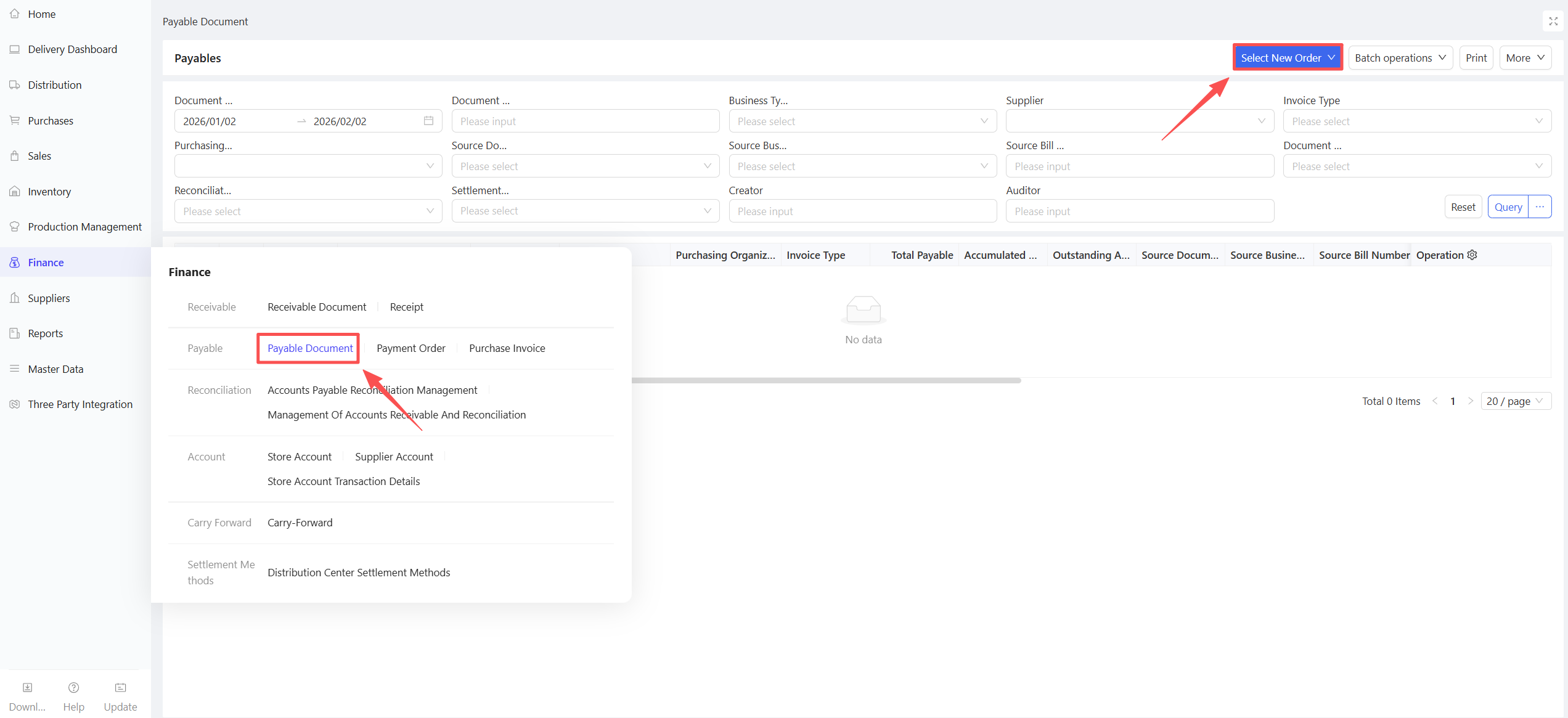
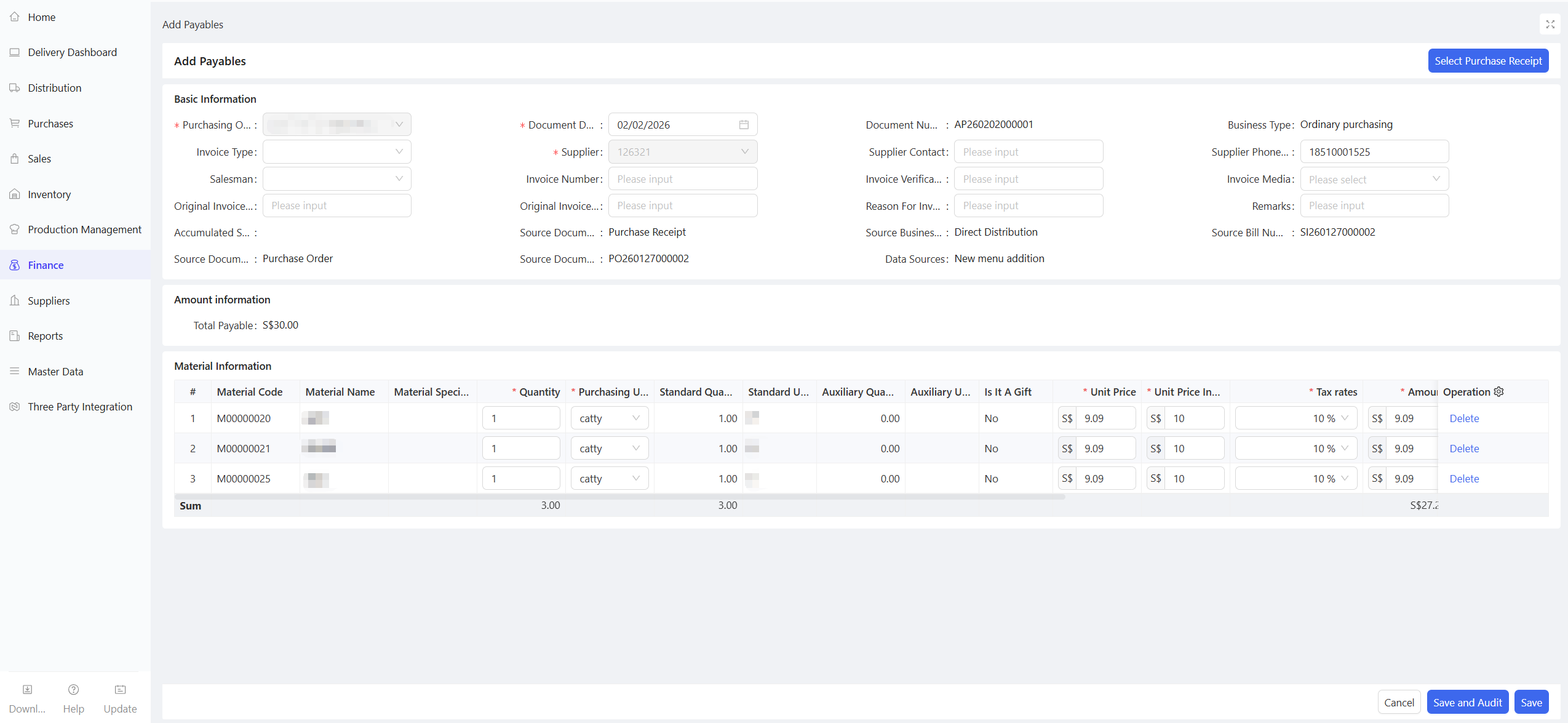
- Go to Group View/Distribution Center View/Store View > Supply Chain > Financial Management > Accounts Payable Order.
-
Click Select New Order > Create from Warehousing Document/Create from Warehousing Return Document.
-
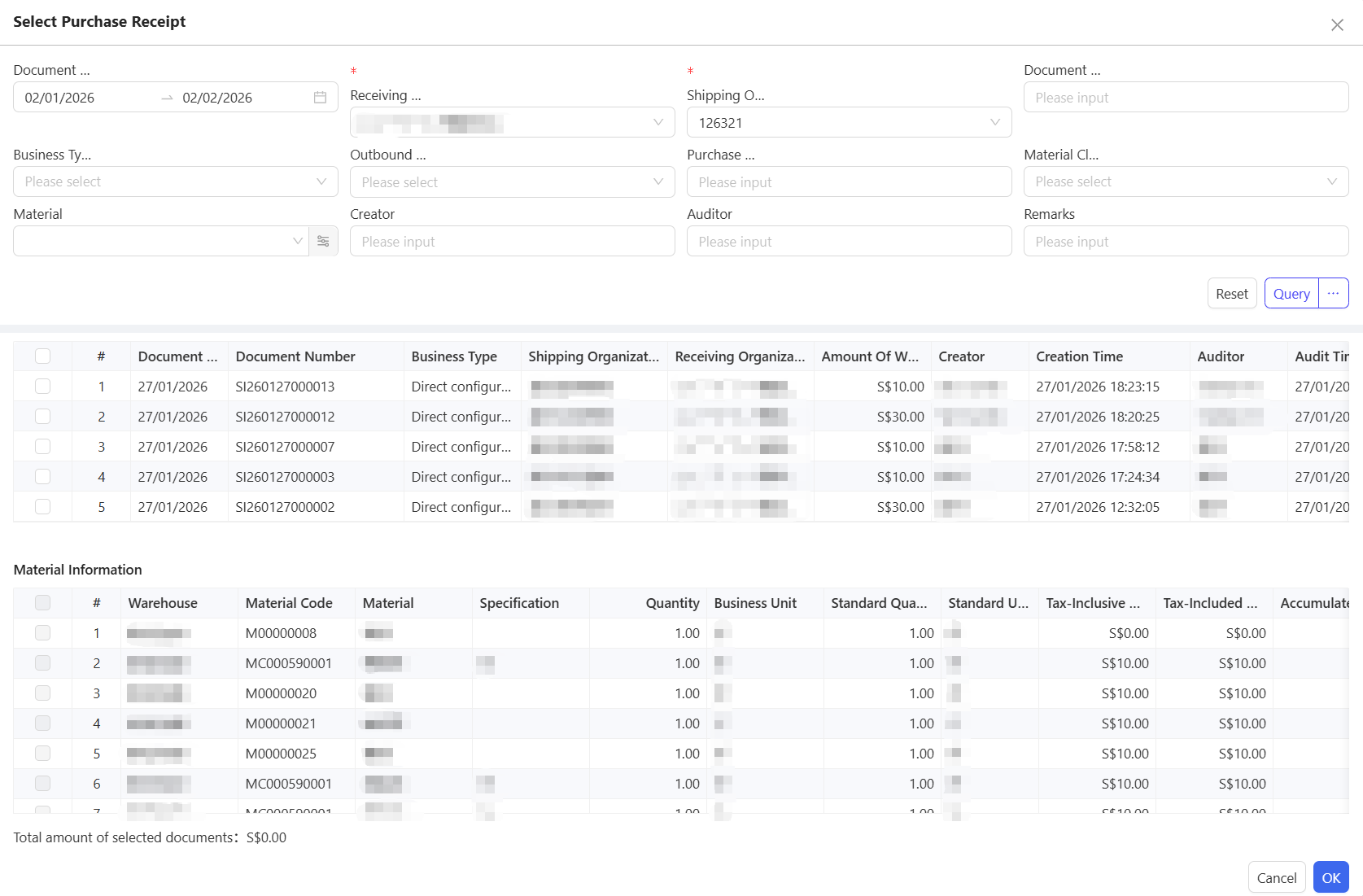
Query the corresponding purchase warehousing documents by Document Date, Receiving Organization, and Shipping Organization.
-
Check the corresponding document details and click Confirm.
-
Verify the accounts payable order information and click Save and Approve.
6.2.5 Notes
Accounts payable documents support four generation methods, as detailed below:
- HQ–Store Transaction Collaboration: After the headquarters (HQ) generates an accounts receivable document, the system automatically synchronizes it to the store side and generates the corresponding store accounts payable document.
- Manual Creation for External Procurement: When external procurement occurs at a distribution center or store, accounts payable documents are generated manually to confirm the amount payable.
- Batch Generation via Reconciliation: In the Accounts Payable Reconciliation Management module, use the Batch Generate Accounts Payable Documents function to automatically pull purchase inbound documents and inbound return documents within a specified time range and batch-generate the corresponding accounts payable documents.
- Automatic Offset for Pay-Before-Receive: When a store adopts a pay-before-receipt model, payment is completed together with the order. After the store completes the inbound operation, the system automatically generates the accounts payable document and the payment document and offsets them against each other automatically, with no manual intervention required throughout the process.
6.3 Accounts Receivable Order
6.3.1 Function Overview
This function generates accounts receivable orders to confirm receivables (including materials, quantity, price, etc.) based on the quantity of distributed outbound/outbound return goods after the distribution center ships goods to stores as a sales organization. After accounts receivable are formed, the store’s accounts payable are automatically generated through collaboration. Three-generation methods are supported:
- Manually pull distribution outbound documents to generate orders.
- Enable the parameter for automatic accounts receivable order generation: Orders are automatically generated after the entire delivery order is processed.
- Accounts Receivable Reconciliation Management → Batch Generate Accounts Receivable Orders: Automatically pulls distribution outbound documents within a specified period to generate accounts receivable orders in batches.
6.3.2 Function Value
For transactions between the distribution center and stores, automatic generation of accounts payable from accounts receivable improves financial efficiency, reduces errors, and ensures consistent accounts between both parties.
6.3.3 Application Scenario
The distribution center ships goods to stores/lower-level distribution centers with periodic settlement; shipped data forms accounts receivable before settlement.
6.3.4 Operation Instructions
- Go to Group View/Distribution Center View > Supply Chain > Financial Management > Accounts Receivable Order.
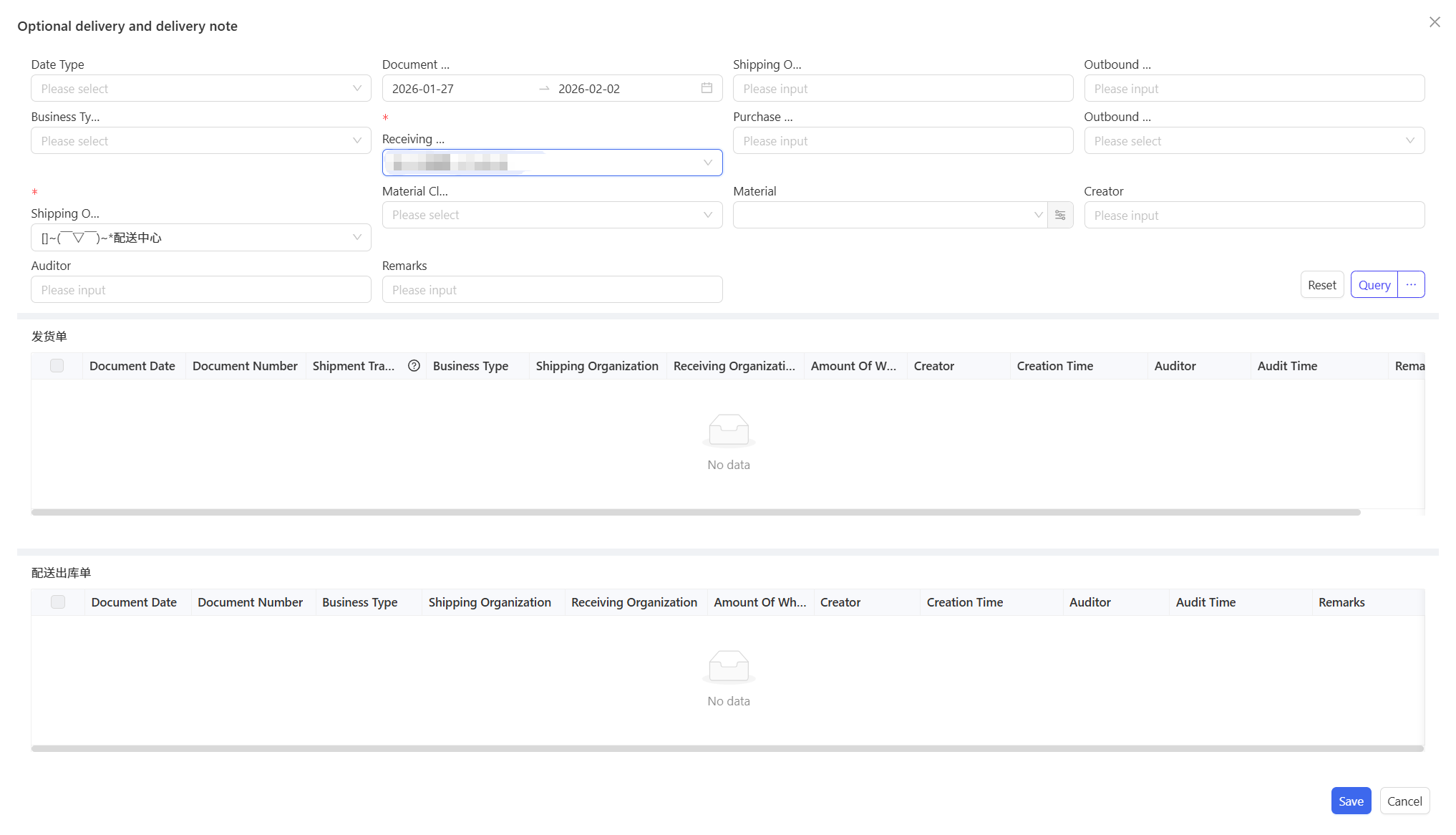
- Click Select New Order > Create from Distribution Outbound Document/Create from Distribution Outbound Return Document.
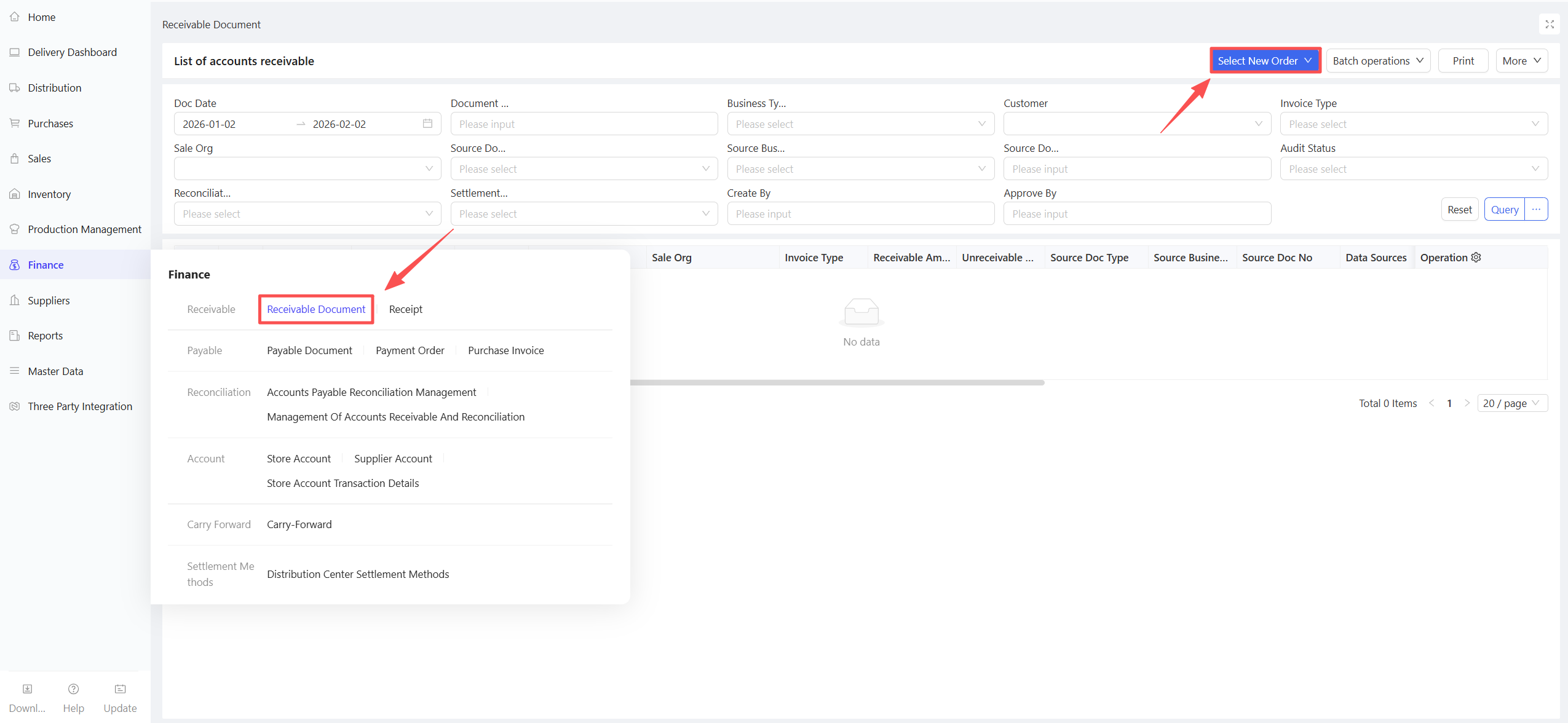
- Query the corresponding documents by Document Date, Receiving Organization, and Shipping Organization.
- Check the documents and click Save.
6.3.5 Notes
- Accounts receivable orders can only be generated after all goods have been received or discrepancies have been resolved for the delivery order.
6.4 Accounts Payable Reconciliation Management
6.4.1 Function Overview
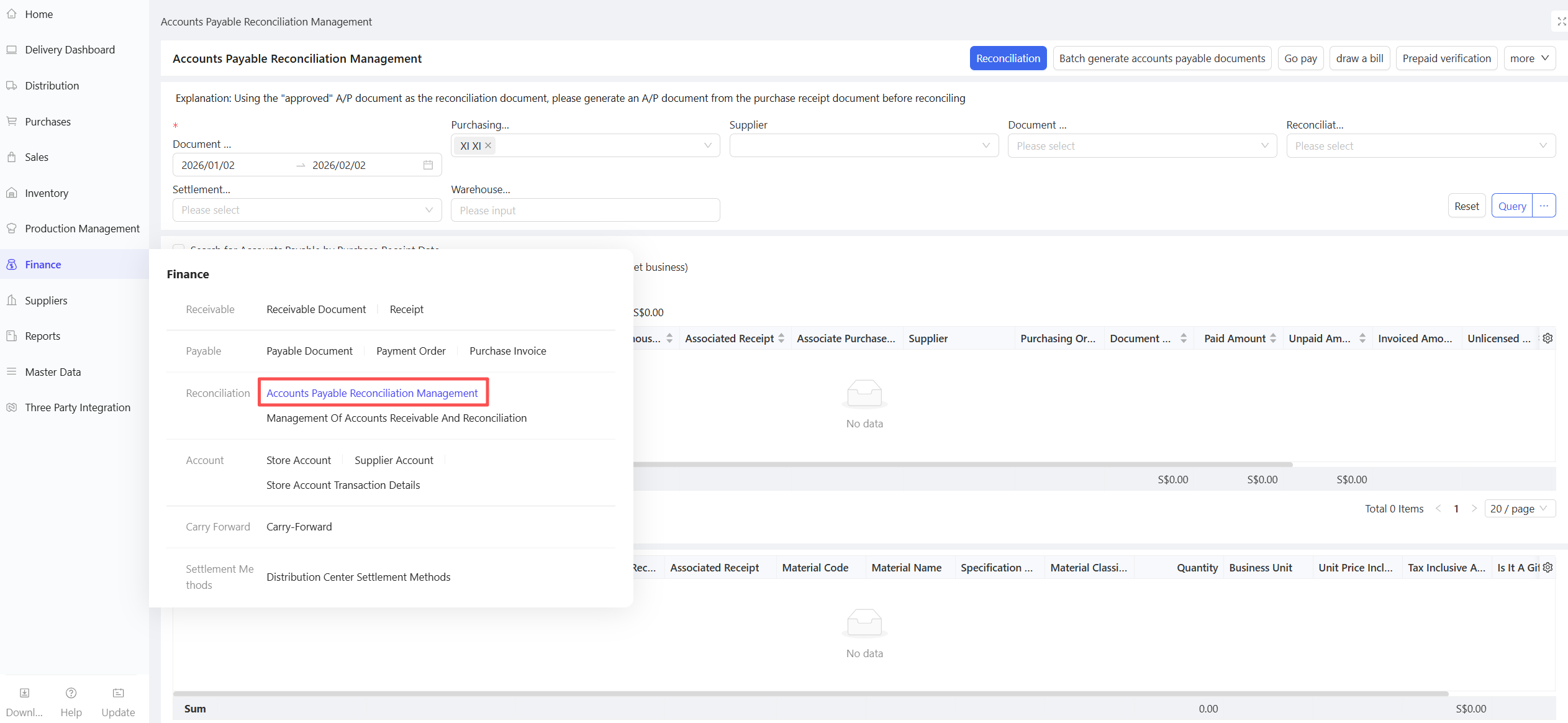
This function is used for reconciliation between the distribution center/stores and external suppliers. Accounts payable orders can be reconciled only after approval. It supports batch generation of accounts payable orders, reconciliation, payment, prepayment verification, and invoicing in one integrated module.
6.4.2 Function Value
Integrates accounts payable order generation, reconciliation, payment, and invoicing to provide one-stop services for financial settlement.
6.4.3 Application Scenario
Reconciliation and payment settlement between distribution centers/stores and external suppliers.
6.4.4 Operation Instructions
Go to Group View/Distribution Center View/Store View > Supply Chain > Financial Management > Accounts Payable Reconciliation Management.
6.4.5 Notes
- Accounts payable orders can be reconciled and settled only after approval.
- All operations are performed for a single procurement organization; consolidated accounts payable confirmation or consolidated payment for multiple organizations is not supported.
6.5 Accounts Receivable Reconciliation Management
6.5.1 Function Overview
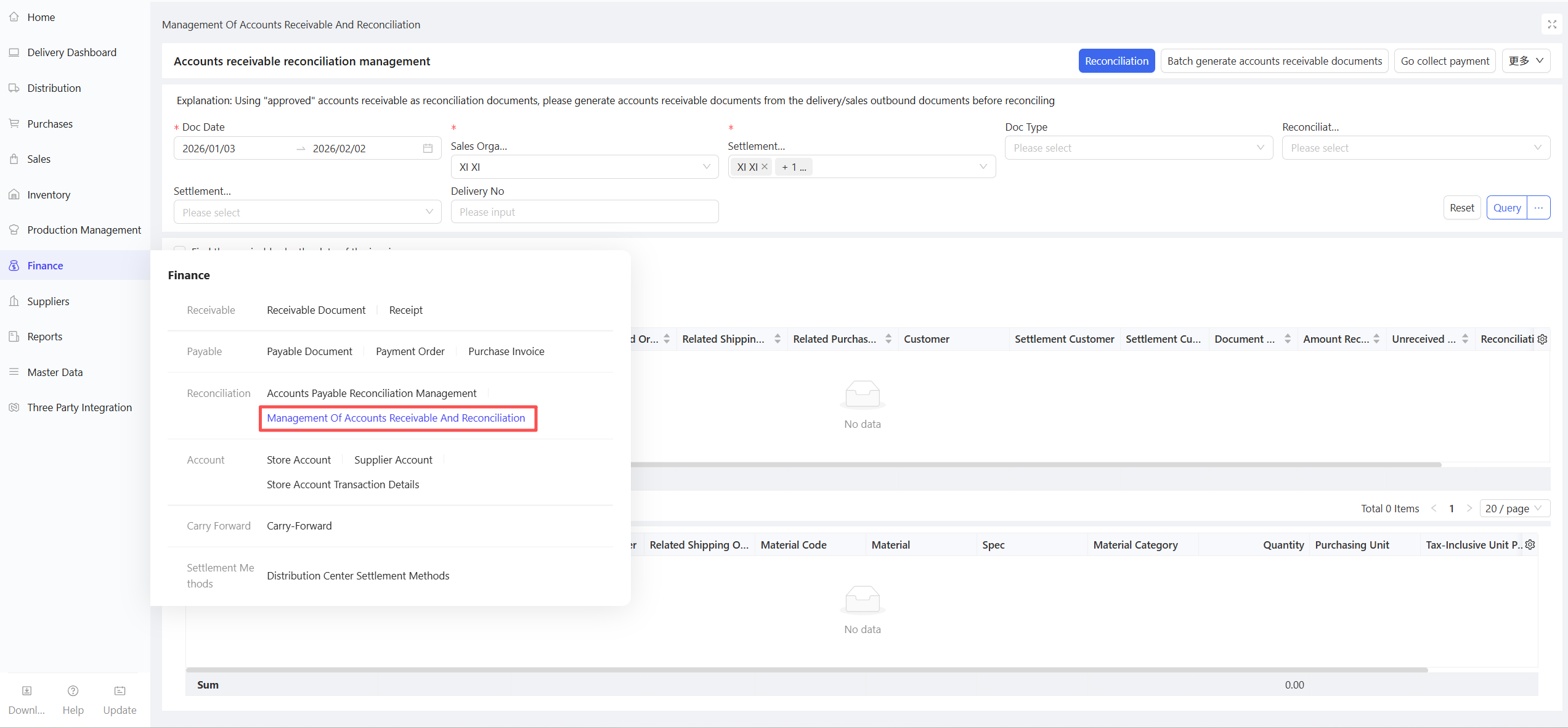
This function is used for reconciliation between the distribution center and stores. Accounts receivable orders can be reconciled only after approval. It supports batch generation of accounts receivable orders, reconciliation, and collection in one integrated module.
6.5.2 Function Value
Integrates accounts receivable order generation, reconciliation, collection, and invoicing to provide one-stop services for financial settlement.
6.5.3 Application Scenario
Reconciliation and collection settlement between the distribution center and stores/lower-level distribution centers.
6.5.4 Operation Instructions
Go to Group View/Distribution Center View > Supply Chain > Financial Management > Accounts Receivable Reconciliation Management.
6.5.5 Notes
- Accounts receivable orders can be reconciled and settled only after approval.
- All operations are performed for a single sales organization.
- For stores using prepayment: Payments made with orders are confirmed in Purchase Order Acceptance to complete recharge. After the store receives goods, accounts receivable and collection verification are automatically processed without manual settlement; unused amounts are deposited into the Store Account.
6.6 Payment Order
6.6.1 Function Overview
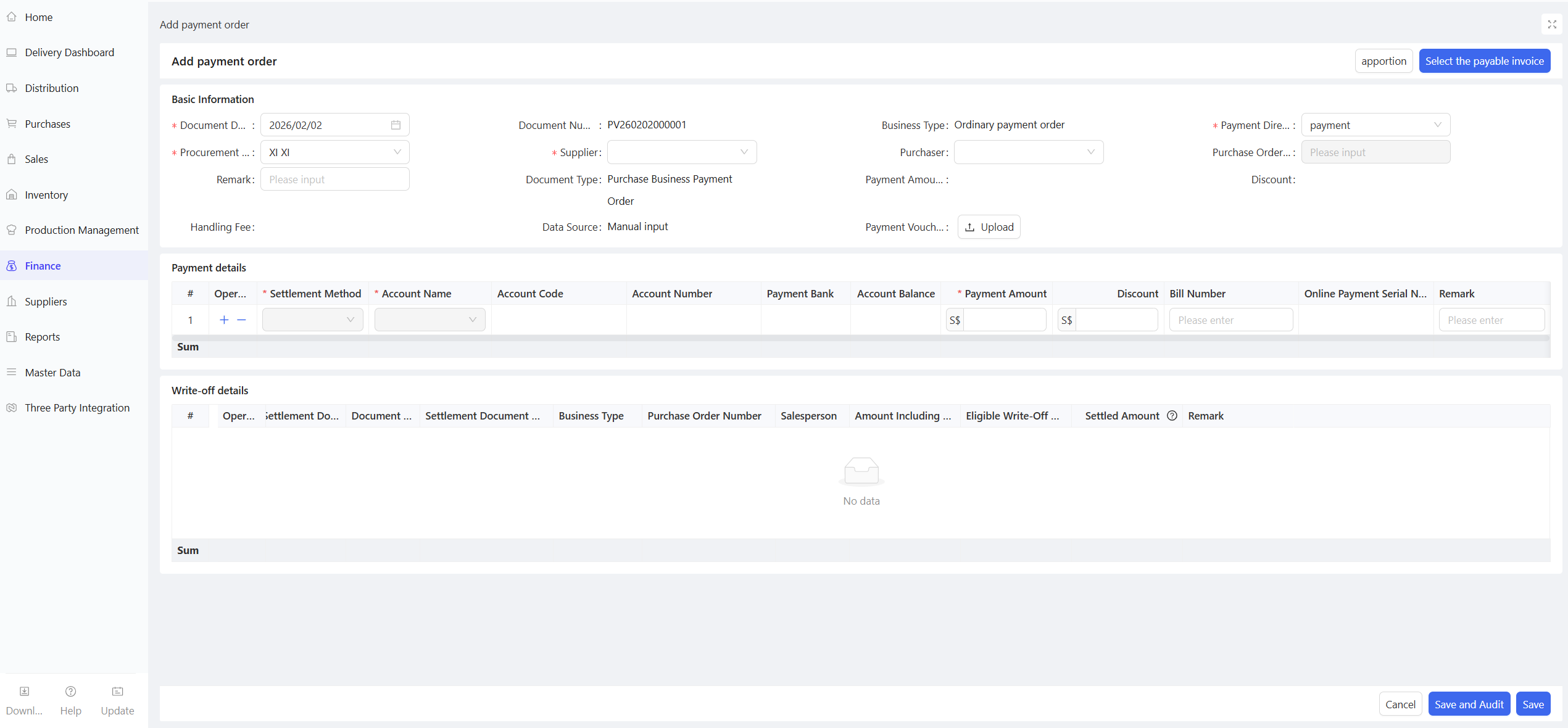
This function handles prepayment and regular payment business, supporting payment/refund, offset payment with debit/credit notes, and partial settlement.
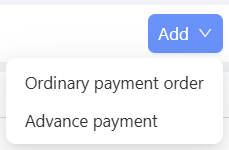
- Prepayment Order: For recharging to the distribution center or making prepayments to suppliers.
- Regular Payment Order: For accounts payable verification using account balance or offline payment.
6.6.2 Function Value
Records detailed payment information of stores/distribution centers.
6.6.3 Application Scenario
- Payment business for orders placed by distribution centers/stores to external suppliers.
- Payment business for orders placed by stores to the distribution center.
- Pre-recharge business for stores to the distribution center.
6.6.4 Operation Instructions
- Go to Group View/Distribution Center View/Store View > Supply Chain > Financial Management > Payment Order.
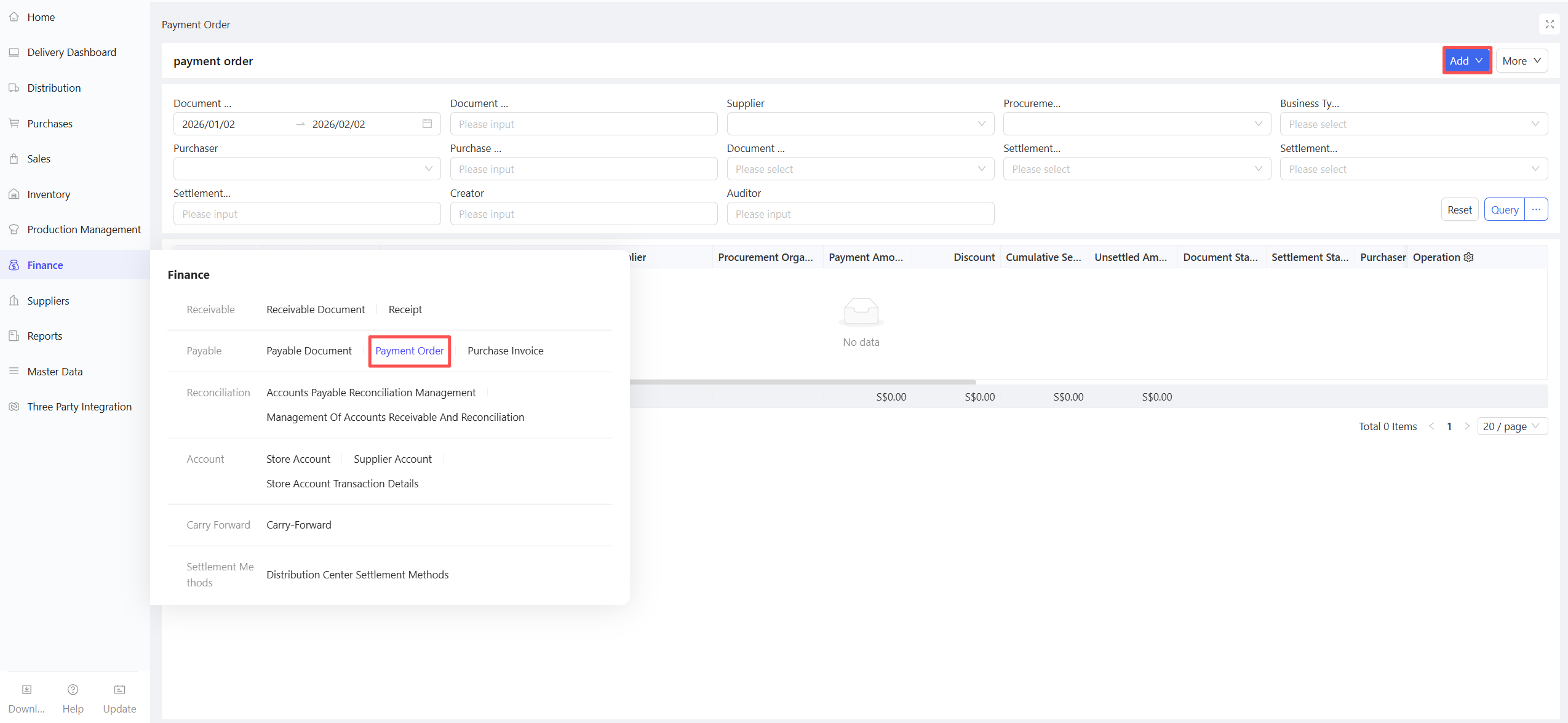
- Click Add > Prepayment/Regular Payment.
For Prepayment Stores Ordering from the Distribution Center
- Payments made with orders automatically generate prepayment orders; after the distribution center approves the collection order, the recharge is completed.
- Accounts payable verification is automatically completed after the store receives goods.
- After the distribution center verifies the collection, the store’s payment verification is automatically generated.
6.7 Collection Order
6.7.1 Function Overview
This function records collection transactions between the distribution center and stores, supporting collection/refund, offset collection with debit/credit notes, and partial settlement.
- Precollection Order: The distribution center recharges on behalf of stores, supporting batch recharge.
- Regular Collection Order: For accounts receivable verification using account balance or offline collection.
6.7.2 Function Value
Records detailed collection information of the distribution center.
6.7.3 Application Scenario
- Collection after reconciliation for goods shipped by the distribution center to stores.
- The distribution center recharges on behalf of stores.
6.7.4 Operation Instructions
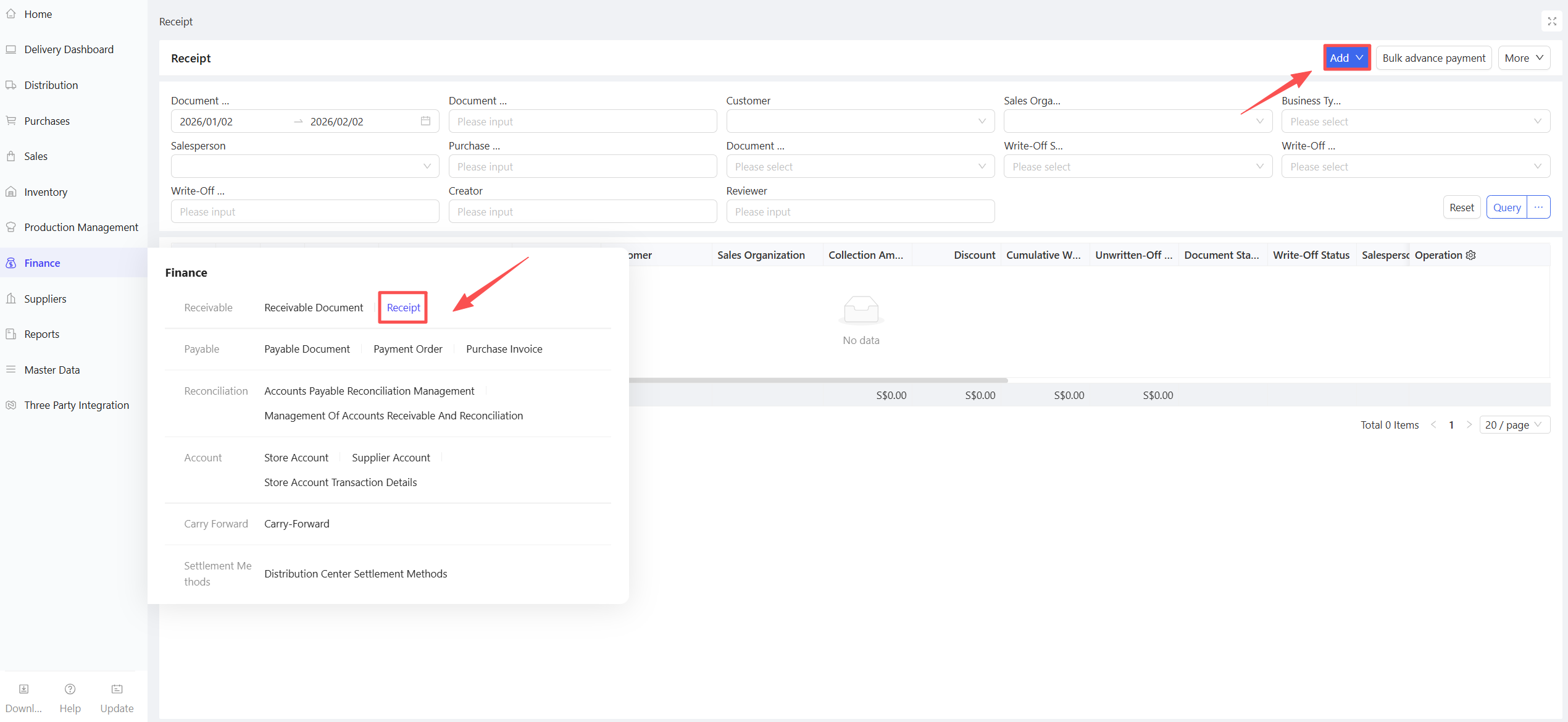
- Go to Group View/Distribution Center View > Supply Chain > Financial Management > Collection Order.
- Click Add > Precollection/Regular Collection.
6.7.5 Notes
- For prepayment stores ordering from the distribution center: Payments made with orders need to be confirmed in Purchase Order Acceptance to complete the recharge.
- For post-payment stores ordering from the distribution center: Collection orders are automatically generated and verified after the delivery order is fully shipped, and the store’s payment orders are triggered for verification simultaneously.
6.8 Store Account
6.8.1 Function Overview
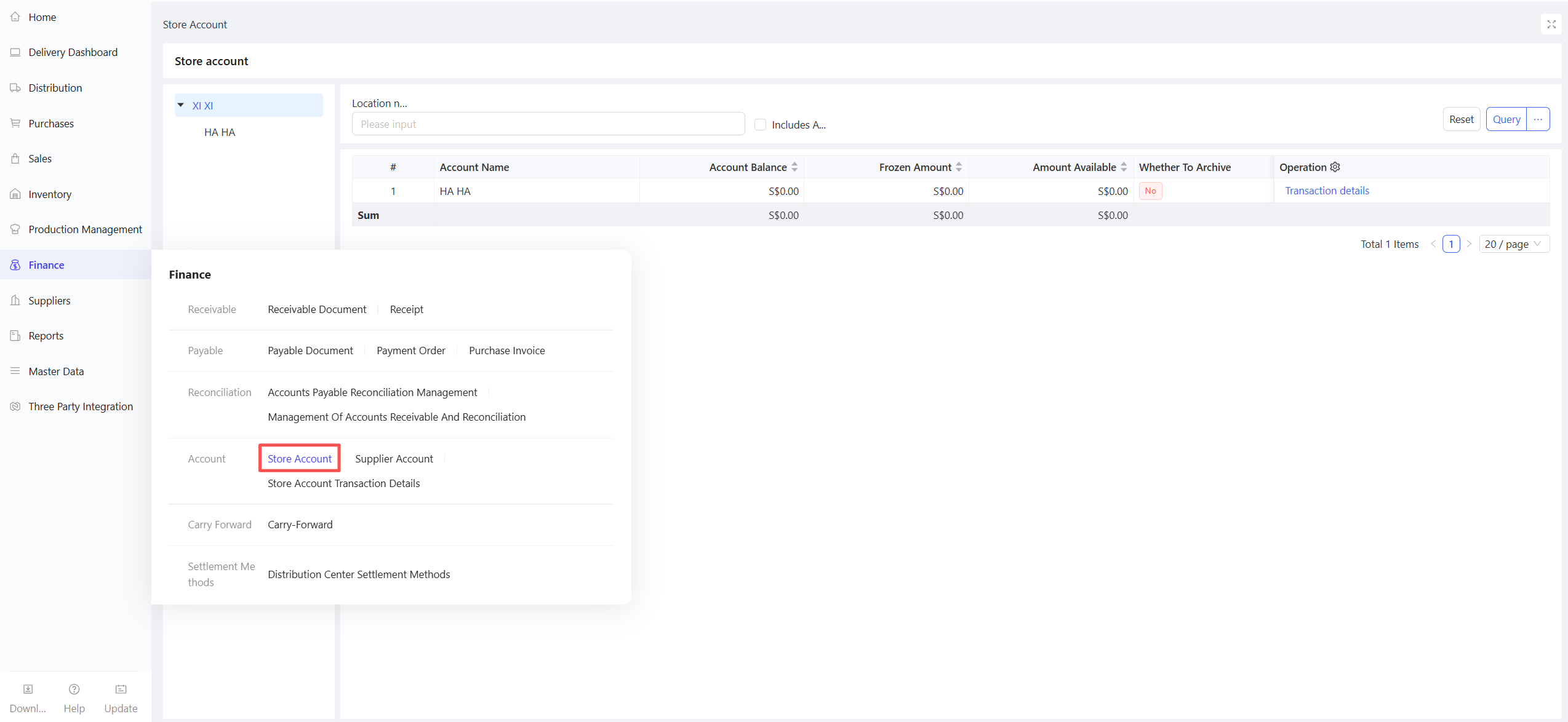
This function manages store fund accounts, allowing queries of Available Balance = Account Balance - Frozen Amount, account balance, and frozen amount.
6.8.2 Function Value
Facilitates store fund account management and enables easy viewing of account balances and changes.
6.8.3 Application Scenario
Applicable to prepayment stores for managing changes in account balances.
6.8.4 Operation Instructions
Go to Group View/Distribution Center View/Store View > Supply Chain > Financial Management > Store Account.
6.8.5 Notes
No additional notes specified.
6.9 Store Account Transaction History
6.9.1 Function Overview
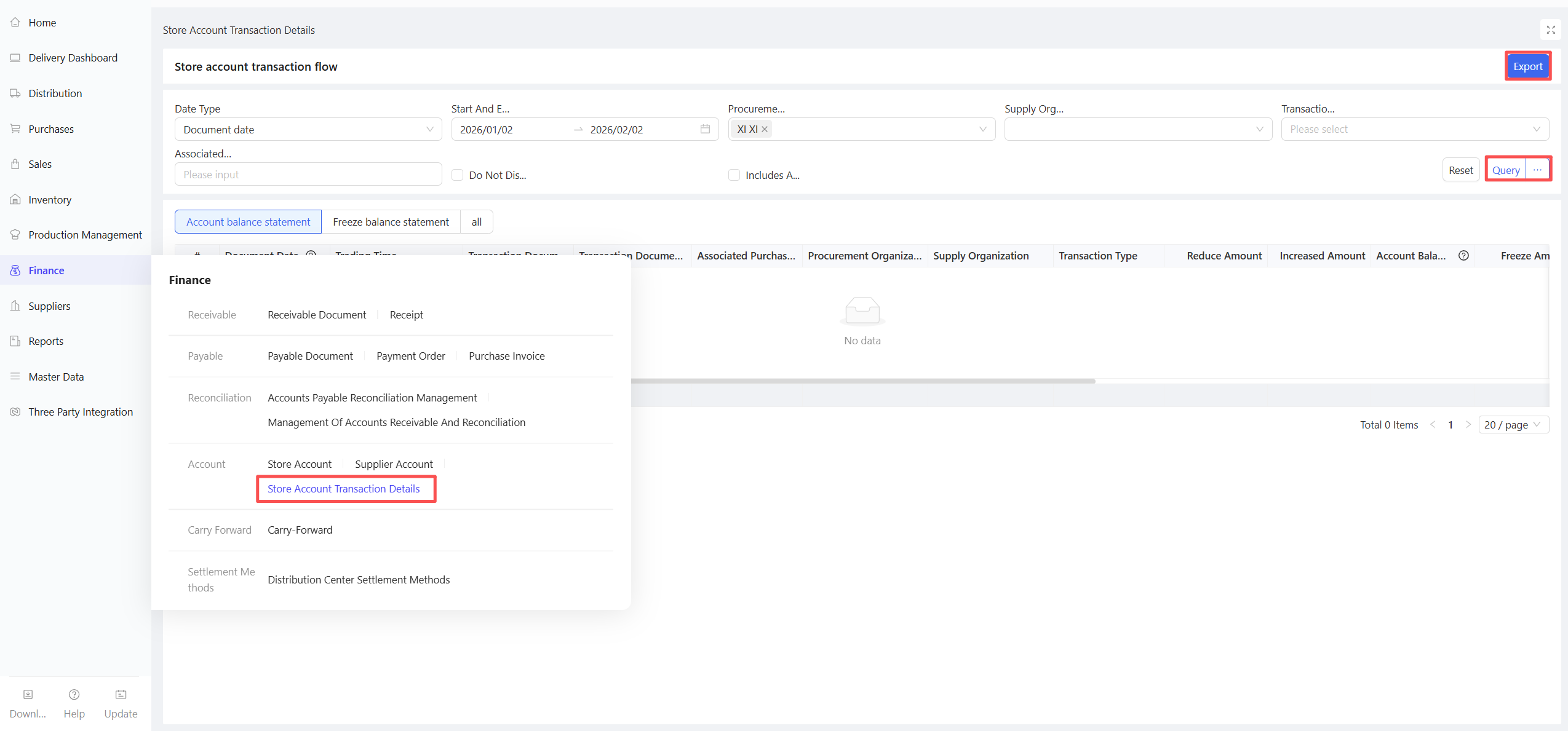
This function queries the transaction history of a store’s account, including recharge, consumption, freezing, and thawing records.
- Store Account Transaction History: Displays detailed account increase/decrease records, as well as the available amount and account balance after each transaction.
6.9.2 Function Value
Provides visibility into account changes through transaction history.
6.9.3 Application Scenario
Detailed management of store account transactions.
6.9.4 Operation Instructions
Go to Group View/Distribution Center View/Store View > Supply Chain > Financial Management > Store Account Transaction History.
6.9.5 Notes
- Payments made with orders are not rounded but rounded up to the next cent (e.g., an order of $100.234 will result in a payment of $100.24, which is recorded in the account balance).
6.10 Supplier Account
6.10.1 Function Overview
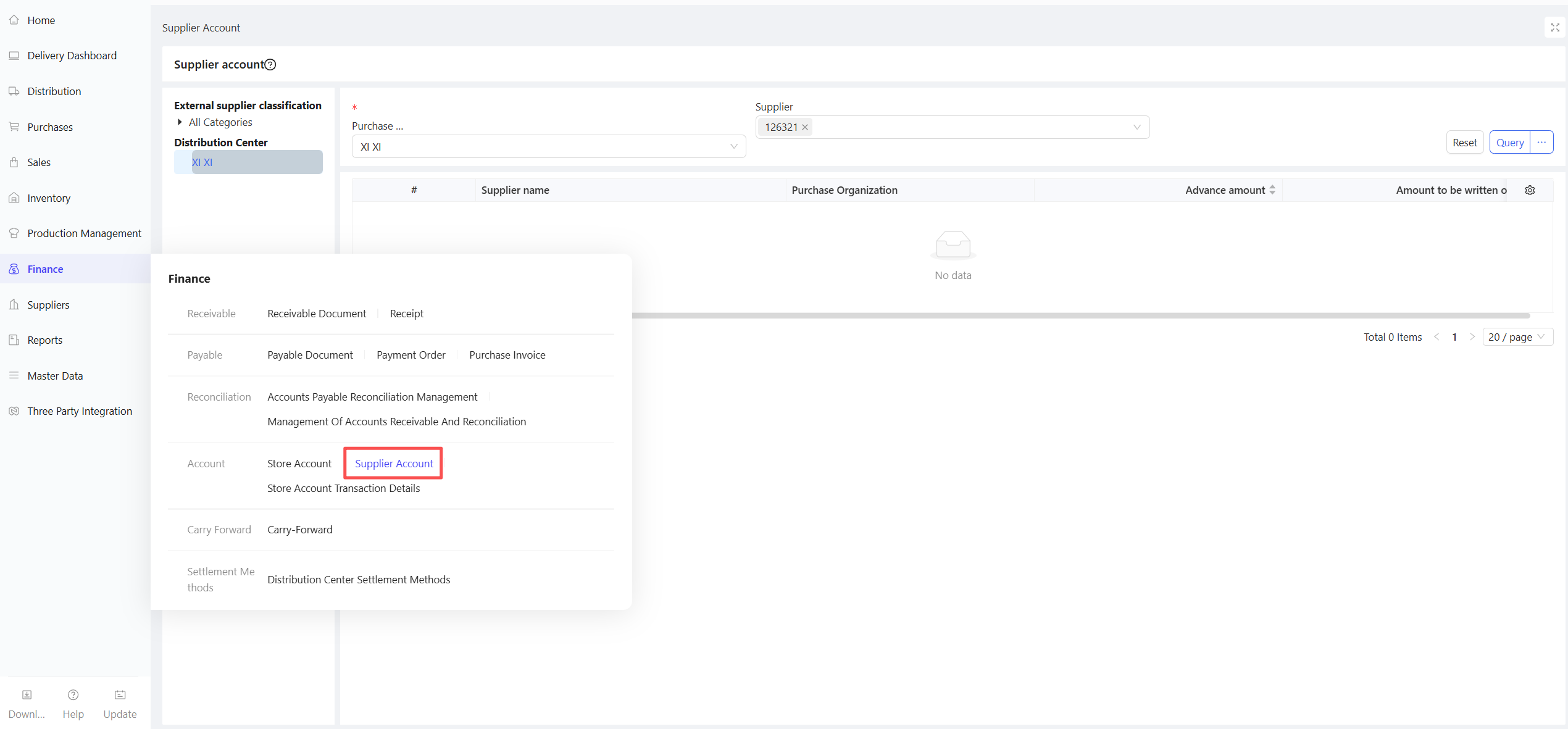
This function queries supplier account information, including Account Balance and Unverified Amount.
- Account Balance: The remaining amount after prepayment or payment verification between the distribution center/store and the supplier.
6.10.2 Function Value
Enables clear tracking of prepaid amounts and unverified accounts payable amounts, facilitating fund reconciliation with suppliers.
6.10.3 Application Scenario
Handles payment and settlement business between the distribution center/stores and suppliers.
6.10.4 Operation Instructions
Go to Group View/Distribution Center View/Store View > Supply Chain > Financial Management > Supplier Account.
6.10.5 Notes
- The left-side classification and the top-right Procurement Organization/Supplier are used for cross query.
- Separate supplier accounts are maintained for the distribution center and stores when purchasing from the same supplier.
- Prepayment orders affect the prepaid amount.
- Purchase warehousing documents, return documents, and accounts payable orders affect the unverified amount.