Add-on Gift
1 Module Introduction
Add-on Gift is a scenario-based promotion tool designed exclusively for POS channels. The core logic is: “Buy a specific combination of items and receive a designated item for free” (e.g., “Buy 2 Burgers, Get 1 Milk Tea Free”). By pairing main dishes with complimentary items, merchants can boost the sales of target menu items and increase the average order value (AOV). This is ideal for promoting combo meals, new item sampling, or clearing inventory.
2 Configuration Guide
2.1 Basic Information Configuration
STEP 1: Access Promotion Management
- Log in to the SaaS Admin Dashboard.
- Navigate to 【Membership Marketing】>【Marketing】> 【Promotional Activities】
- Select the “Add-on Gift” module.
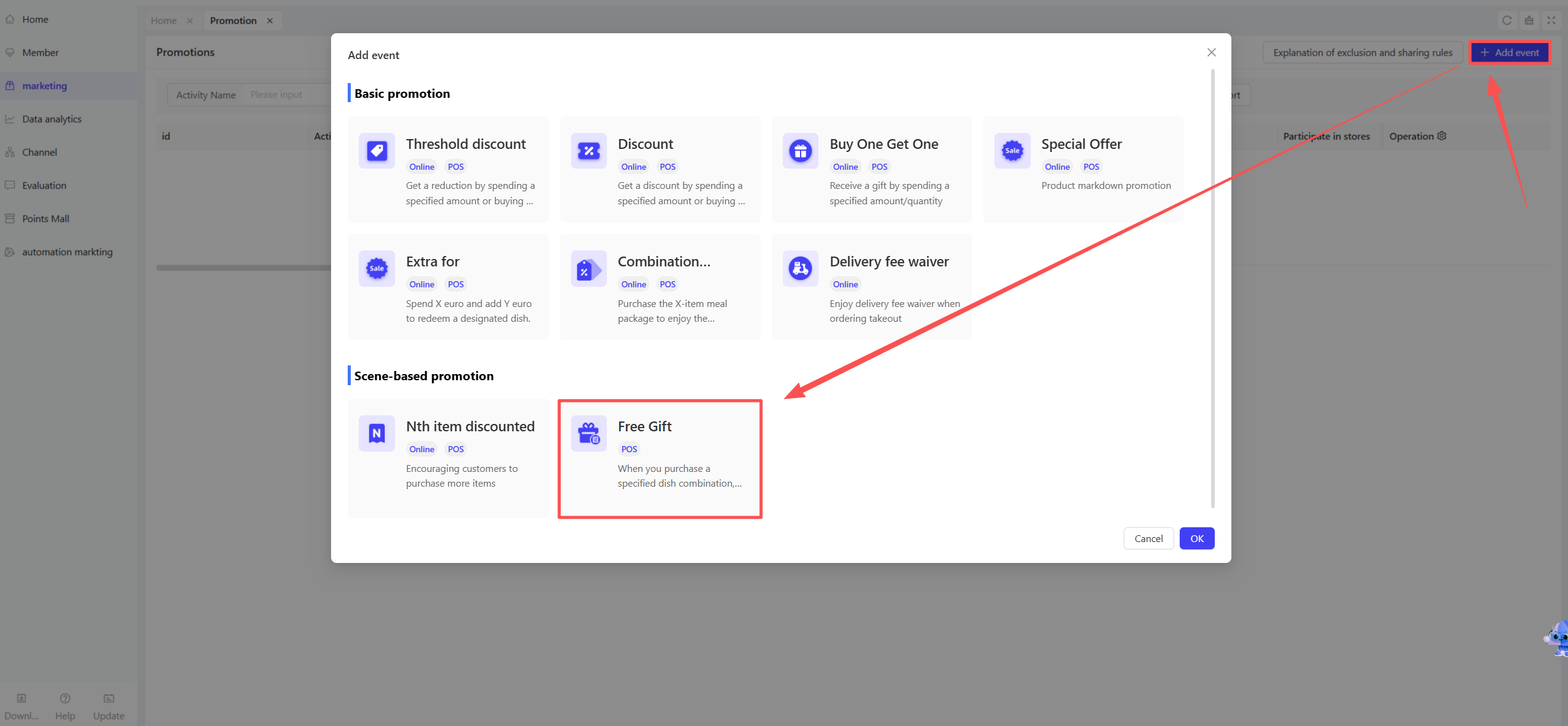
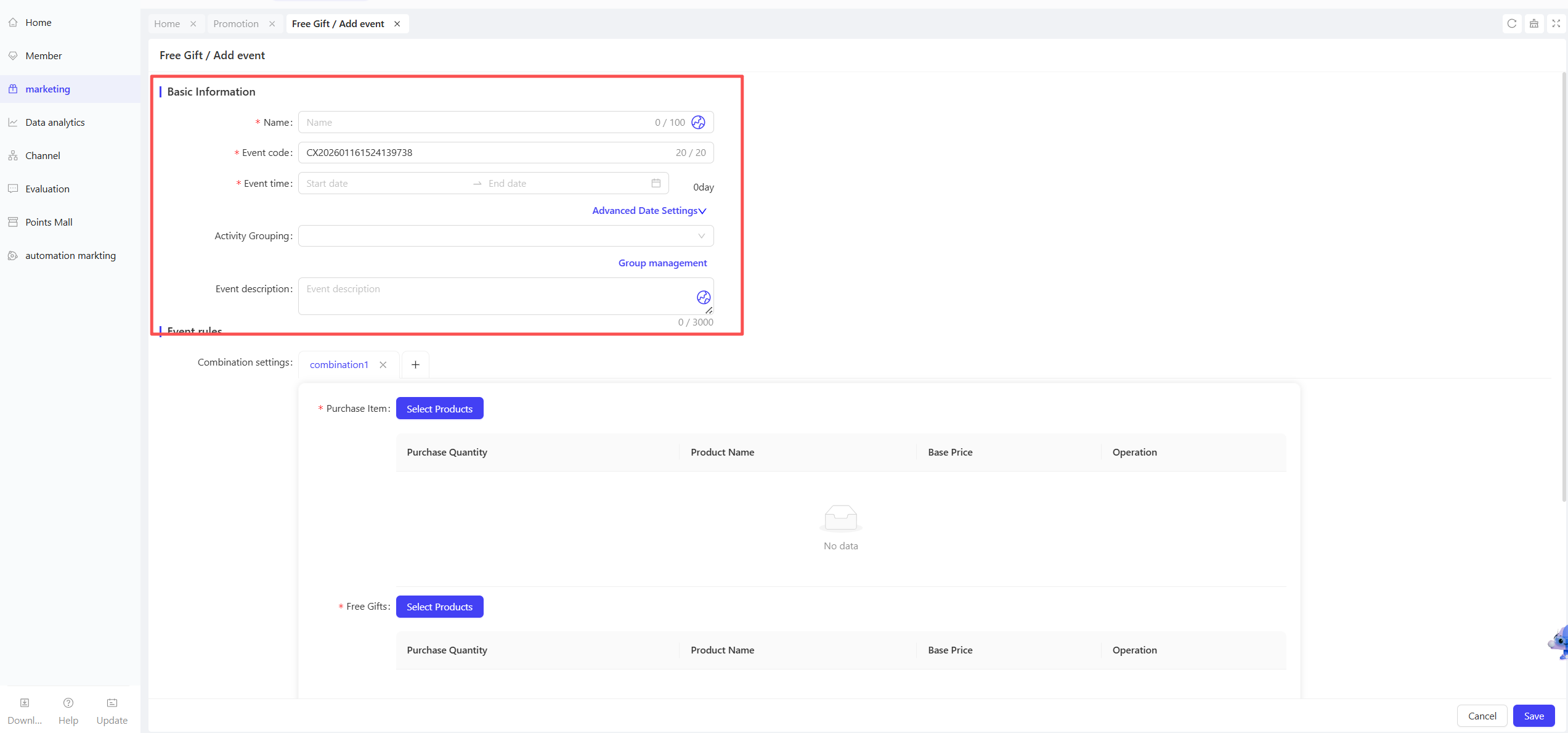
STEP 2: Define Basic Details
-
Name: Enter a recognizable name (e.g., “Buy 2 Fried Rices, Get 1 Free Tea”).
-
Period: Set the start and end dates.
- Time Slots: Define specific active hours (e.g., “Daily 2 PM – 5 PM”).
- Blackout Dates: Specify dates when the promotion is not applicable.
-
Code: Enter a unique identifier for internal tracking.
-
Description: Provide a clear summary of the rules.
2.2 Promotion Rules Configuration
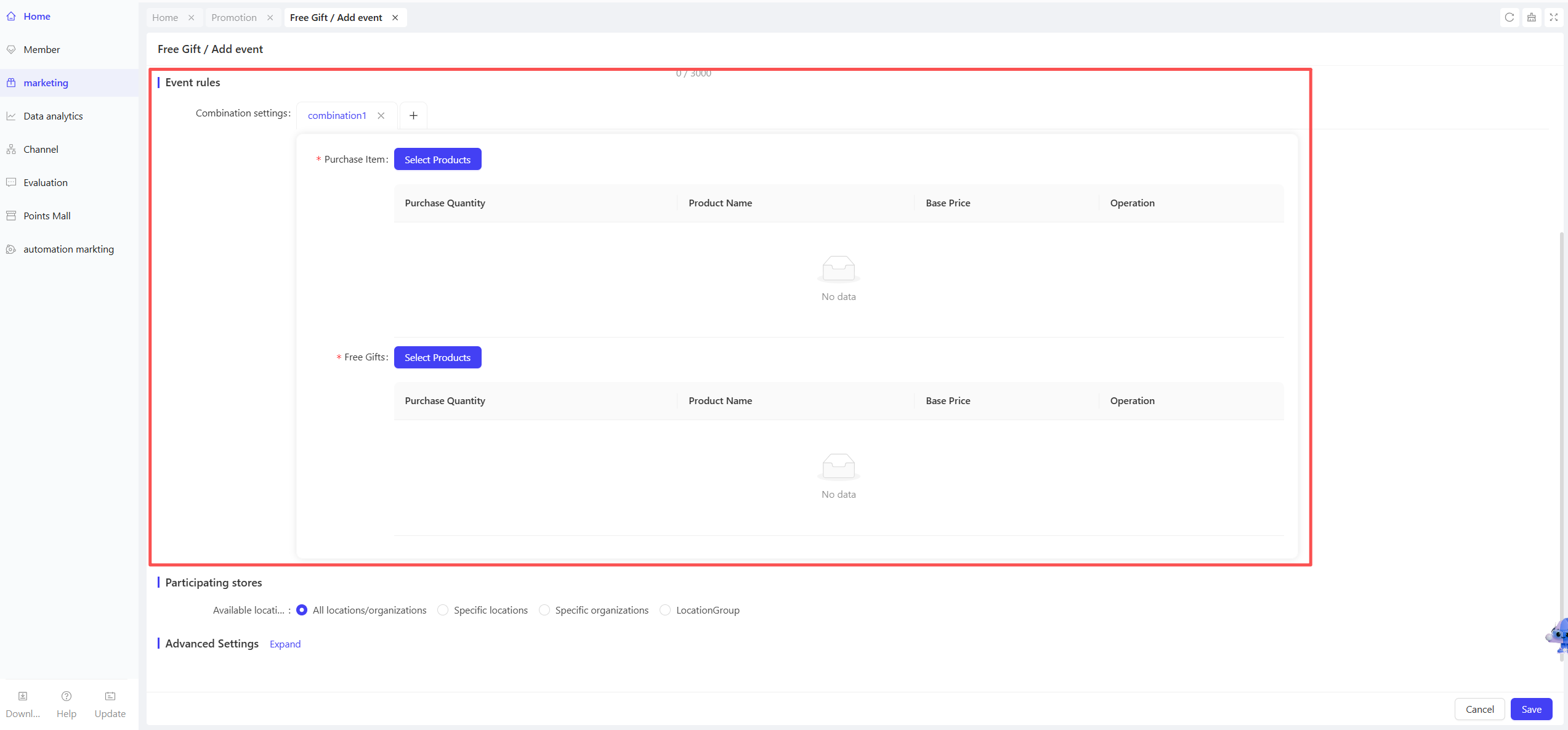
STEP 1: Combination Settings
-
Number of Combinations: One combination is displayed by default. Supports a minimum of 1 and a maximum of 50 combinations.
-
Configure “Required Purchase”:
- Click Select Items to choose the dishes the customer must buy.
- Quantity: Enter the required amount (Default is 1; must be a positive integer).
-
Configure “Gift Item”:
- Click Select Items to choose the complimentary dish.
- Gift Quantity: Enter the number of items to be given away (Default is 1; must be a positive integer).
💡Notes:
Execution Rules
Frequency: This promotion can only be applied once per order.
Priority: If an order satisfies multiple combinations, the system will prioritize the one with the highest discount value (e.g., if Combination A saves the customer $10 and Combination B saves $20, Combination B will be executed).
2.3 Applicable Stores Configuration
- Select Participating Stores: Choose all or specific locations/regions.
- Location-Specific Rules: Set different rules for different stores for localized marketing.
2.4 Advanced Settings
-
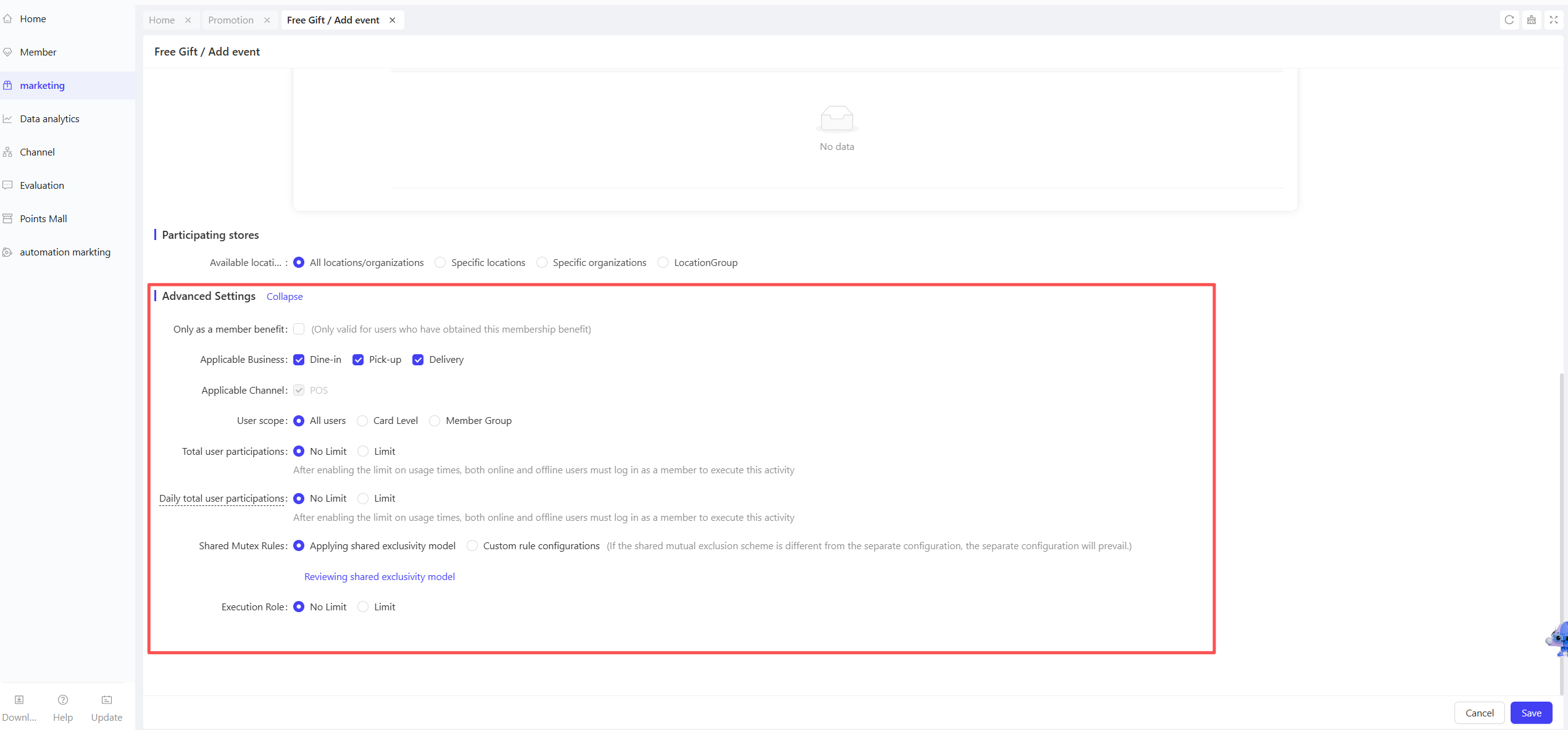
Member-Only Benefit: If checked, only eligible members can access this deal.
-
Applicable Business: Select from Dine-in, Pickup, or Delivery.
-
User Eligibility: Filter by Membership Tier or Customer Segments/Tags.
-
Participation Limits: Set a Total Limit or Daily Limit per user.
-
Exclusivity and Stacking:
- Use Default Template: Apply standard system rules for stacking with other offers.
- Custom Configuration: Manually define if this stacks with Member Pricing, Coupons, or other Promotions. Manual settings override defaults.
-
Authorized Roles: Choose Restricted or Unrestricted. If restricted, only users with specific permissions can manually trigger this activity on the POS terminal.
3 Activate and Manage the Promotion
3.1 Activate the Promotion
- Click【Save】after completing all configurations to activate the promotion.
3.2 Promotion Management and Monitoring
- View performance data (e.g., number of orders, promotion usage) in the Promotion Management module.
- Pause, adjust, or manually archive the promotion at any time if needed.