Membership Plan
1 Module Definition
The Membership Plan Module is the core module for building and managing membership systems. It covers card programs, membership tiers, points rules, and other key components. By configuring various rules and benefits, it enables hierarchical management and precise operation of members, helping enterprises enhance member loyalty and consumption frequency while providing systematic support for merchants’ membership marketing and customer retention.
2 Feature Configuration
2.1 Card Program Management
2.1.1 Overview
Manage various membership card programs. View existing card program information or create new ones to help enterprises flexibly adjust membership card types and rules, meeting the needs of different member groups.
2.1.2 Create Card Program
Function Entry:
【Membership Marketing】 >【Members】>【Loyalty Program】
Function Description:
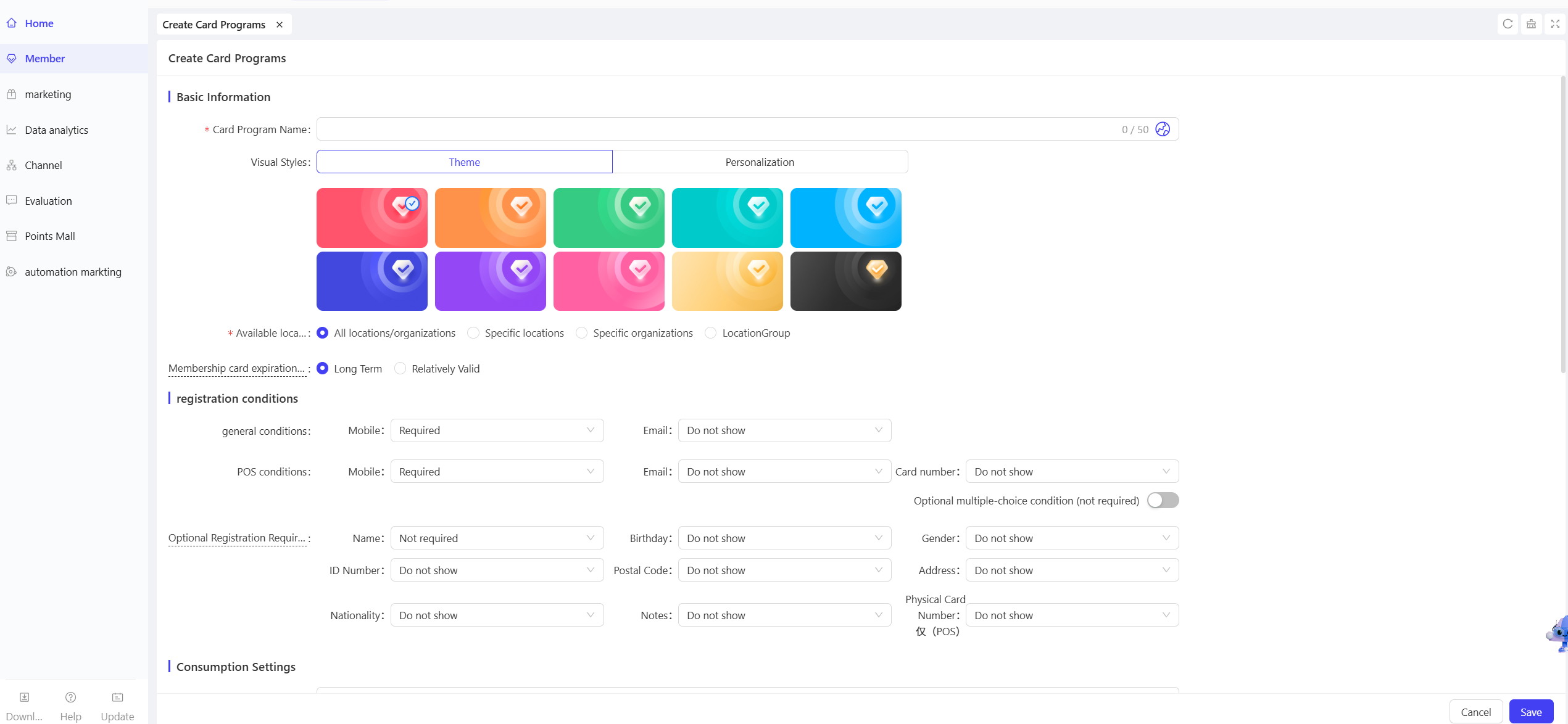
- Overview: Configure basic card program information, registration requirements, consumption settings, auxiliary settings, etc., to build a complete framework for new membership card programs.
- Field Filling Guidelines:
- Basic Information
- Card Program Name: Enter a name reflecting the card’s features (e.g., “Premium Prepaid Card”) for easy identification and management (0-50 characters).
- Visual Styles: Select a style matching the brand or card positioning from predefined themes, or customize a unique visual effect.
- Expiration Date: Choose “Long Term” or “Relative Validity” (set specific valid time range).
- Registration Requirements
- General Requirements: Set mandatory or optional information for member registration (e.g., phone number as mandatory for future marketing; email as optional display).
- POS Requirements: Set information requirements for POS terminal registration (e.g., phone number as mandatory; email/card number as optional display).
- Optional Requirements: Set non-mandatory member information (e.g., name as optional; birthday/gender as optional display) for members to fill in voluntarily.
- Consumption Settings
- Top-up Value Deduction Order:
- Proportional Redemption of Cash & Complimentary Store Value
- Prioritize Cash Store Value: Consume cash prepaid first.
- Prioritize Complimentary Store Value: Use the bonus prepaid funds first.
- Stored Value Usage Restrictions: Choose “No Limit” or “Only usable at the store where recharged.
- Stored Value Transaction Limits: Choose “No Limit” or “Only usable at the store where recharged.
- Stored Value Spending Limits: Choose “No Limit” or set a daily prepaid consumption limit.
- Consumption Verification:
- Enable/ disable verification (check/uncheck).
- Set verification method: Fixed Password / SMS Verification Code / Email Verification Code.
- Purpose: Ensure membership card consumption security and prevent fraudulent use.
- Mandatory Stored Value Redemption: Choose “No Limit” or “Mandatory use of prepaid balance” / “Mandatory use of points balance”.
- Top-up Value Deduction Order:
- Auxiliary Settings
- Online Top-up Portal: Enable to allow members to recharge via online channels; disable to restrict recharging to offline only.
- Online Transfer Portal: Enable support for member online transfer operations; disable restrictions.
- Registration Agreement: Select the corresponding registration agreement to clarify member rights and obligations.
- Privacy Policy: Select the corresponding privacy agreement to explain member information protection.
- Description: Enter supplementary notes about the card program.
- Basic Information
Use Cases
When launching a new prepaid membership card, enterprises can complete the card program creation by entering the card name, selecting a visual style, setting store scope, and the validity period, attracting members to participate.
Operation Steps & Diagrams:
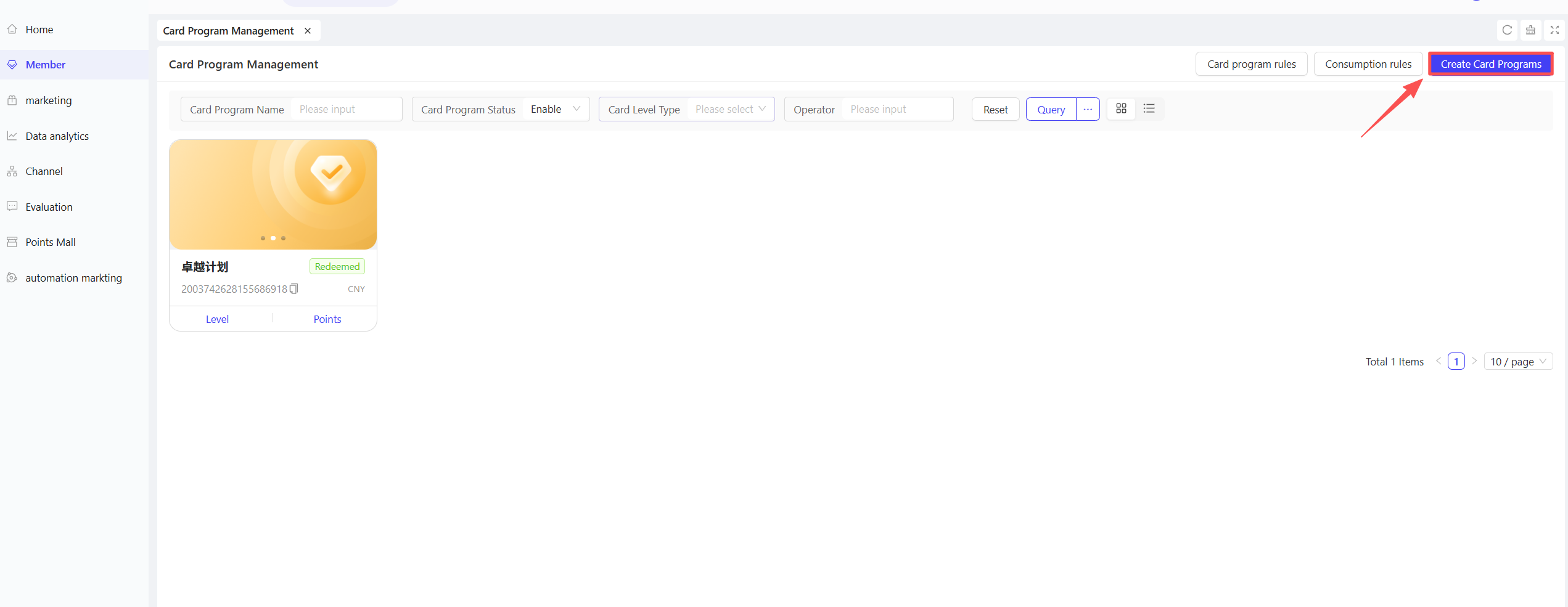
STEP 1: On the Card Program Management page, click the【Create Card Program】button in the upper right corner.
STEP 2: Fill in basic information, registration requirements, consumption settings, etc.
STEP 3: Click【Save】after completing the fields to finish creating the card program.
STEP 4: View the created card program on the homepage and perform subsequent operations.
2.1.3 Card Program Rules
Function Entry:
【Membership Marketing】 >【Members】>【Loyalty Program】
Function Description:
- Overview: Support configuring default POS card programs from group, brand, or store perspectives. Resolves the issue of “non-target programs being prioritized” during POS card issuance, following the priority rule: “Store > Brand > Group”. Supports modification and deactivation of default card programs.
- Use Cases:
- Stores can set frequently used card programs as POS defaults to avoid manual order adjustment during card issuance.
- Brands can unify default programs for affiliated stores.
- Groups can set basic default programs to achieve “store independent management + headquarters basic control”.
Operation Steps & Diagrams:
STEP 1: On the Card Program Management page, click the【Card Program Rules】button in the upper right corner.

STEP 2: Click【OK】in the pop-up window to start creating the default POS card program.
STEP 3: Select the default POS card program name from the group/brand/store perspective.
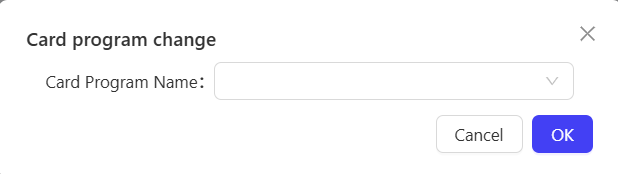
STEP 4: Modify, edit, or deactivate the created default POS card program.

2.1.4 Edit Card Program
Function Entry:
【Membership Marketing】 >【Members】>【Loyalty Program】
Function Description:
- Overview: Modify existing card programs, including all field configurations, to support flexible iteration of card rules.
Note: If the card program is the default POS card program, change the default first before editing.
- Use Cases: When existing card programs need functional expansion or validity period adjustment, avoid re-creating the program to reduce operational costs.
Operation Steps & Diagrams:
STEP 1: On the Card Program Management page, click the card program component to edit.
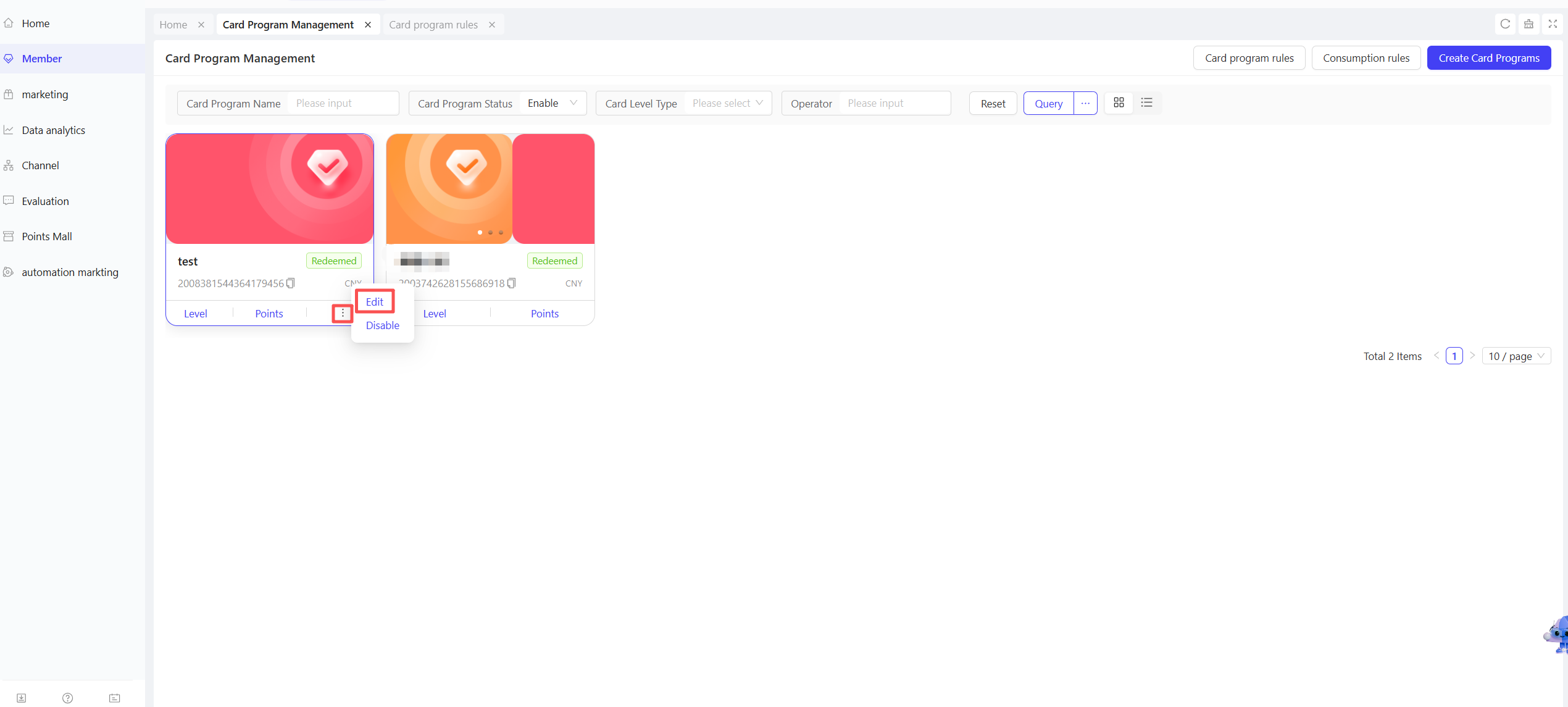
STEP 2: Enter the edit page, modify field configurations, and click【Save】to complete the update.
2.2 Membership Tiers
2.2.1 Overview
Membership tiers are core operational tools that segment members by quantifying behaviours (e.g., consumption, activity). By configuring differentiated benefits for each tier, they form a closed loop of “Behaviour → Growth → Tier → Benefits” to incentivise members and enhance their lifetime value.
2.2.2 Spending Card Tiers
Function Entry:
【Membership Marketing】>【Members】>【Loyalty Program】>【Tiers】
Function Description:
- Overview: Build a consumption-oriented membership tier system based on member consumption data (e.g., cumulative consumption amount, frequency). Support creating/editing consumption-based tiers and configuring corresponding consumption thresholds and exclusive benefits to meet tiered management needs centred on consumption capacity.
- Field Configuration Guidelines:
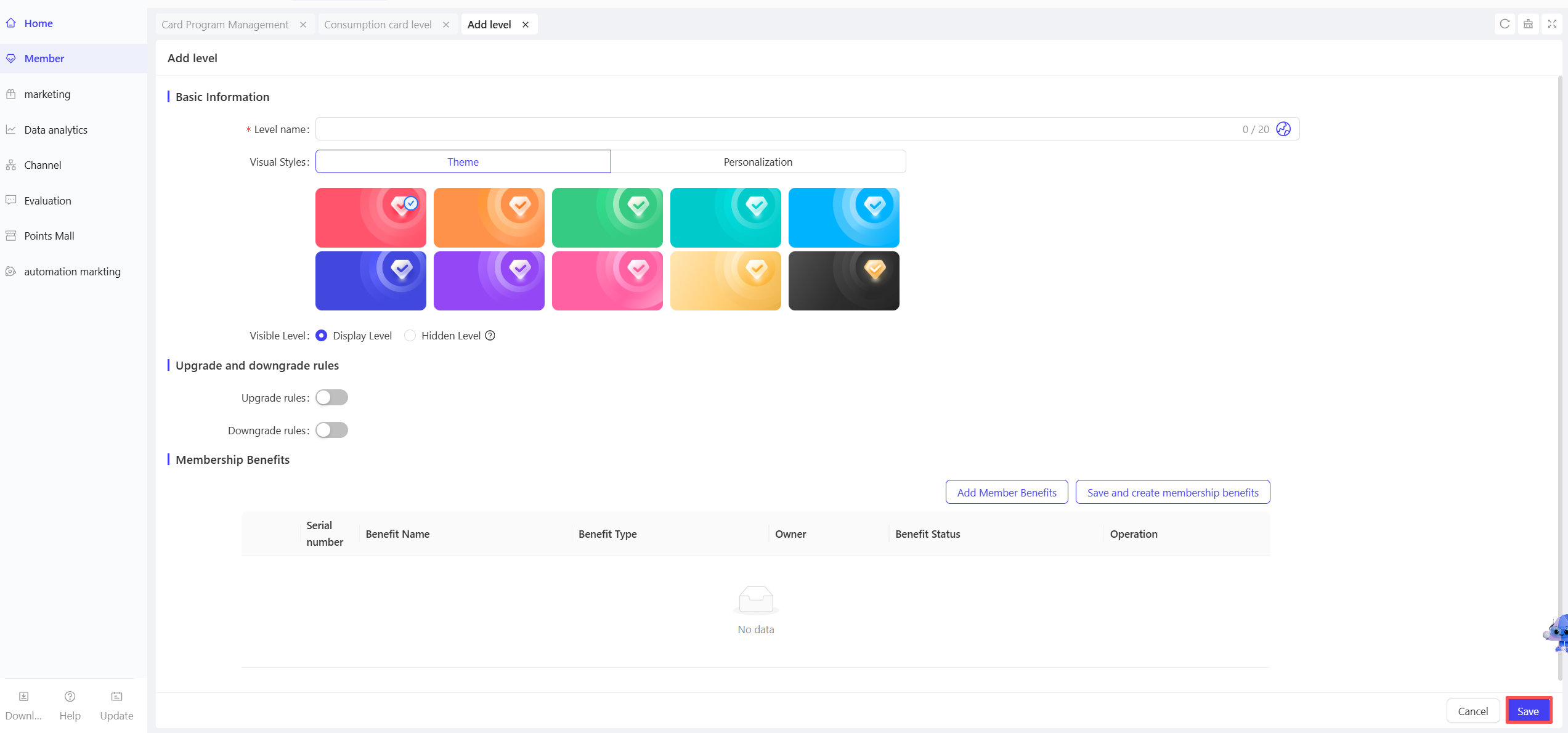
- Basic Information
- Tier Name: Enter a name reflecting consumption capacity (e.g., “Silver Consumption Card”, “Gold Consumption Card”) for easy member identification.
- Visual Styles: Select icons or colour schemes matching the tier positioning (e.g., gold icons for Gold Cards) to enhance tier recognition.
- Visible Tier: Select “Display” (visible to members to encourage upgrades) or “Hide” (admin-only for internal stratification).
- Upgrade/Downgrade Rules: Set rules for upgrading to this tier. Select multiple (up to 4) conditions and choose “Upgrade when any condition is met” or “Upgrade when all conditions are met”:
- Cumulative recharge amount ≥ $X.
- Cumulative points earned ≥ X.
- Cumulative consumption amount ≥ $X.
- Cumulative consumption frequency ≥ X times.
- Member Benefits: Select benefits matching the tier:
- Add Member Benefits: Check exclusive benefits from the benefit library (e.g., consumption discounts, birthday gifts, priority service) (multiple selections allowed).
- Save and Create Member Benefits: If no suitable benefits exist in the library, save the tier and create new benefits afterwards.
- Basic Information
Use Case Example
A catering brand creates the following tiers for high-frequency customers:
Silver Consumption Card (cumulative consumption ≥ $500): 9.5% off on dishes.
Gold Consumption Card (cumulative consumption ≥ $2000): 9% off on dishes + free parking. Differentiated benefits and consumption thresholds incentivise members to increase spending to upgrade tiers.
Operation Steps & Diagrams:
STEP 1: On the Card Program Management page, click the【Tiers】button under the card program component.
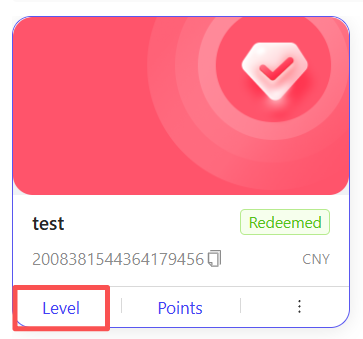
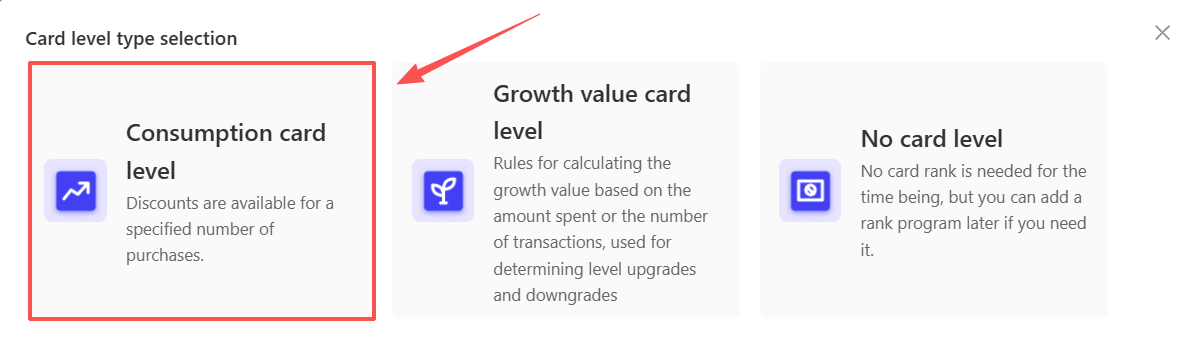
STEP 2: Select “Spending Card Tier” as the tier type (non-editable).
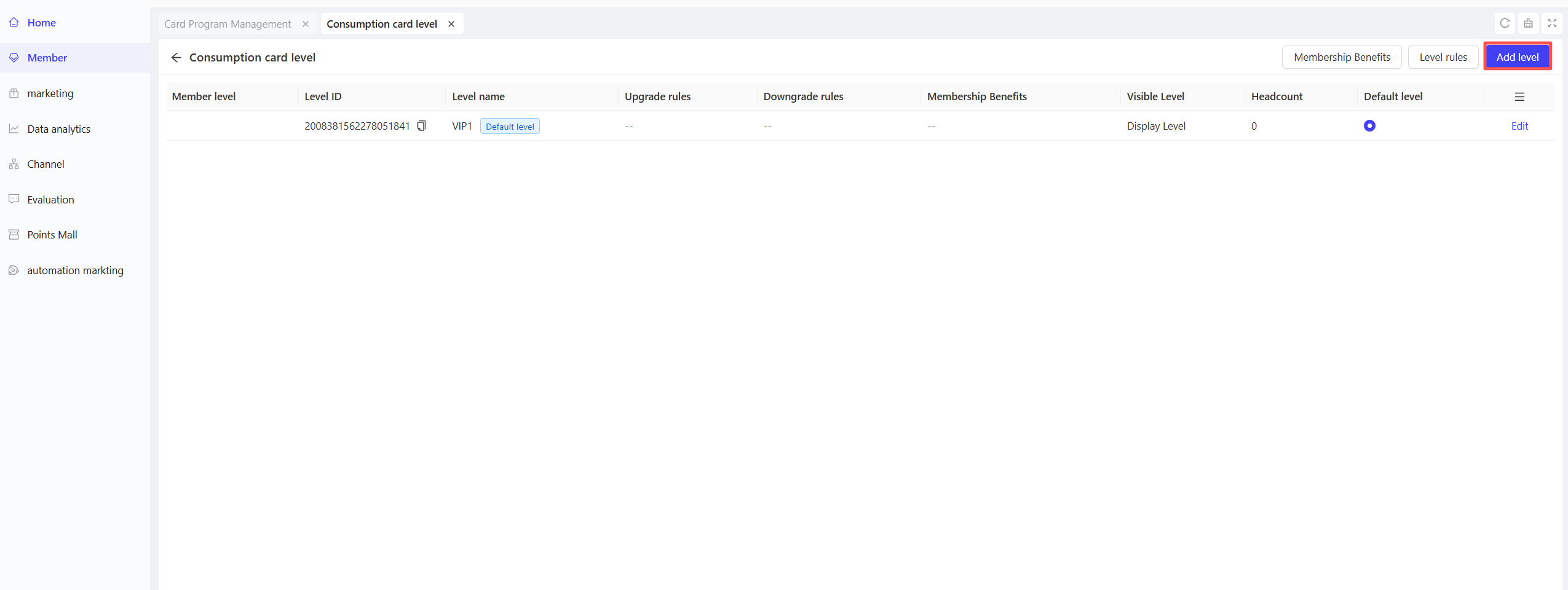
STEP 3: On the Spending Card Tier page, click【Add Tier】.
STEP 4: Fill in basic information, upgrade/downgrade rules, and member benefits. Click 【Save】to complete tier creation.
Note:
- Operation steps for【Add Member Benefits】
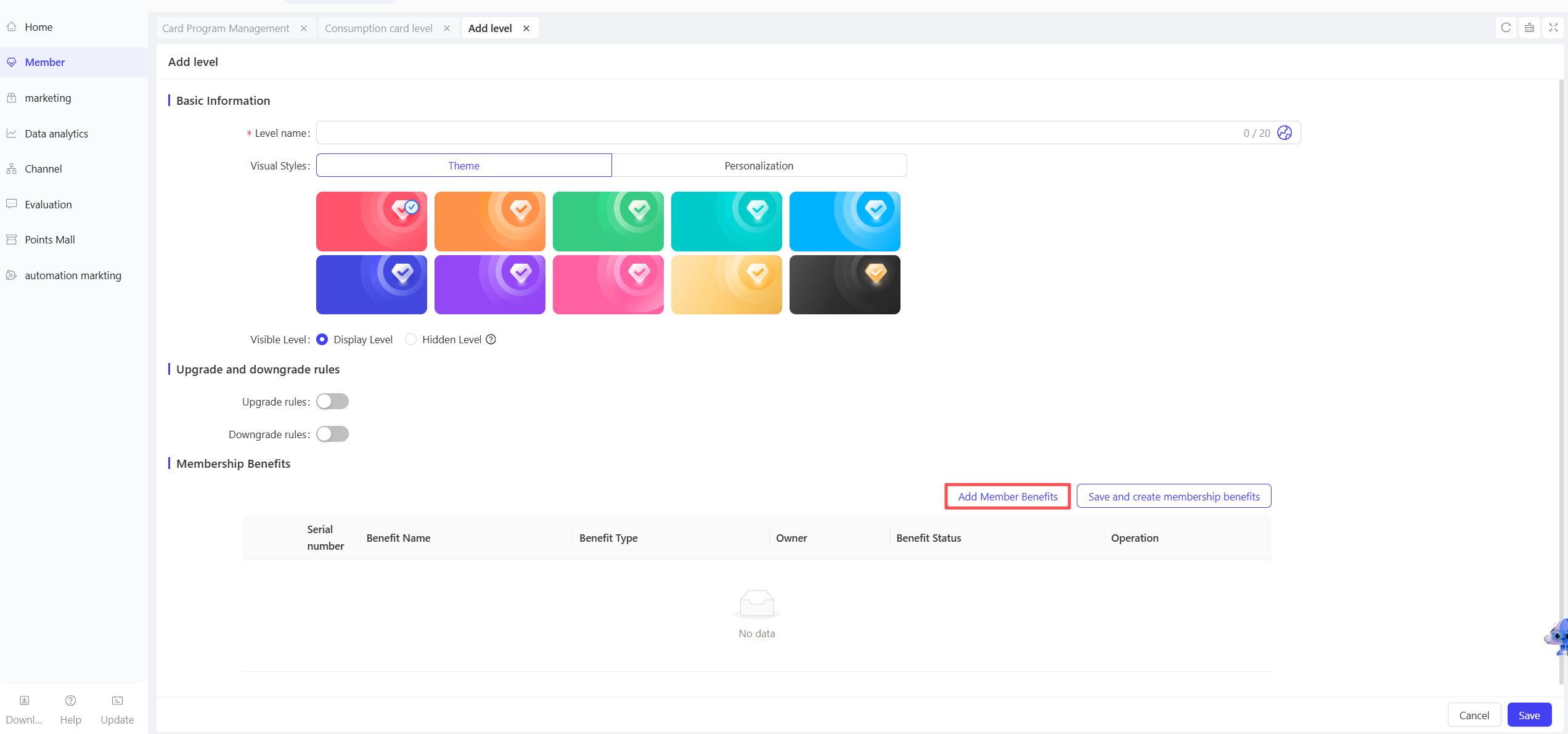
- Select【Save and Create Member Benefits】to automatically save the tier and redirect to the Member Benefits page for new benefit creation.
2.2.3 Spending Tier Rules
Function Entry:
【Membership Marketing】>【Members】>【Loyalty Program】>【Tiers】
Function Description:
- Overview: Define tier segmentation based on members’ catering consumption behaviors (amount, frequency) with differentiated consumption standards.
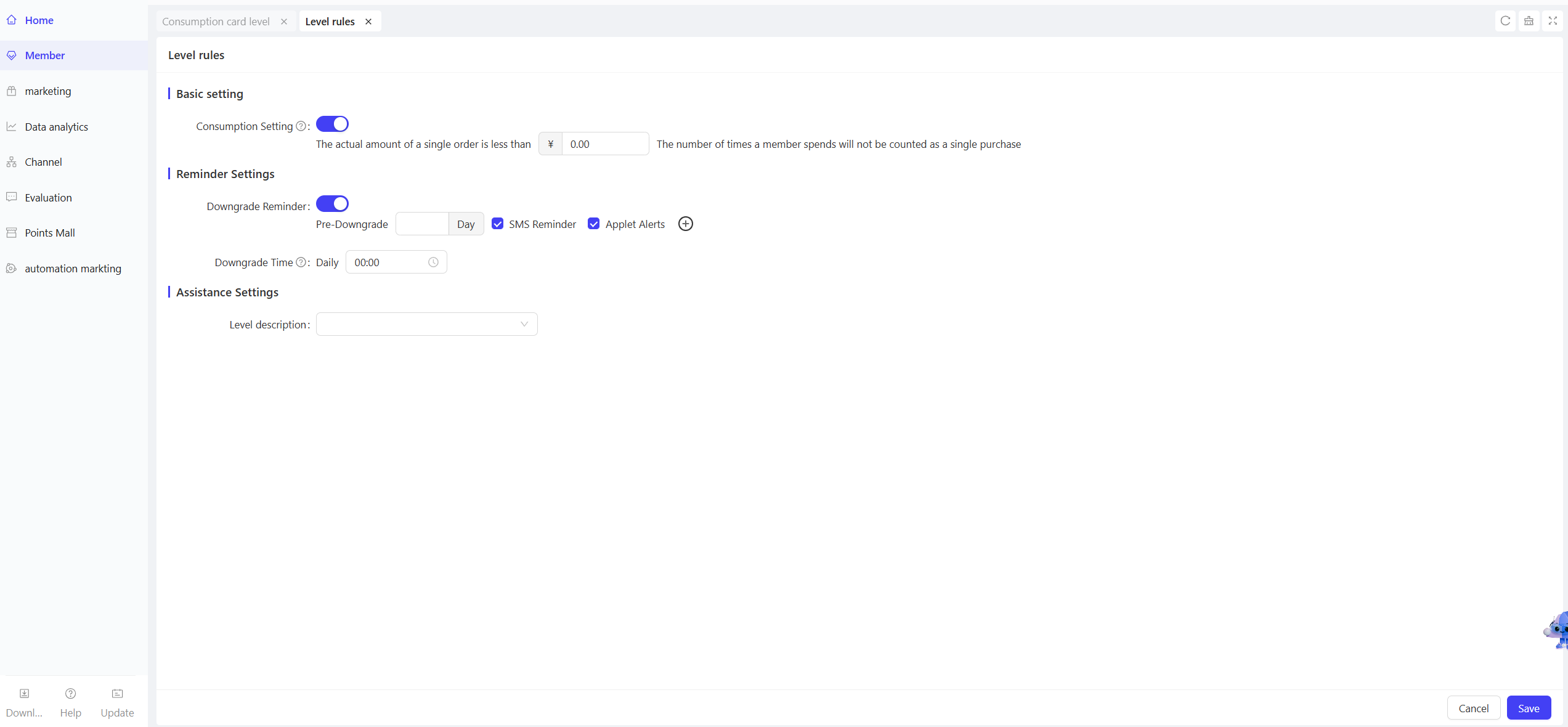
- Tier Rule Configuration Guidelines:
- Basic Settings
- Consumption Frequency Setting: Orders below X yuan are not counted as a consumption time (applies to all tiers under this rule).
- Reminder Settings
- Downgrade Reminder: Set advanced downgrade reminders (e.g., “Send SMS/mini-program reminders X days before downgrade”) (up to 3 reminders).
- Downgrade Time: Set the daily reminder time for downgrades (changes take effect the next day).
- Auxiliary Settings
- Tier Description: Select the agreement description for this tier rule.
- Basic Settings
Operation Steps & Diagrams:
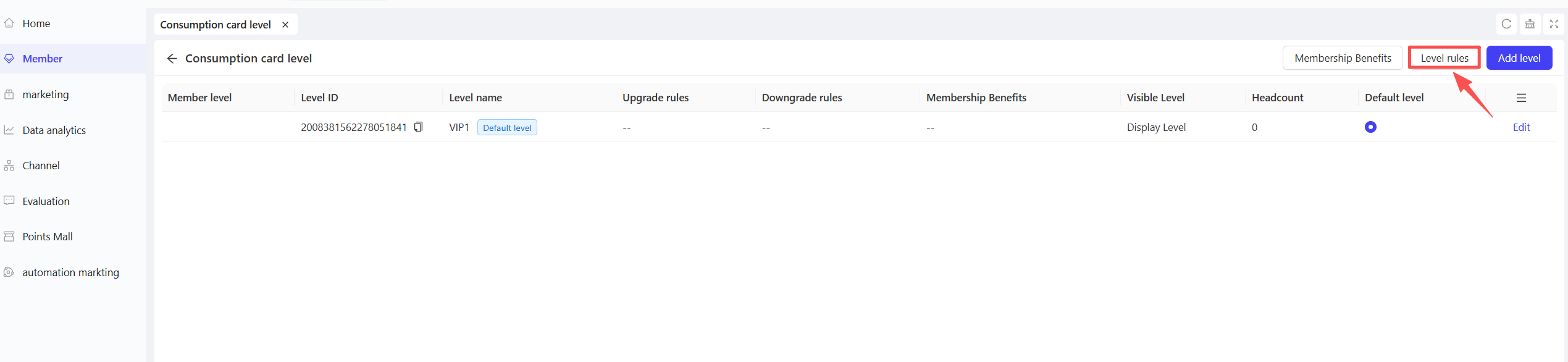
STEP 1: On the Membership Tier Management page, click the【Tier Rules】button in the upper right corner.
STEP 2: Configure basic, reminder, and auxiliary settings on the Tier Rules page.
2.2.4 Growth Points Card Tiers
Function Entry:
【Membership Marketing】>【Members】>【Loyalty Program】>【Tiers】
Function Description:
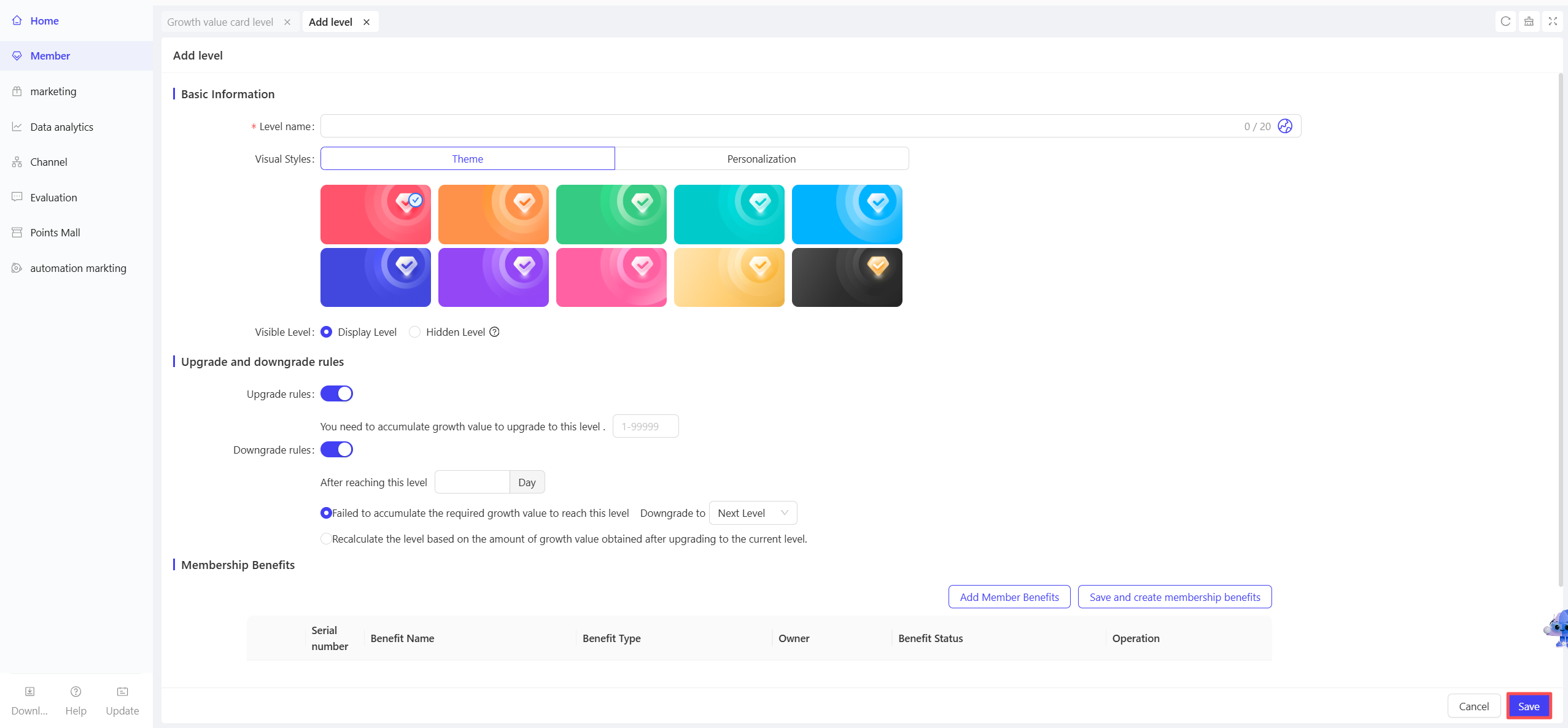
- Overview: Build a member stratification system with growth point-based tiers. Support creating multiple tiers, defining upgrade/downgrade rules and exclusive benefits. Link growth points to member consumption/behaviours to achieve refined membership operations and incentivise members to upgrade for better benefits.
- Field Configuration Guidelines:
- Basic Information
- Tier Name: Enter a name reflecting tier positioning (e.g., “New Member”, “Elite Member”) to clearly distinguish levels.
- Visual Styles: Select icons or colour schemes matching the tier positioning (e.g., gold icons for Gold Cards) to enhance recognition.
- Visible Tier: Select “Display” (visible to members to encourage upgrades) or “Hide” (admin-only for internal stratification).
💡
Note
Hidden tiers cannot be created or manually adjusted on the C-end or POS terminal and do not participate in upgrades/downgrades.
- Upgrade/Downgrade Rules
- Upgrade Rules: Set the cumulative growth point threshold for upgrading to this tier (must be higher than the maximum growth points of the previous tier to ensure logical consistency).
- Cumulative growth points required for upgrade: Set the threshold.
- Downgrade Rules
- X days after reaching this tier: Set the evaluation period for downgrade.
- Downgrade Logic 1 (By Cumulative Growth Points):
- Automatically downgrade to the next tier or a specified tier if the cumulative growth points do not meet the tier threshold during the period.
🔋Example
The "Gold Member" tier requires 3,000 growth points with a 30-day evaluation period. If a member fails to accumulate 3,000 growth points within 30 days of upgrading to a Gold Member, the system will automatically downgrade them.
- Downgrade Logic 2 (By New Growth Points):
- Recalculate the tier based on new growth points earned after upgrading to this tier.
🔋Example
The "Gold Member" tier requires 3,000 growth points with a 30-day evaluation period. If a member only earns 500 new growth points within 30 days (total 2,500), the system will match their tier based on the current total (e.g., Silver Member) and downgrade them automatically.
- Upgrade Rules: Set the cumulative growth point threshold for upgrading to this tier (must be higher than the maximum growth points of the previous tier to ensure logical consistency).
- Basic Information
Operation Steps & Diagrams:
STEP 1: On the Card Program Management page, click the【Tiers】button under the card program component.
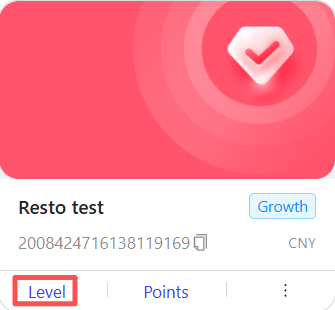
STEP 2: Select “Growth Points Card Tiers” as the tier type (non-editable).
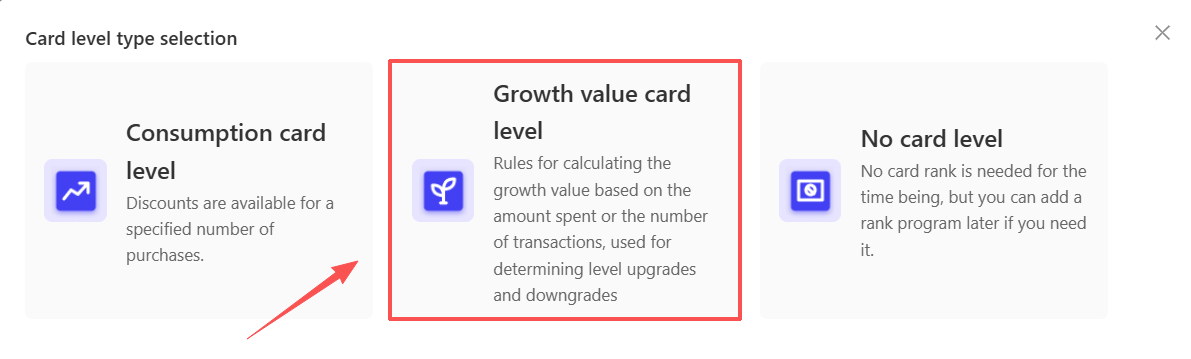
STEP 3: On the Growth Point-Based Tier page, click【Add Tier】.
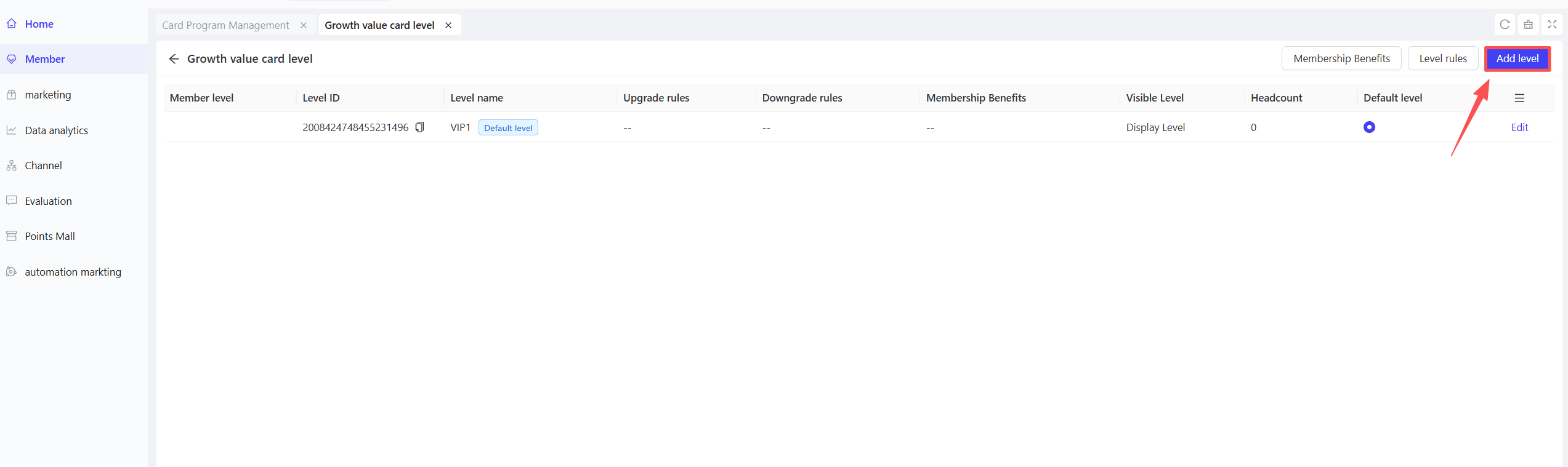
STEP 4: Fill in basic information, upgrade/downgrade rules, and member benefits. Click【Save】to complete tier creation.
2.2.5 Growth Point Tier Rules
Function Entry:
【Membership Marketing】>【Members】>【Loyalty Program】>【Tiers】
Function Description:
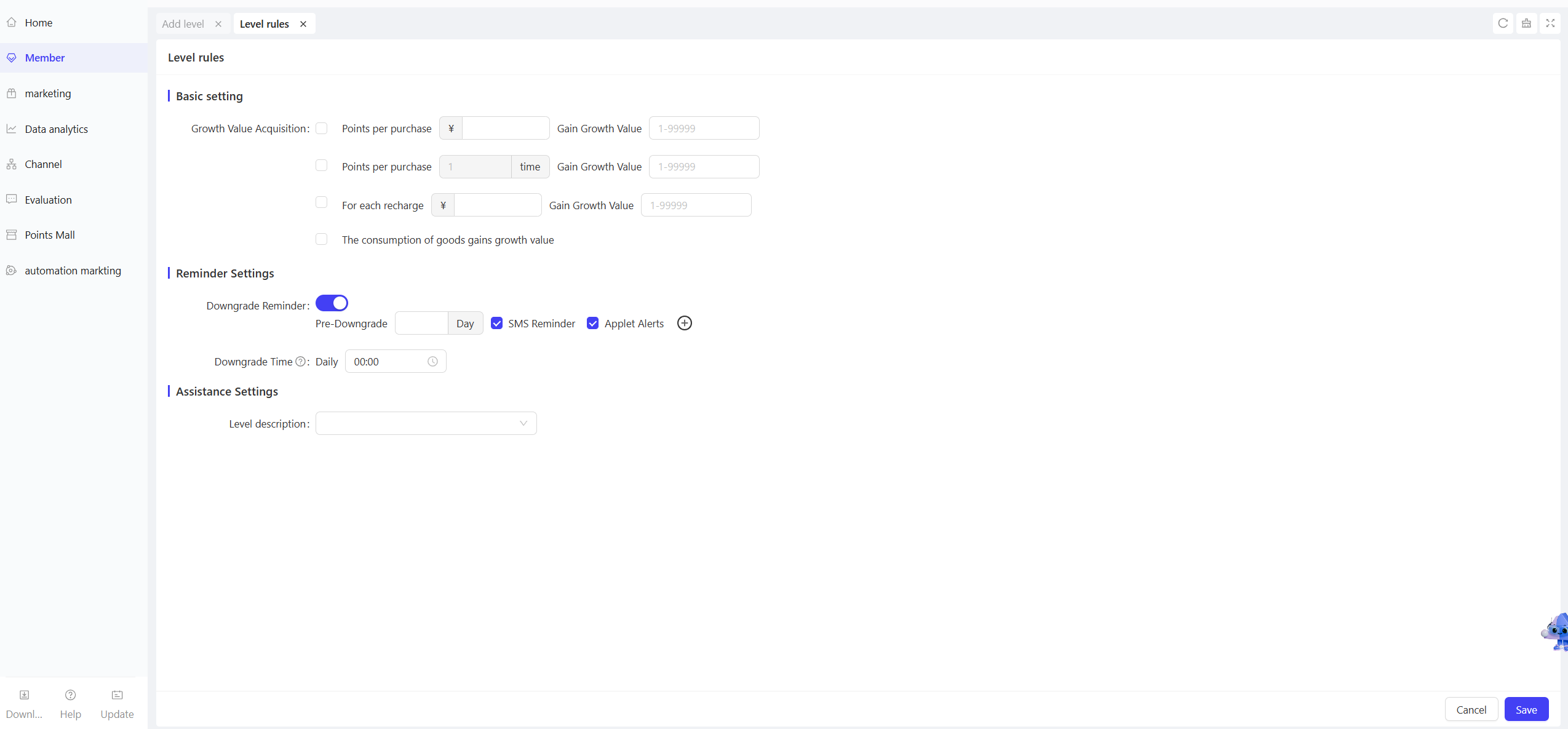
-
Overview: Uniformly define growth point earning logic and clarify the correlation between growth points and member dining behaviors, providing a fair and consistent data basis for membership tier upgrades/downgrades.
-
Tier Rule Configuration Guidelines:
- Basic Settings
- Growth Points Acquisition: Define the specific ratio for members to earn Growth Points through spending behaviors, including two calculation dimensions:
- By Consumption Amount: Configure “Earn XXX growth points for every $XX spent”.
- By Consumption Frequency: Configure “Earn XXX growth points for every X purchases”.
- Consumption Frequency Setting:
- Select “Disable” to turn off this rule.
- Select “Enable” to configure “Orders with actual payment below $XXX are not counted as membership consumption time” (prevents excessive growth point issuance from small-value orders).
- Consumption Frequency Setting:
- Growth Points Acquisition: Define the specific ratio for members to earn Growth Points through spending behaviors, including two calculation dimensions:
- Basic Settings
-
Use Cases:
- High-Average-Check Brands (Premium Catering): To avoid excessive growth point accumulation, configure “Earn 1 growth point for every 2 yuan spent” and enable “Earn growth points by frequency” (100 extra points for every 2 purchases, with orders below 50 yuan not counted). Balances growth point speed with frequency incentives, adapting to high-end customer consumption habits.
- Mass Retail Brands (Chain Stores): With low average checks and high frequency, configure “Earn 1 growth point for every 1 yuan spent”, disable “Earn growth points by frequency”, and set “Orders below 10 yuan not counted” (avoids frequent small-value accumulations). Simplifies calculation logic and focuses on amount accumulation for mass-market members.
Operation Steps & Diagrams:
STEP 1: On the Membership Tier Management page, click the【Tier Rules】button in the upper right corner.

STEP 2: Configure basic, reminder, and auxiliary settings on the Tier Rules page.
2.3 Points Program
Overview
The Points Program is a core feature for incentivising member consumption and retention. By configuring rules for points earning, redemption, and expiration, it clarifies the “source → usage → validity” logic of member points, enhancing point value and member consumption motivation to support refined membership operations.
Function Entry:
【Membership Marketing】>【Members】>【Loyalty Program】>【Points Program】
Function Description:
-
Field Configuration Guidelines:
- Points Acquisition Rules: Set the following fields to standardise points acquisition:
- Applicable Card Tiers: Select “All Tiers” or “Specific Tiers”.
- All Tiers: All members earn points per the following rules.
- Specific Tiers: Different tiers can have different earning rules.
- Available Items & Categories: Select which products are eligible for points (All / By Product / By Category).
- Restrictions:
- Maximum Points per Order: The maximum points obtainable from a single order.
- Discounted Items: Configure whether discounted products qualify for points (Earn Points / No Points). - Payment Method Restrictions: Configure points multiplier for different payment methods. - Example: Set "2x points for bank card payments" to encourage this payment method.🔋Example
Earn 1 point per $1 spent with a 3-point cap. A $10 order earns 3 points.
🔋Special Scenario Note:
When both membership benefit multipliers and payment method multipliers apply, points are calculated as follows:
"2x points for prepaid membership payments + 1 point per $10 spent"
Order Payment: $20 prepaid + $30 cash + $50 WeChat Pay (total $100, no discounts).
Step 1: Prepaid portion ($20): (20 ÷ 10) × 1 × 2 = 4 points.
Step 2: Remaining portion ($80): (80 ÷ 10) × 1 × 2 = 16 points (with membership 2x benefit).
Total Points: 4 + 16 = 20 points.
- Applicable Card Tiers: Select “All Tiers” or “Specific Tiers”.
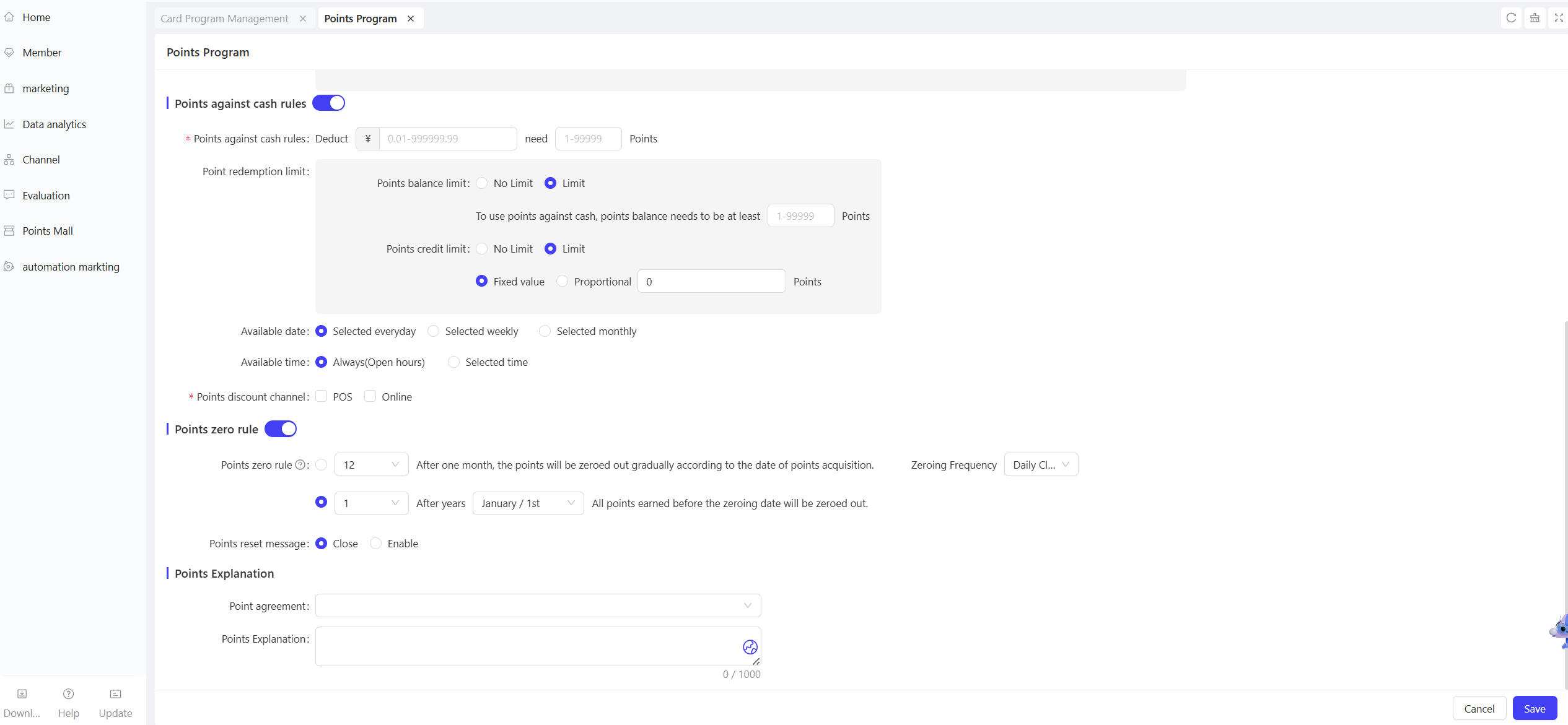
- Points Cash Redemption Rules: Enable members to redeem points for consumption discounts to enhance point value and consumption enthusiasm.
- Redemption Ratio: Set the ratio of points to cash (e.g., “10 points = $1”).
- Redemption Restrictions:
- Points Balance Requirement: Configure “Restricted” or “Unrestricted”.
- If restricted, enter the minimum points required (e.g., 1 point).
- Maximum Redemption per Order: Configure “Restricted” or “Unrestricted”.
- If restricted, choose:
- Fixed Value: Enter the maximum points (e.g., 100 points).
- Percentage: Enter the maximum percentage of available points (e.g., 50%).
- If restricted, choose:
- Points Balance Requirement: Configure “Restricted” or “Unrestricted”.
- Effective Date: Set the validity period for redemption rules (Daily / Weekly / Monthly).
- Effective Time: Set the time window for redemption (All Day / Specific Time Period).
- Redemption Channels: Select applicable channels (POS / ONLINE).
- Points Expiration Rules: Set points validity and expiration rules to avoid excessive point accumulation and enhance circulation/value.
- Expiration Method:
- Gradual Expiration by Acquisition Date: Select “Expire X months gradually after acquisition” and set frequency (Daily / Monthly).
- Annual Unified Expiration: Select “Expire all points acquired before X month X day after Y years”.
- Expiration Notifications: Enable/disable automatic reminders via configured channels (e.g., SMS, mini-program) before points expire.
- Expiration Method:
- Points Description: Set and display detailed points rules.
- Points Agreement: Select the corresponding agreement for the points program.
- Description Content: Enter specific details about the point rules.
- Points Acquisition Rules: Set the following fields to standardise points acquisition:
-
Use Cases:
- High-Frequency, Low-Average-Check (Fast Food / Bubble Tea): Focus on “low-threshold earning + quick redemption” to incentivise repeat purchases.
- Low-Frequency, High-Average-Check (Fine Dining / Banquets): Focus on “high-value points + exclusive benefits” to drive large-value consumption.
- Multi-Store Chain Brands: Focus on “universal points + unified rules” to enhance cross-store consumption loyalty.
Operation Steps & Diagrams:
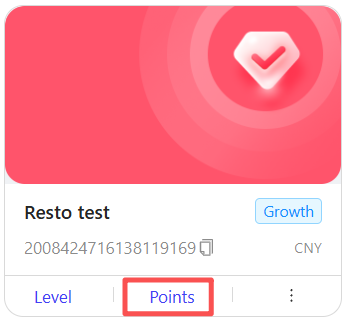
STEP 1: On the Card Program Management page, click the【Points】button under the card program component.
STEP 2: Configure points earning rules.
STEP 3: Configure points redemption rules.
STEP 4: Configure points expiration rules.
STEP 5: Enter the points description.