Re-engagement Gift
1 Module Introduction
The Re-engagement Gift Campaign targets at-risk members (those with no recent purchases). By sending targeted gifts, it reactivates member engagement and purchase intent, effectively reducing member churn, boosting retention rates, unlocking more value from existing members, and helping merchants build a loyal core customer base.
2 Configuration Guide
2.1 Accessing the Feature
- Log in to the SaaS Admin Portal.
- Navigate to【Membership Marketing】>【Marketing】>【Marketing Activities】.
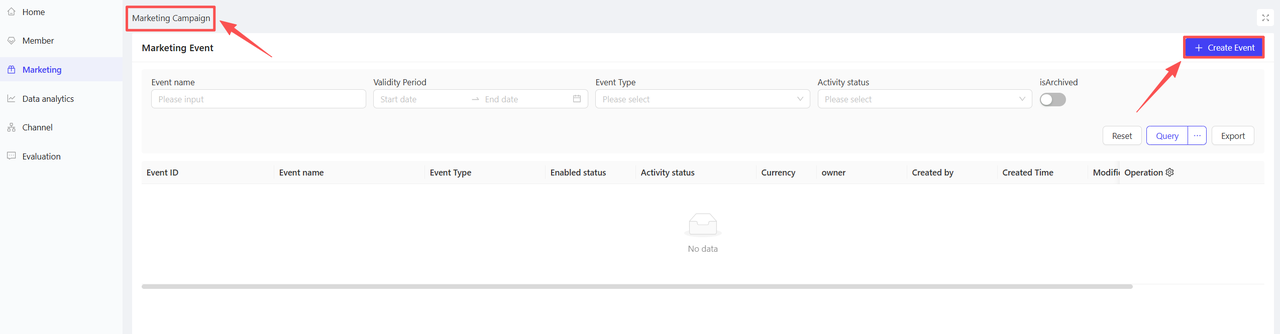
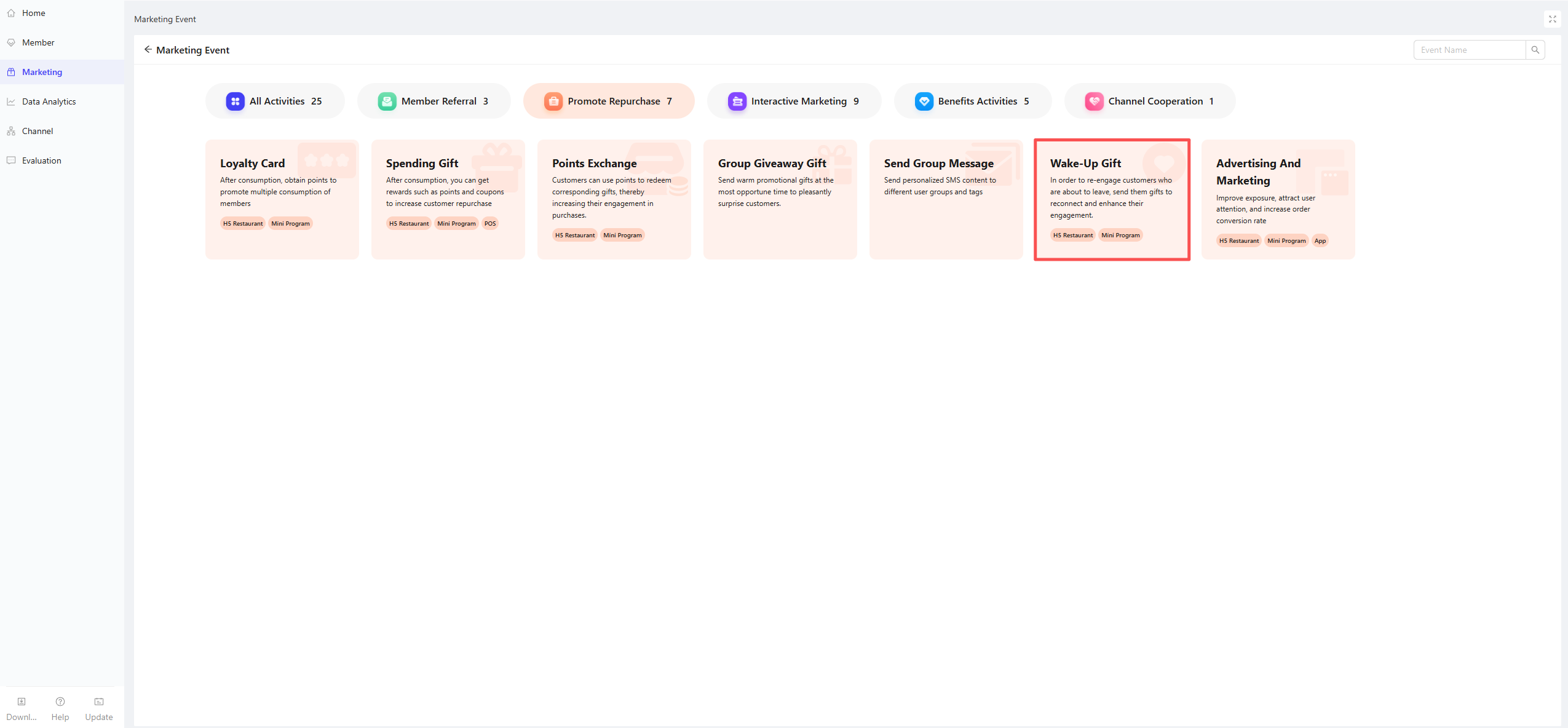
- Click【Create Activity】in the top-right corner and select the Re-engagement Gift module.
2.2 Basic Settings
-
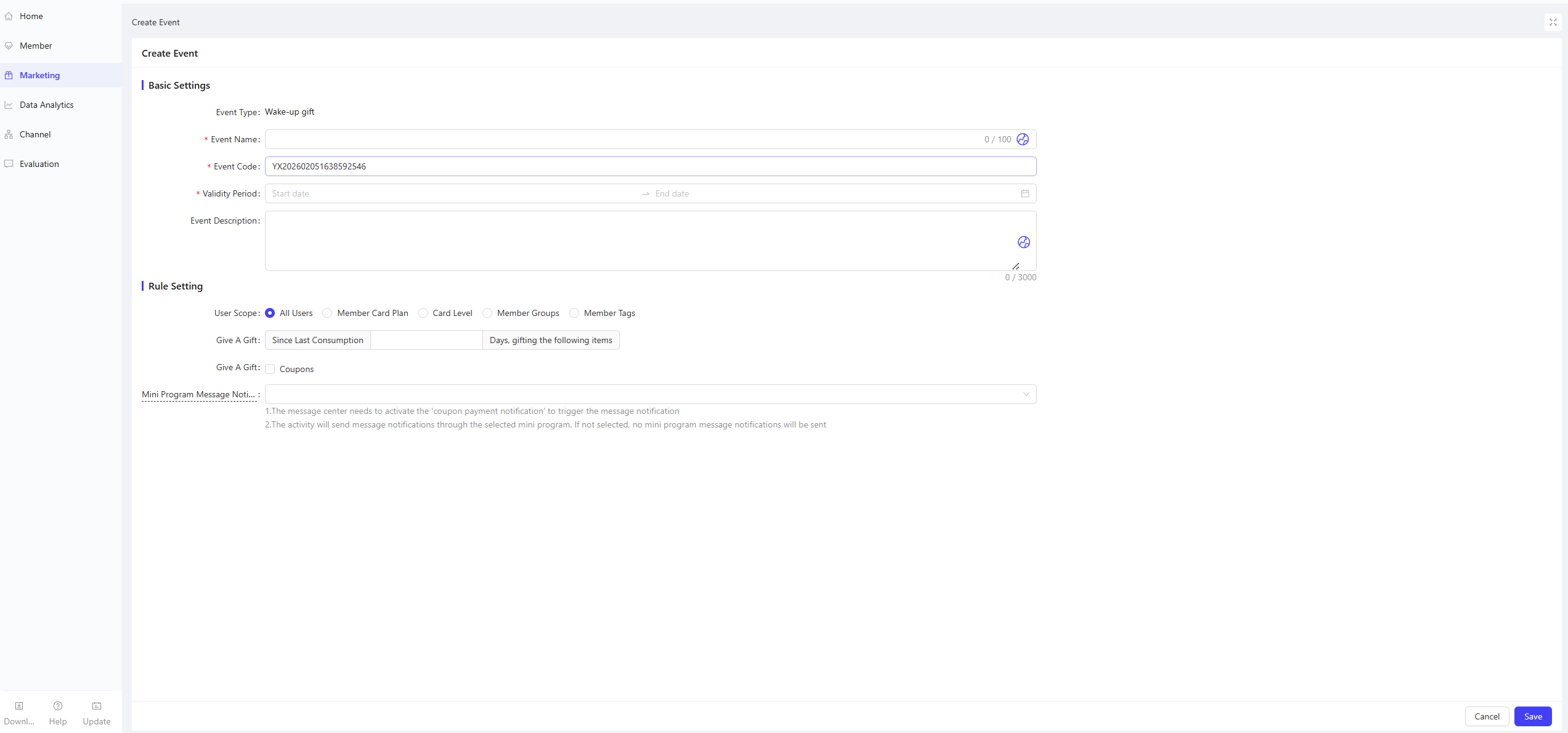
Activity Name: Enter a clear name for easy customer recognition
- Example: “Loyal User Return - Claim Your Gift”
-
Activity Code: Enter a unique ID for internal management and tracking
-
Validity Period: Set the campaign start and end time for rational scheduling
-
Description: Briefly describe campaign details and rules for clarity
2.3 Rule Settings
-
Target Audience: Select the specific user scope based on 5 dimensions:
- All Users: Applies to all store members
- Loyalty Card Plans: Filter users by one or more loyalty card plans
- Loyalty Card Tiers: Filter users by different card tiers under loyalty card plans
- Member Segments: Filter users by one or more member segments
- Member Tags: Filter users by one or more member tags (e.g., New Users, Loyal Users)
-
Gift Eligibility Rule: Set the condition “x Days Since Last Purchase” (customize the number of days); eligible members will receive the gift automatically
-
Gift Type: Only Coupons are supported as re-engagement gifts currently
-
Mini Program Notifications
- The Coupon Arrival Notification must be enabled in the Message Center to trigger alerts
- Select the target mini programs for notifications; no alerts will be sent if none are selected
3 Activity Activation & Management
-
Activating the Activity
- After completing all configurations, click Save to launch the activity immediately.
-
Activity Management & Monitoring
- View activity performance data (including order volume and participant metrics) on the Activity Management page.
- Pause, adjust, or archive the activity at any time as needed.