Coupon
1 Module Introduction
This manual outlines the end-to-end process for managing, creating, and operating coupons in the RestoSuite system. It helps Group Administrators and Operations Personnel quickly complete coupon configuration, distribution, and redemption-related operations.
2 Glossary
- Coupon Type: Includes 9 categories (e.g., Cash Coupon, Discount Coupon), each corresponding to a different discount format (e.g., fixed amount deduction, percentage discount).
- Currency: The monetary unit configured by the group. Coupons can only be redeemed if their currency matches the store’s currency.
- Sharing & Mutual Exclusion Plan: Rules governing whether coupons can be stacked with member benefits and other promotional activities (or if they are mutually exclusive).
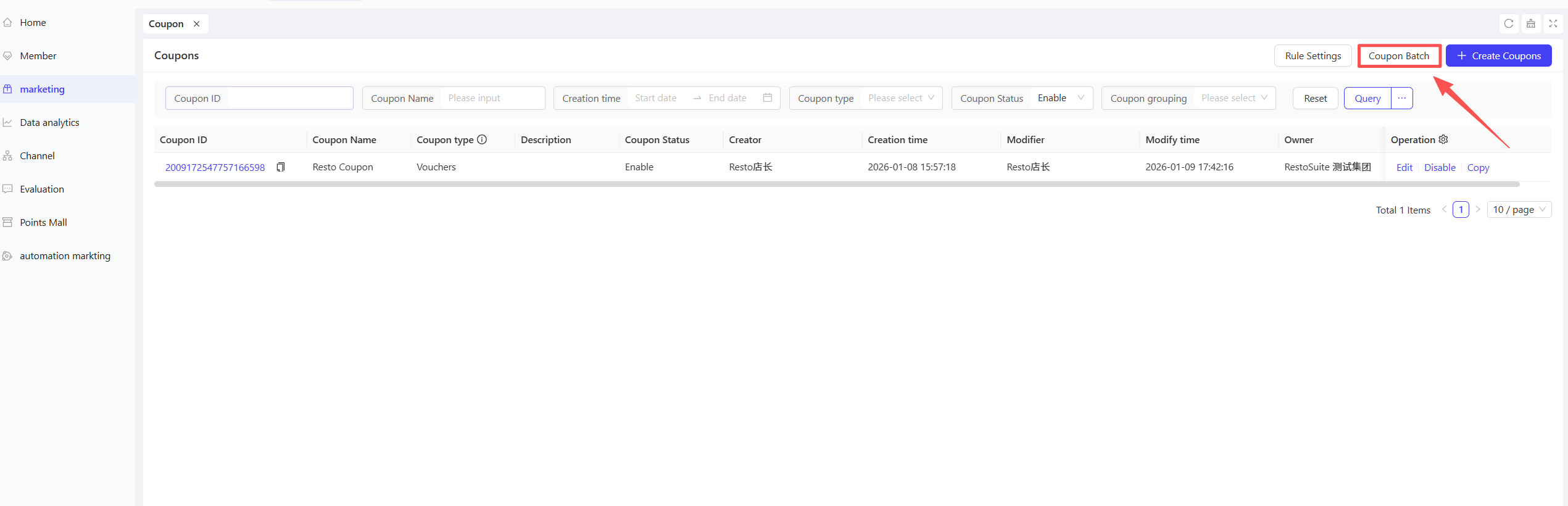
- Coupon Batch: Batch-generated coupon codes exclusively for [Third-Party Benefit Coupons], used for redemption on third-party platforms (e.g., video memberships).
3 Creating a Coupon
STEP 1: Switch to Group View
- Group Administrators log in to the Merchant Backend.
- Click the View Switch button in the upper right corner and select the target【Group View】.
STEP 2: Access the Coupon Page
Navigate through the left menu:【Membership Marketing】>【Marketing】>【Coupon】to enter the Group Coupon List page.
STEP 3: Create a Coupon
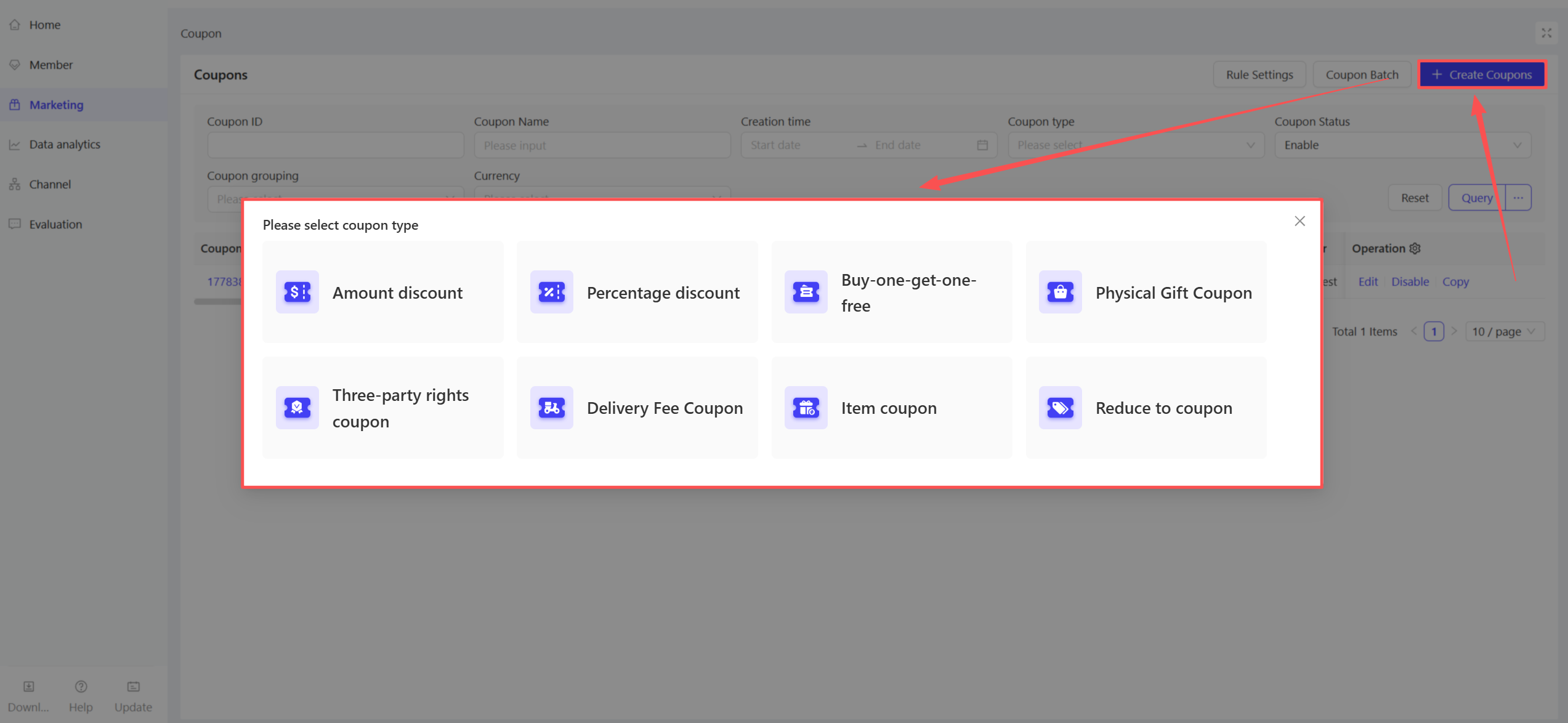
- Click【Create Coupon】in the upper right corner of the list page. A coupon type selection window (supporting 9 types) will pop up.
- Select the desired coupon type and configure it as follows:
Coupon Type | Description |
|---|---|
Cash Coupon | Deducts a fixed amount directly. Supports usage thresholds, valid across all channels, and requires currency consistency with the store. |
Discount Coupon | Offers a fixed percentage discount. Supports usage thresholds, with the discounted amount rounded to 2 decimal places. |
Buy X Get Y Coupon | Get Y items discounted when purchasing X items. The order must include free/gifted items; discounts can be applied to higher-priced items first (sorted by price). |
Physical Gift Coupon | Redeemable for physical items in stores. Only redeemable via POS, suitable for peripherals, snacks, etc. |
Delivery Fee Coupon | Reduces delivery fees for takeout orders. Exclusive to takeout, with an option to include packaging fees. |
Third-Party Benefit Coupon | Redeemable for third-party benefits (e.g., video memberships). Must be redeemed on the third-party platform; not valid for redemption within this system. |
Side Dish Coupon | Reduces the cost of side dishes. Supports limiting the number of discounts per order, designed to increase side dish order rates. |
Item Redemption Coupon | Redeem designated items for free or at a discounted price. No payment required for the redeemed item during checkout, ideal for new item promotion. |
Fixed Price Coupon | Reduces the price of an item/order to a fixed amount, suitable for large-value promotions. |
Select Currency:
If the group supports multiple currencies, a pop-up will appear to select the currency.
If only one currency is configured, the default currency will be used automatically.
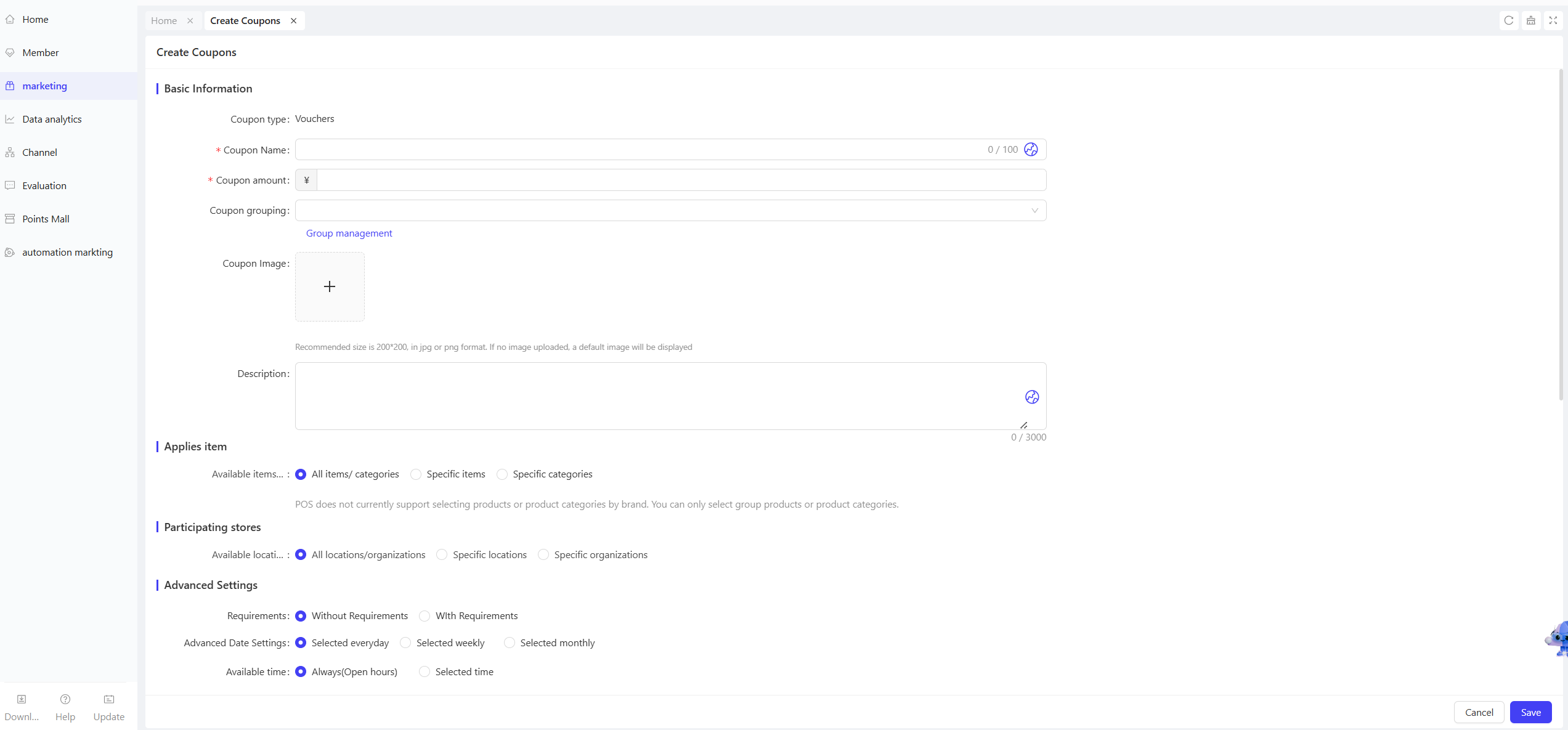
- Configuration Guidelines (Taking Cash Coupon as an Example):
-
Basic Information
- Coupon Name (Required): Enter a name (0-100 characters).
- Coupon Amount (Required): Enter the amount; the selected currency symbol will be displayed as a prefix.
- Coupon Group: Select an existing group or click [Group Management] to create a new one.
- Coupon Image: Upload a 200*200px JPG/PNG image. A default image will be used if no image is uploaded.
- Description: Enter coupon details (0-3000 characters).
-
Applicable Items
Select the scope of applicable items:
-
【All items/ categories】
-
【Specific items (Include/Exclude Specific Products)】
-
【Specific categories (Include/Exclude Specific Categories)】
-
Applicable Stores
- Select the scope of applicable stores:
- [All Stores//organizations] / [Specific Organizations] / [Specific Stores]
- For multi-currency groups, [All Stores] is not available; only [By Organization] / [By Store] are supported:
- By Organization: During saving, the system will verify the currency of stores under the organization. If multiple currencies are present, a prompt will appear: “Selecting organizations/stores with multiple currencies is not supported. Please reselect.”
- By Store: Only stores with the selected currency will be displayed.
- Advanced Settings
- Requirements: Select【Without Requirements】or【WIth Requirements】.
- If【WIth Requirements】is selected, configure the amount threshold (choose one of four modes):
- One coupon per order with an order amount of $X or more
- One coupon per $X increment in the order amount
- One coupon per order with an actual payment amount of $X or more
- One coupon per $X increment in the actual payment amount
- After selecting the threshold mode, choose one of the following:
- Threshold Met by Eligible Product Amounts: Only the total amount of coupon-eligible items in the order counts toward the threshold.
- Threshold Met by Total Order Amount: The total order amount counts toward the threshold if the order includes at least one coupon-eligible item.
- If【WIth Requirements】is selected, configure the amount threshold (choose one of four modes):
- Advanced Date Settings: Select validity period type [Daily/Weekly/Monthly].
- Applicable Businesses/Channels: All selected by default (Pickup/Takeout/Dine-in; Online/POS/Kiosk). Deselect unwanted options as needed.
- Quantity Limits: Daily usage limit per user and usage limit per order (unlimited by default; enter the number of coupons if limiting).
- Gifting Settings: Select [Non-Giftable] / [Giftable]. For giftable coupons, configure gifting copies and sharing images.
- Coupon Code Redemption: Enable allowing users to redeem coupons via coupon codes on Mini Programs/POS.
- Sharing & Mutual Exclusion: Select [Use Sharing & Mutual Exclusion Plan] or [Configure Rules Individually]. For individual configuration, set stacking/mutual exclusion rules with other marketing activities.
- Requirements: Select【Without Requirements】or【WIth Requirements】.
- Configuration for Other Coupon Types:
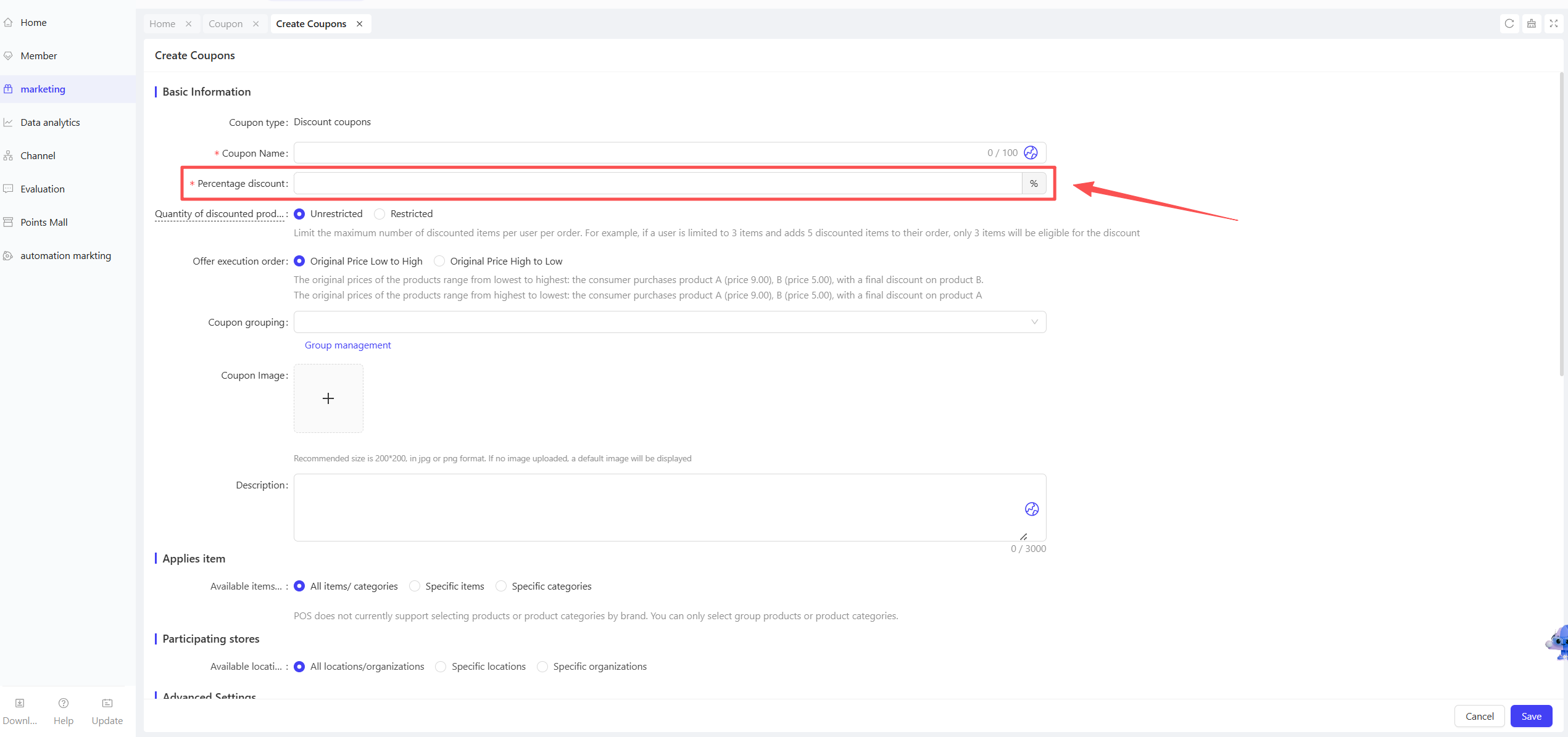
- Discount Coupon: Basic Information, set【Discount Percentage】 (corresponding to the discount rate). Other configurations are the same as Cash Coupon.
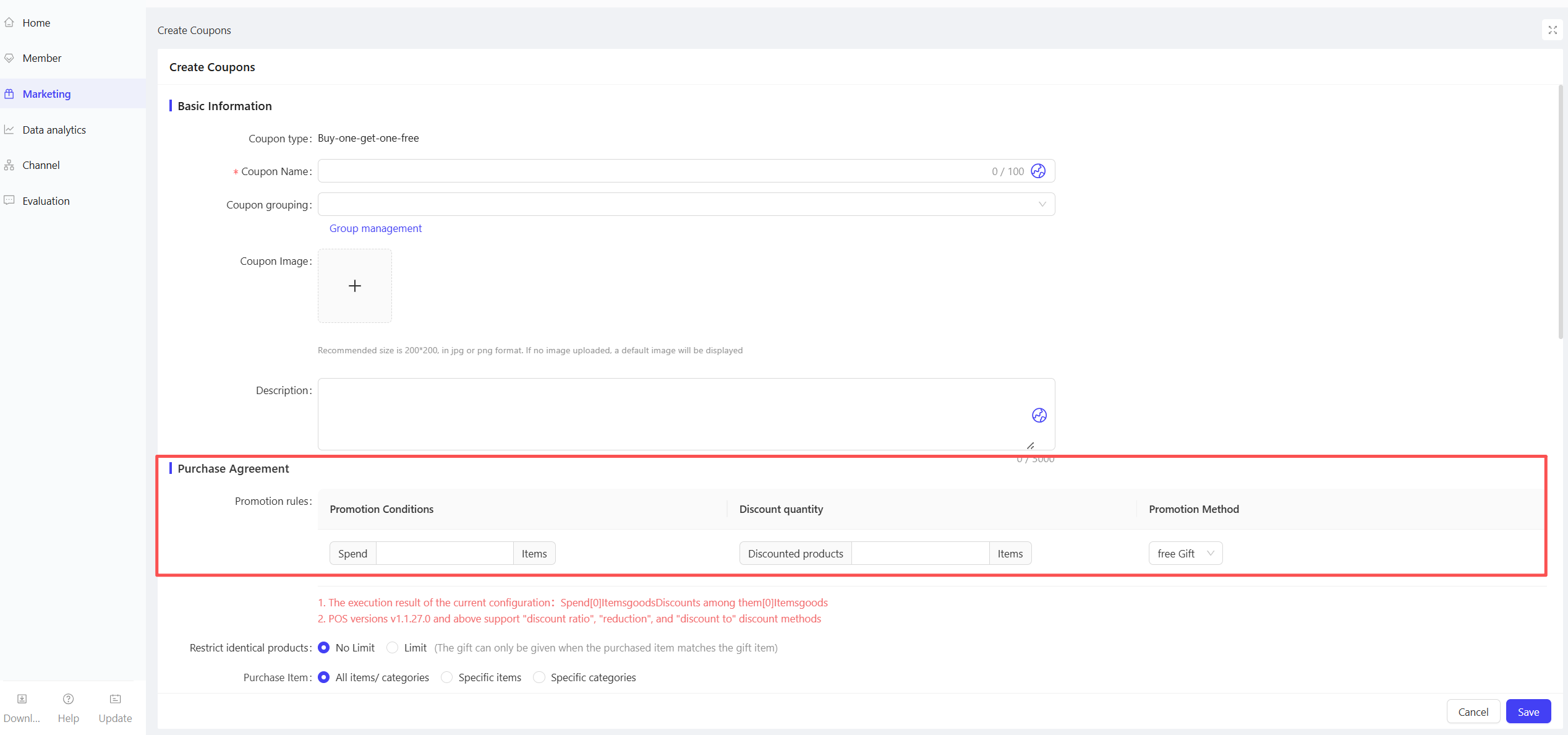
- Buy X Get Y Coupon: Set the rule “Buy X Get Y,” select the discount type (Free/Percentage/Fixed Price/Deduction), and configure applicable purchase/gifted item scopes. Other configurations are the same as Cash Coupon.
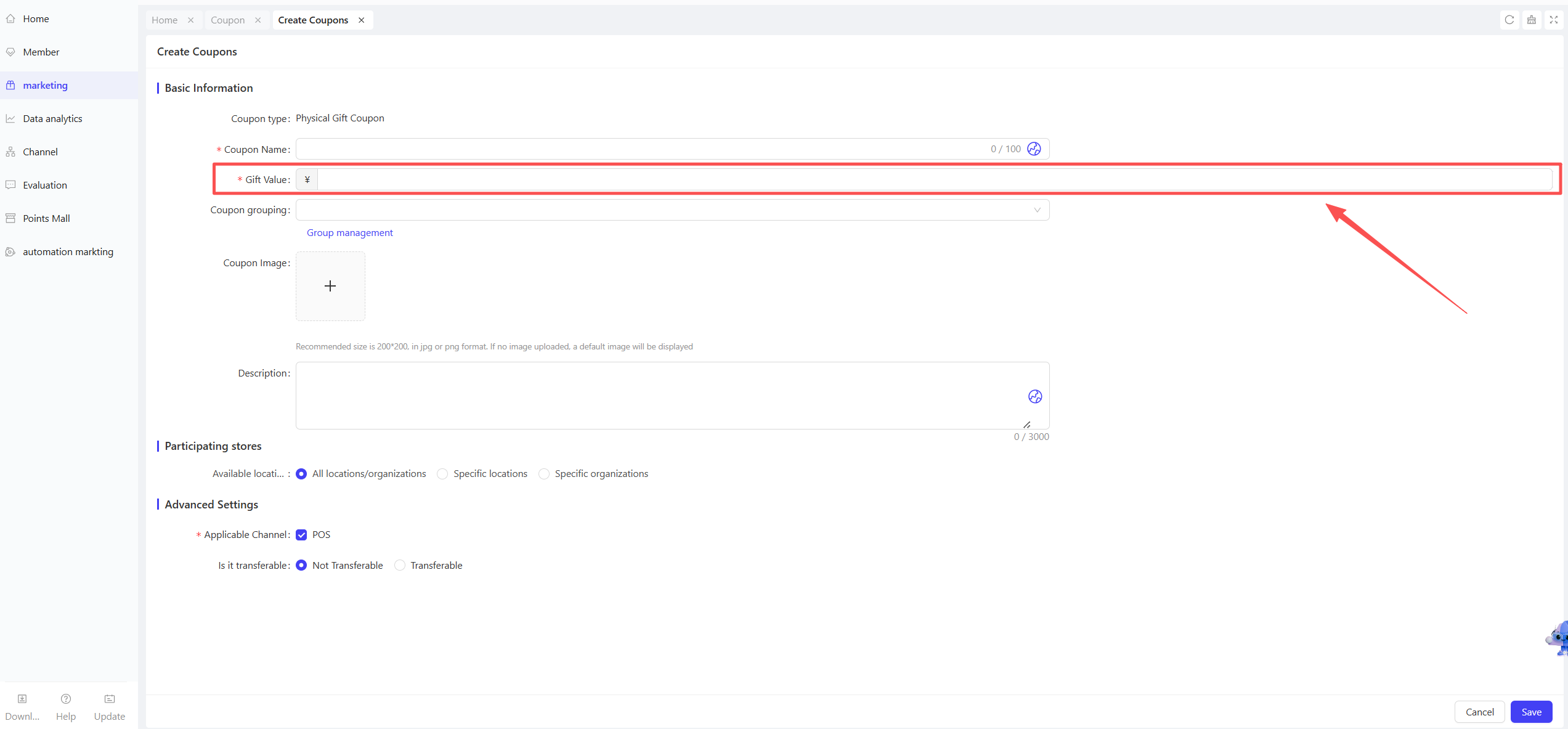
- Physical Gift Coupon: Basic Information, set【Gift Value】(selling price). Exclusive to POS channels.
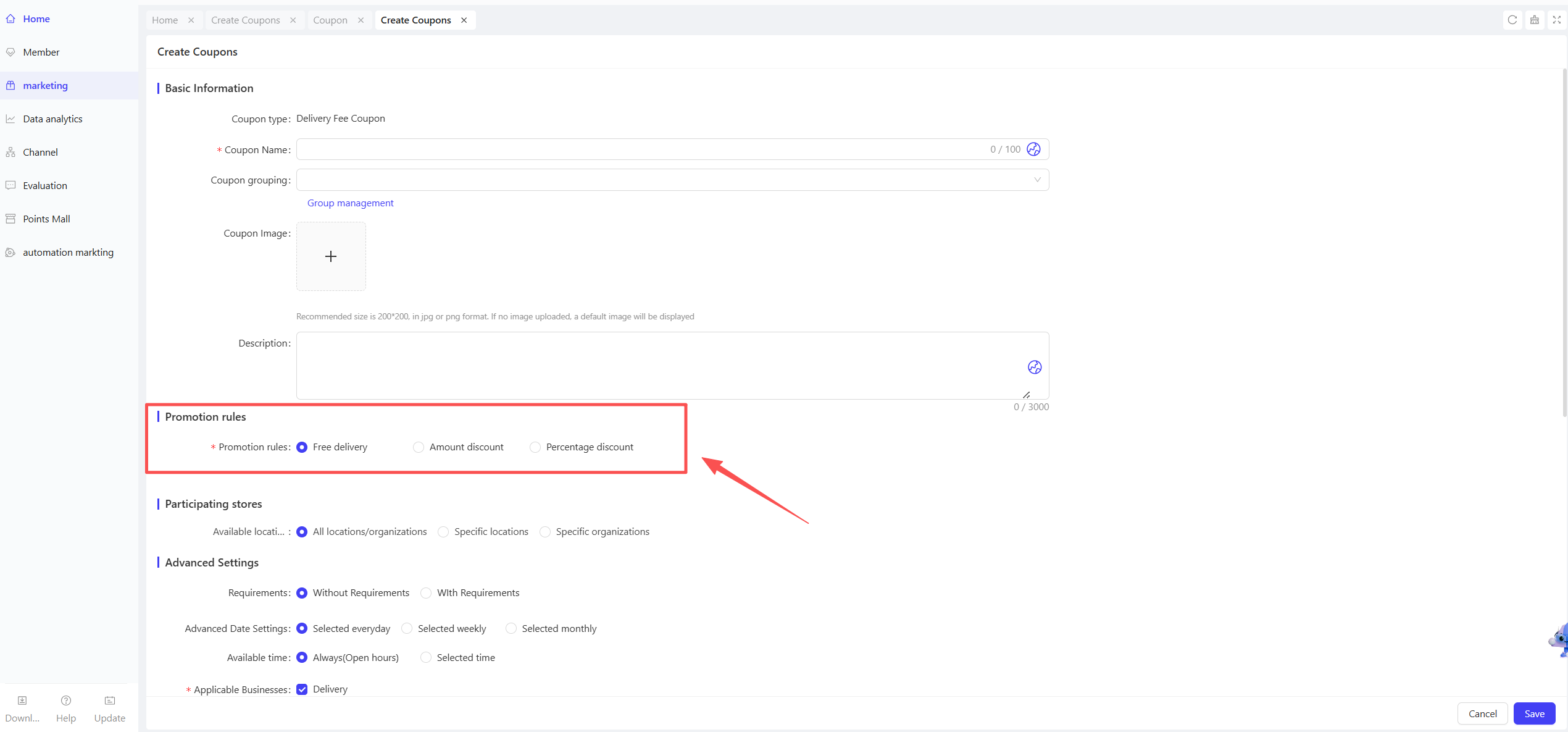
- Delivery Fee Coupon: In Discount Rules, select【Free Delivery/Amount Discount/Percentage Discount】. Support configuring “Include Packaging Fees” or not. Exclusive to takeout business.
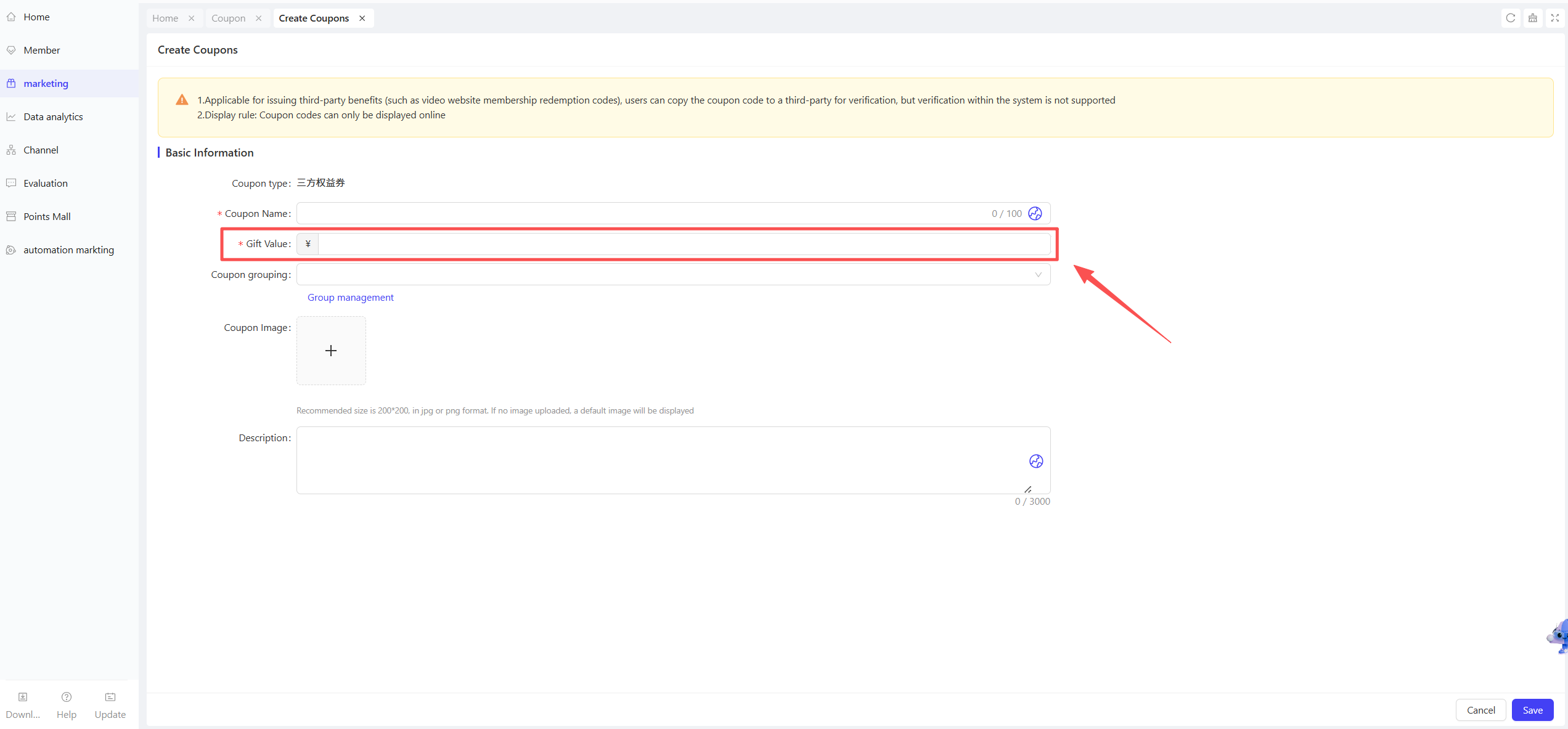
- Third-Party Benefit Coupon: In Basic Information, set [Gift Value]. Not redeemable within this system; only for third-party platforms (e.g., video memberships).
- Side Dish Coupon: Basic Information, select the discount type (Deduction/Percentage/Fixed Price) and configure the limit on eligible products. Other configurations are the same as Cash Coupon.
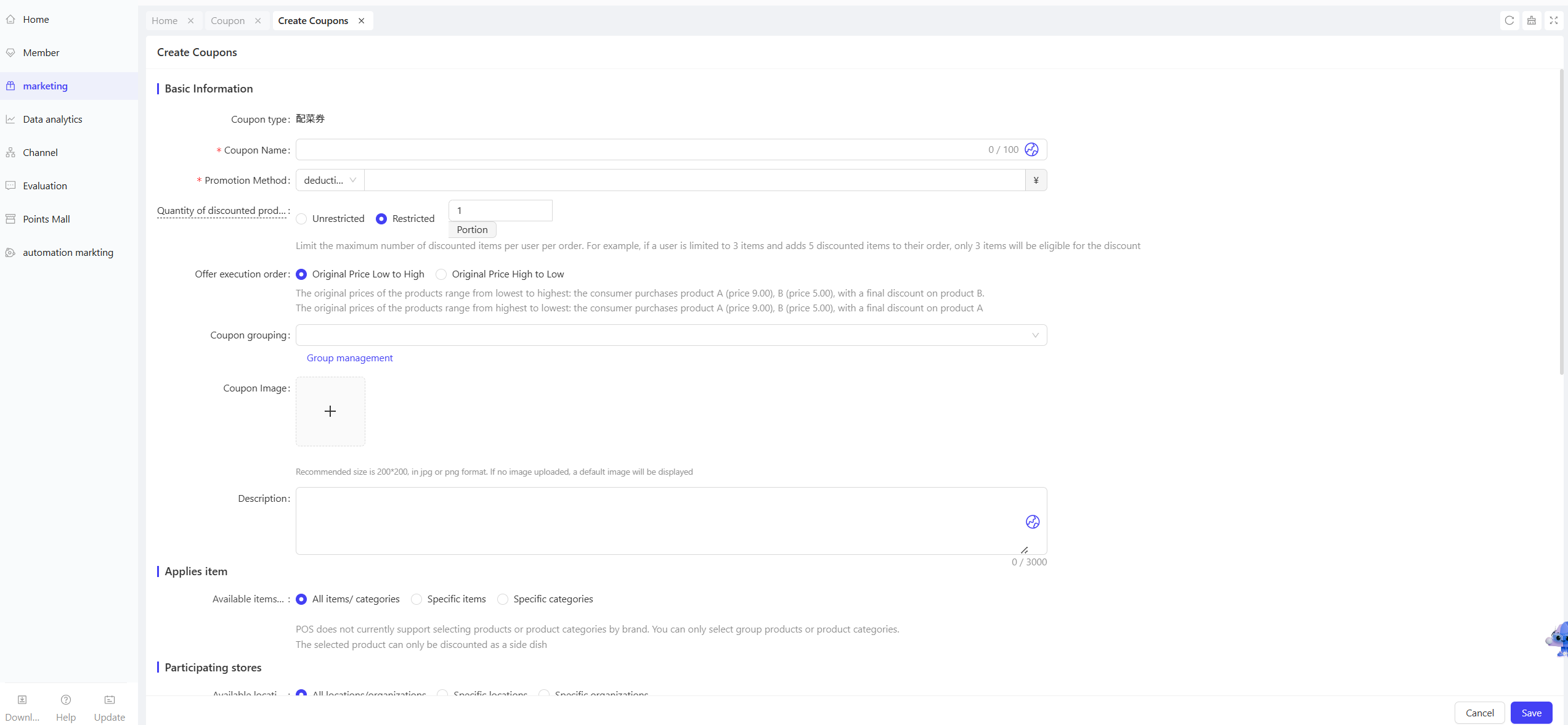
- Item Redemption Coupon: Select the discount type (Free Redemption/Deduction, etc.). Free redemption supports “fixed-price/weight-based products,” with no payment required during redemption.
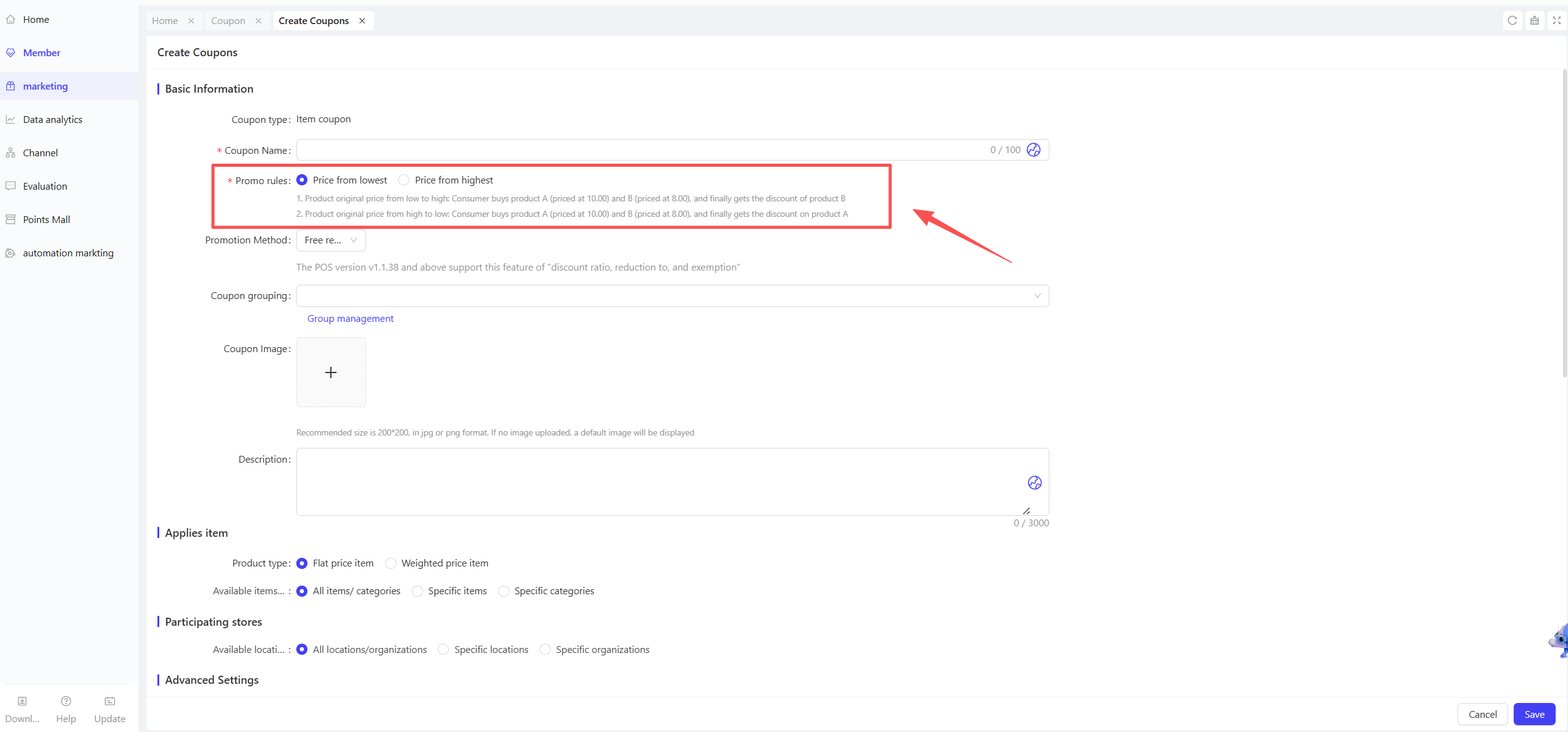
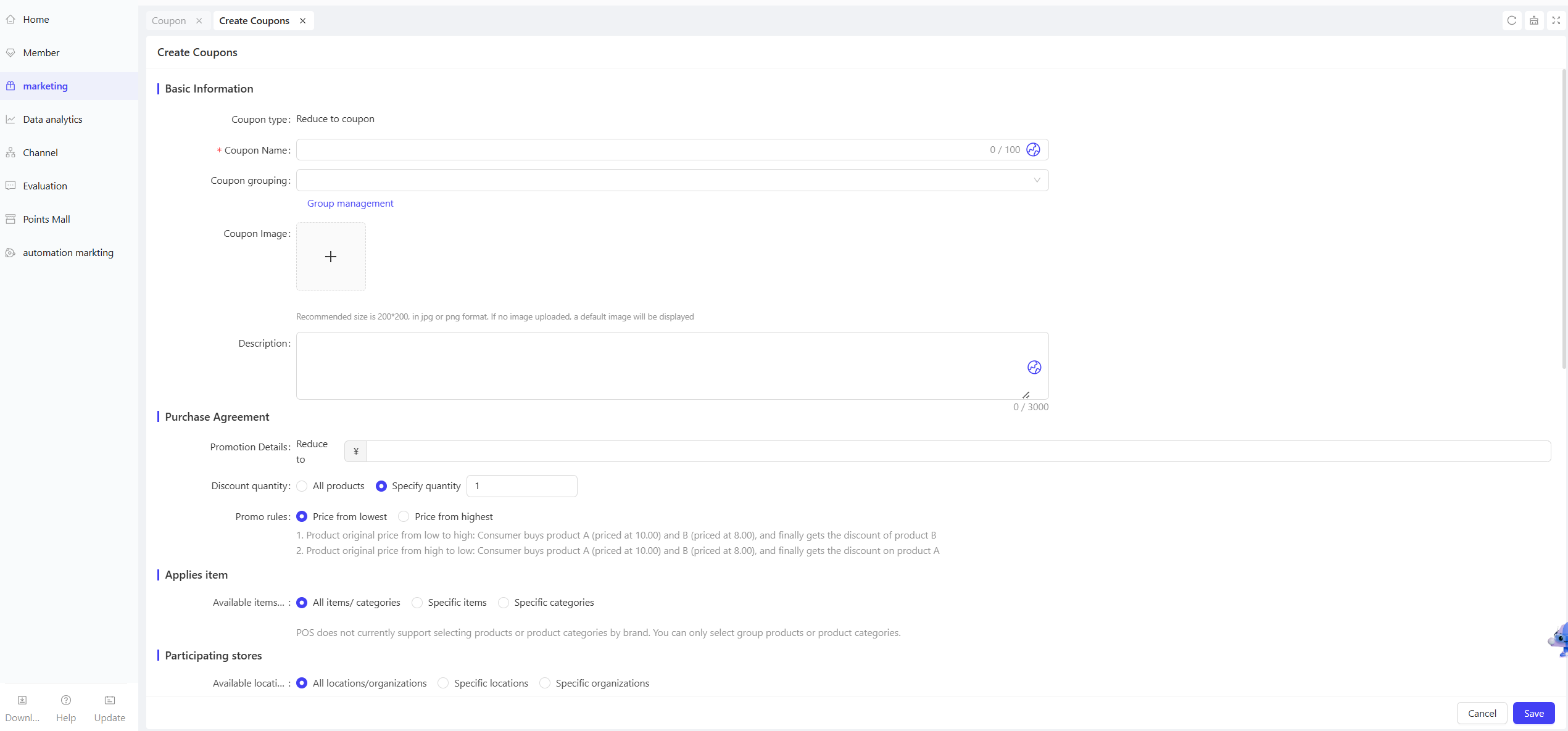
- Fixed Price Coupon: In Usage Rules, set [Fixed Target Price] and discount quantity (All Products/Specified Quantity).
4 Coupon Management
- Edit: Modify the configuration of created coupons to adapt to activity adjustments or rule optimizations.
- Deactivate/Activate: Flexibly control the coupon’s status to align with the activity lifecycle.
- Copy: Quickly create new coupons with the same configuration as existing ones, reducing repetitive setup and improving operational efficiency.

5 Coupon Details & Operations
Click the【Coupon ID】in the coupon list to access the details page:
- Information Display: Applicable stores, issued quantity, used quantity, voided quantity, and other data.
- Manual Coupon Issuance: Click【Manual Coupon Issuance】in the upper right corner, enter the member’s phone number, issuance quantity, validity period, etc., to directly distribute coupons.
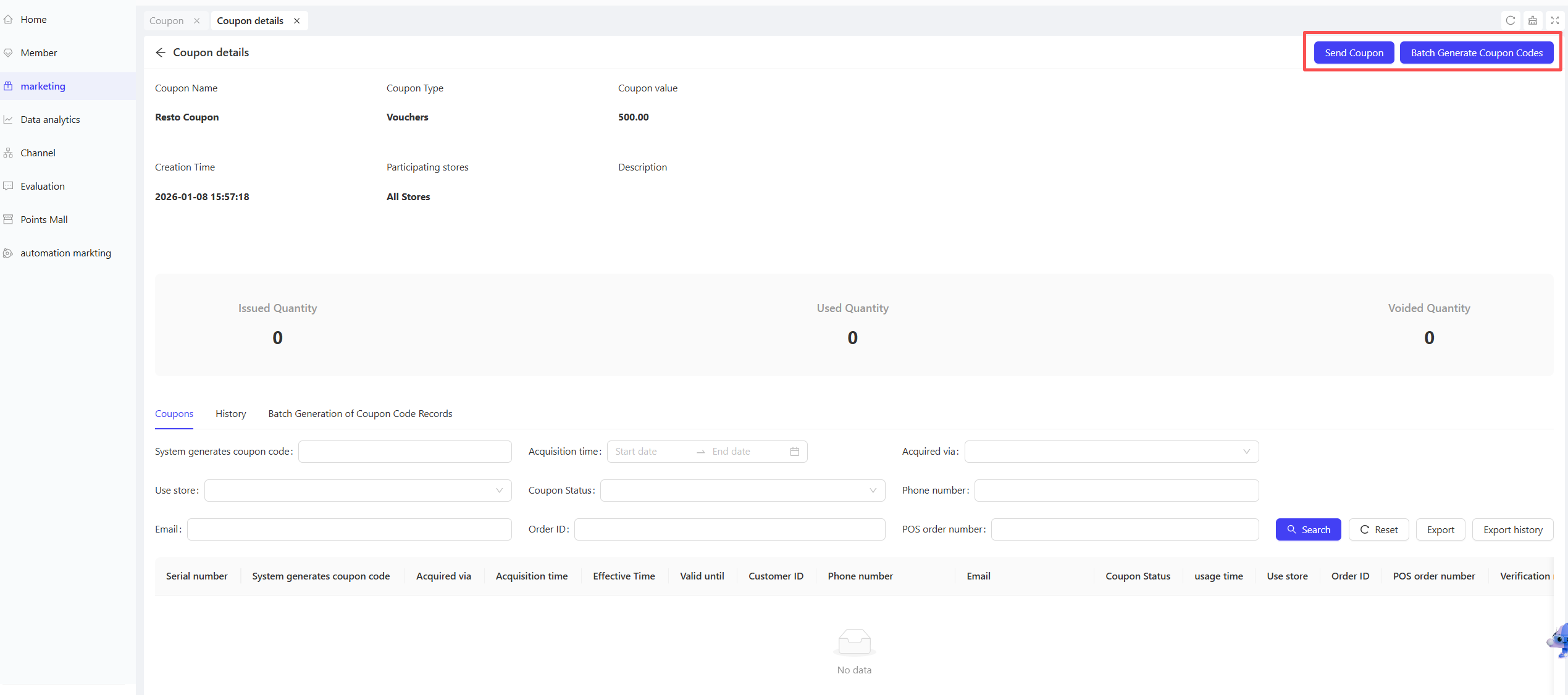
- Bulk Generate Coupon Codes: Click【Bulk Generate Coupon Codes】in the upper right corner, enter the validity period and number of coupons to generate codes for user redemption.
6 Coupon Batches
Only applicable to【Third-Party Benefit Coupons】:
Click【Coupon Batch】in the operation column of the coupon list. Configure the batch validity period and number of coupon codes. The generated batch codes are used for third-party benefit redemption.