Card Activation Gift
1 Module Introduction
The Card Activation Gift Activity is a core member-benefit tool for merchants. New users automatically get designated gifts upon registering and activating their memberships.
Instant rewards reduce new customer registration barriers, helping merchants quickly turn potential customers into members and grow their member base. They also motivate new members to make their first purchase, boost initial brand favorability and user loyalty, and lay a solid foundation for future conversions.
2 Configuration Guide
2.1 Accessing the Feature
- Navigate to the Marketing Management Module
- Log in to the SaaS Admin Portal. Go to【Membership Marketing】>【Marketing】> 【Marketing Activities】.
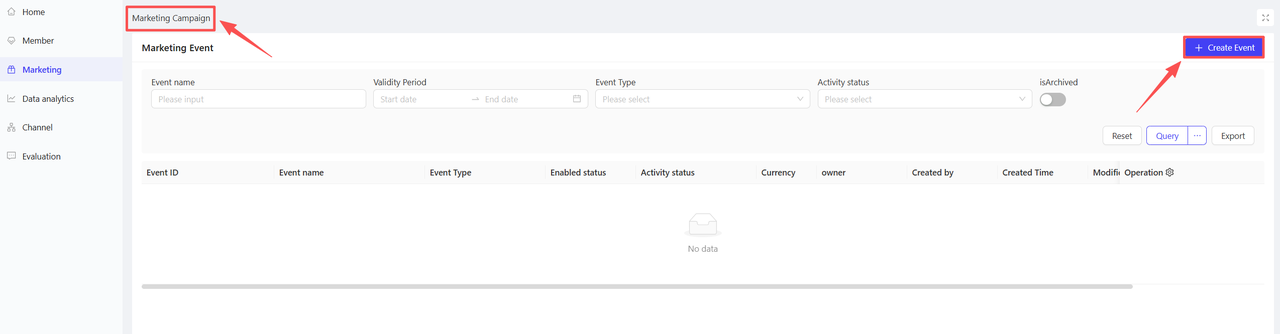
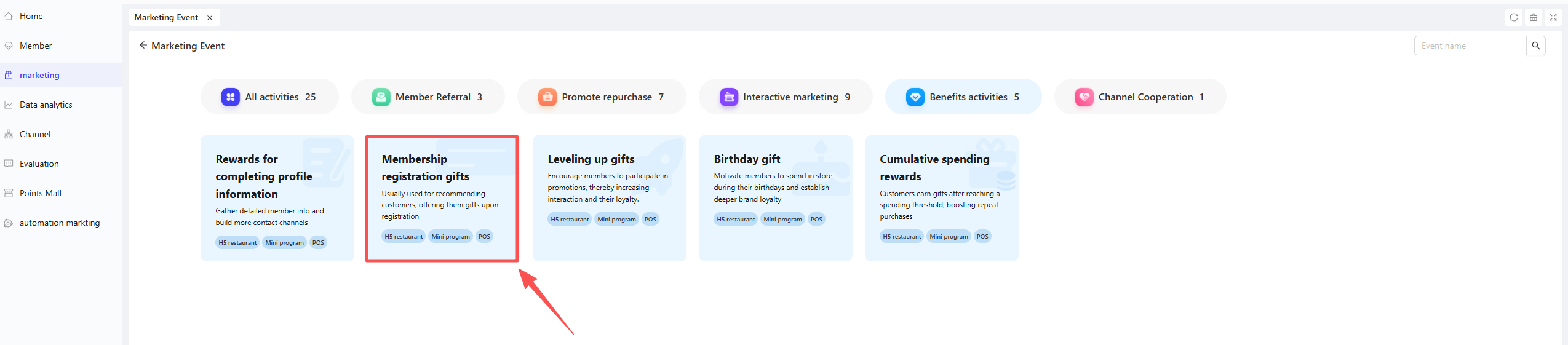
- Click【Create Activity】in the upper-right corner. Select the Card Activation Gift module to enter the configuration page.
2.2 Basic Information Configuration
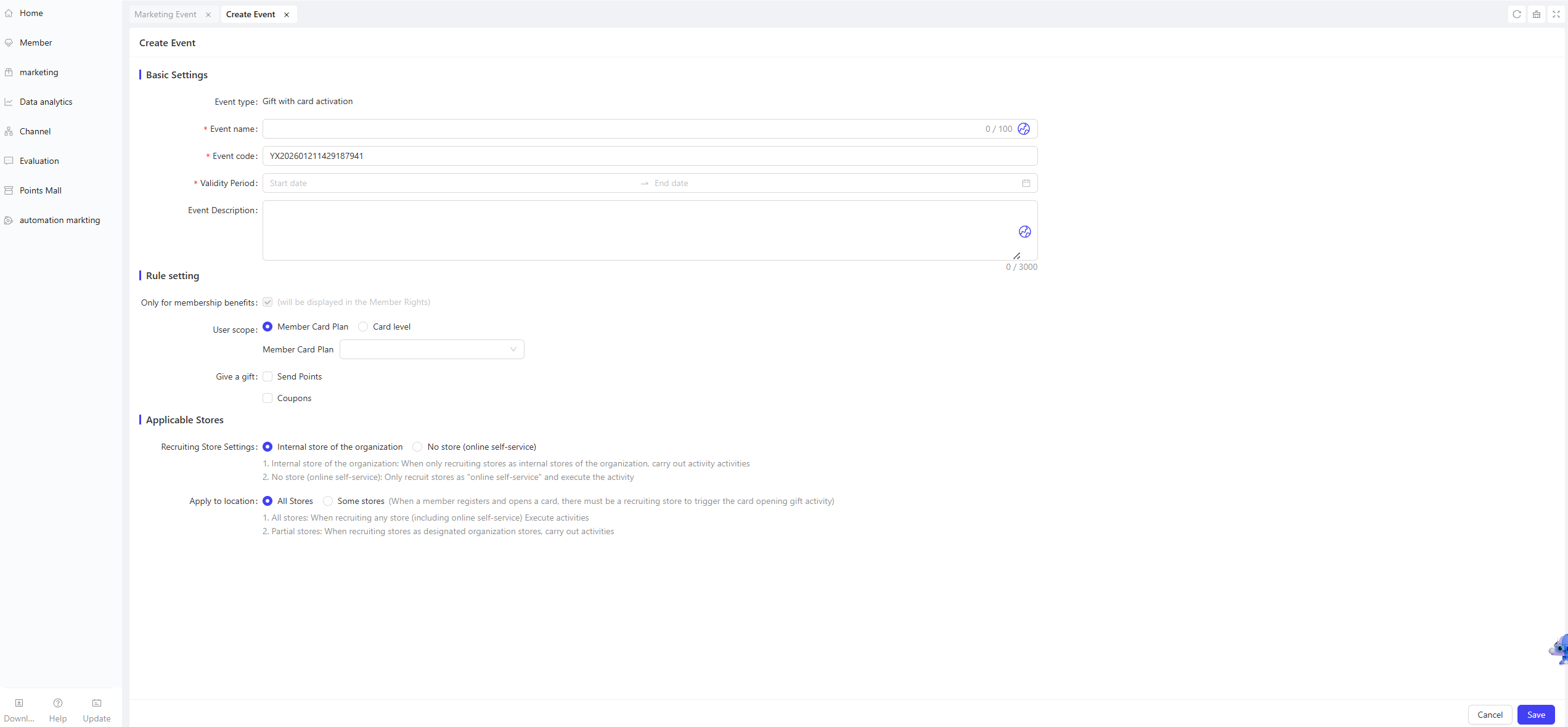
Fill in the core activity details to ensure clarity for customers and streamline internal tracking.
- Activity Name: Required. Choose a name that is easy for customers to identify. (e.g., “Activate Membership & Get Free Gifts!”).
- Activity Code: A unique internal identifier for tracking and reporting.
- Validity Period: Select the start and end dates for the activity.
- Description: Provide clear terms and conditions for the users.
2.3 Rules Configuration
-
Target User Scope Select the specific user groups eligible for the activity from the following two dimensions:
- Membership Card Plans: Filter users by one or more membership card plans.
- Membership Tiers: Filter users by specific tiers under the selected membership card plans.
-
Gift Configuration Multiple gift types are supported (both can be selected):
- Points: Enter the number of points to be awarded, then set the distribution rule: Instant Distribution / Hourly Delayed Distribution / Daily Delayed Distribution.
- Coupons: Add multiple coupons to meet diverse user needs. Configure the following details for each added coupon:
- Gift Name: Select the specific coupon to be offered.
- Gift Quantity: Enter the number of coupons available.
- Validity Mode: Select the validity rule for the coupons and complete the configuration:
- Relative Validity: The coupon’s validity period starts from the moment the user claims it.
- Example: “Valid for 7 days after claiming”
- Fixed Validity: The coupon is valid only during a preset time window, regardless of the user’s claim time.
- Example: “Valid from 00:00:00 on November 1, 2024, to 23:59:59 on November 11, 2024”
- Relative Validity: The coupon’s validity period starts from the moment the user claims it.
2.4 Applicable Stores Settings
-
Recruitment Store Settings Choose one of the following two options:
- In-Organization Stores: The activity applies only when the membership is activated at stores within your organization.
- No Physical Store (Online Self-Service): The activity applies only when the membership is activated via online self-service channels.
-
Eligible Stores Choose the stores that will participate in the activity. Options: All Stores or Specific Stores (by individual store or by organizational unit).
- All Stores: The activity applies when membership is activated at any store (including online self-service).
- Specific Stores: The activity applies only when membership is activated at the designated in-organization stores.
3 Activity Activation & Management
-
Activating the Activity
- After completing all configurations, click Save to launch the activity immediately.
-
Activity Management & Monitoring
- View activity performance data (including order volume and participation metrics) on the Activity Management page.
- Pause, adjust, or archive the activity at any time as needed.

4 User Journey (End-User Experience)
Core Flow:
New User Accesses Registration Page → Selects Membership Card Plan/Tier → Fills in Registration Information → Completes Membership Activation → Receives Gift Arrival Notification → Views and Uses Gifts