Asset management
1 Module Definition
The Asset Management Module is a core tool for foodservice membership systems. It manages the full lifecycle of member account assets (prepaid deposits, points, benefits, gift cards, etc.) and membership card information. With standardised workflows, it supports member info updates, asset adjustments, bulk operations, and commission calculations—ensuring accurate asset data, compliant operations, and reducing the impact of high-risk actions (e.g., card cancellation, account adjustments) on businesses and members. The module adapts to diverse foodservice models, from chains to independent eateries.
2 Card Operations
2.1 Member Basic Operations
Access Path:
【Membership Marketing】>【Members】>【Asset Management】>【Card Operations】
Function Description
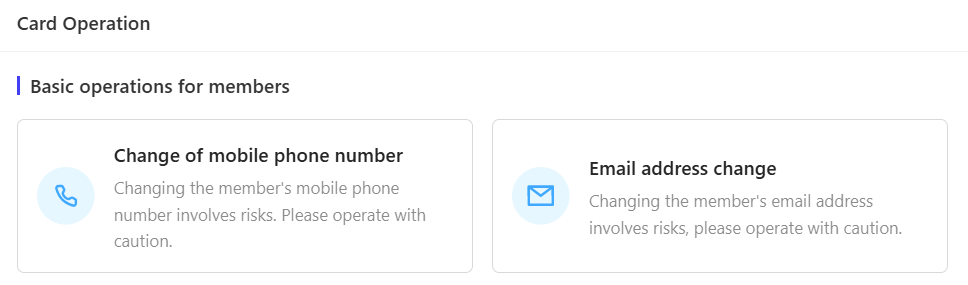
- Overview: Manages updates to members’ core personal information (phone number, email address). Resolves issues related to account login or information delivery caused by phone number cancellation or email changes. Operations require caution to ensure account security and prevent information leakage or unauthorized access.
- Function Details:
- Phone Number Update: Changes the phone number used for member login and notifications. Applicable when the original number is deactivated or lost.
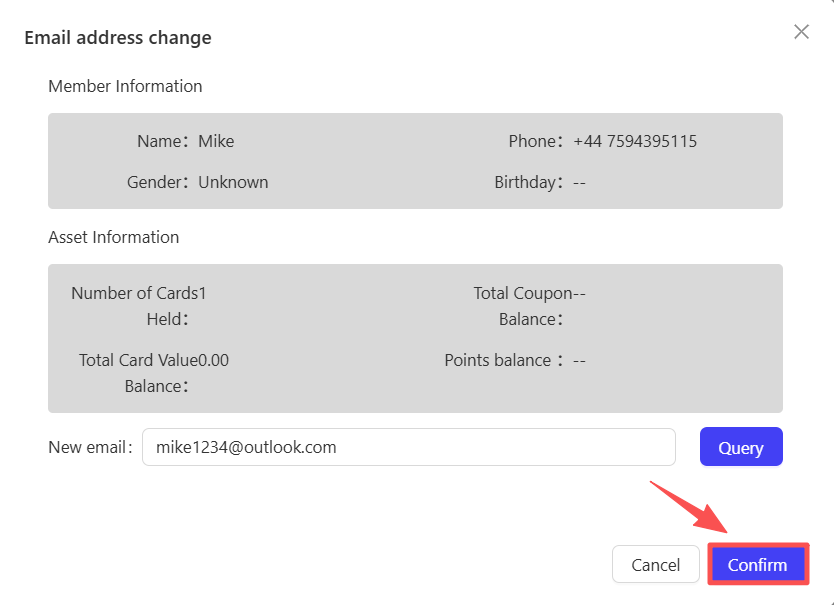
- Email Address Update: Modifies the email used for electronic bills and promotional notifications. Applicable when the original email is deactivated or changed.
Operation Steps & Diagrams:
Phone Number Update:
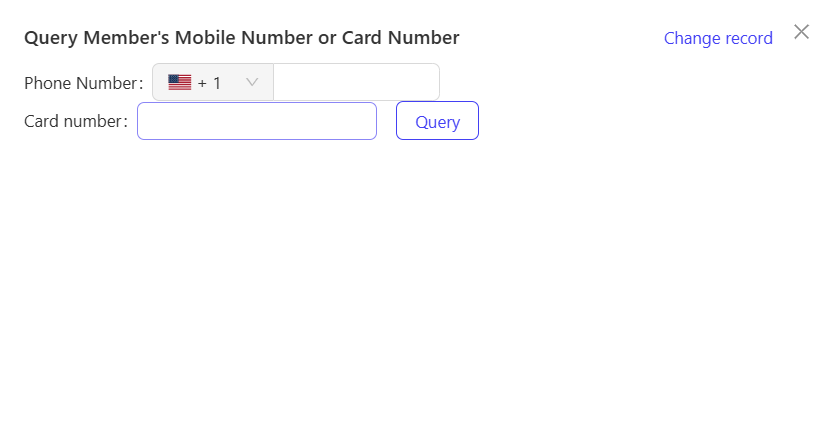
STEP 1: Search for the target member by phone number or card number.
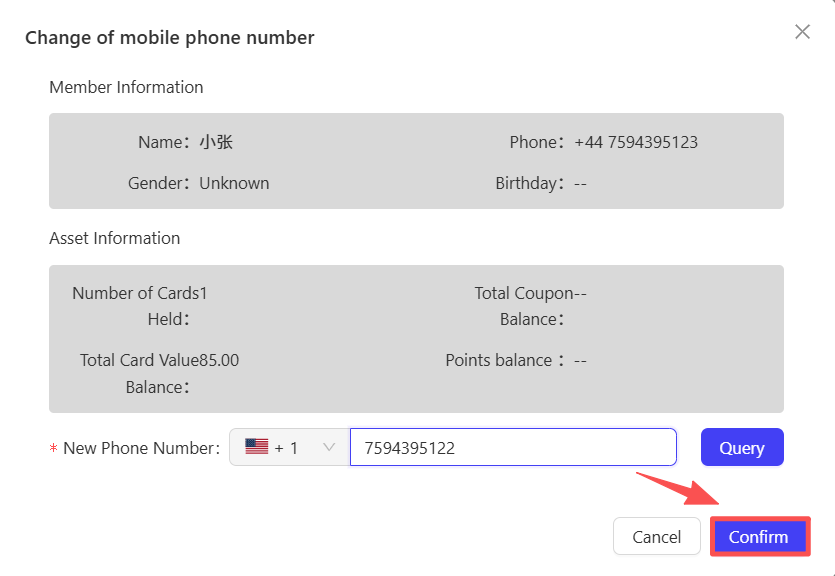
STEP 2: Enter the new phone number, click【Check】to verify uniqueness, then click【Confirm】to complete the update.
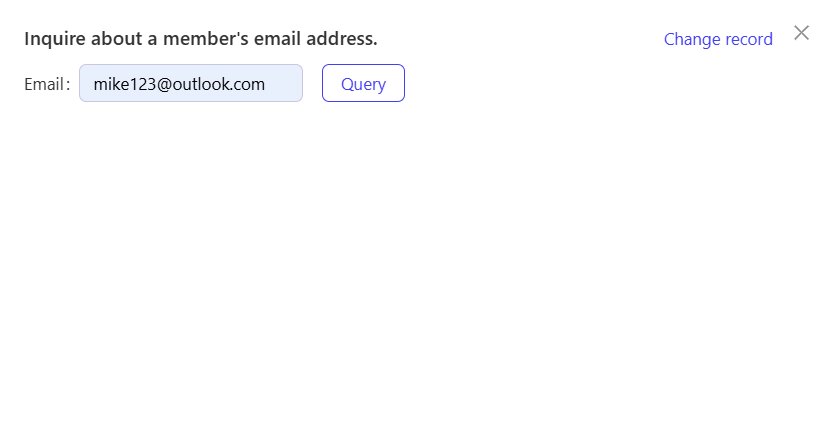
Email Address Update:
STEP 1: Search for the target member by email address.
STEP 2: Enter the new email address, click【Check】to verify uniqueness, then click【Confirm】to complete the update.
2.2 Membership Card Operations
Access Path:
【Membership Marketing】>【Members】>【Asset Management】>【Card Operations】
Function Description
- Overview: Provides granular management of membership card core assets and status. Includes password management, asset adjustments, card status changes (e.g., cancellation, unfreezing), and asset transfers (e.g., card transfer, inter-card asset transfer). Meets daily member needs for asset adjustments and card maintenance while ensuring accurate business asset data.
- Function Details:
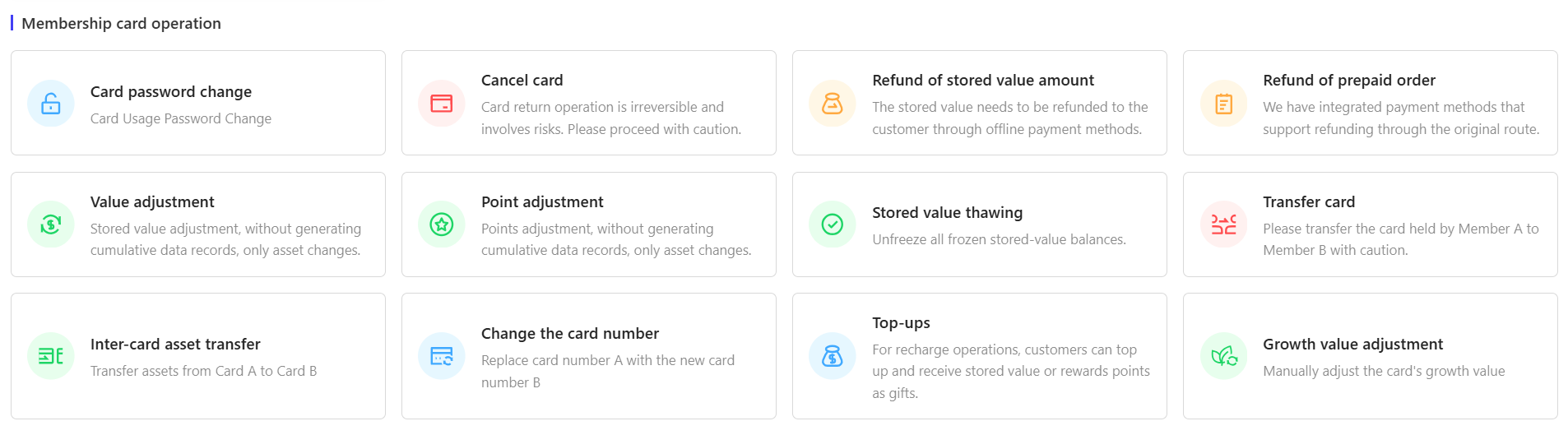
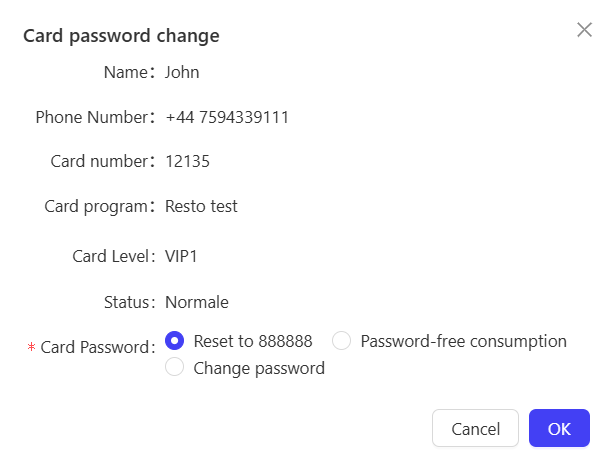
- Card Password Reset: Changes the membership card transaction password. Applicable when the member forgets the password or suspects a security breach.
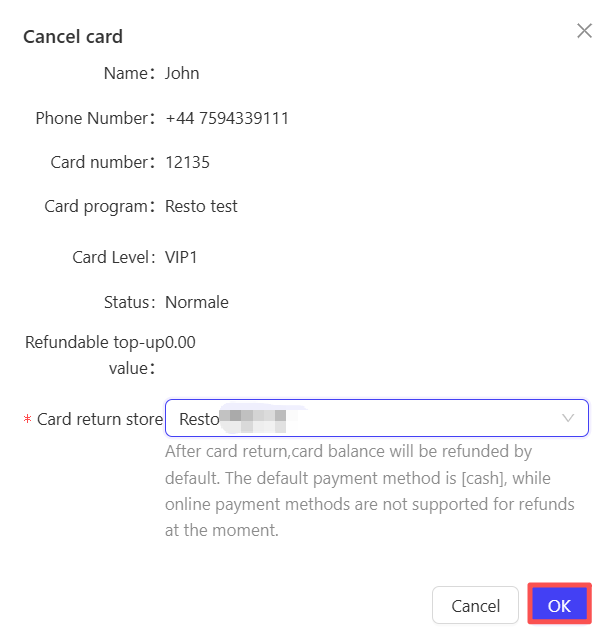
- Card Cancellation: Terminates the membership card. After cancellation, the account becomes invalid, and remaining prepaid balance/points are processed per rules. Applicable for voluntary member cancellation or handling non-compliant accounts.
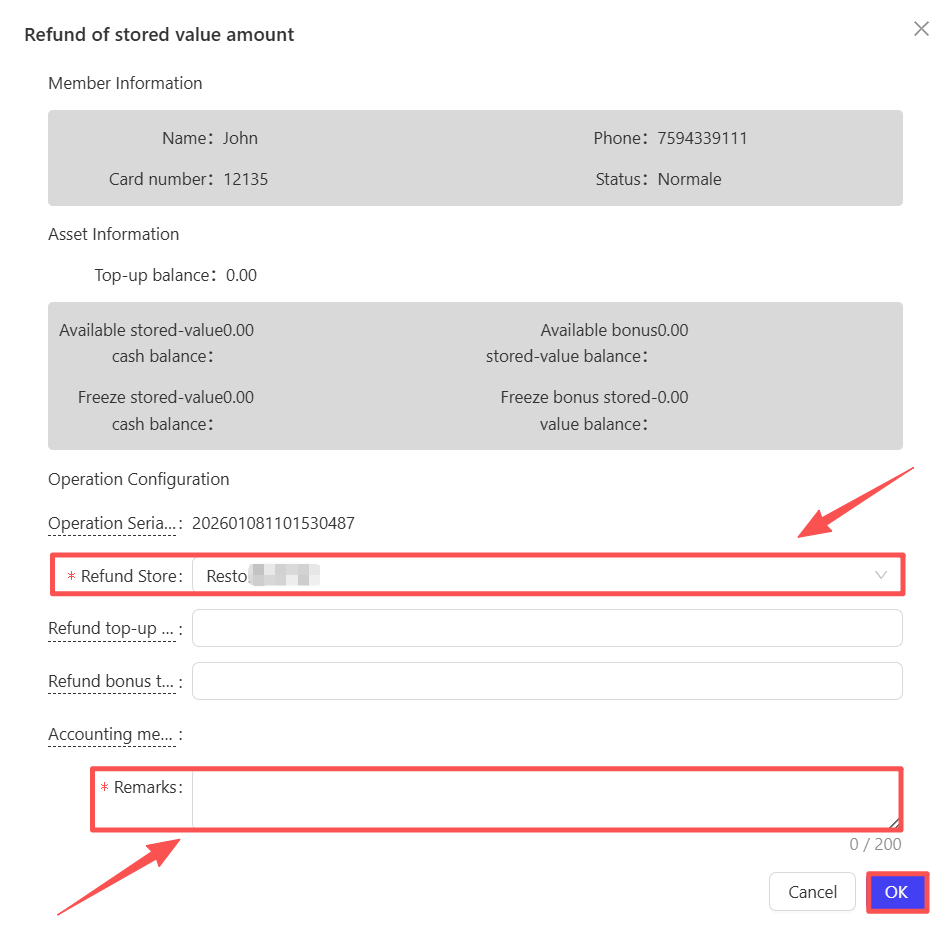
- Top-up Refund: Refunds unused prepaid balance. Applicable for member-initiated refunds or incorrect deposits (e.g., overpayment).
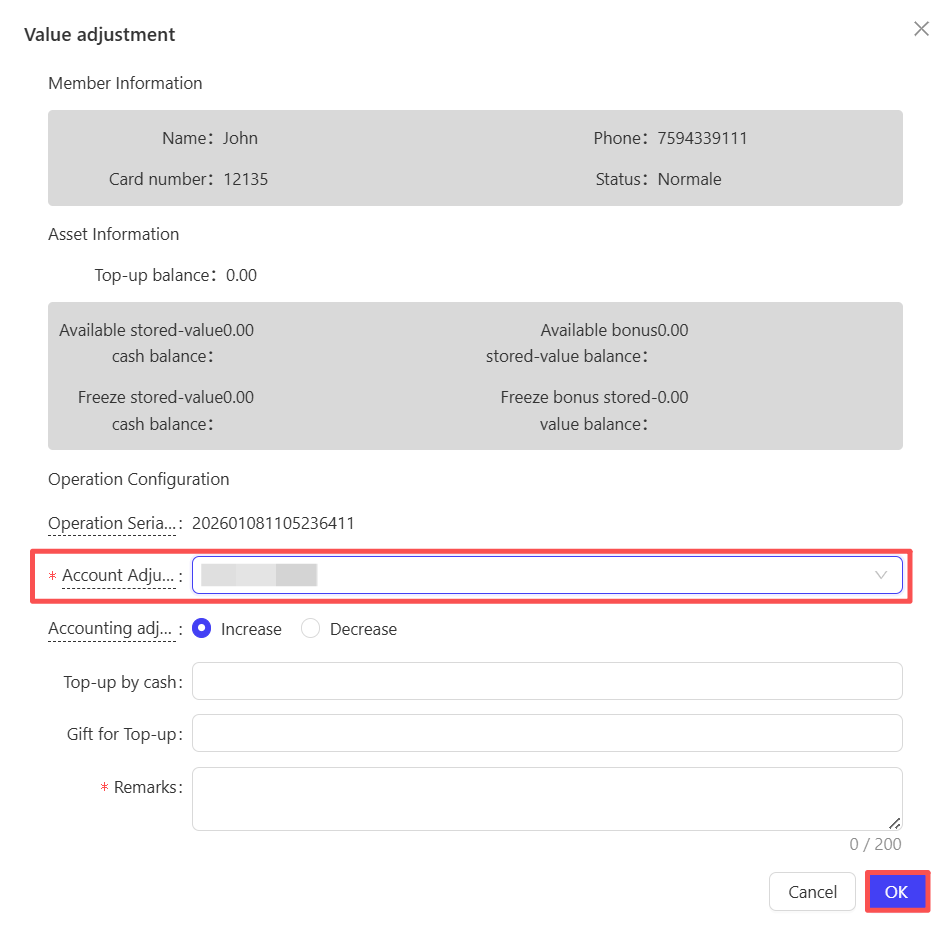
- Top-up Adjustment: Increases or decreases the prepaid balance. Applicable for correction of calculation errors (e.g., system glitches) or supplementary promotional benefits.
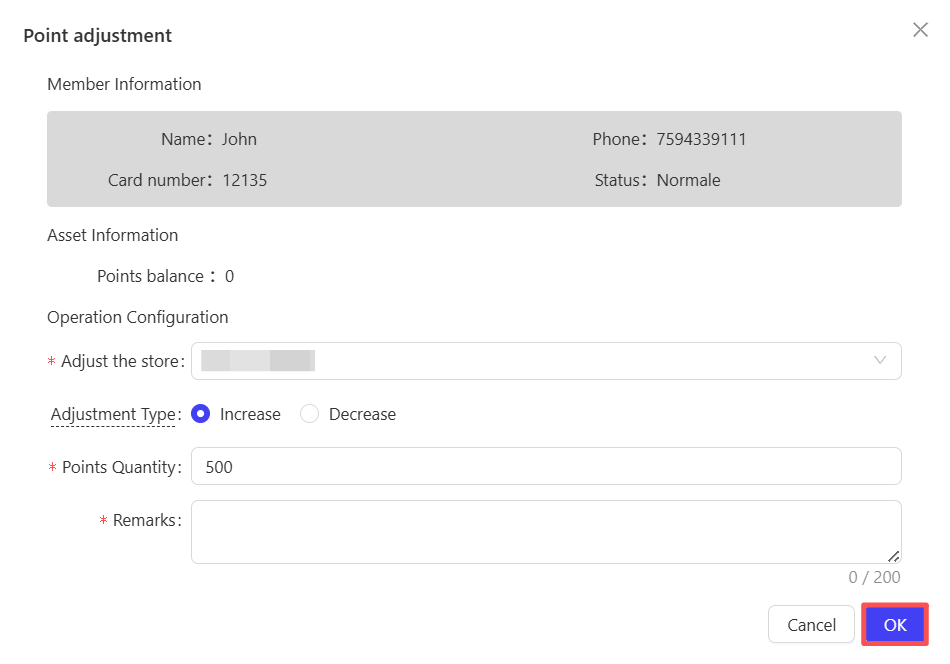
- Point Adjustment: Increases or decreases member points. Applicable for correction of calculation errors (e.g., missing points from purchases) or reversal of improper point deductions.
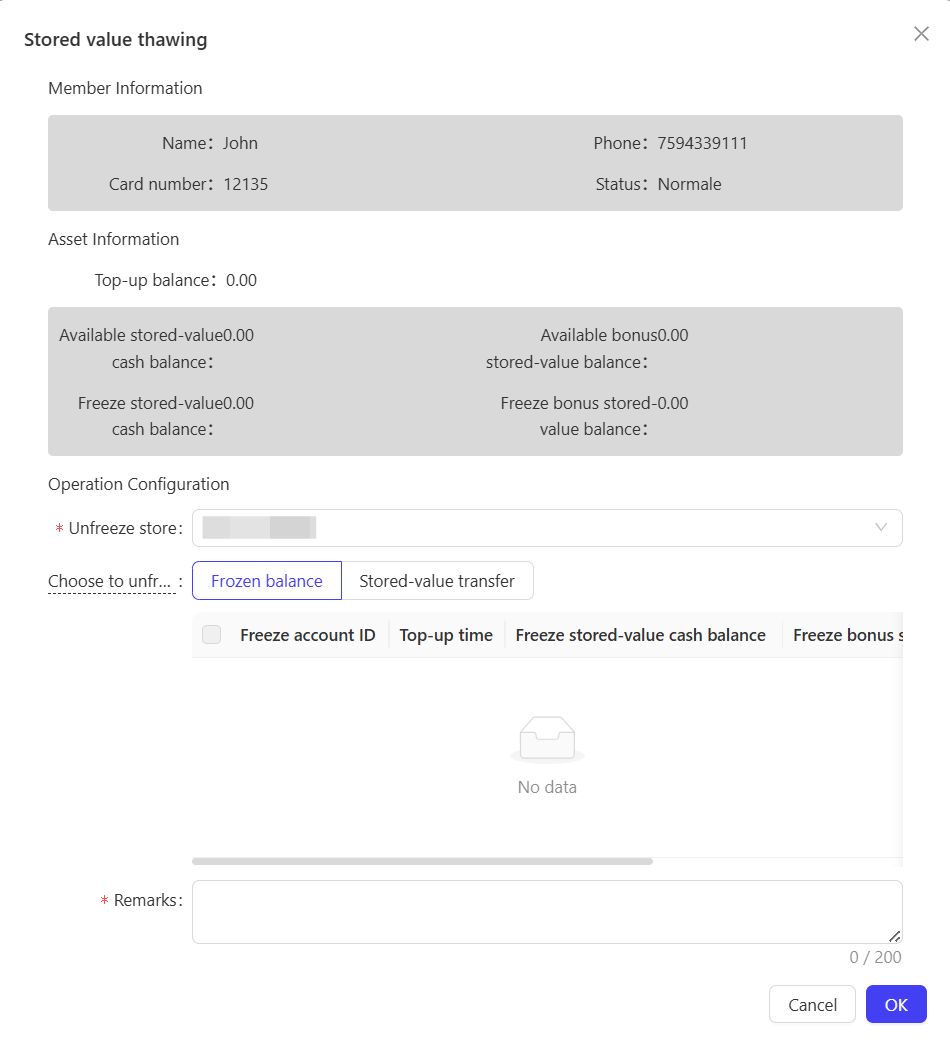
- Top-up Unfreezing: Removes the frozen status of prepaid funds. Applicable when the reason for freezing is resolved (e.g., account unfreezing, risk review approval).
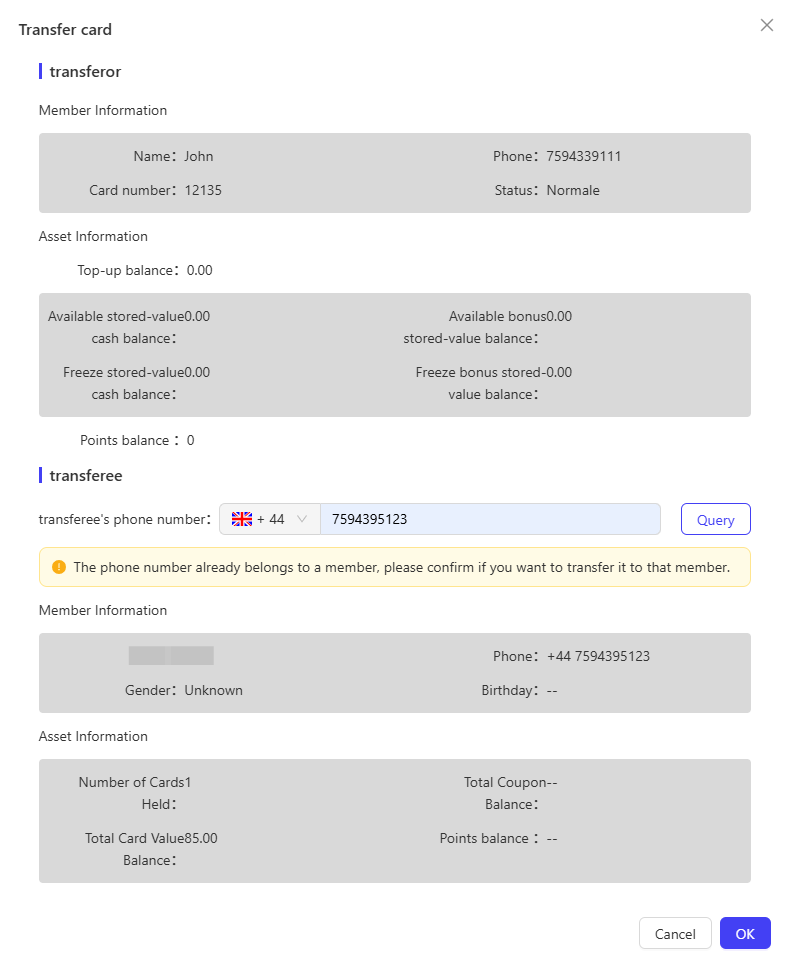
- Card Transfer: Transfers all assets and benefits from Member A’s card to Member B’s card. Applicable for voluntary transfers (e.g., between family/friends). Some brands may restrict transfer frequency or conditions.
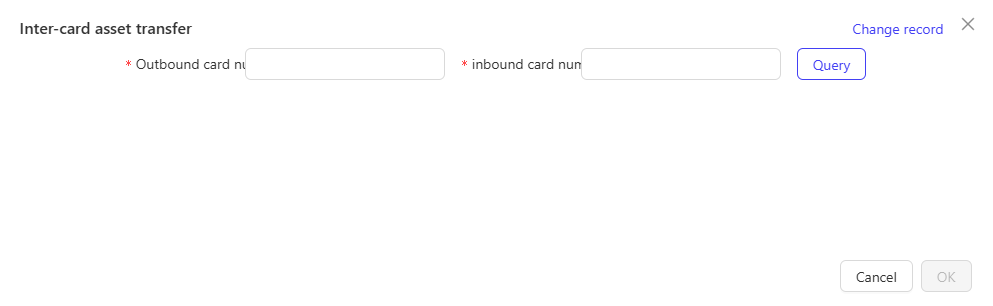
- Inter-Card Asset Transfer: Moves assets (e.g., prepaid balance, points) between multiple cards owned by the same member. Applicable for consolidating assets across primary and supplementary cards.
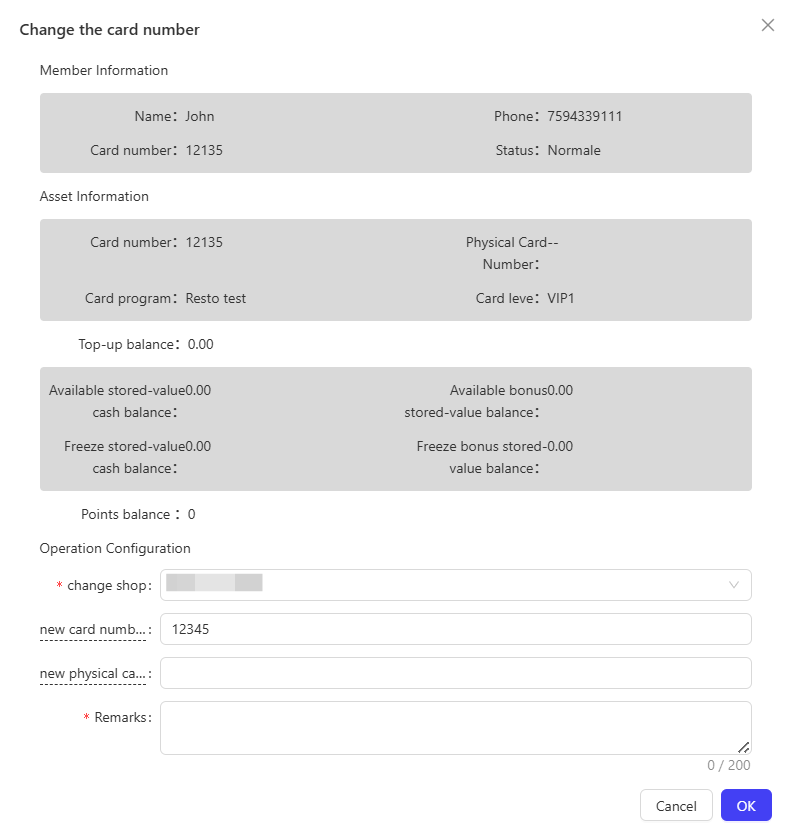
- Card Number Replacement: Issues a new card number for the member. Applicable when the original number is lost, the physical card is damaged, or the member requests a replacement.
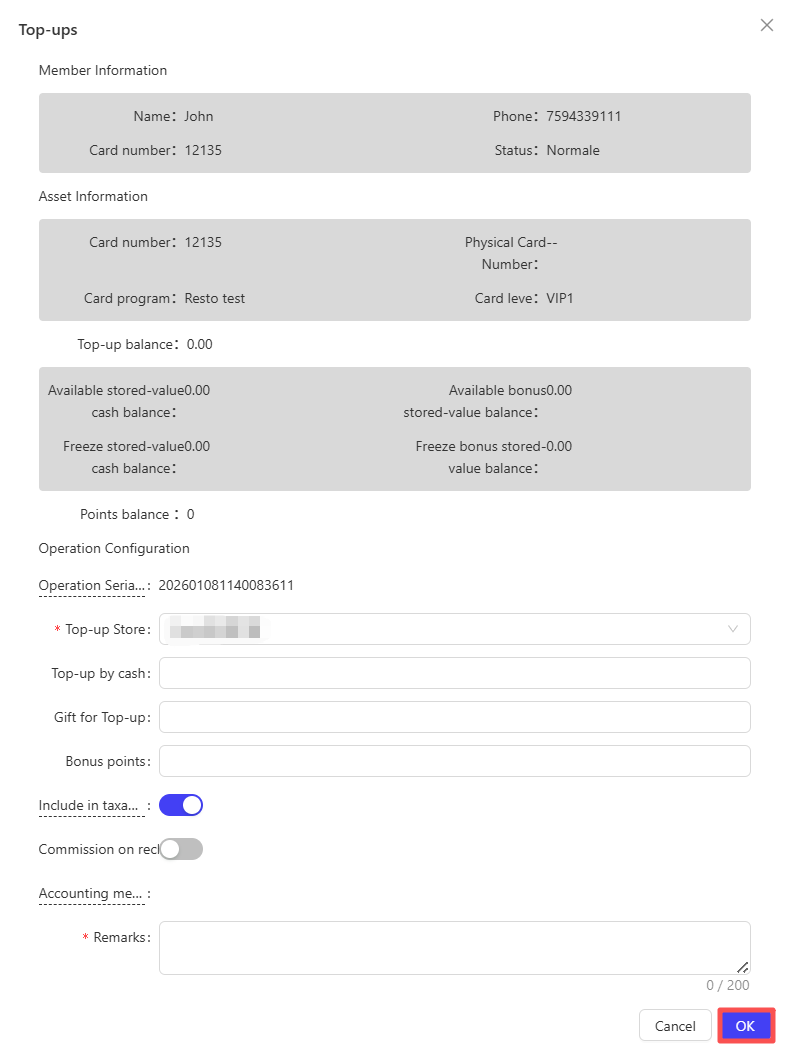
- Top-Up: Add funds to the membership card. Supports real-time top-up via offline POS and online channels.
Operation Steps & Diagrams
Card Password Reset:
STEP 1: Search for the target member by phone number or card number, then click【View】.
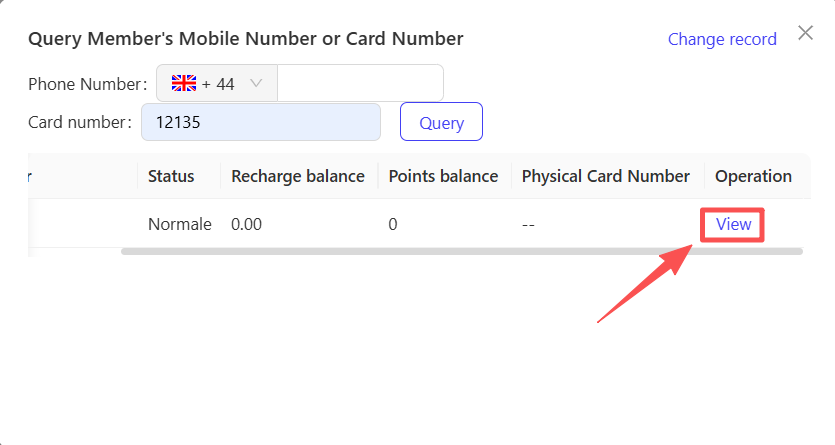
STEP 2: Select the password reset type, enter the new password, and click【OK】to complete.
Card Cancellation:
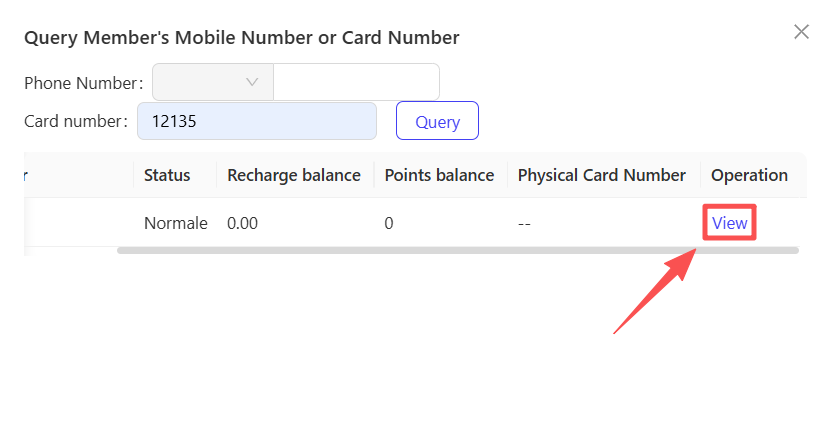
STEP 1: Search for the target member by phone number or card number, then click【View】.
STEP 2: Select the cancellation store and click【Confirm】to complete.
Top-up Refund:
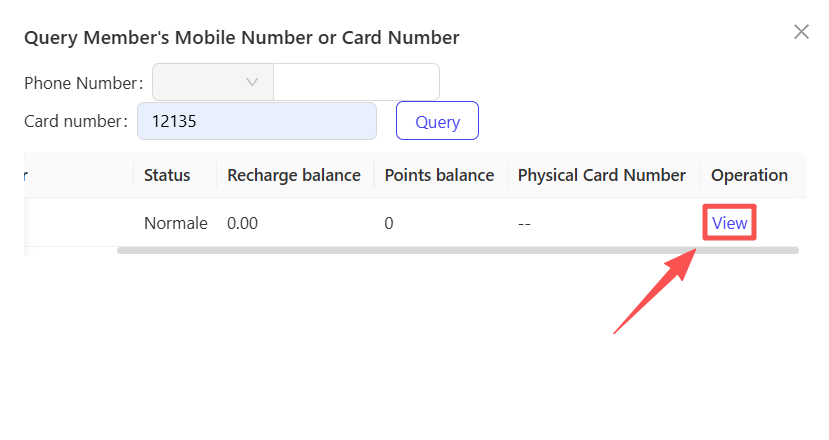
STEP 1: Search for the target member by phone number or card number, then click【View】.
STEP 2: Enter the refund store and refund amount, then click【OK】to complete.
Top-up Adjustment:
STEP 1: Follow Step 1 of the above functions to locate the member.
STEP 2: Enter the adjustment store, adjustment type, and amount, then click【OK】to complete.
Point Adjustment:
STEP 1: Follow Step 1 of the above functions to locate the member.
STEP 2: Enter the adjustment store, adjustment type, and point quantity, then click【OK】to complete.
Top-up Unfreezing:
STEP 1: Follow Step 1 of the above functions to locate the member.
STEP 2: Select the unfreezing store and account, then click【OK】to complete.
Card Transfer:
STEP 1: Follow Step 1 of the above functions to locate the member.
STEP 2: Enter the transferee’s phone number, click [Check] to verify, then click【OK】to complete.
Inter-Card Asset Transfer:
STEP 1: Follow Step 1 of the above functions to locate the member.
STEP 2: Select the transfer-out store, enter the transfer amount and remarks, then click【OK】to complete.
Card Number Replacement:
STEP 1: Follow Step 1 of the above functions to locate the member.
STEP 2: Select the replacement store, enter remarks, then click【OK】to complete.
Top-Up:
STEP 1: Follow Step 1 of the above functions to locate the member.
STEP 2: Select the top-up store, enter the top-up amount and related details, then click【OK】to complete.
2.3 Bulk Membership Card Operations
Access Path:
【Membership Marketing】>【Members】>【Asset Management】>【Card Operations】
Function Description
- Overview: Enables centralized asset operations for multiple membership cards. Adapts to scenarios where foodservice brands need to manage members in bulk (e.g., corporate employee cards, store-wide member maintenance). Completes asset adjustments for multiple cards in one operation, significantly improving efficiency and reducing repetitive work.

- Function Details:
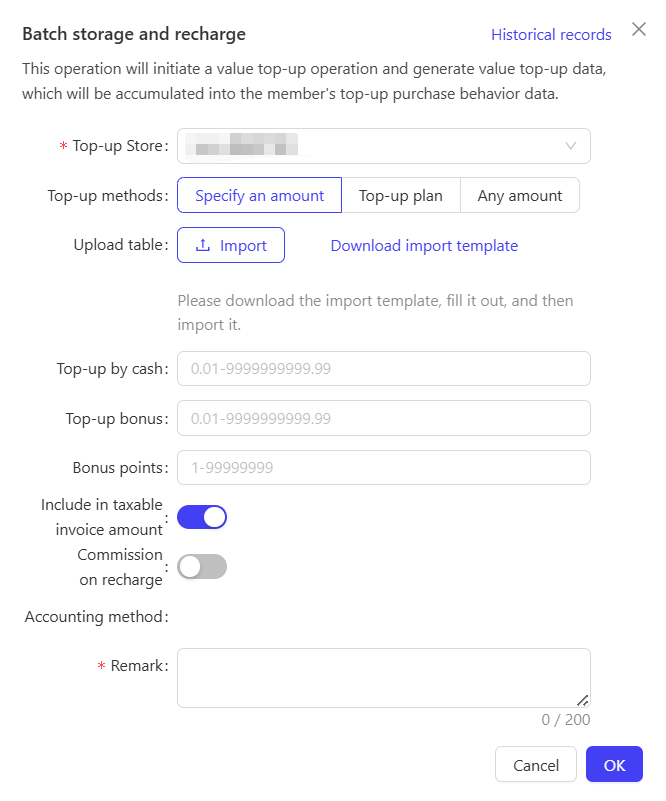
- Bulk Top-Up: Adds funds to multiple membership cards within a specified range. Applicable for corporate meal benefit distribution (e.g., monthly employee meal allowances) or bulk promotional deposits for high-tier members.
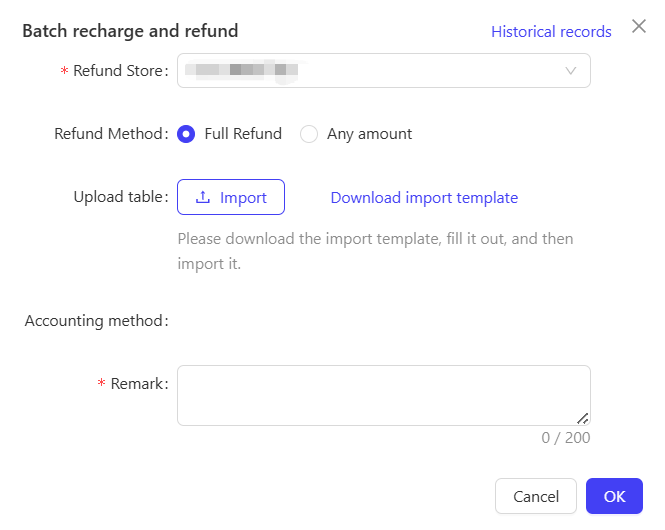
- Bulk Top-Up Refund: Process refunds for multiple membership cards. Applicable for policy adjustments (e.g., canceled deposit promotions) or system-induced bulk deposit errors.
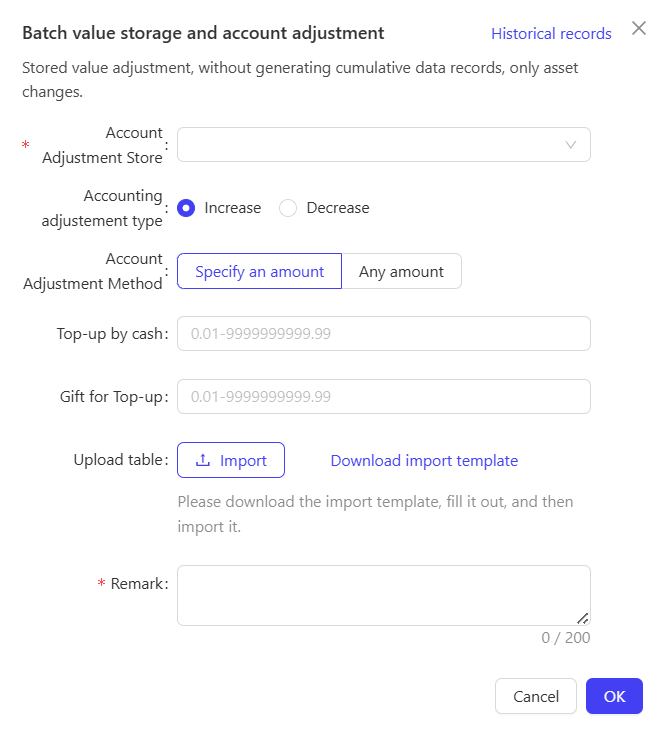
- Bulk Top-Up Adjustment: Bulk adjust the prepaid balances of multiple membership cards. Applicable for scenarios such as prepaid calculation discrepancies caused by system upgrades and supplementary issuance of prepaid promotions for all members.
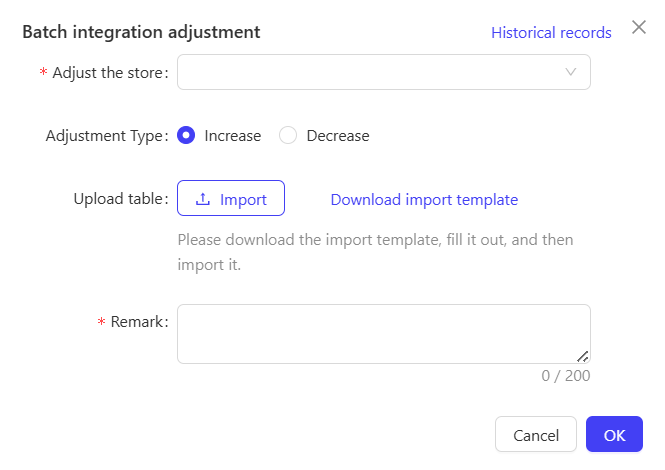
- Bulk Point Adjustment: Increases or decreases points for multiple membership cards. Applicable for historical point reconciliation after rule updates or brand anniversary point rewards.
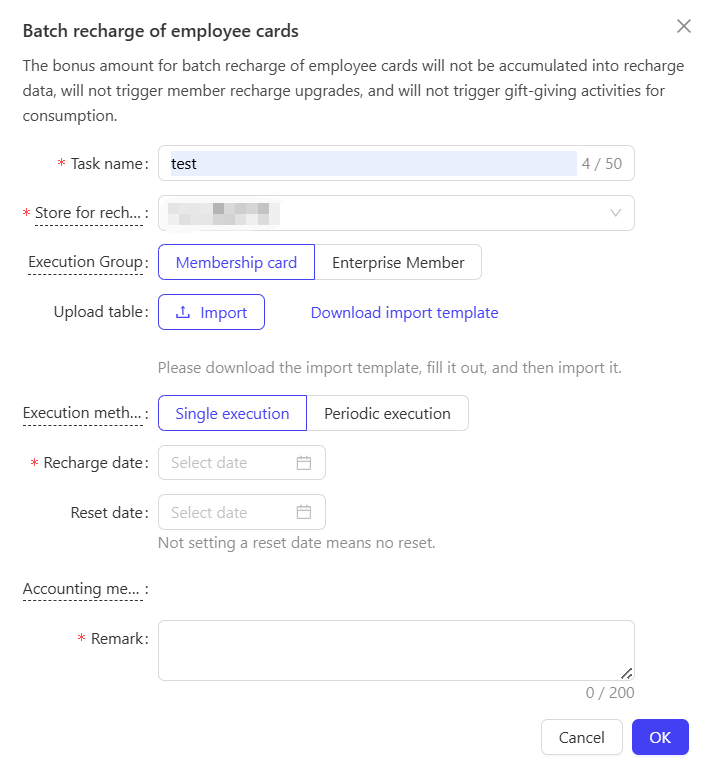
- Bulk Employee Card Top-Up: Specialized bulk top-up function for internal employee cards. Ideal for corporate meal benefit distribution (e.g., monthly allowances).
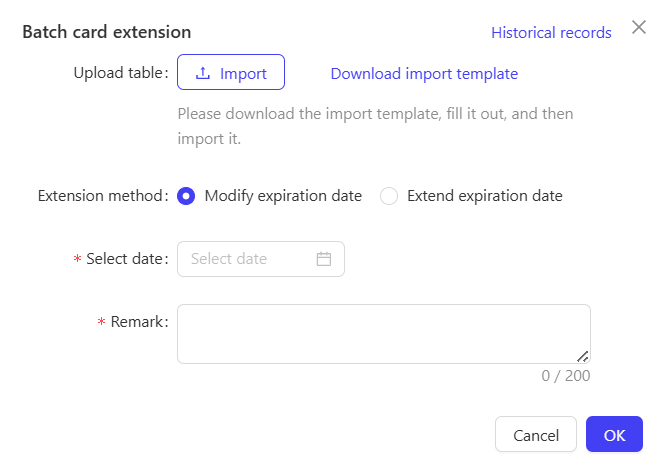
- Bulk Card Validity Extension: Extends the expiration date for multiple expiring membership cards. Applicable for proactive member retention initiatives.
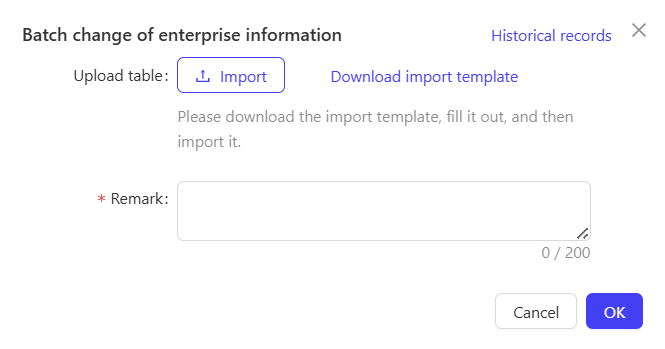
- Bulk Corporate Information Update: Updates corporate affiliation details (e.g., company name, department) for multiple corporate client cards. Applicable when corporate client information changes.
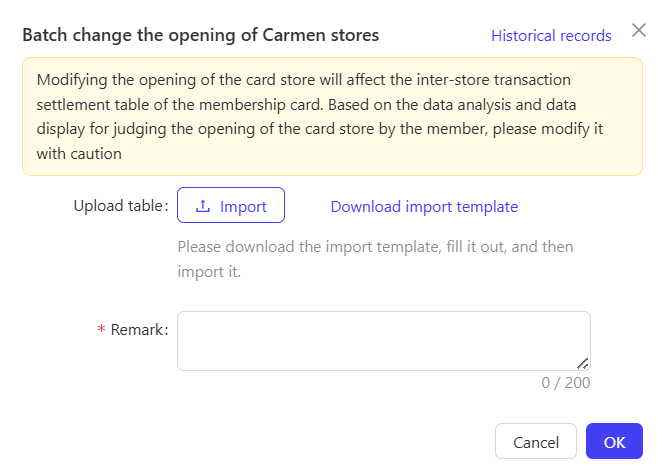
- Bulk Issuing Store Update: Adjusts the issuing store affiliation for multiple membership cards. Applicable for store restructuring or optimizing member service attribution (e.g., member relocates to a new store).
2.4 Bulk Coupon Operations
Access Path:
【Membership Marketing】>【Members】>【Asset Management】>【Card Operations】
Function Description
- Overview: Manages bulk import and updates of member coupons (single coupons, recurring coupon packs). Addresses foodservice brands’ needs for large-scale coupon distribution (e.g., holiday coupons, new member coupons) and coupon rule adjustments (e.g., validity extension, usage scope updates). Ensures efficient and consistent bulk coupon operations.

- Function Details:
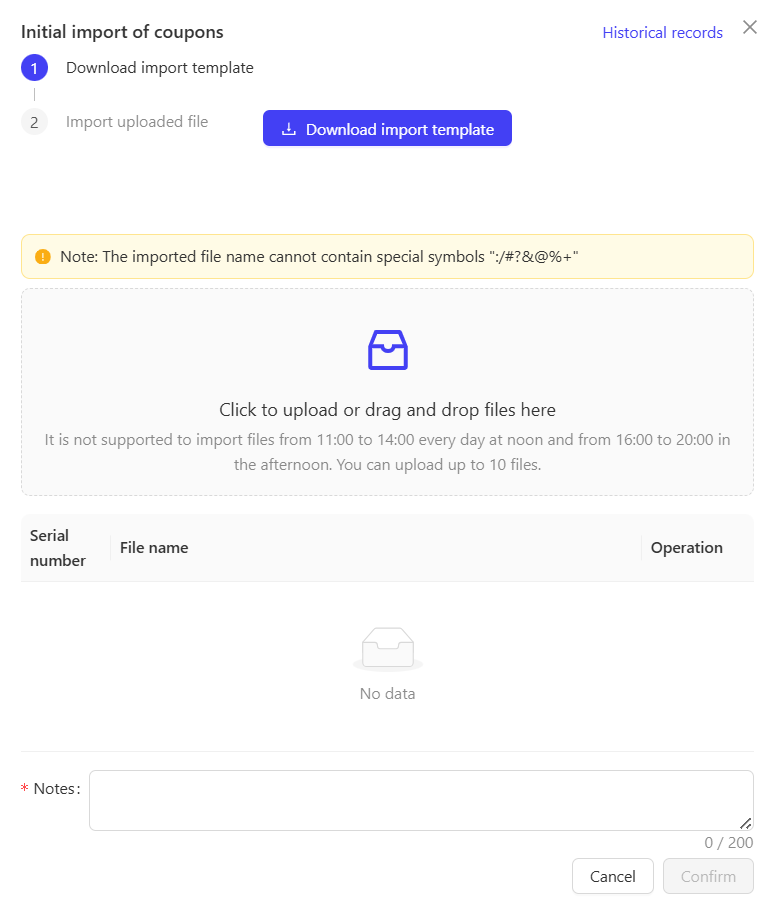
- Initial Coupon Import: Bulk imports externally generated coupons (e.g., corporate custom coupons, third-party partnership coupons) into the system and assigns them to specified member accounts.
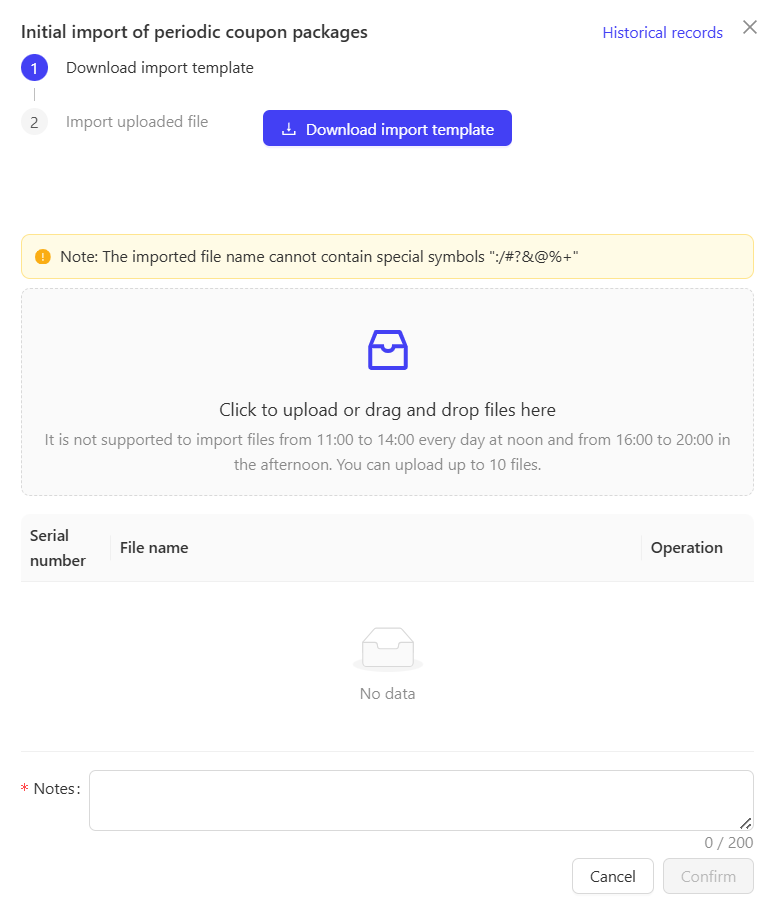
- Initial Recurring Coupon Pack Import: Bulk imports recurring coupon packs into the system for periodic distribution to members. Ideal for long-term member benefit programs.
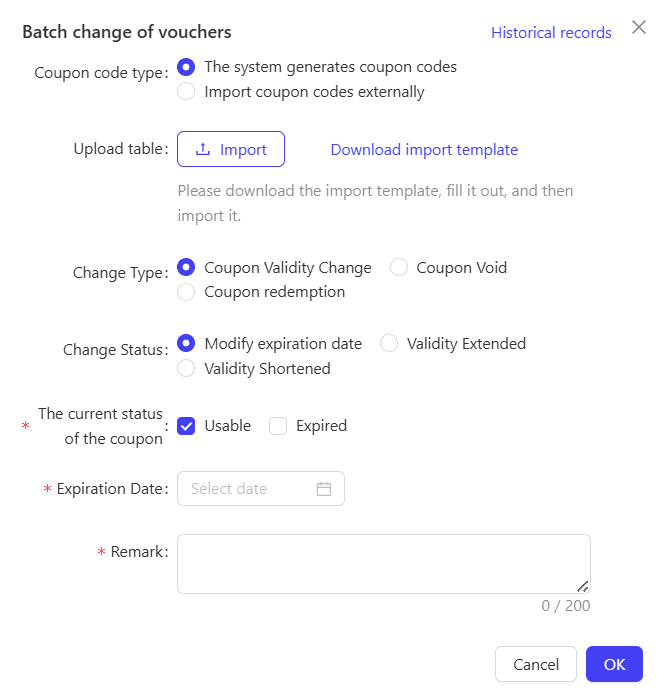
- Bulk Coupon Update: Adjusts rules for multiple issued coupons. Applicable for promotional strategy changes.
Operation Steps & Diagrams
Initial Coupon Import:
STEP 1: Download the import template.
STEP 2: Fill in the Excel template and upload it to the system.
Initial Recurring Coupon Pack Import:
STEP 1: Download the import template.
STEP 2: Fill in the Excel template and upload it to the system.
Bulk Coupon Update:
STEP 1: Select the coupon code type, update type/status, and date range.
STEP 2: Fill in the Excel template, upload it, and click【OK】to complete the update.
2.5 Bulk Benefit Operations
Access Path:
【Membership Marketing】>【Members】>【Asset Management】>【Card Operations】
Function Description
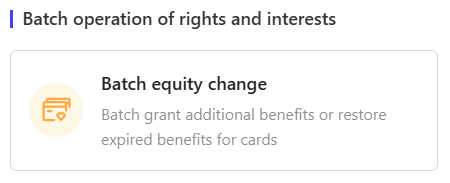
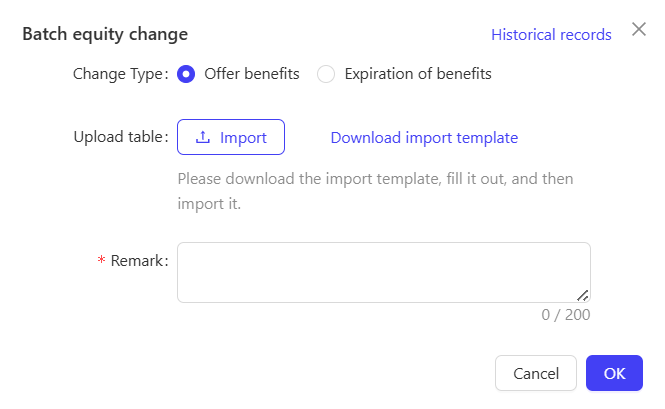
- Bulk Benefit Update: Adjusts exclusive member benefits (e.g., free refills, birthday privileges, priority service) for multiple members simultaneously. Ensures full coverage of target members without individual operations.
Operation Steps & Diagrams
STEP 1: Select the bulk benefit update type and download the import template.
STEP 2: Fill in the Excel template, upload it, enter remarks, and click [Confirm] to complete.
2.6 Gift Card Operations
Access Path:
【Membership Marketing】>【Members】>【Asset Management】>【Card Operations】
Function Description
- Overview: Manages core gift card asset operations (transfer, prepaid adjustment). Addresses member needs for gift card gifting and asset correction while ensuring compliant and accurate transfers. Adapts to social gifting and corporate benefit scenarios for foodservice gift cards.
- Function Details:
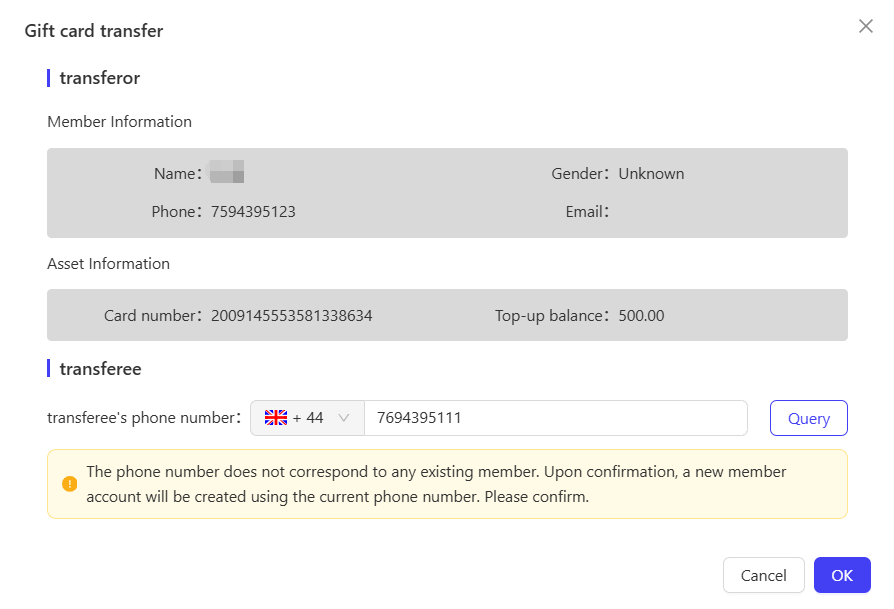
- Gift Card Transfer: Allows the cardholder to transfer all assets (balance, unused benefits) to another user. Ideal for social gifting (e.g., birthday gifts, family use) with secure and traceable transfer processes.
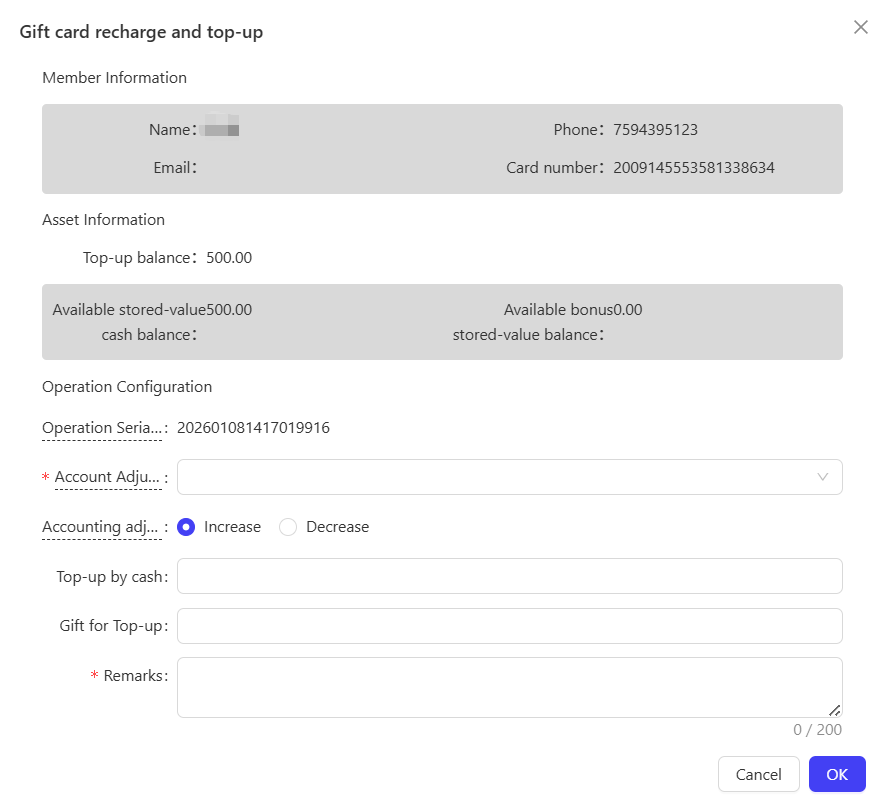
- Gift Card Prepaid Adjustment: Increases or decreases the gift card balance. Resolves asset discrepancies caused by system glitches or missed promotional rules. Ensures accurate balances for correction or benefit补发 scenarios.
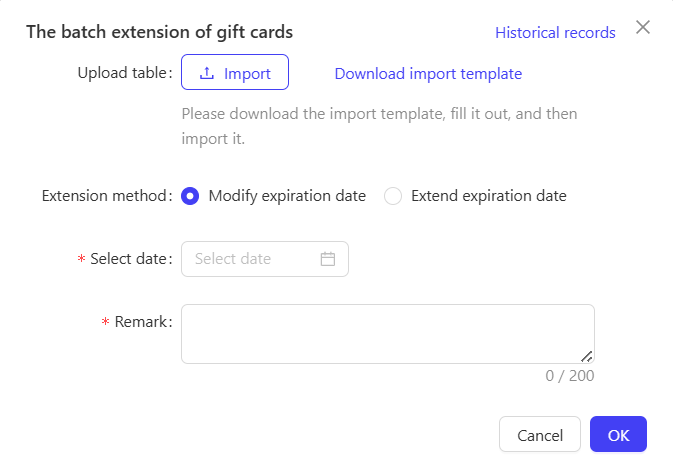
- Bulk Gift Card Validity Extension: Extends the expiration date for multiple expiring or expired gift cards. Addresses issues of unused holiday or corporate benefit cards, improving usage rates and reducing customer dissatisfaction with expired cards.

Operation Steps & Diagrams
Gift Card Transfer:
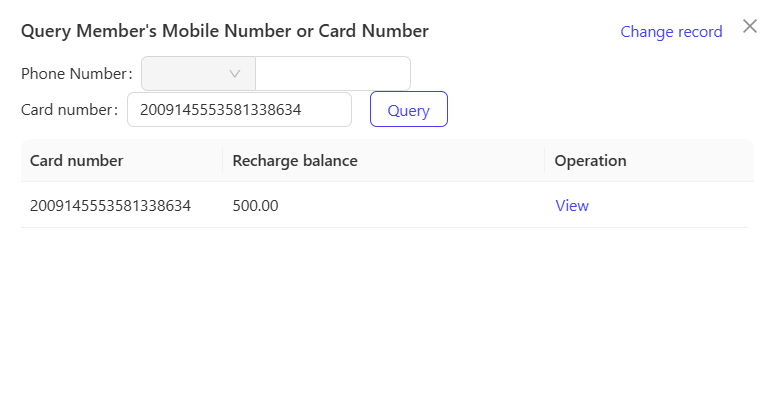
STEP 1: Search for the target gift card by phone number or card number.
STEP 2: Enter the transferee’s phone number, click [Check] to verify, then click【OK】to complete.
Gift Card Prepaid Adjustment:
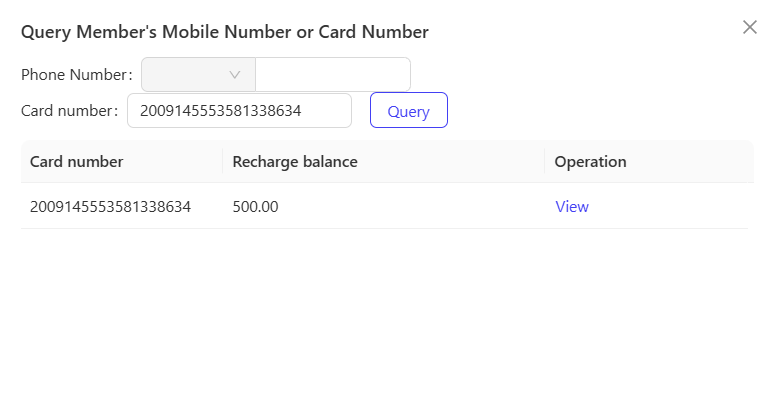
STEP 1: Search for the target gift card by phone number or card number.
STEP 2: Select the adjustment store, choose the adjustment type, enter the amount, and click【OK】to complete.
Bulk Gift Card Validity Extension:
STEP 1: Download the import template.
STEP 2: Fill in the template and upload it to the system.
STEP 3: Select the extension method, configure the extension date/days, enter remarks, and click 【OK】to complete.
3 Member Commissions
3.1 Top-up Commissions
Access Path:
【Membership Marketing】>【Members】>【Asset Management】>【Member Commissions】
Function Description
- Overview: An incentive management tool for foodservice businesses to reward actions that drive member prepaid deposits. Automatically calculates and distributes commissions to relevant parties (e.g., store staff, partner channel representatives) based on predefined rules. Adapts to scenarios such as staff-led deposit promotions (e.g., servers incentivized to encourage member deposits) and partner channel revenue sharing (e.g., third-party platforms earning commissions for referring members).
- Function Details:
- Top-up Commissions: Calculates and distributes commissions to designated recipients based on member deposit amounts and predefined rules.
- Configuration Guide:
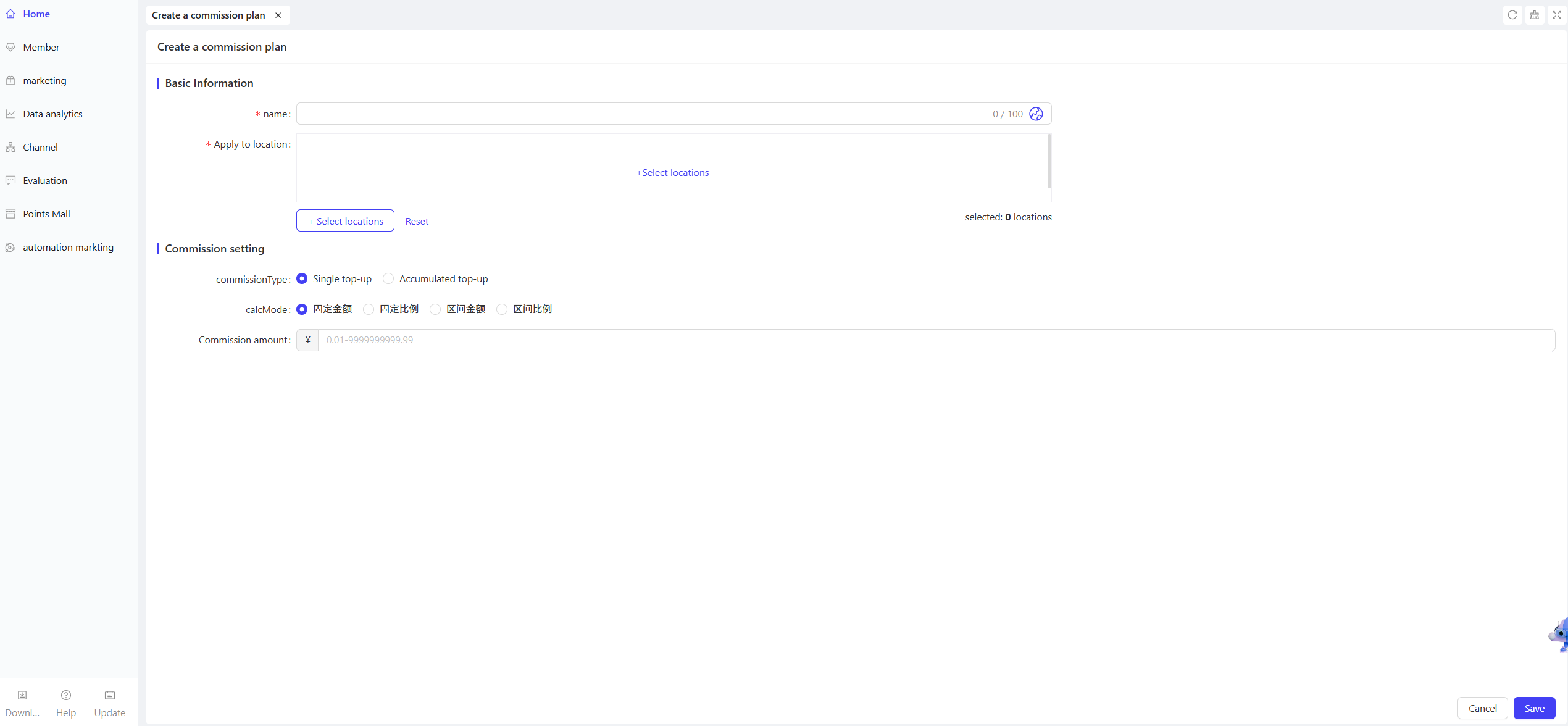
- Basic Information:
- Plan Name: Enter a clear, identifiable name (e.g., “2025Q4 Store Staff Prepaid Deposit Commission Plan”).
- Applicable Stores: Select the stores where the plan applies (multiple selections allowed).
- Commission Settings:
- Commission Trigger: Define the basis for commission calculation (single deposit/cumulative deposit).
- Commission Method: Choose the calculation method (fixed amount/fixed percentage/ tiered amount/ tiered percentage).
- Commission Amount: Configure based on the selected method:
- Fixed Amount: Set a flat commission for single/cumulative deposits (e.g., “$10 commission for deposits ≥ $300”). Simple to calculate, ideal for small deposits.
- Fixed Percentage: Calculate commission as a fixed percentage of the deposit amount (e.g., “2% commission on all deposits”). Aligns commission with deposit value, incentivizing larger deposits.
- Tiered Amount: Set fixed commissions for different deposit ranges (e.g., “$10 for $300-$499 deposits; $25 for $500-$999 deposits; $60 for deposits ≥ $1,000”). Encourages members to increase deposit tiers, ideal for promoting large deposits.
- Tiered Percentage: Set increasing commission percentages for higher deposit ranges (e.g., “1.5% for $300-$499 deposits; 2.5% for $500-$999 deposits; 4% for deposits ≥ $1,000”). Maximizes motivation to drive high-value deposits, suitable for high-AOV foodservice brands (e.g., premium hot pot, Western cuisine).
Operation Steps & Diagrams
STEP 1: On the Top-up Commissions - Plan Management page, click【Create Commission Plan】
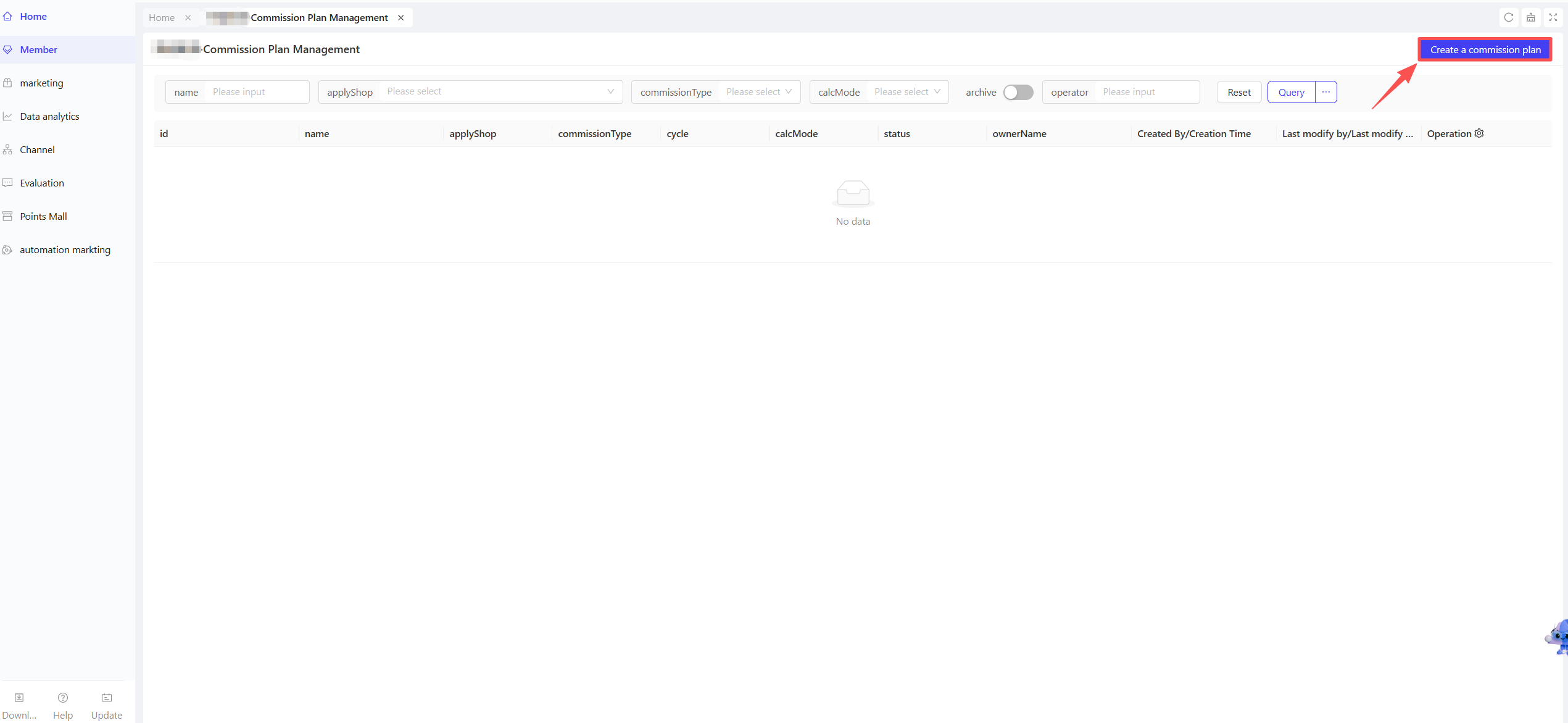
STEP 2: Fill in the basic information and commission rules, then click【Save】in the bottom-right corner to complete plan creation.