Nth Item Discount
1 Module Introduction
Nth Item Discount is a product-level promotion tool that supports two modes: “Xth Item Discount” and “Every Xth Item Discount” (e.g., “Second item at 50% off” or “Every 2nd item at 50% off”). By applying tiered discounts based on purchase quantity, this feature helps merchants boost volume, increase items per order, and is ideal for new product launches, inventory clearance, or increasing average transaction value. This promotion can be stacked with order-level discounts such as “Spend & Save” or “Spend & Get.”
2 Configuration Guide
2.1 Basic Information Configuration
STEP 1: Access Promotion Management
- Log in to the SaaS Admin Dashboard.
- Navigate to 【Membership Marketing】>【Marketing】> 【Promotional Activities】
- Select the “Nth Item Discount” module.
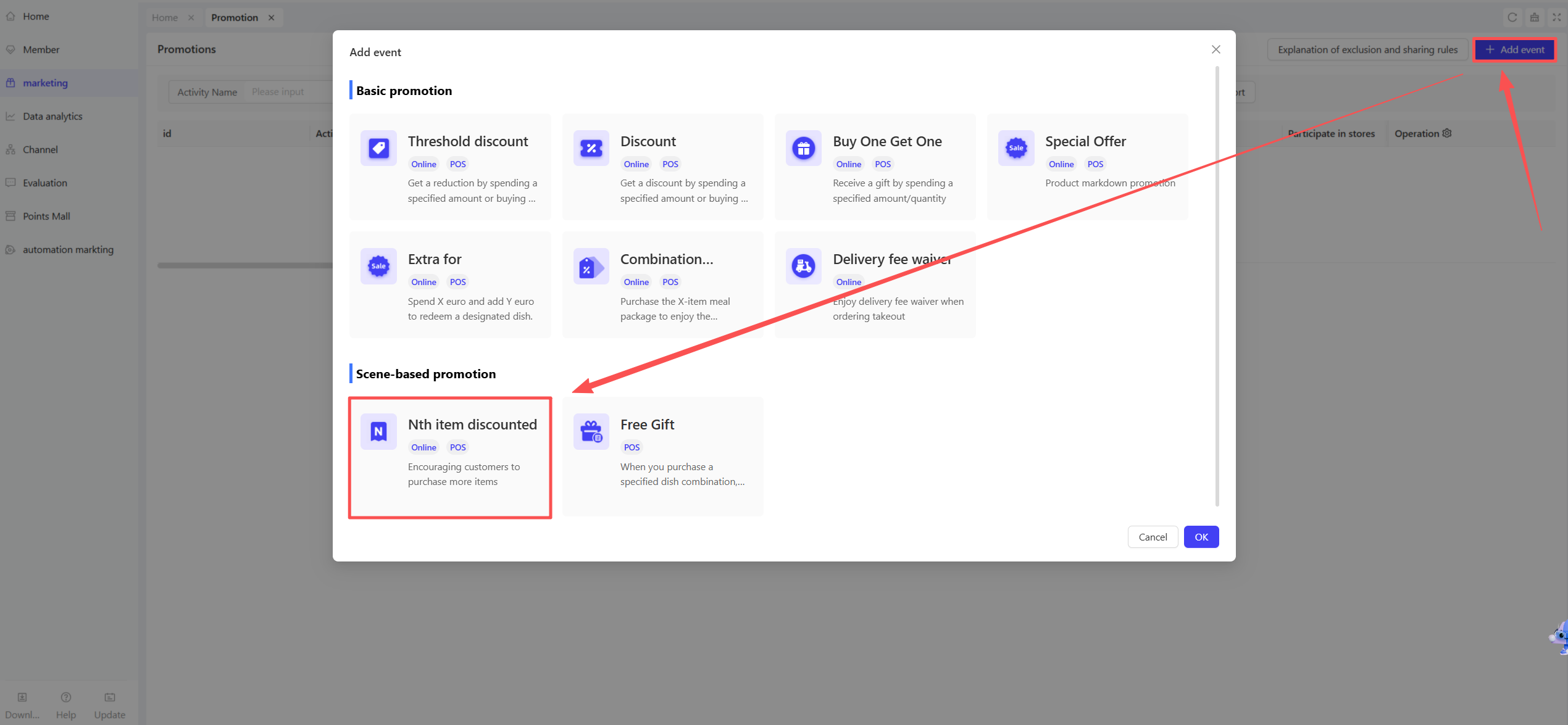
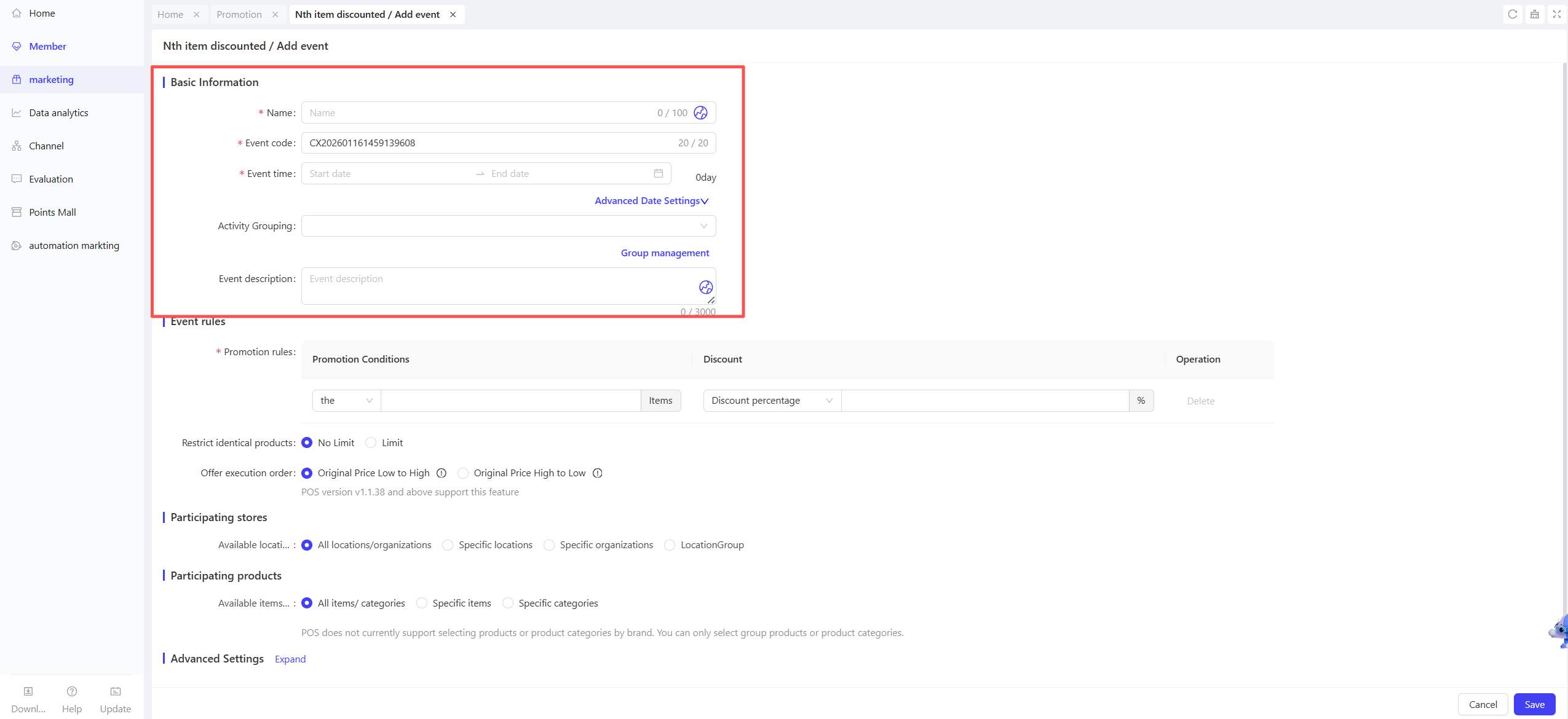
STEP 2: Define Basic Details
-
Name: Name the activity for easy identification (e.g., “50% off your 2nd Drink”).
-
Period: Set the start and end dates.
- Time Slots: Define specific active hours (e.g., “Daily 2 PM – 5 PM”).
- Blackout Dates: Specify dates when the promotion is inactive.
-
Code: Enter a unique identifier for internal tracking.
-
Description: Provide a clear summary of the rules.
2.2 Promotion Rules Configuration
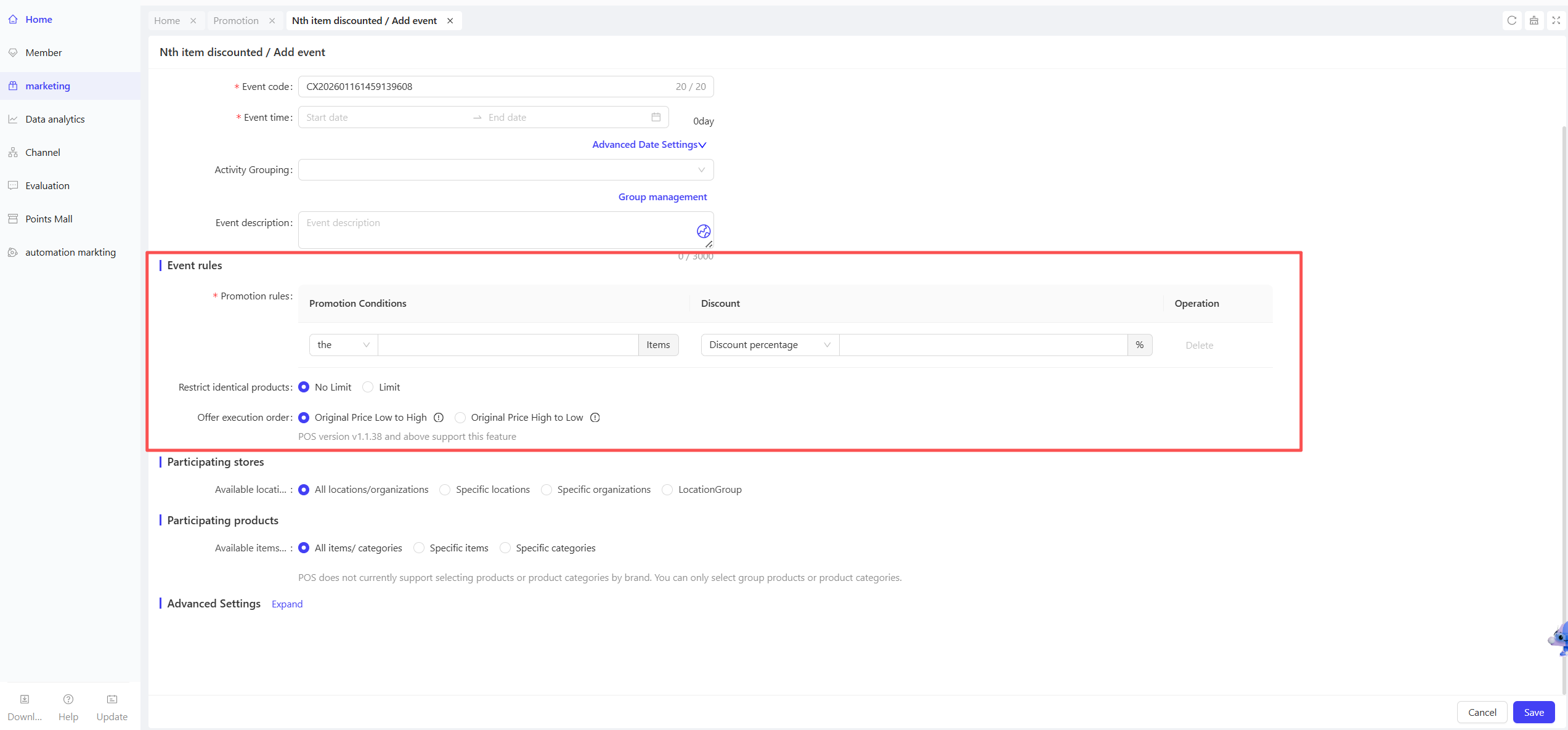
- Choose Trigger Mode
In the Nth Item Mode dropdown, select:
-
The Xth Item (Single): The discount applies only once to the specific item number.
- Example: Set to “2” → Only the 2nd item is half price. If 3 items are bought, only the 2nd is discounted.
-
Every Xth Item (Recurring): The discount repeats for every set of X items.
- Example: Set to “2” → Every 2nd item is 50% off. If 10 items are bought, 5 will be discounted.
- Set Quantity and Intensity
- Item Quantity: Enter the target number (e.g., “2” for the 2nd item). Must be a positive integer (Max: 999).
- Discount Type:
- Percentage Off: Enter the discount value (e.g., “50” for 50% off).
- Amount Off: Enter the reduction amount (e.g., “$5 off”).
- Grouping and Sorting Rules
-
Restrict to Same Item:
- Checked: Quantities are calculated independently for each unique item (e.g., 2 of Item A + 3 of Item B = separate calculations).
- Unchecked: All eligible items are counted together towards the quantity threshold.
-
Price Priority:
- Price: Low to High (Default): Applies the discount to the cheapest eligible items first.
- Price: High to Low: Applies the discount to the most expensive eligible items first.
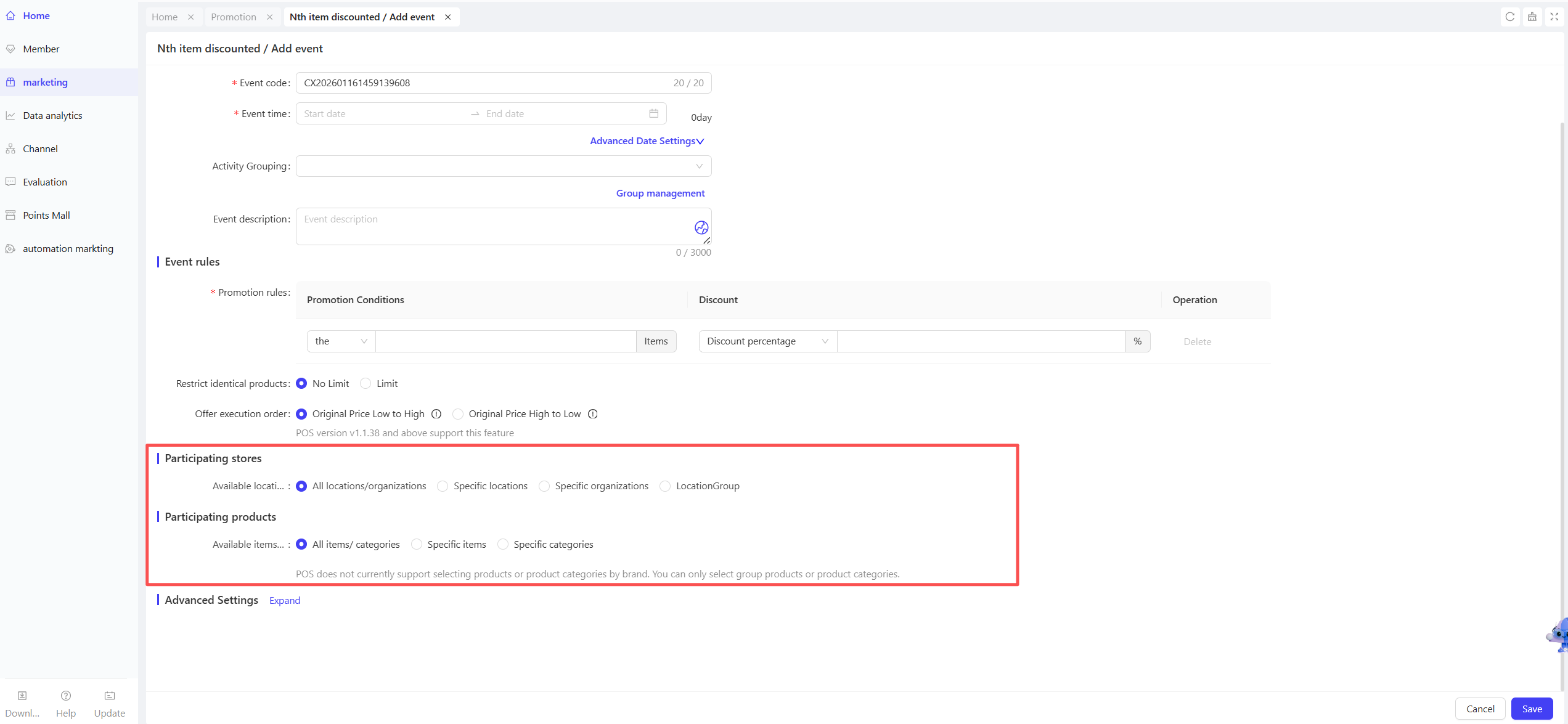
2.3 Store and Item Scope
- Participating Stores: Select all or specific locations.
- Eligible Items: Choose specific items or categories. Supports “All Items” or “Partial Items.”
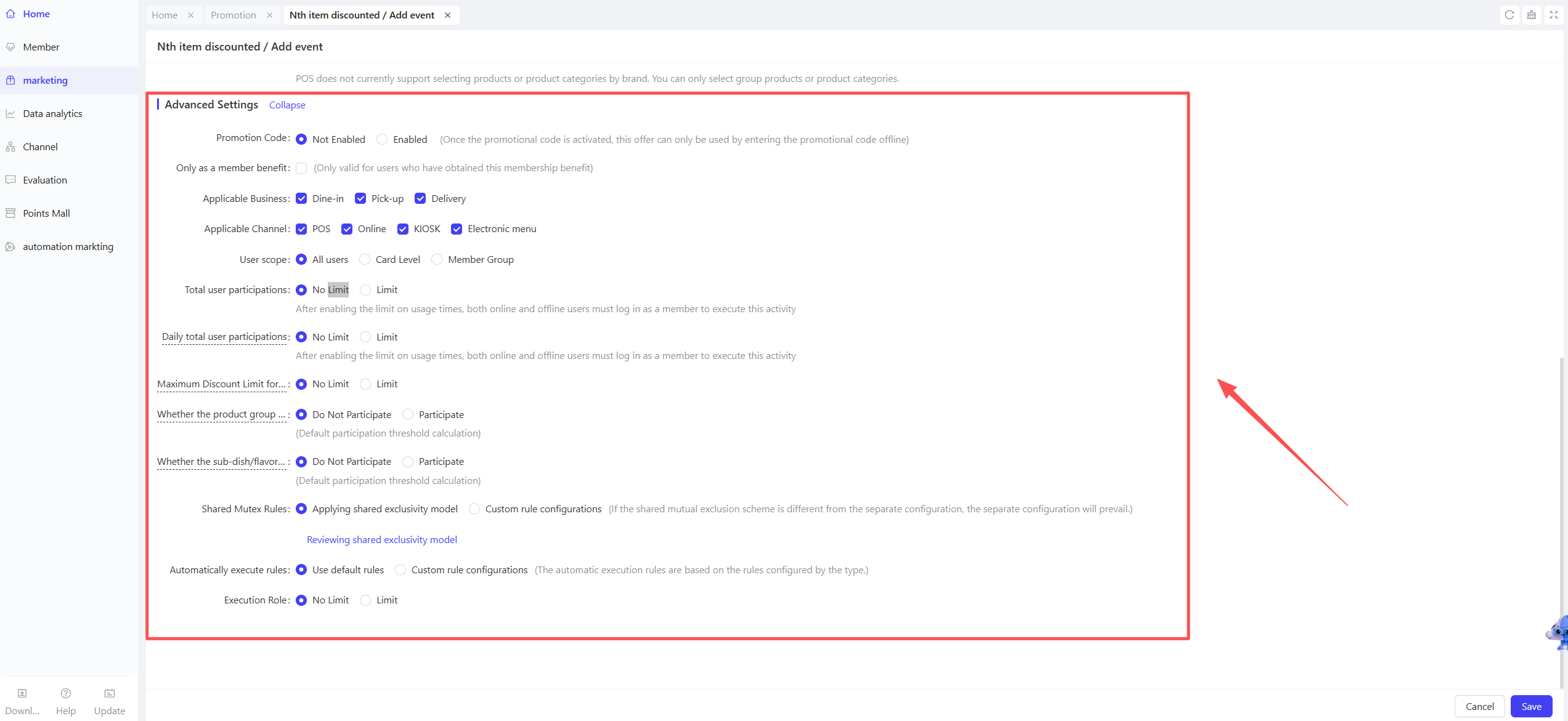
2.4 Advanced Settings
- Promo Code: Enable this to require a manually entered code at checkout. You can define the code and its validity period.
- Member-Only Benefit: If checked, only eligible members can use this deal.
- Applicable Business: Choose from Dine-in, Pickup, or Delivery.
- Applicable Channels: Select from POS, Online, Kiosk, or E-Menu.
- User Eligibility: Filter by Membership Tier or Customer Segments/Tags.
- Participation Limits: Set a Total Limit or Daily Limit per user.
- Max Discount per Order: Set a dollar cap to prevent excessive losses per transaction.
- Add-ons and Modifiers
-
Sides/Add-ons:
- Participate: The main item and sides are treated as one unit; the discount is prorated across both.
- Do Not Participate: The discount applies only to the main item’s base price.
-
Sub-items/Modifiers/Prep: Same as above; determines if the discount covers extra toppings or special requests.
- Exclusivity and Stacking
- Use Default Template: Follow system-standard rules for combining with coupons or member prices.
- Custom Configuration: Manually define if this stacks with or is excluded by Member Pricing, Coupons, or other Promotions. Manual settings override defaults.
3 Activate & Manage the Promotion
3.1 Activate the Promotion
- After completing the configuration, click【Save】to activate the promotion.
3.2 Promotion Management & Monitoring
- View performance data (e.g., order volume, discount usage) in the Promotion Management module.
- Pause or adjust the promotion at any time, and manually archive it when necessary.