Value-Boosted Gift Pack
1 Module Introduction
The Value-Boosted Gift Pack is an interactive marketing tool that encourages users to invite friends to help unlock generous rewards. This manual details the setup and management of the Value-Boosted Gift Pack activity on the SaaS platform, covering activity configuration, management, page customization, and the customer-side user interaction flow.
2 Configuration Guide
2.1 Accessing the Feature
- Log in to the SaaS platform backend
- Navigate to【Membership Marketing】>【Marketing】>【Marketing Activities】.
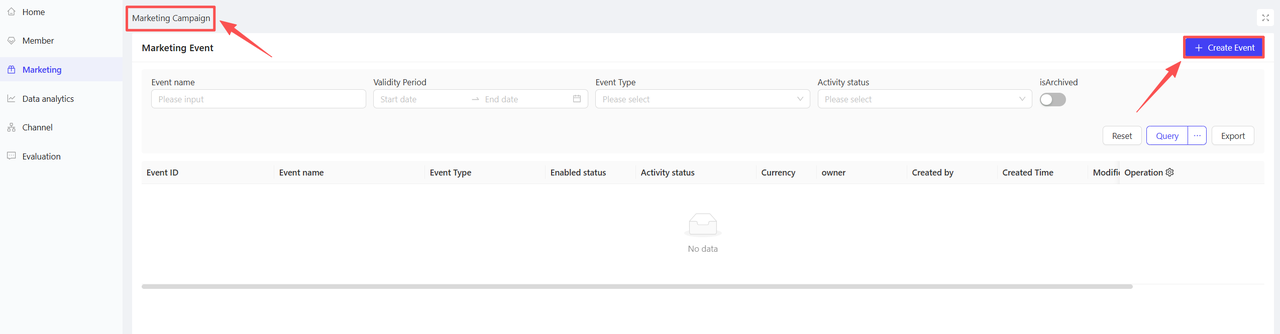
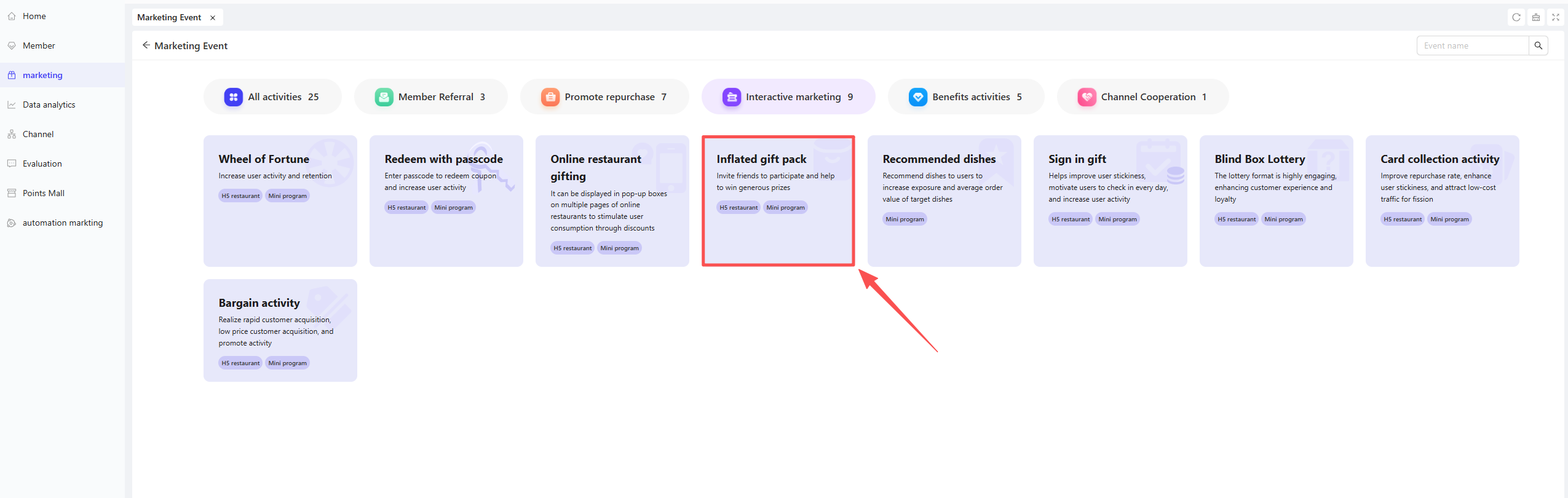
- Click【Create Activity】in the upper-right corner of the page, select the Value-Boosted Gift Pack module.
2.2 Basic Settings
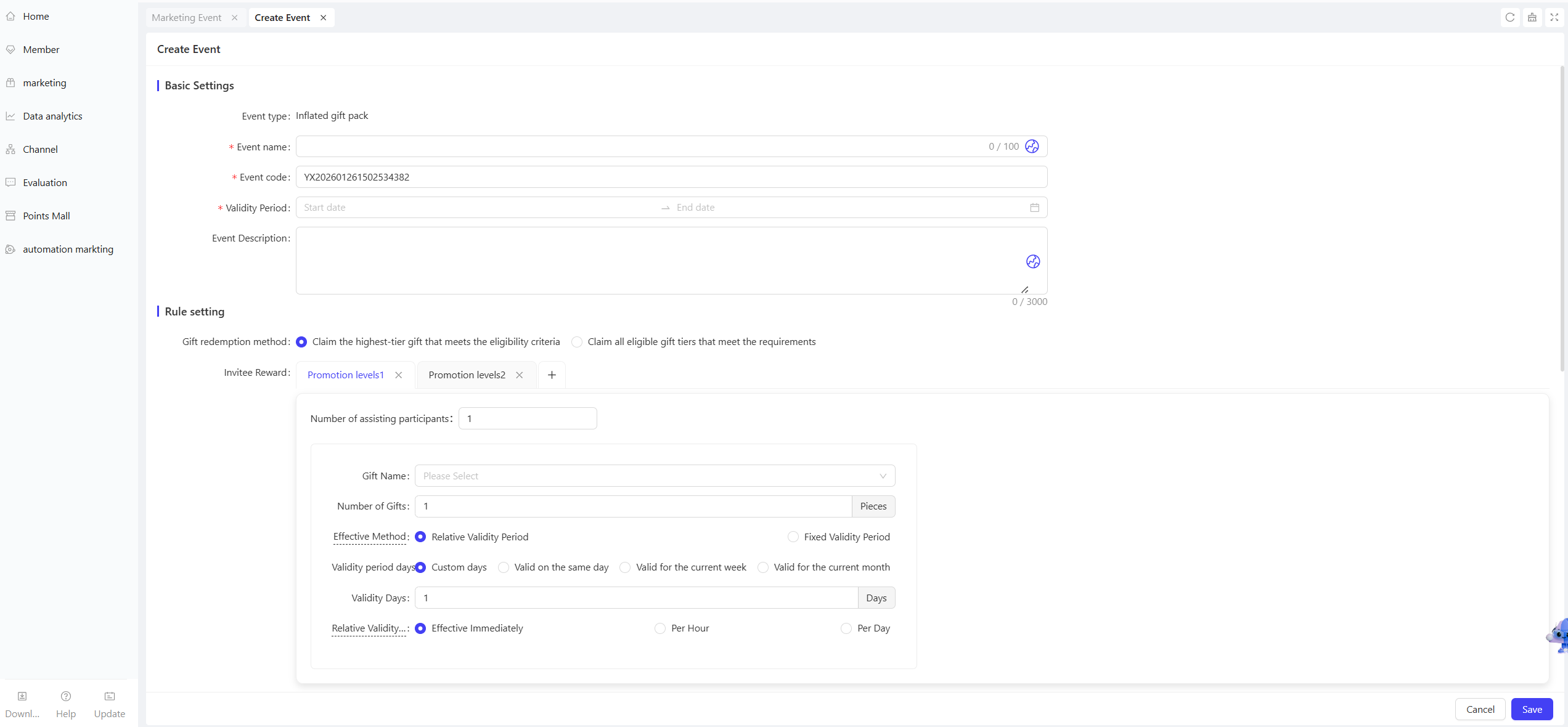
- Fill in basic configuration information
- Activity Name: Enter a name for the marketing activity to help customers recognise it.
- Example: “Daily Value-Boosted Gift Pack!”
- Activity Code: Assign a unique identification code to the activity for internal management and tracking.
- Validity Period: Select the start and end dates of the activity to ensure a reasonable timeframe.
- Description: Briefly outline the activity content and rules for clarity.
- Activity Name: Enter a name for the marketing activity to help customers recognise it.
2.3 Rule Settings
-
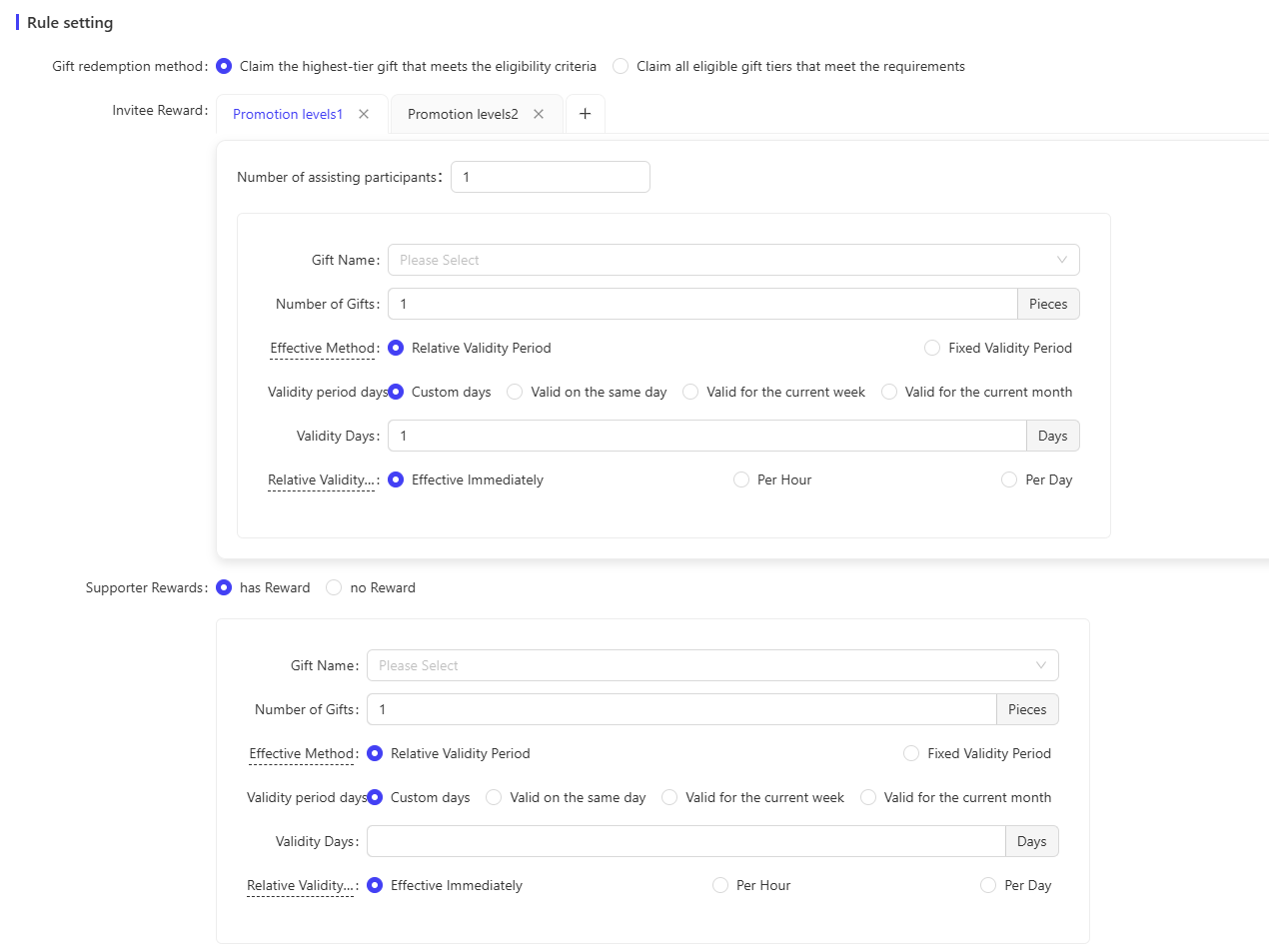
Select Gift Redemption Method
- Redeem the Highest Eligible Gift Tier: Claim the highest tier gift that meets the requirements; the activity ends immediately after redemption.
- Redeem All Eligible Gift Tiers: Claim all gift tiers that meet the requirements; the activity ends after all gifts are claimed.
-
Set Inviter Reward Tiers: A minimum of 2 tiers and a maximum of 3 tiers are required
- Number of Assistance Needed: Set the number of friends assists required for this tier; the next tier’s number must be greater than the previous one.
- Gift Configuration
- Gift Name: Select a coupon as the gift for this tier; only one type is allowed.
- Gift Quantity: Set the number of gifts available for this tier.
- Validity Type: Choose the gift’s validity period type (Relative Validity or Fixed Validity)
- Relative Validity: The validity period starts from the date the user claims the coupon.
- Example: “Valid for 7 days after claiming”
- Fixed Validity: The coupon is valid within a specific fixed timeframe, regardless of the claim date.
- Example: “Valid from 2024-11-01 00:00:00 to 2024-11-11 23:59:59”
- Relative Validity: The validity period starts from the date the user claims the coupon.
-
Set Assistant Rewards: Configure rewards for friends who successfully assist (rewards are optional)
- Gift Configuration: Select one type of coupon, set the number of gifts, and specify the corresponding validity type.
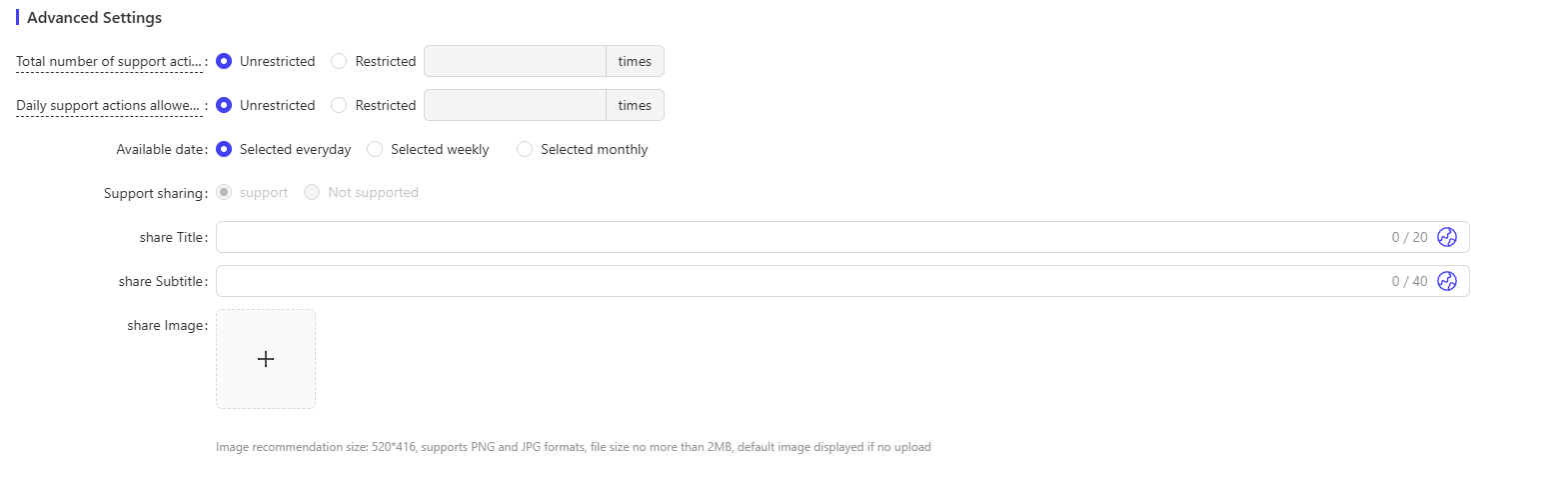
2.4 Advanced Settings
- Total Assistance Limit per User: Set the maximum number of times a friend can assist during the activity (Limited or Unlimited).
- Daily Assistance Limit per User: Set the maximum number of times a friend can assist per day during the activity (Limited or Unlimited).
- Sharing Permission: Configure the display content when sharing the activity on social platforms; enable or disable sharing functionality.
- Sharing Title: Enter a title for the sharing page to enhance promotional appeal.
- Sharing Subtitle: Enter a subtitle for the sharing page to supplement the promotional message.
- Sharing Image: Upload a poster image to increase sharing click-through rates.
3 Activity Activation & Management
-
Activity Activation
- After completing all configurations, click “Save” to activate the activity.
-
Activity Management & Monitoring
- View activity performance data (e.g., number of orders, participation metrics) on the Activity Management page.
- Pause or adjust the activity at any time; manually archive the activity if necessary.
4 Page Decoration
- Access Page Design: Click【Page Decoration】in the operation bar to enter the customization interface.
- Page Customization: Modify elements such as page background color, banner image, gift icons, and calendar color.
- Activate Design: After completing the page design, click the “Publish” button in the upper-right corner to apply the changes.
5 User Journey (End-User Experience)
- Initiator’s Path:
Login → Access Activity Page → Click [Participate Now] → Share to Invite Friends → Friends Assist → Redeem Rewards → View “My Rewards”
- Assistant’s Path:
Click Sharing Link → Login → Access Assistance Page → Click [Help Them] → Assistance Successful → Click [Join Now] to Access Own Activity Page
-
Login Requirement: Users must log in to participate in the activity.
-
Page Display
- The page shows a list of friend-invitation styles and a detailed section for the number of assists.
-
My Rewards: View a list of all rewards earned in the activity.
-
Activity Rules: View detailed explanations of the activity rules.