E-Menu
1 How to require a waiter to manually confirm an order on the E-Menu?
- Scenario: To prevent accidental orders, you can require a waiter to authorize the final submission from the shopping cart.
- Path: Log in to BO (Back Office) → Operation Center → Restaurant Management → E-Menu.
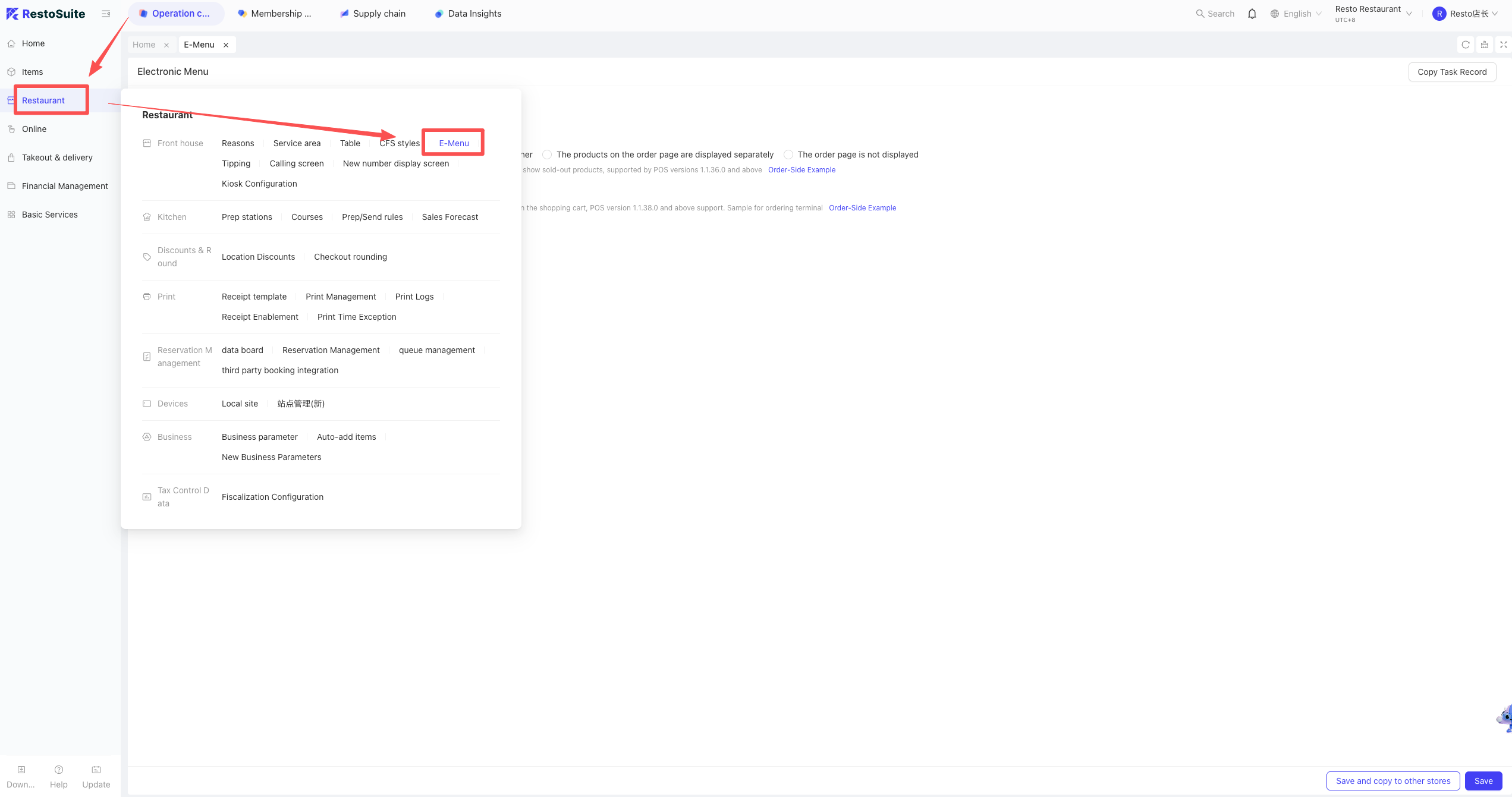
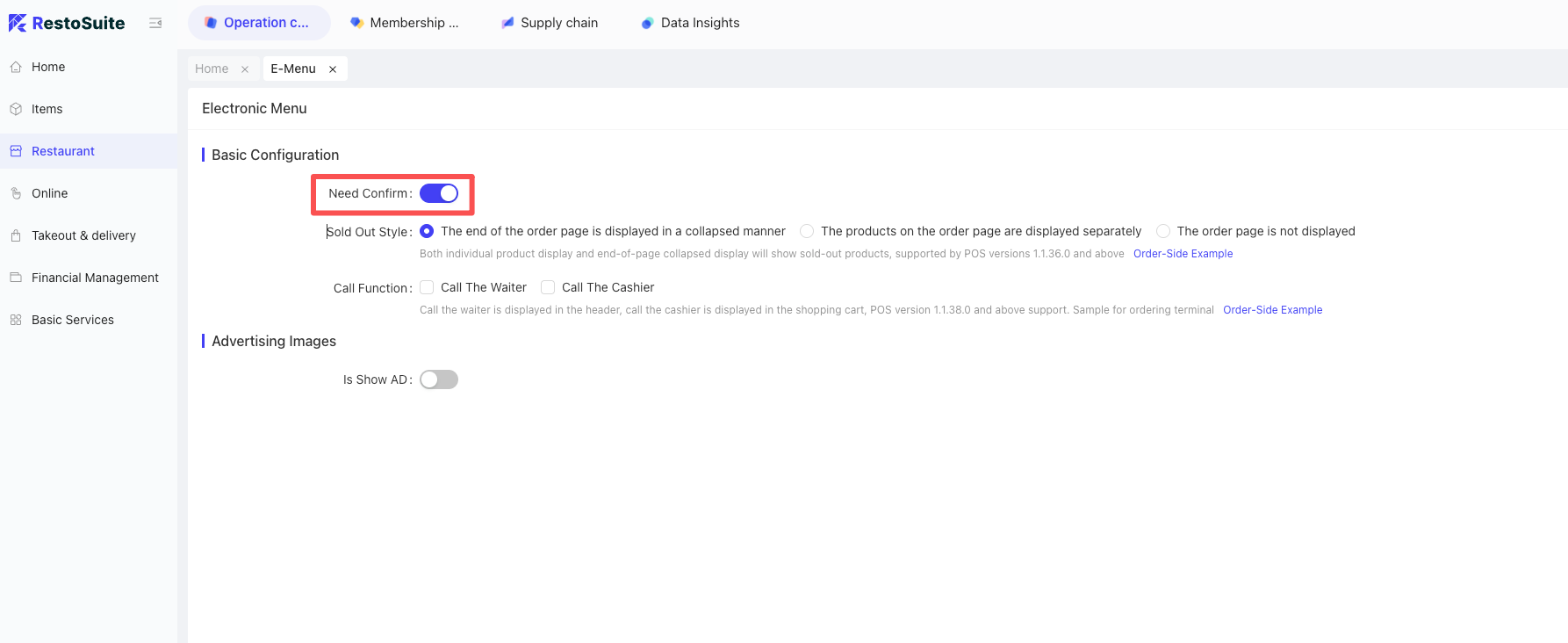
- Setting: Toggle on “Waiter Confirmation Required for Ordering.”
- Effect: When a customer attempts to place an order, a pop-up will require a waiter’s login/password to proceed.
2 Why is the staff name not appearing on the POS order page for E-Menu orders?
- Root Cause: The system did not capture staff information because the “Waiter Confirmation” feature was disabled, allowing the order to be placed anonymously.
- Solution:
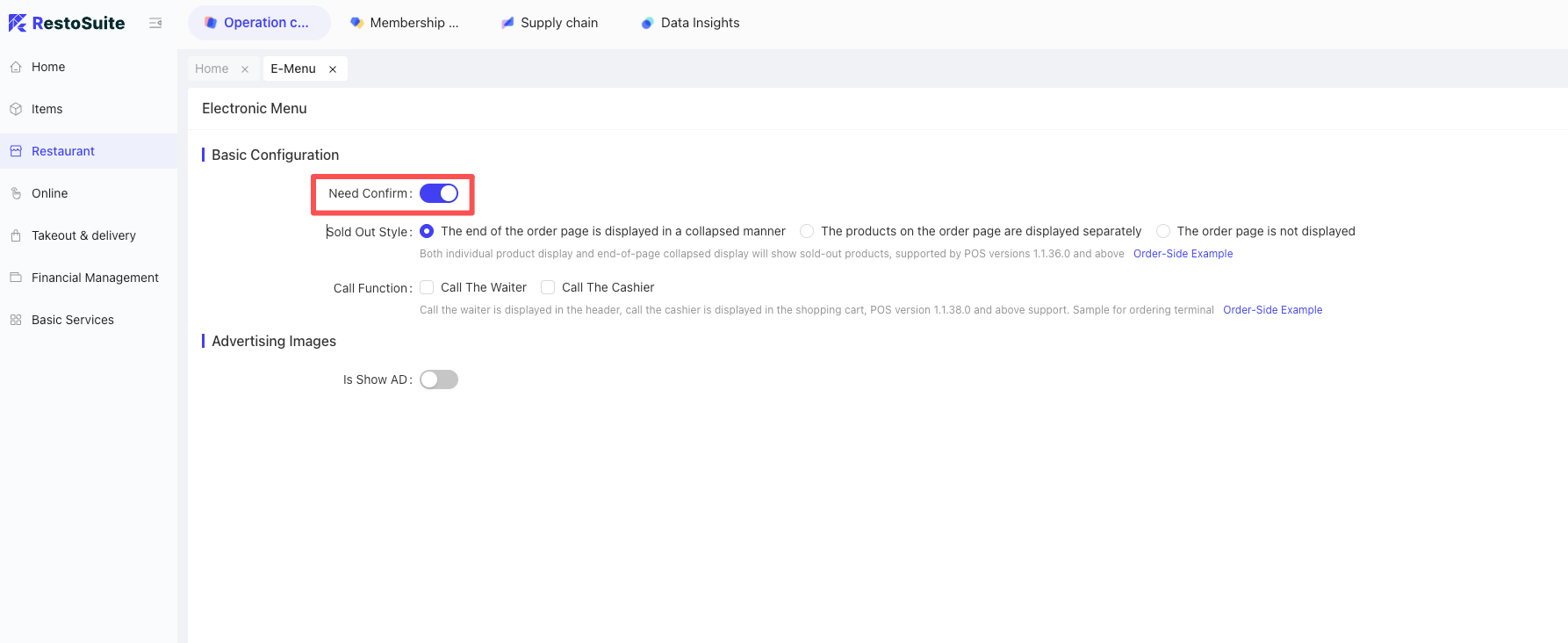
- Go to BO → Operation Center → Restaurant Management → E-Menu.
- Enable the parameter: “Waiter Confirmation Required for Ordering.”
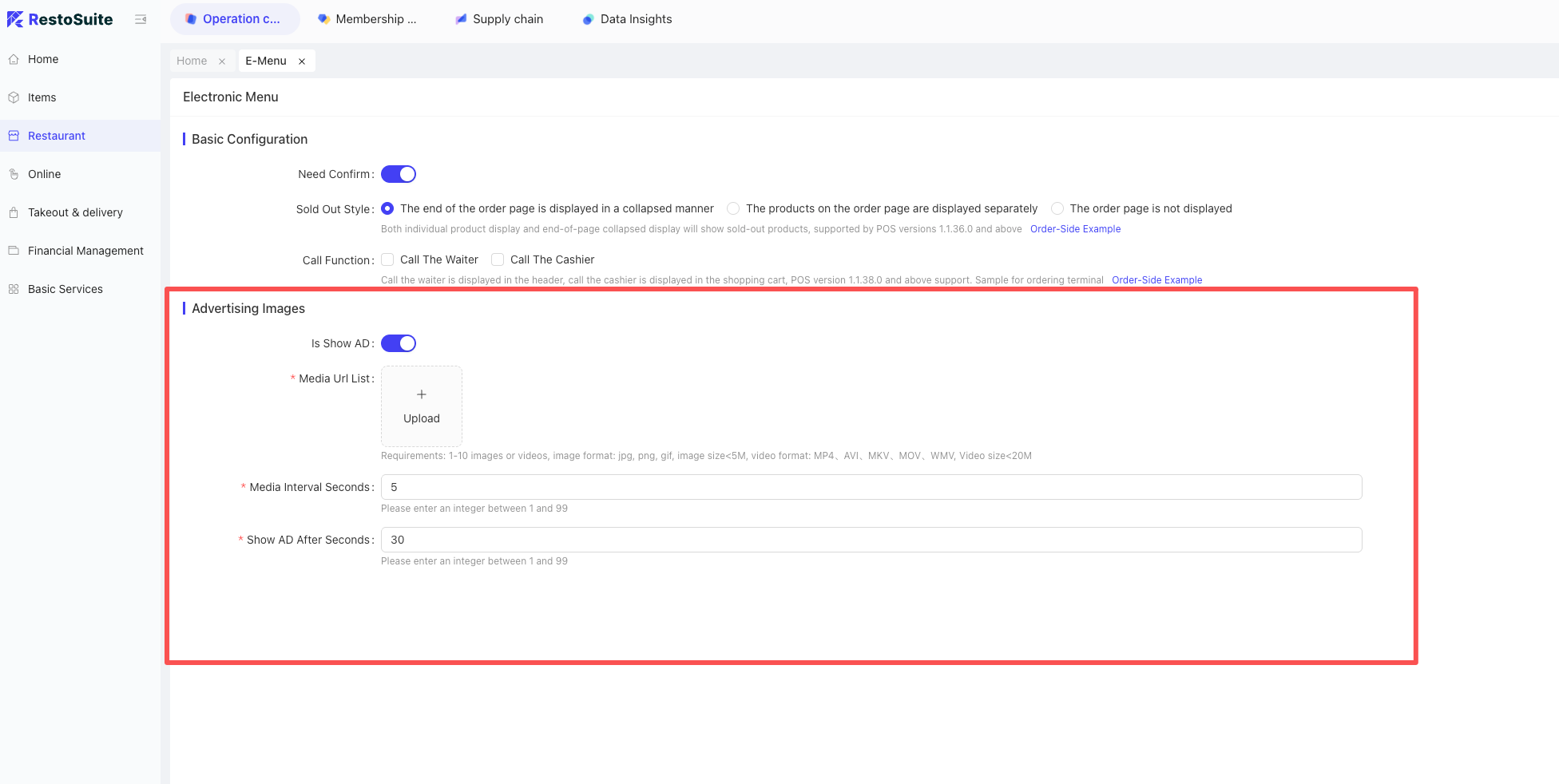
3 Does the E-Menu support idle screen images or videos?
A: Yes. You can display promotional content when the device is idle.
- Path: BO → Operation Center → Restaurant Management → E-Menu.
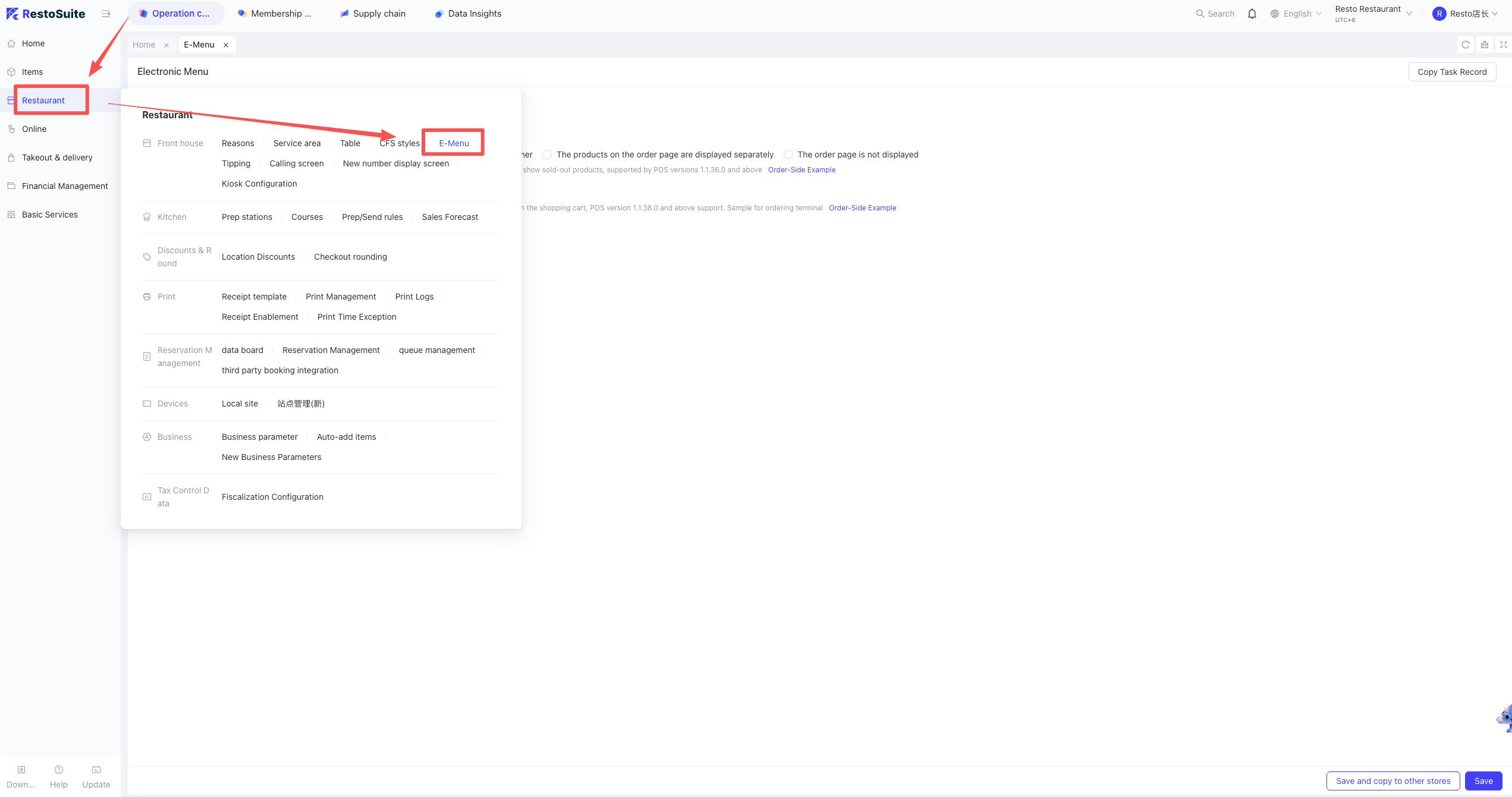
- Action: Enable the idle screen parameter and upload your files.
- Specifications:
- Quantity: Up to 10 images or videos.
- Image Formats: JPG, PNG, GIF (File size < 5MB).
- Video Formats: MP4, AVI, MKV, MOV, WMV (File size < 20MB).
4 Troubleshooting: E-Menu shows “Service exception, please contact after-sales support” upon login.
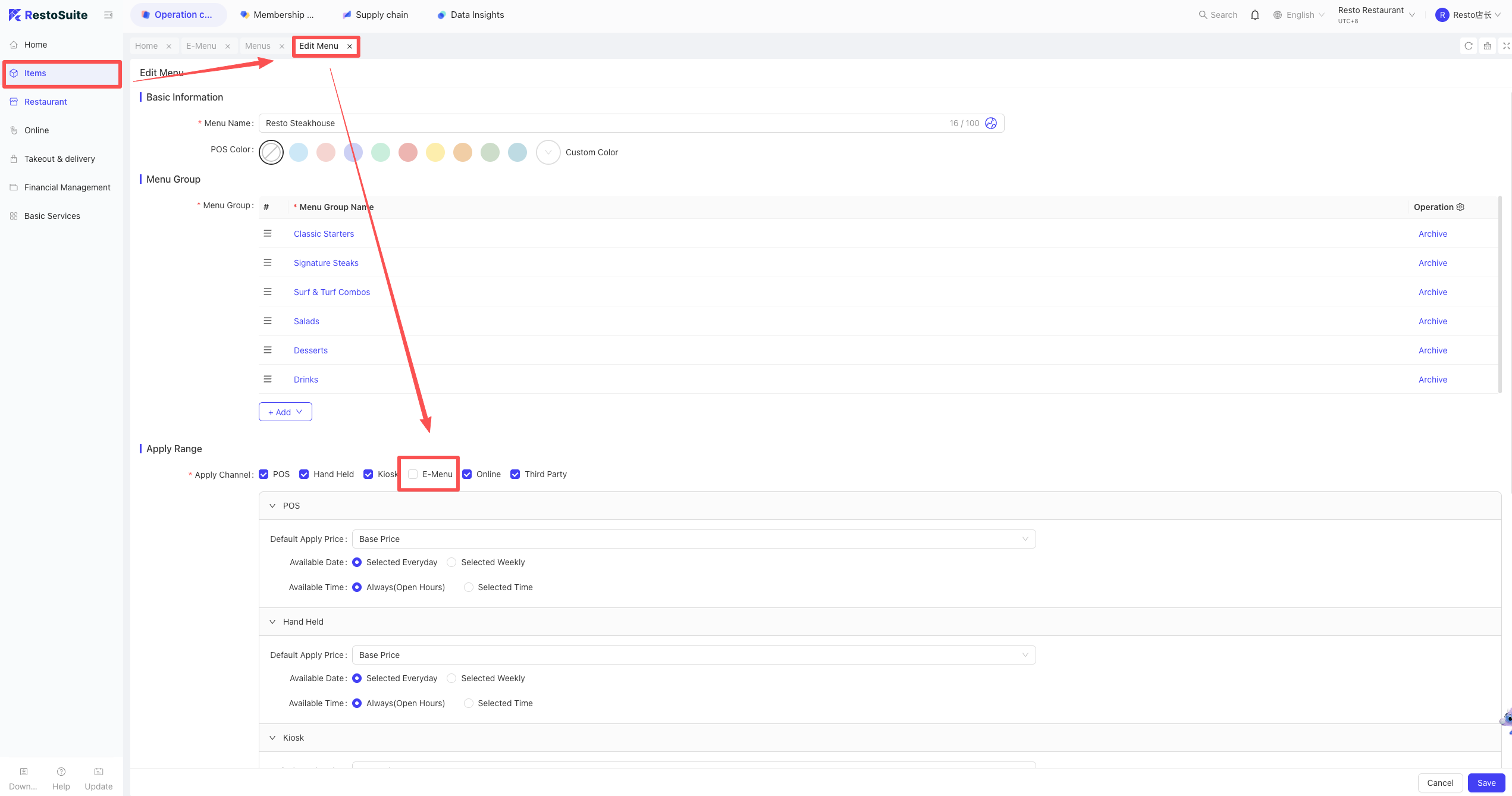
- Root Cause: The current menu has not been assigned to the E-Menu sales channel.
- Solution:
- Go to Menu Management and edit your menu settings.
- In the “Applicable Channels” section, ensure the “E-Menu” channel is checked.
- Save the settings and restart the E-Menu application.
Last updated on: