Bulk SMS Messaging
1 Module Introduction
Bulk SMS Marketing is a core tool for F&B merchants to engage members and drive conversions. It precisely targets store members via multi-dimensional segmentation, sends personalized SMS to users with different tags and card tiers, delivers promotions and updates, boosts re-engagement and in-store visits, and achieves the dual goals of enhanced member loyalty and increased store revenue.
2 Configuration Guide
2.1 Accessing the Feature
- Log in to the SaaS Admin Portal.
- Navigate to【Membership Marketing】>【Marketing】>【Marketing Activities】.
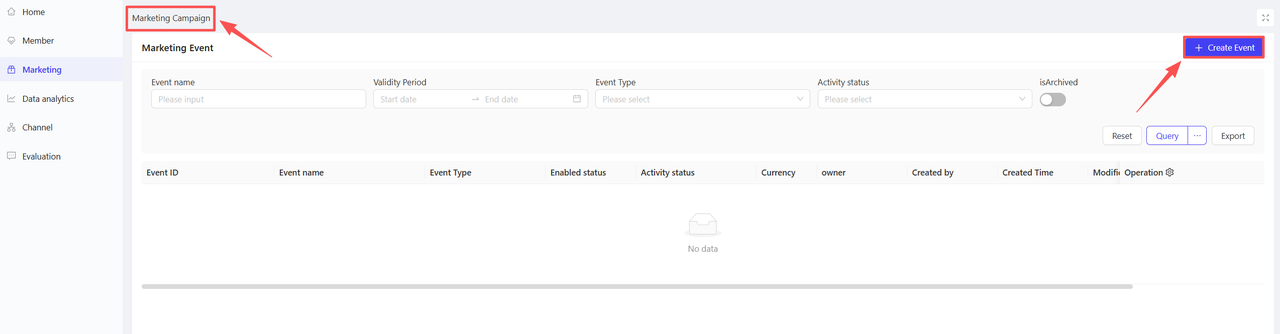
- Click【Create Activity】in the top-right corner and select the Bulk SMS Messaging module.
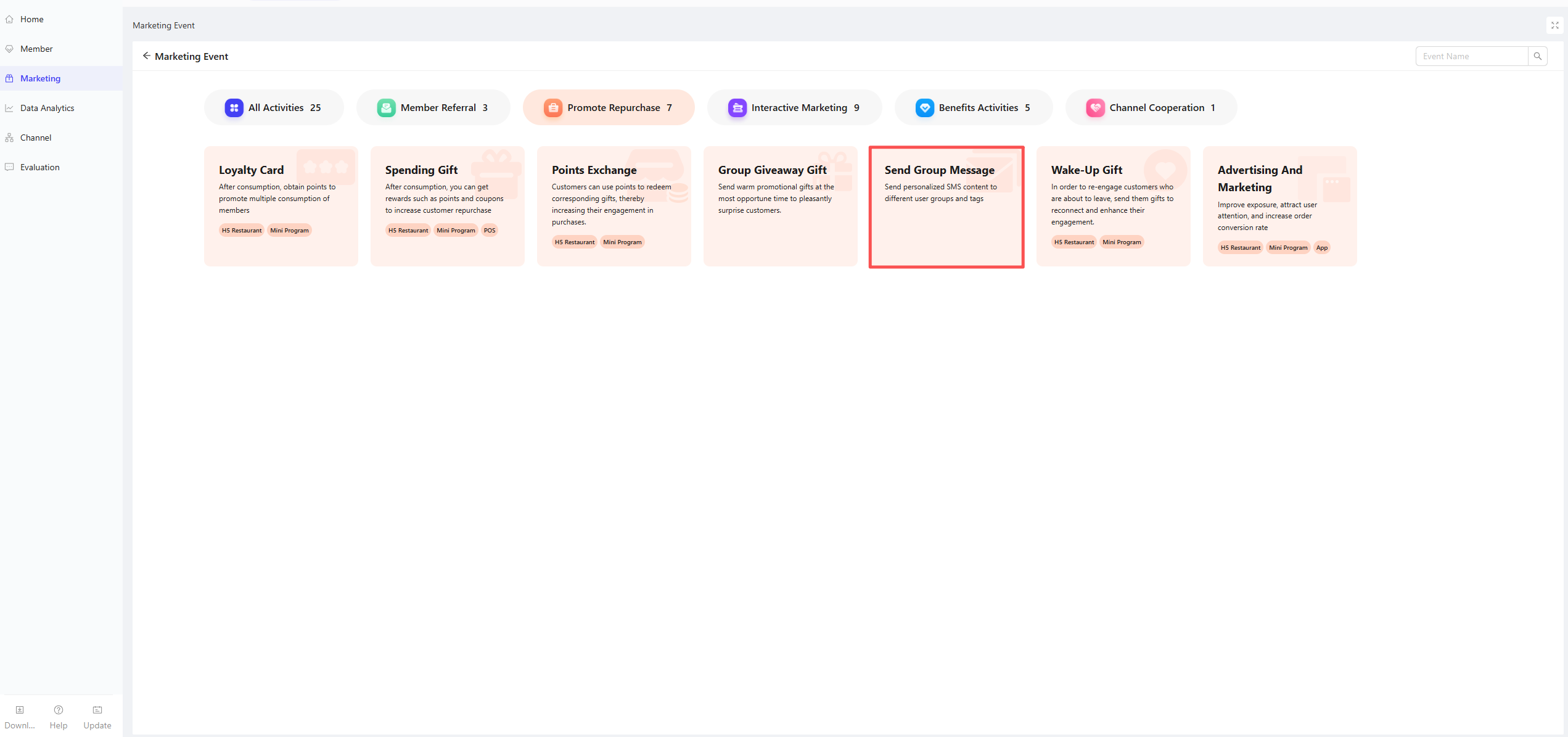
- On the Bulk SMS page, click the Create button in the upper-right corner
2.2 Basic Information
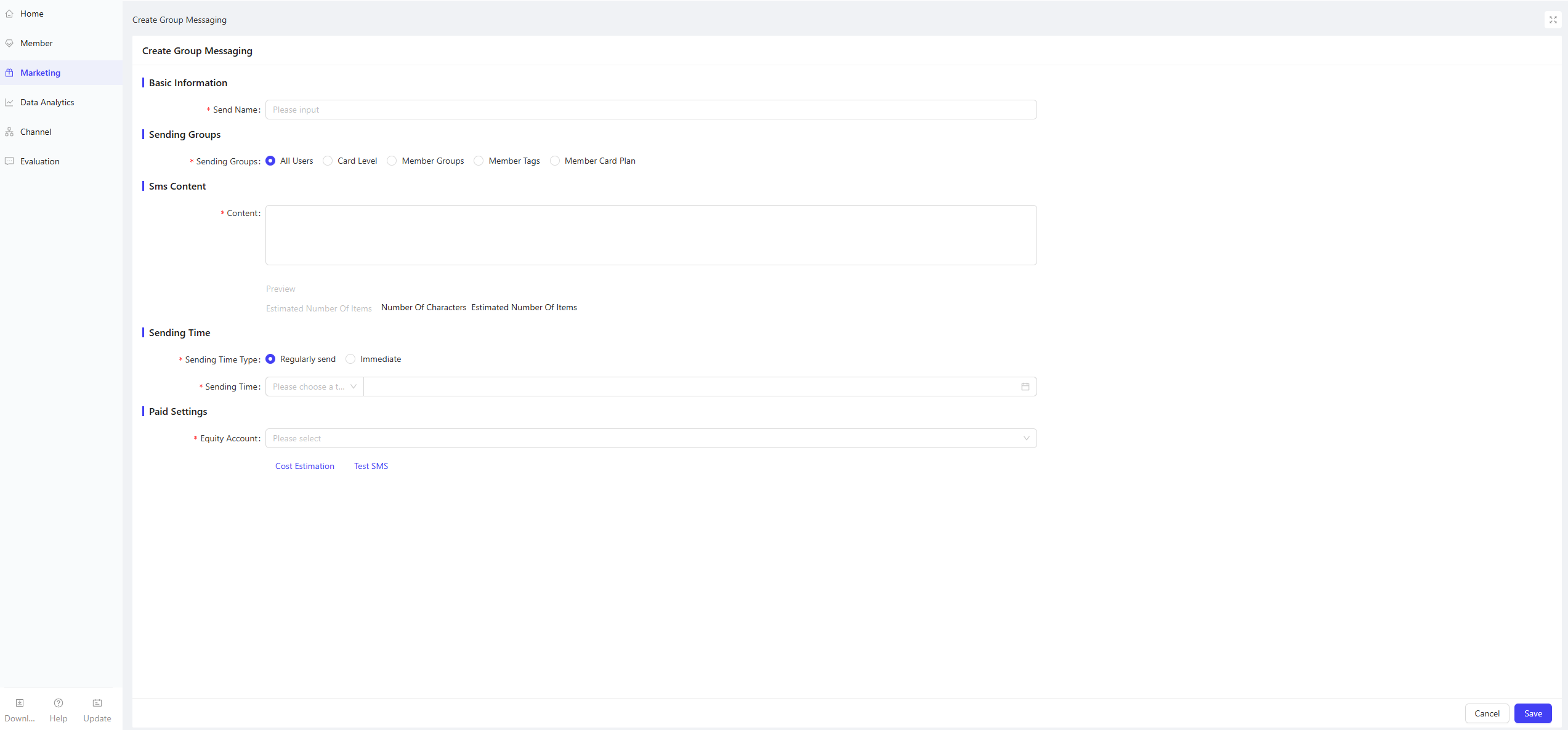
- SMS Title: Enter a title for the SMS send-out
- Example: “[XX Hot Pot] Instant In-Store Discounts”
2.3 Target Audience
- Recipient Segmentation: Select the specific audience for the campaign SMS based on 5 dimensions:
- All Users: Applies to all store members
- Loyalty Card Plans: Filter users by one or more loyalty card plans
- Loyalty Card Tiers: Filter users by different card tiers under loyalty card plans
- Member Segments: Filter users by one or more member segments
- Member Tags: Filter users by one or more member tags (e.g., New Users, Repeat Users)
2.4 SMS Content
- SMS Body: Enter the content of the SMS to be sent
- Example: XX Hot Pot Exclusive Member Perks! Spend $100, save $20, spend $200, save $50, free soup base included. Offer valid until MM/DD. Gather your friends for a hot pot feast!
2.5 Sending Time
- Sending Type: Select Scheduled Send or Instant Send. If Scheduled Send is selected, set the exact send time (down to hour, minute and second).
2.6 Billing Settings
- Benefit Account: Select the benefit account for deductions/redemption associated with this Bulk SMS campaign to complete billing configurations.
💡
Before finalizing the campaign, we recommend using the Test SMS feature to verify delivery and avoid unnecessary charges.
3 Activity Activation & Management
-
Activating the Activity
- After completing all configurations, click Save to launch the activity immediately.
-
Activity Management & Monitoring
- View activity performance data (including order volume and participant metrics) on the Activity Management page.
- Pause, adjust, or archive the activity at any time as needed.
Last updated on: