Online Restaurant
1 How to authorize a merchant’s independent Mini Program?
Mini Program authorization is managed at the Group level, so it must be done from the Group perspective.
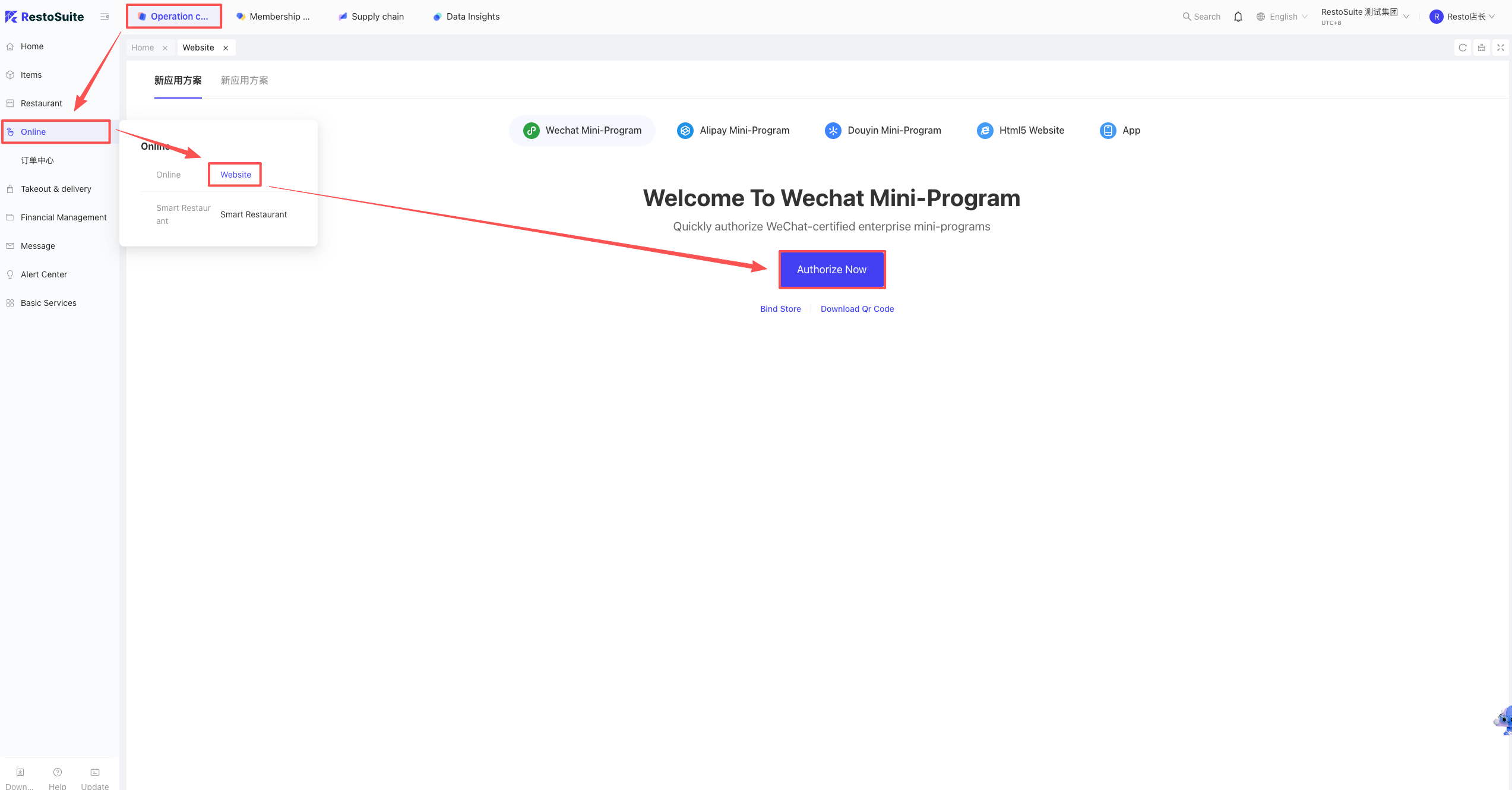
A: Log into the BO backend, under the Group perspective -> Operation Center -> Online Ordering -> Website Management -> WeChat Mini Program. Click the “Authorize Now” button to proceed.
2 How to set up a prompt on the Mini Program ordering page encouraging customers to join the membership?
A: When scanning to order via the Mini Program, non-members who click “Submit Order” will get a pop-up requiring them to register as members before they can place an order.
(Image display Placeholder)
Decoration settings:
STEP 1: Log into the BO backend, under the Group perspective -> Operation Center -> Online Ordering -> Website Management -> find the specific Mini Program.
STEP 2: Bind Membership Scheme & Select Applicable Stores: On the selected Mini Program interface, click “Member Settings”, bind the membership card scheme, and select the applicable stores.
STEP 3: Mini Program Decoration: Click “Go to Decorate” to enter the decoration interface.
STEP 4: In the decoration interface, click the “Dine-in Ordering” module on the left, expand and click “Guide Members to Register”. Select the corresponding type in the top right, set it up, and click Publish.
3 How to set up the multi-person ordering mode for dine-in QR code ordering?
A: The multi-person ordering mode must be configured under the Store perspective.
Log into the BO system, under the Store perspective -> Operation Center -> Online Ordering (left menu) -> Ordering Business Settings. Select “Dine-in” to configure, and enable the “Multi-person Collaborative Ordering Mode”.
4 How to set online QR code ordering to “Order Only” or “Pay Only”?
A: There are three modes: Order + Pay, Order Only, and Pay Only.
Setup Path:
Log into the BO system, under the Store perspective -> Operation Center -> Online Ordering -> Ordering Business Settings -> Function Settings.
5 How to set dine-in QR code ordering to Pre-pay or Post-pay mode?
- Pre-pay Mode: After scanning the QR code, customers must pay first before the order is placed in the kitchen (prevents malicious orders).
- Post-pay Mode: Customers place the order first and settle the bill after eating.
- Note: This must be done from the Store perspective.
- Setup Path: Log into the BO system, under the Store perspective -> Operation Center -> Online Ordering -> Ordering Business Settings -> Dine-in -> Payment Settings. Choose “Pre-checkout” (Pre-pay) or “Post-checkout” (Post-pay).
6 Can the ad banner on the dine-in ordering page be set uniformly by the Group and dispatched to stores?
(Ad banner image Placeholder)
A: No, this image cannot be set uniformly by the group. Each store must set it independently.
- Setup Path: Log into the BO system, under the Store perspective -> Operation Center -> Online Ordering (left menu) -> Ordering Business Settings -> Dine-in -> Configuration. Enter here to set the ad banner image.
7 How to bind an Official Account in the BO backend?
A: Binding an Official Account is not supported. You need to guide merchants to register a Mini Program and bind it to implement the functions.
8 How to restrict QR code ordering beyond a certain distance?
Scenario: To prevent customers from taking photos of the QR code and ordering maliciously from afar, merchants can restrict the ordering distance.
Setup Steps: Log into the BO backend, under the Store perspective -> Operation Center -> Online Ordering -> Ordering Business Settings -> select Dine-in -> enable the parameter and set the distance limit.
9 How to bind a merchant’s own WeChat Mini Program to the system?
STEP 1: Log into the BO system, under the Group perspective -> Operation Center -> Online Restaurant -> Website Management -> WeChat Mini Program.
STEP 2: Click Add/Bind in the top right.
STEP 3: Click the plus sign to enter the Mini Program addition interface. Click “Authorize Now” to enter the QR code scanning interface, and use the Mini Program Administrator’s WeChat to scan and bind it.
10 How to set up a floating ad window on the ordering interface?
(Display effect Placeholder)
Setup Method:
Log into the BO system, under the Group perspective -> Operation Center -> Online Ordering (left menu) -> Website Management.
Find the corresponding Mini Program, click “Decorate”, go to the Dine-in Self-ordering module. Find the “Floating Ad Window” on the right, enable it, upload the image, and configure the link.
11 Which language is displayed when a customer scans the order?
A: It defaults to the local browser’s language.
12 Can the category names on the left side of the QR code ordering page be centered?
A: Yes.
Setup Path:
- Log into the BO system, under the Group perspective -> Operation Center -> Online Restaurant (left menu) -> Website Management.
- Find the Mini Program, click “Go to Decorate”. On the Dine-in Ordering page -> Ordering -> find the Category Area on the right. The Menu Style must be set to “Left” or “Right”, then you can set the Text Alignment.
- Note: If the icon is above the text, text alignment options will not display.
13 Can side dishes show images during online ordering?
A: Yes.
Setup Steps:
- Log into the BO system, under the Group perspective -> Operation Center -> Online Restaurant (left menu) -> Website Management.
- Find the Mini Program, click “Go to Decorate”. Select the Item Details Page, find the “Side Dish Display Method” on the right, and choose “Large Image Mode”.
14 How to pin items to the top for online ordering?
A: This is achieved using Recommended Items.
- Setup Path: Log into the BO system, under the Group perspective -> Operation Center -> Item Management -> Recommended Items. Add recommended items here.
Note:
Since this works with the Mini Program (which is managed at the Group level), it MUST be set under the Group perspective.
- After creating the recommended menu group, click “Item Settings” to add items. Check the group and dispatch it to stores.
- Then go to Group perspective -> Operation Center -> Online Ordering -> Website Management -> Mini Program Decoration -> Dine-in Ordering -> enable “Item Recommendation” on the right.
15 How long is the mandatory checkout validation time in business parameters?
- Validation Timeframe: Users who have a successful online payment record within the last 4 hours will not be validated again.
16 Can sold-out items be hidden from online ordering?
A: Hiding them completely is not supported. You can only set them to “Move to Bottom” or “Keep Original Position”.
Setup Path: Log into the BO system, under the Group perspective -> Operation Center -> Online Ordering -> Website Management -> Decorate the Mini Program. In the Dine-in Ordering page -> Ordering Decoration -> find the “Sold-out Item Display Settings” on the right.
Note:
The sold-out item button cannot be turned off.
17 Does the Platform Mini Program support setting image aspect ratios?
A: No. This is only supported by Independent Mini Programs and H5 ordering.
18 Can the store name be hidden in online QR code ordering?
A: No, hiding it is not supported.
19 I enabled the Coupon Assistant in Mini Program decoration, but it doesn’t show during ordering?
A: It is not supported by Dine-in Post-pay mode. It is supported by Pickup and Pre-pay modes.
20 How to use the Platform Mini Program?
A: It can be used if the merchant doesn’t want to use the H5 interface and hasn’t applied for an independent Mini Program.
Entrance: Log into the BO backend, under the Group perspective -> Operation Center -> Online Restaurant -> Smart Restaurant.
21 How to delete an existing template and re-add it in the Mini Program backend?
Scenario: If you used another system previously and have old templates with mismatched parameters, you need to delete them.
Steps:
Log into the WeChat Official Accounts Platform (https://mp.weixin.qq.com ), go to Basic Functions (left) -> Subscribe Messages -> My Templates. Select the template and click Delete.
22 How to re-authorize the Mini Program?
Scenario: If a user fails to follow the steps during initial authorization, preventing WeChat Mini Program messages from sending, they can re-authorize.
Action:
Log into the BO backend, Group perspective -> Operation Center -> Online Ordering -> Website Management -> WeChat Mini Program -> QR Code Download.
Click “Basic Settings”, scroll to the bottom, and click “Re-authorize”.
23 Can the promotion details page in Paid Benefit Packages be decorated?
A: Currently, decoration is not supported.
24 How to copy the Mini Program path after integration?
A: Log into the BO backend, under the Group perspective -> Operation Center -> Online Ordering -> WeChat Mini Program -> QR Code Download. Click “Link Path” and copy it.
25 How to feature “Boss’s Recommendations” at the top of Dine-in QR Code Ordering?
- Create a “Special Price Item” event.
- Mini Program Decoration -> Dine-in Ordering Page -> Promotional Space -> link it to the “Today’s Specials” event.
26 Can the “Do you need tableware?” prompt on the H5 order confirmation page be removed?
A: No, it is not supported.
27 Does H5 online ordering language switching read the Group language or the Store language?
A: It reads the group language.
28 Why does the merchant’s WeChat Mini Program submission show error “errcode”:85008?
Cause: The service category selected on the WeChat Mini Program platform is either missing or incorrect.
Solution: Log into the Mini Program backend and apply for the category: [Food & Beverage Services -> F&B Service Venues / F&B Service Management Enterprises].
29 Why does scanning the Mini Program QR code report “system error: Unknown time-zone lD:Asia/HongKong”?
Solution: The host computer’s time zone is incorrect. Modify the host computer’s time zone and scan again.
30 How to make items available for online sale but hidden from the customer ordering menu?
Scenario: Items that are in the online menu but not displayed for direct purchase, typically used for special purposes like third-party voucher redemption.
Path: Log into the BO backend, under the corresponding perspective -> Operation Center -> Restaurant Management -> Business Parameters -> set the parameter “Do not display items in online ordering”.
31 How to skip the phone number verification screen if the QR code ordering hits the verification limit?
Solution: Click “Got it”. On the member benefits selection screen, click “Do Not Log In For Now” to skip this step.
32 Are QR codes generated for scanning invoices universal for WeChat and Alipay?
A: Check if both WeChat Mini Program and Alipay Mini Program are authorized under the same Application Scheme. If yes, the QR code is universal. WeChat will open the WeChat Mini Program, Alipay will open the Alipay Mini Program, and scanning with a browser will open the H5 invoice page.
33 Does Platform Mini Program decoration support selecting theme templates?
A: No.
34 How to set the store list background image for Online Restaurant Pickup?
Setup Path: BO Store perspective -> Online Restaurant -> Ordering Business Settings -> Pickup -> Settings -> Upload Store List Background Image -> Save.
35 How to skip the “Select Number of People” page in QR code ordering?
A: BO Group perspective -> Mini Program/H5 Decoration -> Dine-in Ordering -> Number of People Page -> disable “Use Number of People Page”.
36 I changed the Platform Mini Program item to Large Image mode (4:3 ratio), but it didn’t take effect?
A: The Platform Mini Program does not support custom image aspect ratios.
37 Does online decoration support multi-language configuration?
A: Multi-language is not supported.
38 How to upload a background image for the Mini Program ordering page?
(Display Example Placeholder)
Setup Path: Log into the BO backend, under the Group perspective -> Operation Center -> Online Restaurant -> Website Management -> find the Mini Program decoration -> upload the background image on the Ordering Page.
39 How to set different selling times for items in different areas for online ordering?
Description:
Create multiple menu groups, set selling times on the menu groups, and assign different menu groups to different areas.
Setup Steps:
- Log into the BO backend -> switch to the corresponding perspective -> Item Management -> Menu Management -> Add a menu group and set the selling time.
- Go to Restaurant Management -> Service Area -> find the area -> Edit -> select the corresponding menu group.
40 Why does scanning to order prompt “Your buddy submitted an order”?
(Error Placeholder)
Cause: The “Multi-person Ordering” mode is enabled for Dine-in.
Setup Path: Log into the BO backend -> corresponding perspective -> Operation Center -> Online Ordering -> Ordering Business Settings -> Dine-in -> switch back to “Single Person Ordering”.
41 Is online delivery distance calculated in a straight line or by actual navigation?
A: It is calculated based on the actual navigation distance.
42 Does changing the payment abbreviation on the payment voucher affect store collection?
A: No, it does not affect store collection.
43 For online restaurant delivery pre-orders, what time is used if the pre-order time is set to 1 day (including today)?
A: It uses the natural calendar day.
44 Can the font size on the Mini Program ordering page be modified?
A: No.
45 Can the total price be hidden during Mini Program online ordering?
A: No.
46 Does the Mini Program support sharing items with friends?
A: This feature is not supported.
47 How to set the Online Restaurant store announcement?
(Display effect Placeholder)
Setup Path: Log into the BO backend, under the Store perspective -> Operational Profiles -> Basic Services -> Store Profile -> Edit -> set the Store Announcement.
48 How to turn off the Platform Coupon Redemption entrance (third-party coupons) on the Mini Program checkout page?
A: BO Backend -> Mini Program Decoration -> Order Confirmation Page -> turn off the “Third-Party Coupon Redemption Entrance”. (Platform Mini Programs and H5 do not have this setting and cannot turn it off).
49 Can the Mini Program generate a QR code for a single item, where scanning it only shows, orders, and pays for that specific item?
A: The Mini Program does not support this feature.
50 In Pre-pay Dine-in mode, will adding items via QR code later trigger the “Auto-add on Table Open” items again?
A: If the same person scans the QR code again within 4 hours, the auto-add items will not trigger again. However, if someone else at the table scans the code, the auto-add items will trigger.
51 Is there a time limit for viewing historical orders on the Mini Program?
A: Currently, there is no time limit for querying historical orders.
52 Can fixed side dishes be set so they cannot be removed by the customer during online H5 QR ordering?
A: No, currently customers are always allowed to remove side dishes.
53 How to show item sales volume on the Mini Program?
A: Mini Program Decoration -> Ordering Page -> Item Area -> enable “Item Sales Volume”.
- Display Rules: Monthly Sales (last 30 days), Weekly Sales (last 7 days).
- Display Scope: Current store sales only, or all stores under HQ.
54 How to show/hide sold-out items on the Mini Program?
A: Mini Program Decoration -> Ordering Page -> Item Area -> Sold-out Items. Toggle off to hide; toggle on to show.
- Display Methods: Move to Bottom, Keep Original Position.
55 What is the display frequency of the online splash screen?
A: It displays once every 4 hours.
56 Can customers cancel self-operated delivery orders on the H5 Mini Program themselves?
A: No, customers cannot cancel it themselves. They must contact the merchant to cancel it via POS.
57 Can the font size of “Continue Ordering” on the Independent Mini Program checkout page be enlarged?
A: The font size cannot be adjusted, but the style can be changed.
Setup Path: Mini Program Decoration -> Dine-in Ordering -> Order Confirmation Page -> Confirm Payment -> Payment Style: Style 2.
58 How to refund an order paid via scanning the “Payment Page” QR code?
A: After payment, an order will be generated on the POS terminal. Click the [Refund] button on that order.
59 Why aren’t the side dishes for combo sub-items showing during Mini Program online ordering?
A: Online ordering does not support side dishes attached to combo sub-items.
60 Can recommended items be displayed on the Mini Program homepage?
A: No, they cannot.
61 How to enable/ disable manual notes on the online restaurant item details page?
A: Group perspective -> Online Ordering -> Website Management -> Mini Program/H5 Decoration -> Item Details Page -> Standard Item/Combo Item -> Item Notes: Enable/ disable, then Publish.
62 For Mini Program delivery, are there service notifications for status changes like “Prep Complete”, “In Delivery”, and “Order Completed”?
A: Dine-in and Pickup have service notifications, but Delivery does not.
63 Can an H5 website decoration be copied to a Mini Program decoration scheme?
A: No. H5 and Mini Program decorations are separate and must be decorated independently.
64 What are the dimensions for the Points Mall decoration banner?
A: The image dimensions for the banner component in Points Mall decoration are 1280*600.
65 Can multi-use (count) cards be redeemed when redeeming Meituan Group Buy vouchers on the Mini Program?
A: Yes, multi-use card redemption is supported.
66 Why does the marketing discount shown upon initial entry differ from the discount shown if I select a coupon and then cancel it?
(Note: Content cannot be displayed outside Lark)
The first entry triggers the default promotion scheme. When you select a coupon, the logic shifts to prioritize the coupon and then applies other compatible discounts. Therefore, the displayed discount scheme changes.
67 How to handle Mini Program online payment error “pay error [subappid not found, please change and retry]”?
(Error Placeholder)
Solution: Provide the Merchant Number, Payment Merchant Abbreviation, and Mini Program appid to the payment integration team to bind the Mini Program payment function.
68 After integrating the Mini Program, can I decorate it via the WeChat Mini Program backend?
A: No, decoration can only be published via the BO backend.
69 How to change the Mini Program Theme Color?
- Path: Group perspective -> Operation Center -> Online Ordering -> Website Management -> Go to Decorate -> Templates (top left).
- Currently, you cannot directly change a theme’s color hex code; you can only select a different pre-made template style.
70 Can the H5 Restaurant Theme Color be changed?
A: Currently no, but this feature will be supported later.
71 How often does the Member Payment Barcode on the Mini Program refresh?
A: It refreshes in real-time, once every minute.
72 Can I offer both “Dine-in” and “Takeaway/To-go” options on the QR code order confirmation page?
For standard Dine-in mode: No.
For Quick Service/Fast Food mode: Yes. (Fast Food defaults to pre-pay).
- Setup Path:
- BO Backend -> Store Perspective -> Restaurant Management -> Edit Service Area -> Online Dine-in Ordering Settings: Fast Food. Save and publish.
- Mini Program Decoration -> Dine-in Ordering -> Order Confirmation Page -> Dining Options: Dine-in + Takeaway. Publish the Mini Program.
73 Can the tableware option be turned off?
A: Currently, it cannot be turned off. This option will appear for Delivery and Pickup. (As of Oct 31, 2025).
74 Does the Platform Mini Program support manually closing online pre-pay orders?
A: No.
75 What are the rules for the default language displayed in H5 QR code ordering?
- The H5 interface reads the phone’s default browser language and matches it with the languages configured in the POS system. If matched, it displays that language.
- If the POS system only has one language configured, it displays that single language.
- If the POS is configured with Chinese and English, and the phone’s language is neither, it defaults to English.
76 What are the rules for the default language displayed in the Mini Program?
- The Mini Program reads the phone’s default language and matches it with the POS system languages.
- If the POS system only has one language, it displays that language.
- If POS has Chinese and English, and the phone’s language is neither, it defaults to Chinese (Chinese is the fallback).
77 If a store enabled Smart Top-up, will it pop up if the member card balance is sufficient to cover the bill?
A: It can be displayed, but you must enable the parameter “Recommend Smart Top-up when member card balance is greater than order amount” in the Mini Program decoration.
78 Can online ordering jump directly to the review/rating interface after payment?
A: No, this is not supported.
79 Which perspective’s items are read when binding a Dine-in Item Link in the online ordering decoration module?
A: It reads items from the Brand or Group perspective. Linking to Store-level items is not supported.
80 Are online Buy-One-Get-One (BOGO/Gift) events related to payment mode?
A: They are only supported in Pre-pay mode, not Post-pay mode.
81 Can the default language be changed to Online H5?
A: The default language reads the user’s default browser language.
82 Do customers need to claim their membership card again if the Mini Program is changed/replaced?
A: No, they do not need to claim it again.