Check-in Gift
1 Module Introduction
The Check-In Gift is an interactive marketing tool designed to enhance user loyalty, encourage daily check-ins, and boost user engagement. This manual details the setup and management of the Check-In Gift activity on the SaaS platform, covering activity configuration, management, page customization, and the customer-side (C-side) user interaction flow.
2 Configuration Guide
2.1 Accessing the Feature
- Log in to the SaaS platform backend
- Navigate to【Membership Marketing】>【Marketing】>【Marketing Activities】.
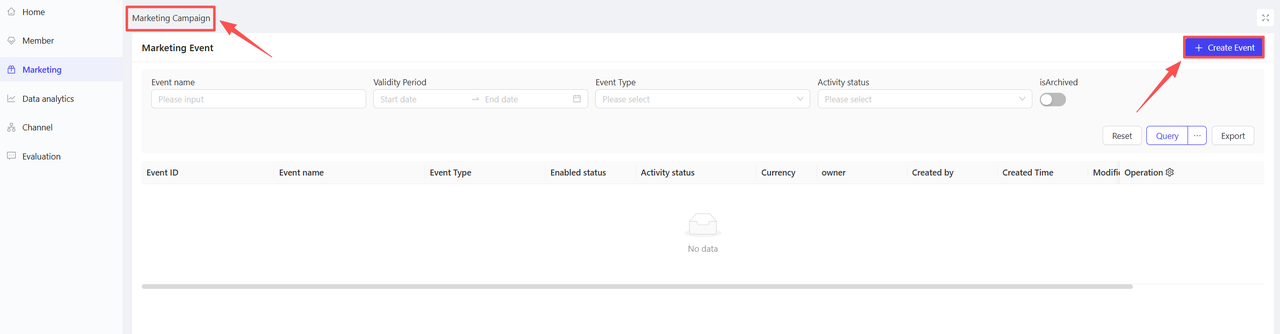
- Click【Create Activity】in the upper-right corner of the page, select the Check-in Gift module.
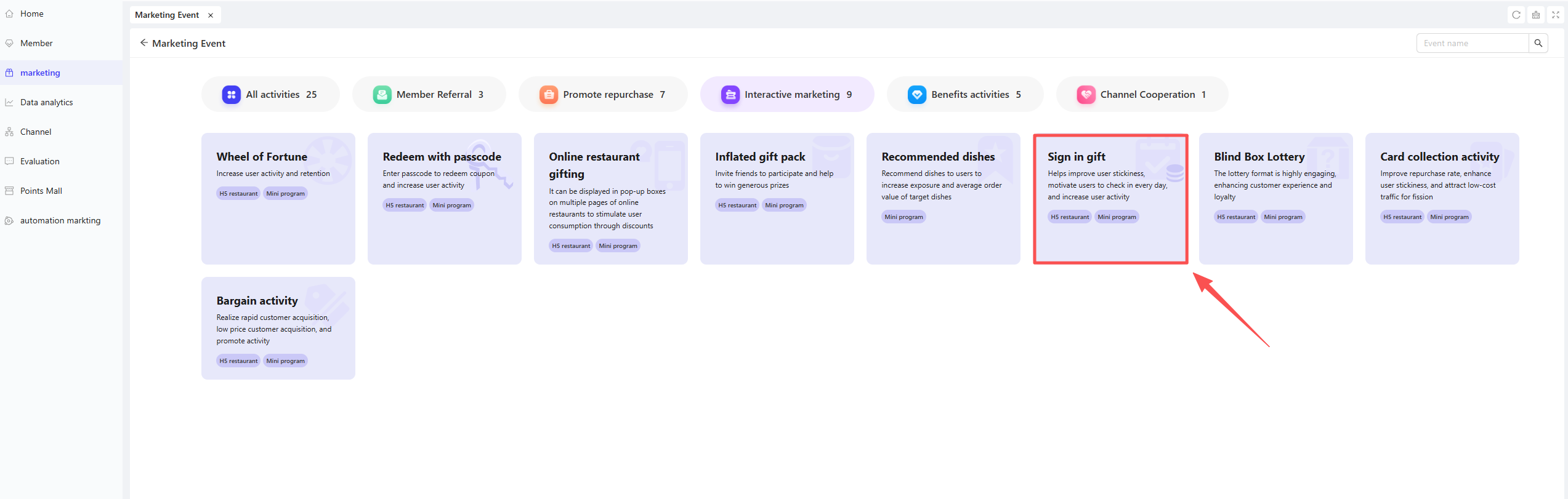
2.1.1 Basic Settings
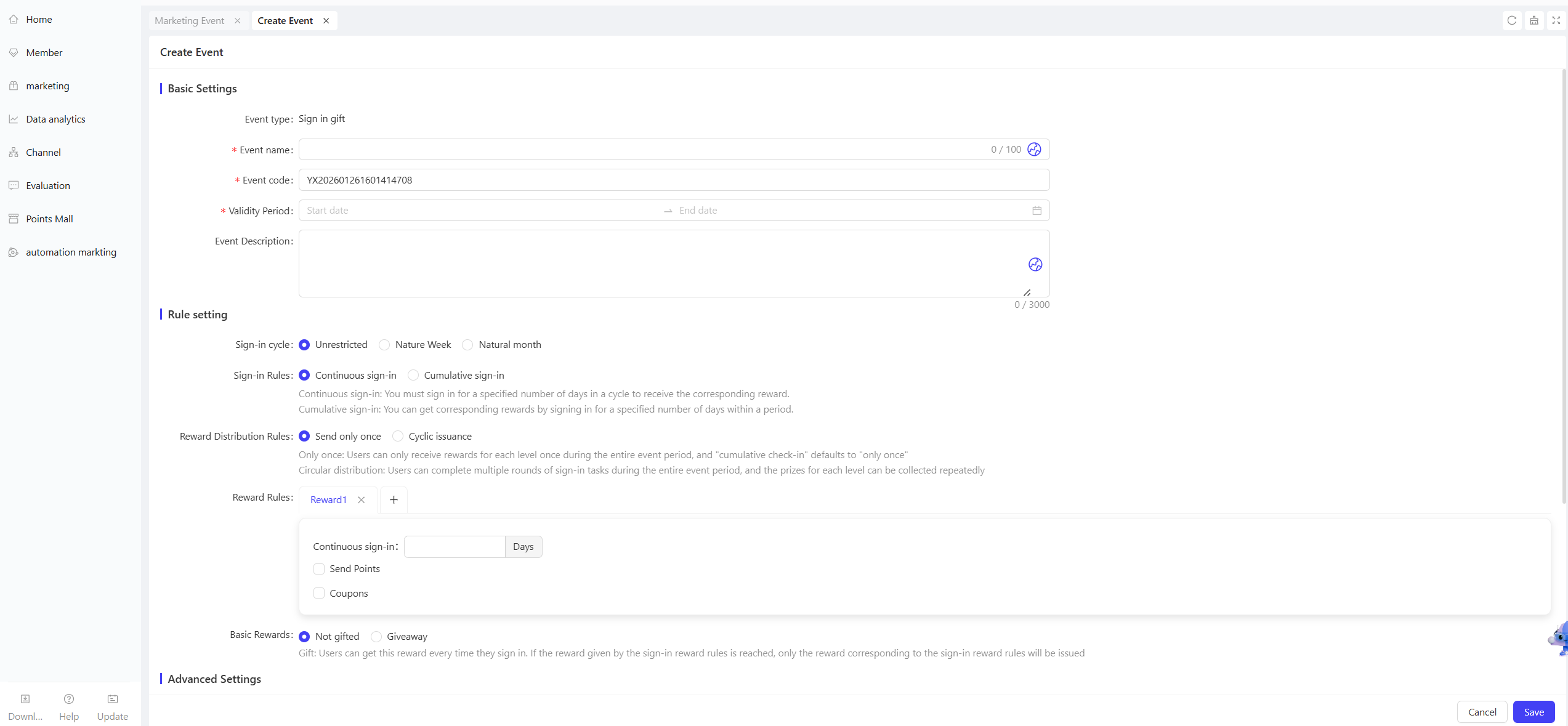
- Fill in basic configuration information
- Activity Name: Enter a name for the marketing activity to help customers recognise it.
- Example: “Daily Check-In for Gifts!”
- Activity Code: Assign a unique identification code to the activity for internal management and tracking.
- Validity Period: Select the start and end dates of the activity to ensure a reasonable timeframe.
- Description: Briefly outline the activity content and rules for clarity.
- Activity Name: Enter a name for the marketing activity to help customers recognise it.
2.1.2 Rule Settings
-
Check-In Cycle
- No Restriction: The activity runs continuously throughout the validity period without weekly or monthly resets.
- Natural Week: Check-in tasks and rewards reset automatically every Monday; users can start a new check-in cycle weekly.
- Natural Month: Check-in tasks and rewards reset automatically on the 1st of each month; users can start a new check-in cycle monthly.
🔋Scenario Recommendations
Choose based on reward value and activity goals. "No Restriction" is suitable for long-term engagement, while "Natural Week/Month" helps cultivate regular user visits.
-
Check-In Rules
- Consecutive Check-In: Users must check in consecutively for the specified number of days within the cycle to receive corresponding rewards.
- Scenario Example: Set “7 consecutive check-ins for a high-value coupon”. If a user misses a check-in on day 3, they must restart from day 1.
- Cumulative Check-In: Users must accumulate the specified number of check-ins within the cycle to receive corresponding rewards.
- Scenario Example: Set “3 cumulative check-ins for a small gift”. Users can check in on Monday, Wednesday, and Friday to claim the reward.
- Consecutive Check-In: Users must check in consecutively for the specified number of days within the cycle to receive corresponding rewards.
-
Reward Distribution Rules:
1. Distribute Once Only: Users can claim each reward tier only once during the entire activity period. "Cumulative Check-In" defaults to this setting. 2. Cyclic Distribution: Users can complete multiple check-in cycles during the activity period and claim each reward tier repeatedly.💡Note
This option only appears and takes effect when the check-in cycle is "No Restriction" and the check-in rule is "Consecutive Check-In". It is suitable for building a long-term, recyclable check-in task system.
-
Reward Rules: Set specific check-in days and corresponding rewards
- Add Reward Tiers: 1 tier is displayed by default. Click the ”+” button to add up to 5 tiers.
- Tier Configuration Rules
- Check-In Days: Select “Consecutive Check-In” or “Cumulative Check-In” and enter a positive integer.
- Select Rewards: Choose reward types “Points” or “Coupons”. Set specific point values or select existing coupons; both can be awarded simultaneously, and multiple coupons are allowed.
- Scenario Example: To boost short-term user participation, set the following reward rules:
- Tier 1: 3 consecutive check-ins → 10 points + 1 15% off beverage coupon
- Tier 2: 7 consecutive check-ins → 50 points + 2 “Buy One Get One Free” premium coupons
-
Basic Reward
- No Reward: No reward is given for a single check-in; rewards are only available after meeting consecutive or cumulative day requirements.
- Reward Given: Users receive this reward for each check-in. If they qualify for a tiered reward, only the tiered reward is distributed.
2.1.3 Advanced Settings
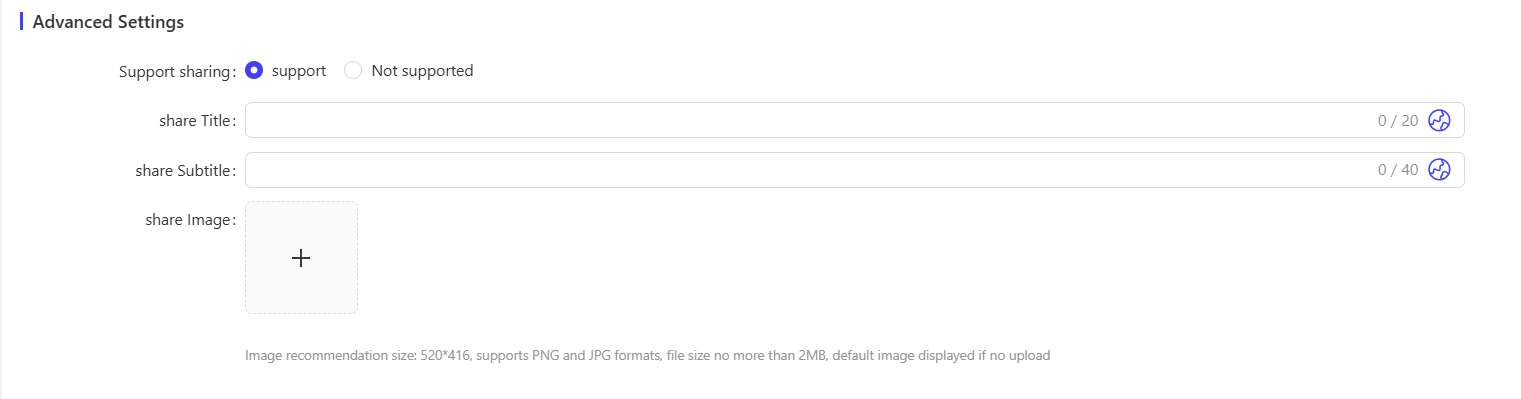
- Sharing Permission: Configure the display content when sharing the activity on social platforms; enable or disable sharing functionality.
- Sharing Title: Enter a title for the sharing page to enhance promotional appeal.
- Sharing Subtitle: Enter a subtitle for the sharing page to supplement the promotional message.
- Sharing Image: Upload a poster image to increase sharing click-through rates.
3 Activity Activation & Management
-
Activity Activation
- After completing all configurations, click “Save” to activate the activity.
-
Activity Management & Monitoring
- View activity performance data (e.g., number of orders, participation and usage metrics) on the Activity Management page.
- Pause or adjust the activity at any time; manually archive the activity if necessary.
4 Activity Page Decoration
- Access Page Decoration: Click【Page Decoration】on the operation bar to enter the customization interface.
- Page Customization: Modify elements such as page background color, banner image, gift icons, and calendar color.
- Activate Design: After completing the page design, click the “Publish” button in the upper-right corner to apply the changes.
5 Customer-Side User Interaction Flow
Login → View Calendar → Click Check-In → Claim Reward (if eligible) → View “My Rewards”
-
Login Requirement: Users must log in to participate in check-ins.
-
Page Display
- Check-In Calendar: Intuitively displays dates of the current month or week.
- Status Indicators: Use colors and icons to distinguish “Today’s Pending Check-In”, “Checked In”, and “Not Started/Expired” dates.
- Reward Notifications: A gift box icon appears on dates with available rewards (closed if unclaimed, open after claiming).
- Check-In Calendar: Intuitively displays dates of the current month or week.
-
Check-In & Reward Claim
- Click the【Check-In Now】button at the bottom of the page to complete the daily check-in.
- If a tiered reward is available on the day, a reward pop-up will automatically appear.
- If already checked in, clicking the button again will show the prompt: “You have already checked in today. Come back tomorrow!”
-
My Rewards: View a list of all rewards earned in the activity.
-
Activity Rules: View detailed explanations of the activity rules.