Gift Card & Guests Management
1 Introduction
This guide covers complete member lifecycle management in the POS system, including member search, registration, reload/refund, status management, and benefit redemption for standardized member services.
2 Basic Member Operations (Core Functions)
2.1 Member Search
2.1.1 Search Entry
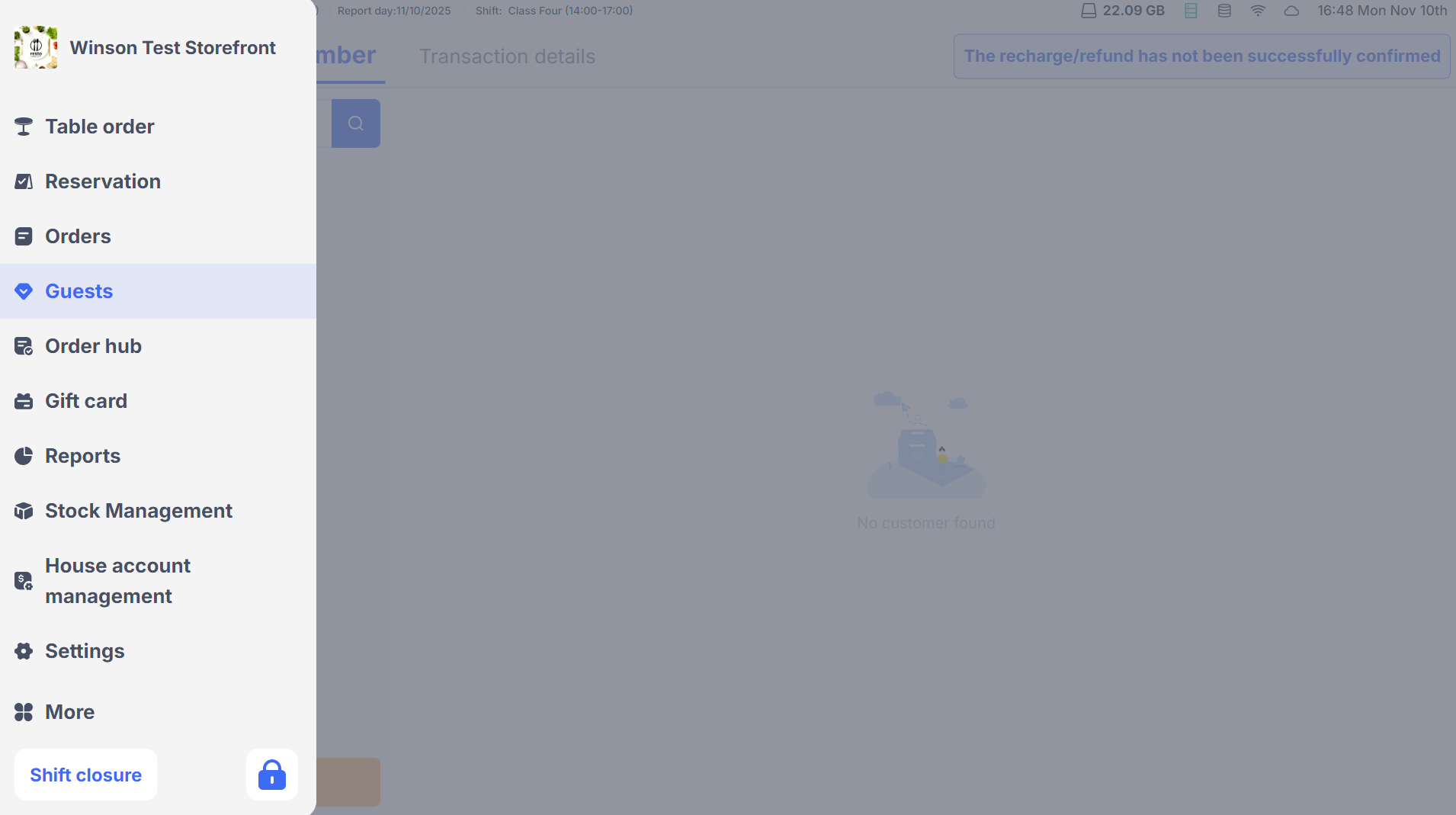
- Main Menu: After logging into the POS, click on【Guests】in the main menu to enter the member management page.
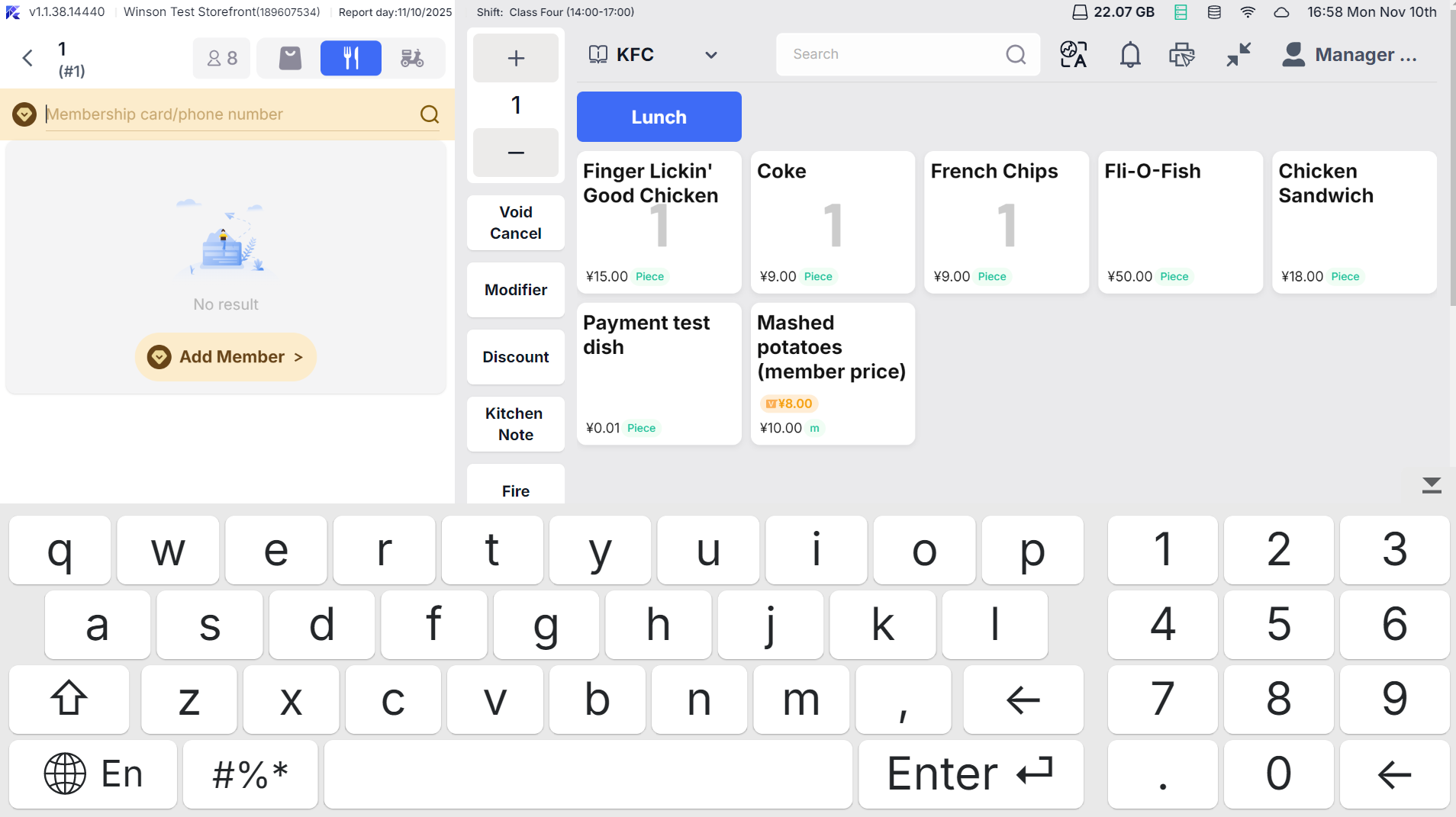
Quick Entry: On the ordering or payment page, after a member logs in, swipe the member bar to the right end to quickly view member information.
2.1.2 Operational Steps
-
Enter Query Conditions:
- You can enter a phone number, email, or member card number (at least 2 alphanumeric characters or 4 numeric characters).
- Pure letters with ’@’ search emails (left match), pure numbers search phone numbers/card numbers (right match), mixed characters search names/card numbers/emails (fuzzy match).
-
View Results:
- The system returns the first 30 results, sorted by card issuance time (fuzzy search sorted by similarity).
- A member card displays name, card number, level, balance, points. The first result is selected by default, with details (assets, transaction records, etc.) shown on the right.
- Customer card displays name, phone (middle 4 digits hidden), email (at least one contact info displayed).
2.2 Add Member/Guest
2.2.1 Addition Entry
- Member Management Page: Click【Add Member/Guest】at the bottom left.
- Quick Entry: If a customer is not found on the ordering page, click【Add Member/Guest】
2.2.2 Operational Steps
-
Step 1: Select Type:
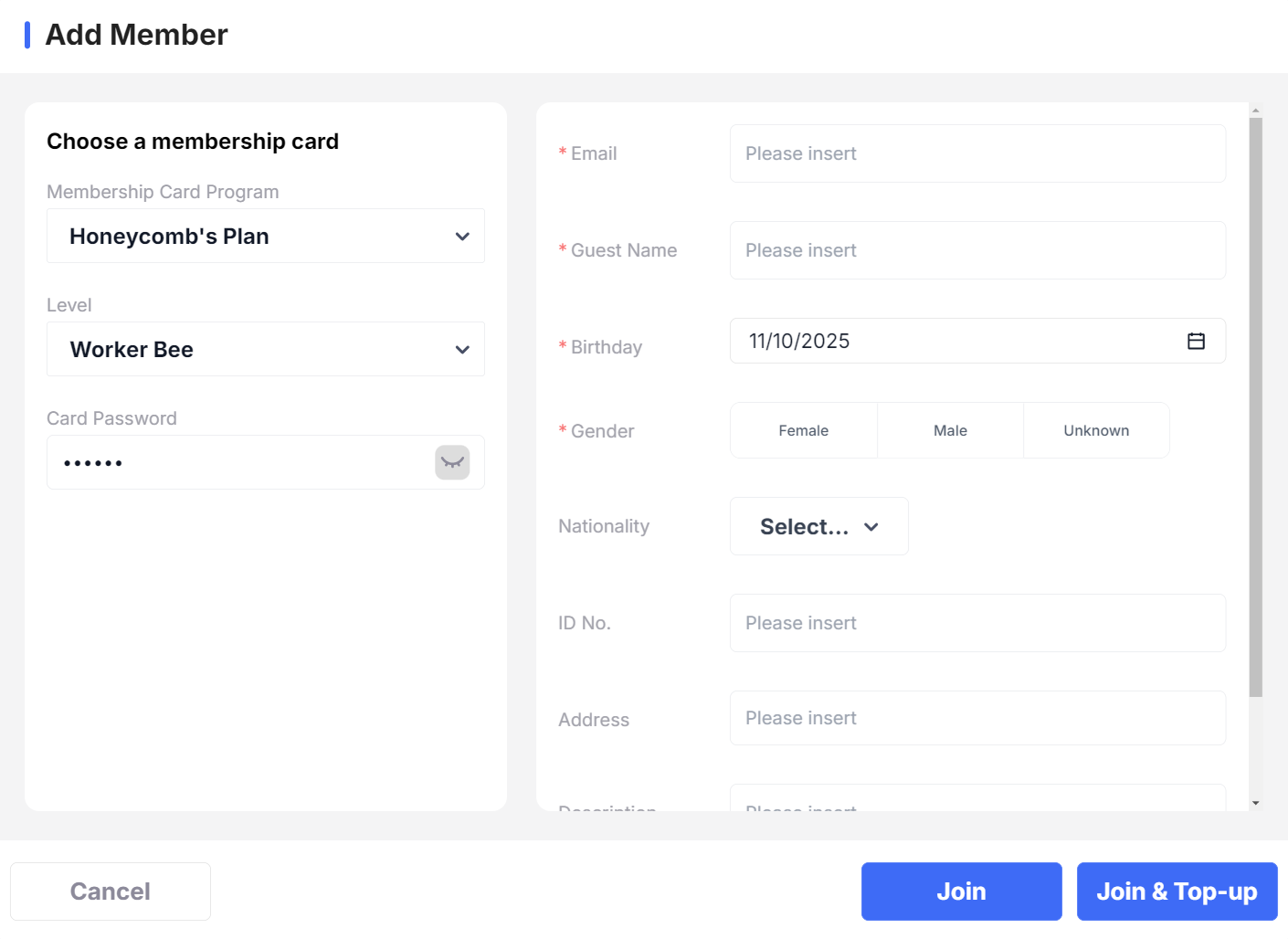
- Add Guest (No Card Program): Name is required, phone/email optional.
- Add Member (Card Program enabled): Complete card issuance process, select card type and level, input card number (physical card requires scanning for physical ID).
-
Step 2: Fill In Information:
- Fill in name, phone (international format validation), email, birthday, gender, address, etc. (required fields depend on card program).
- Domestic address supports the selection of “Province + City + County/District”, street information is freely input; license plate follows domestic rules.
-
Step 3: Complete Card Issuance:
- Phone number input automatically checks for same-type card issuance, with options to use the existing card or continue with the new card.
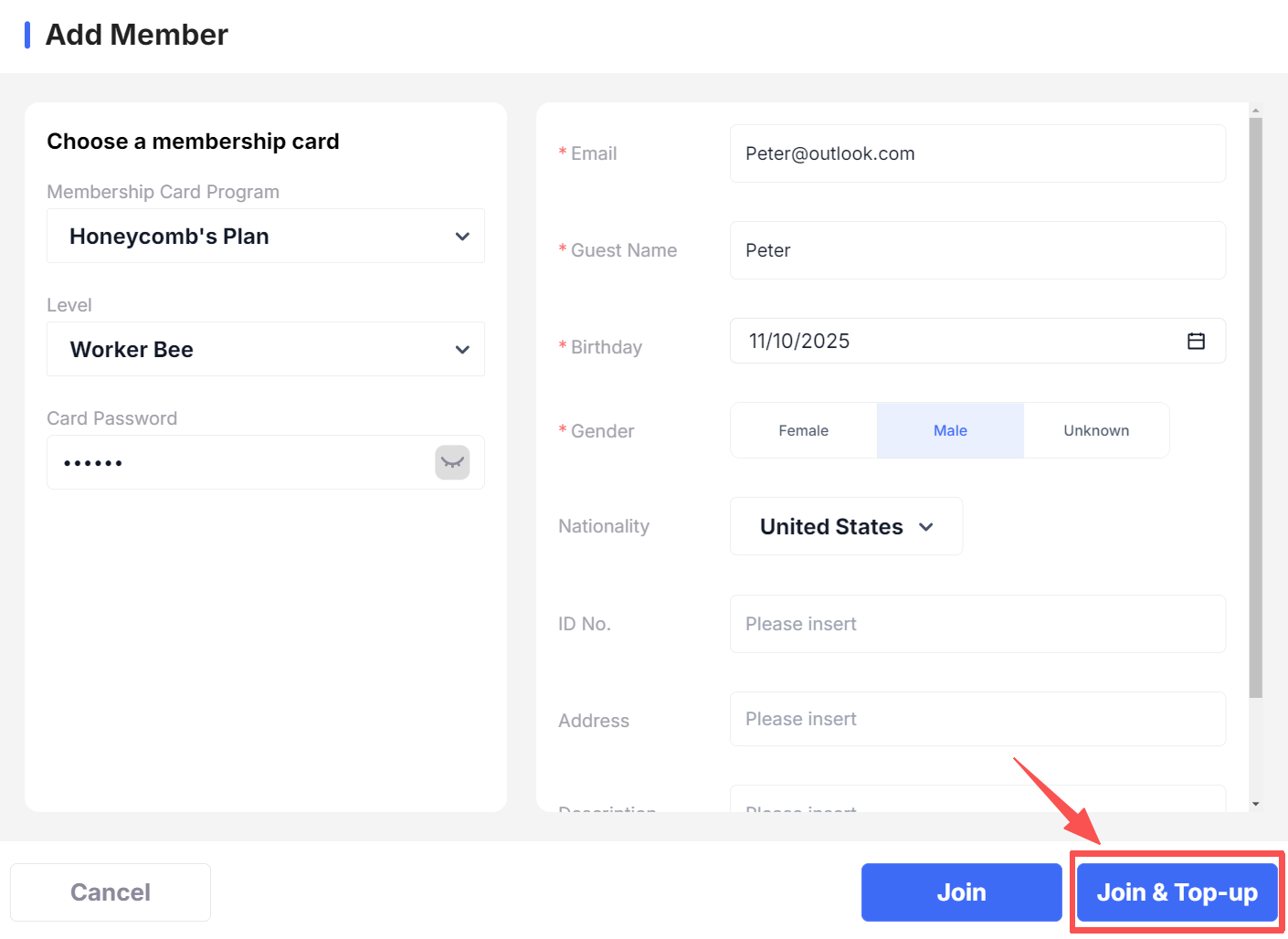
- Click【Join】or【Join and Top-Up】(enters top-up process directly) to complete.
3 Member Top-Up and Refund
3.1 Member Top-Up
3.1.1 Top-Up Entry
- After adding a member, click the【Join and Top-Up】
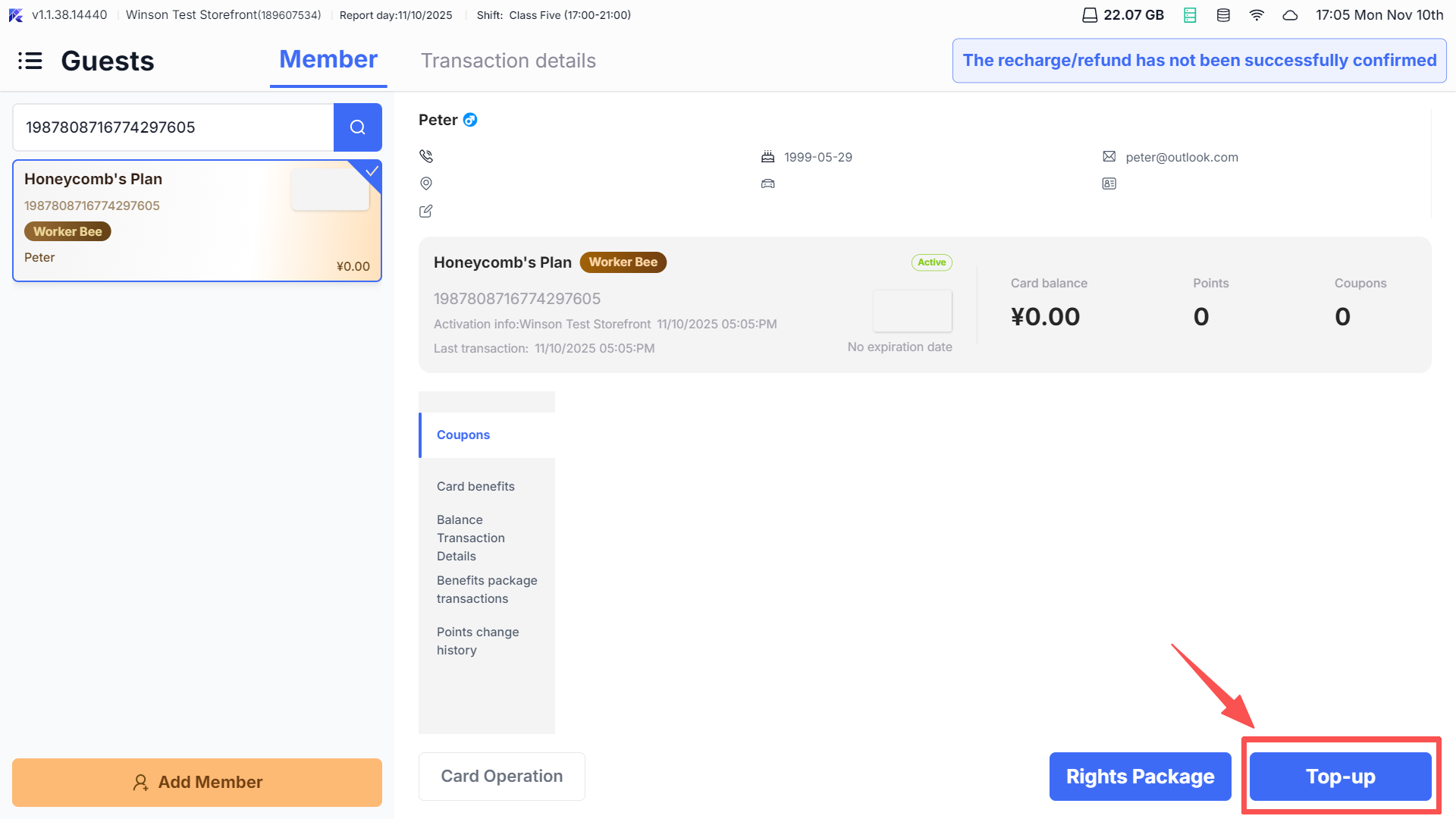
- Select the target member on the member management page, click the【Top-Up】at the bottom right.
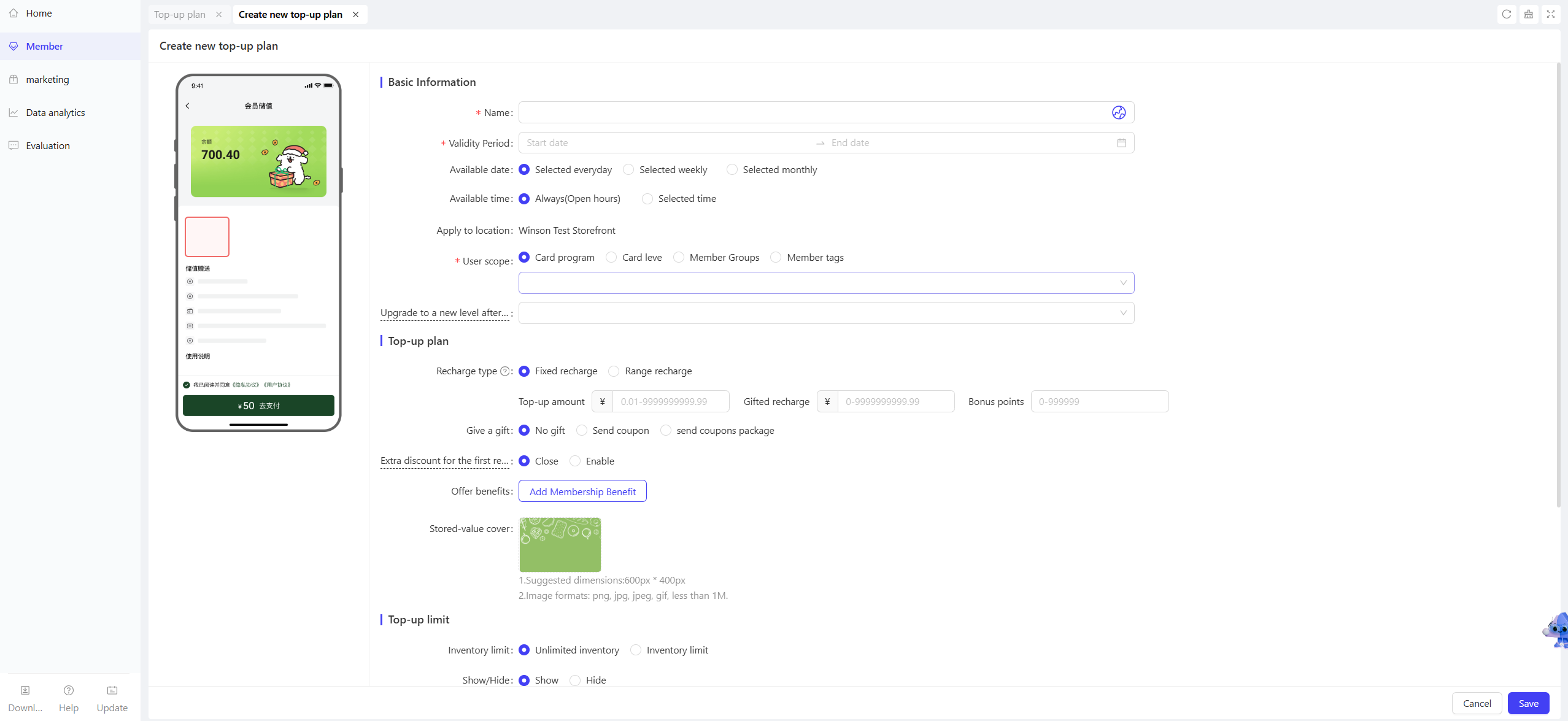
3.1.2 Operational Steps (On the BO end)
-
Choose the Top-Up Plan:
- Top-Up Package: Select from system preset packages (showing package name, amount, bonus card value/points/coupons), first one selected by default.
- Free Amount: Click【Reload with Any Amount】, manually enter the top-up amount.
-
Supplementary Information: Choose a recommender (current employee by default), fill in remarks (optional).
-
Complete Payment: Select payment method (cash, bank card, scan/QR code), display top-up results (amount, bonus, payment method) upon success.
-
Print Receipt: Click【Print receipt】to print a top-up receipt (including card number, amount, new balance, etc.).
3.2 Member Stored Value Refund
3.2.1 Refund Entry
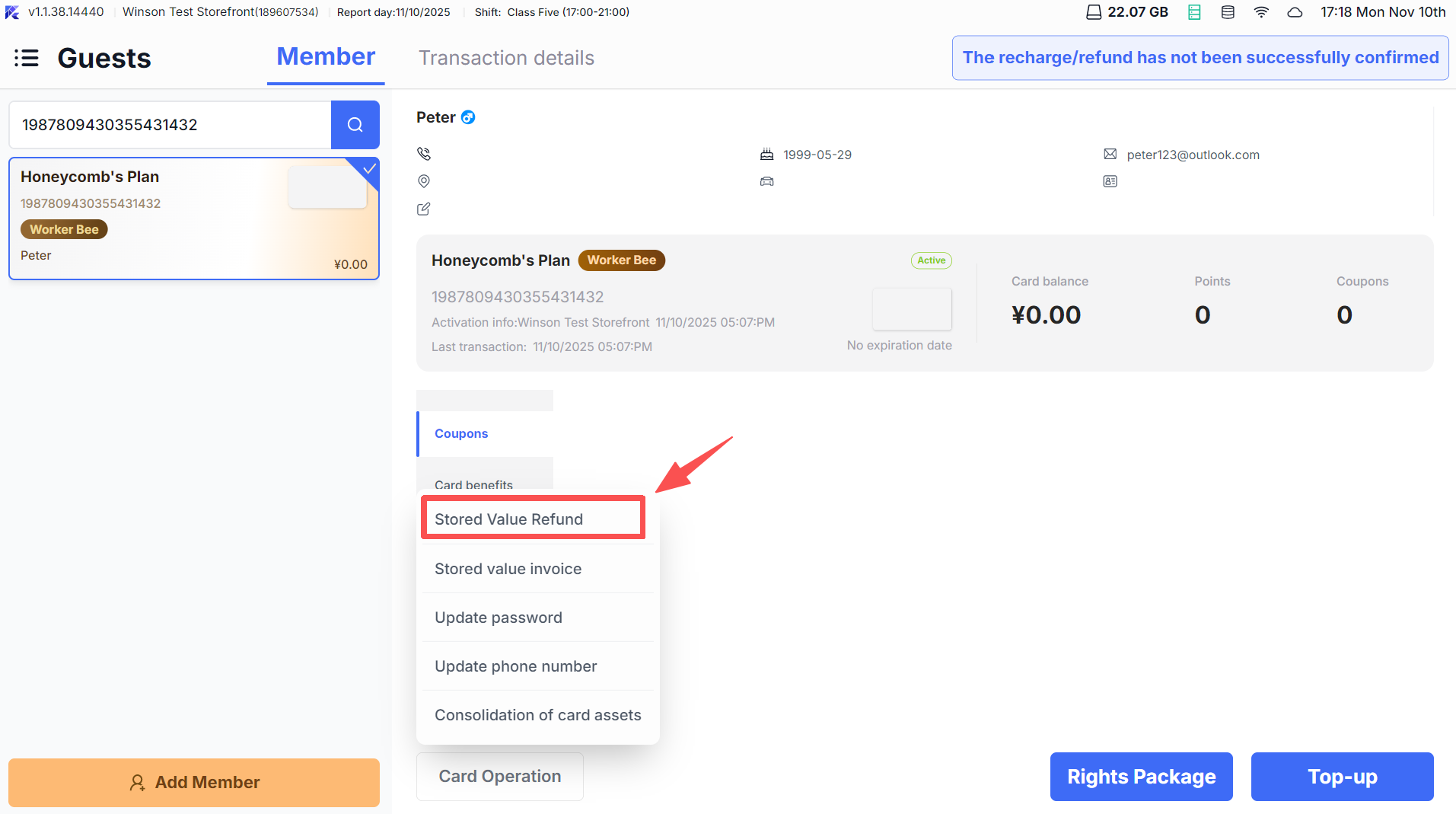
- Member Management Page: Select the target member, click【Card Operations】→【Stored Value Refund】.
- Exception Handling Entry: Click【The Recharge/Refund has not been successfully confirmed】in the member center to process incomplete orders.
3.2.2 Operational Steps
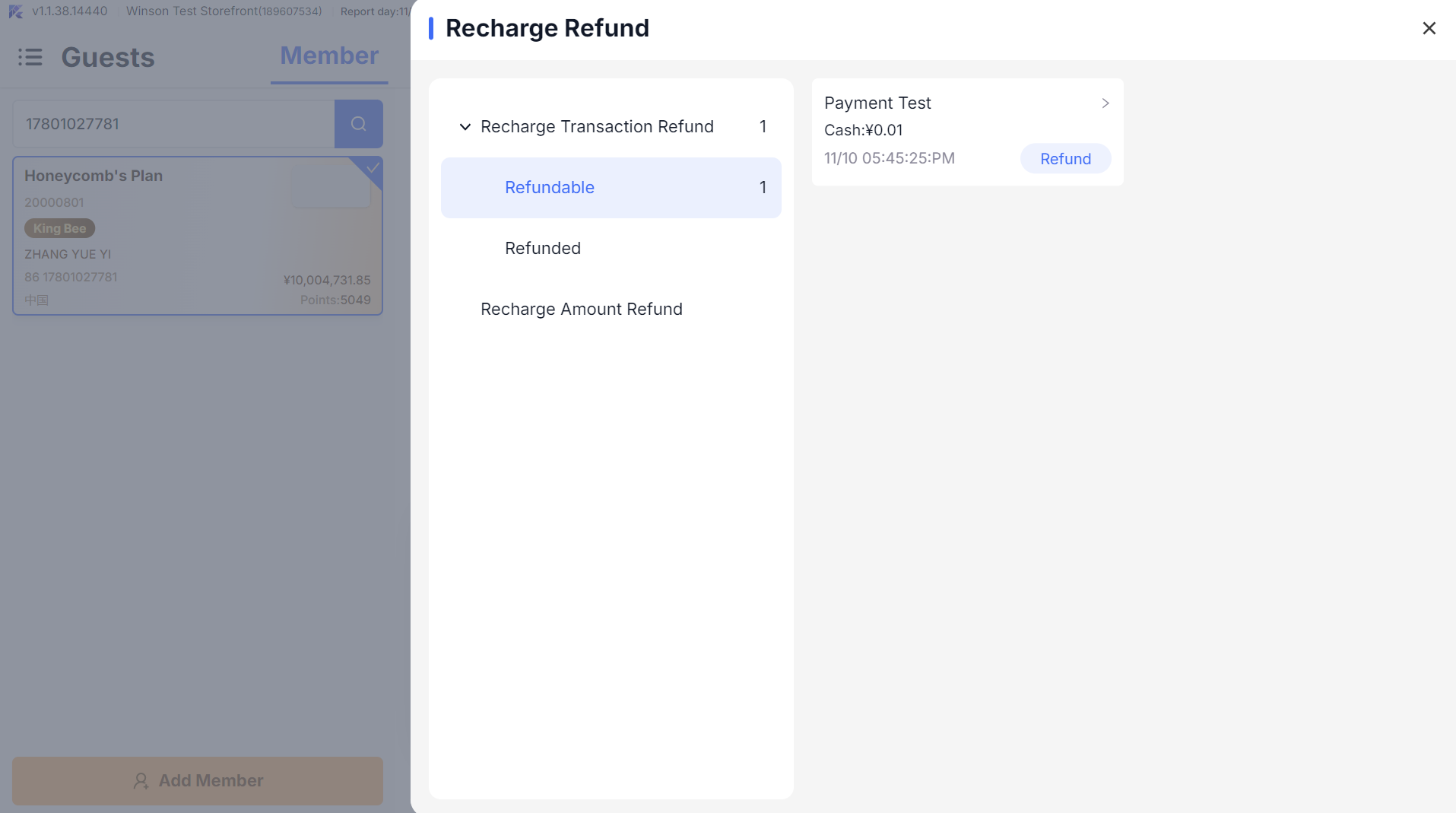
-
Select Refund Order: Display top-up records from the past year (amount, time, payment method, order number), select the target order.
-
Confirm Refundable Amount:
- Current card balance ≥ order amount: Full refund, showing refundable cash card value, canceled bonus value/points.
- Current card balance < order amount: Partial refund, refund remaining cash card value only.
-
Complete Refund:
- Select refund reason, refund via original payment method (full refund) or cash (partial refund).
- Submit refund with confirmation, print refund receipt upon success, and real-time update of card balance.
4 Member Status Management
4.1 Report Loss & Reactivate (On the BO end)
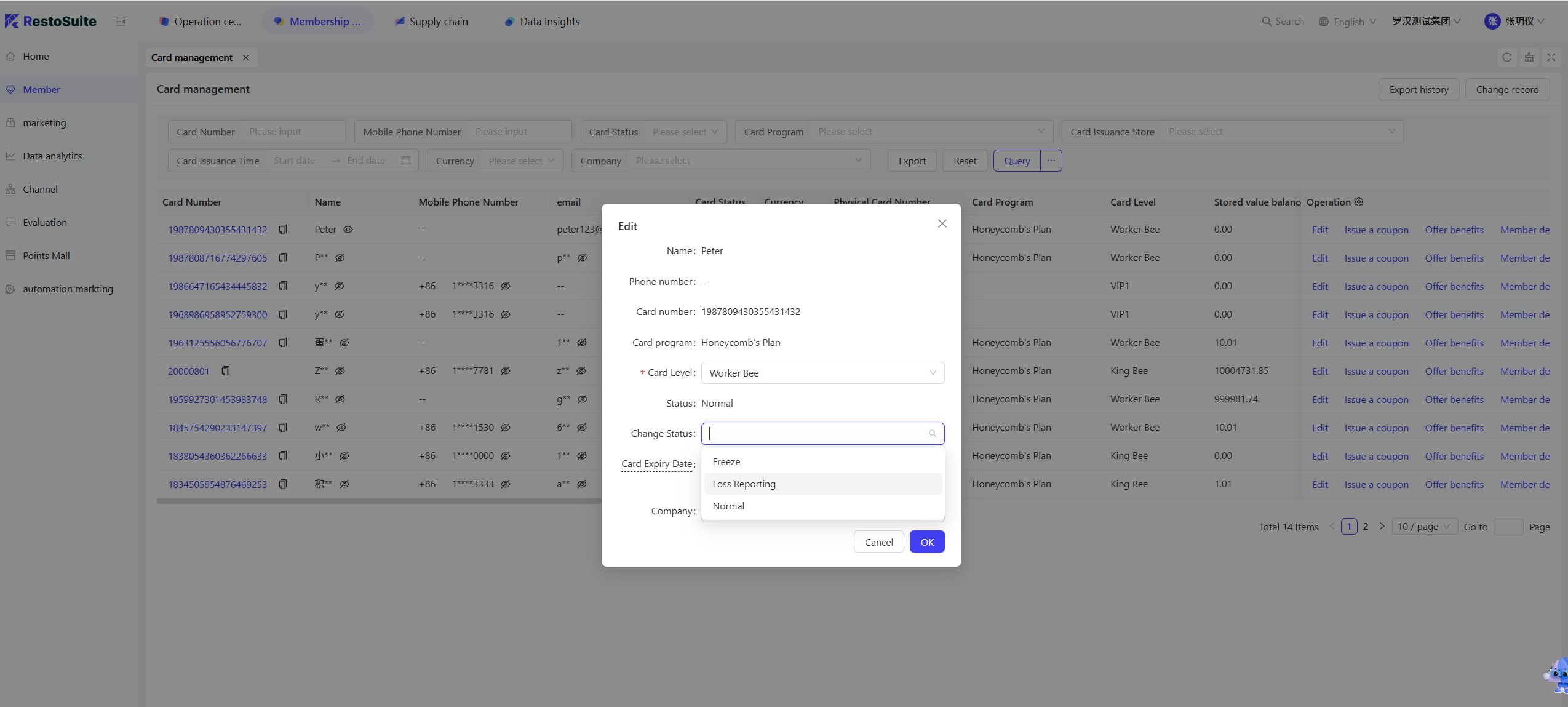
4.1.1 Report Loss
- Precondition: Physical card status is【Normal】
- Steps: (on the BO end)
- Member Management Page →【Card Management】→【edit】→【Loss Reporting】, fill reason, confirm status changes to【Loss Reporting】assets remain unchanged.
4.1.2 Unreport Loss Operation
- Precondition: Card status is【Loss Reporting】
- Steps: (on the BO end)
- Member Management Page →【Card Management】→【edit】→【Normal】, show loss time/reason, fill remarks, confirm to restore【Normal】status.
4.2 Freeze & Unfreeze
4.2.1 Freeze
- Precondition: Card status is【Normal】
- Steps: (on the BO end)
- Member Management Page →【Card Management】→【edit】→【Frozen】, fill reason, confirm status changes to【Frozen】, assets remain unchanged.
4.2.2 Unfreeze
- Precondition: Card status is【Frozen】
- Steps: (on the BO end)
- Member Management Page →【Card Management】→【Normal】, show freeze time/reason, fill remarks, confirm to restore【Normal】status.
4.3 Replace Card/Return Card
4.3.1 Replace Card Operation
- Precondition: Card status is【Loss Reporting】
- Steps:
- Member Management Page →【Card Operations】→【Replace Card】, scan and input new physical card numbers.
- Receive SMS verification code (registered number), verify to complete the replacement.
- The new card inherits all information, benefits, and transaction records from the original card (replacement fee not supported now).
4.3.2 Return Card Operation
- Precondition: Card status is【Normal】
- Steps:
- Member Management Page →【Card Operations】→【Cancel Card】, show remaining cash card value, bonus, points.
- Select cancel reason, refund available amount in cash.
- Confirm to change status to【Cancelled】, clear assets (bonus/points not refunded).
5 Member Benefits and Transaction Management
5.1 Member Benefit
5.1.1 Bind Gift Card
- Entry: Member Management Page →【Bind Gift Card】
- Operation: Scan or input gift card number. After querying the card, click【Bind Gift Card】. Upon success, the benefits page shows the gift card balance and details.
5.1.2 Physical Coupon Verification

- Entry: Main Menu →【More】→【Redeem Coupon】(requires VerificationCoupon permission).
- Operation: Scan or input coupon code (multiple codes separated by commas), query coupon info (name, value, validity, use rules), verify and click【Redeem Coupon】, print verification receipt upon success.
5.1.3 Purchase Benefits Package
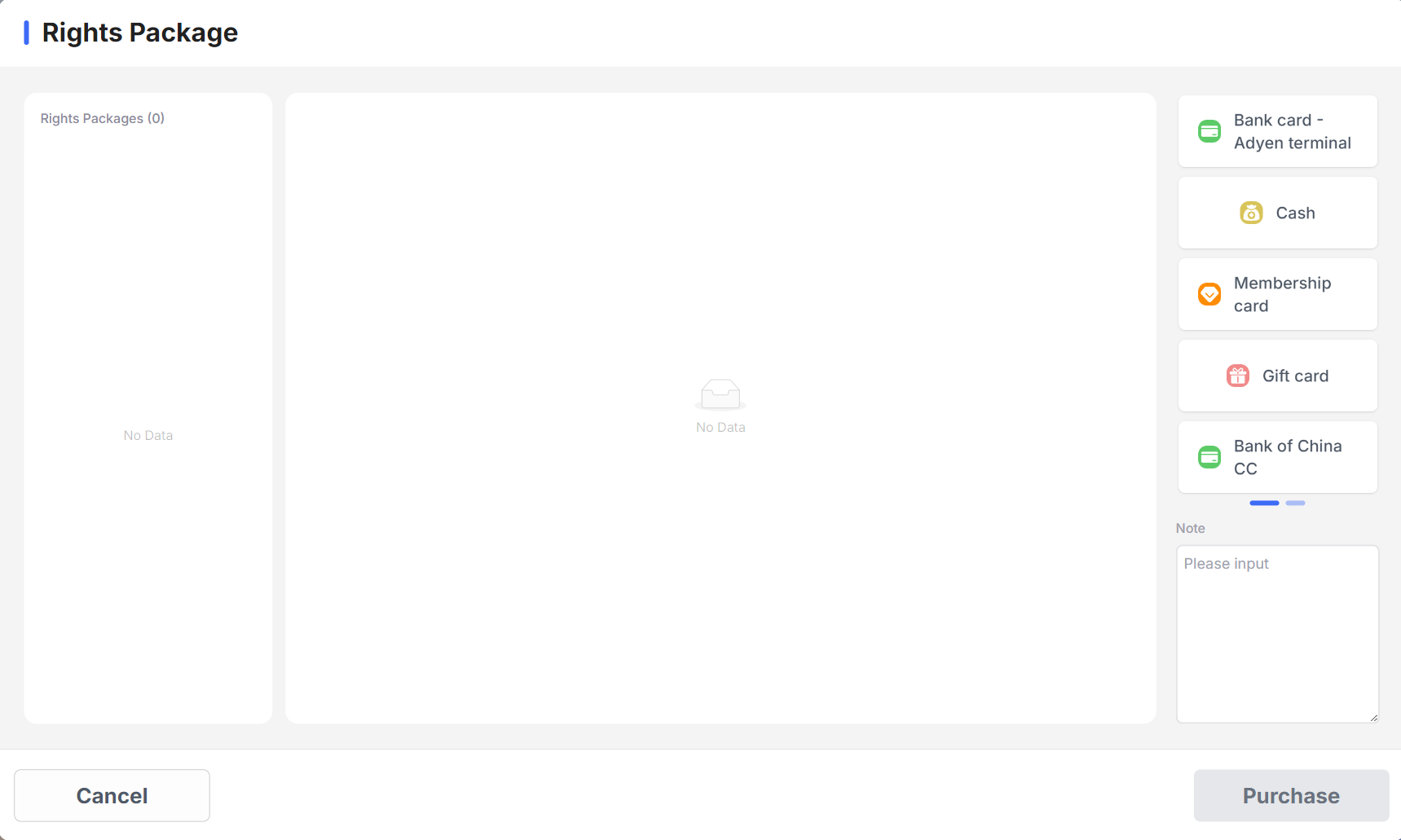
- Entry: Member Management Page →【Benefits Package】button (requires SellingRightsPackages permission).
- Operation: Select benefits package for sale via POS (showing price, duration, exclusive benefits), complete payment as prompted, display package activation/expiration and specific benefits on the benefits page.
5.2 Transaction Records Inquiry
5.2.1 Card Transaction Records
- Entry: Member Management Page →【Card Transaction Records】
- Contents: Display top-up, consumption, and refund records in reverse chronological order, showing transaction amount, balance, operator, terminal, support reprinting receipts (in-store records viewable in detail).
5.2.2 Points Change Records
- Entry: Member Management Page →【Points Change History】
- Contents: Display records of consumption points, points deduction, points redemption in reverse chronological order, showing point changes, balance, and in-store records show related order details.
6 Member Information Modification
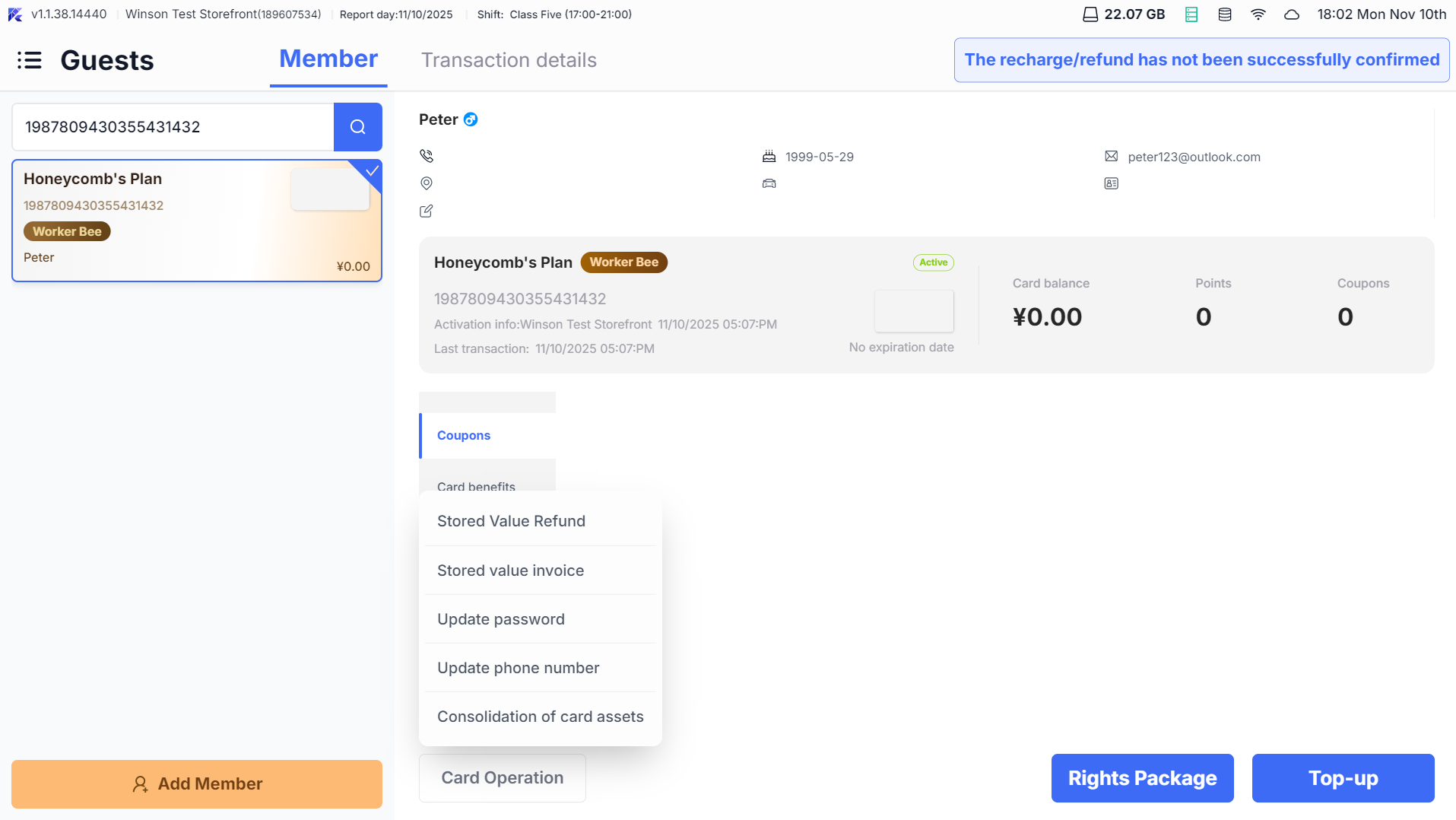
6.1 Basic Information Edit
- Entry: Member Management Page → select member →tap【Edit】button in the detail page.
- Operation: Modify name, birthday, address, remarks, etc. (editable fields shown according to permissions), real-time update upon saving.
6.2 Phone Number Modification
- Entry: Member Management Page →【Card Operations】→【Change Phone Number】
- Operation:
- Input new phone numbers, check for availability (unoccupied changes directly, occupied allows number change or asset merge).
- Receive SMS verification code, verify to complete the change.
6.3 Consumption Password Modification
- Entry: Member Management Page →【Card Operations】→【Change Password】
- Operation: Input original password, verify and input new password (4-10 digits), confirm to save.
7 FAQs
-
Issue: No Results for Member Search:
- Check if inputted phone/card/email is accurate (pure numbers require ≥4 digits).
- Switch to fuzzy search mode (requires corresponding permission).
- Ensure member is not reported lost/frozen/returned.
-
Issue: Top-Up Refund Failure:
- Check card balance sufficiency (partial refund only refunds remaining cash card value).
- Confirm order is not partially used (used orders cannot be fully refunded).
- Check network connection, use 【The Recharge/Refund has not been successfully confirmed】to handle exceptions.
-
Replacement Card Operation Unavailable:
- Confirm original card status is【Loss Reporting】 (normal card cannot be replaced).
- Check if the physical card has been scanned for new card number entry.
- Verify SMS code correctness (valid for 10 minutes).
-
Coupon Verification Failure:
- Check coupon code correctness (multiple codes separated by commas).
- Confirm the coupon is valid and applicable to the current store.
- Verify coupon type is supported for offline redemption (voucher/meal coupon, etc.).
8 Need Help?
- Operations involving permissions (like coupon verification, benefits package sales) require contacting the administrator to enable corresponding permissions.
- For unmentioned exceptions during operations, click【Settings → Help Center】to view video tutorials or contact the store administrator.