Gift Card
(for Cashiers and Store Managers)
1 Introduction
This guide outlines the key steps for handling gift cards in your POS, from purchase and recharge to usage, refunds, and status management, ensuring efficient and compliant operations.
2 Basic Gift Card Operations
2.1 Gift Card Purchase
2.1.1 Entry Points
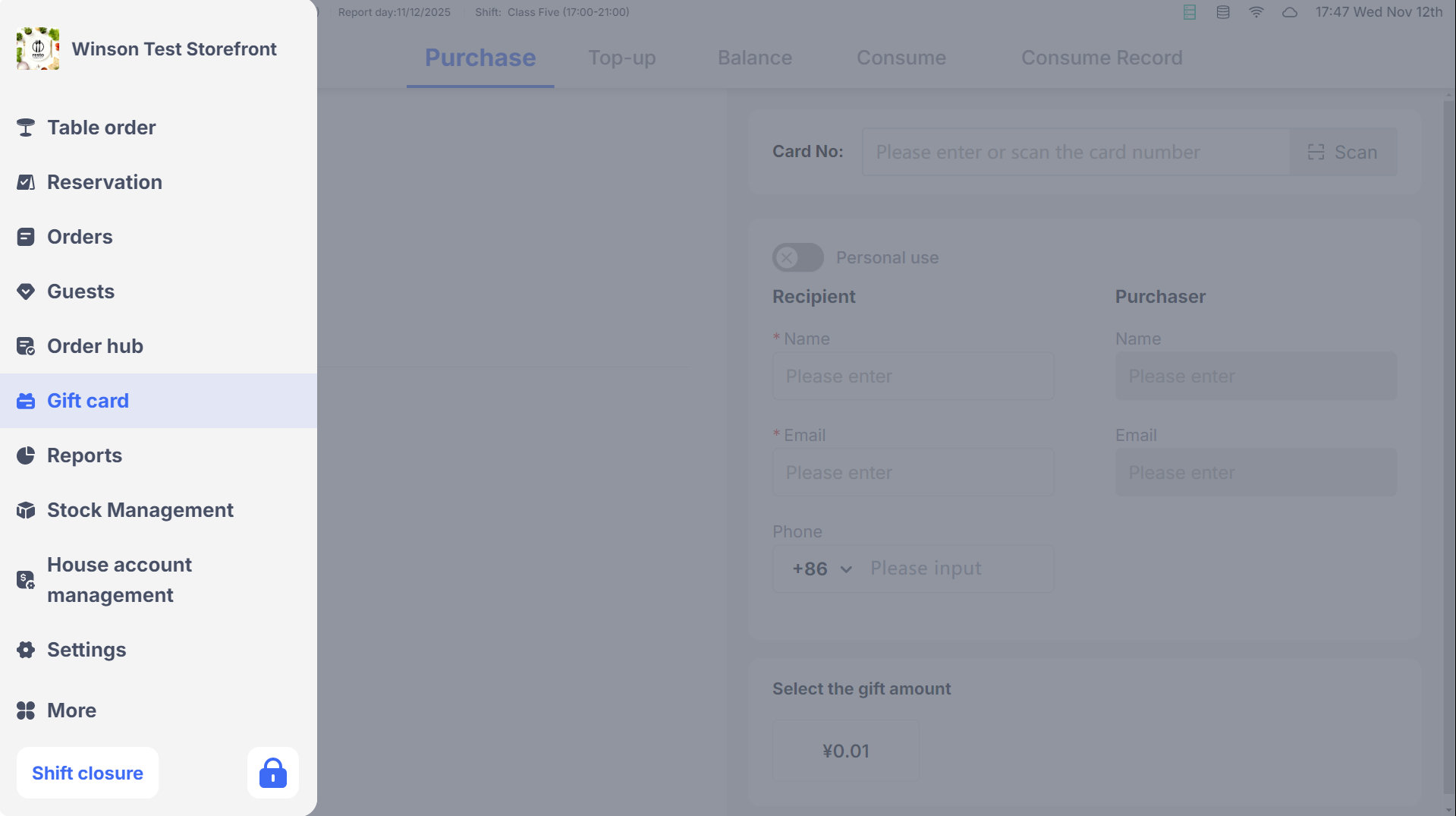
- Main Menu: After logging into the POS, navigate to【Gift Card】→【Purchase Card】
- Quick Entry: Use the【Purchase Card】button on the ordering or checkout page for quick access.
2.1.2 Steps
-
Select Card Type:
- E-card: Supports personal use or gifting, requiring the cardholder’s name and email (recipient information is also required when gifting)
- Physical Card: Scan or enter the card number to bind and complete the purchase.
-
Choose Denomination:
- Preset Amounts: Select a fixed denomination provided by the system (e.g., $50, $100, $200, etc.)
- Custom Amount: Click【Custom】to enter a custom amount (must meet the minimum/maximum limit requirements, amounts below the limit will prompt “Minimum Gift Card amount: $10.00”)
-
Apply Promotions: Purchase promotions (e.g., “Buy $100 Get $150”) are automatically applied, showing the discounted amount in real-time
-
Complete Payment:
- Select a payment method (gift card payment not allowed for this step),, and enter the payment amount (full payment by default)
- After payment is completed, the e-card is automatically sent to the reserved email, and the physical card is bound and activated.
2.1.3 Tip and CC Fee Collection
-
Tip Collection:
- Tips can be entered through the Adyen device during payment, or select “Change as Tip”;
- With a tipping secondary screen, tip amounts can be entered through the secondary screen, and tips are recorded in the payment method’s tips field;
-
CC Fee Collection: When paying by bank card, CC fees are automatically collected according to device settings and recorded in the payment method’s cc fee field.
2.2 Gift Card Top-up

2.2.1 Entry Points
- Main Menu: Click【Gift Card】→【Top-up】
- Quick Recharge: After checking balance, click【Fast Reload】for quick Top-up.
2.2.2 Steps
-
Enter Card Number: Scan or manually enter the card number to view balance.
-
Select Recharge Amount:
- Preset Amounts: Select a fixed recharge amount (e.g., $50, $100, etc.)
- Custom Amount: Click【Custom】to enter an amount within limits.
-
Complete Payment: Select a payment method. After successful payment, the system updates the card balance in real-time, supporting printing the recharge receipt or sending it to an email.
2.3 Checking Balance
2.3.1 Entry Points
- Main Menu: Click【Gift Card】→【Balance】
- At Checkout: Click【Check Gift Card】to enter the card number directly.
2.3.2 Steps
- Enter Card Number: Scan or manually input the card number.
- View Details: See balance, status (active, frozen, expired, refunded), and expiration date.
- Print Receipt: Click【Print Balance】to get a receipt showing card details.
3 Gift Card Consumption and Refunds
3.1 Manual Consumption Deduction

3.1.1 Entry Point
- Click【Gift Card】→【Consume】tab to access manual usage.
3.1.2 Steps
- Enter Card Number: Scan or input the card number to check status (must be active).
- Enter Information: Fill in the third-party transaction number (optional) and enter the deduction amount (must be ≤ card balance)
- Confirm Deduction: Click【Charge】to deduct, view updated balance, and clear the card number for the next use.
3.2 Consumption Refund (Reverse Deduction)

3.2.1 Entry Points
- Click【Gift Card】→【Consume Record】, find the transaction, then click【Refund】(requires refund permission).
3.2.2 Steps
- Verify Information: A pop-up displays the transaction amount, transaction time, gift card number, and current card balance
- Enter Information: Select refund reason and add remarks (optional).
- Complete Refund: Click【Refund】to credit the amount back to the card, the card balance increases in real-time, and prints a negative-value receipt.
3.3 Order Refund to Gift Card
- During order refunds, select【Refund to Gift Card】
- Enter the gift card number and confirm the refund amount. The refunded amount is credited to the card, and a receipt is printed.
4 Gift Card Status Management
4.1 Freezing and Unfreezing

4.1.1 Freezing
- Check Card Status: Enter the card number to confirm the card status is【Normal】
- Initiate Freeze: Click【Card Operate】→【Freeze】, add freeze remarks.
- Confirm Freeze: Click【Confirm Freeze】and the system freezes the gift card. After freezing, the card status changes to【Frozen】, making it unconsumable.
4.1.2 Unfreezing
- Check Frozen Card: Enter the card number and confirm the card status is【Frozen】
- Initiate Unfreeze: Click【Card Operate】→【Unfreeze】, view freeze details, add unfreeze remarks.
- Confirm Unfreeze: Click【Confirm Unfreeze】to return the card to【Active】status.
4.2 Card Refund

4.2.1 Entry Points
- After querying the gift card, click【Card Operate】→【Refund Card】(requires permission).
4.2.2 Steps
- Verify Information: Display the card’s cash balance and gift balance (gift amounts are non-refundable)
- Enter Information: Select refund reason and add remarks.
- Complete Refund: Click【Refund Card】to return the cash balance, change card status to【Refunded】, open the cash drawer, and print the refund voucher.
4.3 Transaction Records
-
Entry: Click【Gift Card】→【Transaction Records】
-
Filter Queries:
- By Date: Select the start and end dates for the query, default shows all gift card transactions in the store.
- By Card Number: Enter a specific gift card number to display only the purchase, recharge, consumption, and refund records for that card.
-
Record Display: Show transaction time, transaction type, amount, card number, card status, operator, operation terminal, etc., and support reprinting the corresponding voucher.
5 Gift Card Information Modification and Exception Handling
5.1 Information Modification
5.1.1 Change Cardholder
- Query Gift Card: Enter card number and click【Change Cardholder】
- Enter New Info: Update phone or email (at least one must be filled).
- Confirm Change: Validate that phone/email belong to the same member; if not, it will prompt an error.
5.1.2 Resend Email
- Query E-Gift Card: Enter the card number and confirm the cardholder’s email
- Initiate Resend: Click【Resend Email】to send card details again.
5.2 Handling Payment/Refund Exceptions
5.2.1 Query Unsuccessful Transactions
-
Entry Points:
- Gift Card Page: Click【Check Unsuccessful Payments/Refunds】
- Order Hub: Click【Payment Exception Bills】tab (permission required).
-
Filter Queries: Supports filtering by time, card number, payment type (in payment/refunding), transaction person
-
Handling Actions:
- Check Payment Status: Click【Query Payment Status】, automatically query on the cashier page, update status if successful, or mark failure reason if failed.
- Cancel Order: Confirm unpaid/unrefunded status and click【Cancel Order】to void the local order
5.2.2 FAQs
- Purchase Amount Error:
- Check if the custom amount meets the minimum/maximum limit, adjust the amount to comply with the limits.
- Gift Card Cannot Be Used:
- Confirm card status is “Normal”. If “Frozen/Expired/Refunded”, address the respective status issue first.
- Balance Not Updated After Refund:
- Refresh the transaction record page or re-query the gift card balance, contact technical support if necessary.
- Email Not Received for E-Card:
- Check if the reserved email is correct, click “Resend Email”, and verify if the email is blocked as spam.
6 Printing Receipts
6.1 Receipt Types
Type | When to Print | Key Information |
|---|---|---|
Purchase Receipt | Automatically printed after purchase payment, or manual reprint | Card number, purchase amount, new balance, payment method |
Recharge Receipt | Automatically printed after recharge payment, or manual reprint | Card number, recharge amount, pre-/post-transaction balance |
Consumption Voucher | Automatically printed after manual charging or manual reprint | Card number, consumption amount, pre-/post-transaction balance |
Refund Voucher | Automatically printed after a successful refund | Card number, refund amount, pre-/post-transaction balance |
Refund Card Voucher | Automatically printed after a successful card refund | Card number, refund cash amount, card status |
Balance Receipt | Manually printed after the balance inquiry | Card number, current balance, inquiry time |
6.2 Printing Rules
- Automatic Printing: Follows system settings; triggered after successful purchases, recharges, etc.
- Manual Reprint: Find the transaction in records and click【Reprint】to print again, unaffected by automatic settings.
7 Need Help?
- Permission-Based Operations: Contact an administrator to enable permission for functions like card refund, freeze/unfreeze.
- Unlisted Issues: Check【Settings → Help Center】for video tutorials or contact the store manager for assistance.