Stock Management
1 Introduction
This guide covers Stock and out-of-stock management in the POS system, including item status control, stock settings, loss reporting, and platform synchronization to prevent overselling.
2 Basic Concepts
2.1 Learn the key terms:
Key Terms:
Out of Stock: Set an item or taste method to stop selling when out of stock. The ordering page will display "Sold Out" and prevent further purchases.
Limited Stock: Limit the sale quantity of an item (e.g., limit to 100 servings per day). Once sold out, it will automatically clear.
In Stock: No quantity limit, item is available for sale.
Loss Reporting: Process unsold items due to expiration, damage, etc., without returning them to Stock.
Incremental Replenishment: Real-time replenishment of item Stock (suitable for weight/retail scenarios).
Third-Party Sync: Synchronize Stock/Out of Stock status from POS to delivery platforms like DoorDash and Uber Eats.
2.2 Core Rules
- Stock Deduction: Stock is deducted upon order placement and returned upon cancellation (except when cancelled and reported as loss).
- Automatic Recovery: Out of Stock can be set to “Auto-Recover Daily” or “Auto-Recover by Meal Segment” without manual operation.
- Combo Linkage: If a fixed sub-item is cleared, the combo automatically clears. If all optional sub-items are cleared, the combo clears.
- Sync Principle: Items set to “Stop Sale” are prioritized for synchronization with third-party platforms. Low stock can be set to stop sales automatically.
3 Core Operational Processing
3.1 Stock and Out of Stock Management (Basic Core)
3.1.1 Access Point
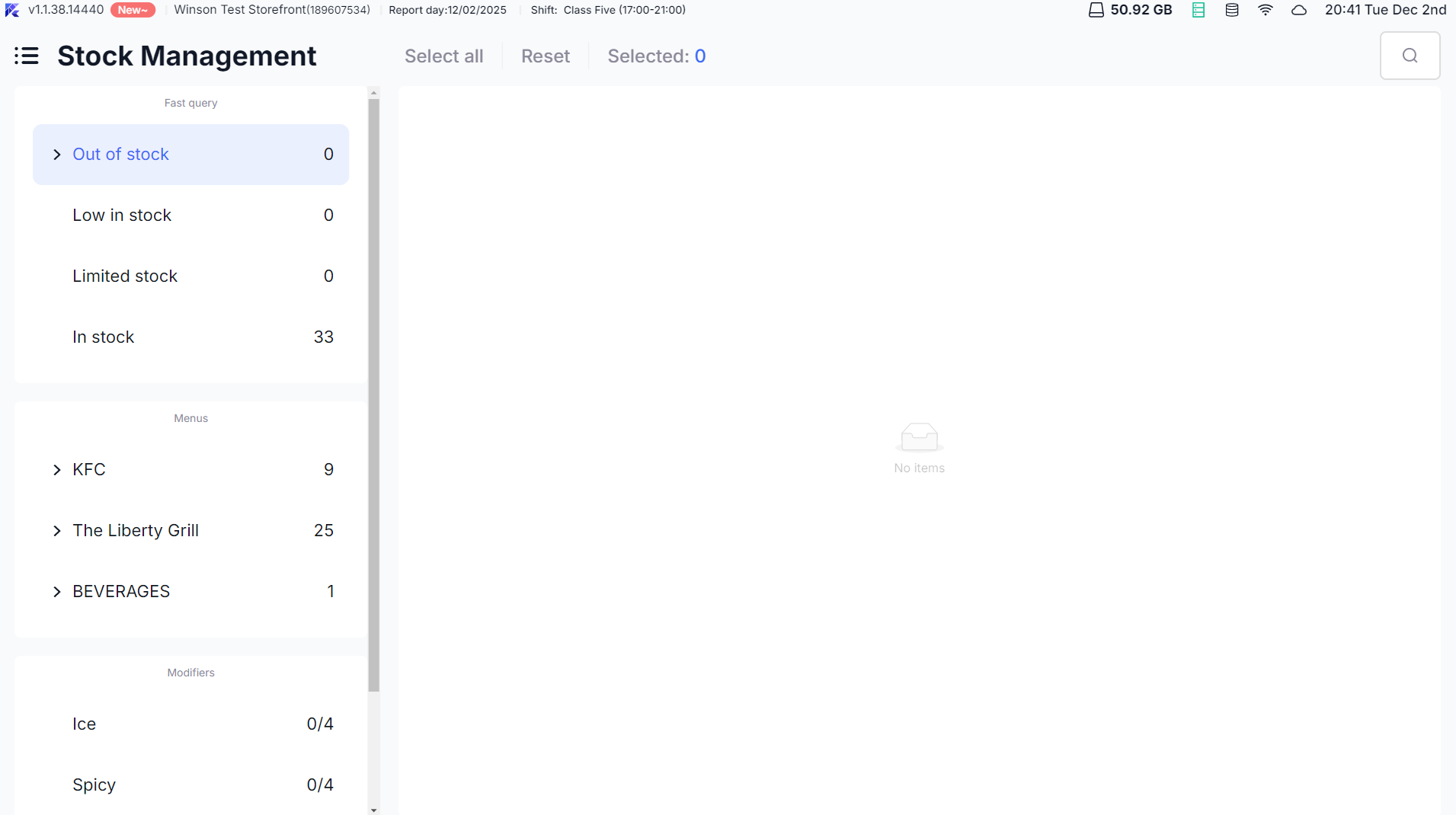
- Main Menu →【Stock Management】: Supports Stock settings for items, taste methods, and combos.
- Quick Access: Long-press an item on the ordering page for 2 seconds for a pop-up to set Out of Stock/limited sale (preferred for quick operations).
3.1.2 Item Stock Settings
-
Go to【Stock Management】and select the【Items】tab. Locate the target item.
-
Click【Set Stock】and choose the Stock status:
- In Stock: No quantity limit, just save.
- Limited Stock: Enter available quantity (e.g., 50 servings), select auto-recovery method (daily/meal segment/manual), and save. The item will automatically clear when sold out.
- Out of Stock: Directly set to stop sale, showing “Sold Out” on the ordering page. Supports batch Out of Stock (select multiple items and click【Batch Out of Stock】).
-
Once saved, a “Setting Successful” pop-up appears, and the ordering page updates in real-time.
3.1.3 Modifiers Out of Stock
- Go to【Stock Management】and select the【Modifiers】tab.
- Choose a taste method group on the left (e.g., “Sweetness,” “Spiciness”). The right side displays specific options within the group.
- Click【Out of Stock】or【Restore to Sale】. Supports batch operations (select multiple taste methods and click the corresponding button).
- After Out of Stock, the taste method on the ordering page cannot be clicked, and it defaults to hidden or greyed out (depending on system settings).
3.1.4 Combo Out of Stock
- Fixed Sub-Item Out of Stock: When a fixed sub-item is set to Out of Stock, the combo containing it automatically clears.
- Optional Sub-Item Out of Stock: When all optional sub-items in a combo are cleared, the combo automatically clears.
- Cancel Out of Stock: If a fixed sub-item’s Out of Stock is cancelled, and there are no other Out of Stock reasons for the combo, it automatically returns to sale.
3.2 Loss Reporting
3.2.1 Access Point
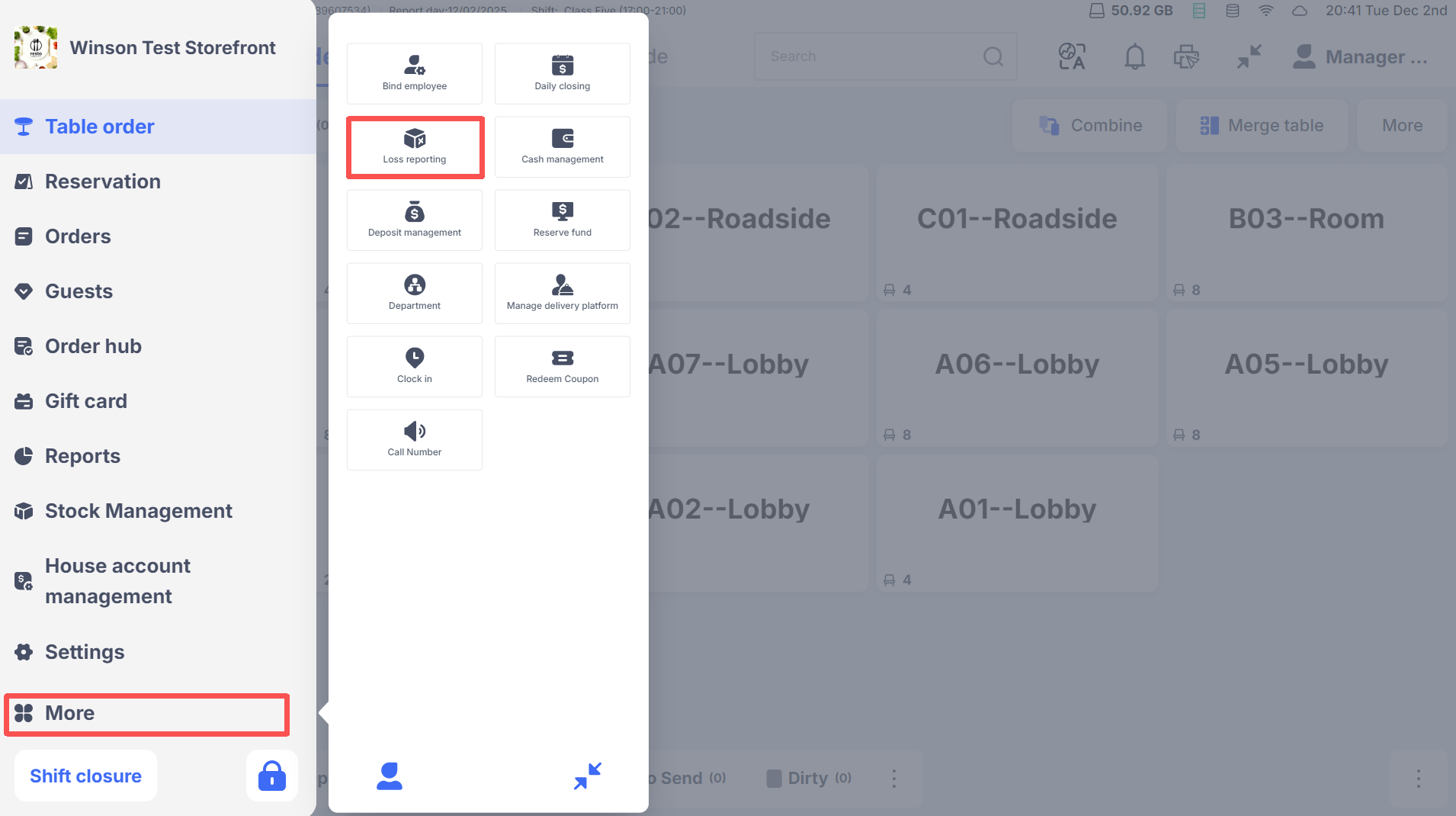
Main Menu →【Loss Reporting】 requires “Item Loss Reporting” permission.
3.2.2 Steps
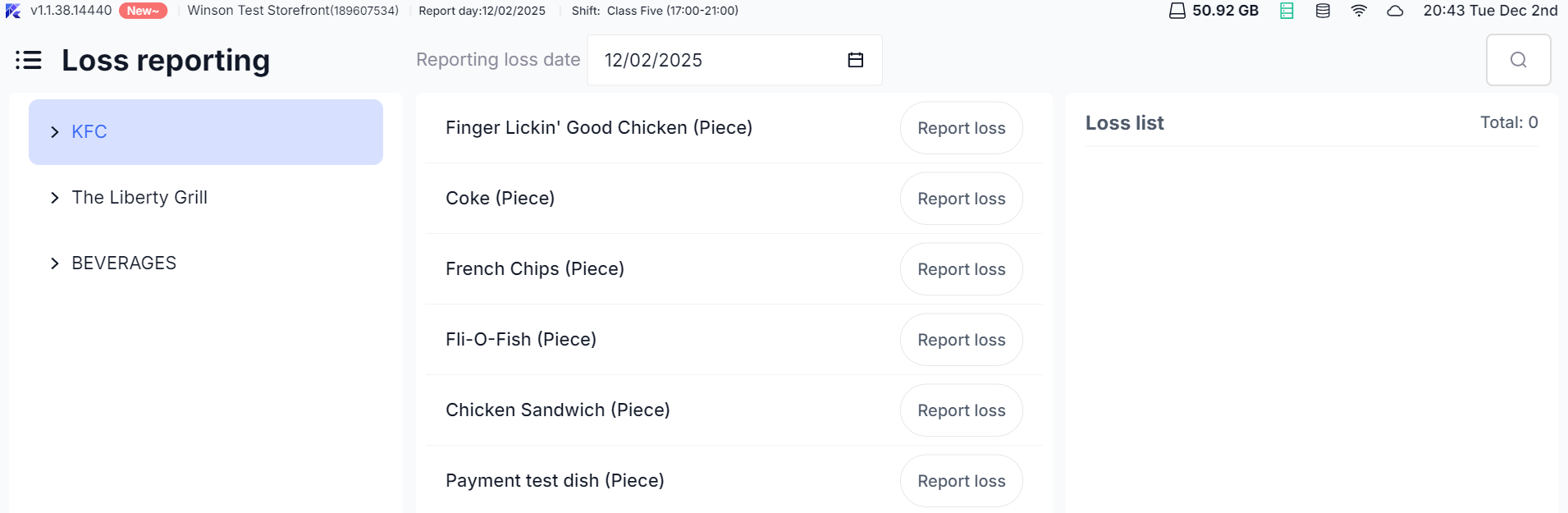
- Step 1: Select the loss reporting date (default is the current day; historical dates can be queried).
- Step 2: Select the menu group on the left and click the【Loss】button next to the target item in the middle.
- Step 3: Enter the loss quantity (1-999 whole numbers) in the pop-up, and choose a loss reason (expiration, damage, sampling, etc., mandatory).
- Step 4: Click【Confirm】. The right side displays real-time loss records, and you can modify/delete records for the current day.
3.2.3 Return and Loss Reporting
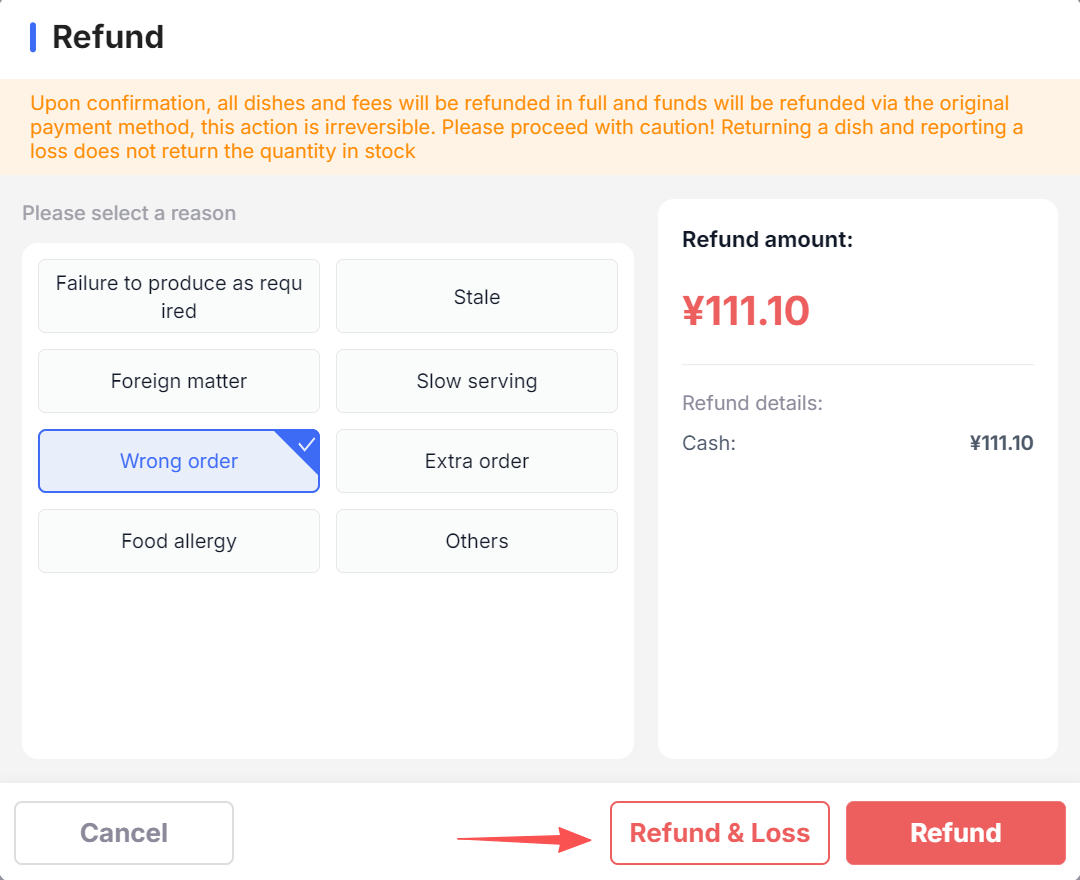
- When cancelling an order, check “Refund and Loss Reporting” (the return reason list adds an “Out of Stock” tag).
- Click【Refund and Loss Reporting】to automatically trigger loss reporting for the item after the return.
- After reporting a loss, the item is not returned to Stock; it is directly counted as a loss.
3.3 Incremental Replenishment and Stock Check
3.3.1 Access Point
Main Menu →【More】→【Incremental Replenishment】requires “Incremental Replenishment” permission.
3.3.2 Replenishment Steps
- Select the menu group on the left, and click the【Refill】next to the target item in the middle.
- Non-weighting items: Enter the replenishment quantity, optionally add a note, and click【Refill】to complete.
- Weighting items: With electronic scales enabled, automatically obtain the weight or manually enter it. Supports “Replenish and Increase Stock” (updates the Out of Stock remaining quantity together).
- The right side shows unaccounted replenishment records, allowing you to modify supplementary information.
3.3.3 Stock Check and Profit and Loss Report
- At the end of business, click【Stock Check】to list replenished but unchecked items and sales quantities for the day.
- Enter the actual remaining quantity of items (weighting items can use the electronic scale to obtain weight).
- Click【Save】to generate a stock check report, showing sales quantity, replenishment quantity, stock check quantity, and profit/loss status.
- Supports generating multiple stock check reports per day for easy comparison.
3.4 Third-Party Platform Synchronization
3.4.1 Access Point
【Stock Management】→【Channel Availability】requires “Item Channel Availability” permission.
3.4.2 Core Operations
- Select the target delivery platform (e.g., Uber Eats, DoorDash). The system automatically retrieves linked items.
- Single Item: Click the on/off switch in the item row to sync in real-time with the corresponding platform.
- Batch Operations: Select multiple items and click “Batch On-Shelf” or “Batch Off-Shelf” and choose the target platform to sync.
- Sync Status: A bright platform icon indicates successful sync, while a dim icon indicates unsynced. Click the sync error icon to view reasons and retry.
3.4.3 Stock Sync Settings
-
Enter item【Set Stock】 and choose the Stock type:
- Shared Stock: POS, online delivery, and third-party platforms share a limited sales quantity.
- Channel Stock: Set separate Stock values for POS dine-in, online delivery, and third-party platforms.
-
Once set, the system automatically syncs the Stock status, and low stock is auto-stopped as per thresholds.
3.5 Batch Operations and Log Query
3.5.1 Batch Operations
- Select multiple items/taste methods to support【Batch Out of Stock】/【Batch Restore to Sale】/【Batch Refill】
- During batch Out of Stock, select platform sync for one-time multi-channel synchronization to enhance efficiency.
3.5.2 Logs and Printing
- 【Stock Management】→【Out of Stock Log】: Query Out of Stock operation records by date, including item name, specification, Out of Stock duration, and operator information.
- Print Out of Stock List: Click【Print】to generate an Out of Stock list based on the language, including item name, specification, Out of Stock type, operator, and more, supporting site printer output.
4 Common Scenario Handling
4.1 Low Stock Alert
- When an item’s remaining Stock is ≤10 (default threshold), the system automatically marks it as “Low Stock”
- You can set low stock auto-Out of Stock to avoid over-sales.
4.2 Network Exception Handling
- When out of stock or shelving is disrupted by network issues, the system records the operation content.
- Once the network is restored, it automatically resyncs to the corresponding platform, using the latest operation result.
4.3 Archived Item Handling
- Items archived on the BO end are automatically removed from the Out of Stock list without manual removal.
- Archived items’ Out of Stock status automatically cancels and no longer syncs with third-party platforms.
5 FAQs
-
Issue: Items can still be added after Out of Stock:
- Check if “Force Add to Cart” is enabled (needs to be off).
- Confirm if all variants of the item are cleared.
- Refresh the Stock page to verify the third-party platform sync status.
-
Issue: Third-party platform sync failure:
- Check if the item is correctly linked to the platform.
- Confirm network status, and click “Retry Sync.”
- Check platform interface status (contact technical support).
-
Issue: Stock not reduced after loss reporting:
- Ensure “Return and Loss Reporting” is selected (not a regular return).
- Verify if the loss reporting date is the current business day.
- Check if the loss record was saved.
-
Issue: Combo not automatically cleared with sub-items:
- Check the sub-item type (is it a fixed sub-item?).
- Confirm if all optional sub-items are cleared.
- Manually trigger combo Out of Stock in Stock management.
6 Need Help?
- Operations involving permissions (e.g., loss reporting, channel sync) require admin access.
- For any unmentioned anomalies, click【Settings → Help Center】for video tutorials or contact the store manager.