RS CQS
1 Why are delivery orders not appearing on the calling screen?
A: The calling screen is designed to display Dine-in and Pick-up order types only. Delivery orders are currently not supported for display on this interface.
2 How do I configure the display language for the KDS calling screen?
STEP 1: Log in to the Back Office (BO).
STEP 2: Select the appropriate organizational view.
STEP 3: Navigate to Operation Center > Restaurant Management > Calling Screen.
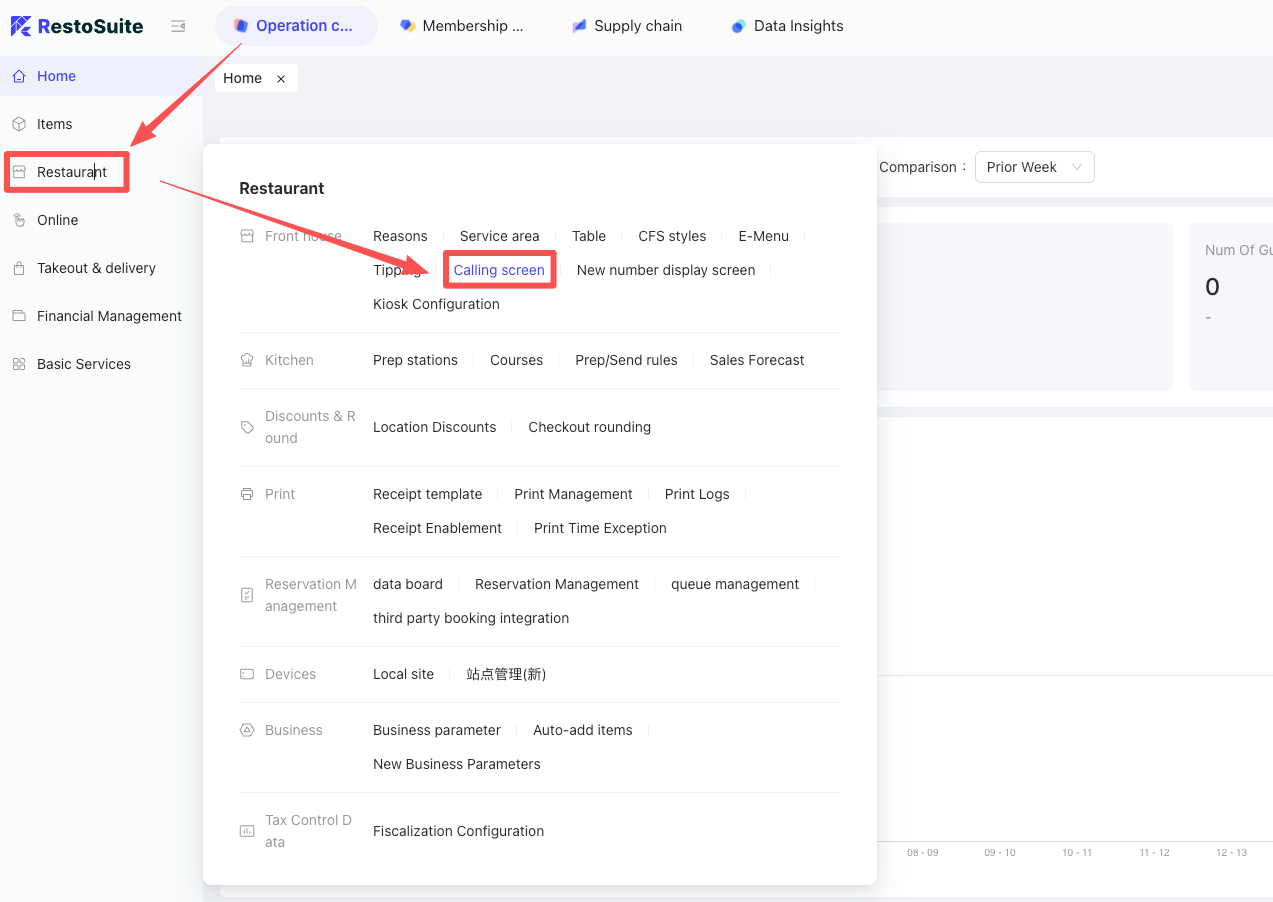
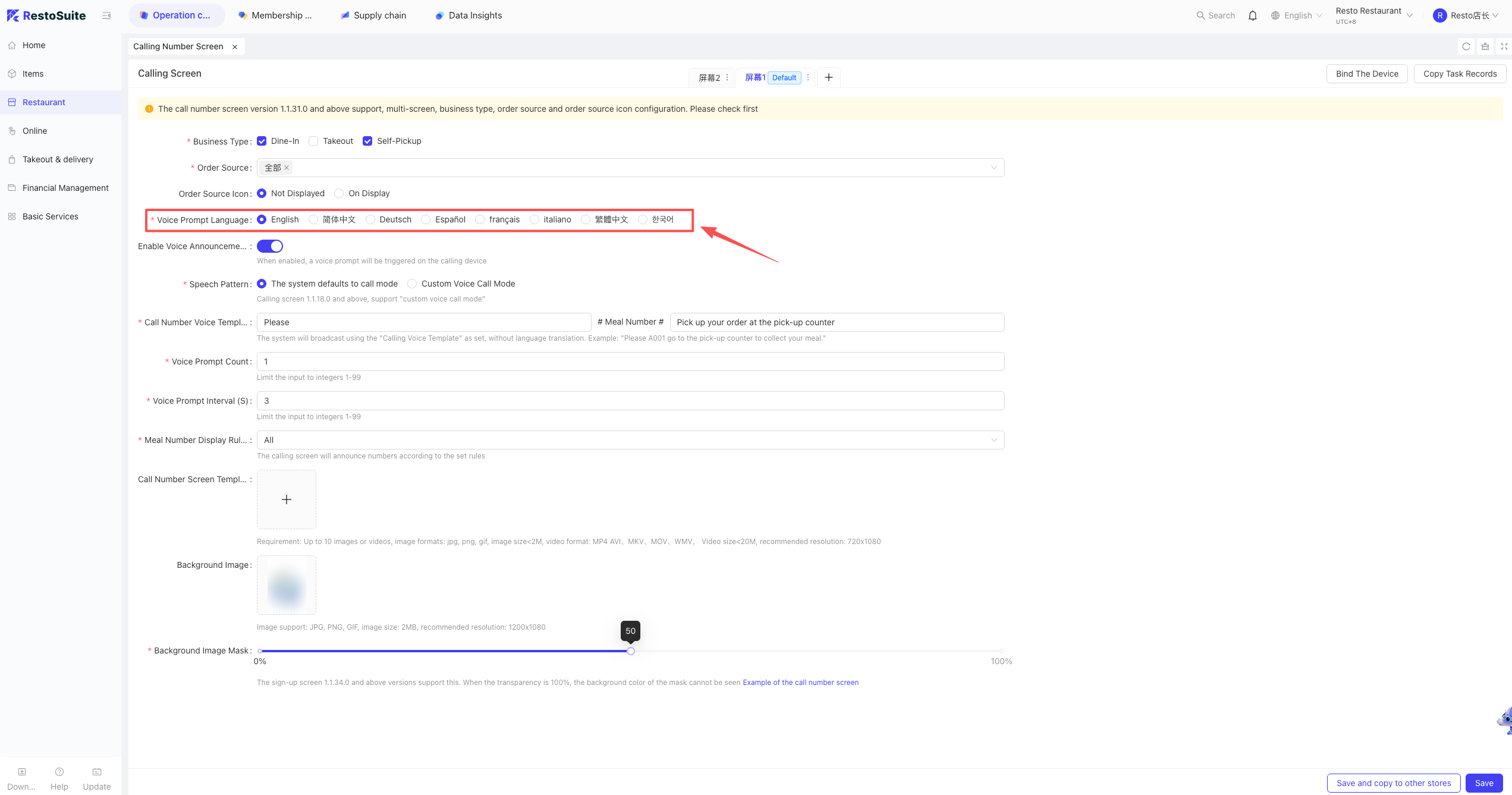
STEP 4: Adjust the language settings under the display configuration section.
💡
Note:
The available languages are pulled from the global configurations set at the Group level.
3 How do I set up voice announcements for the KDS calling screen?
- Log in to the Back Office (BO).
- Navigate to Operation Center > Restaurant Management > Calling Screen.
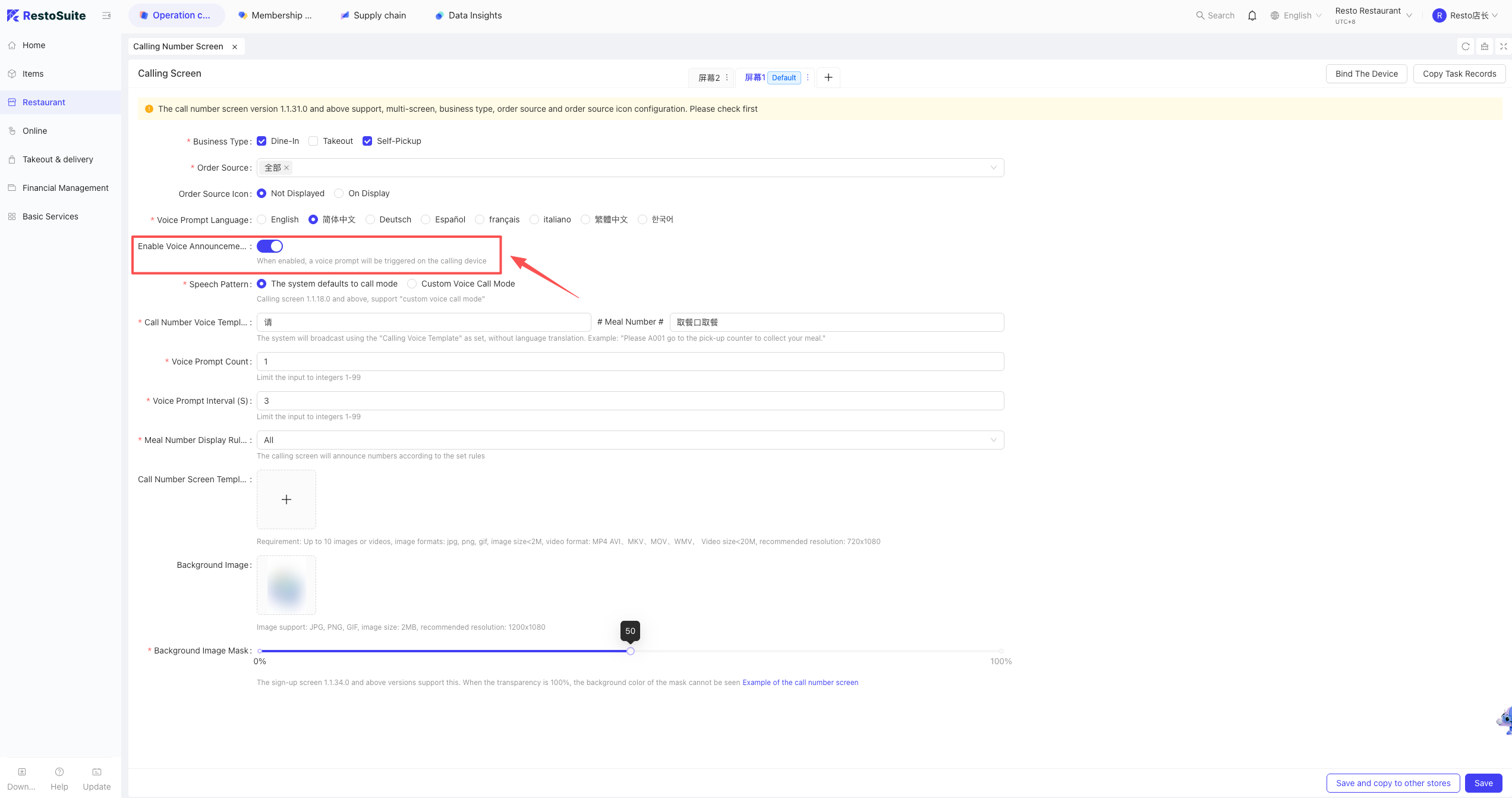
- Enter the Calling Screen Settings interface and toggle the Voice Announcement switch to “On.”
- Configure the following parameters:
- Voice Mode: Select between “System Default” or “Custom Voice” modes.
- Announcement Template: Define the script for the automated voice.
- Broadcast Frequency: Number of times the announcement repeats.
- Broadcast Interval: Seconds between each repeat.
- Order Number Display Rules: Define how the pickup numbers are formatted on screen.
4 How do I set background images and promotional carousels?
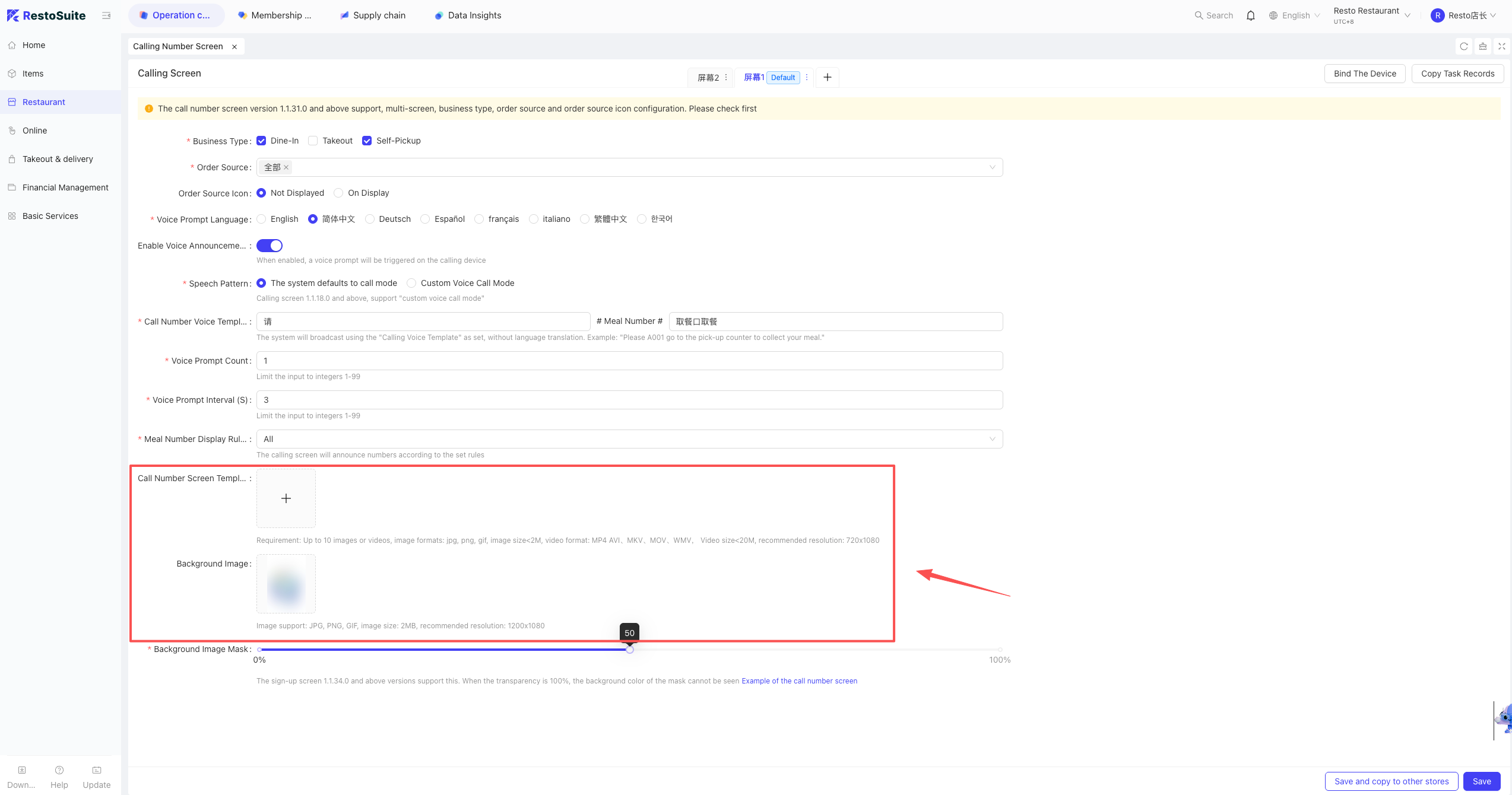
- Configuration: Log in to the Store View in the BO → Restaurant Management → Calling Screen. Upload your desired background and advertisement carousel images, then click Save.
- Display Result: Once the “Success” notification appears, the images will automatically sync and display on the designated calling screen hardware.
Last updated on: