Discounts & Rounding
1 Module Introduction
The Discount and Rounding Module is a core functional component of the Catering Management System. It integrates multiple payment methods, end-to-end discount plan management, and multi-scenario rounding rule configuration capabilities. It helps merchants balance marketing effectiveness and operational standardization, reduce manual operation costs, and achieve precise revenue control.
1.1 In-store Payment Methods
1.1.1 Adding a Payment Method
Step 1: Switch Perspective: Select the group, brand, or store for which you want to configure the payment method.
Step 2: Navigate to the Restaurant Management > Payment Methods > Payment Method Management / In-store Payment Methods page.
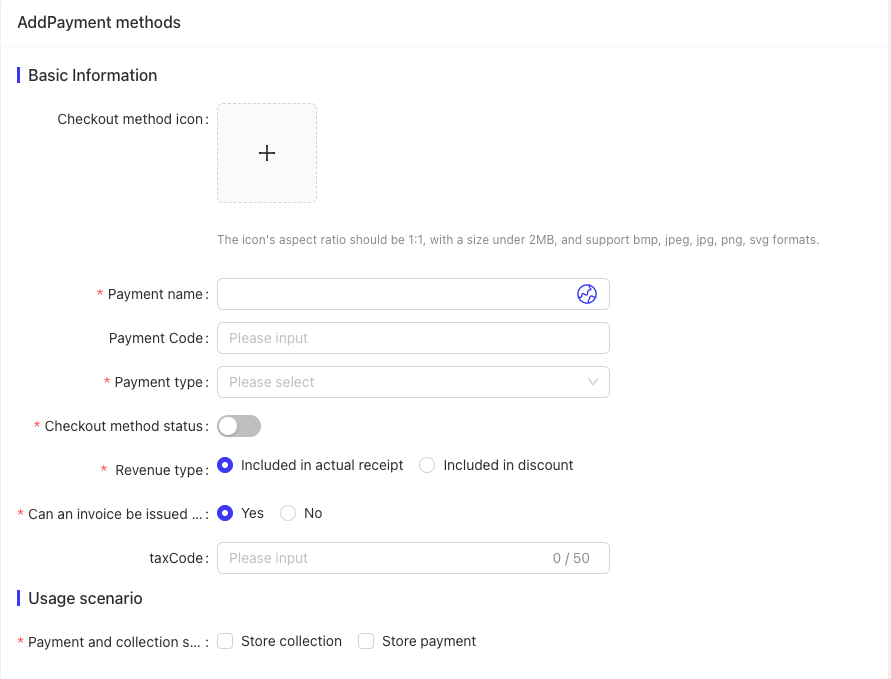
Step 3: On the Payment Method Management / In-store Payment Methods page, fill in the following fields and save:
Configuration Item | Configuration Description |
|---|---|
Payment Method Icon | Icon used to display the payment method |
Payment Method Name | Name of the payment method |
Payment Method Code | Unique code for distinguishing payment methods |
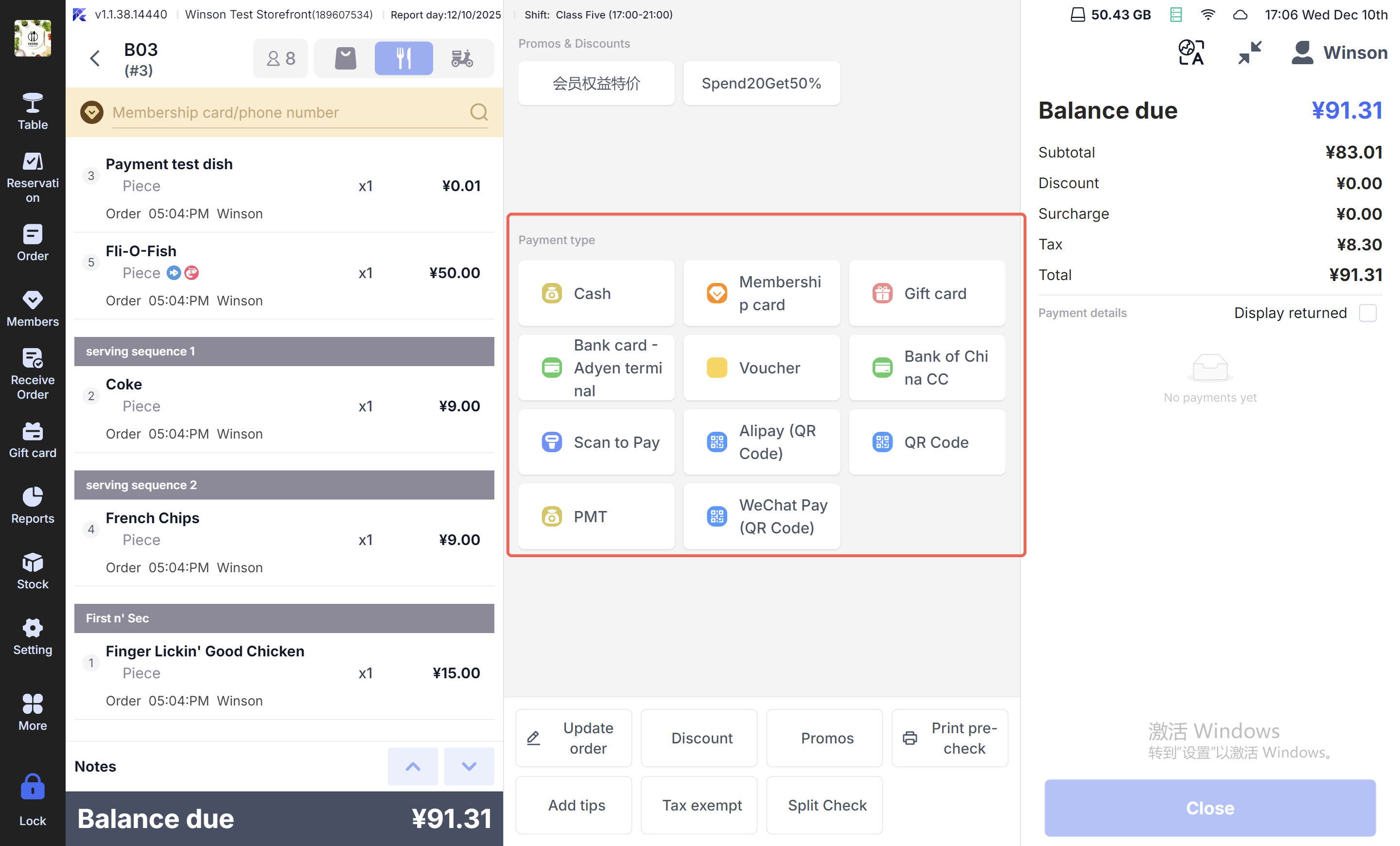
Payment Type |
|
Active Status | Whether the payment method takes effect immediately |
Revenue Recognition Rule |
|
Invoicing Eligibility for Actual Revenue |
|
Tax Code | Tax code corresponding to the payment method |
Payment & Collection Scenarios |
|
1.1.2 Sorting Payment Methods
Step 1: Switch Perspective: Select the group for which you want to sort payment methods.
Step 2: Navigate to the Restaurant Management > Payment Methods > Payment Method Management page and click Sort to rearrange existing payment methods.
1.1.3 Distributing Payment Methods and Viewing Records
Step 1: Switch Perspective: Select the group or brand to which the payment method to be distributed belongs.
Step 2: Navigate to the Restaurant Management > Payment Methods > Payment Method Management page and click Distribute to Stores / Distribution Centers.
Step 3: On the Distribute Payment Methods page, select the payment methods to distribute and target stores, then click Distribute.
Step 4: View distribution records on the Payment Method Management page.
1.2 In-store Discount Plans
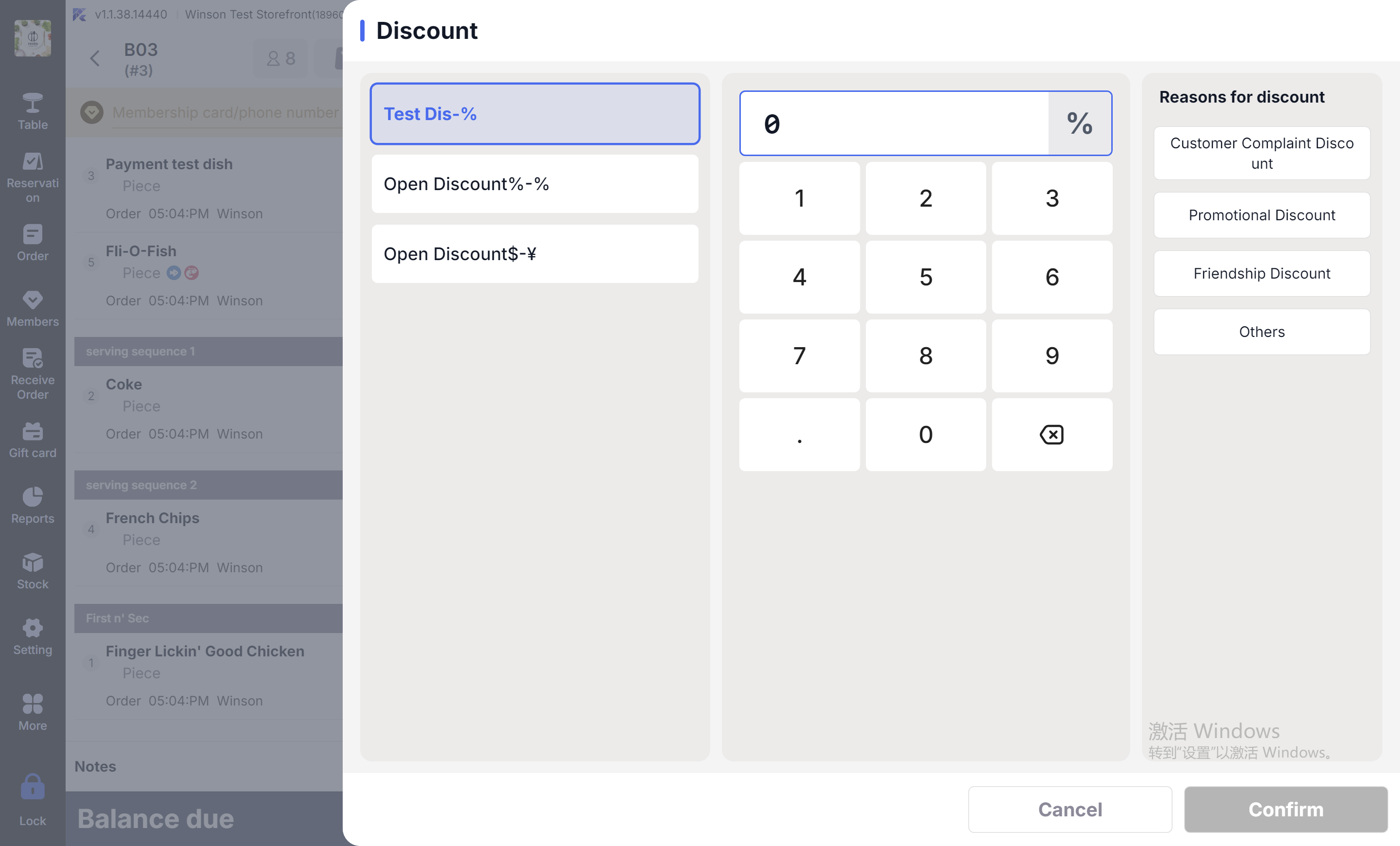
1.2.1 Adding an In-store Discount Plan
Step 1: Switch Perspective: Select the store for which you want to configure the discount plan.
Step 2: Navigate to the Restaurant Management > Payment Methods > In-store Discount Methods page and click Add New.
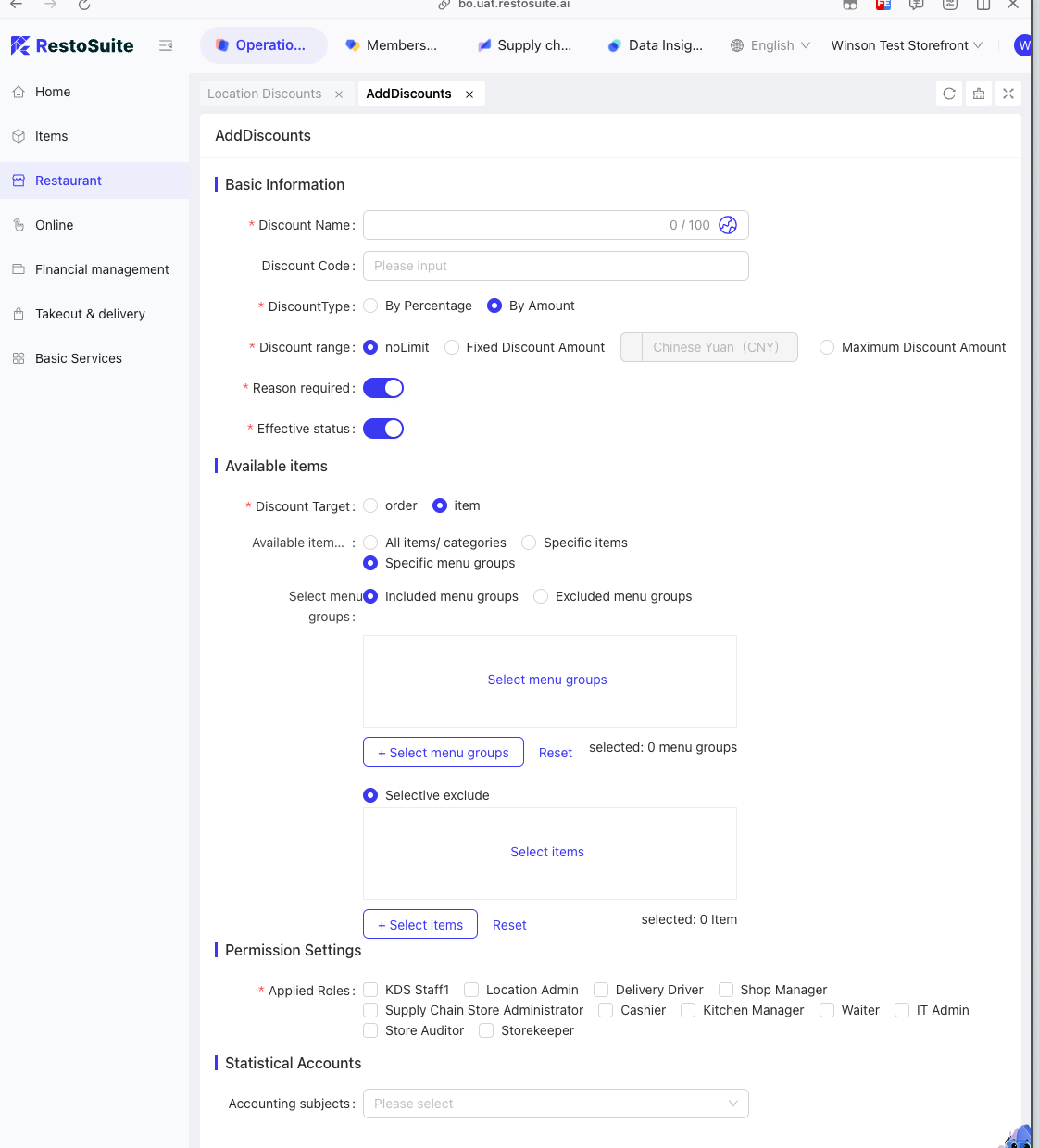
Step 3: On the In-store Discount Methods page, fill in the following fields and save:
Configuration Item | Configuration Description |
|---|---|
Discount Plan Name | Name of the discount plan |
Discount Plan Code | Unique code for distinguishing discount plans |
Discount Type |
|
Discount Scope |
|
Mandatory Discount Reason | Whether a discount reason must be filled in when using the plan |
Active Status | Whether the discount plan takes effect immediately |
Discount Applicable Object |
|
Product Scope |
|
Applicable Roles | Roles eligible to use the discount in the store, e.g., Store Manager, Server |
Accounting Subject | Corresponding accounting subject for financial recording |
1.2.2 Editing and Archiving In-store Discount Plans
Step 1: Switch Perspective: Select the store for which you want to edit the discount plan.
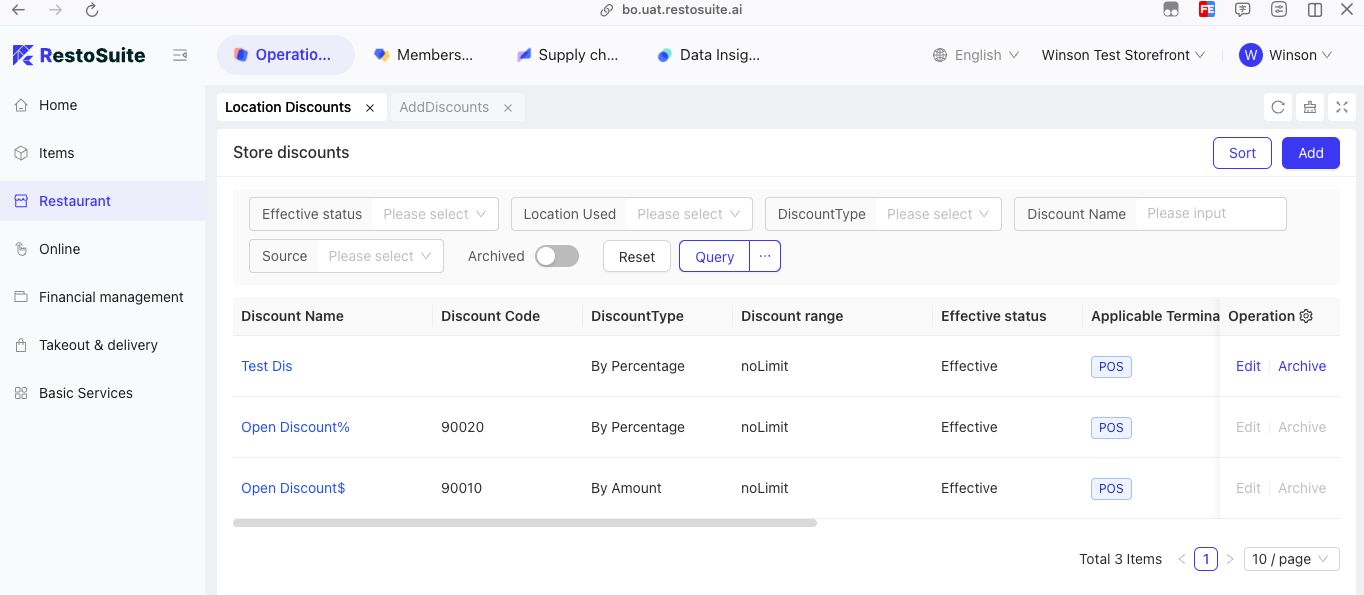
Step 2: Navigate to the Restaurant Management > Payment Methods > In-store Discount Methods page and click Edit or Archive in the operation column.
Note: Only discount plans created at the same level can be modified. For example, stores can only modify discount plans added by themselves; discount plans distributed to stores by the group must be modified under the group perspective.
1.2.3 Distributing Discount Plans
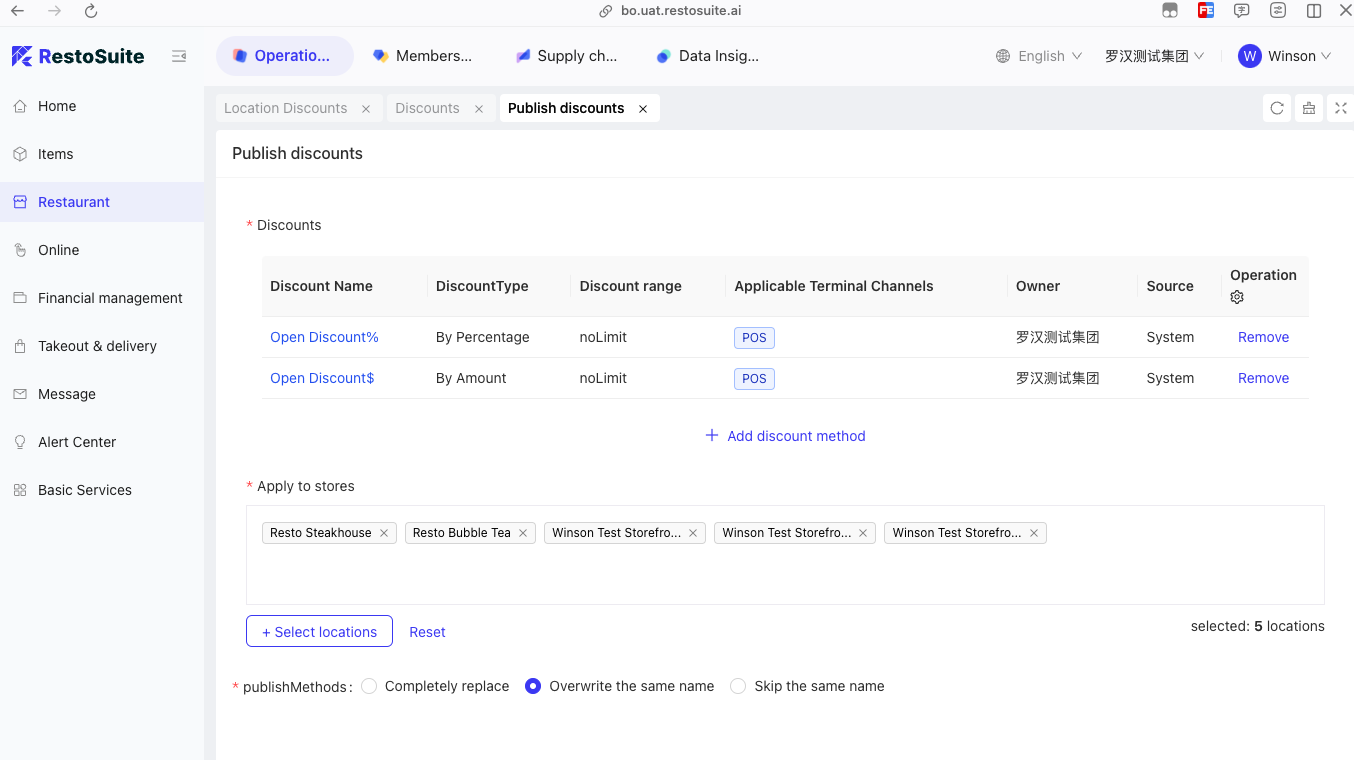
Step 1: Switch Perspective: Select the group or brand that wants to publish the discount plan.
Step 2: Navigate to the Restaurant Management > Payment Methods > Discount Plan Management page, select the target discount plan in the operation column, click Distribute, and then select the stores to receive the plan on the Distribute Discount Plans page.
1.3 Checkout Rounding Rules
(Store Perspective)
1.3.1 Regional Rounding Rules
Core Region | Representative Country/Region | Mainstream Rounding Rule | Rounding Unit (Currency) | Supplementary Notes (Including Compliance & Practical Features) |
|---|---|---|---|---|
North America | United States (USD) | No mandatory rounding; precise settlement by default. Cash payments allow negotiable rounding. | 0.01 (Cent) |
|
Canada (CAD) | No mandatory rounding; precise settlement by default. Voluntary rounding is allowed in provinces with scarce small change. | 0.01 (Cent) |
| |
Europe | Eurozone (EUR, e.g., Germany, France, Italy) | Mandatory rounding is prohibited; voluntary rounding (mostly for charitable donations) is supported in some countries. | 0.01 (Euro Cent) |
|
United Kingdom (GBP) | No mandatory rounding; precise settlement by default. Manual rounding is allowed for small-value transactions. | 0.01 (Penny) |
| |
Sweden (SEK, non-Eurozone) | No mandatory rounding; precise settlement by default. | 0.01 (Swedish Öre) |
| |
Southeast Asia | Singapore (SGD) | No mandatory rounding; precise settlement by default. | 0.01 (Singapore Cent) |
|
Malaysia (MYR) | Precise settlement by default; cash payments can be rounded down to the nearest 0.1 Ringgit. | 0.01 (Sen); cash often rounded to 0.1 Ringgit |
| |
Thailand (THB) | No mandatory rounding; precise settlement by default. Small amounts can be rounded to the nearest 1 Baht. | 0.01 (Satang); practically rounded to 1 Baht |
| |
Indonesia (IDR) | Mandatory whole-number settlement; rounding up/down by default. | 1 (Indonesian Rupiah) |
| |
East Asia & Greater China | Mainland China (CNY) | No mandatory rounding; electronic payments are settled precisely. Manual rounding (mostly downward) is allowed for cash payments. | 0.01 (Fen); cash often rounded to 1 Yuan |
|
Japan (JPY) | Mandatory whole-number settlement; no rounding required (prices are whole numbers by default). | 1 (Japanese Yen) |
| |
South Korea (KRW) | Mandatory whole-number settlement; no rounding required (prices are whole numbers by default). | 1 (South Korean Won) |
| |
Oceania | Australia (AUD) | No mandatory rounding; precise settlement by default. Some merchants support "cashless rounding" to the nearest 0.05 AUD. | 0.01 (Australian Cent); optional rounding to 0.05 AUD |
|
New Zealand (NZD) | No mandatory rounding; precise settlement by default. Cash payments are often rounded to the nearest 0.05 NZD. | 0.01 (New Zealand Cent); cash rounded to 0.05 NZD |
|
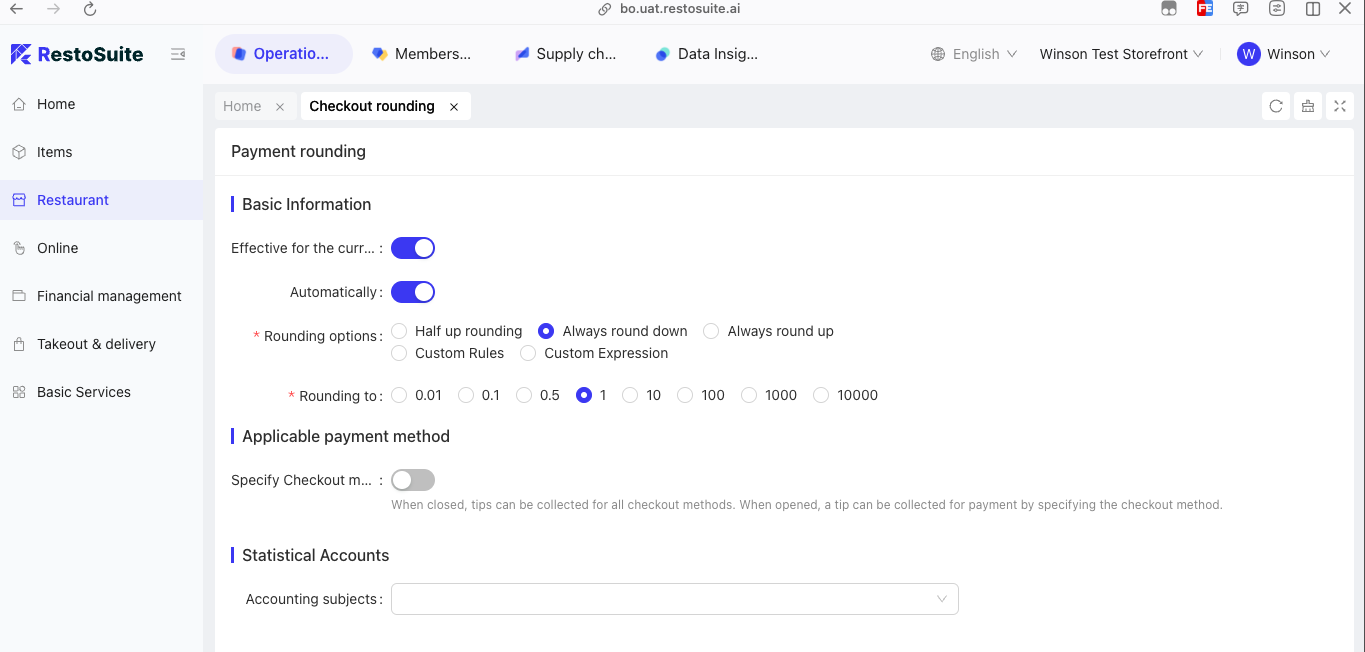
1.3.2 Configuring Checkout Rounding Rules
Step 1: Switch Perspective: Select the store for which you want to configure rounding rules.
Step 2: Navigate to the Restaurant Management > Discount & Rounding > Checkout Rounding Rules page.
Step 3: On the Checkout Rounding Rules page, fill in the following fields and save:
- Effective for Current Store: The configuration takes effect immediately for the store upon saving.
- Auto-execution: Automatically applies when the corresponding payment method is used for checkout.
- Rounding Method: Supports multiple rounding methods (taking rounding to 1 Yuan as an example):
- Round Half Up
Original Amount
Retained Unit (Yuan)
Next Digit
Rounded Result
¥28.3
8
3(<5)
¥28
¥28.6
8
6(≥5)
¥29
¥28.5
8
5(≥5)
¥29
- Round Down💡Thailand: A THB 89.4 transaction (rounded to 1 Baht) → rounded down to THB 89; a THB 89.6 transaction → rounded up to THB 90.
New Zealand: A NZD 22.43 cash transaction (rounded to 0.05 NZD) → 0.43 is closer to 0.45 → rounded up to NZD 22.45.
Original Amount
Retained Unit (Yuan)
Rounded Result
¥32.1
32
¥32
¥32.9
32
¥32
¥32.99
32
¥32
- Round Up💡Mainland China cash payment: A ¥45.9 transaction → manually rounded down to ¥45; a ¥45.1 transaction is also rounded down to ¥45.
Malaysia cash payment: A MYR 18.37 transaction (rounded to 0.1 Ringgit) → 0.07 is truncated → rounded down to MYR 18.3.
Original Amount
Retained Unit (Yuan)
Rounded Result
¥32.1
32
¥32
¥32.9
32
¥32
¥32.99
32
¥32
- Custom Rule - Custom Formula💡Australia cash payment: An AUD 15.91 transaction (rounded to 0.05 AUD) → rounded up to AUD 15.95 due to the withdrawal of low-denomination coins.
EU charitable rounding: A €12.92 transaction → customers voluntarily round up to €13, with the difference donated to local charities.
- Rounding Unit: The target unit to which the amount is rounded.
- Specify Payment Methods: When disabled, tips can be accepted for all payment methods; when enabled, tips are only accepted for specified payment methods.
- Payment Methods: Select in-store payment methods to which the rounding rule applies.
- Financial Accounting Subject