Dish Recommendation
1 Module Introduction
The Dish Recommendation Activity is a precision marketing tool for catering merchants. It intelligently pushes target dishes via add-on purchase association recommendations, boosting designated dishes’ exposure, guiding customers to expand consumption choices, and increasing the store’s average customer spending and dish sales conversion efficiency.
2 Configuration Guide
2.1 Accessing the Feature
- Log in to the SaaS platform backend
- Navigate to【Membership Marketing】>【Marketing】>【Marketing Activities】.
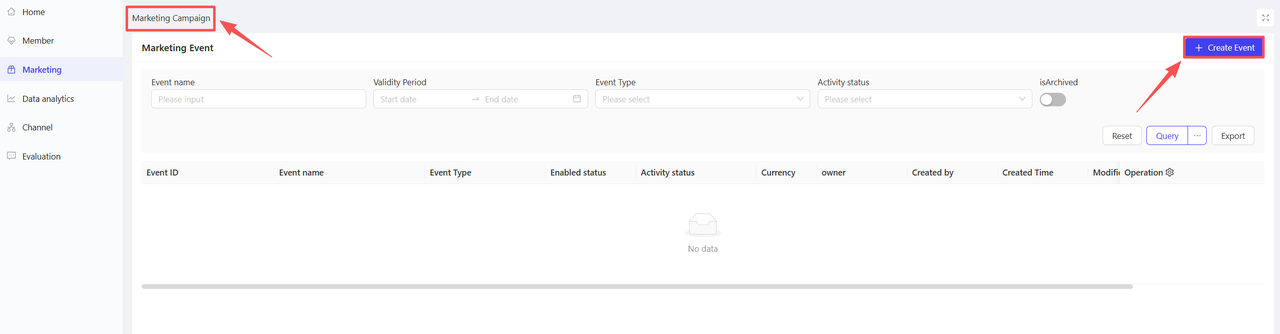
- Click【Create Activity】in the upper-right corner of the page, select the Dish Recommendation module.
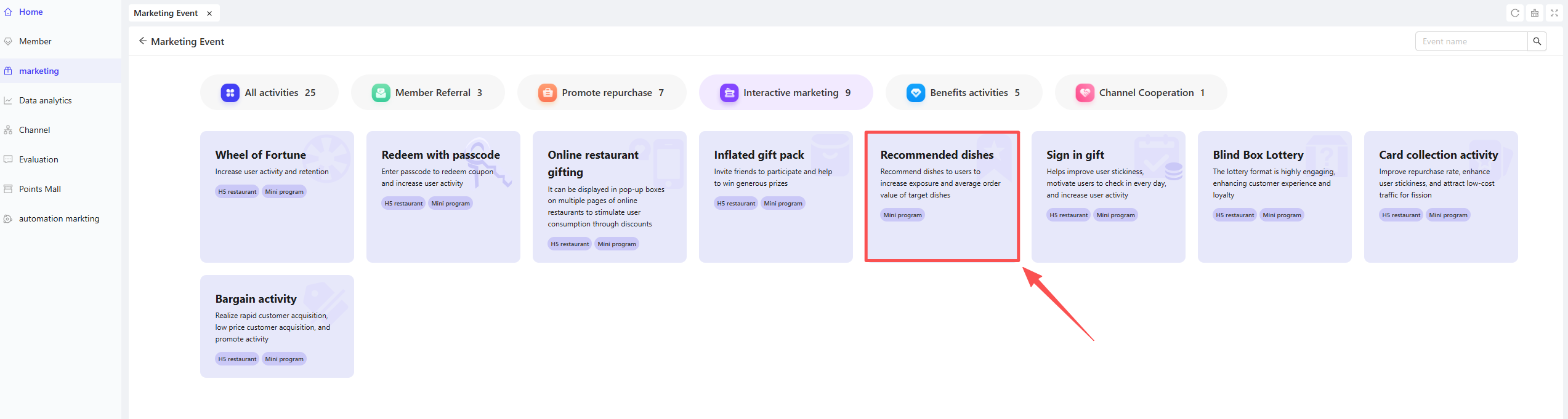
2.2 Basic Settings
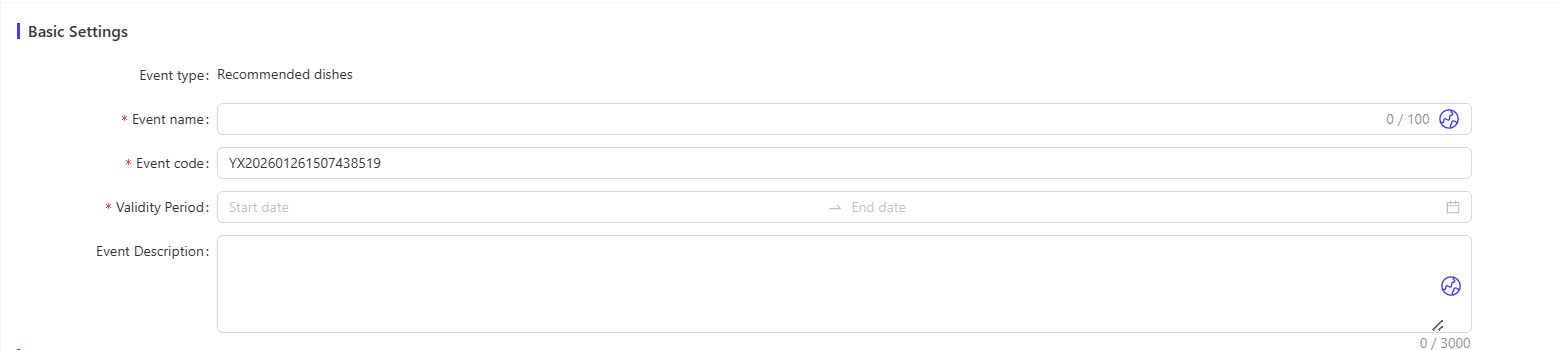
- Fill in basic configuration information
- Activity Name: Enter a name for the marketing activity to help customers recognise it.
- Example: “Chef’s Recommendation!”
- Activity Code: Assign a unique identification code to the activity for internal management and tracking.
- Validity Period: Select the start and end dates of the activity to ensure a reasonable timeframe.
- Description: Briefly outline the activity content and rules for clarity.
- Activity Name: Enter a name for the marketing activity to help customers recognise it.
2.3 Rule Settings
Rule Explanation
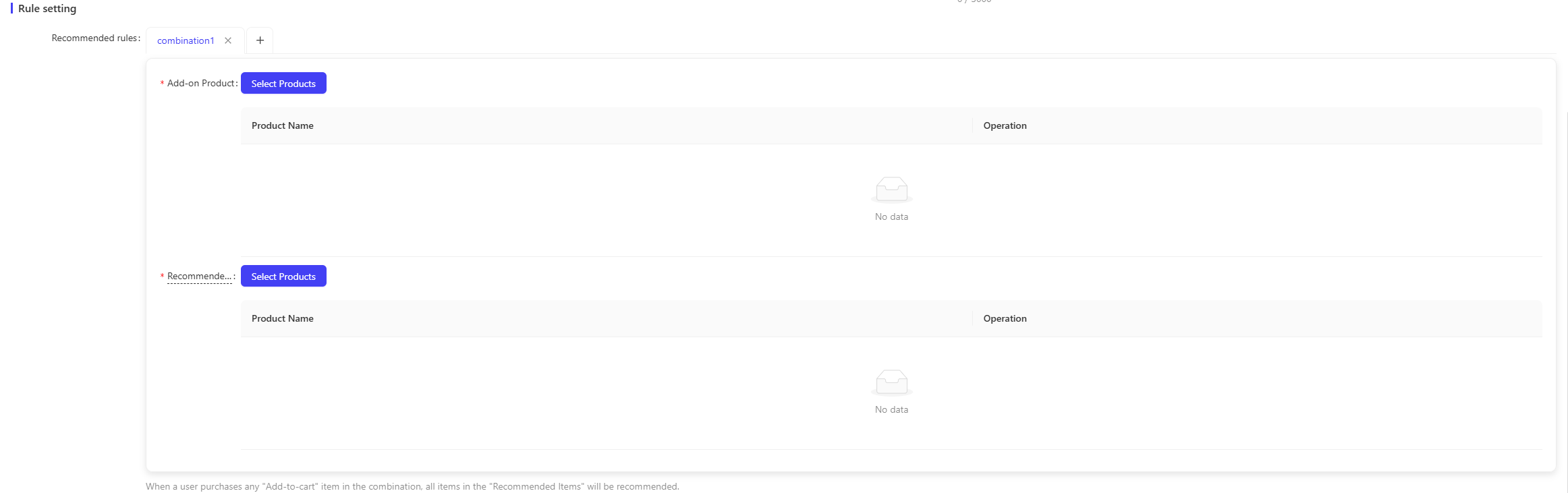
When a user purchases any "Add-on Item" in a combination, all items in the "Recommended Items" list will be recommended.
- Combination Settings
- Number of Combinations: 1 combination is displayed by default. A minimum of 1 and a maximum of 10 combinations are supported (multiple sets of recommendation relationships can be set for different dishes).
- Add-on Items (Required): Products that trigger recommendations when purchased by users.
- Recommended Items (Required): Dishes pushed to users after the trigger condition is met.
💡Note
Only one ongoing Dish Recommendation Activity can exist in the same store during the same time period, with no overlapping timeframes allowed.
2.4 Applicable Stores
STEP 1: Select Applicable Stores
- Choose stores to participate in the activity. You can select all stores or a subset (e.g., by region).

2.5 Advanced Settings
- Applicable Business Types: All selected by default; optional types include “Dine-In”, “Takeaway”, and “Self-Pickup”.
- Applicable Channel: Defaults to [Online] and cannot be modified.
3 Activity Activation & Management
-
Activity Activation
- After completing all configurations, click “Save” to activate the activity.
-
Activity Management & Monitoring
- View activity performance data (e.g., number of orders, participation metrics) on the Activity Management page.
- Pause or adjust the activity at any time; manually archive the activity if necessary.
4 User Journey (End-User Experience)
User Consumption Path:
Log in to the Online Store → Add Add-on Product (Trigger Recommendation) → View Recommended Dishes → Add Recommended Products to Cart → Submit Order