Device Management
1 Module Introduction
The Device Management Module centrally controls terminals including POS, KDS, order-taking devices, and E-menu. It supports device information query, activation authorization, version monitoring, and status monitoring, ensuring the stable operation of all devices.
2 Adding a Printer
Step 1: Switch View: Select the store for which you want to configure the printer.
Step 2: Select the [Restaurant Management -> Site Management -> Device Management] module.
Step 3: On the [Add Printer] page, fill in the following fields. After saving, the printer will be added to the site management system:
Mandatory Configuration Items | Configuration Description |
|---|---|
Device Name | A user-defined name to identify the printer, facilitating differentiated management |
Printer Model | The specific model of the printer, ensuring driver and function compatibility |
Printer Type | The business classification of the printer (e.g., receipt/mini ticket printer, label printer) |
Default Printer Font Size | The default font size of printed content, affecting the display effect of receipts |
Paper Size | The paper specification compatible with the printer (e.g., 58mm, 80mm thermal paper) |
Print Connection Type | The connection method between the printer and the system (e.g., Network, USB) |
IP Address | The dedicated IP address of the printer in network connection mode, used for device communication |
3 Obtaining Activation Code
Click [Get Activation Code] to view the store’s activation code in the pop-up window. Enter the activation code on the device to register the device to the store.

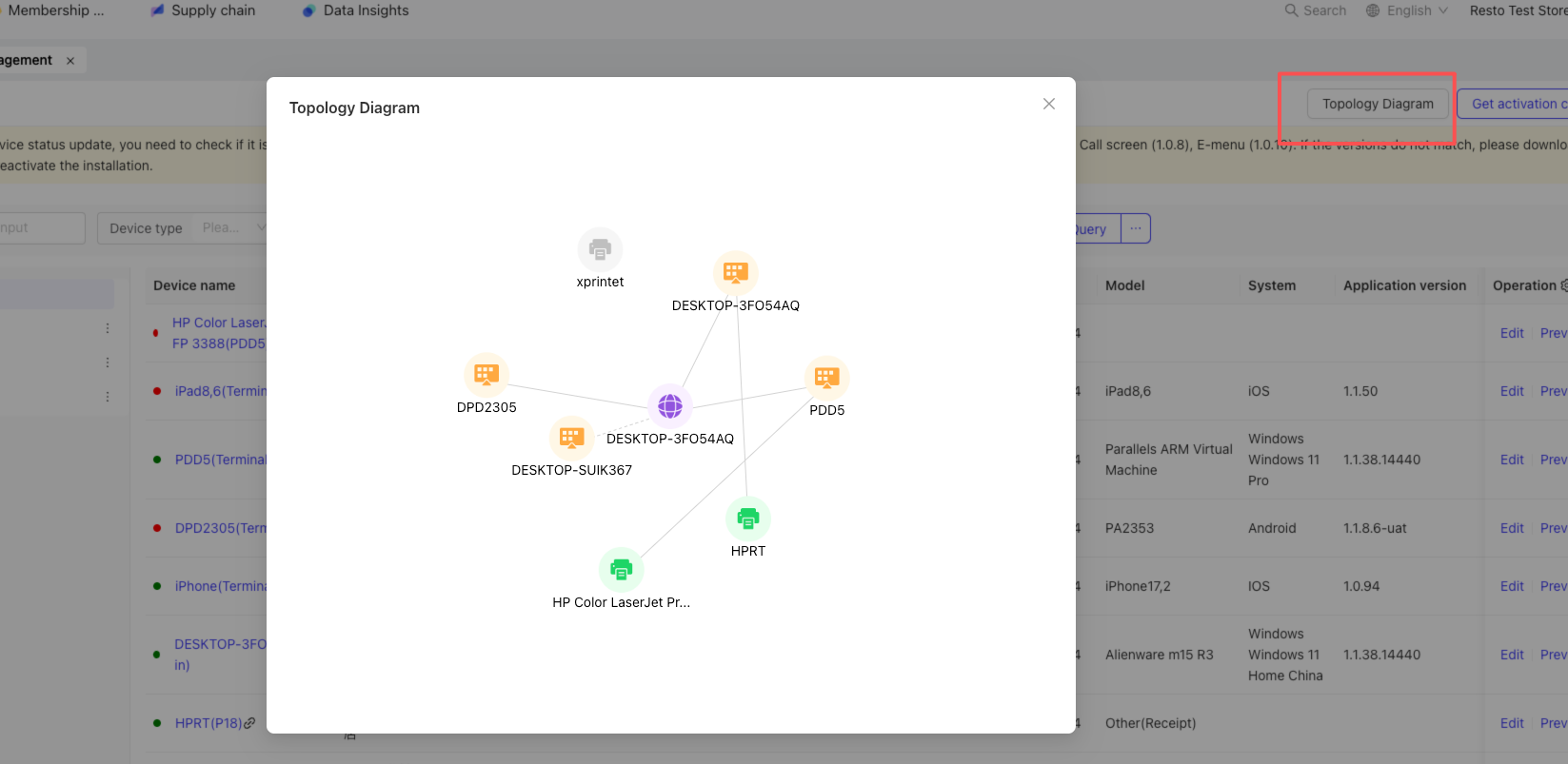
4 Viewing Site Topology Map
Click [Topology Map] to view the site topology map of the store in the pop-up page, which intuitively displays the connection relationships among various devices, network nodes, and system services in the store.
5 Searching for Site Devices
Supports query by [Device Name], [Device Type], [System], [Application Version], and [Device ID].

6 Editing, Previewing, and Deleting Devices
You can preview, edit, and delete a device in the operation bar corresponding to that device.