Price Slash Activity
1 Module Introduction
Price Slash Activity is an engaging marketing tactic that drives rapid customer acquisition, low-cost user conversion and higher user activity by encouraging users to share and invite friends to help slash prices. This guide details setting up and managing the activity on the SaaS platform, covering configuration, page customization, management and the end-user (C-side) interaction flow.
2 Configuration Guide
2.1 Accessing the Feature
- Log in to the SaaS platform backend
- Navigate to【Membership Marketing】>【Marketing】>【Marketing Activities】.
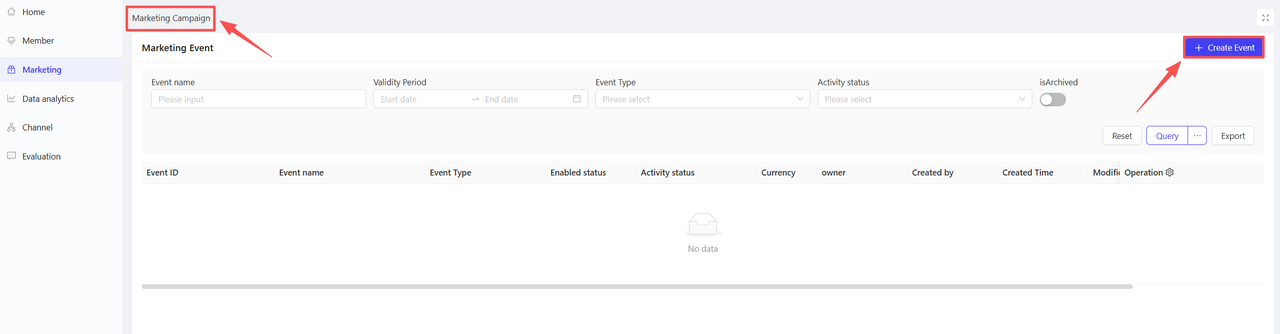
- Click【Create Activity】in the upper-right corner of the page, select the Price Slash Activity module.
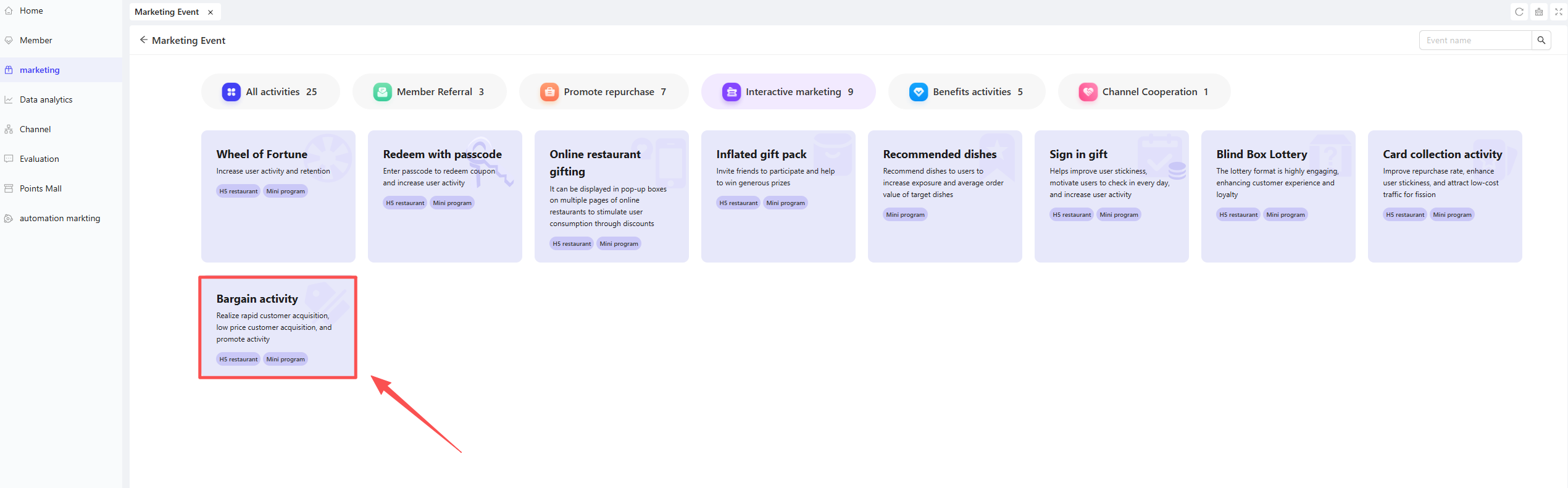
- Select Currency: Set the currency for your group; the following 6 currencies are currently supported:
- CNY - Chinese Yuan
- USD - US Dollar
- EUR - Euro
- SGD - Singapore Dollar
- CAD - Canadian Dollar
- GBP - British Pound Sterling
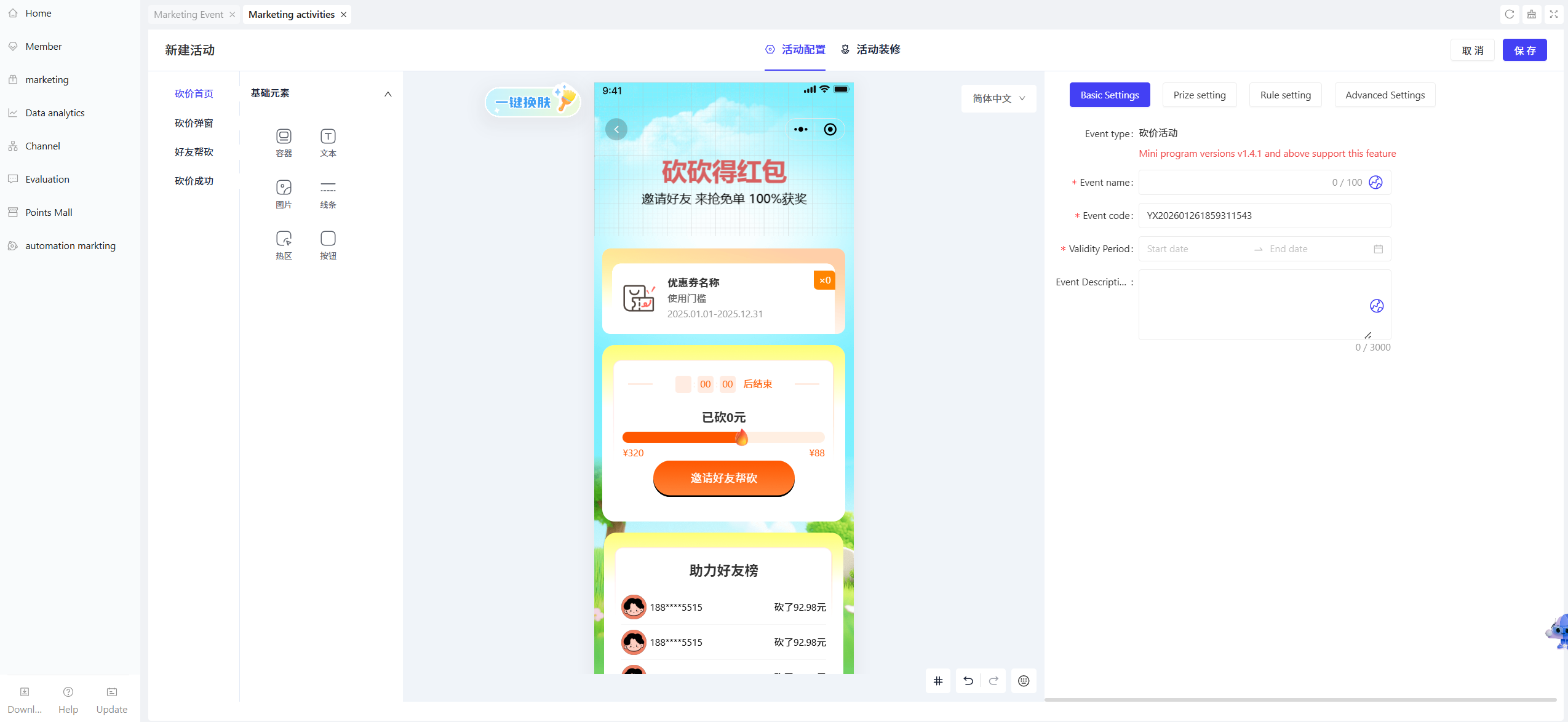
2.2 Basic Settings
- Complete the basic configuration details
- Activity Name: Enter a clear name for easy customer identification.
- Example: “Slash for Savings”
- Activity Code: Assign a unique identifier for internal management and tracking purposes.
- Validity Period: Select the start and end dates of the activity and ensure rational time framing.
- Description: Briefly outline the activity details and rules with clear and concise language.
- Activity Name: Enter a clear name for easy customer identification.
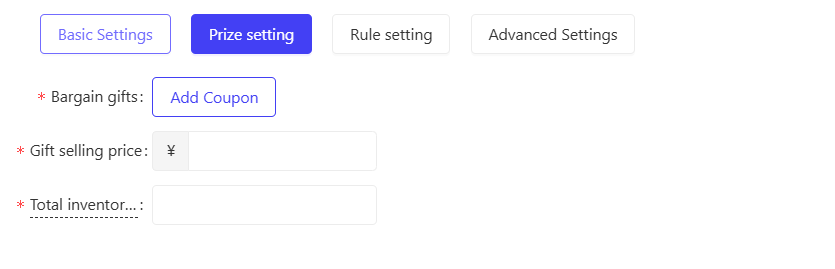
2.3 Prize Settings
- Configure prize details
- Price Slash Reward: Set the prize (coupon) to be obtained upon activity participation; only one type of coupon can be selected per activity.
- Reward Original Price: Set the original price of the reward (a positive number greater than 0, maximum value: 999,999).
- Total Reward Stock: Set the total number of eligible price slash initiations (a positive integer greater than 0, maximum value: 999,999).
2.4 Rule Settings
-
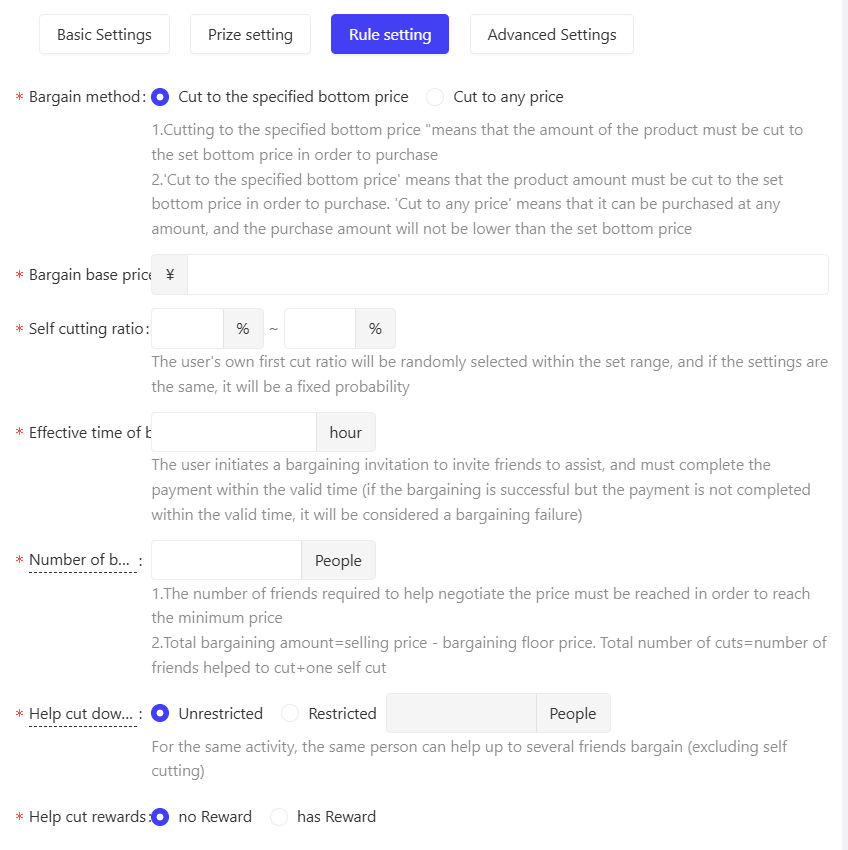
Set the price slash mode for users
- Slash to Preset Floor Price: The price must be slashed down to the preset floor price to complete the purchase.
- Slash to Any Price: The purchase can be made at any slashed price, which will not be lower than the preset floor price.
-
Set the price slash rules for users
- Price Slash Floor Price: Set the minimum achievable price (a positive number greater than 0, maximum value: 999,999).
- Initiator’s First Slash Percentage Range: Set the percentage range for the user’s initial self-slash; the actual percentage will be randomly selected within the set range, or fixed if the same value is set for both ends of the range.
- Price Slash Valid Time: Set the valid duration of a single price slash activity.
- Rule: The initiator must complete the payment within the valid time after inviting friends to help slash prices. Failure to pay within the valid time, even if the target price is reached, will result in a failed price slash.
- Required Slash Participants: Set the number of friends required to help slash prices to reach the floor price.
- Rule:
- Total Slashed Amount = Original Price - Floor Price
- Total Slashes = Number of Friends + 1 Initiator Self-Slash.
- Rule:
- Maximum Help Per User: Set the maximum number of activitys a single user can assist with (excluding the initiator’s self-slash); unrestricted or a custom limit is available.
- Helper Reward: Set the reward for friends who help slash prices (No Reward / Points / Coupon).
2.5 Advanced Settings
-
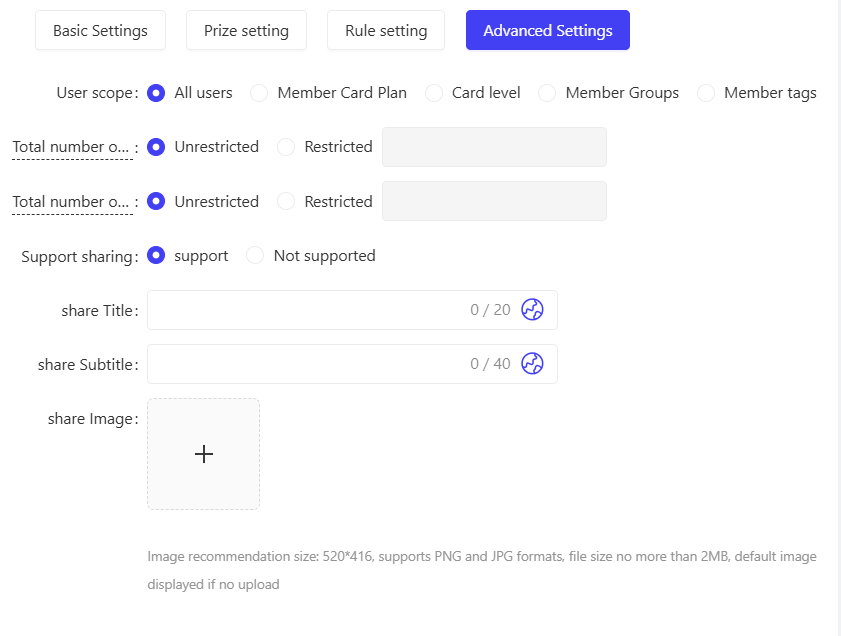
User Scope: Select the specific user groups eligible for the activity based on the following five dimensions:
- All Users: Open to all platform users.
- Membership Card Plan: Filter users by one or more membership card plans.
- Membership Card Tier: Filter users by different tiers under the membership card plan.
- Member Group: Filter users by one or more pre-defined member groups.
- Member Tag: Filter users by one or more member tags (e.g., New User, Loyal User).
-
Maximum Total Participation: Set the maximum number of times a single user can participate in the activity (restrictions optional, e.g., 3 participations per user).
-
Maximum Daily Participation: Set the maximum number of times a single user can participate in the activity per day (restrictions optional, e.g., 1 participation per day).
3 Activity Decoration
- Decorate the activity page: Click Page Decoration in the action bar to enter the customization interface. Customize the activity homepage layout via drag-and-drop components:
- Page Settings: Set the background color or background image for the entire page.
- Header: Configure header functions and styling.
- Containers: Design the page’s specific style and layout via drag-and-drop in the left-side H5 editor. Add components (e.g., images, buttons, countdown timers) to enrich the page.
- Reward Module: Customize the page style of the reward display module.
- Price Slash Module: Customize the page style of the price slash core module.
- Invitation List: Customize the page style of the friend invitation list module.
4 Activity Activation & Management
-
Activity Activation
- After completing all configurations, click Save to activate the activity officially.
-
Activity Management & Monitoring
- View real-time activity performance data on the Activity Management page (e.g., order volume, participation metrics).
- Pause or adjust activity details at any time; manually archive the activity when needed.
5 User Journey (End-User Experience)
- Initiator Flow
Log in/Activate Membership → Enter Activity Page → Click Slash Now → Complete Self-Slash → Share Invitation → Friends Help Slash → Price Slash Successful → Pay and Purchase
- Helper Flow
Click Shared Link → Log in/Activate Membership → Enter Help Page → Click Help Friend Slash → Slash Successful → (Optional) Click I Want to Slash Too
- Login to Participate: Users must log in to their accounts to join the activity.
- Page Display: The page shows customized components, including the slash button, reward coupon, and countdown timer.
- Activity Rules: A detailed explanation of the activity rules is available at the bottom of the activity page.