Tier Upgrade Gift
1 Module Introduction
The Tier Upgrade Gift Activity is a core incentive tool for merchants’ membership programs. Members automatically get exclusive gifts once they upgrade their membership tier.
Tiered benefits drive members to boost engagement and spending frequency, and actively pursue tier advancement. This enhances member participation and brand loyalty, while retaining and converting high-value members.
2 Configuration Guide
2.1 Accessing the Feature
- Log in to the SaaS platform backend
- Navigate to【Membership Marketing】>【Marketing】>【Marketing Activities】.
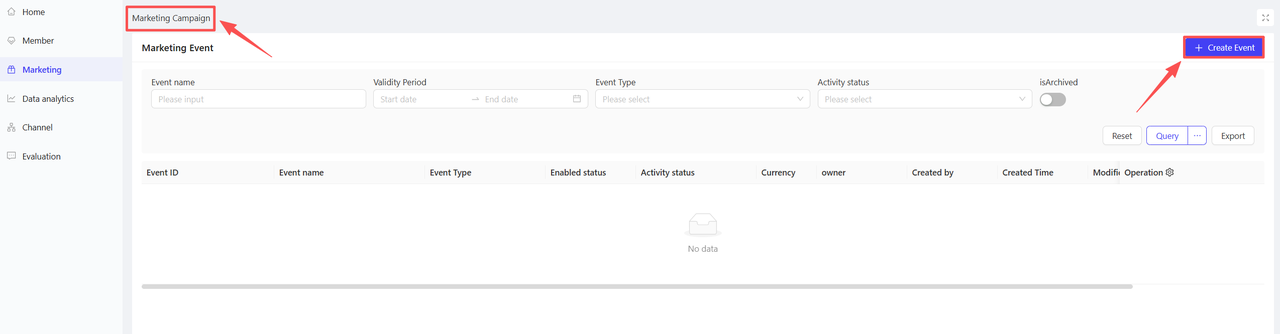
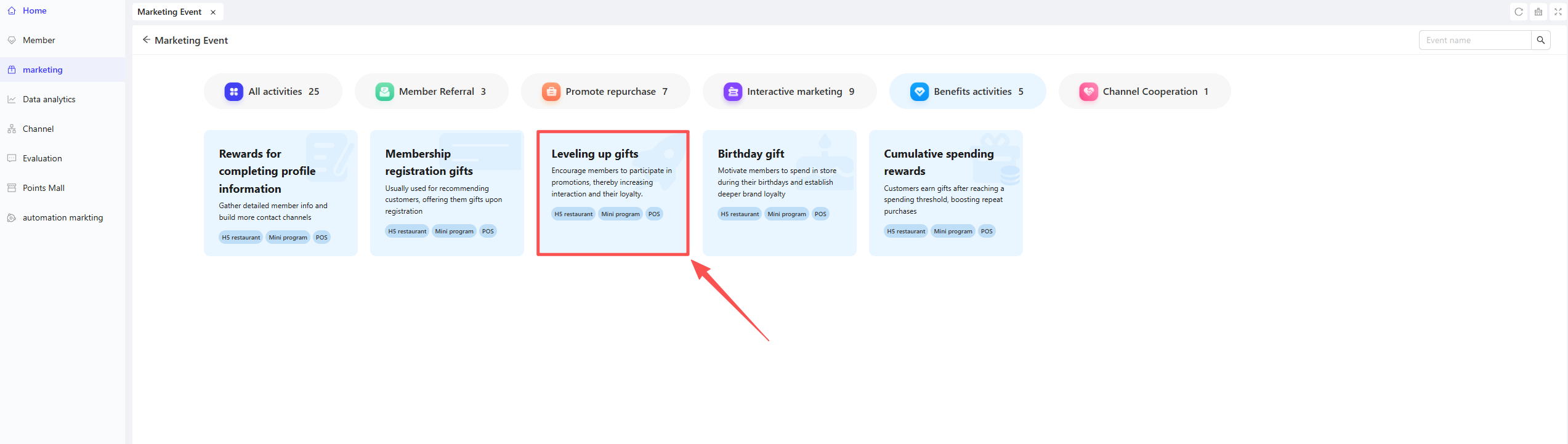
- Click【Create Activity】in the upper-right corner of the page, select the Tier Upgrade Gift module.
2.2 Basic Information Configuration
Fill in the core activity details to ensure clarity for customers and streamline internal tracking.
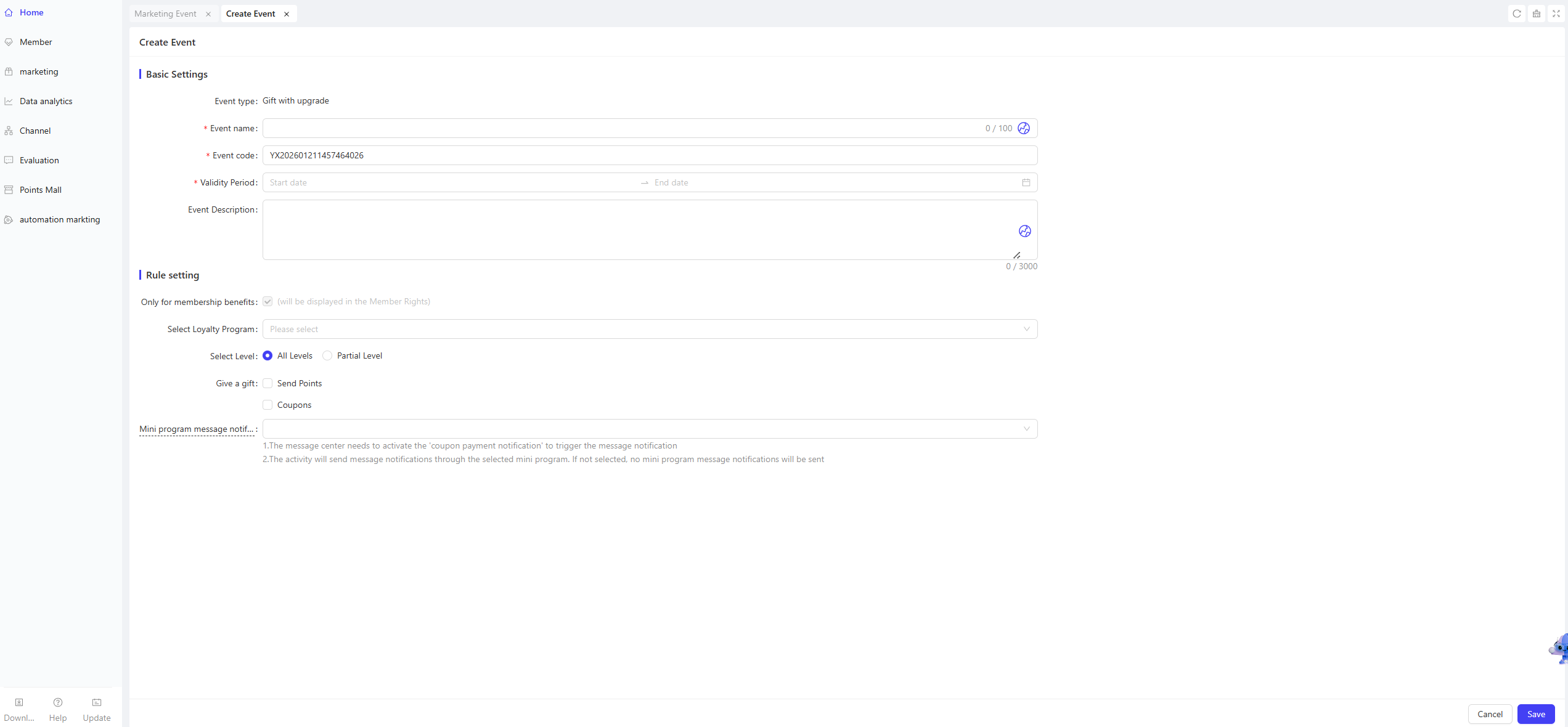
- Activity Name: Required. Choose a name that is easy for customers to identify. (e.g., “Get Gifts on Membership Upgrade!”).
- Activity Code: A unique internal identifier for tracking and reporting.
- Validity Period: Select the start and end dates for the activity.
- Description: Briefly outline the activity details and rules for clarity.
2.3 Rules Configuration
-
Select Membership Card Program: Filter target users based on one or multiple membership card programs.
-
Select Membership Card Tier: Filter target users according to different card tiers under the selected membership card program(s).
-
Gift Selection: You can choose the following two types of gifts, with multiple selections allowed:
- Points: Set the number of points to be awarded, then select the point distribution rule: Instant Distribution / Hourly Distribution / Daily Distribution.
- Coupons: Add multiple types of coupons to meet diverse user needs. For each added coupon, you need to configure the following details:
- Gift Name: Select the specific coupon here.
- Gift Quantity: Enter the number of coupons to be provided.
- Effective Method: Choose between the Relative Validity Period or Fixed Validity Period, then complete the configuration:
- Relative Validity Period: The validity period starts counting from the moment the user claims the coupon.
- Example: “Valid for 7 days after claiming”
- Fixed Validity Period: The coupon is valid within a fixed time frame, independent of the user’s claim time.
- Example: “Valid from 00:00:00 on November 01, 2024, to 23:59:59 on November 11, 2024”
- Relative Validity Period: The validity period starts counting from the moment the user claims the coupon.
-
Mini Program Notification: Select the content of the mini program message notification here.
Notes
The Coupon Arrival Notification must be enabled in the Message Centre to trigger message alerts.
Notifications are sent via the selected mini program; no notifications will be sent if no mini program is selected.
3 Activity Activation & Management
-
Activating the Activity
- After completing all configurations, click Save to launch the activity immediately.
-
Activity Management & Monitoring
- View activity performance data (including order volume and participation metrics) on the Activity Management page.
- Pause, adjust, or archive the activity at any time as needed.

4 User Journey (End-User Experience)
Core Flow:
Member meets upgrade criteria → System automatically upgrades membership tier → Member receives mini program notification → Member views upgrade gifts → Member uses gifts for purchases