Coupon Pack
1 Module Introduction
Coupon Pack is a core membership marketing tool in RestoSuite. It supports integrating multiple coupons into a single pack, with two distribution models—“free distribution via campaigns” and “paid purchase by users”—enabling batch management and targeted reach. It helps with new product promotion, revenue generation, and user retention.
2 Creating a Coupon Pack
Prerequisites
Must have Group Administrator account permissions
Coupons to be added to the pack must have been created
STEP 1: Switch to Group Management View
- Group Administrators log in to the Merchant Backend
- Click【View Switch】in the upper right corner of the page and select to switch to【Group View】.
STEP 2: Access the Coupon Pack List Page
Navigate via the menu path: 【Membership Marketing】>【Marketing】>【Coupon Pack】
STEP 3: Initiate Coupon Pack Creation
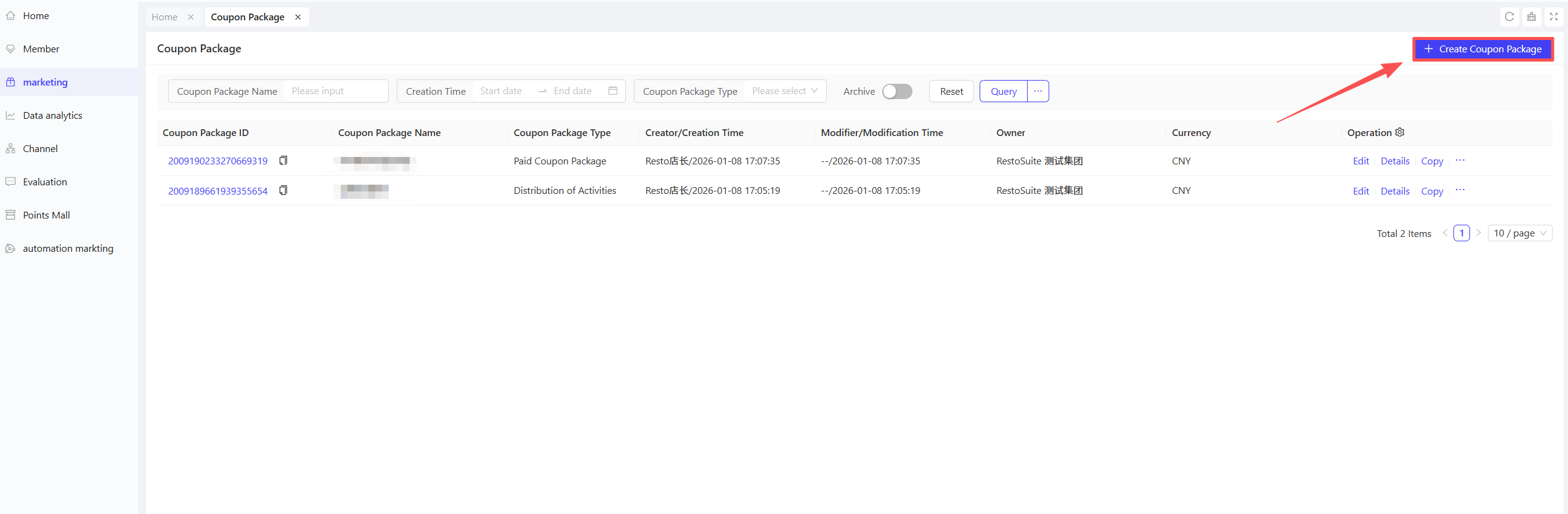
- Click the【Create Coupon Pack】button in the upper right corner of the page to navigate to the coupon pack creation page.
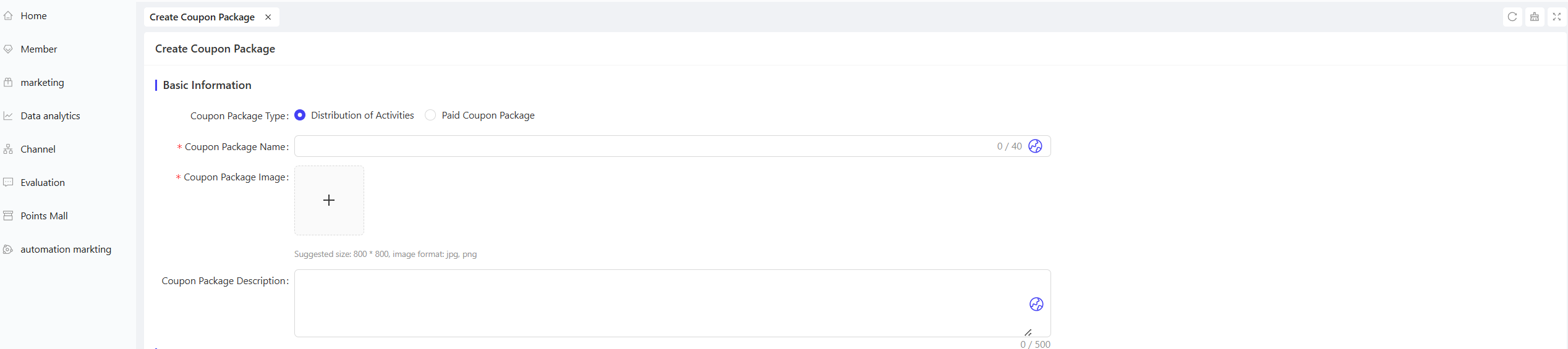
- Configure Basic Coupon Pack Information
-
In the【Coupon Pack Type】section, select the type of pack to create (choose one):
- Campaign Distribution: For packs distributed to users for free
- Paid Coupon Pack: For packs that users purchase for a fee
-
Coupon Pack Name: Enter a name for the pack (e.g., “Milk Tea Lover’s Coupon Pack”)
-
Coupon Pack Image: Upload an image of the pack
-
Coupon Pack Description: Enter a text description of the pack
STEP 4: Configure “Campaign Distribution” Type Pack (if selected)
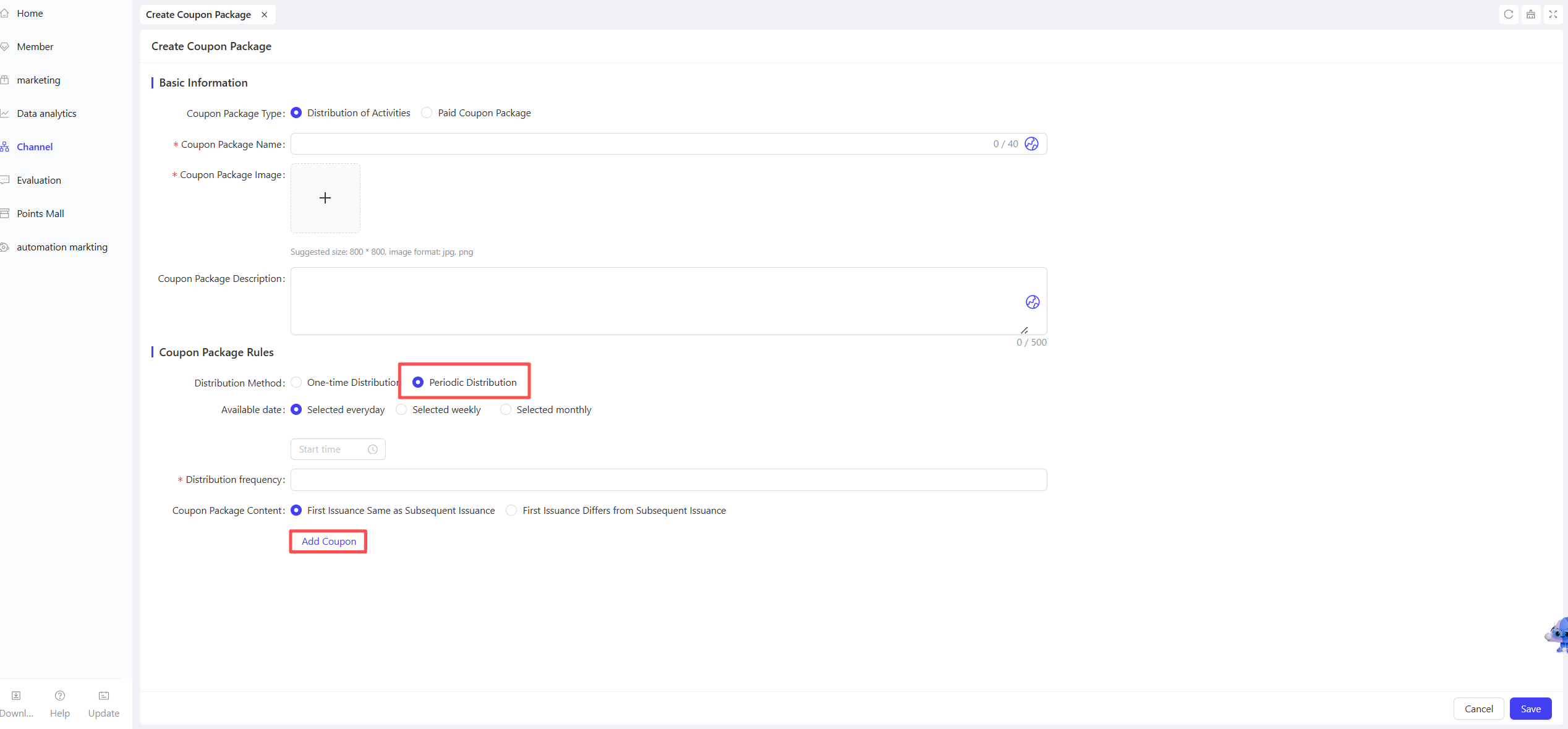
- Set Distribution Method
In【Pack Rules】→【Distribution Method】, select the distribution type (choose one):
- One-Time Distribution
- Recurring Distribution
If [One-Time Distribution] is selected:
-
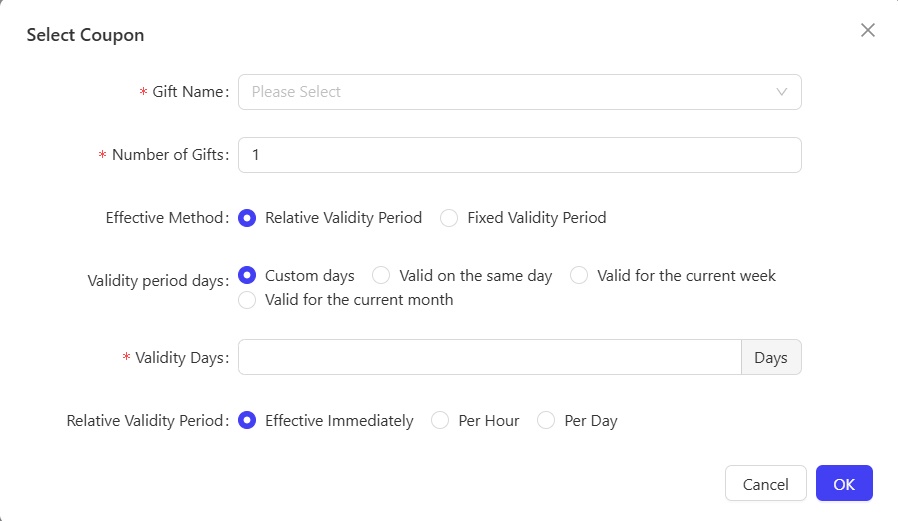
Navigate to the【Pack Content】configuration page. In the【Coupon Name】field on the 【Select Coupons】page, specify the single coupon to add.
-
Enter the【Number of Coupons】
-
Configure【Effective Method】and【Validity Period (Days)】:
- Relative Validity Period supports [Immediate Effect], [By Hour], or [By Day];
-
Confirm and submit after completing the configuration.
If [Recurring Distribution] is selected:
-
In【Pack Rules】, set the【Effective Date Type】(optional: [Daily], [Weekly], [Monthly]);
-
Enter the【Total Distribution Cycles】(specify the total number of distribution periods);
-
Configure【Pack Content】distribution rules (choose one):
- Select【First Distribution Same as Subsequent Ones】: You only need to add one set of coupon information (for scenarios where each distribution has the same content);
- Select【First Distribution Different from Subsequent Ones】: Need to set coupon information for [First Distribution] separately and [Subsequent Distributions] (including coupon name, quantity, validity rules, etc.);
-
Confirm and submit the configuration after completion.
STEP 5: Configure “Paid Coupon Pack” Type Pack (if selected)
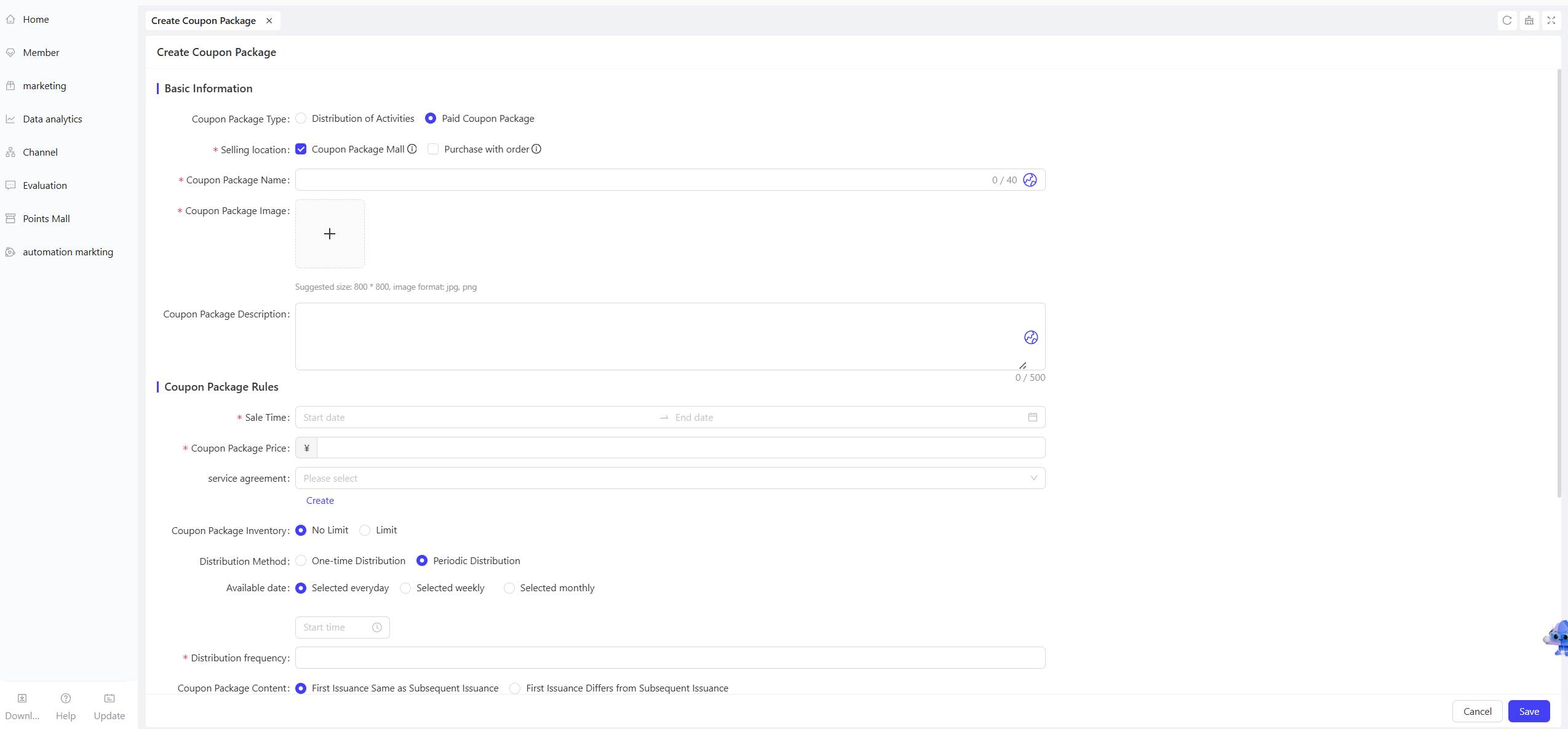
- Set Sales Channels
In the【Sales Channels】section, select the channels where the pack will be sold (multiple selections allowed; at least one must be selected):
-
Option 1: Coupon Pack Mall
-
Option 2: Purchase with Order
-
Configure Basic Sales Rules
-
Under【Pack Rules】, set the【Sales Period】(select the start and end dates for pack purchases);
-
Enter the【Coupon Pack Price】(must be greater than 0; currency consistent with the store’s currency);
-
Configure【Coupon Pack Inventory】:
- Select【Unlimited】: No need to enter additional inventory quantity;
- Select【Limited】: Enter the specific inventory quantity (users cannot place orders once the limit is reached);
-
In the【Available Stores/Organisations】section, select the stores or organisations where the pack can be purchased (supports bulk selection).
Configure Advanced Settings (Optional)
-
【Post-Purchase Redirect】: Enter a redirect URL (can bind a marketing link; users will be automatically redirected to this page after successful purchase);
-
【Automatic Refund for Expired Unused Packs】: Select whether to enable (if enabled, unused packs will be automatically refunded to users upon expiration).
-
Purchase Limits:
- 【Total Purchase Limit per User】: Set the maximum number of times a user can purchase the pack (unlimited if not set);
- 【Daily Purchase Limit per User】: Set the maximum number of times a user can purchase the pack per day (unlimited if not set);
-
Confirm and submit after completing all configurations.
STEP 6: View Pack Details and Gift Packs
- View Pack Details
- Return to the Coupon Pack List page and click the【Coupon Pack ID】of the target pack to navigate to the pack details page.
- The page displays the pack’s complete parameters (basic information, rule configurations, etc.), data statistics (issued quantity, total redeemed quantity), and related records (purchase records, gift records).
- Gift Coupon Packs (Manual Distribution Scenario)
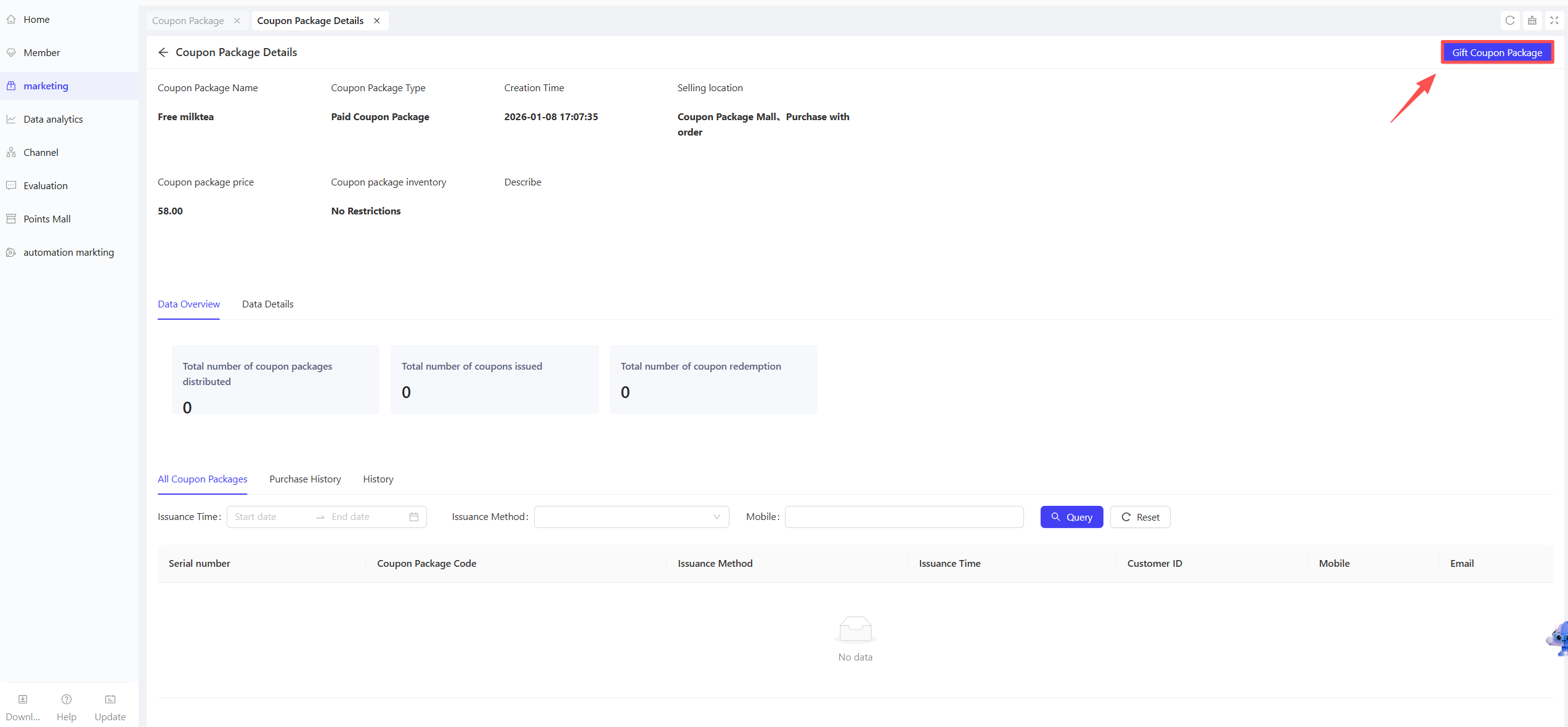
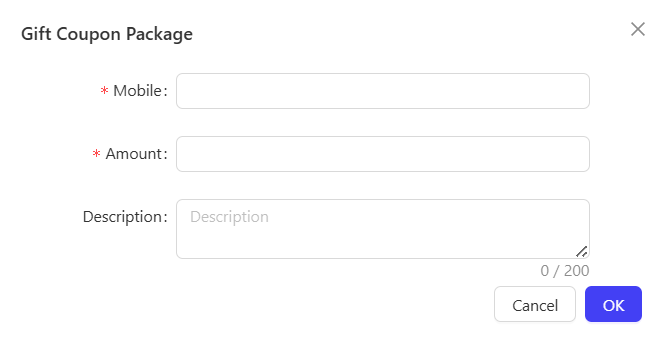
- On the pack details page, click the【Gift Coupon Pack】button in the upper right corner.
- Enter the【Member’s Phone Number】and【Gift Quantity】
- Click【OK】to distribute the specified number of packs to the target user.
3 Coupon Pack Management
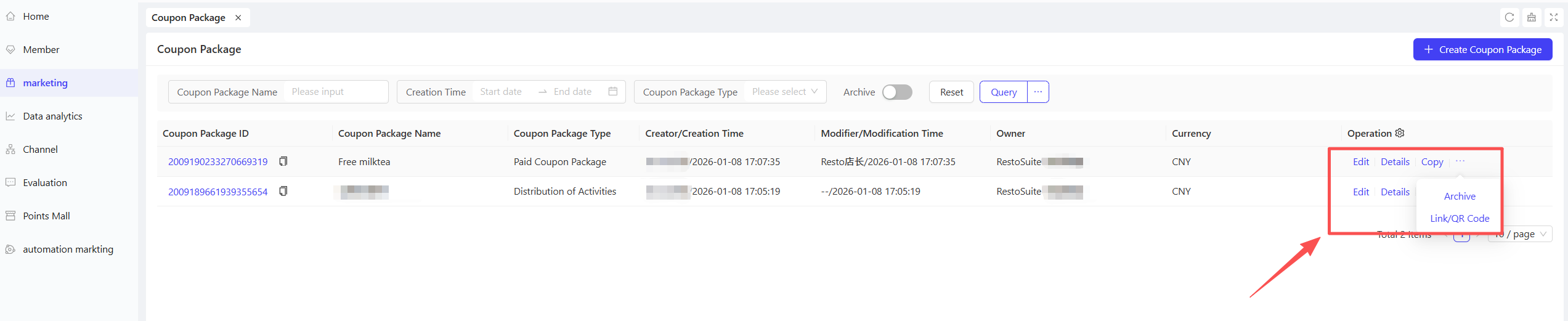
- The list operation column supports【Edit】,【View Details】, 【Copy】, and【Archive】functions
- The【Paid Coupon Pack】type additionally supports the【Configure Link/QR Code】operation.