Coupon Code Redemption
1 Module Introduction
Coupon Code Redemption is an interactive marketing tool. Users get corresponding coupons by entering the correct password on the activity page. Simple and easy to operate, this activity effectively boosts user engagement and coupon redemption rates and enhances user activity. This manual details how to set up and manage the activity on the SaaS platform, including configuration, management, page customization, and the customer-side user journey.
2 Configuration Guide
2.1 Accessing the Feature
- Log in to the SaaS platform backend
- Navigate to【Membership Marketing】>【Marketing】>【Marketing Activities】.
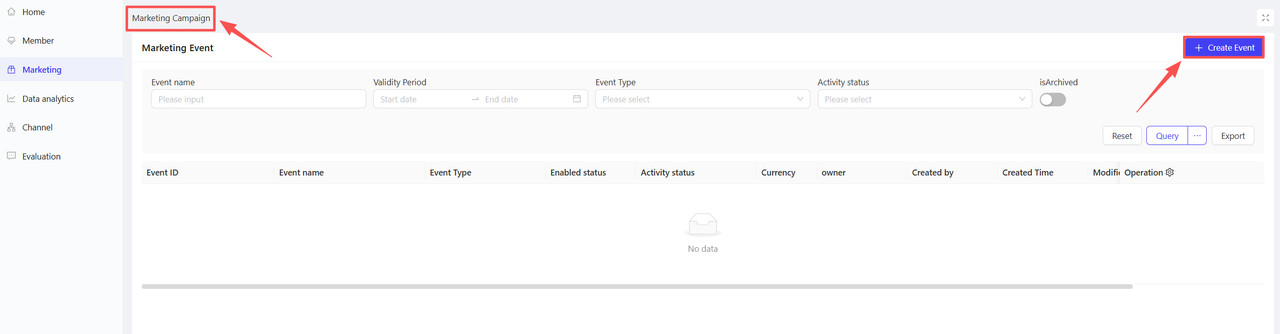
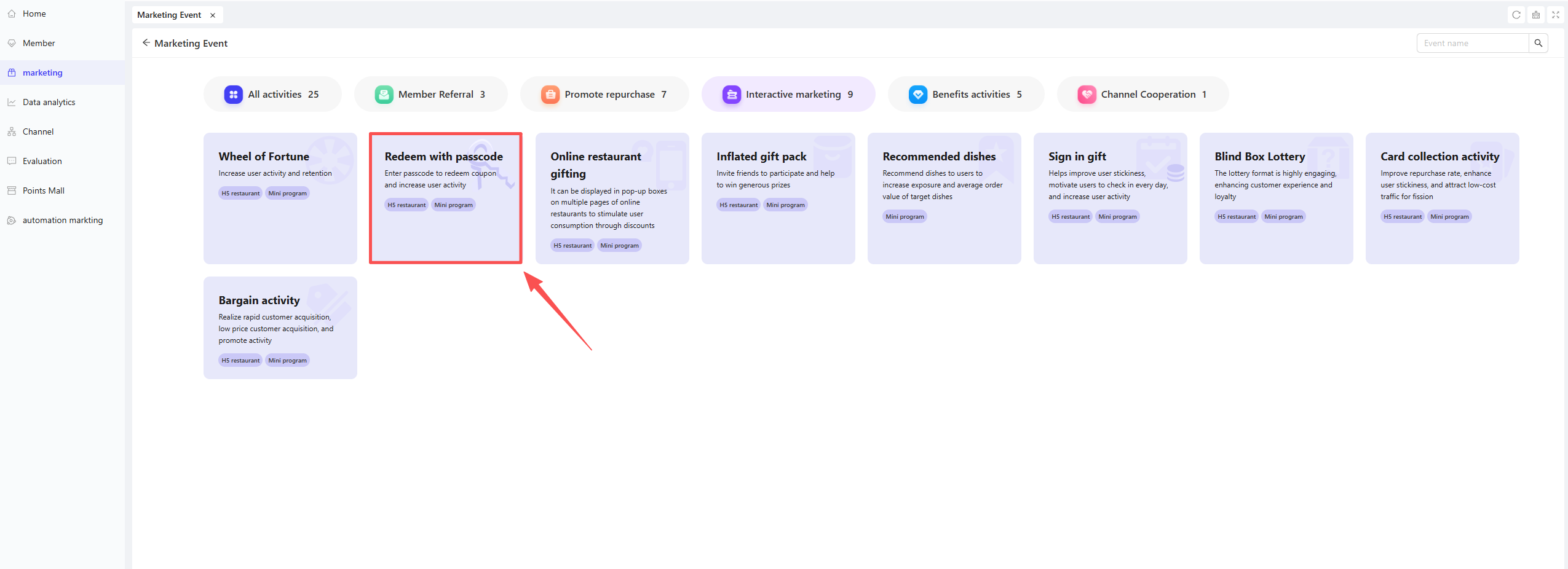
- Click【Create Activity】in the upper-right corner of the page, select the Coupon Code Redemption module.
2.2 Basic Settings
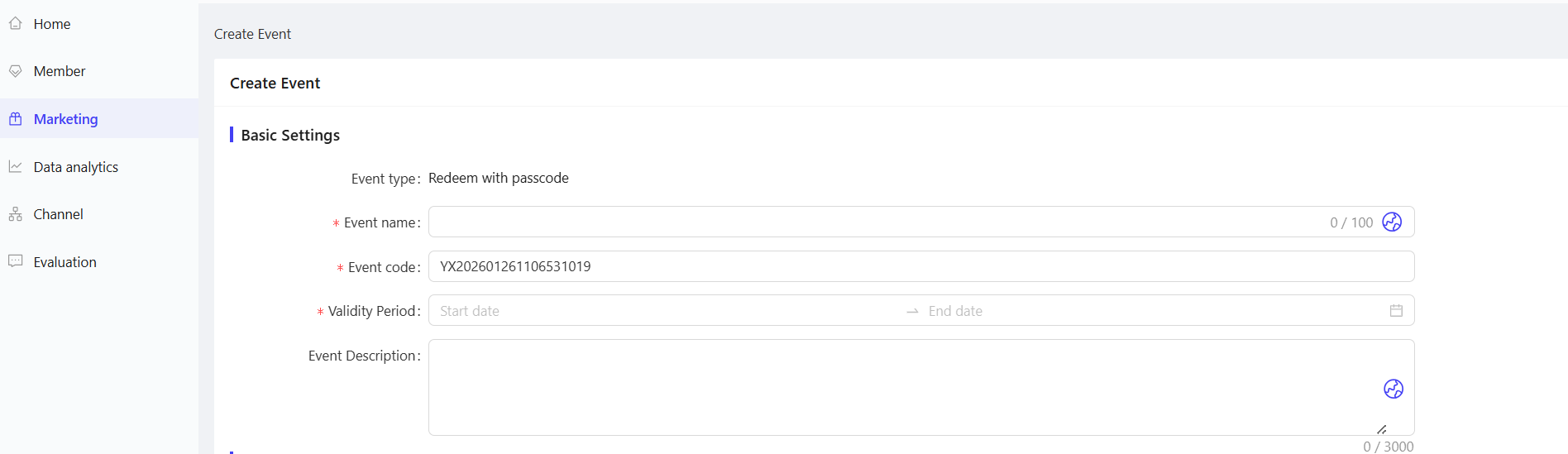
- Fill in the basic setting information
- Activity Name: Enter a name for the marketing activity for easy customer identification.
- Example: “Christmas Coupon Redemption”
- Activity Code: Assign a unique identification code to the activity for internal management and tracking purposes.
- Validity Period: Select the start and end time of the activity to ensure the activity duration is set appropriately.
- Description: Briefly describe the activity content and rules to ensure clarity.
- Activity Name: Enter a name for the marketing activity for easy customer identification.
2.3 Rule Settings
-
Prize Settings
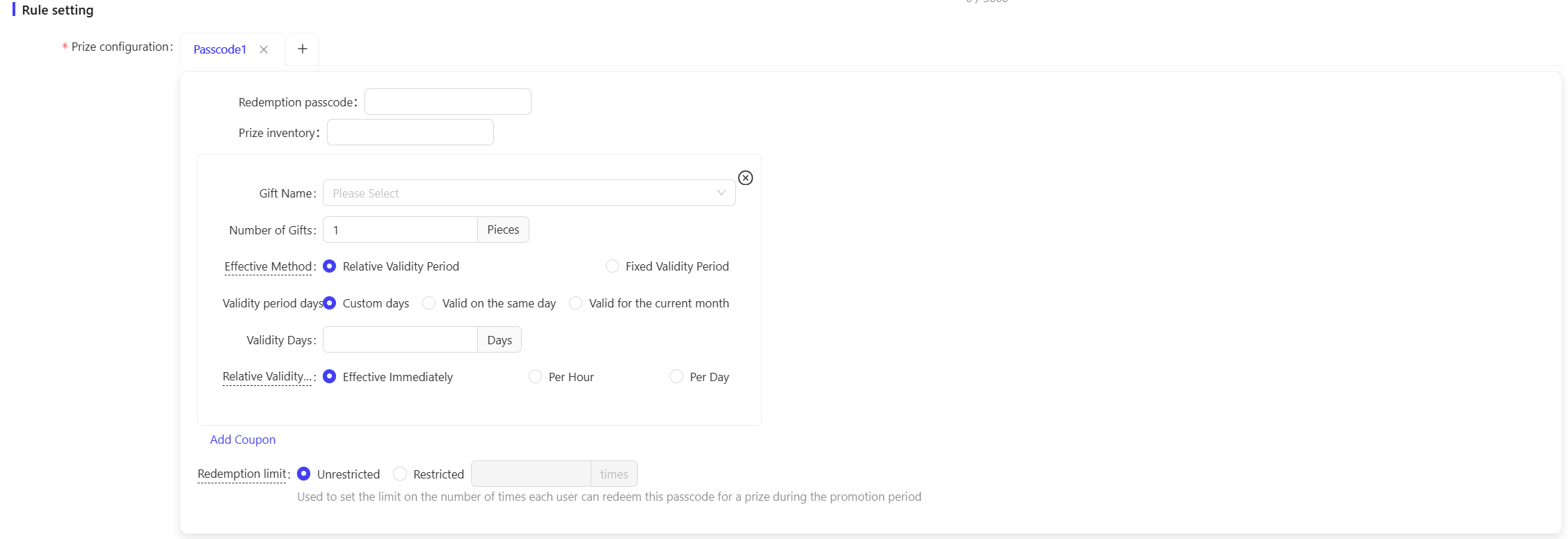
- Redemption Password: Set text passwords for users to claim prizes. A maximum of 5 passwords can be configured per activity.
- Scenario Example: Exclusive passwords can be set for different channels or member tiers, e.g., “SUMMER2026”, “CHRISTMAS2026”.
- Prize Inventory: Set the total redeemable quantity of prizes corresponding to each password.
💡
Note
Inventory can only be increased, not decreased. Please carefully set the initial quantity. It is recommended to allocate inventory in batches based on the budget to avoid over-issuance.
- Redemption Password: Set text passwords for users to claim prizes. A maximum of 5 passwords can be configured per activity.
-
Add Prizes (Coupons): Configure the coupons to be issued as prizes to enhance user appeal.
- Operation: Click the Add Coupon button, select the coupons to be issued from the coupon library, and multiple coupon combinations can be set for distribution.
-
Redemption Limit: Set the maximum number of times each user can claim gifts using the password during the activity period. You can choose to set a limit or no limit.
2.4 Advanced Settings
-
User Scope: Select the specific user scope applicable to the activity based on the following five dimensions:
- All Users: Applicable to all users.
- Membership Card Plan: Filter users based on one or multiple membership card plans.
- Membership Tier: Filter users based on different tiers under the membership card plan.
- Member Group: Filter users based on one or multiple member groups.
- Member Tag: Filter users based on one or multiple member tags (e.g., new users, existing users, etc.).
-
Total User Participation Limit: Set the maximum number of times a user can participate in the activity. You can choose to set a limit or no limit (e.g., 3 participants per user).
-
Daily User Participation Limit: Set the maximum number of times a user can participate in the activity per day. You can choose to set a limit or no limit (e.g., 1 participation per day).
-
Shareability: Configure the display content when the activity is shared on social platforms, and set whether sharing is allowed or restricted.
-
Share Title: Enter the title of the sharing page to increase promotional visibility.
-
Share Subtitle: Enter the subtitle of the sharing page to support promotional efforts.
-
Share Image: Upload a poster image to boost the click-through rate of shared content.

3 Activity Activation & Management
-
Activity Activation
- After completing the configuration, click Save, and the activity will take effect officially.
-
Activity Management & Monitoring
- View activity performance data on the activity management page, including order volume and activity participation metrics.
- Pause or adjust activity content at any time, and manually archive the activity when necessary.
4 Activity Page Decoration
- Activity Page Decoration: Click【Page Decoration】in the operation bar to enter the customization interface.
- Page Design: Modify the page background color, banner image, gift icons, calendar color, etc.
- Activate Decoration: After completing the page design, click the【Publish】button in the upper-right corner of the page to finalize the decoration.
5 User Journey (End-User Experience)
Login → Password Entry → Redemption Feedback → View Prizes
-
Login to Participate: Users must log in to participate in the activity.
-
Activity Homepage:
- Display a text box for entering the gift password.
-
Prize Distribution:
- Coupons are automatically distributed to the user’s account.
-
My Prizes: Users can view all prizes obtained in the current activity.
-
Activity Rules: Detailed activity rules are displayed at the bottom of the page.