Supply Chain
1 How to link and bind a newly added store to a Distribution Center?
- Prerequisite: The store and the Distribution Center must belong to the same organization.
- From the Group perspective, go to Supply Chain -> Profile Management -> Organization Settings. Find the Distribution Center and set its governing organization.
- Create relevant role permissions for the Distribution Center.
2 How to troubleshoot when the Supply Chain module is invisible after logging into the BO and switching to the Store perspective?
Note:
Currently, this is not controlled via module authorization, but solely through the backend permissions of the currently logged-in employee.
A: Log into the BO backend, switch to the Group perspective, go to Operation Center -> Basic Services (left menu) -> Employee Accounts. Check if the currently logged-in employee has been granted relevant Supply Chain permissions.
3 Do Transfer Orders support reverse approval ?
A: Intra-organization transfers do not support reverse approval operations. Inter-organization transfers support reverse approval.
- Intra-organization transfer
- Inter-organization transfer
4 How to use the Rs Supplier App?
-
Download:
- Android

- IOS
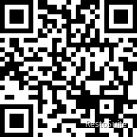
- Android
-
Login: Log in using the supplier’s phone number.
-
Operations Guide:
- Home: [Home] View total data and pending orders.
- Orders: [Orders] View order data such as [Shipped] and [Unshipped].
- Mine: [Mine] Check if the supplier information is accurate.
- Ship:
- First, select an order to [Accept].
- Click on the order details, input the [Shipping Quantity] (defaults to the ordered quantity).
- Click ship; you can cancel the shipment to modify it.
- Store Receiving Discrepancies:
- After shipping, there might be discrepancies between the store’s inspection/receiving and the shipment. Check the discrepancy orders.
- The document contains [Shipped Quantity] and [Store Received Quantity].
5 How to use the Rs Store Ordering App?
-
Download:
- Android
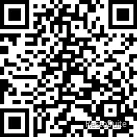
- IOS
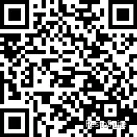
- Android
-
Login: Log in using a personal phone number.
-
Operations Guide:
- Home: [Home] You can perform business operations like ordering, receiving, returning, and inventory counting.
- Workspace: [Workspace] Set up the sorting of standard function modules.
- Mine: [Mine] Personal center information.
- Purchase Requisition:
- Select [Purchase Requisition].
- Select your required [Arrival Date].
- Select materials: select quantity, add remarks.
- Save and approve.
- Purchase Order: After the [Purchase Requisition] is approved, a [Purchase Order] is generated and dispatched to the supplier to accept.
- Receiving Document:
- After the supplier ships, there will be [Pending Receiving Documents].
- Upon arrival, perform [Inspection/Receiving]. If there is a [Discrepancy] during inspection, the data will be sent to the supplier.
- Purchase Return Order: For store [Receiving Document] [Return Operation], select the [Receiving Document], select the [Return Material Quantity], and confirm.
- Inventory Count Order:
- Add new [Inventory Count Order].
- Select [Count Type].
- Input [Counted Material Quantity].
6 How to add a new supplier?
A: Log into the BO backend, under the Group perspective, go to Supply Chain -> Supplier Management.
In the Supplier Management interface, click Add Category. After adding the supplier category, select the corresponding category and click Add in the upper right corner to add supplier information.
- Basic Information: Fields with an * are mandatory.
- Financial Information.
7 How to dispatch and cancel the dispatch of suppliers to organizations?
A: After a supplier is created under the Group, it needs to be dispatched to the corresponding organization for use, or its dispatch can be canceled.
- Path: Log into the BO backend, under the Group perspective, go to Supply Chain -> Supplier Management. Click “More” in the upper right corner -> Batch Dispatch / Cancel Dispatch.
8 How to bind a supplier to the App after creation?
A: Log into the BO backend, under the Group perspective, go to Supply Chain -> Supplier Management.
Select the corresponding supplier, click the Bind button. An invitation code will appear. Send this invitation code to the corresponding supplier.
9 How to edit supplier information?
Note:
You can modify the supplier's name, phone number, and category information. Click the Confirm button after modification.
- Path: Group Perspective -> Supply Chain -> Supplier Management -> Click the [Edit] button on the right side of the supplier you want to modify.
10 How to add materials to the Supply Chain system?
A: Materials are added by the Group and then dispatched to the corresponding stores/Distribution Centers.
- Path: Log into the BO backend, under the Group perspective, go to Supply Chain -> Profile Management -> Material Management.
Material categories are divided into three levels.
After adding the material categories, click Material Management under Profile Management, select the Level-3 category, and click Add in the upper right corner to add a new material.
- (Basic Information / Unit of Measure / Tax Rate / Inventory / Order Control / Features/More Attributes/Material Image/Material Description)
11 How to dispatch / cancel the dispatch of Supply Chain materials?
11.1 Batch Dispatch Path:
Group Perspective -> Supply Chain -> Profile Management -> Material Management -> Check the materials -> [Batch Dispatch] button.
Select the dispatch organization, and click the [Confirm] button to complete the dispatch.
11.2 Cancel Dispatch:
When a material is not used in a store and its dispatch needs to be revoked.
Path: Group Perspective -> Supply Chain -> Profile Management -> Material Management -> Check the materials -> [More] -> Batch Cancel Dispatch.
Select the organization to cancel the dispatch for, and click the [Confirm] button.
12 How to create a cost card in the Supply Chain?
STEP 1: Log into the BO backend, under the Group perspective, go to Supply Chain -> Profile Management -> Dish Cost Card.
STEP 2: In the Dish Cost Card interface, select the corresponding dimension, query the item, and click the Create Cost Card button next to it.
STEP 3: Enter the cost card creation interface (fields with an * are mandatory), and check the Auto Outbound button.
13 How to perform month-end carry-forward operations in the Supply Chain system?
STEP 1: Log into the BO backend, under the Store perspective, go to Supply Chain -> Financial Management -> Business Carry-forward.
STEP 2: Enter the Business Carry-forward operation interface and click to perform the carry-forward operation.
14 How do stores operate inbound/outbound orders in the Supply Chain system?
STEP 1: Log into the BO backend, under the Store perspective, go to Supply Chain -> Inventory Management -> Inbound/Outbound Orders.
STEP 2: In the Inbound/Outbound Order interface, click the Add button in the upper right corner, and select the corresponding inbound/outbound order type.
STEP 3: On the add document page, select the document date, select the storage location to operate, select the materials, and input the corresponding quantities. After checking, click Save / Save & Approve.
15 How to add delivery rules to the Supply Chain system?
A: Delivery rules specify who delivers the materials when a store places an order. This is set by the Distribution Center.
Settings Path: Log into the BO backend, under the Distribution Center perspective, go to Supply Chain -> Delivery Management -> Delivery Rules. Enter the Delivery Rules page and click Add Rule in the upper right corner.
- Click Add Rule and select the corresponding delivery type:
- Direct Delivery: The store orders from the supplier, and the supplier delivers directly to the store.
- Direct Shipment: The store orders from the DC; the supplier delivers to the DC, or delivers directly to the store.
- Unified Delivery: The store orders from the DC, and the DC handles unified delivery to the store.
16 How to add a quotation to the Supply Chain system?
Glossary
A quotation refers to the price when a store or Distribution Center orders from a supplier.
- Path: Distribution Center Perspective -> Purchasing Management -> Supplier Quotation -> [Add].
- Click the Add button, input the supplier information, organization information, and corresponding material information.
17 How to add a delivery agreement price to the Supply Chain system?
A: The delivery agreement price refers to the price at which the Distribution Center ships to the store.
- Path: Log into the BO backend, under the Distribution Center perspective, go to Supply Chain -> Delivery Management -> Delivery Agreement Price.
- Enter the Delivery Agreement Price interface, click the Add Rule button in the upper right corner to enter the settings interface. Input the rule name, select the applicable organization, and select the material information.
18 How to perform inventory counting in the Supply Chain system?
STEP 1: Log into the BO backend, select the corresponding perspective -> Supply Chain -> Inventory Management -> Inventory Count Order.
STEP 2: Enter the inventory count interface, click Add Inventory Count Order in the upper right corner. Select the corresponding count type and the storage location to be counted, check the units to be counted, and click Next to enter the counting interface.
STEP 3: In the counting interface, input the corresponding quantities and click Save to generate the counting document.
19 How to set the opening balance for a storage location in the Supply Chain system?
Glossary
The opening balance refers to the initial entry of inventory data for a storage location when first using the SCM system or when a location is newly created.
- Path: Log into the BO backend, under the corresponding perspective -> Supply Chain -> Inventory Management -> Storage Location Opening Balance.
- Enter the interface, select the corresponding storage location, and click Add Opening Balance.
- In the interface, you can input the quantities and click Confirm Opening Balance, or directly Confirm Opening Balance.
20 How to handle the error “Please select the price tax rate for material (XXX)” when ordering on the Supply Chain APP?
- Solution: There is an issue with the material settings. You need to check whether the tax rate is set for the reported material.
21 Does the Distribution Center support negative inventory?
A: Yes. If you need to use negative inventory, you need to contact R&D to apply for configuration.
22 Can cost cards be imported under the Group for materials created by the Store?
A: No. Cost cards must be imported from the same perspective where the material was created.
23 How to recalculate material costs in the Supply Chain system?
A: Log into the BO backend, under the corresponding perspective -> Supply Chain -> Inventory Management -> Inventory Cost Recalculation. Select the corresponding material and date, then click the Recalculate button.
24 Suppliers bound to the Supplier Collaboration App are not allowed to cancel shipments after dispatching.
25 Do Transfer Outbound Orders support reverse approval?
A: Check the relationship between the two warehouses on the transfer document.
- If it is an inter-organization transfer, reverse approval operations are allowed.
- If it is an intra-organization transfer, reverse approval is not supported.
26 How to troubleshoot when material items do not display during inventory counting?
STEP 1: Check material settings: whether it is enabled, whether counting is allowed, and whether the counting frequency matches the inventory count order.
STEP 2: Check if the material has been dispatched to the counting warehouse’s organization. Check path: Group/DC Perspective -> Supply Chain -> Profile Management -> Material Management -> Manage Organization Materials. If unsure, you can directly operate the dispatch. (Supply Chain Material Dispatch)
STEP 3: If a newly added material has not had any inbound/outbound business, it will not display in the count; you can directly operate a purchase or inbound receipt.
STEP 4: Once the above is confirmed correctly, click [Add materials with book balance but uncounted] in the inventory count order to display them.
27 Does material waste/write-off in the Supply Chain system support writing off via substitute items?
A: Writing off via substitute items is not supported.
28 When setting up a recipe in the Supply Chain system, is it allowed to set the material’s yield rate over 100%?
A: No, it only supports settings below 100%.
29 Does the cost card in the Supply Chain system support batch modification of the yield rate?
A: Batch modification operations are not supported.
30 Do recipes in the Supply Chain system support batch modification of the yield rate?
A: Batch modification operations are not supported.
31 Will setting a supplier agreement price after purchasing but before shipping update the purchase order price?
A: Used in conjunction with the SCM parameter “Purchase Document Price Acquisition Method”, this parameter will re-fetch the price upon shipment. However, the price on the original purchase order will not be updated.
- Description:
- By Purchase Date: Fetch price based on the purchase date in the purchase document (order, requisition).
- By Shipping Date: Fetch price based on the “Expected Arrival Date” in the purchase document. When the Distribution Center ships, if the “Shipping Date” is different from the expected date, the price is re-fetched.
32 How to query which associated products of a specific material were sold within a day?
A: Currently, this report query is not supported. You need to manually check the products associated with the cost card, and then view the sales detail report for comparison.
33 How is the store ordering price calculated under unified delivery mode when there is no delivery agreement price?
Pricing Logic:
- When a store applies for a purchase order, the pricing sequence is: Reference Selling Price -> Latest Payable Price -> Last Inbound Price -> Average Inventory Cost.
- When the Distribution Center ships, the outbound price is based on the current cost price of the material. When reconciling the inbound/outbound detail report, the cost price in the report should be the primary basis for reconciliation. The price column in the inbound/outbound detail report displays the upstream document price.
34 How to sort the subcategories of material categories in Supply Chain Management?
A: Modifying the order of subcategories within a category is not supported.
35 When viewing supply chain inventory documents, what generally causes the inconsistency between the document date and the approval date of a store purchase order?
A: The document date of a purchase order can be filled in manually. This usually happens because the store manually modified the document date when entering the document.
36 What is the difference between the “Waste Statistics Report” and the “Dish Waste Statistics Report” in supply chain reports?
- Waste Statistics Report (Material): Calculates data based on the material dimension.
- Dish Waste Statistics Report: Calculates data based on the dish dimension.
37 For the “Sort by Material (To Store)” print template, can identical material categories be merged for display?
A: Merging is not supported.
38 When performing dish waste/write-off in the supply chain, if the original cost card material is insufficient, can’t substitute materials be used?
A: Currently, dish waste/write-off does not support substitute materials.
39 For automatic outbound, if one item has no inventory, will all materials fail to be issued outbound during the automatic day-end closing?
- By default, negative inventory is not allowed. As long as one material is out of stock, the outbound operation cannot be completed. You just need to replenish the inventory and re-operate the outbound process.
- If the negative inventory parameter is enabled, outbound operations can proceed even without inventory, resulting in a negative material balance.
- Enable the allowed negative inventory parameter: Group Perspective -> Supply Chain -> System Settings -> Parameter Settings -> Store Settings -> Search: Negative Inventory.
40 Enable the allowed negative inventory parameter
- Path: Group Perspective -> Supply Chain -> System Settings -> Parameter Settings -> Store Settings / Distribution Center Settings -> Search: Negative Inventory.