Tax Rate & Surcharge Management
1 Introduction
Welcome to the Tax Rate and Surcharge Management Module Guide. This article will help you master compliant configuration of various tax rates, learn to set rules for surcharges like service fees and packaging fees, and understand group- and store-level management permissions and operational workflows. It supports the group’s unified, standardized control of taxation and additional charges, while enabling stores to implement configurations consistently.
2 Tax Rates
2.1 Overview
Tax rate configuration is the core function of the tax management module in the Resto. It is used to establish compliant tax calculation benchmarks for restaurant products (such as meals and beverages) in accordance with the tax laws and regulations of various countries/regions. With this function, merchants can configure multiple tax rate models, including proportional tax and fixed-amount tax, to support diverse business scenarios. These scenarios include differentiated tax calculation for dine-in/takeout services, as well as tax calculation for delivery orders based on the destination.
2.2 Glossary
2.2.1 Core Tax Types
-
Primary Tax: The fundamental tax item for calculating taxes on catering products/services, with statutory mandatory requirements. All products must be associated with a primary tax (tax-exempt products need to be configured with a 0.00% tax rate).
🔋Application Scenario Example:
The 7.25% state-level sales tax in California, USA, is a primary tax and a core item for store tax filings.
-
Secondary Tax: An additional tax levied on top of the primary tax, with rules formulated by local tax jurisdictions and a tax base consistent with that of the primary tax.
🔋Application Scenario Example:
Los Angeles, USA, adds a 2.25% municipal secondary tax to the 7.25% California state tax, resulting in a combined 9.5% tax rate.
-
Goods and Services Tax (GST): A globally adopted multi-stage VAT, calculated on the value added at each supply chain stage, with deductions allowed for taxes paid on inputs. Applies to all products by default, with exemptions for certain essential goods.
🔋Application Scenario Example:
India’s catering industry levies an 18% GST; restaurants can deduct GST paid on ingredient purchases from GST collected on dish sales. Canada exempts children’s meals from GST.
-
Business License Tax: A privilege tax/license tax exclusive to the catering industry, categorized as a behavioral tax. It is calculated based on turnover and must be levied prior to the calculation of other taxes and fees.
🔋Application Scenario Example:
The city of Omaha, Nebraska, USA, levies a 2.5% business license tax on restaurant sales revenue. Restaurants must first calculate this tax based on turnover, then compute the state tax and municipal tax based on the remaining amount.
-
Proportional Tax: A tax method where the tax amount is a fixed percentage of sales revenue, fluctuating in direct proportion to sales volume. It is the most common tax type for primary and secondary taxes in catering.
🔋Application Scenario Example:
New York State, USA, levies an 8% proportional sales tax on catering. A $200 dining bill incurs a $16 tax charge.
-
Fixed-Amount Tax: A flat-rate tax levied per unit of product or service, with the tax amount unchanged regardless of the product price. Often applied as an additional tax alongside proportional taxes.
🔋Application Scenario Example:
Japan charges a fixed 10-yen packaging tax per takeout order, whether the meal costs 100 yen or 1,000 yen.
-
Alcohol Tax: A special consumption tax exclusive to alcoholic beverages, calculated via specific, ad valorem, or compound tax methods, with high tax rates enforced globally.
🔋Application Scenario Example:
The USA classifies alcohol into beer, wine, and distilled spirits, with tiered alcohol taxes based on unit prices. Restaurants must account for this tax separately when selling alcoholic drinks.
-
Takeout Tax: A special tax or differentiated tax rule for takeout scenarios, typically with lower rates than dine-in. In some regions, only delivery service fees are taxed.
🔋Application Scenario Example:
France applies a 5.5% VAT rate to catering takeout, compared to 10% for dine-in service.
-
Dine-in Tax: A special tax or differentiated rate for on-site consumption, usually higher than takeout/self-pickup rates. Service fees and tips may be included in the tax base in some regions.
🔋Application Scenario Example:
New York State, USA, adds an extra 3% catering tax to dine-in orders, while takeout orders only incur the 8% basic sales tax. Some restaurants include a 10% service fee in the dine-in bill, which is subject to tax.
2.2.2 Tax Calculation Rules
-
Tax-Inclusive Pricing: The tax amount is embedded in the product’s listed price, so no separate tax line item is required on the bill.
🔋Application Scenario Example:
A bar lists a beer at $5, which includes all applicable sales tax. Customers pay the $5 listed price directly, ideal for quick transactions like casual drinks.
-
Tax-Exclusive Pricing: The tax amount is calculated separately from the product’s listed price and must be shown as a distinct line item on the bill. Total Price = Listed Price + Tax Amount.
🔋Application Scenario Example:
A restaurant lists a steak at $30 with a 7% sales tax. The final bill shows $30 for the steak and $2.10 in tax, totalling $32.10. This is the standard tax calculation method in the global catering industry.
-
Minimum Taxable Amount: The minimum spending threshold set by tax authorities; transactions below this amount are tax-exempt.
🔋Application Scenario Example:
Ontario, Canada, requires a 13% HST on catering purchases of 5 CAD or more. A 4 CAD coffee order is tax-free, while a 6 CAD coffee order is taxed at the full 13% rate.
-
Maximum Tax Limit: The ceiling for tax payable on a single transaction; no additional tax is levied on amounts that would push the tax over this limit.
🔋Application Scenario Example:
Wasilla, Alaska, USA, imposes a 2% catering tax, capped at 10 USD per transaction. A 1,000 USD catering order is only taxed 10 USD, instead of the calculated 20 USD.
-
Destination-Based Tax Calculation: For delivery orders, tax is applied based on the customer’s delivery address rather than the restaurant’s location, suitable for cross-regional deliveries.
🔋Application Scenario Example:
A restaurant based in Seattle delivers an order to Portland. If Seattle’s tax rate is 10% and Portland’s is 8%, the order is taxed at Portland’s 8% rate. The system auto-matches the correct rate using the customer’s zip code.
2.3 Application of Tax Rates in Countries and Regions
The table below summarizes the tax rate collection and application rules for the catering industry in major countries/regions around the world, for business reference only. However, you must strictly comply with the current laws, regulations, and tax policies of the region where you operate to ensure the compliance of your business activities.
2.3.1 Asia Region
Country/Region | Core Tax Types | Basic Tax Rate | Tax Rate Application Rules (Takeout/Special Categories) | Tax Calculation and Stacking Rules |
|---|---|---|---|---|
China | VAT |
|
|
|
Hong Kong, China | Profits Tax | No VAT |
| Only Profits Tax is paid based on profits; no turnover tax stacking |
Japan | Consumption Tax (JCT) |
|
|
|
South Korea | VAT | Standard rate: 10% |
| No additional taxes on VAT; Corporate Income Tax (22%) is calculated independently |
Singapore | GST |
|
| Input GST can be deducted; Corporate Income Tax is calculated independently of GST |
Thailand | VAT |
|
| VAT is paid on imported ingredients based on CIF value; no stacking with sales VAT |
Malaysia | Sales and Service Tax (SST) |
|
| Service Tax and Sales Tax are calculated separately; no stacking |
Philippines | VAT |
|
| No additional taxes on VAT; Corporate Income Tax (20%) is calculated independently |
Indonesia | VAT | Standard rate: 11% |
| VAT is stacked with 2% local tax |
Saudi Arabia | VAT | Standard rate: 15% |
|
|
United Arab Emirates | VAT | Standard rate: 5% |
| No additional taxes; Corporate Income Tax (9%) is calculated independently |
2.3.2 Europe Region
Country/Region | Core Tax Types | Basic Tax Rate | Tax Rate Application Rules (Takeout/Special Categories) | Tax Calculation and Stacking Rules |
|---|---|---|---|---|
United Kingdom | VAT |
|
| No additional taxes; Corporate Income Tax (25%) is calculated independently |
Germany | VAT |
|
| Tax rates are calculated separately for different categories; no stacking |
France | VAT |
|
| No additional taxes; Corporate Income Tax (25%) is calculated independently |
Spain | VAT |
|
| Tax rates are calculated separately for different categories; no stacking |
Portugal | VAT |
|
| If a meal set contains high-tax-rate categories, the entire order is taxed at 23% |
Italy | VAT |
|
| No additional taxes; Corporate Income Tax (24%) is calculated independently |
Netherlands | VAT |
|
| Tax rates are calculated separately for different categories; no stacking |
Czech Republic | VAT |
|
| VAT is stacked with 1%-5% local tax |
2.3.3 North America Region
Country/Region | Core Tax Types | Basic Tax Rate | Tax Rate Application Rules (Takeout/Special Categories) | Tax Calculation and Stacking Rules |
|---|---|---|---|---|
United States | Sales Tax |
|
|
|
Canada | GST |
| December 2024 - February 2025:
|
|
2.3.4 Oceania Region
Country/Region | Core Tax Types | Basic Tax Rate | Tax Rate Application Rules (Takeout/Special Categories) | Tax Calculation and Stacking Rules |
|---|---|---|---|---|
Australia | GST | Standard rate: 10% |
| Input GST can be deducted; Corporate Income Tax (30%) is calculated independently |
New Zealand | GST | Standard rate: 15% |
| No additional taxes on GST; Corporate Income Tax (28%) is calculated independently |
2.4 Adding a Tax Rate
STEP 1: From the Group Perspective, go to【Item Management】>【Charges】>【Tax Rates】page.
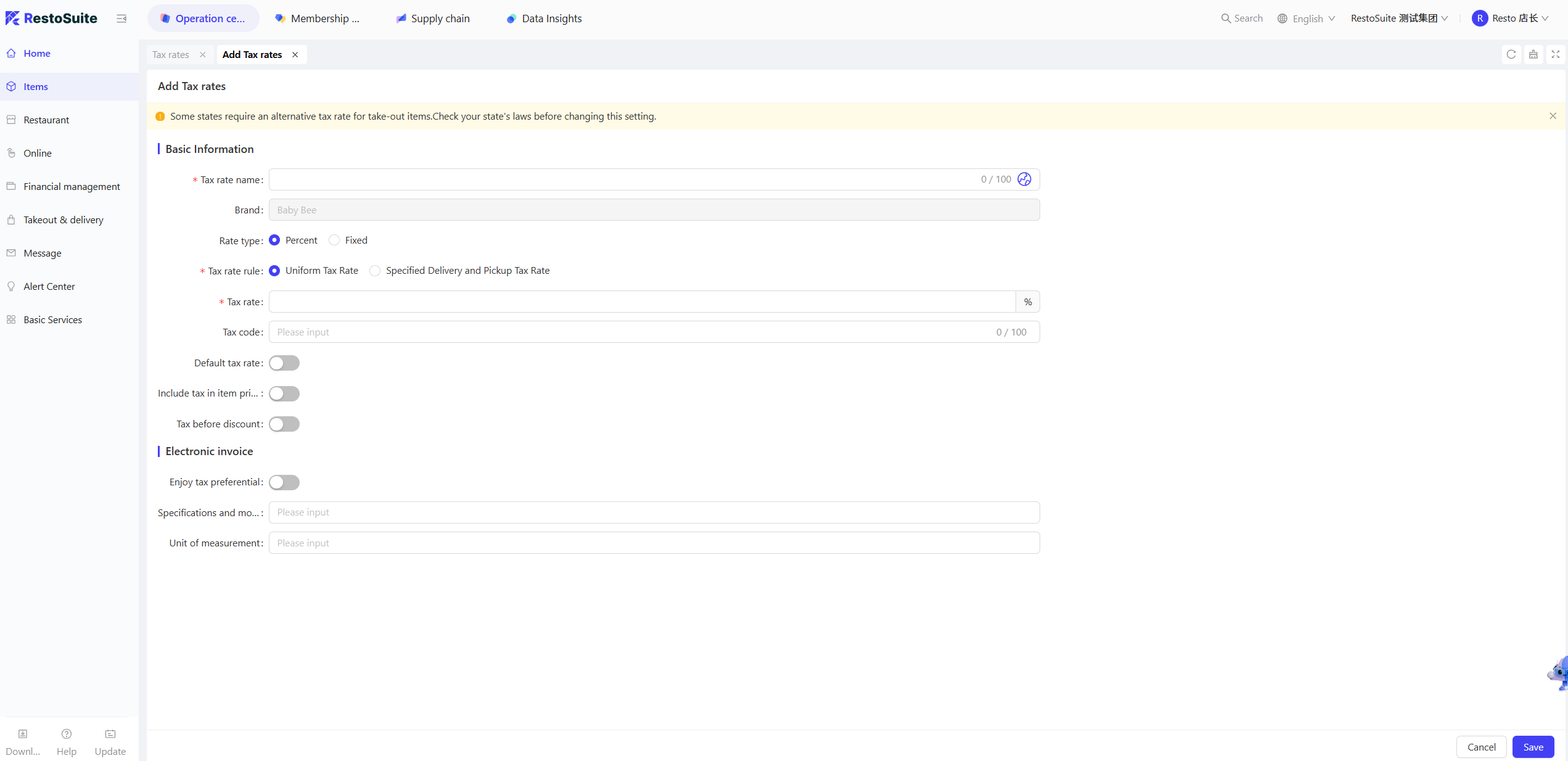
STEP 2: Click【Add】in the upper right corner of the page, and configure the following basic information on the New Tax Rate page:
Configuration Item | Configuration Description |
|---|---|
Tax Rate Name | Mandatory. Enter the tax rate name, e.g., "Alcohol Tax", "GST". |
Tax Rate Type | Select one of the following two types based on tax classification:
|
Tax Rate Rule | Optional:
|
Tax Rate |
|
Tax Code | Optional. Enter the corresponding code verified by the tax authority, which must be consistent with the enterprise's actual tax type. |
Default Tax Rate | Controlled by toggle switch: When enabled, this tax rate will be the default tax rate for all stores under the group and will be automatically matched when creating new products/orders |
Include Item Tax Rate | Controlled by toggle switch: When enabled, tax calculation will stack with the tax rate already configured for the item |
Calculate Tax Before Discount | Controlled by toggle switch: When enabled, tax is calculated based on the original price of the order before discount; when disabled, tax is calculated based on the actual payment amount after discount |
Then configure the following e-invoice information:
Configuration Item | Configuration Description |
|---|---|
Eligible for Tax Incentives | Toggle switch. If enabled, you need to select the incentive type: Tax-Exempt / Non-Taxable / Ordinary Zero-Rate |
Specification Model | Optional. Enter the service/item specification matching the tax rate, e.g., "Dine-in Catering Service", "Bottled Baijiu 500ml" |
Unit of Measurement | Optional. Enter the unit corresponding to tax calculation, e.g., "Yuan" (tax calculated as a percentage of amount), "Bottle" (tax calculated per item unit) |
STEP 3: After completing the configuration, click【Save】on the page to finalize the setup. The configured tax rate can be selected when adding items and item categories, and will be synchronized to stores when distributed.
3 Surcharges
3.1 Overview
Surcharges are group-unified value-added fees for catering stores, excluding item prices and taxes. Covering service fees, tableware fees, packaging fees and credit card handling fees, they support differentiated settings by order channel and dining method. Once configured, they sync to and take effect in stores, helping merchants standardize extra charge management.
3.2 Glossary
Surcharge: In catering scenarios, it refers to an additional fee charged to provide customers with value-added services or cover specific costs. It is independently accounted for from item prices and taxes, and its collection rules can be flexibly configured according to service types and consumption scenarios.
Surcharge Types
Surcharge and Service Fee: The fee is applied when the entire order meets certain rules. It can be executed automatically or selected manually, and does not need to be associated with items.
Packaging Fee: It needs to be associated with specified items. If the customer chooses a designated dining method (e.g., self-pickup), a fixed fee is charged.
Credit Card Handling Fee: A fixed fee charged when the customer uses a credit card for payment.
3.3 Adding a Surcharge
STEP 1: From the Group Perspective, navigate to【Item Management】>【Charges】>【Surcharge】page.
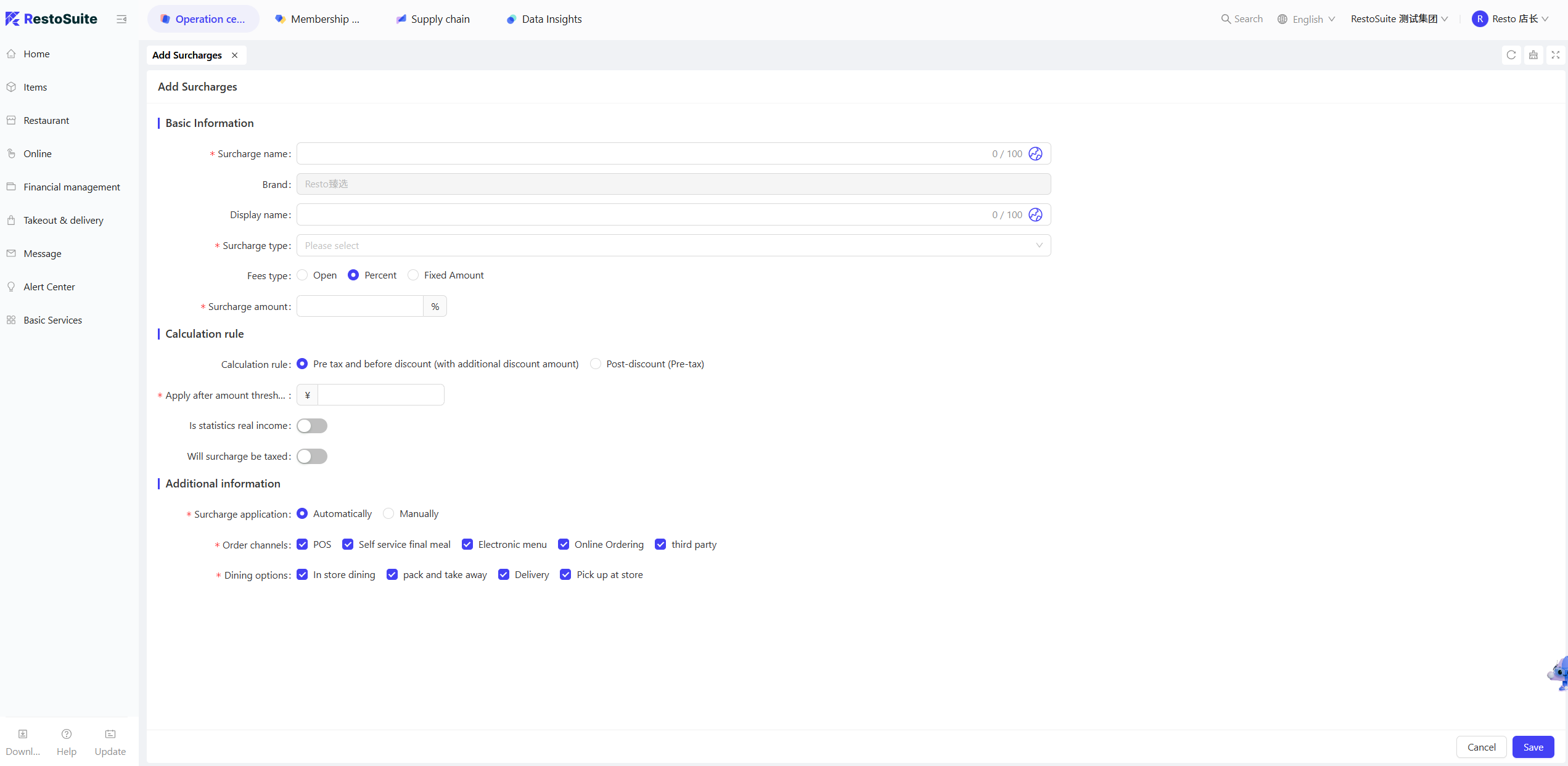
STEP 2: Click【Add】in the upper right corner of the page, and configure the following basic information on the New Surcharge page:
Configuration Item | Configuration Description |
|---|---|
Surcharge Name | Mandatory. Enter the internal identification name of the surcharge for easy management and distinction, e.g., "Private Room Service Fee", "Disposable Tableware Fee", "Packaging Fee" |
Display Name | Mandatory. Enter the name displayed to customers, which should be concise and easy to understand, e.g., "Private Room Service Fee", "Tableware Usage Fee" |
Surcharge Type | Select the type of surcharge:
|
Fee Type & Surcharge amount | Mandatory. Select the fee calculation method:
|
Fee Rule | Optional:
|
Calculation Rule | Select one of the following three calculation rules:
|
Enforce When Amount Reaches Threshold | Optional. Set the minimum order amount threshold; the surcharge is only collected when the order amount meets or exceeds the threshold. |
Included in Actual Revenue | Controlled by toggle switch: When enabled, the surcharge amount is included in the store's actual turnover; when disabled, it is only treated as a collected-on-behalf fee. |
Surcharge Taxable | Controlled by toggle switch: When enabled, the surcharge amount is taxed according to the configured tax rate, and you need to select the tax rate name; when disabled, the surcharge is a post-tax amount. |
Then configure the following additional information:
Configuration Item | Configuration Description |
|---|---|
Surcharge Application | Optional: Auto-Execute or Manually |
Order Channel | Multiple selection allowed. Select the order channels where the surcharge takes effect, e.g., POS, Online Ordering, etc. |
Dining Method | Multiple selection allowed. Select the dining methods where the surcharge takes effect, e.g., "Dine-In", "Takeaway". |
STEP 3: After completing the configuration, click【Save】on the page to finalize the setup.