Membership Benefits
1 Module Definition
The Member Benefits Module provides an integrated solution for benefit management, configuration, and distribution. It aims to address key pain points in member operations, increase member repurchase rates, average order value (AOV), and brand loyalty, while establishing a competitive advantage through platform-exclusive member benefits.
2 Function Configuration
2.1 Benefit Management
2.1.1 Overview
The Benefit Management module allows for the creation, configuration, and management of exclusive member benefits. Businesses can set up diversified benefits for different member tiers and types to enhance member loyalty and consumption experience.
2.1.2 Create New Benefit
Access Path:
【Membership Marketing】>【Members】>【Member Benefits】>【Benefit Management】
Function Description
- Benefit Type Configuration Guide
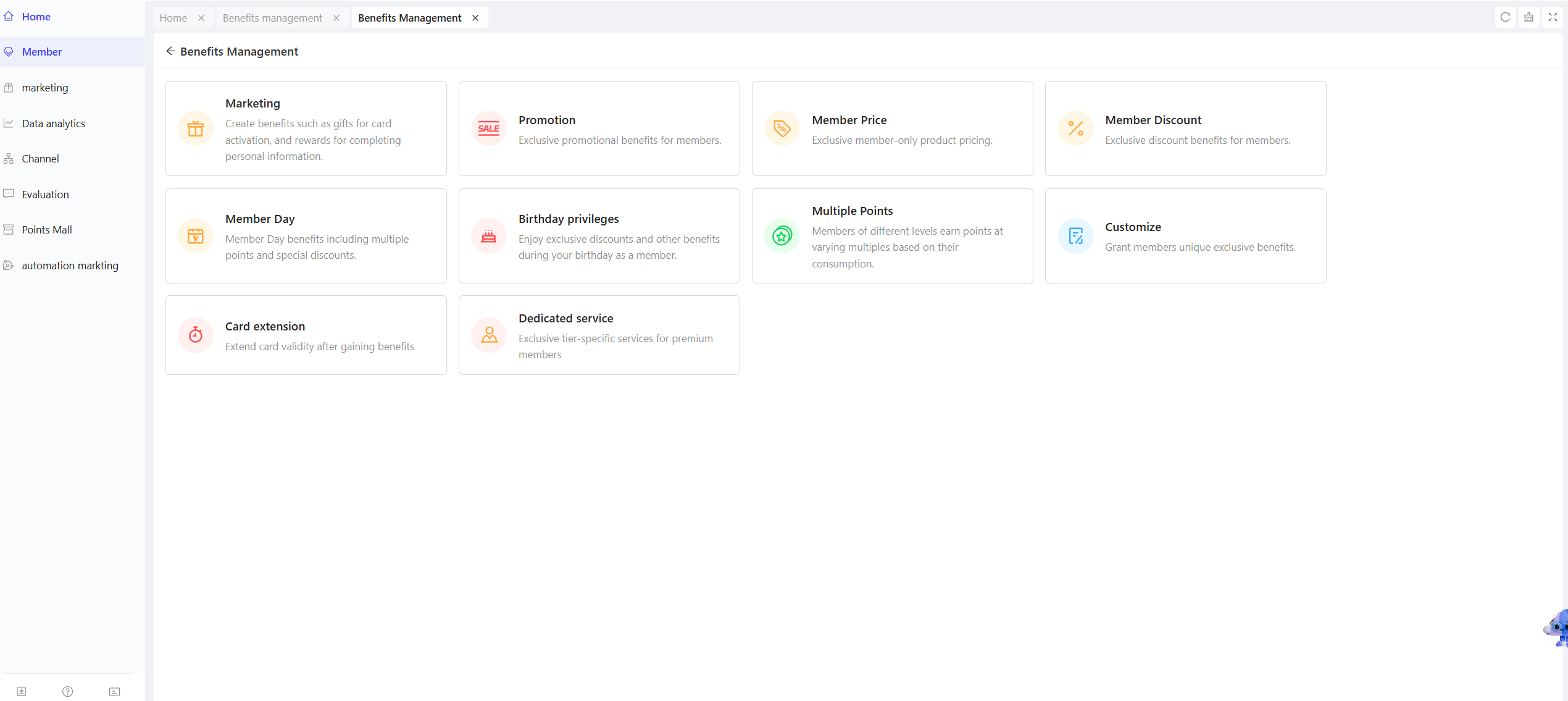
- Marketing Benefits: Configure marketing-focused benefits (e.g., check-in rewards, new card activation gifts) to attract member participation and increase engagement.
- Field Configuration:
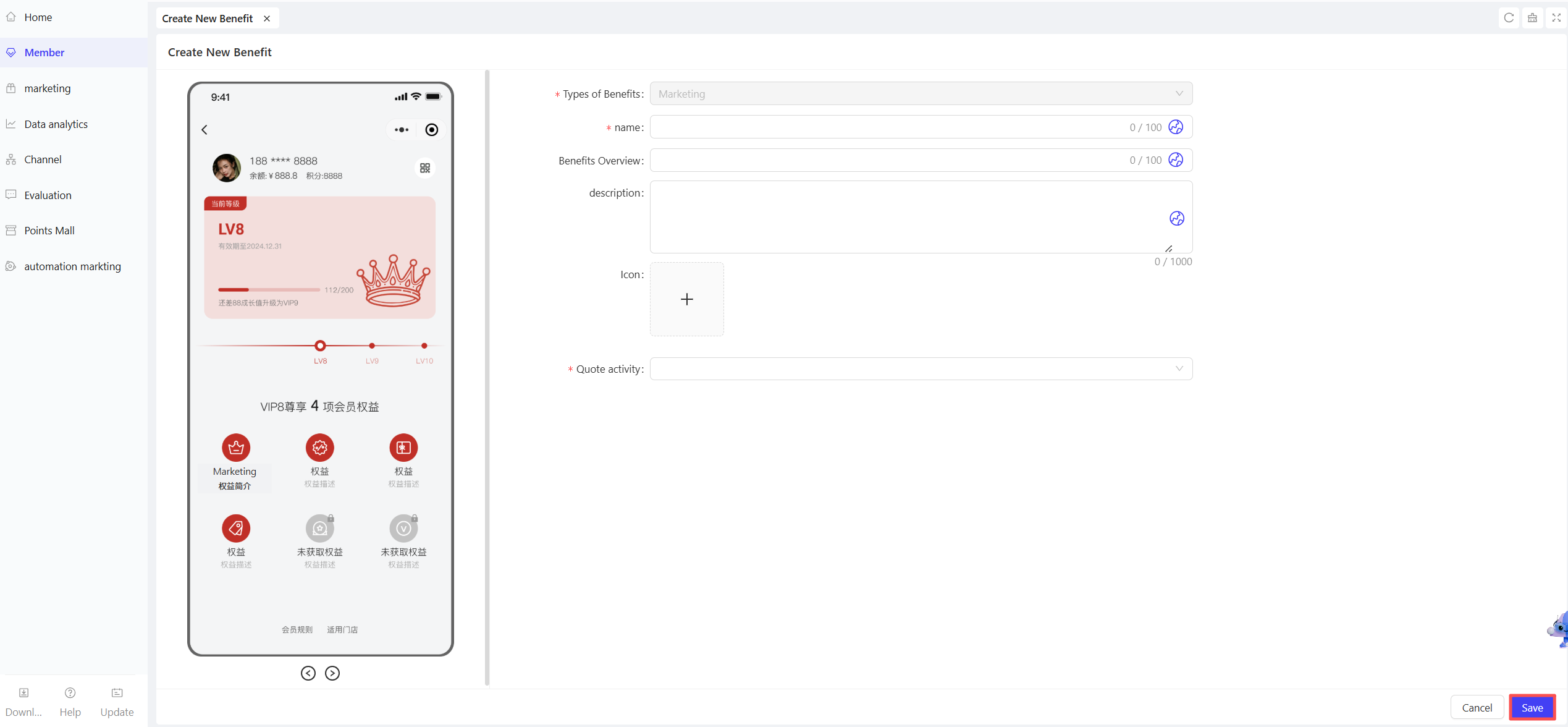
- Benefit Name: Enter a name reflecting the core of the marketing benefit (e.g., “Daily Check-in Rewards”).
- Benefit Brief: Concisely describe the benefit (e.g., “Earn rewards with consecutive check-ins”).
- Description: Detail rules and participation methods (e.g., “Members earn points for daily check-ins; 7 consecutive check-ins unlock extra discount vouchers”).
- Icon: Upload an icon related to the benefit.
- Associated Campaign: Select the linked marketing campaign (e.g., “7-Day Check-in Voucher Campaign”).
- Promotional Benefits: Configure exclusive promotional offers for members.
- Field Configuration:
- Benefit Name: Enter a name reflecting the promotional nature (e.g., “Member-Exclusive Rebate”).
- Benefit Brief: Briefly introduce the promotion type (e.g., “Instant rebate on qualifying purchases”).
- Description: Specify rebate amounts and applicable products (e.g., “20% off for single purchases over $100; excludes sale items”).
- Icon: Upload a promotion-related icon.
- Associated Campaign: Link to the corresponding promotional campaign.
💡
Note:
When creating a promotional campaign in the Marketing module, check the【Member-Exclusive Benefit】option in Advanced Settings to enable association here.
- Applicable Card Plans/Tiers: Select eligible member card plans or tiers (e.g., “Silver Tier and Above”).
- Member Pricing: Set exclusive product pricing for members to enjoy discounted rates on selected items.
- Field Configuration:
- Benefit Name: Enter a name for the member pricing benefit (e.g., “Member-Only Pricing”).
- Benefit Brief: Concisely describe the benefit (e.g., “Exclusive discounts on selected products for members”).
- Description: Detail applicable products and discount margins (e.g., “Selected products available at exclusive rates below market price”).
- Icon: Upload an icon representing member pricing.
- Applicable Channels: Select eligible consumption channels (POS/ONLINE).
- Applicable Card Plans/Tiers: Select eligible member card plans or tiers (e.g., “Silver Tier and Above”).
- Restriction Rules:
- Invalid if prepaid balance < [Amount]: Disable the benefit if the member’s prepaid balance is below a specified amount (e.g., $50).
- Invalid if prepaid balance < Outstanding Amount: Disable the benefit if the member’s prepaid balance is less than the current unpaid amount.
- Invalid if prepaid balance < Discounted Outstanding Amount: Disable the benefit if the member’s prepaid balance is less than the unpaid amount after discounts.
- Available items/categories: Select product restrictions (No Exclusions/Exclude Products/Exclude Categories).
- Member Discounts: Configure percentage-based discounts for members on eligible purchases.
- Field Configuration:
- Benefit Name: Enter a name reflecting the discount (e.g., “Member-Exclusive 20% Off”).
- Benefit Brief: Briefly state the discount rate (e.g., “20% off for members”).
- Description: Detail applicable scope and exclusions (e.g., “20% off regular-priced items; excludes sale products”).
- Icon: Upload a discount-related icon.
- Discount Percentage: Enter the discount rate (e.g., “20” for 20% off, equivalent to 80% of the original price).
- Applicable Card Plans/Tiers: Select eligible member card plans or tiers (e.g., “Gold Tier Members”).
- Restriction Rules: Same as Member Pricing configuration.
- Member Day: Set exclusive benefit days (weekly/monthly) where members enjoy special offers.
- Field Configuration:
- Benefit Name: Enter a name for the member day benefit (e.g., “Friday Member Day”).
- Benefit Brief: Briefly describe the members’ day and offers (e.g., “Multiple perks every Friday for members”).
- Description: Detail member day benefits (e.g., “Double points on Friday purchases + extra 10% off selected items”).
- Icon: Upload a member day-related icon.
- Effective Dates: Select weekly/monthly frequency and specific dates (e.g., “Fridays” for weekly).
- Effective Time: Choose All Day/Unified Time (e.g., 10:00-22:00)/Custom Time per Date.
- Applicable Card Tiers: Select eligible tiers; add tier-specific perks (e.g., “All tiers qualify; Platinum members get an extra 20% off”).
- Restriction Rules: Same as above.
- Available items/categories: Same as above.
- Birthday Privileges: Configure exclusive benefits for members on or around their birthdays (e.g., gifts, discounts).
- Field Configuration:
- Benefit Name: Enter a name for the birthday benefit (e.g., “Member Birthday Rewards”).
- Benefit Brief: Briefly describe the birthday perks (e.g., “Exclusive gifts for your birthday”).
- Description: Detail benefits and validity period (e.g., “30% off on your birthday + free birthday cake voucher + double points all birthday week”).
- Icon: Upload a birthday-related icon.
- Effective Dates: Select Birthday Only/Birthday Week (Calendar Week)/Birthday Month.
- Applicable Card Tiers: Select eligible tiers; add tier-specific perks (e.g., “Silver members get 20% off; Gold+ members get 30% off + gift”).
- Restriction Rules: Same as above.
- Available items/categories: Same as above.
- Multiplier Points: Set enhanced point accumulation rates to incentivize member spending.
- Field Configuration:
- Benefit Name: Enter a name for the multiplier points benefit (e.g., “Double Points Benefit”).
- Benefit Brief: Briefly state the point multiplier (e.g., “Earn double points on purchases”).
- Description: Detail applicable scenarios and timeframes (e.g., “Double points on holiday purchases”).
- Icon: Upload a points-related icon.
- Point Multiplier: Configure the points multiplier (e.g., “2” for double points).
- Card Extension: Configure benefits to extend member card validity periods.
- Field Configuration:
- Benefit Name: Enter a name for the card extension benefit (e.g., “Member Card Validity Extension”).
- Benefit Brief: Briefly describe the extension offer (e.g., “Extend your card validity with qualifying spending”).
- Description: Detail extension conditions and duration (e.g., “30-day validity extension for annual spending over $1,000”).
- Icon: Upload a card-related icon.
- Validity Extension Period: Set the number of days to extend (e.g., “30 days”).
1. Exclusive Services: Offer premium services to select members to enhance perceived value.💡
Note
Only applicable to cards with【Relative Validity Period】; not valid for【Permanent Validity】cards.
- Field Configuration:
- Benefit Name: Enter a name for the exclusive service (e.g., “Platinum Member Concierge Service”).
- Benefit Brief: Briefly describe the service type (e.g., “One-on-one concierge service for Platinum members”).
- Description: Detail service offerings (e.g., “Dedicated customer support, priority delivery, and free in-store drinks for Platinum members”).
- Icon: Upload a service-related icon.
- Detail Images: Upload images showcasing the service (e.g., concierge interface, free drinks).
- Applicable Card Plans/Tiers: Select eligible card plans or tiers (e.g., “Platinum Tier Members”).
- Custom Benefits: Allow businesses to configure personalised benefits based on specific needs.
- Field Configuration:
- Benefit Name: Enter a name for the custom benefit (e.g., “Tailored Exclusive Benefit”).
- Benefit Brief: Briefly introduce the custom benefit (e.g., “Personalized perks for selected members”).
- Description: Detail custom rules and offerings (per business requirements).
- Icon: Upload a custom icon.
- Applicable Card Plans/Tiers: Select eligible card plans or tiers (e.g., “Silver Tier and Above”).
Operation Steps & Diagrams
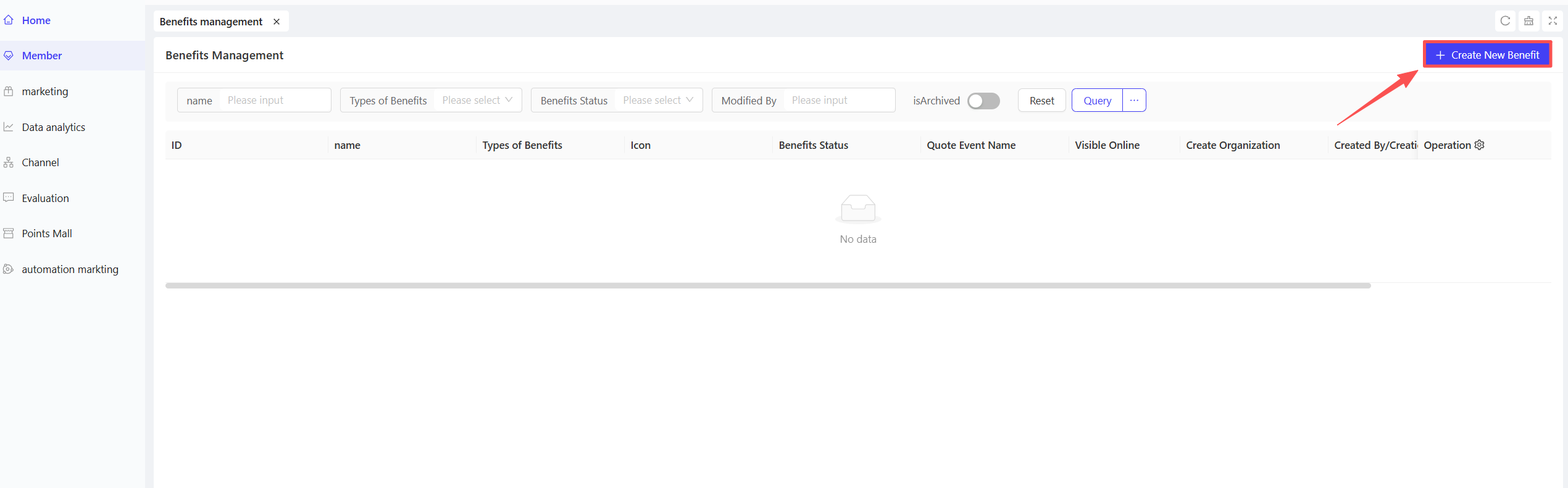
STEP 1: On the Benefit Management page, click【Create New Benefit】in the top-right corner.
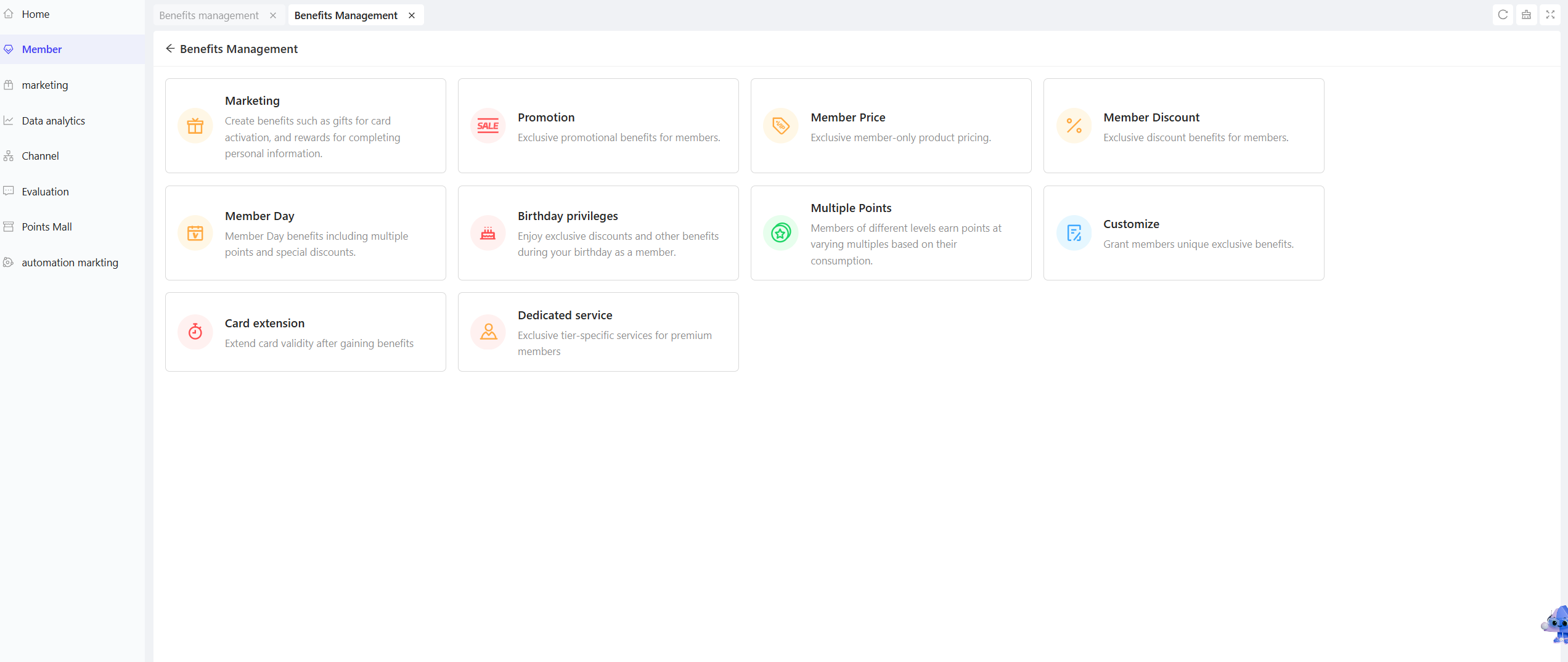
STEP 2: Select the desired benefit type.
STEP 3: Fill in the configuration fields for the selected benefit type and click【Save】.
2.1.3 Benefit Management
Access Path:
【Membership Marketing】>【Members】>【Member Benefits】>【Benefit Management】
Function Description
- Overview: Centrally manage created member benefits, including search, edit, and deactivation, to ensure benefits are accurately and effectively delivered to members.
- Operation Guide:
- Search Benefits: Enter keywords in “Benefit Name”, select a type from “Benefit Type”, choose a status from “Benefit Status”, and enter an operator name in “Operator”. Click [Search] to filter results; click [Reset] to clear filters.
- Edit Benefits: Find the benefit to modify and click [Edit] to adjust configuration fields, then save changes.
- Deactivate Benefits: Click [Deactivate] for benefits not currently needed; members will no longer access deactivated benefits.
Operation Steps & Diagrams
STEP 1: View created benefits in the list; use the search bar to find specific benefits and click 【Edit】or【Deactivate】.

2.2 Paid Benefit Packages
2.2.1 Create Benefit Package
Access Path:
【Membership Marketing】>【Members】>【Member Benefits】>【Paid Benefit Packages】
Function Description
- Overview: Bundle multiple member benefits into paid packages with customized sales rules. Members can purchase these packages to access exclusive perks, enriching benefit options while creating new revenue streams for businesses.
- Operation Guide:
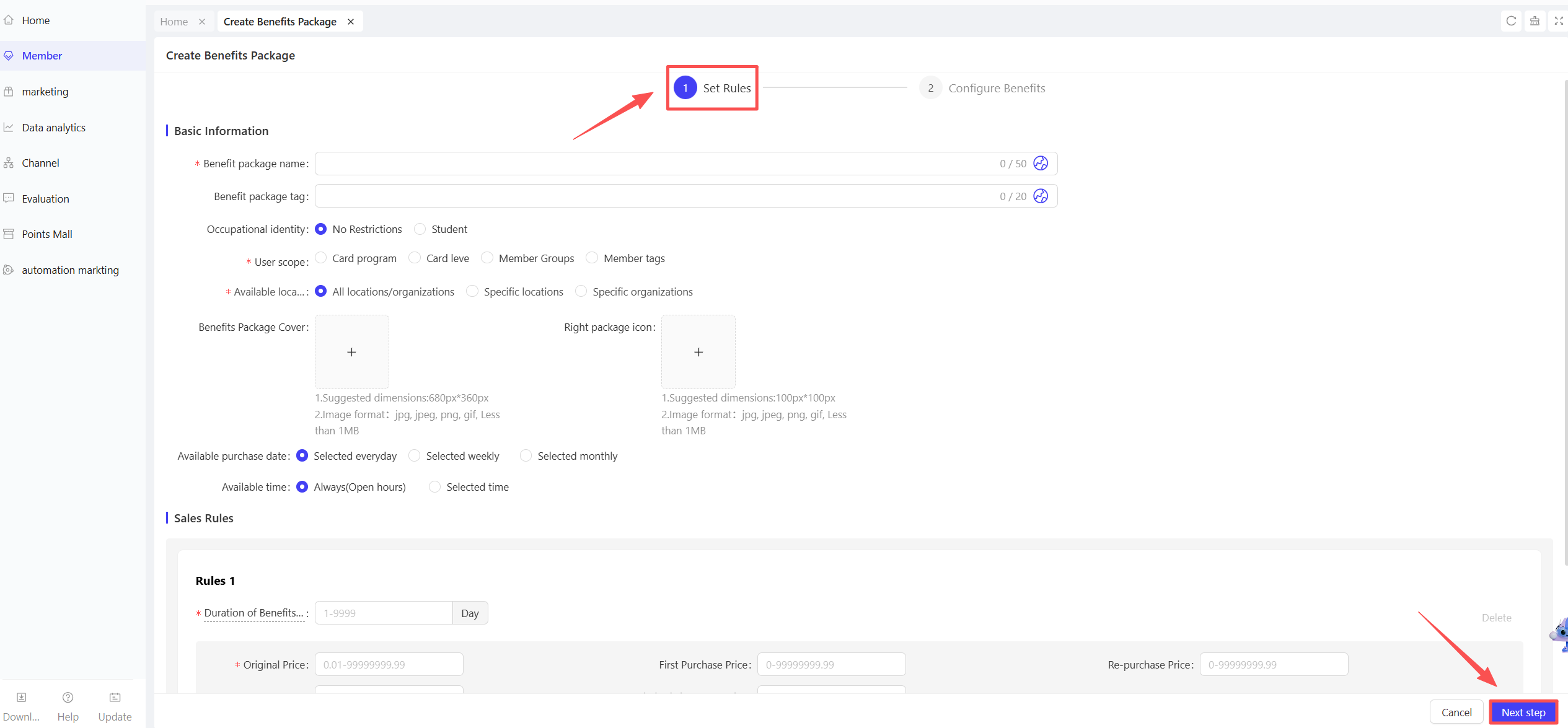
- Set Rules: Configure package rules and sales terms.
- Basic Information:
- Package Name: Enter a name reflecting the package’s value (e.g., “Premium Member Benefit Package”).
- Package Tag: Add categories for easy identification (e.g., “High-End”, “Quarterly”).
- User Scope: Define eligible members by card plan/tier, member group, or tag.
- Package Cover/Icon: Upload images to showcase the package.
- Purchase Period: Set available purchase dates (daily/weekly/monthly) and select specific dates (e.g., “Fridays” for weekly, “1st, 15th, Last Day” for monthly).
- Effective Time: Configure when the package takes effect after purchase:
- For daily purchase periods: Select All Day or custom time.
- For weekly/monthly purchase periods: Select All Day/Unified Time (e.g., 10:00-22:00)/Custom Time per Date.
- Sales Rules: Set up to 5 sales rules for the package:
- Package Duration: Define the package’s validity period (e.g., “90 days”).
- Pricing Rules:
- Original Price: Set the standard price (e.g., “$199”).
- First Purchase Price: Set a discounted price for first-time buyers (e.g., “$159”).
- Repeat Purchase Price: Set the price for subsequent purchases (e.g., “$179”).
- Early Renewal Price: Set a discounted price for early renewals (e.g., “$169”).
- Limited-Time Promotional Price: Set a special price for specific periods (e.g., “$139 during October 1-7, 2025”).
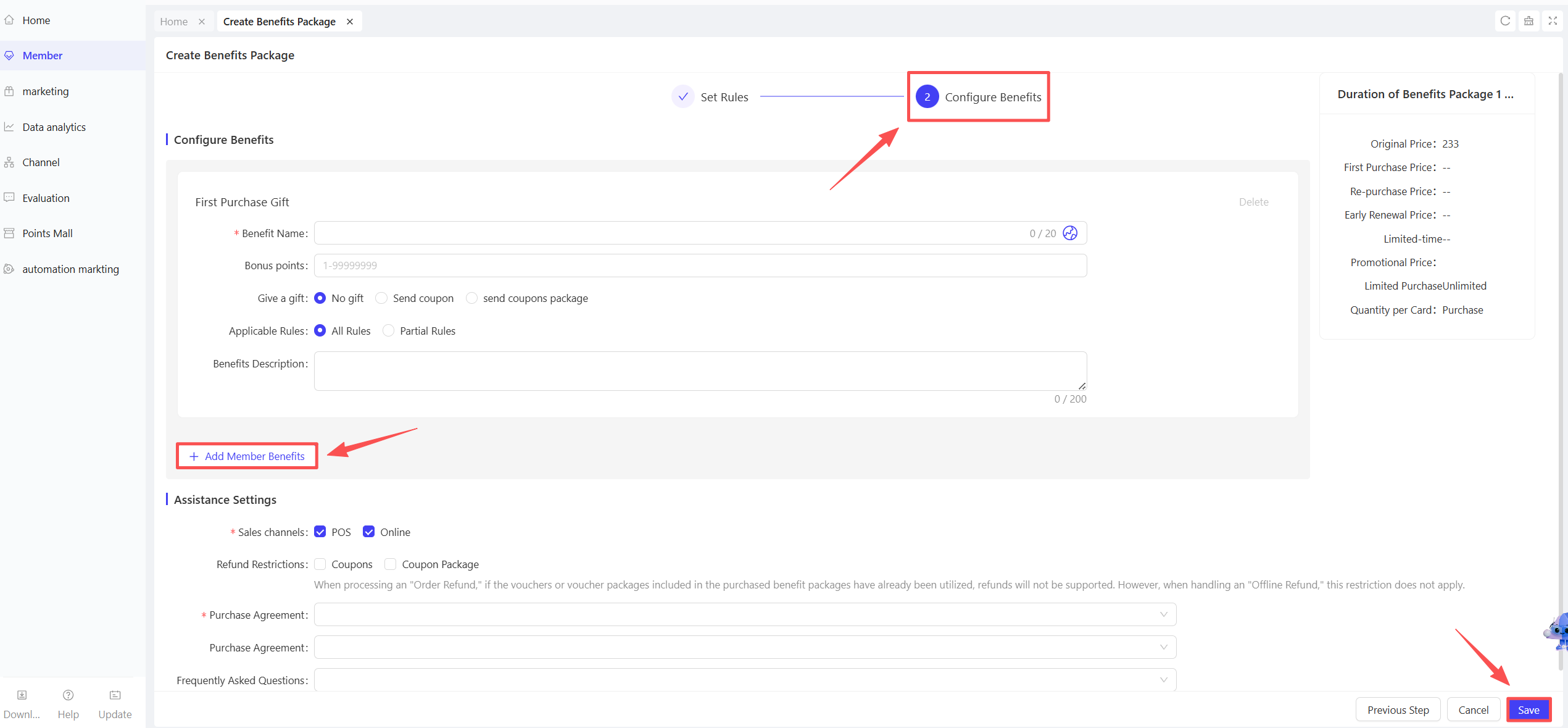
- Configure Benefits: Select perks included in the package (9 types available):
- First Purchase Gift:
- Benefit Name: Enter a name (e.g., “First Purchase Points Bonus”).
- Bonus Points: Configure points awarded (e.g., “500 points”).
- Gift: Select gift type (No Gift/Voucher/Voucher Package) (e.g., “1 coffee voucher”).
- Applicable Rules: Choose All Rules/Selected Rules.
- Benefit Description: Detail the gift (e.g., “Earn 500 points and 1 coffee voucher with your first ‘Premium Member Benefit Package’ purchase”).
- Repeat Purchase Gift:
- Benefit Name: Enter a name (e.g., “Repeat Purchase Voucher Package”).
- Bonus Points: Configure points awarded (e.g., “300 points”).
- Gift: Select gift type (No Gift/Voucher/Voucher Package) (e.g., “1 coffee voucher”).
- Applicable Rules: Choose All Rules/Selected Rules.
- Benefit Description: Detail the gift (e.g., “Earn 300 points and 1 coffee voucher with subsequent ‘Premium Member Benefit Package’ purchases”).
- Early Renewal Gift:
- Benefit Name: Enter a name (e.g., “Early Renewal Concierge Service”).
- Bonus Points: Configure points awarded (e.g., “400 points”).
- Gift: Select gift type (No Gift/Voucher/Voucher Package) (e.g., “1 concierge service session”).
- Applicable Rules: Choose All Rules/Selected Rules.
- Distribution Rules: Select Immediate Distribution After Early Renewal/Distribution When Renewed Package Takes Effect.
💡
Note
Benefits from early renewal take effect after the current package expires; mid-term changes do not affect existing benefits.
- Benefit Description: Detail the gift (e.g., “Earn 400 points and 1 concierge service session with early renewal of the ‘Premium Member Benefit Package’”).
- Member Pricing: Select from existing member pricing benefits (e.g., “Exclusive pricing on selected products”) and choose Applicable Rules.
- Member Discounts: Select from existing member discount benefits (e.g., “10% off store-wide”) and choose Applicable Rules.
- Multiplier Points: Select from existing multiplier points benefits (e.g., “Double points”) and choose Applicable Rules.
- Promotions: Select from existing promotional benefits (e.g., “$20 off $100”) and choose Applicable Rules.
- Tier Upgrade: Set the member tier awarded (e.g., “Silver Tier”) and choose Applicable Rules.
- Card Extension: Select from existing card extension benefits (e.g., “30-day validity extension”) and choose Applicable Rules.
- Auxiliary Settings:
- Sales Channels: Select eligible channels (POS/ONLINE).
- Refund Restrictions: Restrict refunds for used vouchers/voucher packages.
💡
Note
Used vouchers/voucher packages are non-refundable for【Order Refunds】; no restrictions for 【Offline Refunds】.
- Purchase Agreement: Select a pre-configured purchase agreement.
- Terms of Use: Select a pre-configured terms of use agreement.
- FAQ: Select a pre-configured FAQ agreement.
Operation Steps & Diagrams
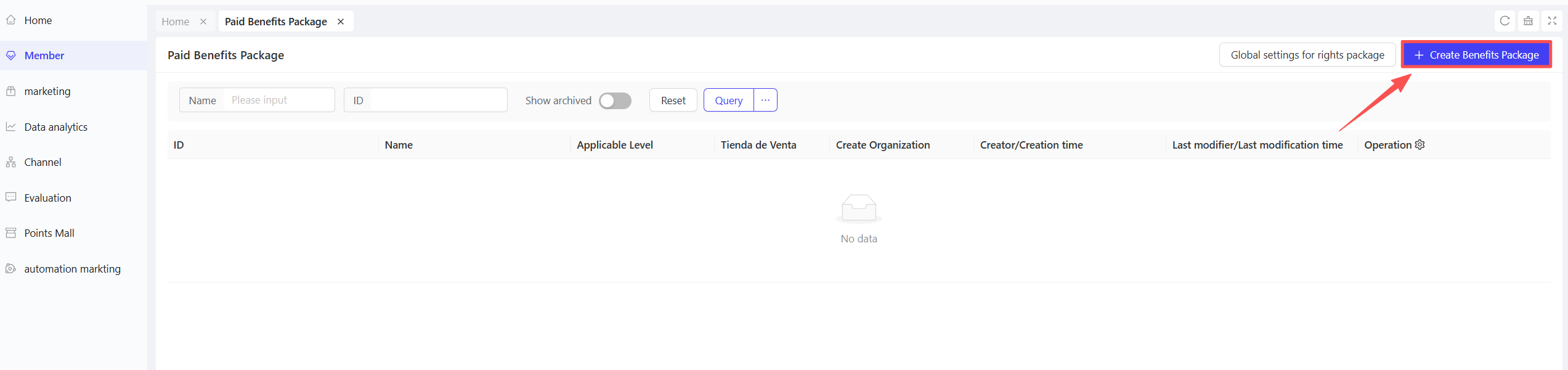
STEP 1: On the Paid Benefit Packages page, click【Create Benefit Package】in the top-right corner.
STEP 2: Configure package rules, including basic information and sales terms.
STEP 3: After setting rules, click【Add Member Benefits】to select included perks.
2.2.2 Paid Benefit Package Management
Access Path:
【Membership Marketing】>【Members】>【Member Benefits】>【Paid Benefit Packages】
Function Description
-
Overview: Manage created paid benefit packages, including sales data tracking, editing, activation/deactivation, and archiving. Optimize package operations to adapt to dynamic business needs.
-
Operation Guide:
- Sales Data: View sales volume, revenue, and buyer information to analyze performance (e.g., adjust strategies for underperforming packages).
- Edit: Modify package details, sales rules, and benefits (e.g., adjust promotion intensity based on market feedback).
- Activate/Deactivate: Control package availability (e.g., deactivate after limited-time promotions end).
- Archive: Remove obsolete packages from the active list for easier management.
- Global Package Settings (Enterprise-Level): Configure validity calculation rules for all packages:
- Immediate Activation After Purchase: A 3-day package purchased at 23:00 on Dec 8 is valid until 23:00 on Dec 11.
- Start at 00:00 of Purchase Date: A 3-day package purchased at 23:00 on Dec 8 is valid until 23:59 on Dec 10.
- Start at 00:00 of the next day: A 3-day package purchased at 23:00 on Dec 8 is valid until 23:59 on Dec 11.
-
Scenario Applications
- When launching a new package version, deactivate and archive the old version to avoid member confusion.
- Identify high-performing packages at specific stores via sales data and increase promotion efforts for those locations.
Operation Steps & Diagrams
STEP 1: Use the search bar to locate the desired package.
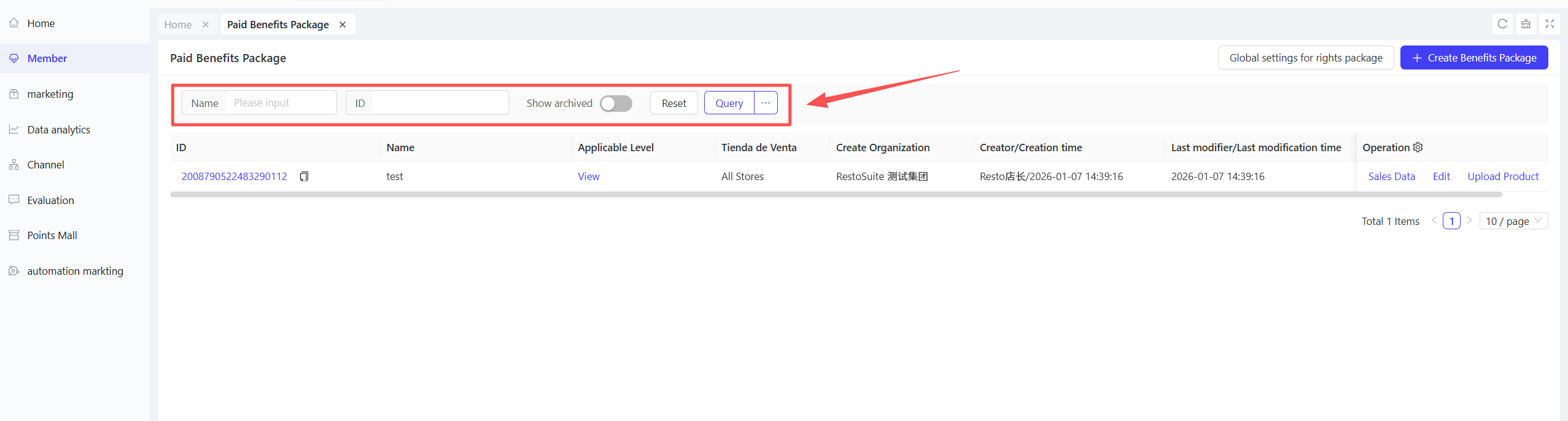
STEP 2: Perform actions (edit, activate/deactivate, view sales data, archive) in the operation column.

STEP 3: On Group View, Click【Global Package Settings】in the top-right corner to configure validity rules.

STEP 4: Select the desired validity calculation rule.
2.3 Top-up Plan
2.3.1 Overview
The Top-up Plan module is the core tool for building a member prepaid system. By flexibly configuring top-up amounts, discount rules, and exclusive benefits, businesses encourage members to prepay funds—locking in long-term spending and improving cash flow. The module integrates member management and marketing needs, supporting fixed-tier or custom-amount top-up rules. It stimulates deposits through tiered discounts and enhances user engagement via benefit bundling, making it a key operational tool for optimising cash flow and repurchase rates.
2.3.2 Create Top-up Plan
Access Path:
【Membership Marketing】>【Members】>【Member Benefits】>【Top-up Plan】
Function Description
- Overview: Create customized top-up plans to attract member prepayments, increase engagement and spending frequency, and accelerate cash flow.
- Configuration Guide:
- Top-up Packages: Predefined fixed-amount or range-based top-up plans with clear bonus rules (fixed amounts, percentage rebates) and benefit bundles to guide members toward standardized top-up tiers.
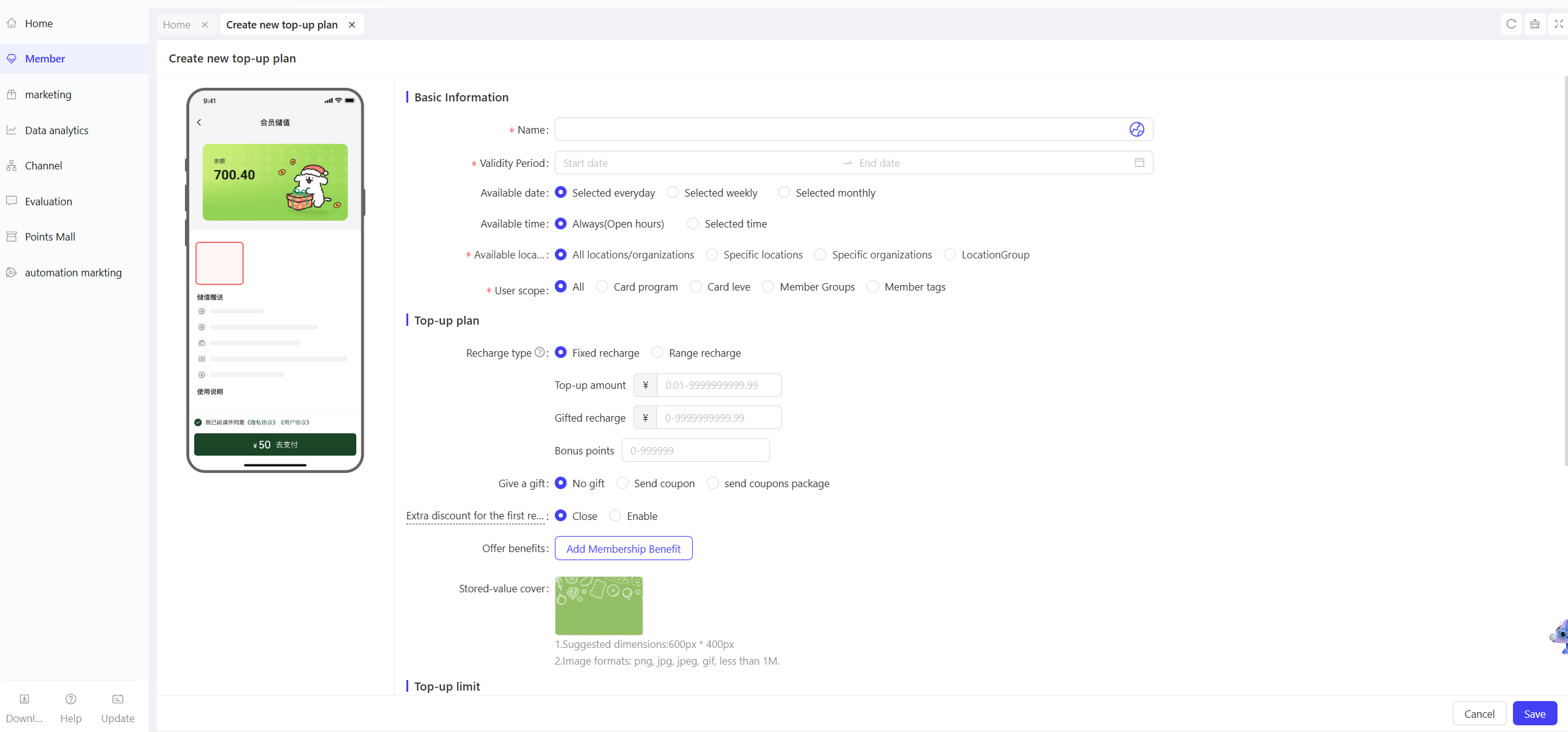
- Basic Information:
- Plan Name: Enter a descriptive name (e.g., “Summer Prepaid Bonus Plan”).
- Validity Period: Set start and end dates for the plan.
- Effective Dates: Select daily/weekly/monthly frequency and specific dates (e.g., “Fridays” for weekly, “1st, 15th, Last Day” for monthly).
- Effective Time: Configure when the plan takes effect:
- For daily effective dates: Select All Day or custom time.
- For weekly/monthly effective dates: Select All Day/Unified Time (e.g., 10:00-22:00)/Custom Time per Date.
- Store Scope: Select applicable stores by individual store, organisation, or store group.
- Selected Stores: Choose included or excluded stores via [+ Select Stores].
- User Scope: Define eligible members by card plan/tier, member group, or tag.
- Tier Upgrade After Top-up: Set the member tier awarded post-Topup (e.g., “Upgrade to Gold Tier”) to incentivise deposits.
- Top-up Rules:
- Top-up Type: Choose Fixed Top-up or Range Top-up.
- Fixed Top-up:
- Top-up Amount: Set a fixed amount (e.g., “$100”).
- Top-up Bonus: Set a bonus amount (e.g., “$10 bonus for $100 top-up”).
- Bonus Points: Set points awarded (e.g., “50 points for $100 top-up”).
- Range Top-up:
- Top-up Range: Set a customizable amount range (e.g., “$100-$500”).
- Top-up Bonus = Top-up Amount × XX%: Set a percentage-based bonus (e.g., “10% of Top-up amount”).
- Bonus Points = Top-up Amount × XX%: Set a percentage-based points bonus (e.g., “5% of Top-up amount”).
- Fixed Top-up:
- Gift: Select gift type (No Gift/Coupon/Coupon Package) (e.g., “1 coffee Coupon”).
- First Top-up Bonus: Toggle on/off additional perks for first-time depositors:
- Bonus Top-up/Points: Set percentage-based bonuses (e.g., “5% extra Top-up bonus, 3% extra points”).
- Bonus Gift: Select gift type (No Gift/Coupon/Coupon Package).
- Bonus Benefits: Select existing member benefits (e.g., member pricing, discounts) to include with the Top-up.
- Top-up Cover Image: Upload a promotional image for member-facing display (comply with platform size/format requirements).
- Top-up Type: Choose Fixed Top-up or Range Top-up.
- Top-up Restrictions:
- First Top-up Only: Restrict the plan to first-time depositors (toggle on/off).
- Stock Limit: Choose Unlimited Stock or set a specific quantity (plan becomes unavailable when stock is exhausted).
- Visibility: Choose to Display or Hide the plan (hidden plans are not visible to members).
- Applicable Channels: Select eligible channels (POS/ONLINE).
- Spending Restrictions: Choose No Restrictions or restrict top-up to specific items.
- Purchase Restrictions: Choose No Restrictions or limit purchases (e.g., “1 plan per member”).
- Auxiliary Settings:
- Agreement: Select a pre-configured top-up agreement.
- Description: Detail rules, discounts, and benefits for members’ clarity.
- Custom Top-up: Allow members to input custom top-up amounts within a predefined range. Bonus benefits dynamically adjust based on the top-up amount, addressing the limitation of standardised packages for diverse member needs. Ideal for businesses with high AOV variance or fragmented member demands.
- Basic Information:
- Plan Name: Enter a descriptive name (e.g., “Flexible Prepaid Plan”).
- Applicable Stores: Choose included or excluded stores via [+ Select Stores].
- Top-up Rules:
- Top-up Type: Custom Top-up.
- Top-up Range: Set a customizable amount range (e.g., “$1,000-$5,000”).
- Bonus Top-up Range: Set a range for bonus amounts (e.g., “$100-$500”).
- Bonus Points Range: Set a range for points awarded (e.g., “100-500 points”).
- Gift: Select gift type (No Gift/Coupon/Coupon Package) (e.g., “1 coffee coupon”).
- Bonus Benefits: Select existing member benefits (e.g., member pricing, discounts) to include with the Top-up.
- Top-up Restrictions:
- Spending Restrictions: Choose to restrict the usable percentage of top-up on the same day or disable top-up bonus usage on the Top-up day.
- Auxiliary Settings:
- Agreement: Select a pre-configured top-up agreement.
- Description: Detail rules, discounts, and benefits for members’ clarity.
Operation Steps & Diagrams
STEP 1: On the Top-up Plans page, click【Create New Top-up Plan】.
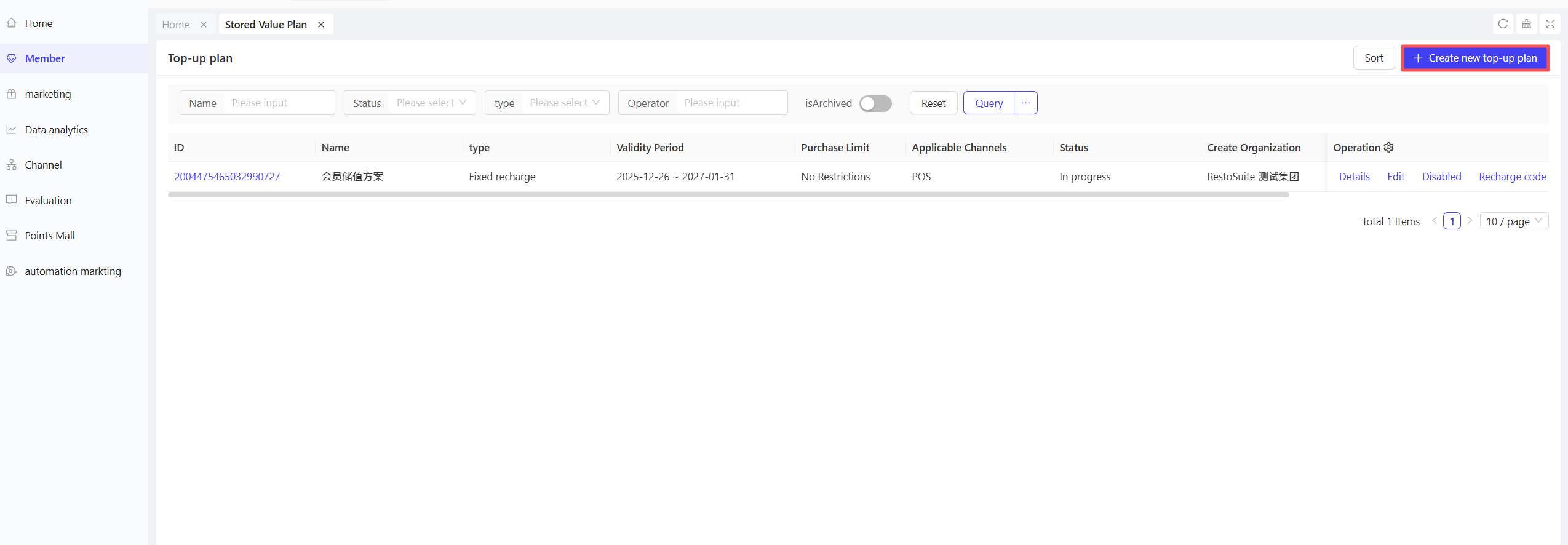
STEP 2: Select the package type (Top-up Package/Custom Top-up).
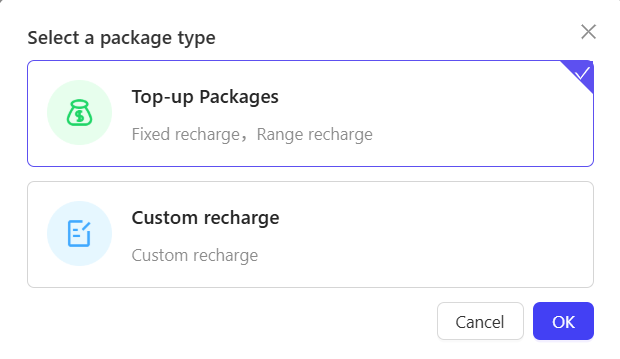
STEP 3: Select the currency.
STEP 4: Fill in basic information, top-up rules, restrictions, and auxiliary settings. Click【Save】to complete.
2.3.3 Top-up Plan Management
Access Path:
【Membership Marketing】>【Members】>【Member Benefits】>【Top-up Plan】
Function Description
-
Overview: Centrally manage created top-up plans, including viewing, editing, activating/deactivating, archiving, and recharge code configuration. Maintain and optimize the top-up plan system efficiently.
-
Operation Guide:
- Activate/Deactivate: Control plan availability based on operational needs.
- Archive: Remove deactivated and obsolete plans from the active list for easier management.
- Edit: Modify existing top-up plan details.
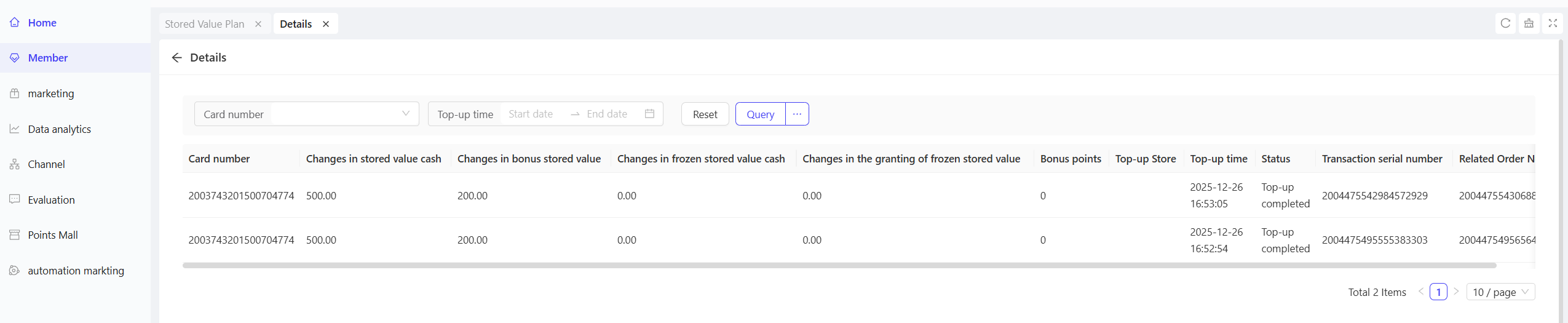
- Details: View top-up details for each member’s card.
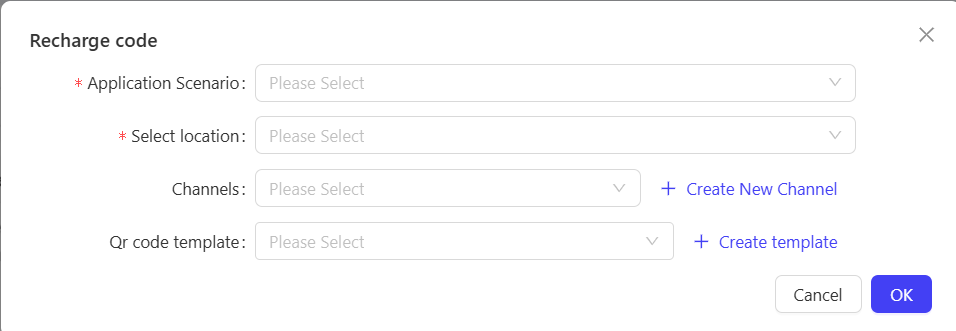
- Recharge Codes: Generate recharge codes for specific plans, configuring applicable scenarios, stores, and channels.
-
Scenario Applications
- During quarterly operational reviews, identify underperforming plans (e.g., “Spring Prepaid Plan”) via the plan list. Edit top-up tiers and bonus benefits, then reactivate to improve participation.
- After holiday-specific plans (e.g., “Mid-Autumn Prepaid Gift Package”) end, deactivate to prevent accidental member participation. Edit and reactivate the plan the following year with updated terms.
Operation Steps & Diagrams
STEP 1: Use the search bar to locate the desired Top-up plan.
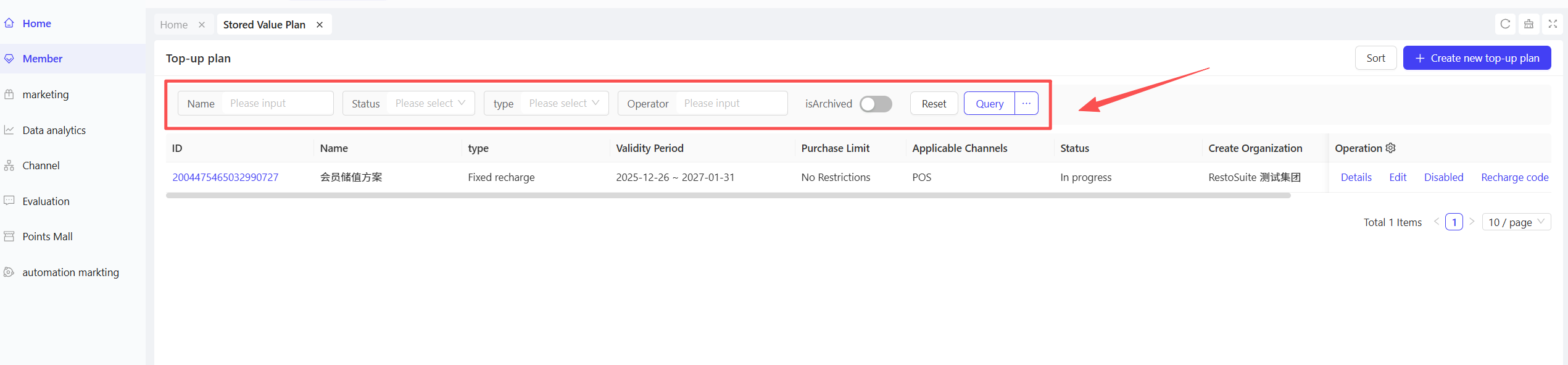
STEP 2: View plan details and perform actions (edit, deactivate) in the operation column.
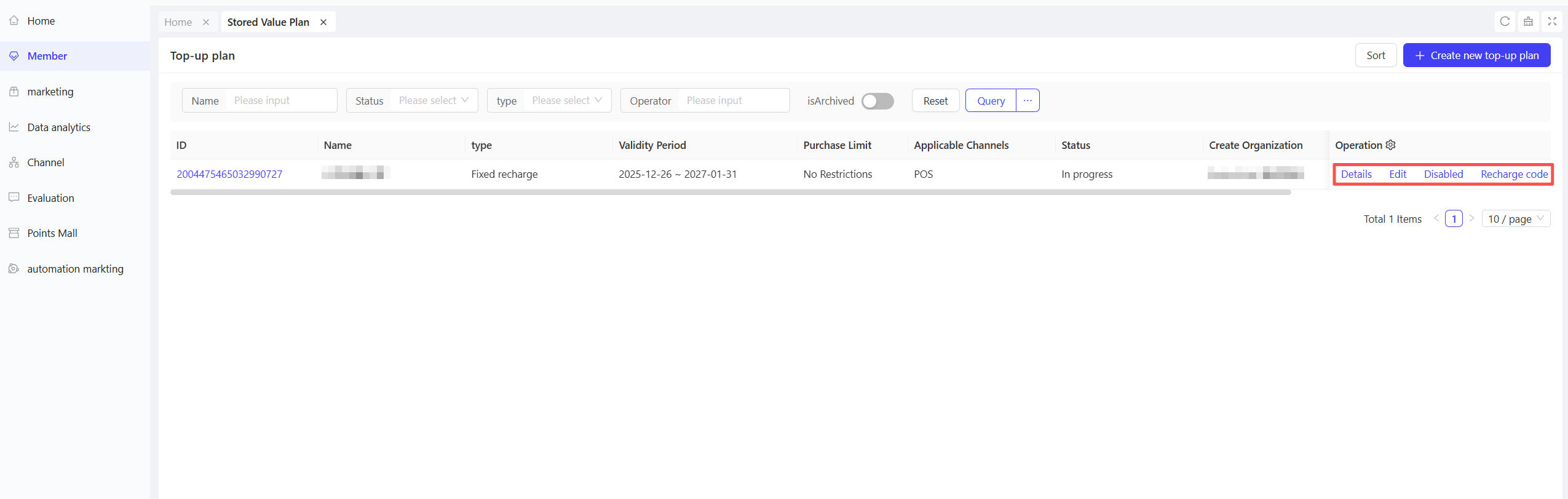
STEP 3: You can configure recharge codes for individual plans.
STEP 4: Click【Details】to view the member card top-up information.
2.4 Smart Top-up
2.4.1 Overview
When a member’s prepaid balance is insufficient to cover a bill, the system automatically matches predefined top-up plans and displays a pop-up. By offering tiered discounts and gift incentives, it guides customers to top up—creating a seamless “payment-deposit” experience to increase top-up rates and repurchase frequency.
2.4.2 Create Smart Top-up Plan
Access Path:
【Membership Marketing】>【Members】>【Member Benefits】>【Smart Top-up】
Function Description
- Overview: Configure custom top-up rules for different member tiers, stores, and consumption scenarios. The system automatically triggers plan recommendations when members face payment issues. Core value: Reduce top-up barriers through data-driven targeted marketing, enhance member engagement, and standardise top-up fund management.
- Operation Guide:
- Basic Information:
- Plan Name: Enter a descriptive name (e.g., “Holiday Smart Prepaid Plan”).
- Validity Period: Set start and end dates for the plan.
- Store Scope: Select applicable stores by individual store, organization, or store group.
- Applicable Card Plans/Tiers: Select eligible member card plans or tiers (e.g., “Silver Tier and Above”).
- Top-up Settings:
- Minimum Top-up Amount: Set a threshold based on average store AOV (e.g., “$100 for an $80 AOV”) to reduce member decision friction.
- Tier Configuration: Add up to 9 top-up tiers with differentiated benefits to meet diverse member needs.
- Tier Type: Choose top-up Discount, top-up Gift, or Fixed Amount.
- Tier Rules:
- Top-up Discount:
- Top-up Amount = Order Amount × X: e.g., 1.2x (Top-up $120 for a $100 order).
- Top-up Bonus = Order Amount × X%: e.g., 8% (earn $8 bonus for a $100 order; total usable top-up = $128).
- Top-up Gift: Combine top-up with points or physical/virtual gifts:
- Top-up Amount = Order Amount × X: Same as Top-up Discount (e.g., 1.3x Top-up for a $90 order = $117).
- Top-up Bonus = Order Amount × X%: e.g., 5% (earn $4.5 bonus for a $90 order).
- Bonus Points = Top-up Amount × X%: e.g., 10% (earn 11.7 points for a $117 Top-up; points redeemable for products or discounts).
- Fixed Amount: Set fixed top-up amounts and corresponding benefits (no link to order value):
- Top-up Amount: Set fixed tiers (e.g., $300, $500, $800).
- Top-up Bonus: Set bonus amounts (e.g., $30 bonus for $300 Top-up, $60 for $500).
- Bonus Points: Set points awarded (e.g., 300 points for a $300 Top-up, 1,000 for $800).
- Top-up Discount:
- Gift: Select gift type (No Gift/Coupon) (e.g., “1 coffee Coupon”).
- First Top-up Bonus: Toggle on/off additional perks for first-time depositors:
- For Top-up Discount/Fixed Amount tiers: Select gift type (No Gift/Coupon) and choose eligible vouchers (e.g., “First Top-up Exclusive $20 off $100 Coupon”).
- For Top-up Gift tiers: Set percentage-based bonus Top-up/points (e.g., 5% extra Top-up, 3% extra points) and select gift type (No Gift/Coupon).
- Top-up Cover Image: Upload a promotional image for member-facing display (comply with platform size/format requirements).
- Top-up Restrictions:
- First Top-up Only: Limit first-Top-up bonuses to members with no prior deposits (toggle on/off) to drive new customer conversion.
- Rounding Precision: Set top-up amount rounding (0.1 = cents, 1 = dollars, 10 = ten-dollar increments, 100 = hundred-dollar increments).
- Stock Limit: Set gift stock quantities (Unlimited Stock/Limited Stock) to avoid cost overruns (e.g., 500 coupons).
- Applicable Channels: Select eligible channels (POS/ONLINE) to meet diverse Top-up needs.
- Auxiliary Settings:
- Agreement: Select a pre-configured Top-up agreement.
- Description: Fill in customer-facing rules (e.g., “Bonus deposits valid for 90 days; combinable with coupons”, “Points redeemable in ‘My Points’ section”, “Refunds deduct used bonus amounts”) to reduce inquiries and improve experience.
Operation Steps & Diagrams
STEP 1: On the Smart Top-up page, click【Create New Smart Top-up Plan】in the top-right corner.
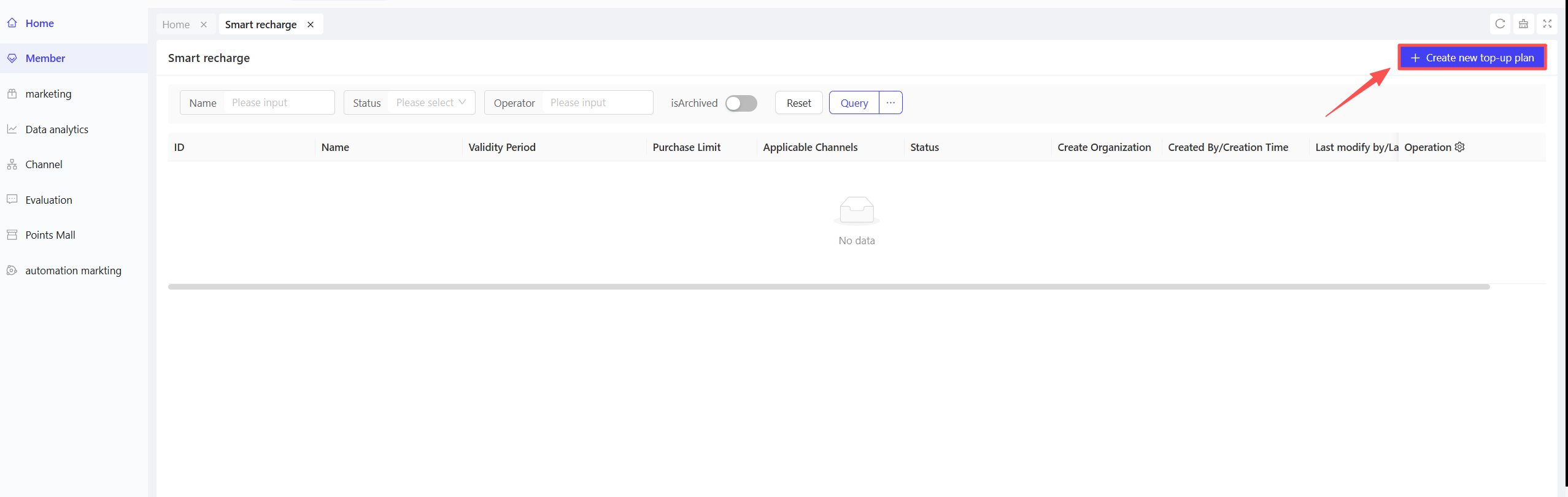
STEP 2: Select the currency.
STEP 3: Fill in basic information.
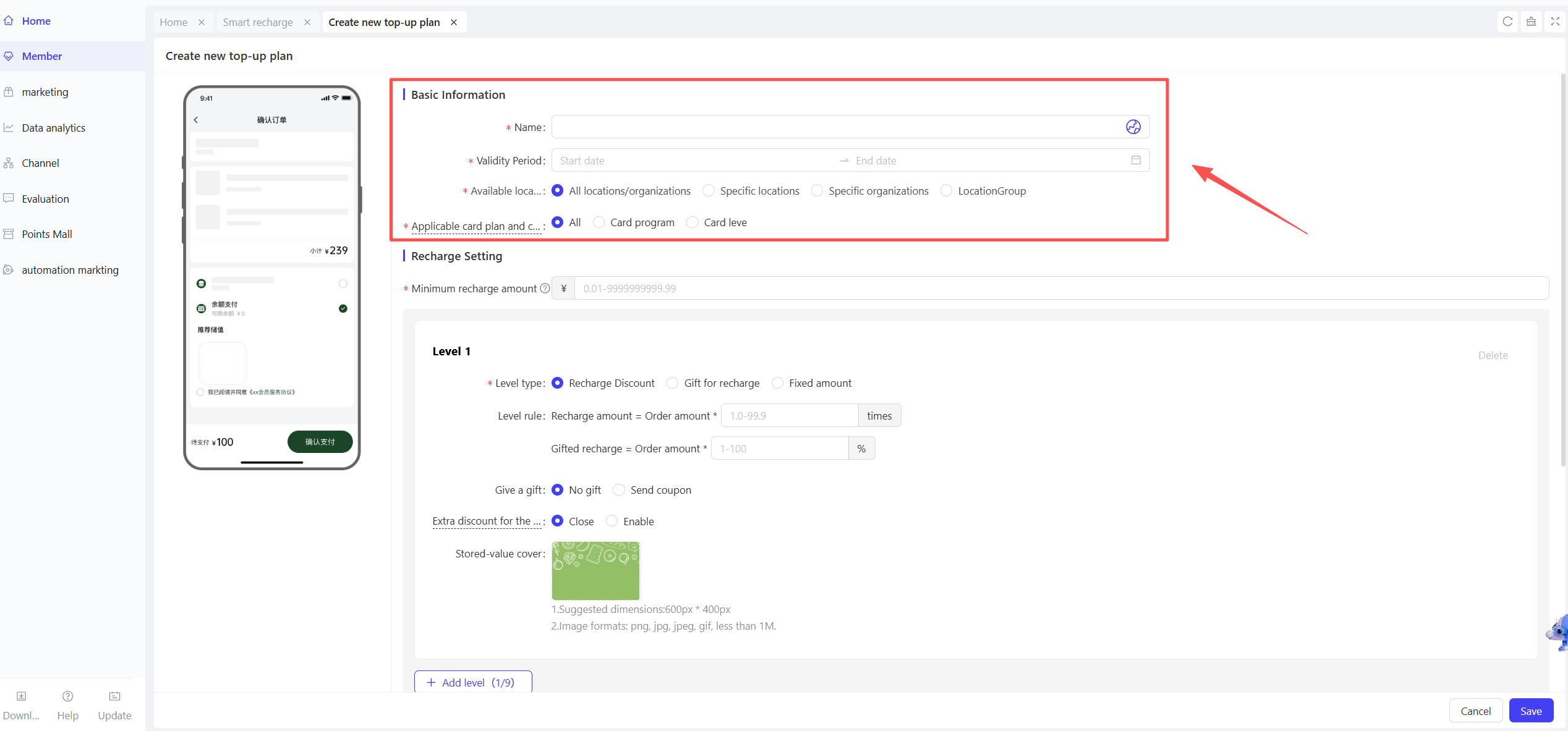
STEP 4: Configure top-up settings and multiple tiers.
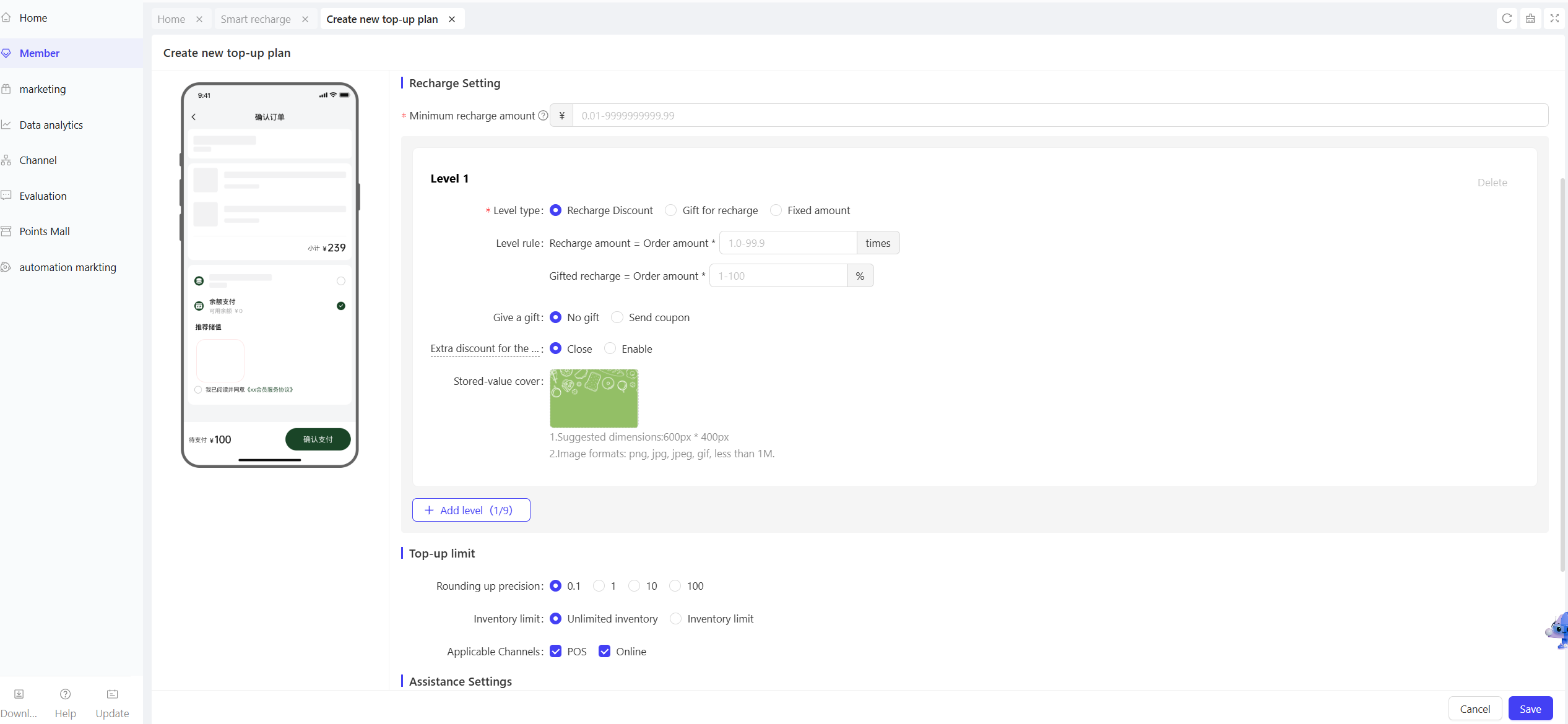
STEP 5: Fill in top-up restrictions and auxiliary settings. Click【Save】to complete.
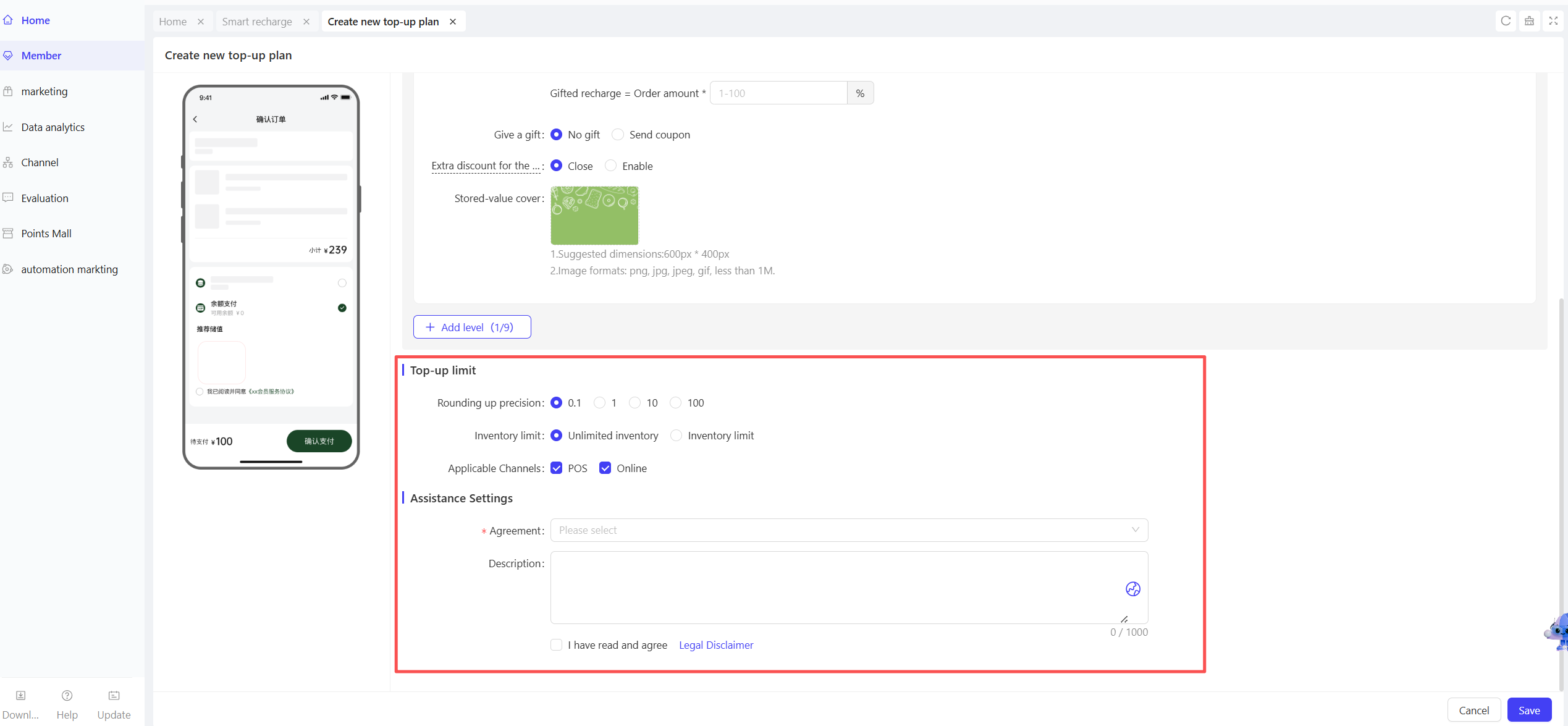
2.5 Gift Card
2.5.1 Overview
Gift cards are prepaid vouchers issued by businesses, available in physical and electronic formats. Sold in fixed denominations or custom amounts, they combine payment functionality with social gifting value—suitable for personal use or gifting to friends/family. Businesses leverage custom card designs and promotional incentives to acquire new customers, increase repurchases, and lock in cash flow.
2.5.2 Create Gift Card
Access Path:
【Membership Marketing】>【Members】>【Member Benefits】>【Gift Card】
Function Description
- Overview: Customize gift card types, denominations, designs, and usage rules. Configure differentiated plans for different stores and channels, including fixed-amount and custom-amount cards. Meet diverse needs such as holiday promotions, corporate gifts, and social gifting.
- Configuration Guide:
- Basic Information:
- Card Type: Select Electronic Card/Physical Card.
- Gift Card Name: Enter a memorable, marketable name (e.g., “2025 Mid-Autumn Reunion E-Cash Card”).
- Applicable Stores: Select eligible redemption stores.
- Card Design: Upload a display image (platform template library available).
- Purchase Settings:
- Gift Card Denominations: Set up to 6 fixed denominations (e.g., $100, $200, $500) based on AOV and usage scenarios.
- Purchase Discount: Set incentives for gift card purchases (e.g., “$20 off $200 gift card”).
- Allow Custom Amount: Enable members to input custom denominations (set range: e.g., $50 minimum, $5,000 maximum).
- Required Purchase Information: Select mandatory or optional fields for buyers:
- Buyer Name
- Buyer Phone Number
- Buyer Email
- Card Number (POS Only)
- Validity Period: Set gift card validity after purchase (e.g., “Valid for 1 year from purchase date”).
- Sales Channels: Select eligible sales channels (POS/ONLINE).
- Top-up Channels: Enable POS recharge for gift cards (toggle on/off).
- Other Settings:
- Terms of Use: Select a pre-configured gift card terms agreement.
- Basic Information:
Operation Steps & Diagrams
STEP 1: On the Gift Cards page, click【Create Gift Card】in the top-right corner.
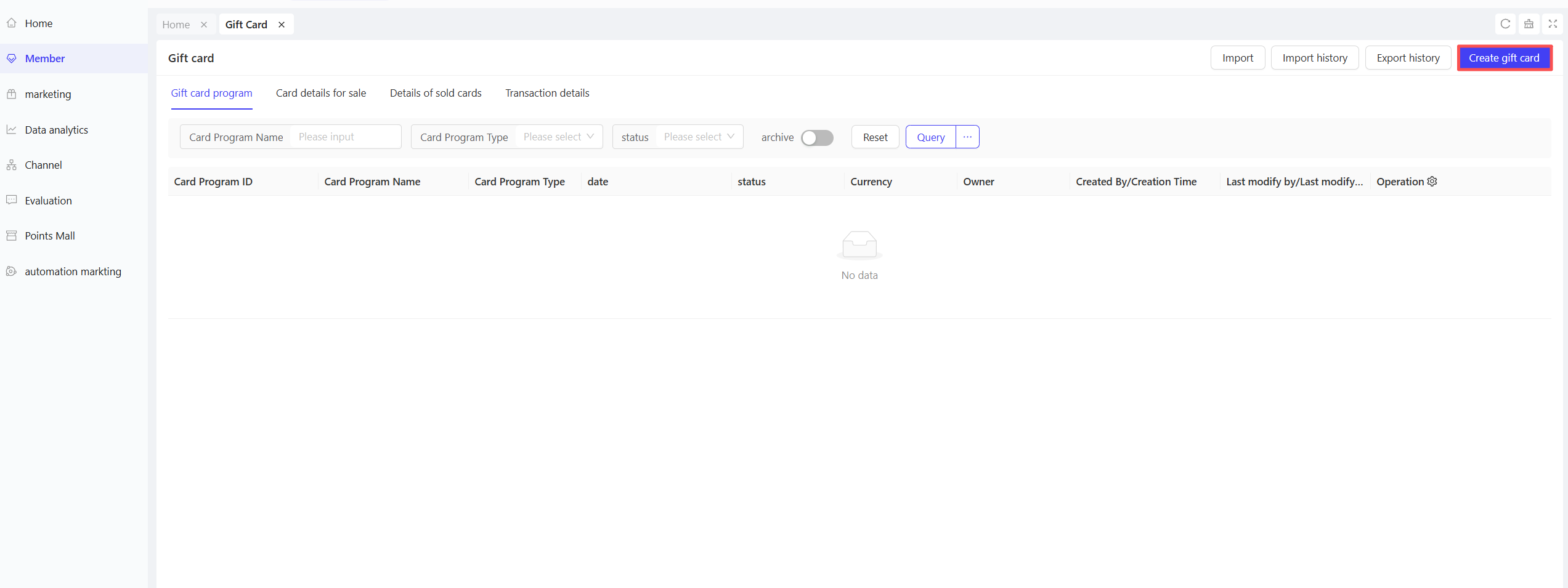
STEP 2: Select the currency.
STEP 3: Fill in basic information.
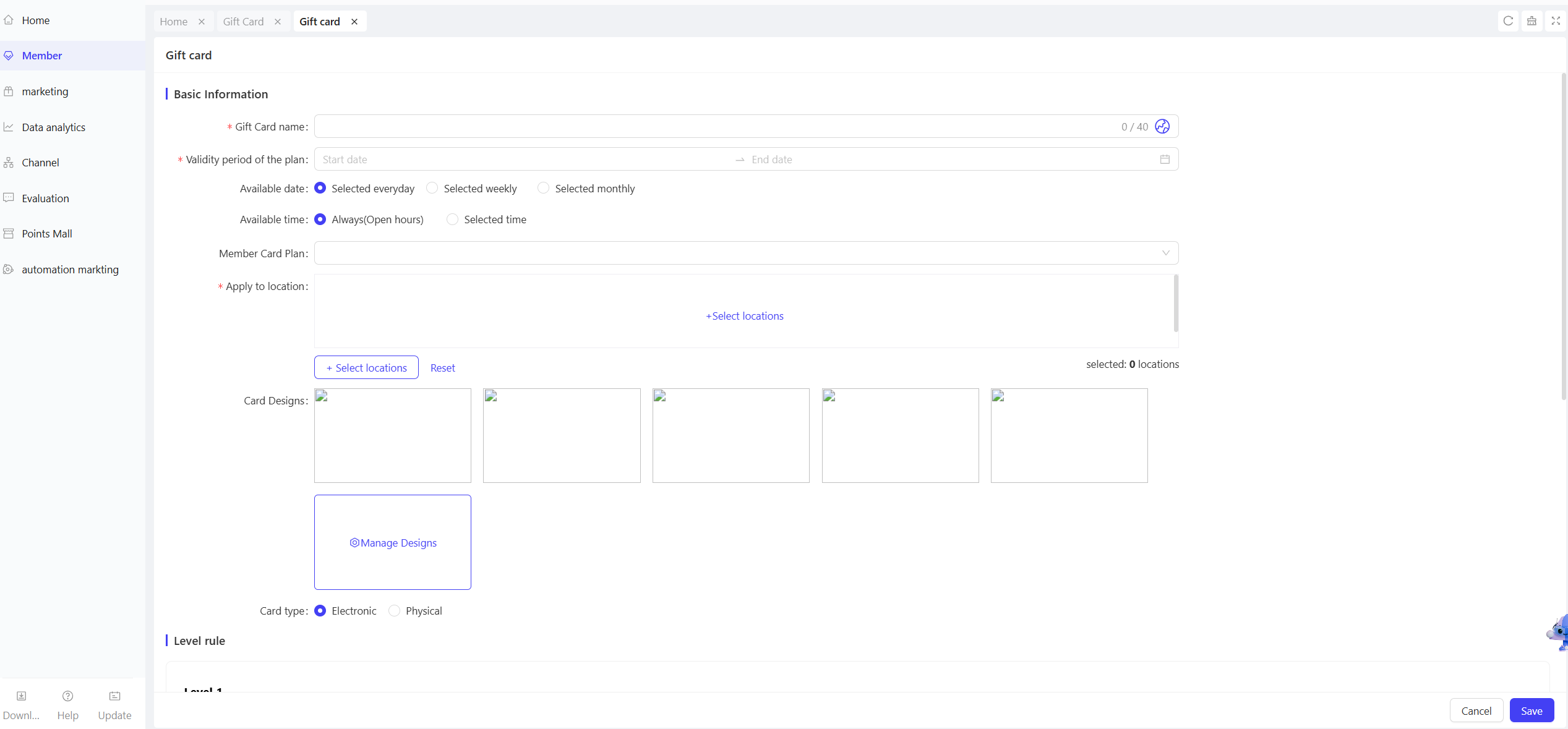
STEP 4: Configure purchase settings and other settings.
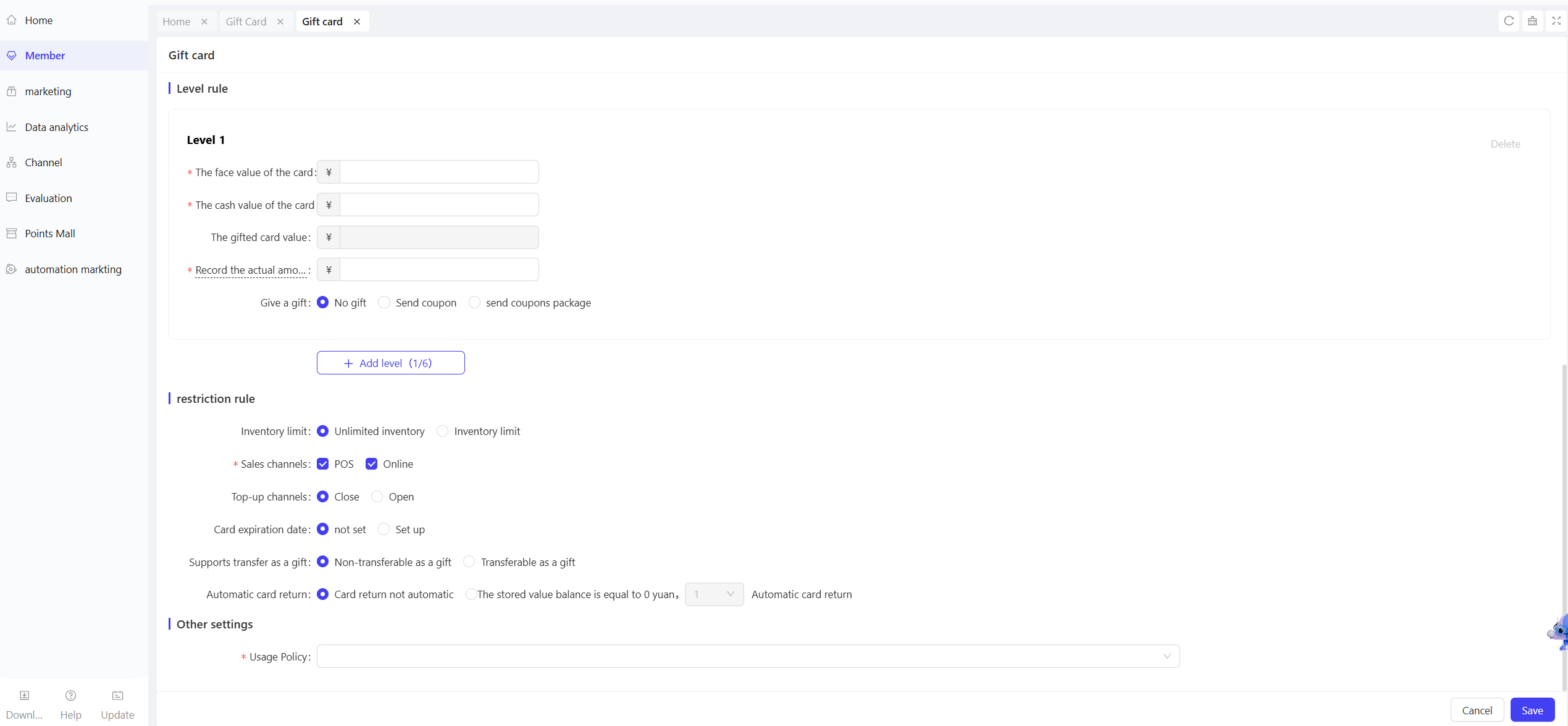
2.5.3 Gift Card Plan Management
Access Path:
【Membership Marketing】>【Members】>【Member Benefits】>【Gift Card】
Function Description
- Overview: Manage the entire lifecycle of created gift card plans, including copying, editing, and status toggling. Quickly iterate card strategies to adapt to dynamic needs (e.g., holidays, promotions) while ensuring configuration flexibility and data consistency.
- Operation Guide:
- Copy Gift Card: Duplicate high-performing plans (e.g., “Spring Festival Gift Card” with 85% redemption rate) to create new versions. The system retains all configurations—only update the name (e.g., “2026 Spring Festival Gift Card”), validity period, and design to improve efficiency.
- Edit Gift Card: Modify gift card configurations.
- Activate/Deactivate Gift Card:
- Activate: Launch inactive plans immediately; update online store and POS availability.
- Deactivate: Pause sales for active plans (e.g., due to stock shortages or rule adjustments). Sold cards remain valid for redemption.
Operation Steps & Diagrams
STEP 1: View gift cards on the list and perform actions (copy, edit, activate/deactivate).
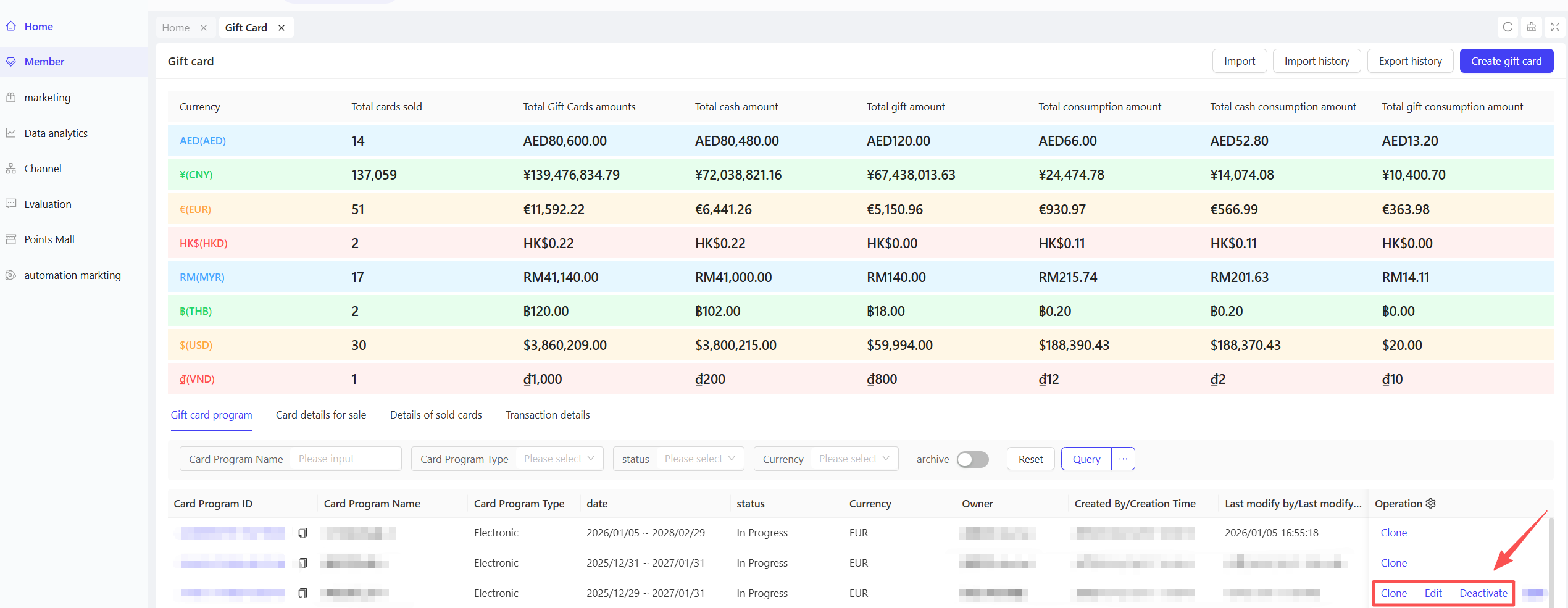
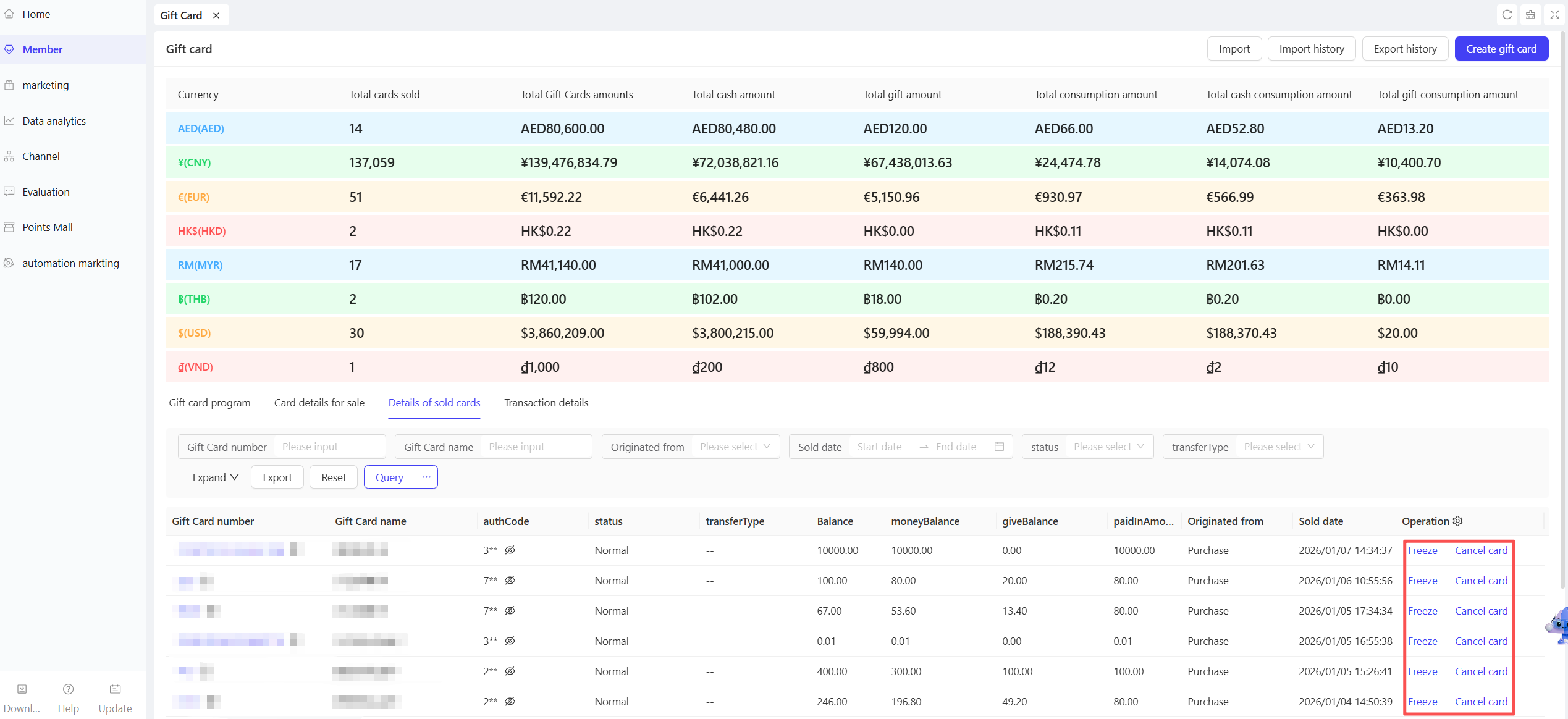
2.5.4 Sold Gift Card Management
Access Path:
【Membership Marketing】>【Members】>【Member Benefits】>【Gift Card】
Function Description
- Overview: Centrally manage sold gift cards, including bulk import, status control (freeze/restore), refund processing, and data export. Ensure clear traceability of card flow, protect business and customer funds, and meet financial reconciliation and compliance requirements.
- Operation Guide:
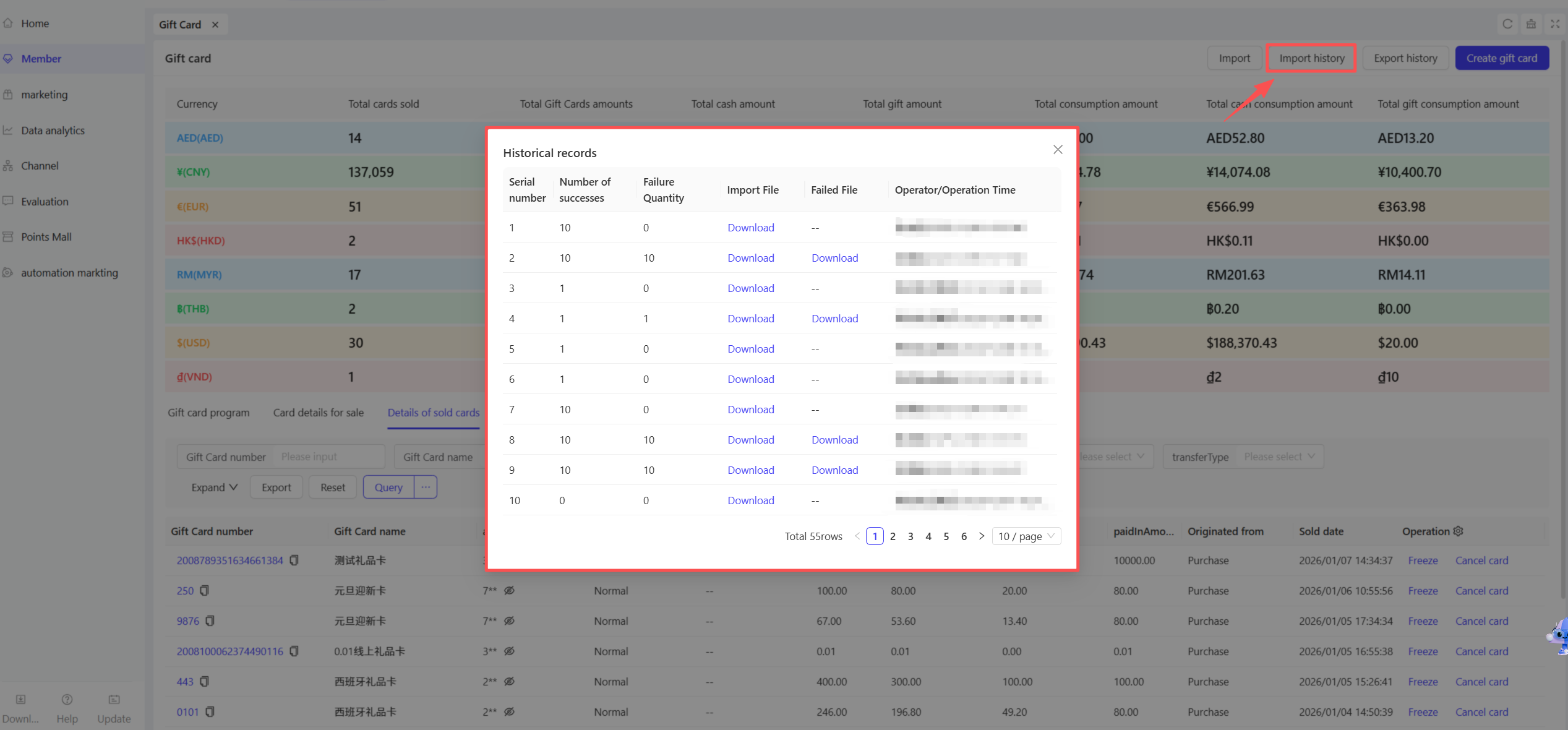
- Import Gift Cards: Bulk import physical card numbers via Excel templates for corporate bulk sales.
- Freeze/Restore Gift Cards:
- Freeze: Lock cards with fraud risks or customer reports (locate via card number or buyer phone) to disable balance usage.
- Restore: Unlock cards after risk resolution or recovery to restore normal status.
- Refund Gift Cards: Process refunds for unused or partially used cards (no refunds for fully redeemed cards).
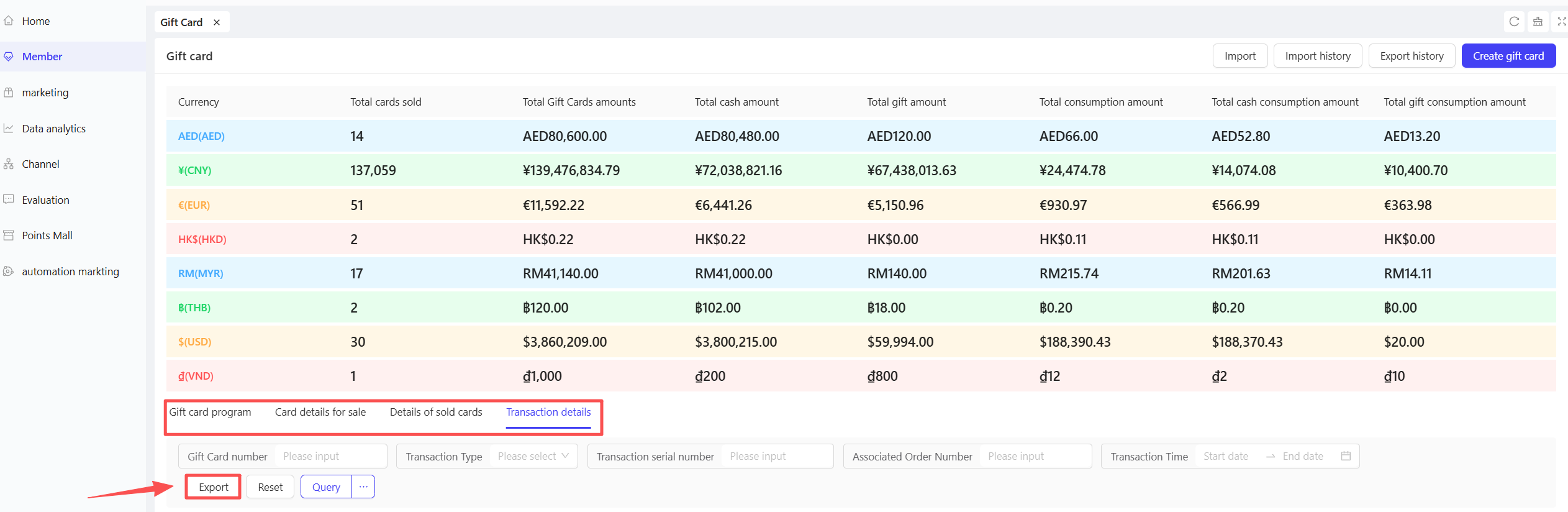
- Export Gift Card List: Generate Excel files for financial reconciliation.
Operation Steps & Diagrams
- Gift Card Import
- STEP 1: On the Sold Gift Cards tab, click【Import】in the top-right corner.
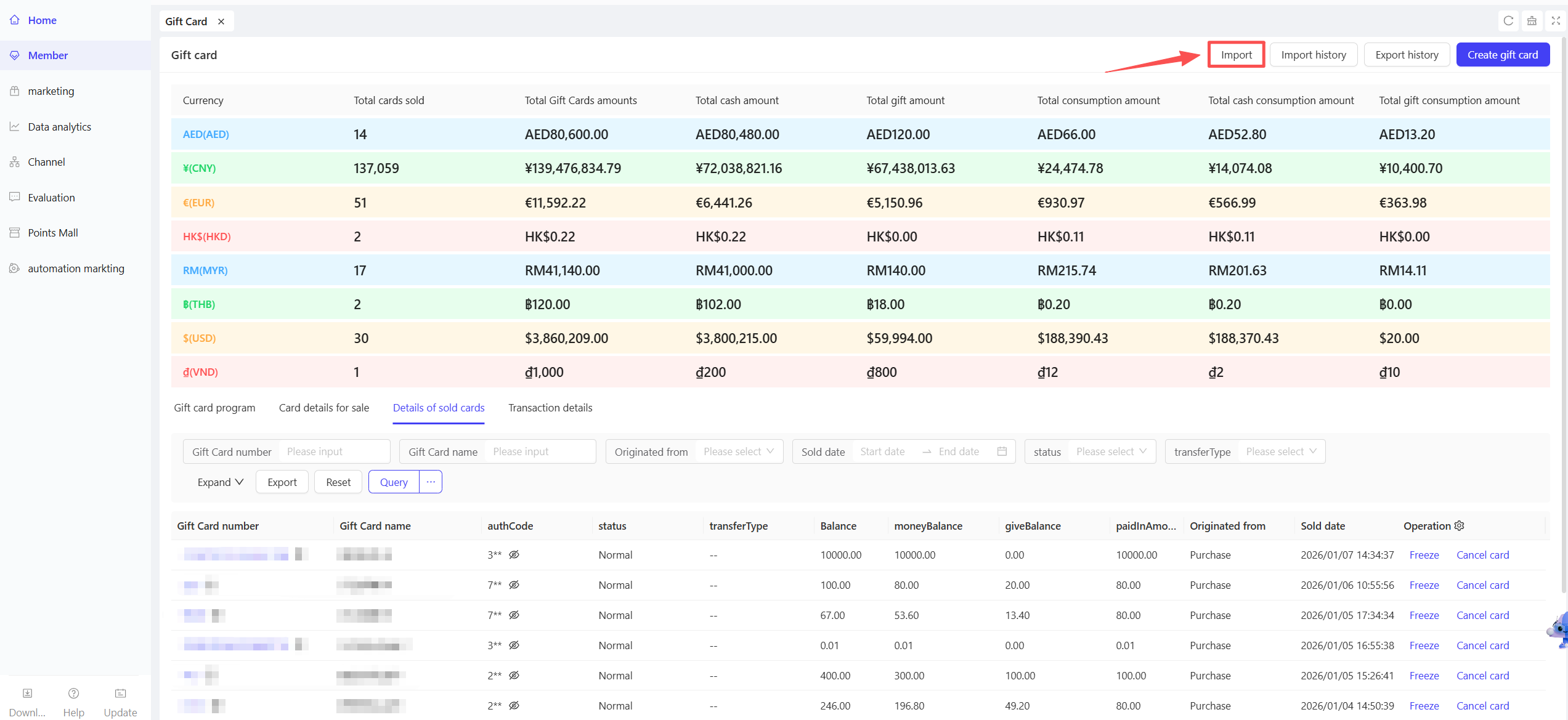
- STEP 2: Download the Excel import template.
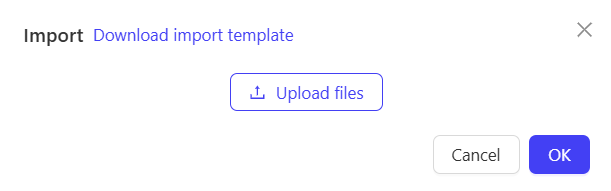
- STEP 3: Fill in the template fields.

- STEP 4: Upload the completed template and click【Confirm】to finish importing.
- STEP 5: View import history.
- Gift Card List Export
- STEP 1: Filter gift cards by criteria and click【Export】
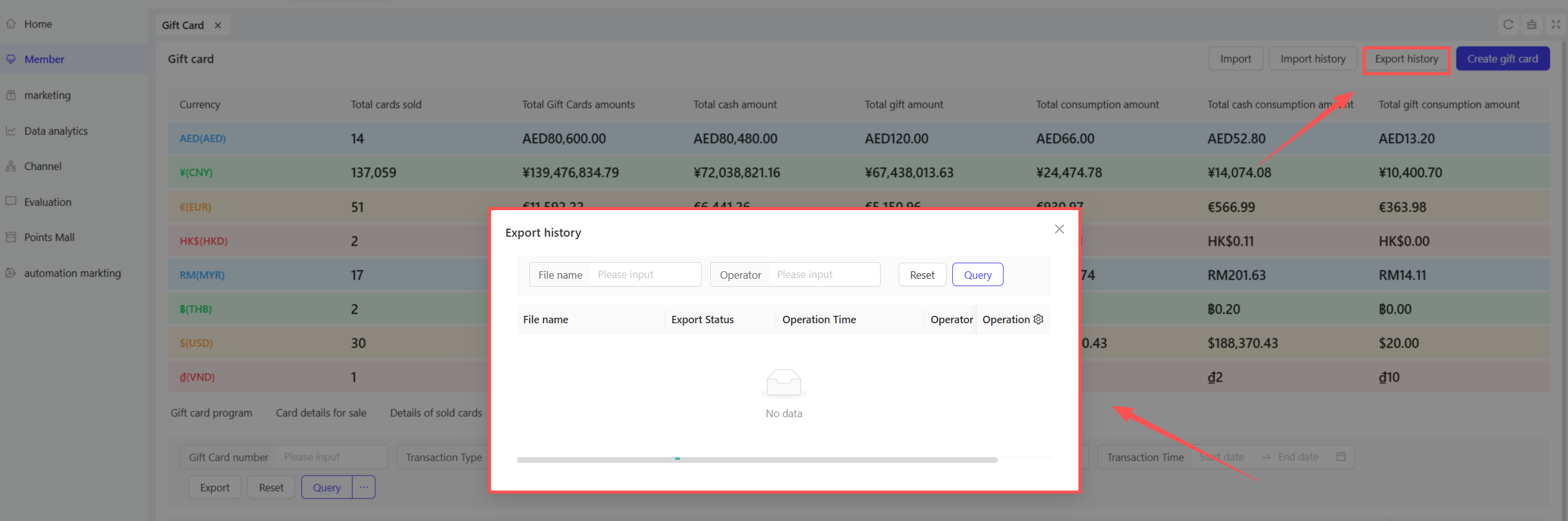
- STEP 2: View export history in the top-right corner.
- List Operations
STEP 1: Freeze or refund gift cards in the operation column.
2.5.5 Transaction Detail Management
Access Path:
【Membership Marketing】>【Members】>【Member Benefits】>【Gift Card】
Function Description
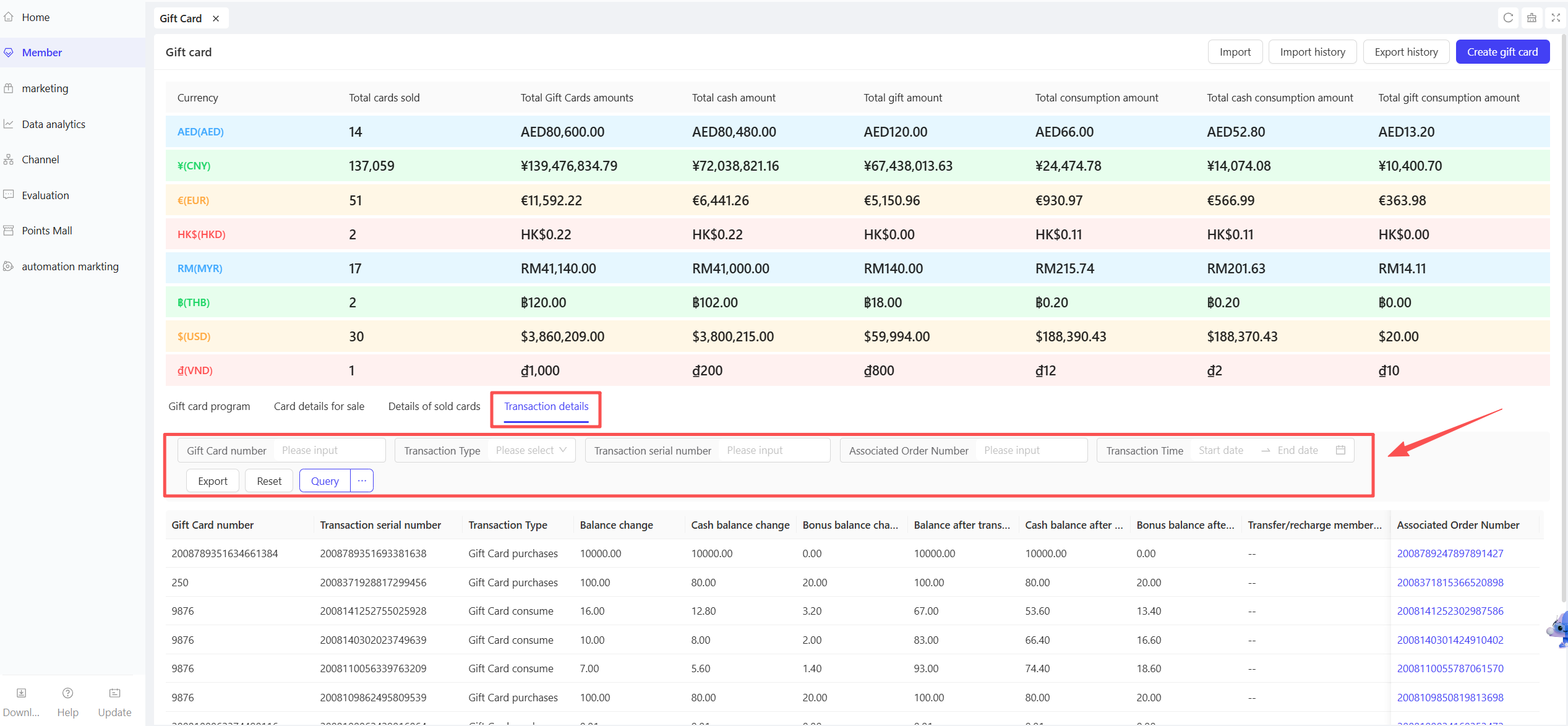
- Overview: Record all gift card transactions (activation, recharge, consumption, refund) with multi-dimensional search and export capabilities.
- Operation Guide:
- View Transaction Details: Access core transaction information and filter by criteria to locate targets.
- Export Transaction Details: Generate Excel files with all transaction fields.
Operation Steps & Diagrams
STEP 1: On the Transaction Details tab, search and export transaction lists.
2.6 Student ID Management
Access Path:
【Membership Marketing】>【Members】>【Member Benefits】>【Student ID】
Function Description
- Overview: Manage student member verification, validity periods, and exclusive benefits. Monitor student member scale and dynamics via data dashboards. Configure student tags, exclusive benefit packages, and verification gifts to build a refined student member operation system.
- Operation Guide:
- Data Dashboard: Visualize core student member metrics to support operational decision-making (view cumulative and daily data).
- Cumulative Data Dashboard: Track overall student member scale:
- Number of Student ID Members: Total valid student members who completed verification.
- Student Member Percentage: Proportion of student members to total platform members.
- Daily Data Dashboard: Monitor daily changes:
- New Student ID Members (Yesterday): Number of members who completed and approved verification the previous day.
- Expired Student IDs (Yesterday): Number of members who lost student status due to expired validity or outdated information (e.g., graduation). High expiration rates indicate potential validity period issues—send “expiration reminders” to encourage re-verification.
- Student ID Settings: Configure core rules to balance verification experience and platform constraints.
- Student ID Validity Period: Set the duration of valid student status after verification (e.g., 6 months).
- Student ID Verification Page: Redirect to a dedicated verification page highlighting post-verification benefits to boost participation.
- Student ID Privileges: Build a closed-loop “identity-tag-benefit-marketing” system for targeted student engagement.
- Student ID Tag: Assign tags to student members for campaign segmentation.
- Student Member Group: Create student-specific groups for focused marketing.
- Student-Exclusive Paid Benefit Packages: Redirect to create packages restricted to verified students.
- Student ID Verification Gifts: Reduce verification barriers and increase conversion rates while balancing costs and operational impact.
- Gift Type: Select post-verification gifts (No Gift/Voucher/Voucher Package).
- Gift Rule: Choose to gift only once (first verification) or for each re-verification.
Operation Steps & Diagrams
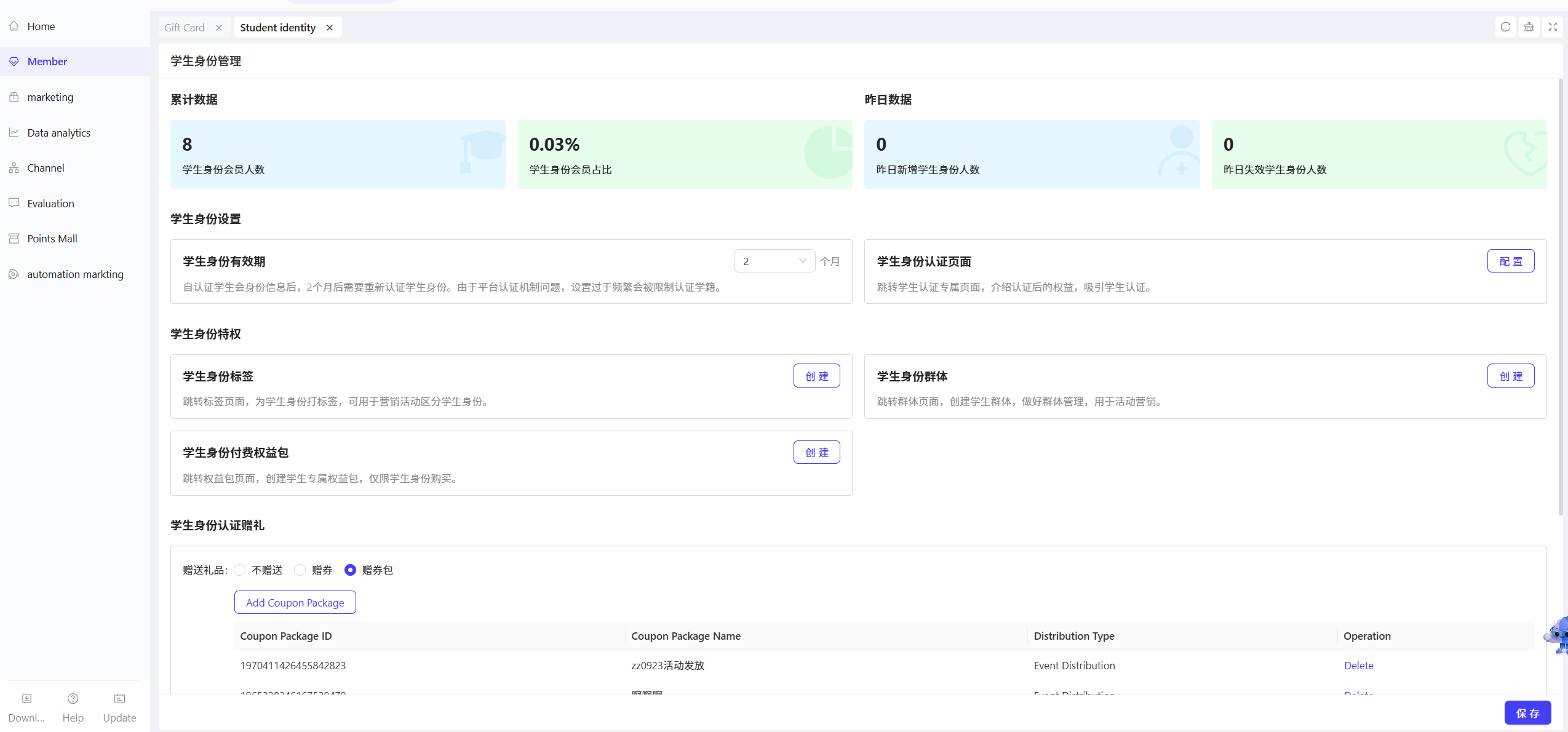
STEP 1: Configure student member benefits on the Student ID Management page.
STEP 2: Set the student ID validity period.
STEP 3: Customize the student ID verification page.
STEP 4: Create student-specific tags, groups, and paid benefit packages.
STEP 5: Configure verification gifts and rules.
STEP 6: Click【Save】at the bottom of the page to complete configuration.