Spend & Save
1 Module Introduction
Spend & Save Promotion is a marketing tool that allows merchants to offer discounts based on qualifying conditions, thereby boosting sales volume and customer conversion rates. This guide details how to set up and manage Spend & Save Promotions on the SaaS platform, including basic information, promotion rules, applicable stores, applicable products, and advanced settings.
2 Configuration Guide
2.1 Basic Information Configuration
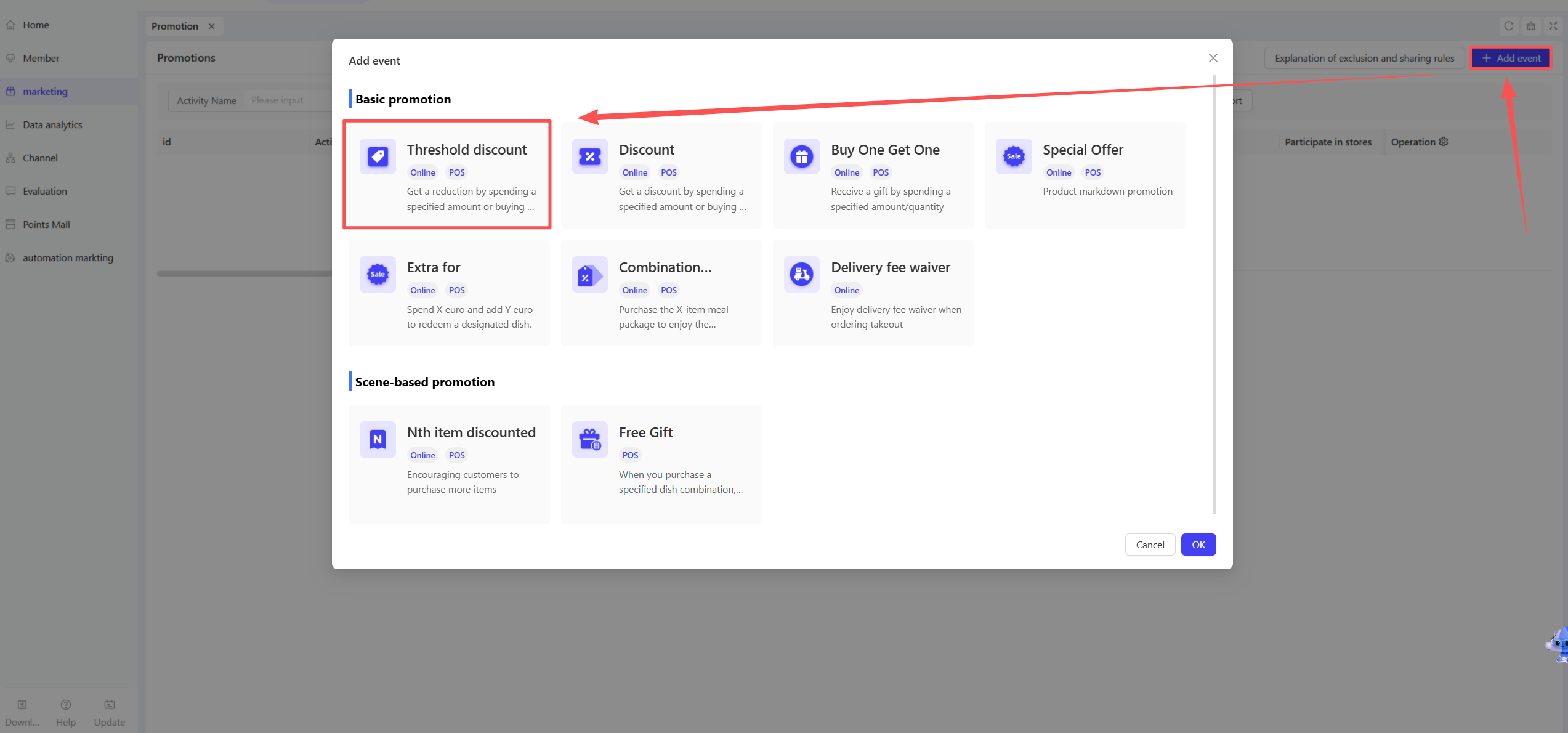
STEP 1: Access the Promotion Management Page
- Log in to the SaaS admin backend, navigate to【Membership Marketing】>【Marketing】> 【Promotional Activities】
- Select the “Spend & Save” module to access the promotion configuration page.
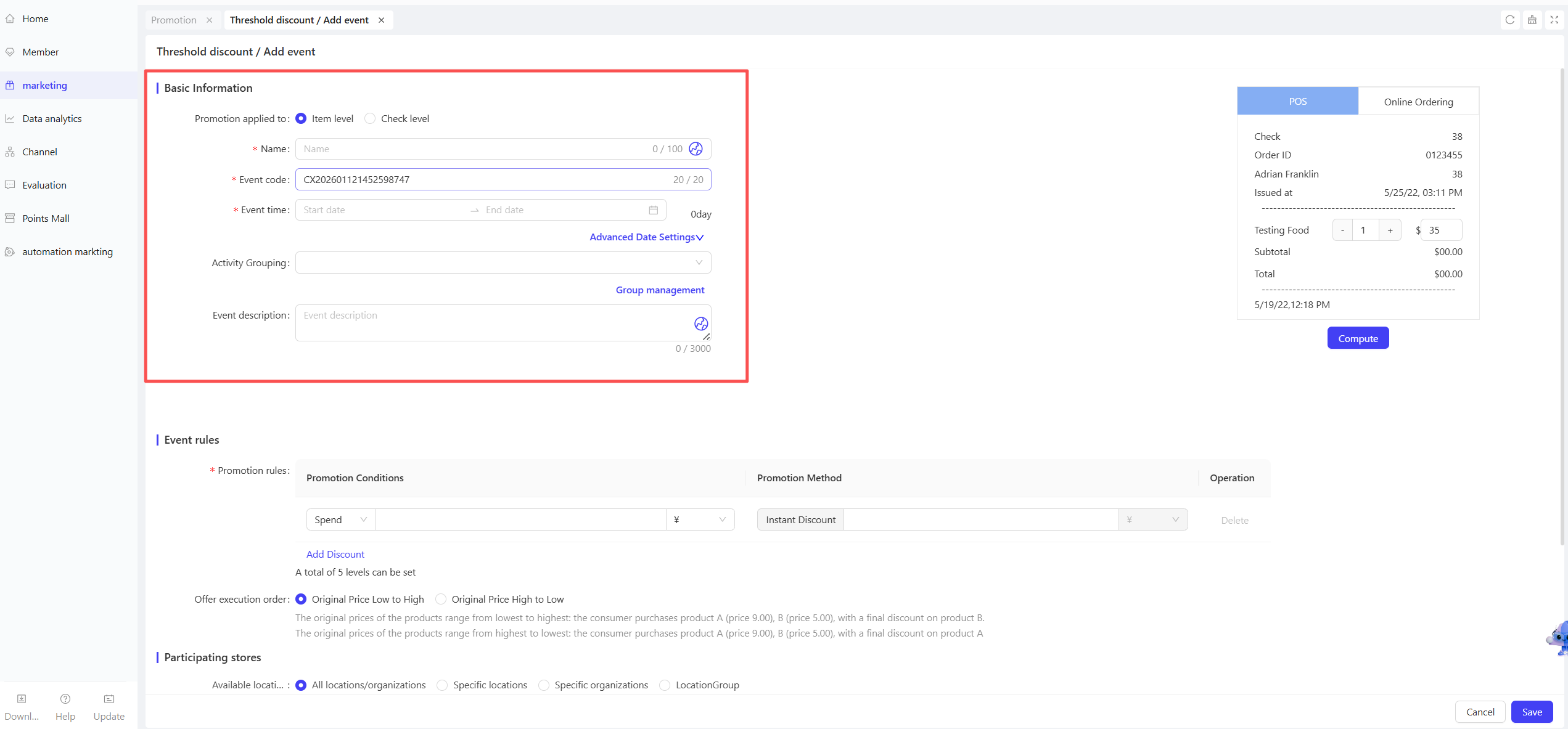
STEP 2: Fill in Basic Information
-
Name: Enter a name (e.g., “Black Friday Spend & Save Blowout”) to help customers easily identify the promotion.
-
Code: Enter a unique identifier for internal management and tracking.
-
Period: Select the start and end dates to ensure a reasonable timeframe.
- Time Slot Restriction: Set applicable time slots (e.g., “2 PM - 5 PM daily” or “Monday to Friday”).
- Date Restriction: Set specific dates to limit the promotion to selected days only.
-
Description: Briefly describe the promotion details and rules in a clear, concise manner.
2.2 Promotion Rules Configuration
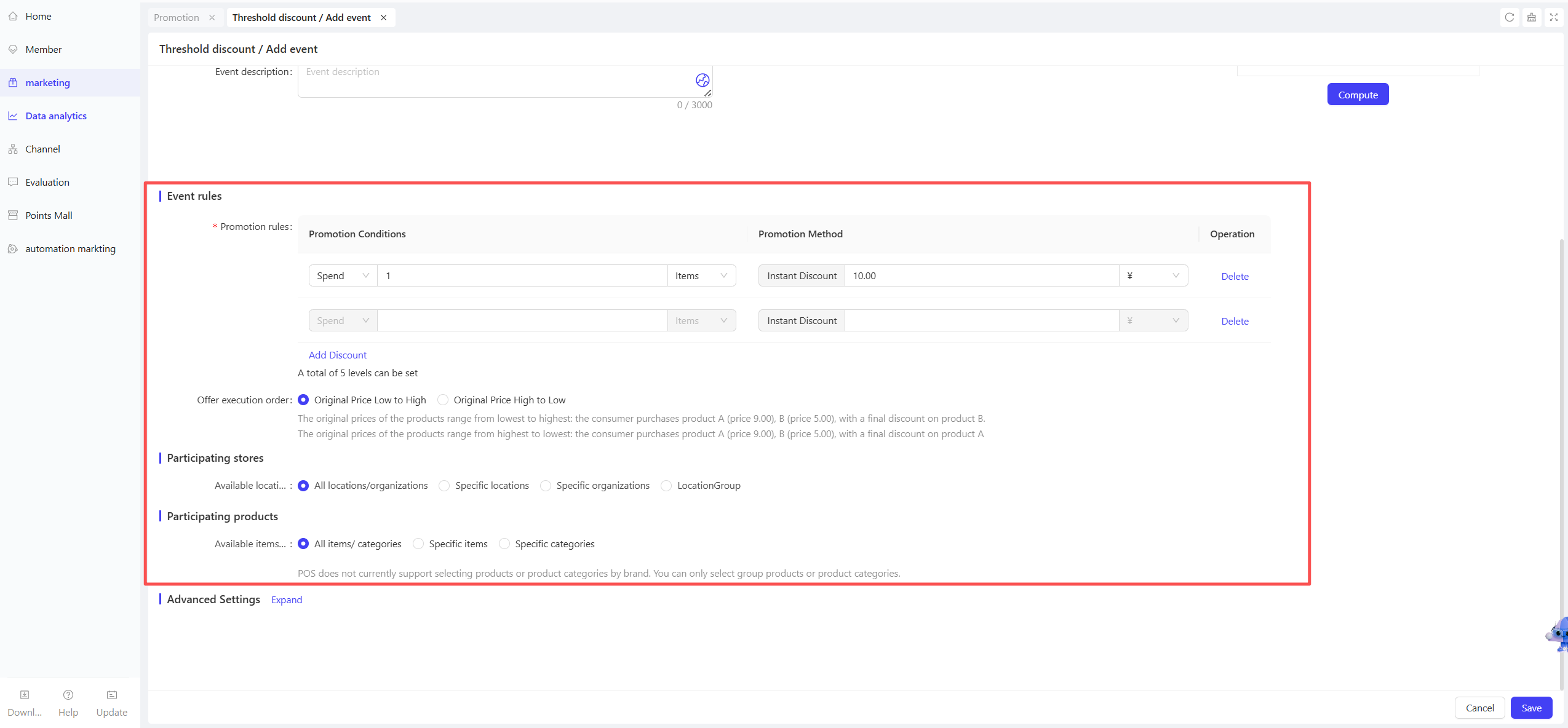
STEP 1: Select Spend & Save Rule Type
- Spend X Dollars, Save Y Dollars: Set a discount of Y Dollars when the order amount reaches X Dollars.
- Buy X Items, Save Y Dollars: Set a discount of Y Dollars when purchasing X items.
- Buy X Items, Get Y Items Free: Offer Y free items when purchasing X items.
STEP 2: Add Discount Tiers
- Supports up to 5 discount tiers. Each tier can have different discount values, and the system automatically applies the highest applicable discount to the order.
STEP 3: Discount Application Order
-
Original Price: Low to High
- Rule Explanation: When an order contains multiple eligible products, the system first applies the discount to the product at the lower original price.
- Scenario Example: If a customer buys Product A (original price: $9.00) and Product B (original price: $5.00), the system calculates the discount for Product B first.
- Applicable Scenario: Ideal for merchants prioritizing discounts on low-priced items to avoid excessive discounts on high-priced products that impact profit margins.
-
Original Price: High to Low
- Rule Explanation: When an order contains multiple eligible products, the system first applies the discount to the product at the higher original price.
- Scenario Example: If a customer buys Product A (original price: $9.00) and Product B (original price: $5.00), the system calculates the discount for Product A first.
- Applicable Scenario: Ideal for merchants prioritizing discounts on high-priced items to encourage customers to purchase higher-value products.
2.3 Applicable Stores Configuration
STEP 1: Select Applicable Stores
- Choose participating stores: select all stores or specific stores (e.g., by region).
STEP 2: Store-Specific Discounts (Optional)
- Customize rules for different stores as needed to implement flexible marketing strategies.
2.4 Applicable Items Configuration
STEP 1: Select Applicable Items
- Choose participating items by category or individual item. Support all items or specific items.
2.5 Advanced Settings
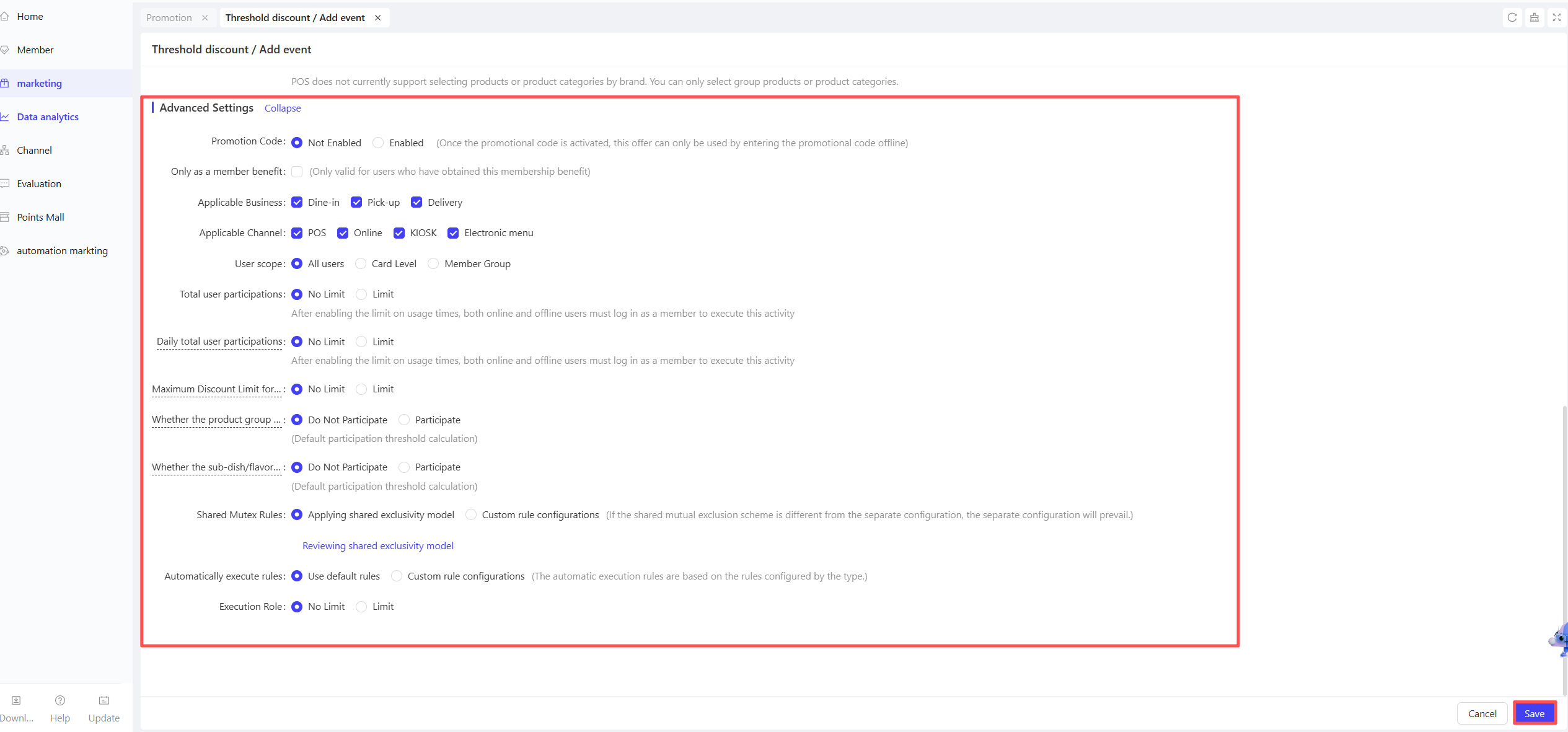
STEP 1: Participant Restrictions
- Access Advanced Settings to configure participant group restrictions. Select specific user groups:
- Membership Tiers: Restrict the promotion to specific membership levels (e.g., VIP Members, Silver Card Members).
- User Tags: Filter users by tags (e.g., New Users, Returning Users).
STEP 2: Participation Limits
- Total Participation Limit per User: Set the maximum number of times a user can participate during the entire promotion period (e.g., 3 times per user).
- Daily Participation Limit per User: Set the maximum number of times a user can participate per day (e.g., 1 time per day).
STEP 3: Maximum Discount per Order
- Set the maximum discount allowed per order. Even if the order qualifies for higher discounts across multiple tiers, the system caps the discount at this limit to prevent excessive losses.
- Example: If the maximum discount per order is set to $50, the final discount will not exceed $50 even if the order triggers a higher discount value.
STEP 4: Side Dishes Eligibility
- Threshold Calculation: Side dishes are included in the threshold calculation by default.
- Included: The system treats main dishes and side dishes as a whole, and the discount is prorated between them.
- Scenario Example: A merchant sets a “Spend $100, Save $10” promotion. A customer buys Product A ($90) and a side dish ($10). The $10 discount is prorated between the main dish and the side dish.
- Excluded: The system only applies the discount to the main dish price; the side dish price is not included in the discount calculation.
- Scenario Example: A merchant sets a “Spend $100, Save $10” promotion. A customer buys Product A ($90) and a side dish ($10). The $10 discount is only applied to Product A.
- Included: The system treats main dishes and side dishes as a whole, and the discount is prorated between them.
STEP 5: Sub-Items/modifiers/Preparations Eligibility
- Threshold Calculation: Sub-items/modifiers/preparations are included in the threshold calculation by default.
- Included: The system treats main dishes and sub-items/modifiers/preparations as a whole, and the discount is prorated between them.
- Scenario Example: A merchant sets a “Spend $100, Save $10” promotion. A customer buys Item A ($90) and selects a sub-item/modifiers/preparation ($10). The $10 discount is prorated between the main dish and the add-on.
- Excluded: The system only applies the discount to the main dish price; the sub-item/modifiers/preparation price is not included in the discount calculation.
- Scenario Example: A merchant sets a “Spend $100, Save $10” promotion. A customer buys item A ($90) and selects a sub-item/modifiers/preparation ($10). The $10 discount is only applied to item A.
- Included: The system treats main dishes and sub-items/modifiers/preparations as a whole, and the discount is prorated between them.
STEP 6: Stacking & Exclusion Rules
- The system sets default stacking and exclusion relationships for different discount types (e.g., coupons, promotions, membership prices, membership discounts). Merchants can use the default rules or configure custom settings during setup.
- Use Default Stacking/Exclusion Scheme: The system applies a universal set of rules for all discount types.
- Customize Rules: Merchants can individually configure stacking/exclusion relationships with membership prices, membership discounts, coupons, and other promotions.
- If there is a conflict between the default scheme and custom settings, the custom settings take precedence.
3 Activate & Manage the Promotion
3.1 Activate the Promotion
- After completing the configuration, click【Save】to activate the promotion.
3.2 Promotion Management & Monitoring
- View performance data (e.g., order volume, discount usage) in the Promotion Management module.
- Pause or adjust the promotion at any time, and manually archive it when necessary.
4 FAQs
4.1.1 Why isn’t the discount applied to my order?
- Verify if the order meets the minimum item/amount requirement.
- Check for stacking restrictions with other promotions.